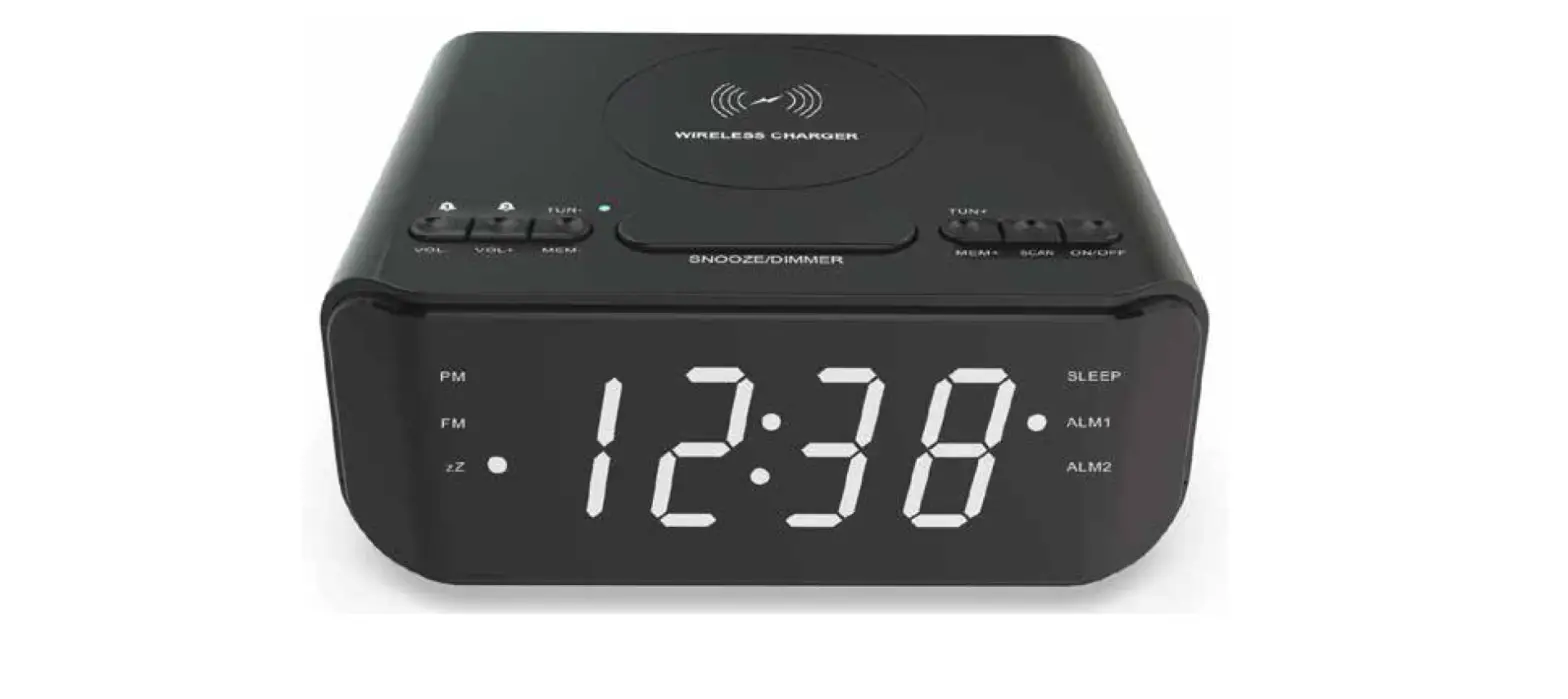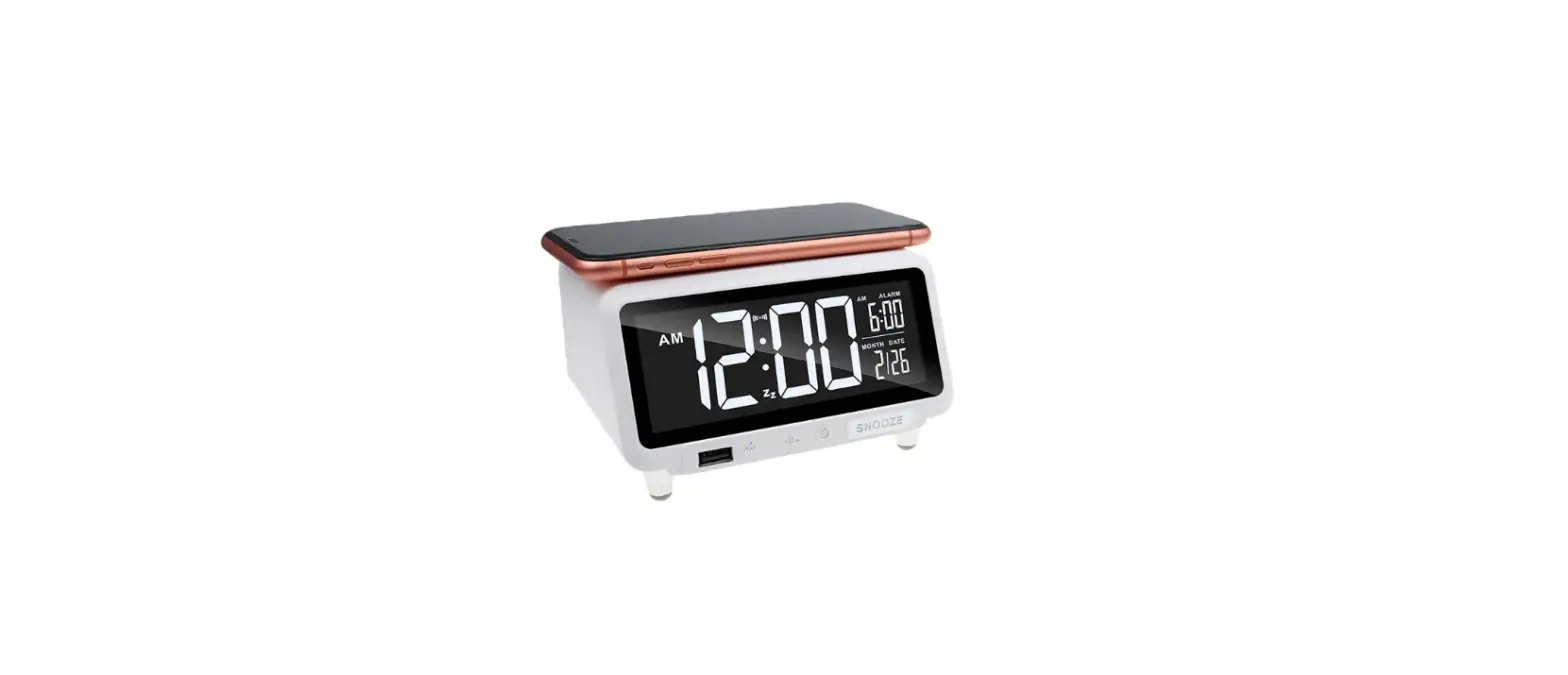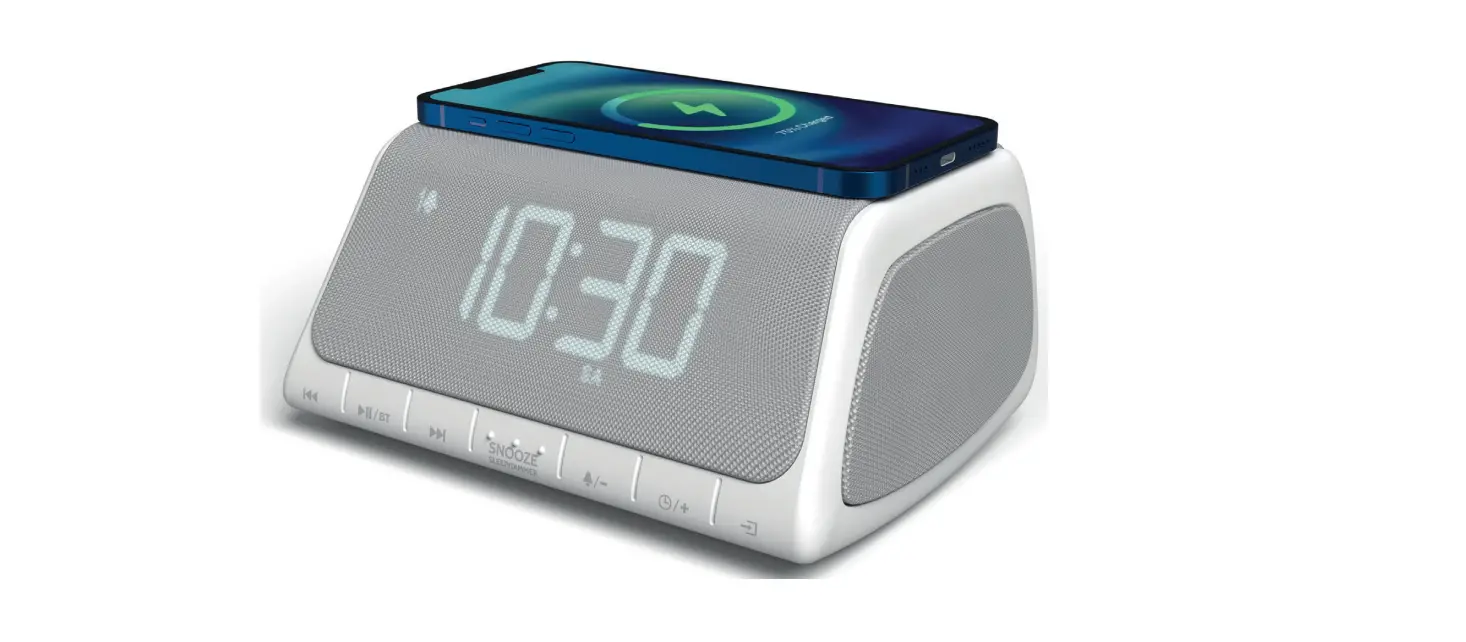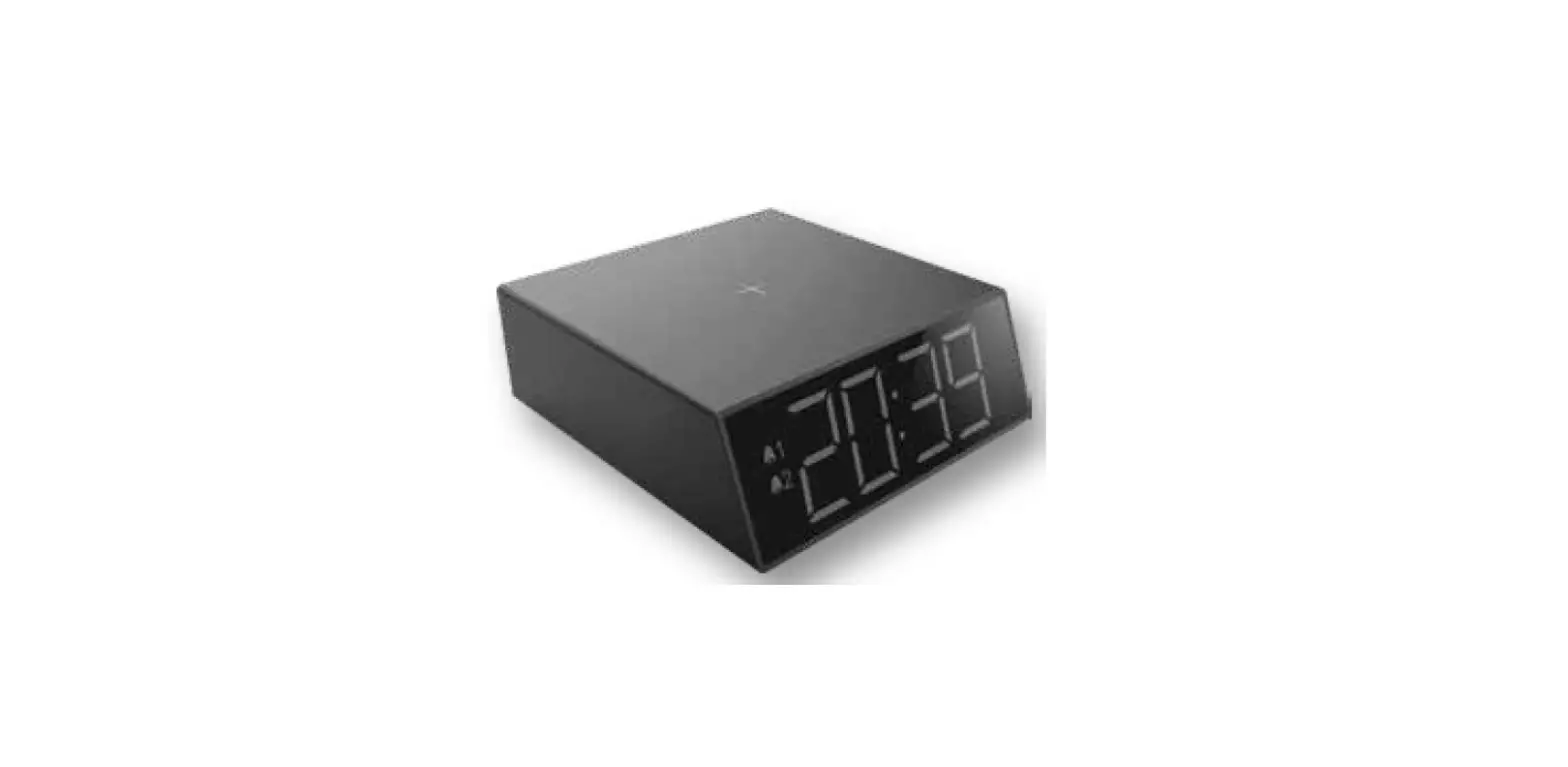


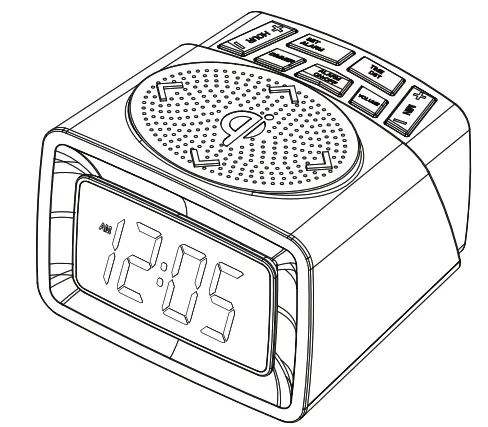
 CR1012W
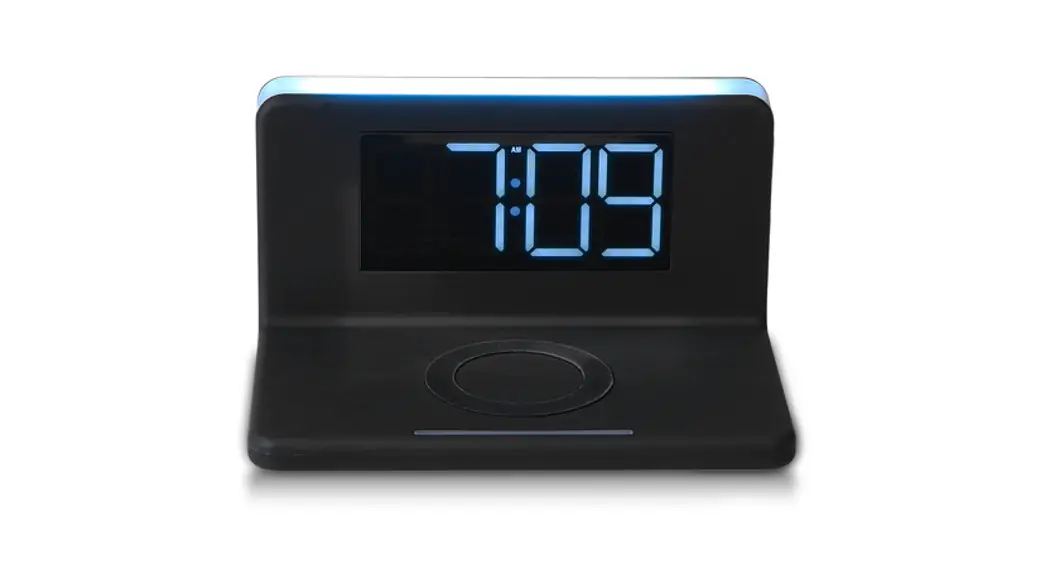
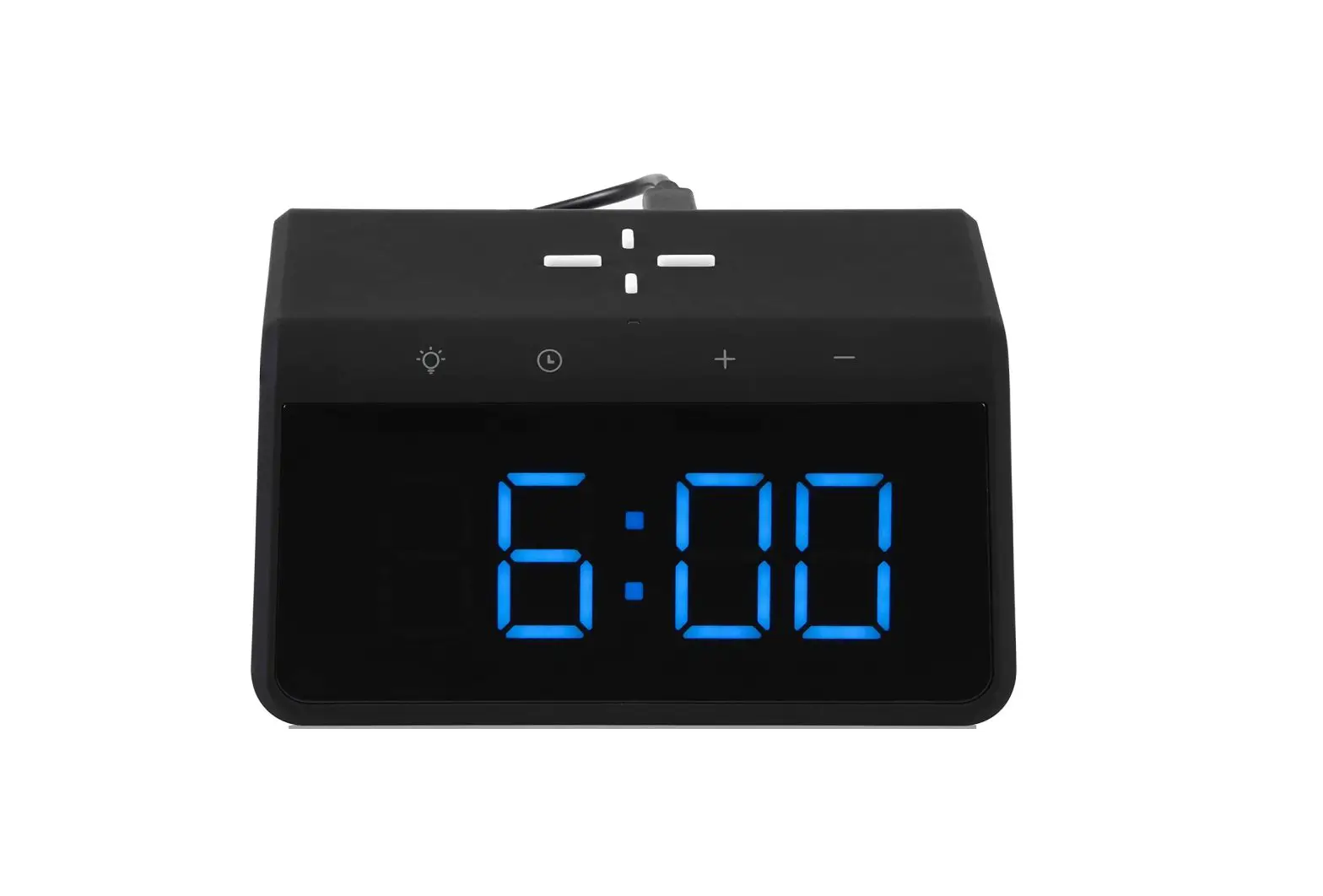
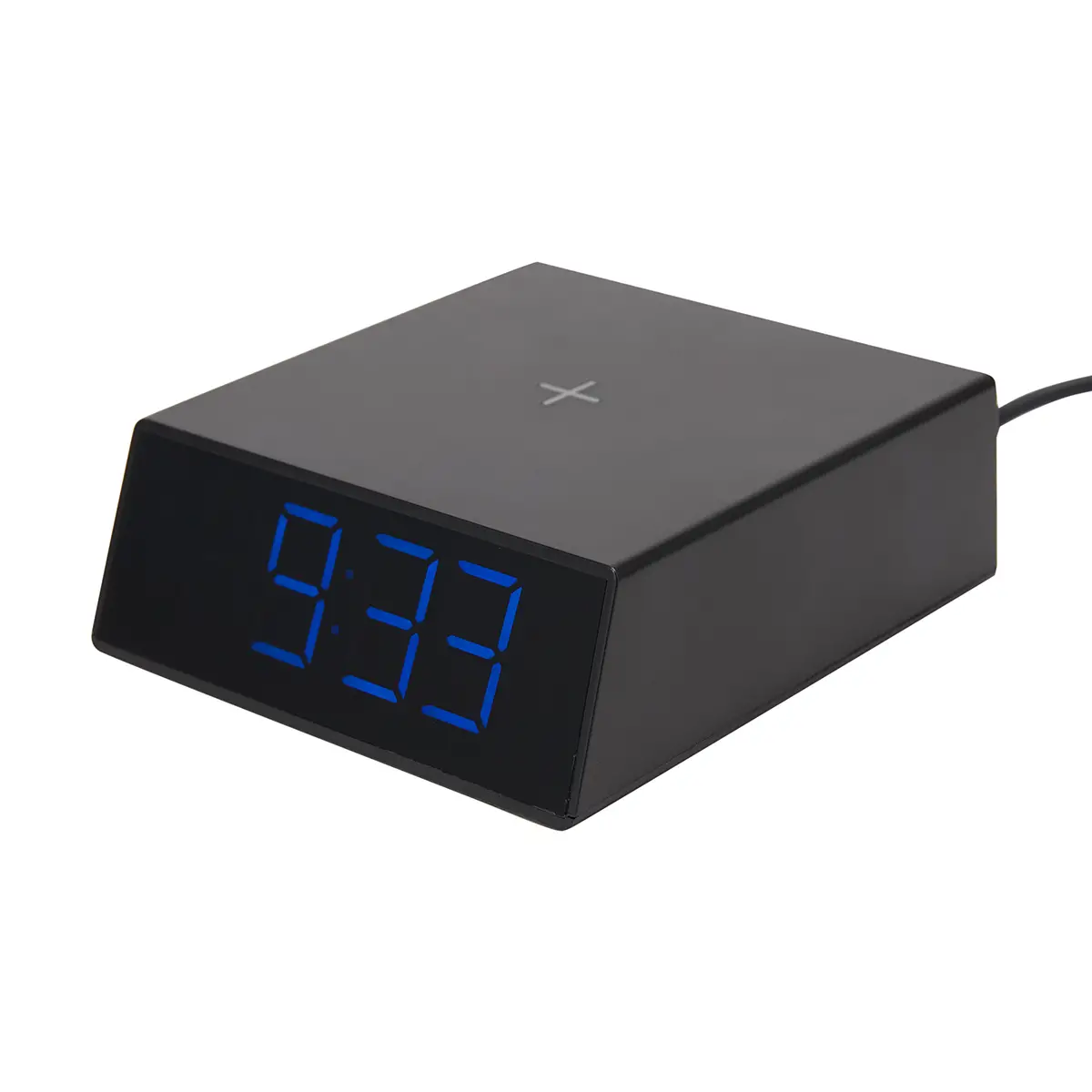
Alarm Clock with Wireless Charging Pad
Charging your phone while you are sleeping
CR1012W Alarm Clock with Wireless Charging Pad
Chapter 1 LOCATION OF CONTROLS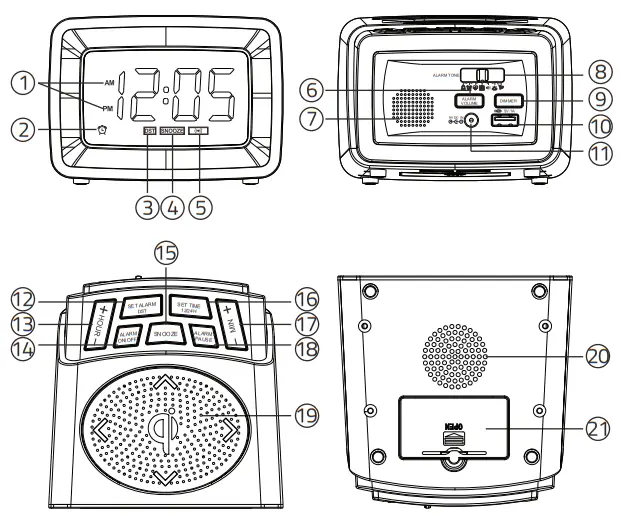
| 1. Time Format Indicator 2. Alarm Indicator 3. DST Indicator 4. SNOOZE Indicator 5. Wireless Charging Indicator 6. Alarm Volume Button 7. Speaker 8. Alarm Tone Switch 9. Dimmer Button 10. USB Charging Port | 11. DC 9V IN Port 12. Set Alarm&DST Button 13. Hour Up/Down Button 14. Alarm ON/OFF Button 15. SNOOZE Button 16. Set Time & 17. Minute Up/Down Button 18. Alarm Pause Button 19. Wireless Charging Panel 21. Battery Compartment 12/24H Button 20. Vents |
Chapter 2 POWER CONNECTION
- Install 2pcs 1.5V “AAA” size batteries to the proper terminals in the battery compartment to memorize the time setting and the alarm will ring in case of a power outage. NOTE: Batteries are not included and don’t support time display.
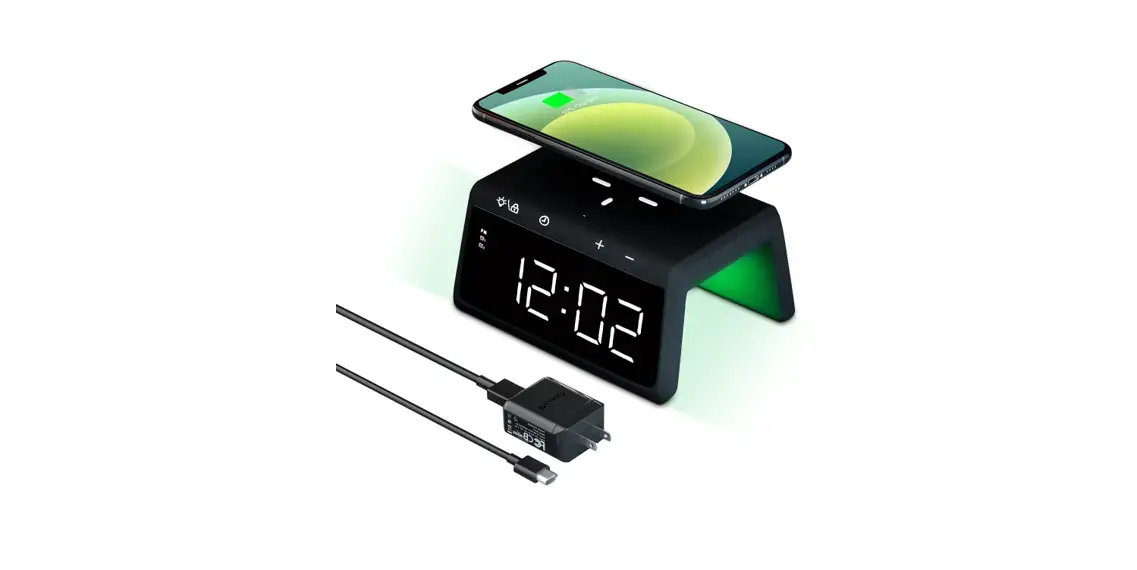
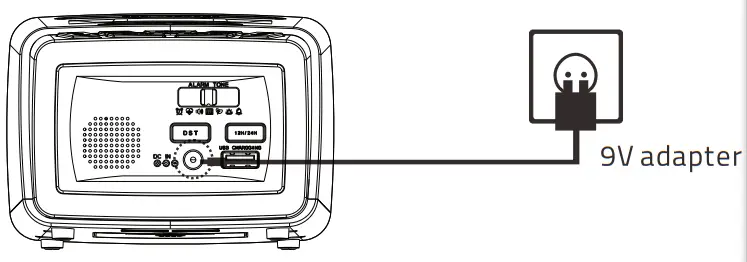
- Connect the adapter line to DC jack, then plug into a 100-240V AC wall power outlet.
NOTE: To ensure the wireless charging speed, Please use the standard 9V/2A power adapter. Other non-standard power sources may cause wireless charging to not work properly.
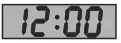
Chapter 3 TIME SETTING
- Press
 button once, display
  starts flashing.
 - Press
 button to adjust the hour, and press the
  button to adjust the minute.
 - Press the button to save time or wait for another 10 seconds to confirm automatically.
 starts flashing.
 button to adjust the hour, and press the
  button to adjust the minute.
Chapter 4 TIME FORMAT SWITCH
- Hold press to change 24 hours time format. AM or PM indicator will turn off.
Hold press  again to change 12 hours time format. AM or PM indicator will turn on.
Note: The default time format is 12 hours time format.
Chapter 5 ALARM SETTING
- Press
 button, the alarm indicator
  will light up, The display
- Press button to adjust the hour, press button to adjust the minute.
- Press button to save time or just wait for another 10 seconds to confirm automatically.
 button, the alarm indicator
  will light up, The display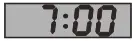
Set Alarm Volume
Press  button to adjust the volume of the alarm. There are 5 levels of volume. The default volume level is 3.
Set Alarm Tone
There are 7 melodies and ringtones. Slide the switch button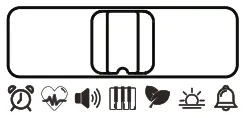 to select the ringtones that you want.
Turn off Alarm
When the alarm goes off:
- Press
 the button to temporarily turn off the alarm for 9 minutes. The alarm will ring every next 9 minutes.
 - Press
 button to turn off the alarm for 24 hours, the alarm indicator will still be on, the alarm will be activated again after 24 hours.
 - To completely turn off the alarm, just press
 button and the alarm indicator will disappear from the display.
 the button to temporarily turn off the alarm for 9 minutes. The alarm will ring every next 9 minutes.
 button to turn off the alarm for 24 hours, the alarm indicator
  button and the alarm indicator
 Chapter 6 DIMMER
Press tton to adjust the brightness of the display to your preference.
Chapter 7 DST SWITCH
- Hold press to light up the
 indicator. An hour will be added to the current time on the display.
 - To turn off DST, hold press button again, the Indicator will disappear from the display.
 indicator. An hour will be added to the current time on the display.
Chapter 8 USB CHARGING
Plug the charging cable into a mobile device, then the clock can charge your device. The maximum charge current is 1 Ampere.
Chapter 9 WIRELESS CHARGING
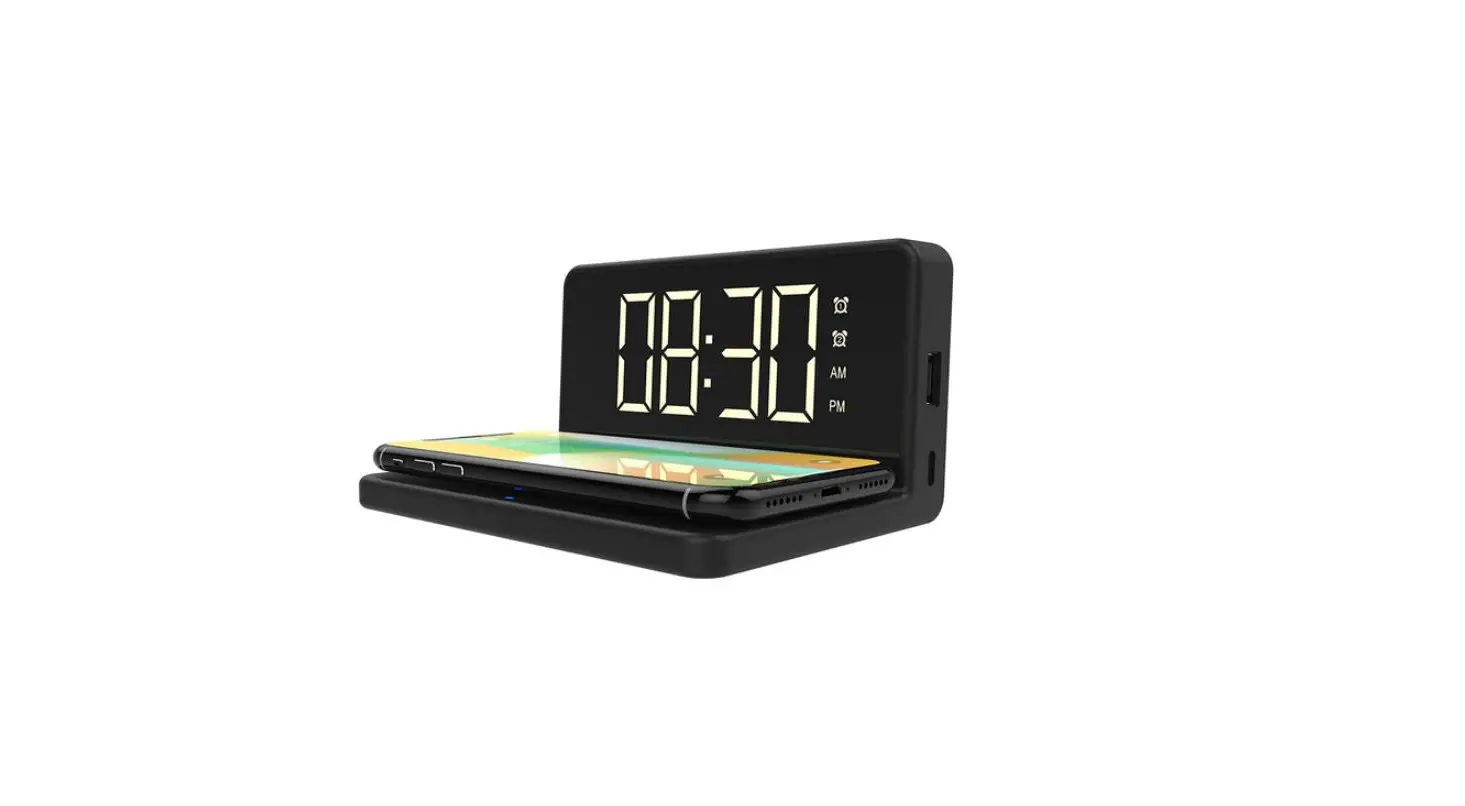
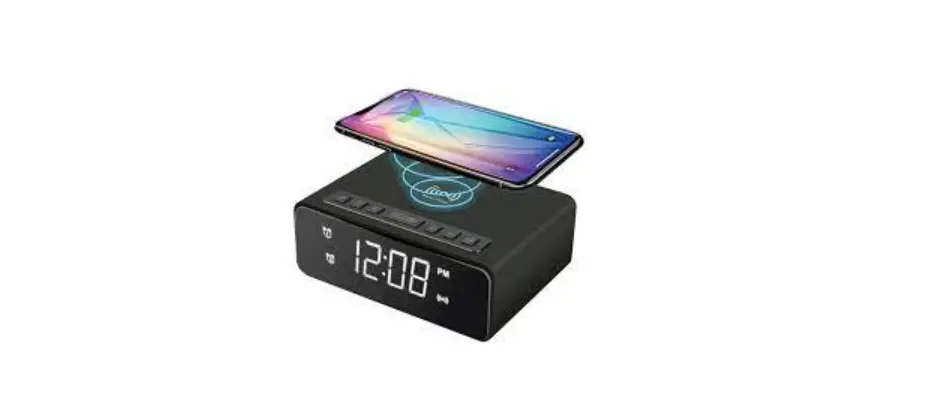
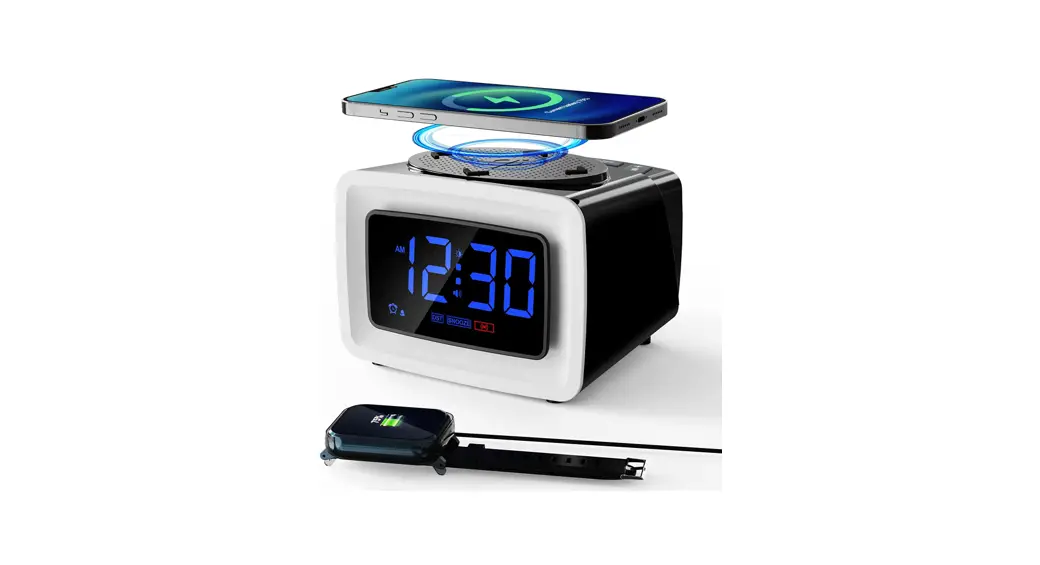
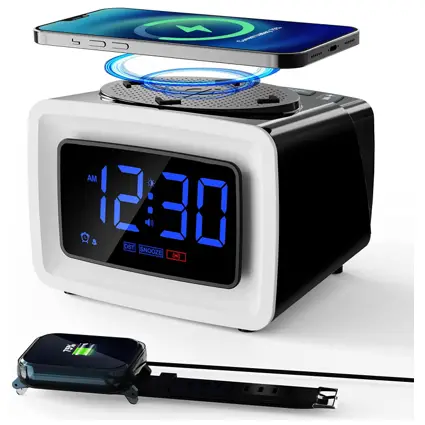
- Place your mobile device centrally on the wireless charging panel, the battery power of your device will be shown on your device display.
- When your mobile device is being charged wirelessly, the wireless charging indicator will light up on the clock display.
- For maximum charging efficiency, your mobile device must be aligned with the center of the charging panel.
- The built-in wireless receiver of some mobile devices may not be centered inside the device, the mobile device may need to be placed slightly off-center of the wireless charging panel.
 Please Note:When you charge your phone wireless, different wireless charging indicator on the clock display shows different meanings.
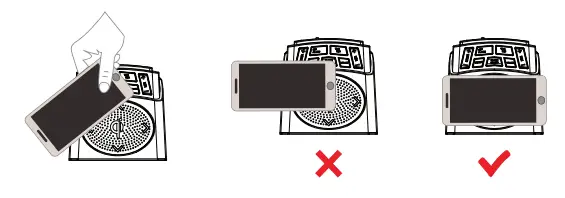 Please Note:When you charge your phone wireless, different wireless charging indicator on the clock display shows different meanings.
| Indicator | Status |
 Red Red | Charging mobile device |
| Flashing Green | Metal or abnormal object detected or the power adapter is less than 9V/2A |
| Green | Full charging(Not all phones support) |
| None of | The mobile device isn’t placed in the center of the wireless charger |
Important Safe Information
- You cannot charge your device wirelessly in these scenarios:
• using a case with a magnetic/iron plate
• using a case with a pop socket;
• using an ultra-thick(> 5 mm) protective phone case. - Do not place any foreign objects between your device and the wireless charger’s surface, including metal pads on a car mount, credit cards, door keys, coins, metal, or NFC cards, which will make wireless charging fail or cause overheating.
- Wireless chargers make charging more convenient than wired chargers but confined by current wireless technology, their charging speed is slower than that of wired chargers.
- High temperatures will reduce charging speed and restrict power, which is a phenomenon common to all wireless chargers. It is recommended that you charge your device in environments with temperatures below 25°C / 77°F.
- Both the protective phone case and the position of your device on the wireless charger will affect the charging speed. The farther it is placed from the center of the wireless charger, the slower the charging speed will be.
Compatibility
lOW Mode:(Using the supplied 9V/2A power adapter)
- Samsung Galaxy 520 / 510 / 59+ / 59 / 58 / 58+ / 57 edge / 57 / 56 edge+
- Samsung Note 10 / Note 9 / Note 8 / Note 7
7.5W Mode: (Using the supplied 9V/2A power adapter
- iPhone 12 / 12 Mini / 12 Pro / 12 Pro Max / SE (2020) / 11/ 11 Pro / 11 Pro
- Max/X5Max/XR/XS/X/ 8/8 Plus
5W Mode: (Using other 5V/2A Adapter)
- AirPods / AirPods Pro / Galaxy Buds / Galaxy Buds+
- Pixel 3 / Pixel 3XL (The phone’s screen will display the message: Charging slowly)
- All other Qi-enabled phones and devices
The product passed the tests defined in the Qi wireless power specification, and features with intelligent temperature control protection technology, surge protection technology and short-circuit prevention technology. Besides that, it also has an independent cooling air duct design, which can discharge heat from the air duct to avoid damage to the mobile device due to high temperature.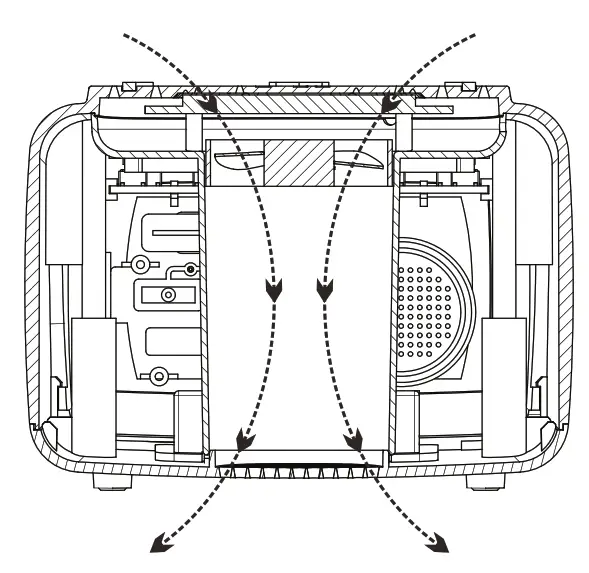 At present, no wireless charging can realize 100% energy conversion on the market. Any wireless charging will generate heat. Our Ideedet Poli I dut will greatly reduce 70% the temperature damage to your mobile device.
During the fast charging process, the air duct will operate efficiently that maybe produce a slight wind noise. If you cannot accept this slight wind noise, you can contact us at any time to return the product.
Contact our experts [email protected]
FCC Statement Changes or modifications not expressly approved by the party responsible for compliance could void the user’s authority to operate the equipment.
This equipment has been tested and found to comply with the limits for a Class B digital device, pursuant to Part 15 of the FCC Rules. These limits are designed to provide reasonable protection against harmful interference in a residential installation. This equipment generates uses and can radiate radio frequency energy and, if not installed and used in accordance with the instructions, may cause harmful interference to radio communications. However, there is no guarantee that interference will not occur in a particular installation. If this equipment does cause harmful interference to radio or television reception, which can be determined by turning the equipment off and on, the user is encouraged to try to correct the interference by one or more of the following measures:
- Reorient or relocate the receiving antenna.
- Increase the separation between the equipment and receiver.
- Connect the equipment into an outlet on a circuit different from that to which the receiver is connected.
- Consult the dealer or an experienced radio/TV technician for help
This device complies with part 15 of the FCC rules. Operation is subject to the following two conditions
(1 This device may not cause harmful interference, and (2) this device must accept any interference received, including interference that may cause undesired operation. This equipment complies with FCC radiation exposure limits set forth for an uncontrolled environment. This equipment should be installed and operated with a minimum distance 20cm between the radiator & your body
Http://www.ravnic.com

Made in China