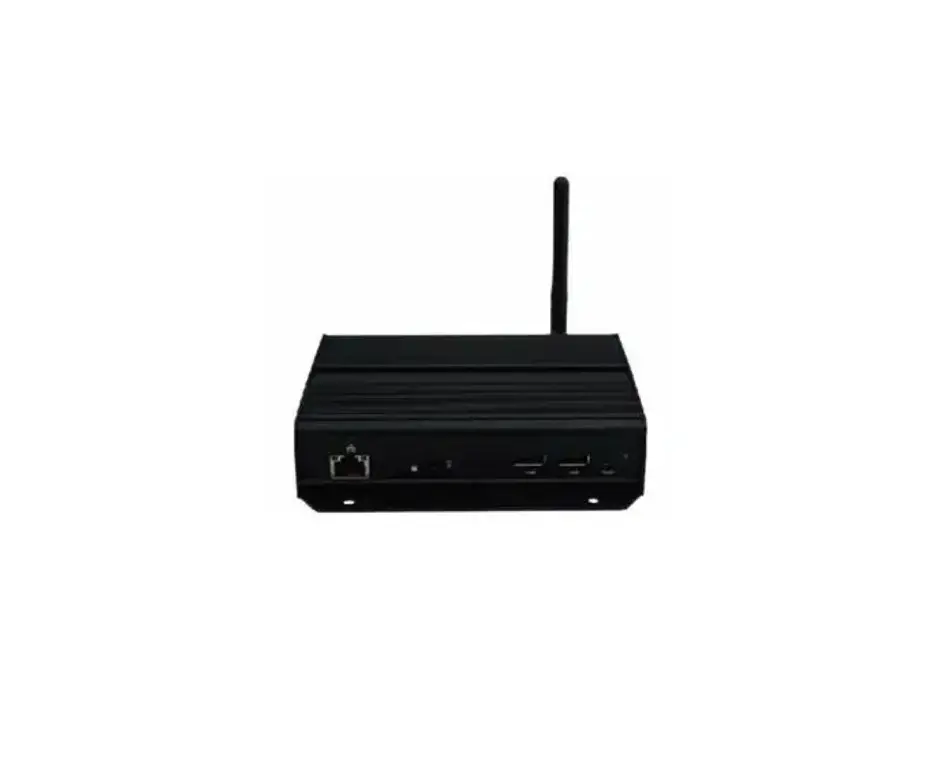
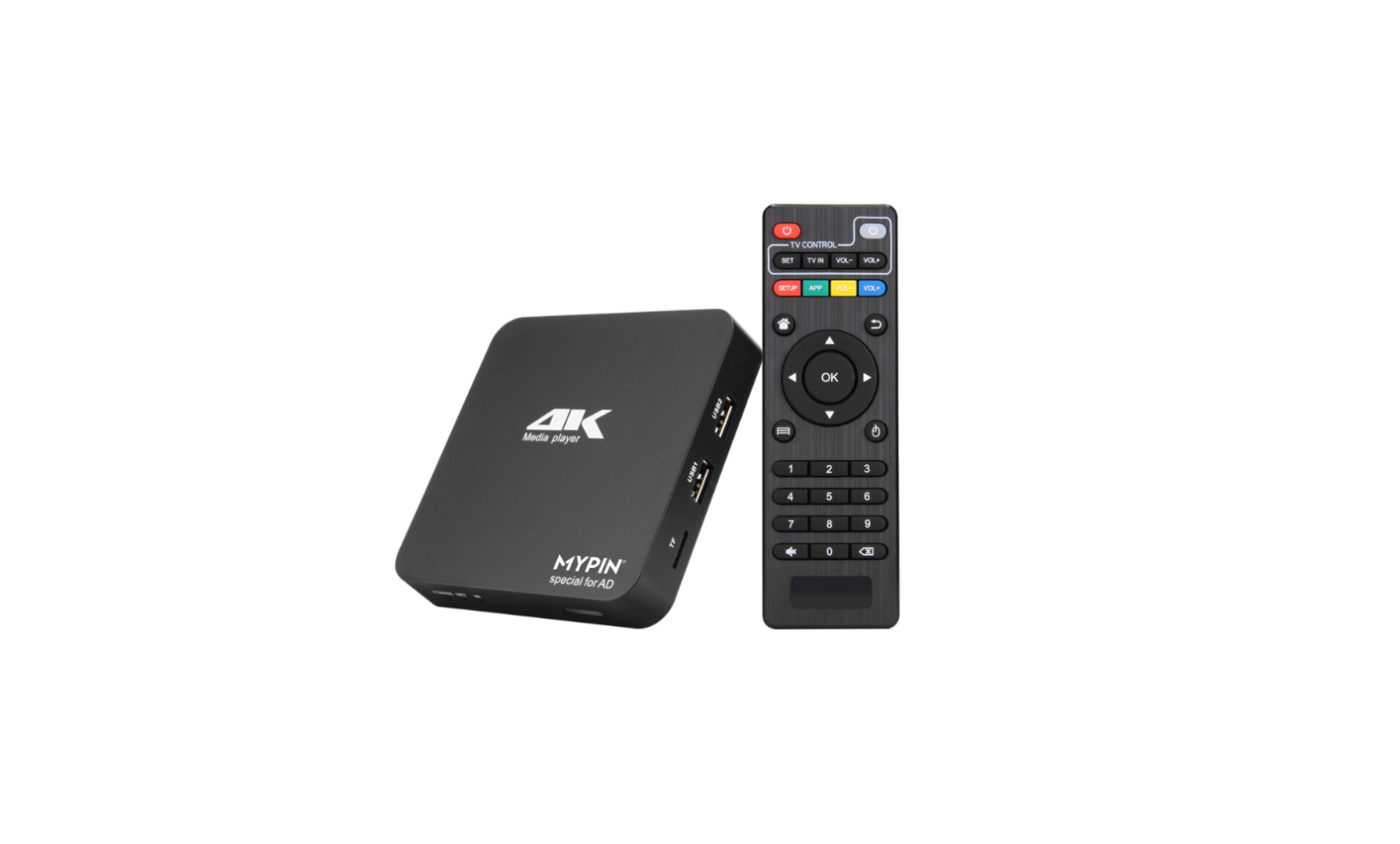
XMP-8552 Series High Performance Kiosk Processor and 4K Media Player
Product Information
The XMP-8550/8552 Series is a high-performance kiosk processor
and 4K media player series. It is designed to be used in various
applications such as digital signage and interactive kiosks. The
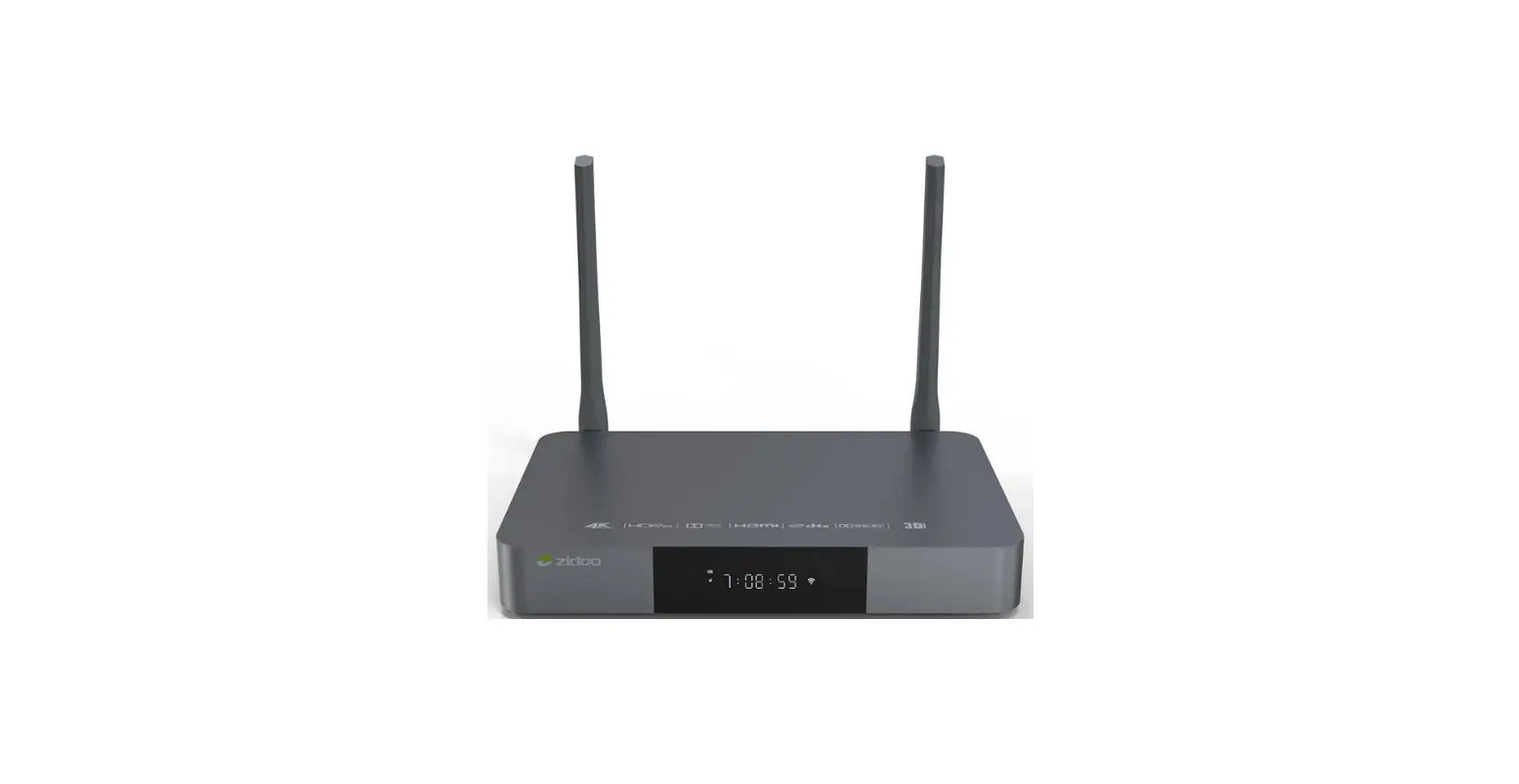
series includes the XMP-8550 model and the XMP-8552 model, which
comes with a wireless antenna.
Package Content
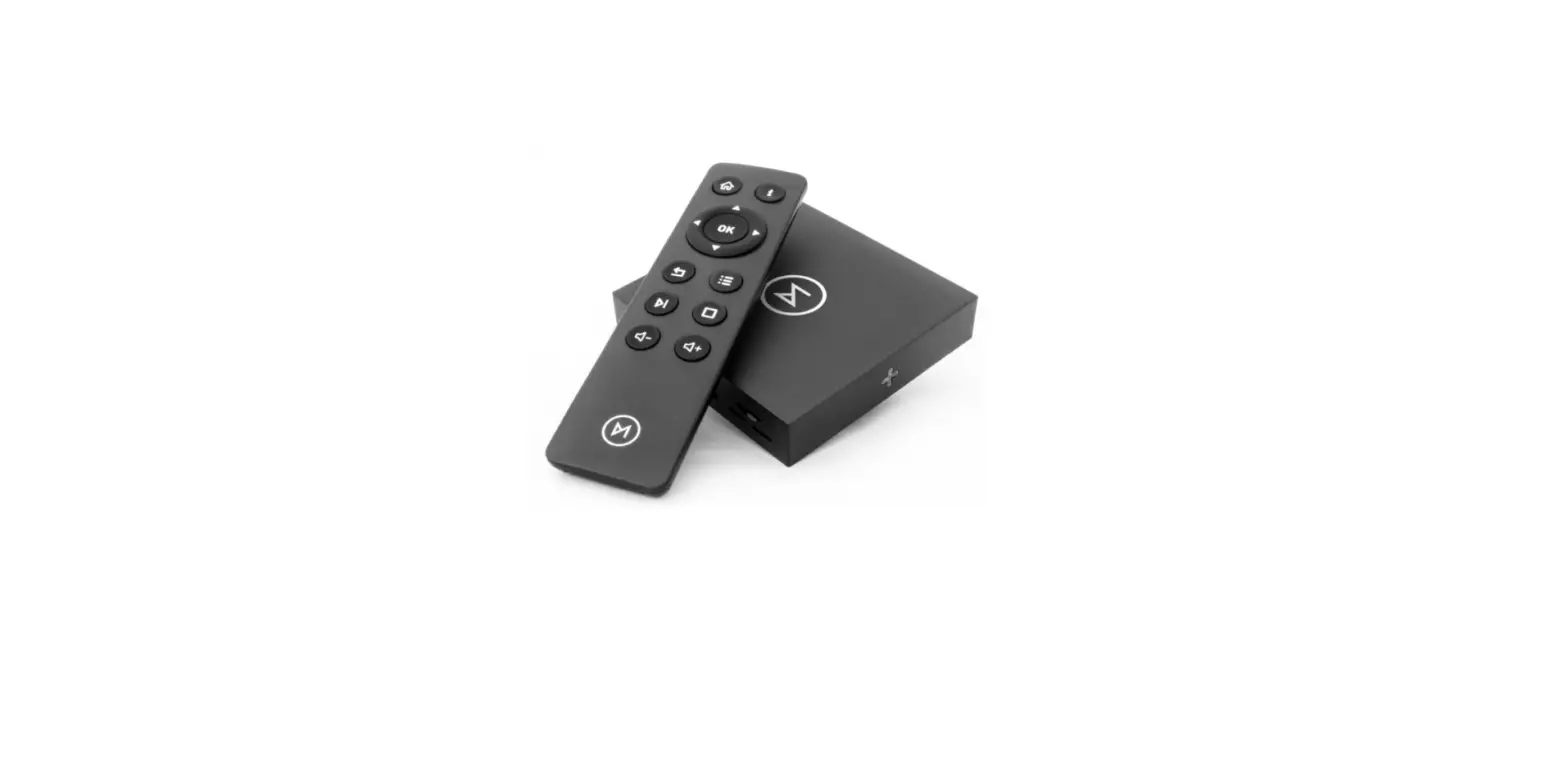
- Media Player Unit
- AC Adapter
- Wireless Antenna (8552 model only)
- HDMI Cable
- Velcro
Physical View and Features
The XMP-8550/8552 series has a power and MicroSD bracket located
on the front panel.
Mounting and Installation
To mount and install the XMP-8550/8552 series, please refer to
the user manual for detailed instructions.
System Setup
- Boot up: Connect an Ethernet cable from a PoE
switch at the back of the display to power on the system
automatically. After the boot-up screen, users can configure the
system in both landscape and portrait orientations. - Autoplay content: Once the boot-up is
complete, if preloaded content is detected, it will start playing.
To stop autoplay and enter basic settings, users need to select the
pause button in the center of the loading circle. - Basic settings: Users can make system
configurations, such as setting the time, date, time zone,
password, and network connection. Advanced settings are also
available. - Set content: Users can set content by entering
the URL or using a content management system to upload contents
onto the room panel.
System Troubleshooting
If playback needs to be interrupted and the setup menu accessed,
press and hold at one corner of the screen for 10 seconds. To
provide a DEBUG log for a misbehaving room panel, follow the
instructions below:
- Prepare a blank USB stick in FAT-32 format.
- Create a folder named DEBUG (case insensitive) in the root of
the USB stick. - Ensure that the room panel is operating and playing
content. - Insert the USB stick into the display and wait for the yellow
dot on the upper right corner to stop blinking. - Within the DEBUG folder, there will be a folder with a string
of numbers as its name. If the string of numbers is all zeros,
repeat steps 1-4 and wait until the blinking stops. - Zip the DEBUG folder and send it to IAdea Support Team.
Reset System to Factory Default
Performing a factory reset will remove all saved contents,
passwords, and configurations in settings. Follow the steps below
to complete the room panel factory resetting process:
Please refer to the user manual for detailed instructions on how
to perform a factory reset.
USER GUIDE
Version 1.0.0
XMP-8550/8552 Series
High-Performance Kiosk Processor and 4K Media Player Series
America 20 Fairbanks, Ste, 170 Irvine, CA 92618 California, U.S.A Taiwan 114, 3F, No. 21 Ln. 168, Xingshan Rd. Neihu Dist., Taipei, Taiwan
`
XMP-8550/8552 Series
User Guide
Package content
Media Player Unit
AC Adapter
Wireless Antenna (8552)
HDMI Cable
Velcro
Physical view and features
Power & MicroSD bracket
Copyright©2023 IAdea Corporation
1
`
XMP-8550/8552 Series
User Guide
Mounting and installation
Attach on the back of the monitor using Velcro · The media player can be mounted to the back of a monitor using the provided Velcro. · To mount the media player, separate the Velcro stripe into singles and attach it to the surface of the media player. · Secure the media player to the monitor with the Velcro.
Built-in wall mount bracket] · There are mounting holes on the media player with screw specs of M4. · For XMP-8552 only, attach the wireless antenna by screwing it clockwise onto the post.
Copyright©2023 IAdea Corporation
2
`
XMP-8550/8552 Series
User Guide
System setup
1 Boot up Plug in an Ethernet cable connecting from a PoE switch at the back of the display, and it will power on automatically. Once user exits boot up screen, users can go through system configurations in both landscape and portrait orientations.
2 Autoplay content When boot up is complete, if the system detects preloaded content, the loading circle will appear. Once the loading circle completes, contents will be played. To stop autoplay and enter “Basic settings,” users need to select the pause button in the center of the loading circle.
3 Basic settings
Copyright©2023 IAdea Corporation
3
`
XMP-8550/8552 Series
User Guide
When boot up is complete, if the system detects preloaded content, the loading circle will appear. Once the loading circle completes, contents will be played. To stop autoplay and enter “Basic settings,” users need to select the pause button in the center of the loading circle.
4 Make configurations To change system language, select “(Current Language) ….” For system configurations, select “Advanced.”
Important recommended configurations:
1. Set correct time, date, and time zone for properly scheduled playback.
2. Set password to prevent unauthorized access during setup menu.
3. Set network for establishing network connection.
5 Set content Users can set content by clicking “Set Content” to enter the URL or use the desired content management system to upload the contents onto the room panel.
Content management
Please consult the software documentation for information specific to your content management solution.
System troubleshooting
Copyright©2023 IAdea Corporation
4
`
XMP-8550/8552 Series
User Guide
How to interrupt playback and enter setup menu? Press at one corner of the screen and hold for 10 seconds to exit playback and enter setup menu. How to provide a DEBUG log for a misbehaving room panel to the support team? Please follow the instructions below to collect the room panel’s DEBUG log:
1. Prepare a blank USB stick in FAT-32 format. 2. Create a folder named “DEBUG” (case insensitive) in the root of USB stick. 3. Make sure room panel is operating (see welcome screen or playing content). 4. Insert the USB stick into display and wait for yellow dot on upper right corner to
stop blinking.
5. Within the “DEBUG” folder, is a folder with a string of number as its name. If the string of numbers are all zeros, the debug log has not been collected properly. Repeat step 1-4 again and make sure to wait until stop blinking.
6. Zip the “DEBUG” folder and send to IAdea Support Team.
Reset system to factory default
Factory resetting the room panel will result in removal of all saved contents, passwords, and configurations in settings. Please refer to the steps below to complete the room panel factory resetting process:
1. Use a pen to press and hold the reset button do not release until Step 4. 2. Insert the power cord. 3. Wait 30 seconds for the system reboot indicating your data is erased. 4. Release the reset button and your room panel will initialize in factory default state.
Copyright©2023 IAdea Corporation
5
`
XMP-8550/8552 Series
User Guide
Technical Specification
CPU Local Storage Video format supported Image format supported Audio format supported Open standards supported
Connectivity
Quad-Core Cortex-A55 up to 1.8GHz RAM 2GB DDR4 16 GB eMMC built-in Micro SD card (replaces internal storage) H.265/HEVC up to 4K (3840 x 2160) H.264/AVC up to 1080p (1920 x 1080) MPEG-4 up to 1080p (1920 x 1080) MPEG-2 up to 1080p (1920 x 1080) MPEG-1 up to 1080p (1920 x 1080) VC-1 up to 1080p (1920 x 1080) VC-1 up to 1080p (1920 x 1080) JPEG up to 1920 x 1080 PNG up to 1920 x 1080 MP3 up to 320 Kbps W3C HTML5 (HTML, JavaScript, CSS) W3C SMIL 3.0 instructions (sub-set) W3C Widgets for HTML delivery Android API 12.0 IEEE 802.3ab Gigabit Ethernet IEEE 802.11a/b/g/n/ac dual-band Wi-Fi (8552) IEEE 802.3af PoE (8552) SD card slot (expendable to 128 GB) Micro USB for ADB (Android Debug Bridge) 3.5 mm audio out USB 2.0 x 1 USB 3.0 x 1 Ethernet port x 1 Power jack x 1 Embedded wireless antenna (2.4GHz & 5GHz) Built-in stereo speaker 2 W x 1 Front camera: 8 MP Auto Focus
Supplied accessories
HDMI Cable Velcro DC Jack Bracket MicroSD Bracket
Copyright©2023 IAdea Corporation
6
`
XMP-8550/8552 Series
User Guide
M2.5 Screws Quick start guide
Power requirement Power consumption
Environmental
System dimension System weight Certifications Warranty
Input: 100 – 240V, 50 – 60 Hz, 0.5 A Max. Output: 12V, 1.5 A UL/CB/PSE certified power supply
Max. 20.3 W Operating temperature: -20 to 50 °C Humidity: 10 85 % @ 40 °C / 104 °F non-condensing Shock: IEC 60068-2-27 Table A.1 (railway) Vibration: 1.5 G @ 5 – 200Hz, random 166 x 27 x 125.5mm / 6.5 x 1.1 x 4.9″ 915 g (2.3 lbs) CE / FCC / RoHS 1-year limited parts & labor* (varies based on region, contact sales for more details)
Copyright©2023 IAdea Corporation
7