 PT-PEDAL Product Manual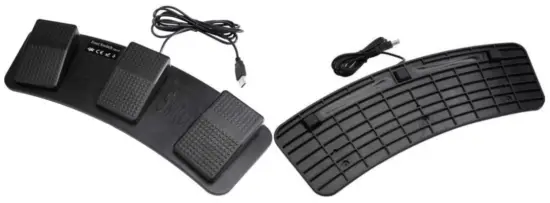
Product description
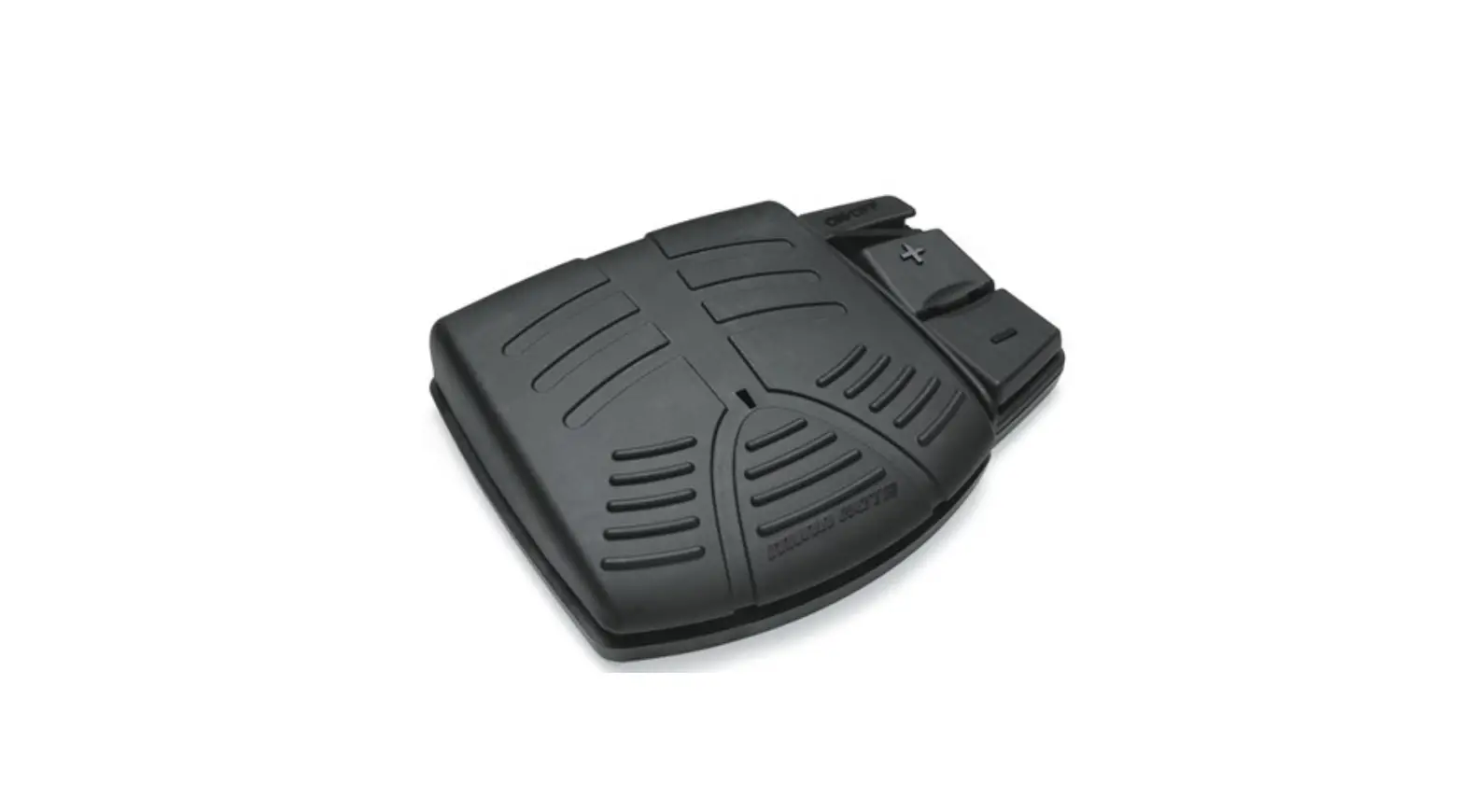
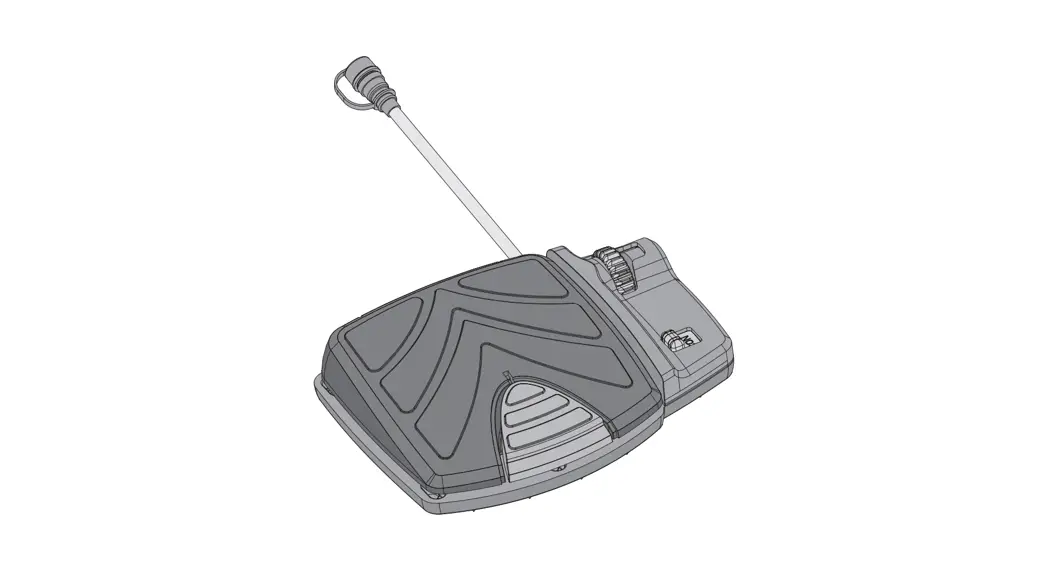
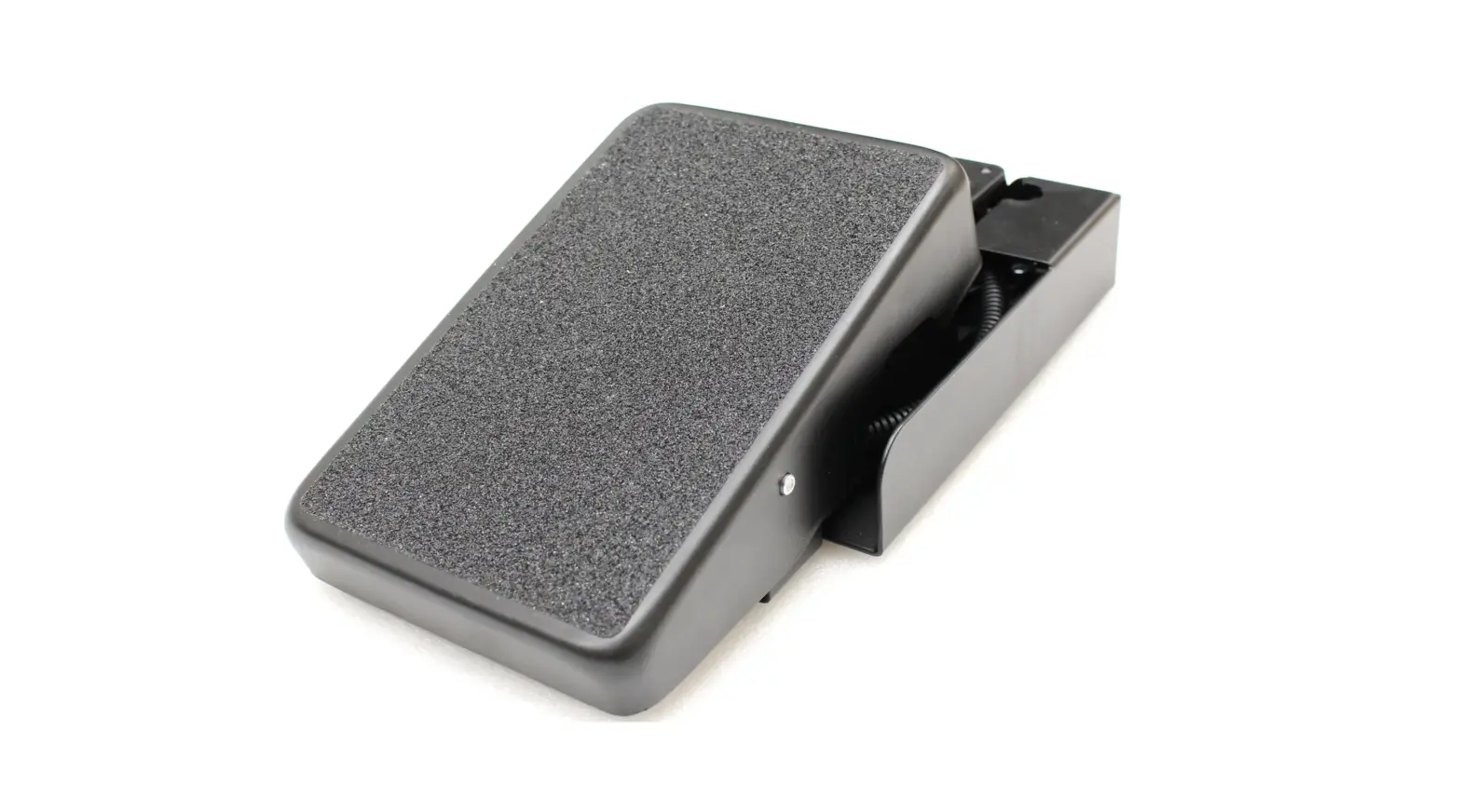
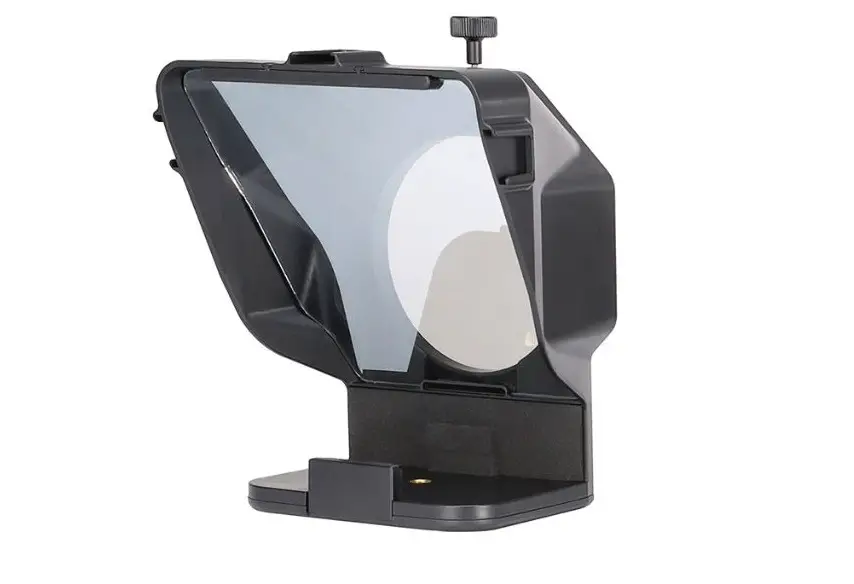
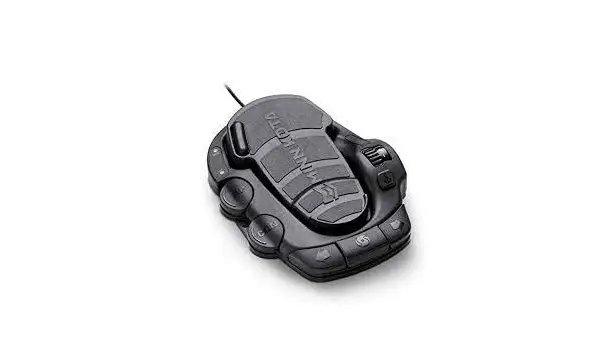
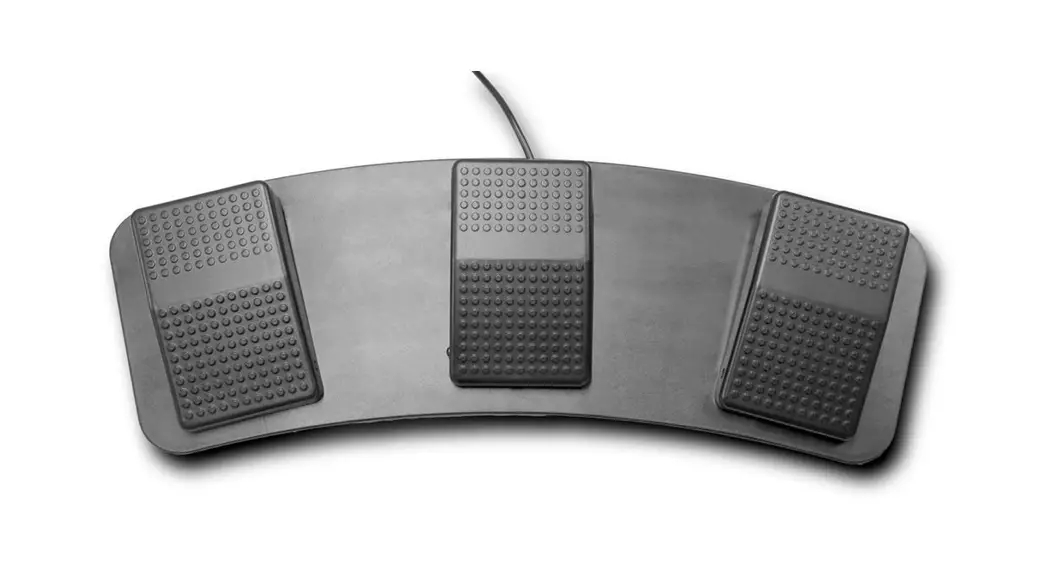
Control your teleprompter and set your own pace with the Foot Control Pedal from Ikan. Designed to work with the Ikan Beam Splitter Glass Teleprompters, this wired foot controller connects to your computer via a USB cable to control different aspects of your prompter sessions such as scroll speed, start, and stop. The Teleprompter Foot Pedal includes dampeners that dramatically reduce the sound of the pedals when they are pressed down.
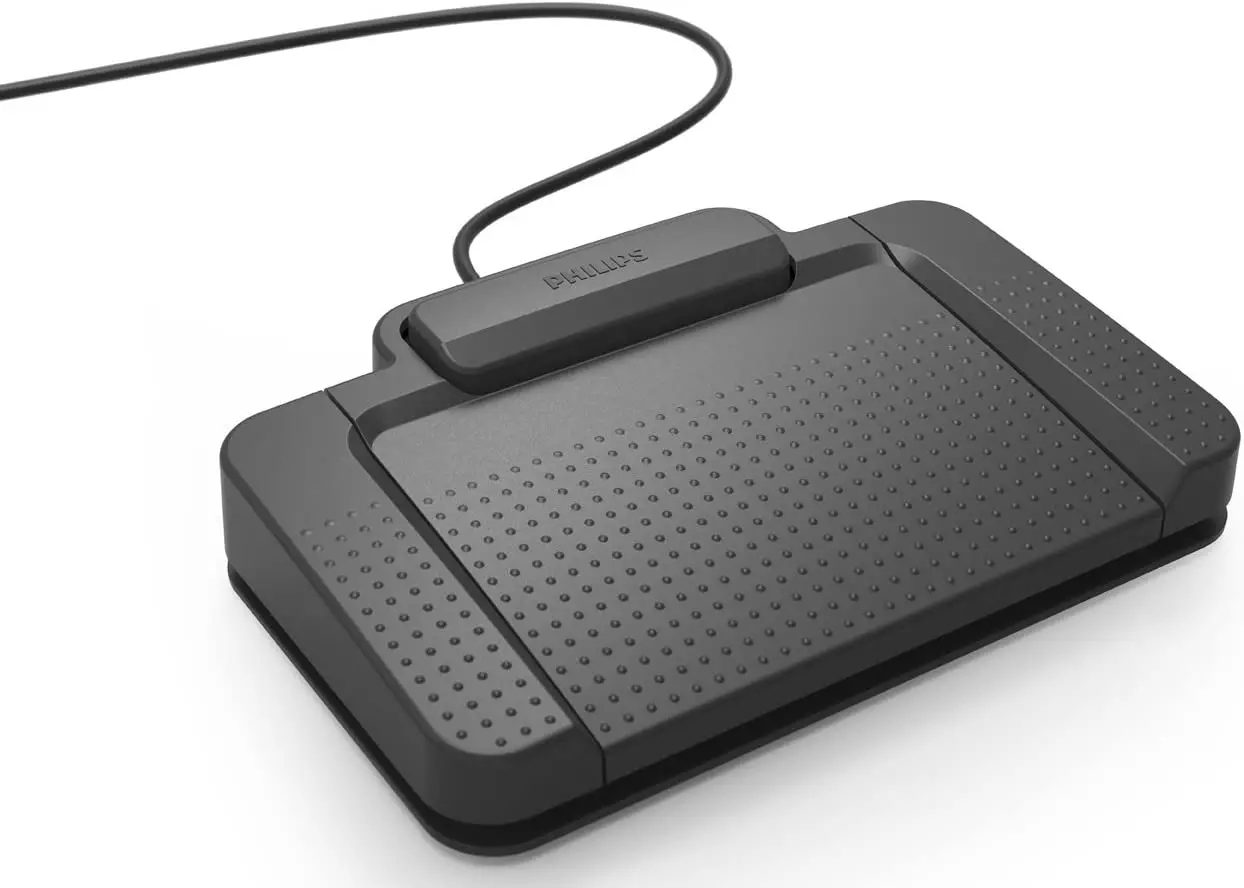
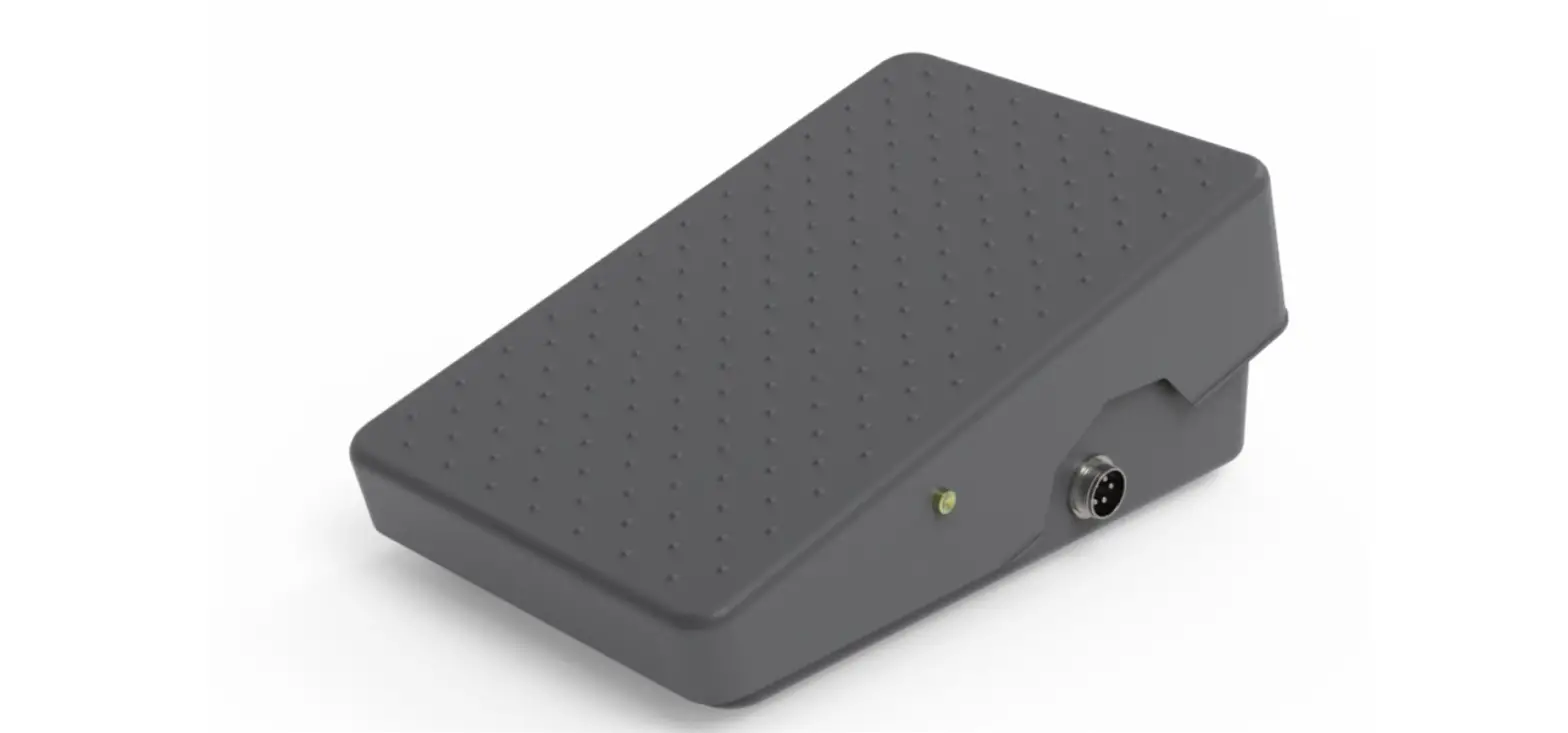
The foot pedal’s curved design facilitates right- or left-foot configurations. It connects to your computer’s Ikan’s Prompter Pro software and three spaced pedals offer simple prompter controls.
Use the center pedal to start or stop your session, use the left pedal to slow down scroll speed, and use the right pedal to increase scroll speed. Use on a flat surface for better control.
Control start, stop and scroll speed with three pedals
The curved design facilitates right- or left-foot configurations
Compatible with Ikan’s Prompter Pro software for prompter session control
Connects to any computer running Microsoft Windows 10, 8, or 7 via a 5′ standard USB cable
Use of software:
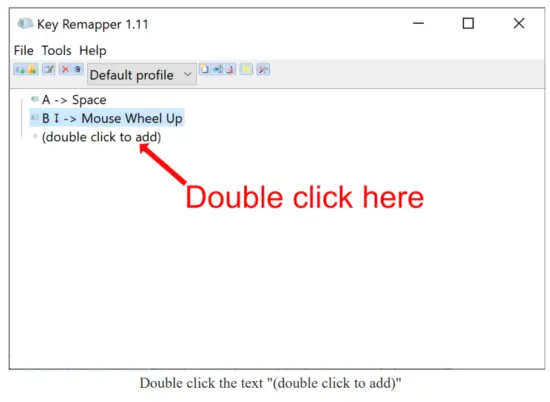
Install the Key Remapper software and insert the footswitch into the computer’s USB port and run the Key Remapper software. The software window is as follows:
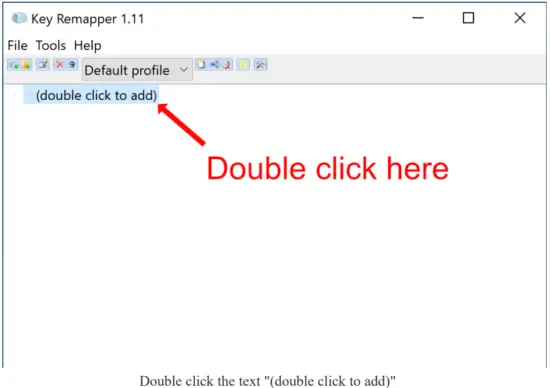
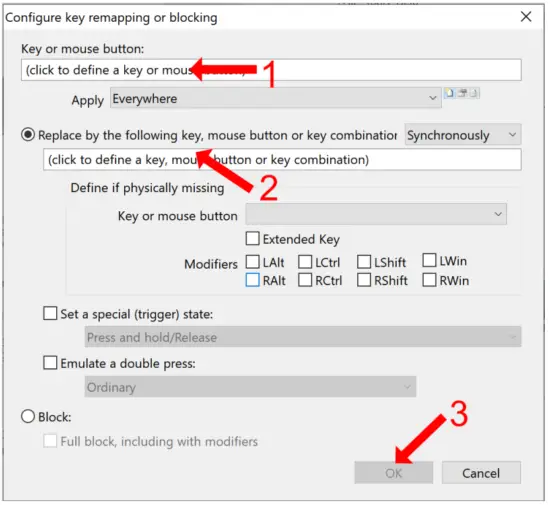
- Click the “Key of mouse button” section, then tap the left pedal.
- Click the “Replace by the following key” section, then press the space bar on your keyboard.
- Click OK
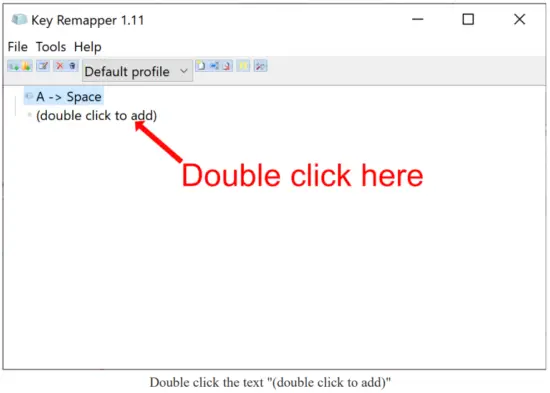
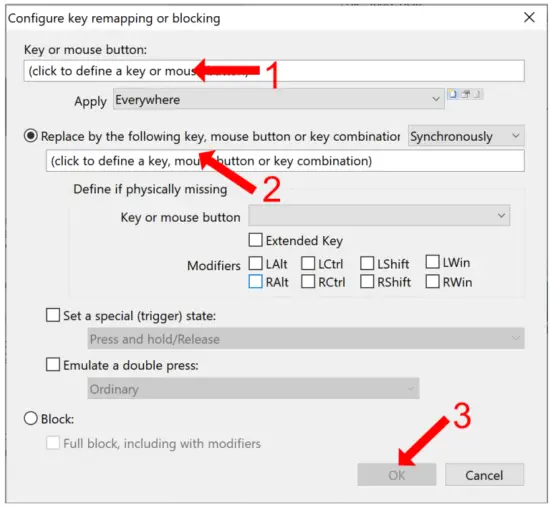
- Click the “Key of mouse button” section, then tap the middle pedal.
- Click the “Replace by the following key” section, then scroll up on your mouse.
- Click OK
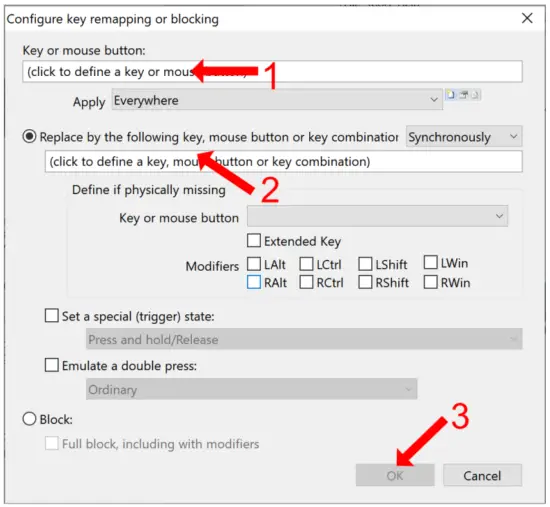
- Click the “Key of mouse button” section, then tap the right pedal.
- Click the “Replace by the following key” section, then scroll down on your mouse.
- Click OK
Once you have finished mapping the keys and mouse movements, you can open Prompter Pro and use the Foot Pedal to control the scroll of the script. By pushing the scroll pedals multiple times, you can control the speed of the script. The Left pedal will stop the script.