
| Telegesis | | TG-ETRX2USB-PM-004-105 |
| ETRX2USB | Product Manual 1.05 |
Introduction
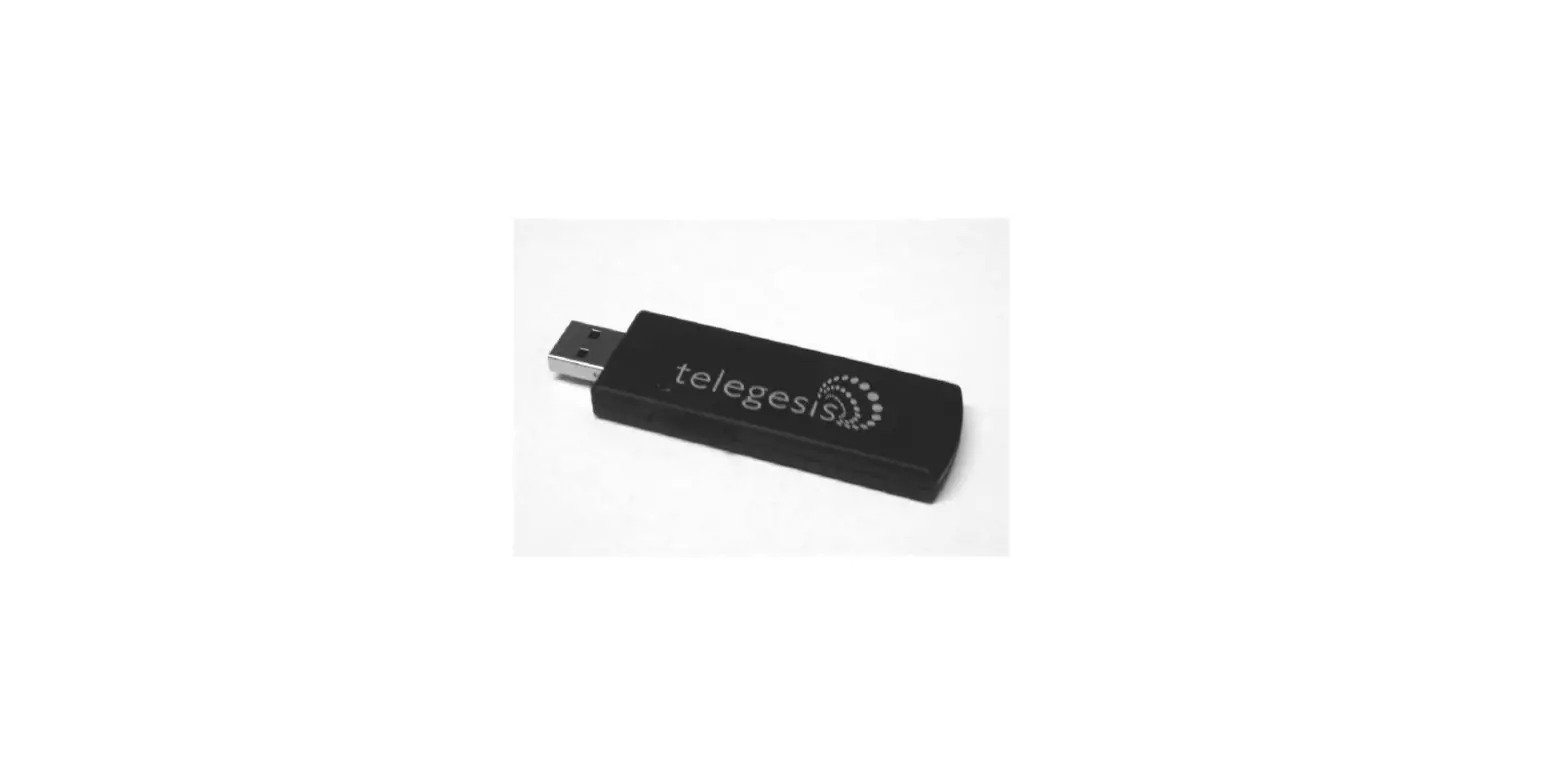
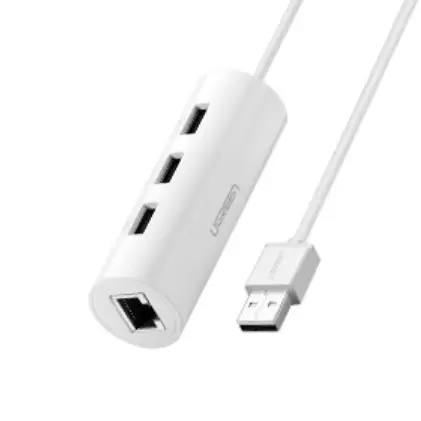
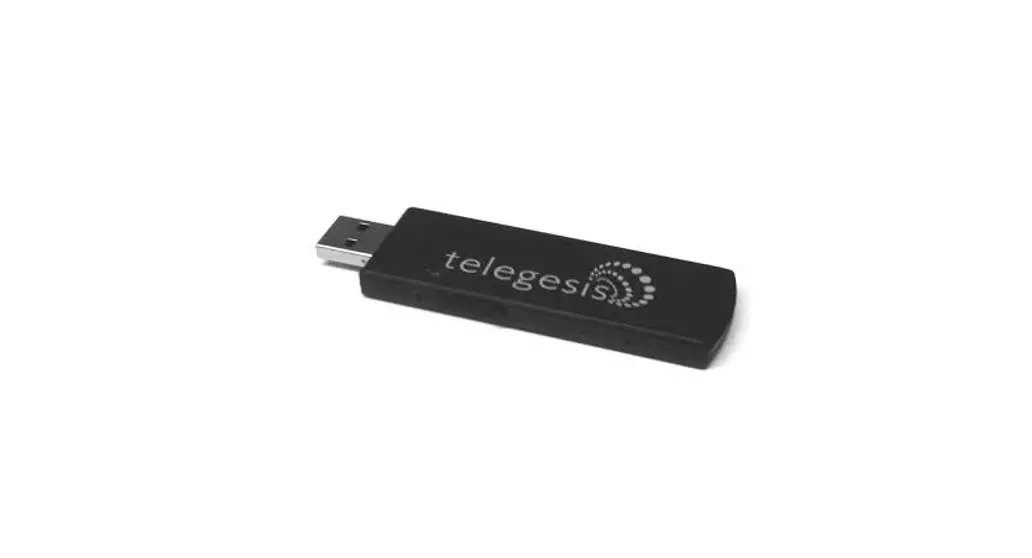
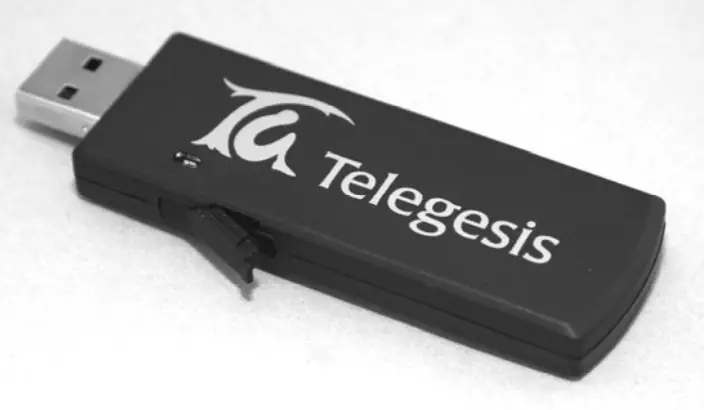
The ETRX2USB wireless mesh networking USB Stick is effectively an RS232 to USB bridge connected to an ETRX2 ZigBee module. This allows connectivity to a computer’s USB port. The supplied drivers create a virtual COM Port so that the command line of the ETRX2 can be accessed via any terminal software application. When using Windows ® 9x/XP/2000 the Telegesis Terminal application can be used as described in the Development Kit manual.
1.1 Supported Operating Systems
- Windows 98SE
- Windows XP
- Windows 2000
- MAC OS-9
- MAC OS-X
- Linux
Absolute Maximum Ratings
| Parameter | Min. | Max. | Units | Condition |
| Supply Voltage Vdd | -0.3 | 5.25 | V | |
| Voltage on any pin Storage Temperature range | -0.3 -40 | Vdd+0.3, max 5.8 | V °C | |
| 150 |
Table 1: Absolute Maximum Ratings
The absolute maximum ratings given above should under no circumstances be violated. Exceeding one or more of the limiting values may cause permanent damage to the device.
Operating Conditions
Typical values at 5V 25°C.
| Parameter | Min. | Typ. | Max. | Units | Condition |
| Supply Voltage, Vdd | 4.75 | 5 | 5.25 | V | |
| Supply Current | 62¹ | mA | TX 3dBm | ||
| ETRX2USB | 55¹ | mA | TX — 28dBm | ||
| 621 | mA | RX | |||
| 32¹’.2 | mA | Power Mode 01 | |||
| 27¹’.2 | mA | Power Mode 02 | |||
| 26¹’.2 | mA | Power Mode 03 | |||
| Supply Current | 132 | mA | TX | ||
| ETRX2USB-PA | 147 | mA | TX boost | ||
| 62 | mA | RX | |||
| 32 | mA | Power Mode 01 | |||
| 27 | mA | Power Mode 02 | |||
| 26 | mA | Power Mode 03 | |||
| Operating ambient temperature range | -20 | 25 | 85 | °C |
Table 2: Operating Conditions
Other data
For further technical information, including radio certification, see the ETRX2 or ETRX2PA Module Product Manual.
If you purchase ETRX2USB sticks without printed markings on the case, you may be responsible for applying a marking appropriate to their geographical area of use, such as the FCC certification.
For more information on ZigBee® compliance and the AT command interface firmware please refer to the latest AT command dictionary and the ETRX2 user guide.
¹During USB suspension the current will drop by 25.6mA in all modes.
²Please note that the power consumption in various power modes is firmware and usage dependent.
ETRX2 I/O Connectivity
The I/Os of the built-in ETRX2 are connected as follows:
- I/O1 is connected to the LED (drive I/O1 low to sink LED).
- I/O2 is the CTS input for the ETRX2. Make sure I/O2 is never defined as an output.
- I/O4 is the RTS input for the ETRX2.
Important Note: The lines for hardware handshaking are connected, so even when not using
hardware handshaking I/O2 should never be defined as an output as this would drive against the
incoming CTS signal via a 1kΩ resistor and increase the current consumption.
Note that if you use the command “AT&F” on the USB stick, I/O1 will revert to being input and the LED will not light up. To restore its function as a pilot light, use the command “ATS0E=00FA” (with R2xx firmware) or “ATS17=00FA” (with R3xx) followed by a reset.
Firmware upgrades
The firmware which is loaded onto the embedded ETRX2 Module can be upgraded over the air or via the virtual COM port as described in the Development Kit manual. Alternatively, access to the SIF programming interface is possible by opening the cover on the side of the ETRX2USB ZigBee USB stick.
Driver Installation and Operation
The drivers provided will generate a virtual COM port allowing easy access to the serial port of the embedded ETRX2.
To read more about the ETRX2 wireless mesh networking module and its command-line interface please read the corresponding documentation which can be found at www.telegesis.com.
7.1 Windows 9x/XP/2k Driver Installation
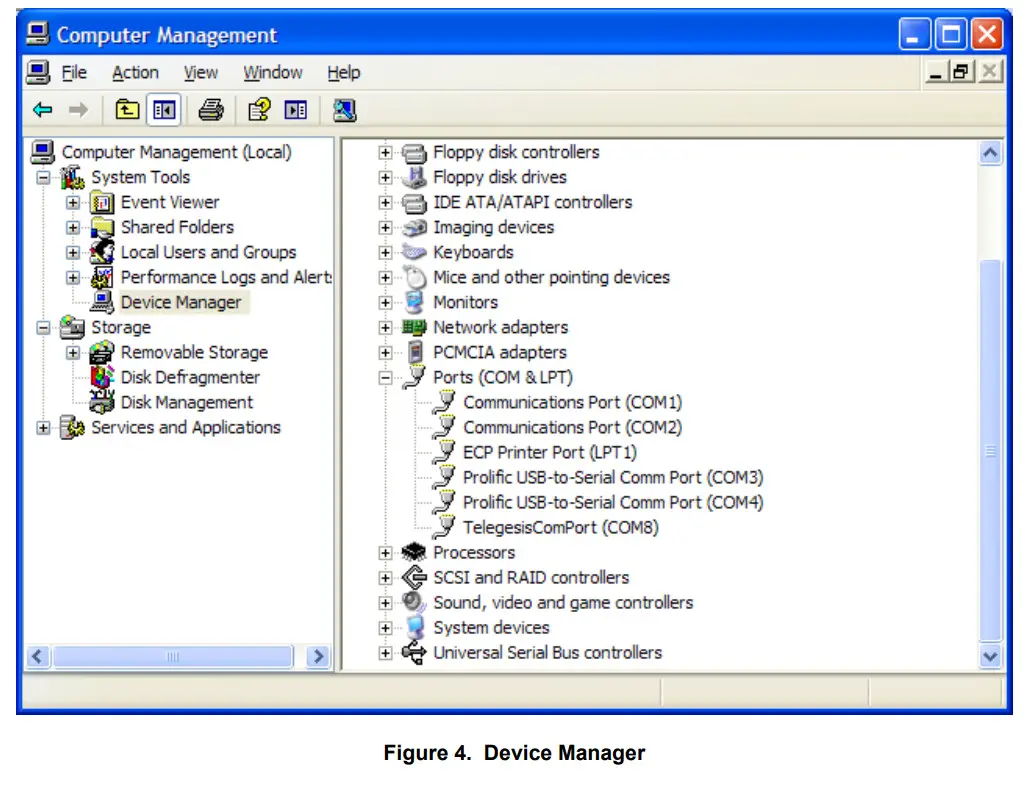
The driver package downloadable from the Support Software download page of www.telegesis.com should be unzipped into a local folder. When executing the file‘TgVCPInstaller.exe’ prior to plugging in the ETRX2USB stick an installer will guide you through the steps required for the driver installation. If prompted that the driver has not passed the Windows logo test simply press ‘Continue Anyway’.
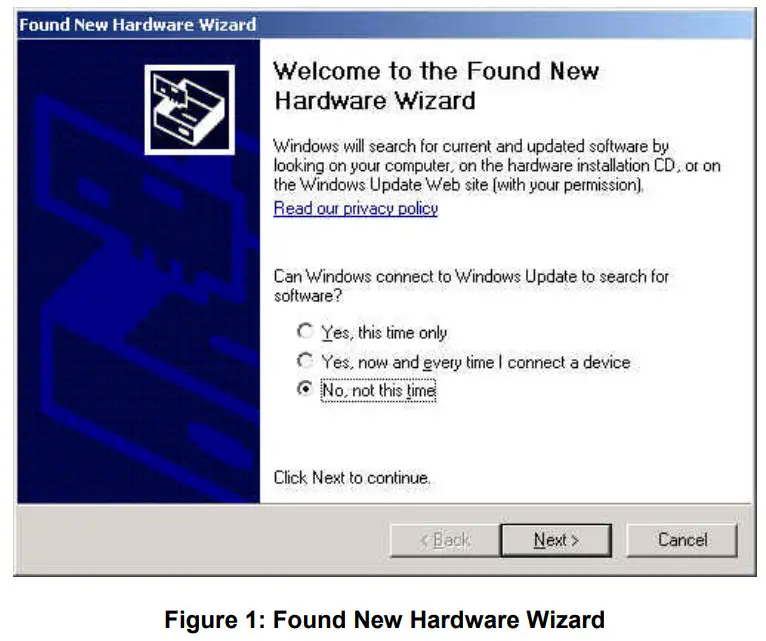
After insertion of the stick, Windows® will prompt that new hardware has been found. If you have run the ‘TgVCPInstaller.exe’ Windows will be able to install the driver automatically as shown in Figure 2. If you have not run ‘TgVCPInstaller.exe’ you will have to manually point to the directory into which you have unzipped the driver.
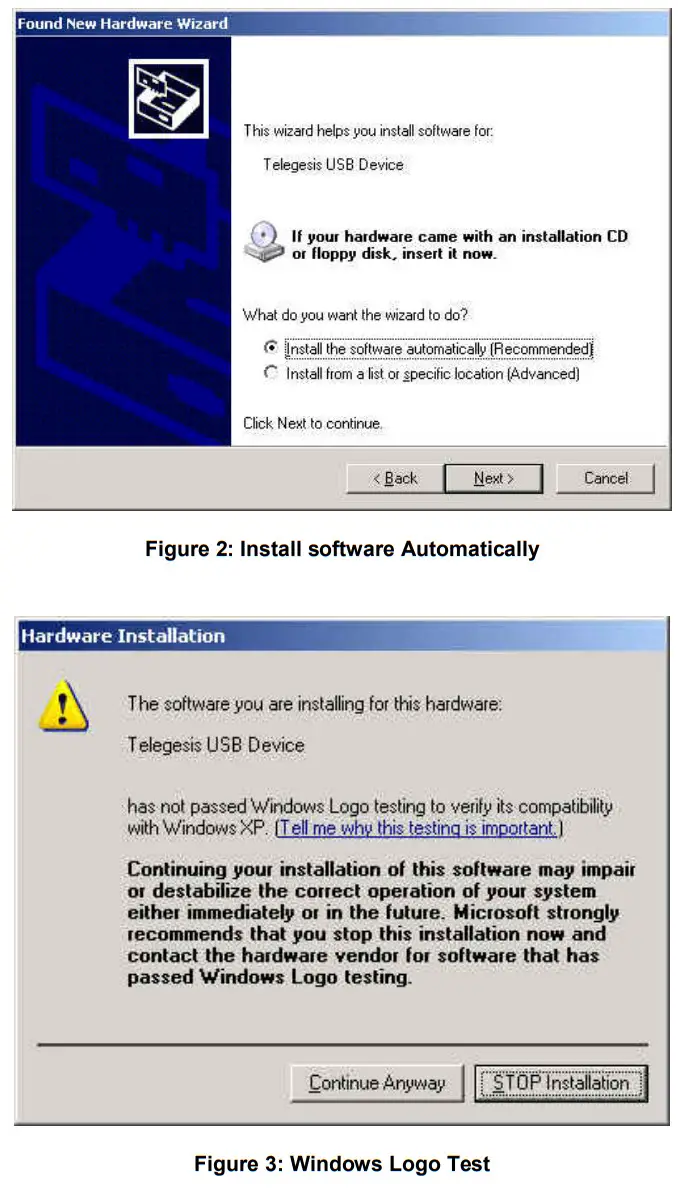
Please note that each ETRX2USB has a unique serial number which requires the installation procedure to be repeated with every new ETRX2USB being attached to the computer. This allows multiple ETRX2USB sticks to be used on the same computer at any one time.
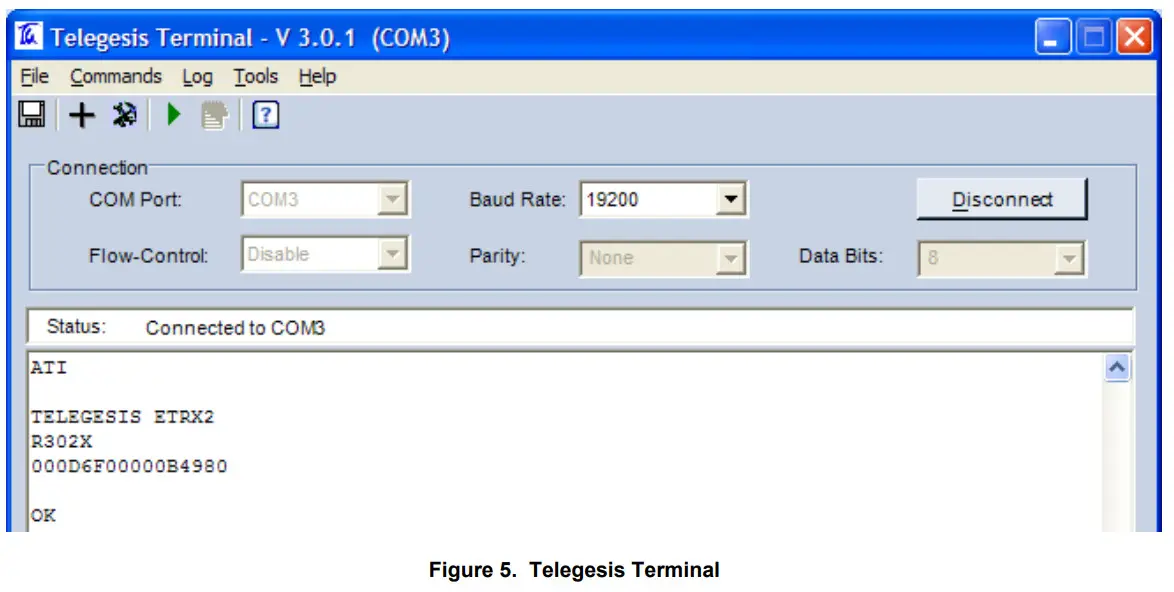
In order to find out the identity/number of the virtual com port the stick has been assigned to, please enter the Device Manager under the Windows Computer Management screen (see below) and click on the Ports (COM and LPT) section where you should find the new virtual COM port. By double-clicking on the entry of the virtual COM port you can also change the number assigned to the virtual COM port when entering the advanced setup of the device.
Once the correct COM port has been selected, the Terminal software can be used to control the ETRX2USB stick as per the Development Kit Manual.
7.2 Macintosh and Linux drivers
A Virtual Com Port driver kit for Mac and Linux can be obtained by following the link on our website on the Support Software download page. In addition, one of our customers has written a Linux driver that will be included in the 2.6.25
kernel. It can be found at www.kernel.org/pub/linux/kernel/people/gregkh/gregkh-2.6/patches/.
(Note that this is for information only, and this software was developed entirely outside Telegesis.)
Custom Firmware Development
If you intend to develop custom firmware to go onto the ETRX2USB you need to contact Ember to obtain access to their suite of development tools and their stack. The USB stick contains an ETRX2 module based on the Ember EM250 and a USB-to-serial bridge chip. The ETRX2 communicates via its serial port, so the user’s firmware must use the UART of Serial Controller 1. The nRTS and nCTS lines are connected to the USB bridge chip. The LED on the USB stick is driven from ETRX2 pad I/O1, which is EM250 pin GPIO14.
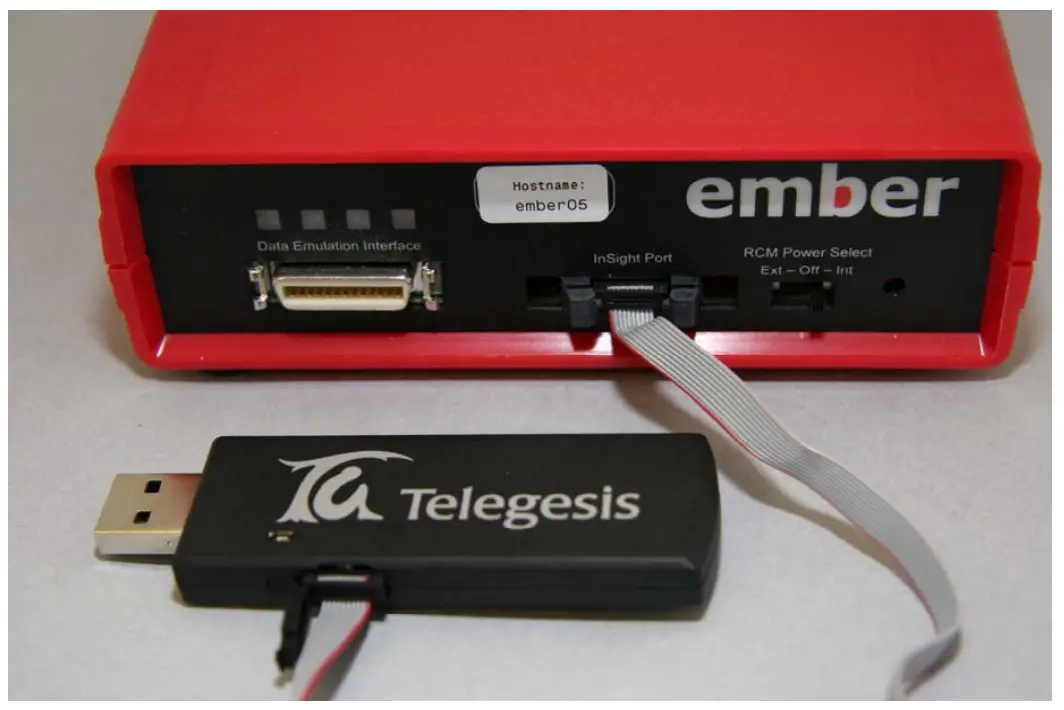
In order to download custom firmware onto the ETRX2, the Ember bootloader can be used, or alternatively, the ETRX2USB can be directly connected to the Ember InSight Adapter for programming and real time debugging.
Ordering Information
| Ordering/Product Code | Description |
| ETRX2* | Module with: • AT Style Command Interpreter • Integrated 2.4GHz Antenna • No Harwin Connector |
| ETRX2CF* | Compact Flash Card • Type II Compact Flash Card Design • AT Style Command Interpreter • Integrated 2.4GHz Antenna • Based on the ETRX2 |
| ETRX2HR* | Module with: • AT Style Command Interpreter • Hirose U.FL Antenna Connector • No Harwin Connector |
| ETRX2USB* | USB Stick: • AT Style Command Interpreter • Integrated 2.4GHz Antenna • Based on the ETRX2 |
| Notes: • Customers’ PO’s must state the Ordering/Product Code. | |
Trademarks
All trademarks, registered trademarks, and products names are the sole property of their respective owners.
Disclaimer
Product and Company names and logos referenced may either be trademarks or registered trademarks of their respective companies. We reserve the right to make modifications and/or improvements without prior notification. All information is correct at the time of issue. Telegesis (UK) Ltd does not convey any license under its patent rights or assume any responsibility for the use of the described product
Contact Information
Website: www.telegesis.com
E-mail [email protected]
Telegesis (UK) Limited
3, Abbey Barn Business Centre
Abbey Barn Lane
High Wycombe
Bucks
HP10 9QQ
UK
Tel: +44 (0)1494 510199
Fax: +44 (0)5603 436999
References
Telegesis – www.telegesis.com
Ember – www.ember.com
©2009 Telegesis (UK) Ltd
ETRX2USB Product Manual (Rev 1.05)
Downloaded from Arrow.com.
ETRX2USB
 Ember®: The World’s First Temperature Control Mug®
 Wireless and RF Solutions - IoT Modules and SoCs - Silicon Labs