E-LINTER EESW-D204 Wi-Fi Stick User Manual
Revision History
| Date | Author | Version | Description |
| 2022/09/16 | Sunyuan | V220916 | Initial version |
Brief
Introduction
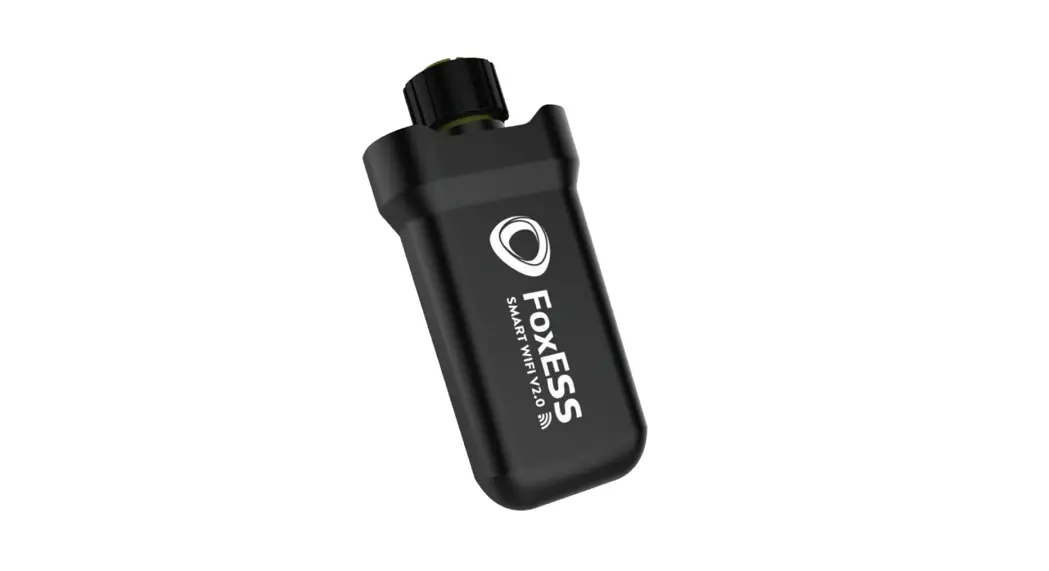
Magpie is a Wi-Fi gateway. This manual describes the use of Magpie so that users can quickly use the product. This manual applies to the current software and hardware version. We reserve the right to change the content of the manual due to product upgrades. To prevent improper operation, please carefully read this manual before use.
| Symbol | Description |
 | “Attention” means there are potential risks, if not avoided, it may not operate normally or cause losses |
 | “Danger” means that there is a potential hazard, which will cause injury if not avoided |
 | “Tip” is used for important or key information to explain how to better use the product |
Features
- RS-232 communication
- Wi-Fi support AP+STA dual mode
- Automatic time synchronization when connected to internet
- Support remote OTA for gateway
- Support remote OTA for inverter
- Support local setting parameters for inverter by smart phone
- Support remote setting parameters for inverter by smart phone
- Support data breakpoint resume
- Flame retardant grade: UL94 V-0
- UV protection rating: F1
- Degree of protection: IPX7
Package list
Please check the appearance and completeness for auxiliaries. Contact your distributor if missing or damages.
Package list
| List | Name | Quality |
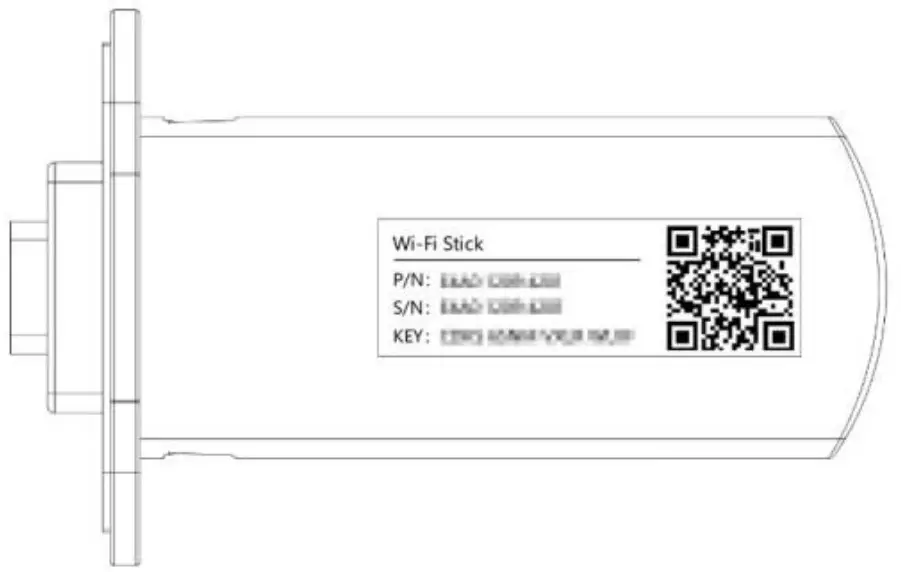 | Wi-Fi stick | 1 |
Indication
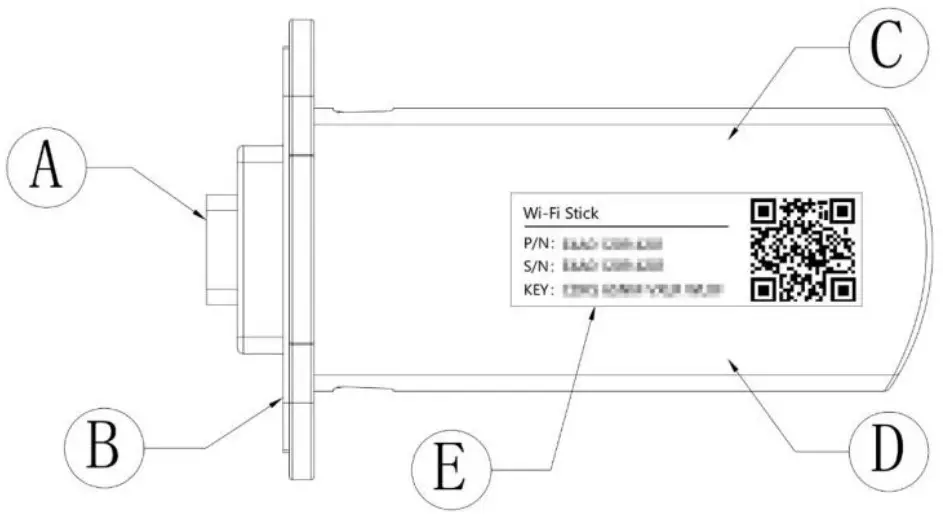
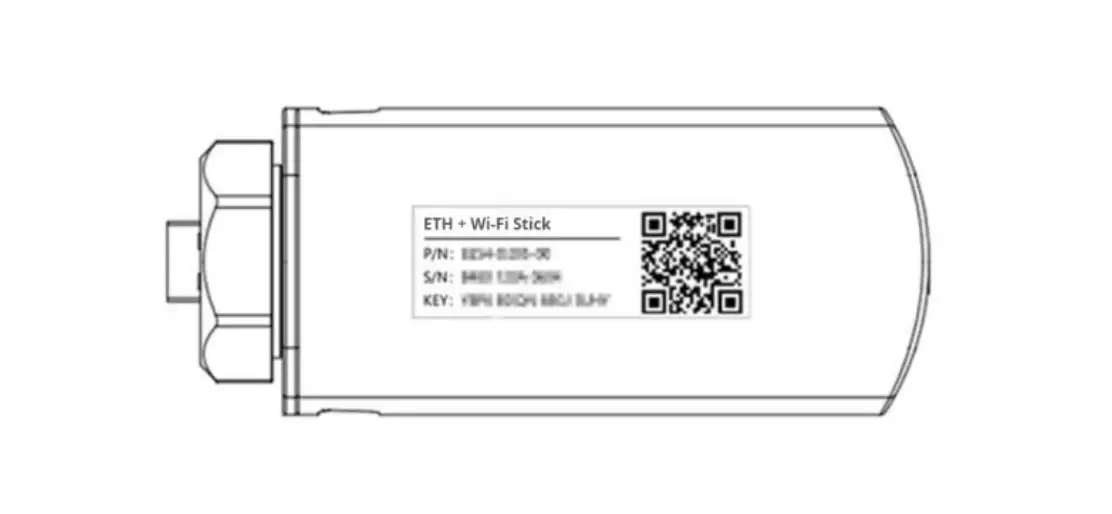
A. DB9 interface: Connected to inverter
B. Seal gasket: Seal the connection between the Magpie and the inve
C. Red LED: Device communication indication
D. Green LED: Cloud server communication indication
E. Product label: Display product information
 LED glow only when the Magpie is powered on.
- When the Magpie is powered on, the green LED glows for 3S, indicating that the Magpie is powered on.
- The more detail LED indication please refer“ LED indication and trouble shooting” chapter.
Installation and removal
This chapter will introduce how to install the Magpie on the inverter and how to remove it. Magpie has the function of Ethernet and Wi-Fi communication.
Install the Magpie
Insert into inverter’s DB9 interface: insert the Magpie into the inverter’s DB9 interface, as shown in the following figure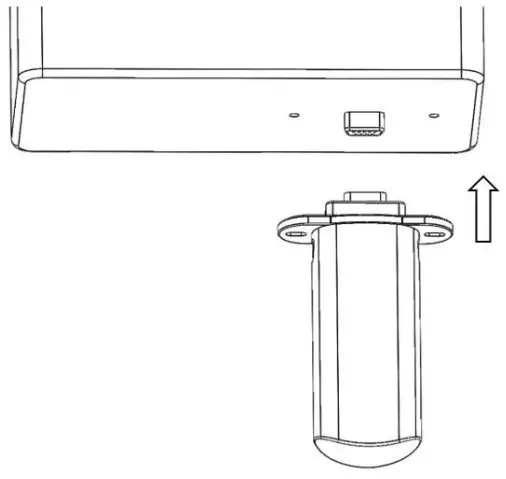
Fasten the screws: insert the two screws trough the holes, and then tighten them with a Phillips screwdriver, as shown in the following figure: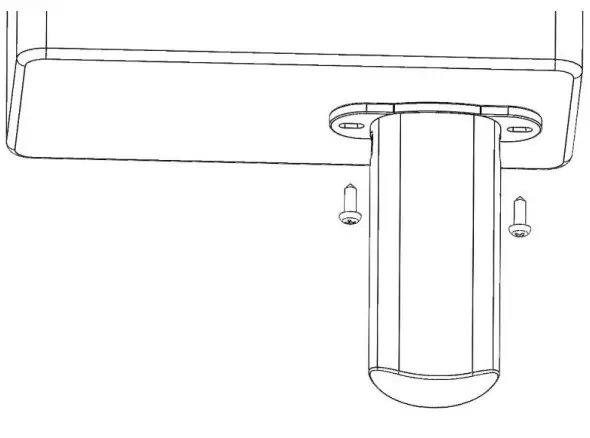
Insert the fixing screws
After installation as figure below: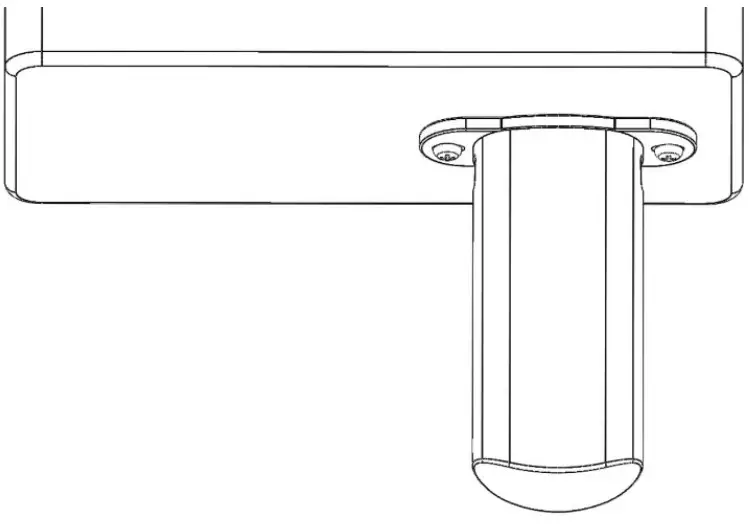
Disassemble Magpie
When you need to remove the Magpie, refer the chapter 5.1 “Install the Magpie” to loosen the screw with a screwdriver, and then pull out the Magpie, as shown in the figure below: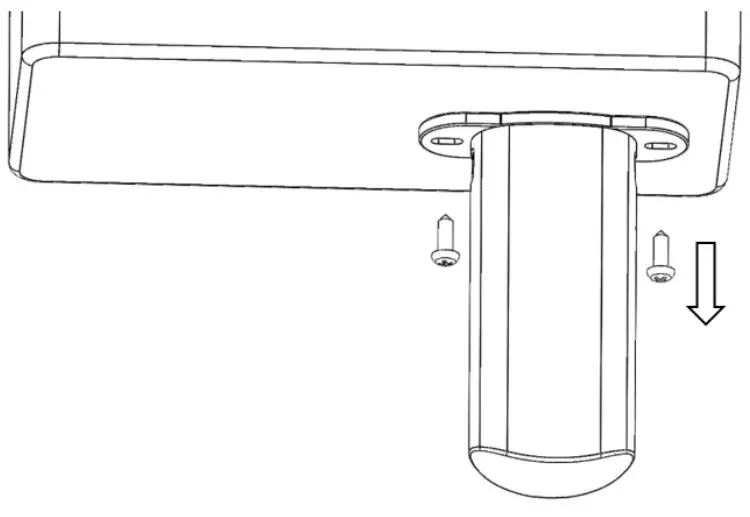
Disassemble the screws
Network connection
The Magpie supports Wi-Fi communication. The configuration method of Wi-Fi communication is described in the following sections.
When connecting to the network, the inverter must be powered on
The Wi-Fi communication diagram of Magpie is shown in the figure below. The specific process can be downloaded according to Chapter 7“Download APP”to download the APP, and configure the network connection according to the operation guide of the APP.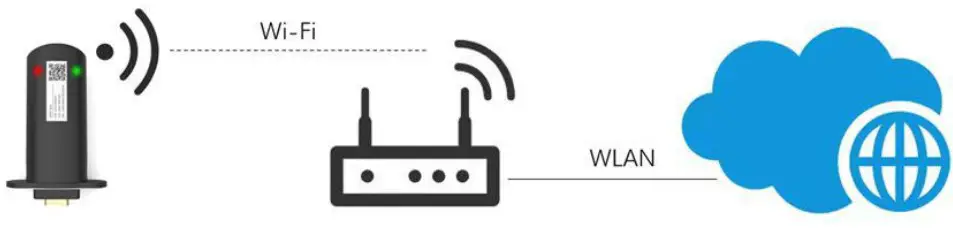
Wi-Fi connection diagram
Download APP
iPhone : search “Power View ES” in Apple Store, or scan the image below with a QR code.
Android: search “Power View ES” in Google Play, or scan the image below with a QR code.
Android
iOS
QR code for APP
Installation confirmation
When the red LED and the green LED on the Magpie are always glowing, it indicates the Magpie is normal, and it flashes during data transmission. Otherwise, it needs to be corrected by referring to the LED indication and troubleshooting chapter.
LED indication and troubleshooting
 Red LED: Inverter communication indication
 Green LED: Network communication indication
| LED | State | Indication |
| Cycle for 2S: flash once quickly, then glowing | Communication is norma |
Not glow more than 20S | The power supply to the Magpie is abnormal or damaged:1.Check whether the power supply of the Aerial Plug Interface on the inverter is normal 2.Magpie abnormal, contact the dealer | |
Not glow more than 20S | Communication failure: 1.Check whether the connection between the Magpie 2.and inverter is loose or poor contact | |
Cycle for 2S: flash once quickly, then off | ||
| When powered on, continuously glows 3S, and then off | Power on indication |
Glow more than 5S | Communication is normal | |
During the long glowing, flash occasionally | Network transmit data | |
| Cycle for 20S: flash once quickly, then of | The route is not connected:
|
Cycle for 20S: flash 3 times continuously, then off | Connect to the route, but can’t connectto the cloud server:
| |
| Cycle for 20S: flash 3 times continuously, then off | Cycle for 20S: flash 4 times continuously, then off Magpie information error: Contact the dealer |
Contact us
us
服务邮箱:[email protected]
Service email:[email protected]
公司总机:028-6787 8658
Switchboard:028-6787 8658
服务电话:028-6787 8658-621
Service Call:028-6787 8658-621
Address1:Floor 9, Building 10, Tianfu New Valley, No. 399, West Section of Fucheng Avenue,
Chengdu, Sichuan, China
Address2:Building 1, No. 206, Songshan Road, Suzhou, Jiangsu, China
FCC Statement
This device complies with Part 15 of the FCC Rules. Operation is subject to the following two conditions
- This device may not cause harmful interference.
- This device must accept any interference received, including interference that may cause undesired operation
Changes or modifications not expressly approved by the party responsible for compliance could void the user’s authority to operate the equipment.
Note: This equipment has been tested and found to comply with the limits for a class B
digital device ,pursuant to Part 15 of the FCC Rules. These limits are designed to provide reasonable protection against harmful interference in a residential installation.
This equipment generates uses and can radiate radio frequence energy and, if not installed and used in accordance with the instructions, may cause harmful interference to radio communications. However, there is no guarantee that interference will not occur in a particular installation. if this equipmemt does cause harmful interference to radio or television reception, which can be determined by turning the equipment off and on,the user is encouraged to try to correct the interference by one or more of the following measures:
- Reorient or relocate the receiving antenna.
- Increase the separation between the equipment and receiver.
- Connect the equipment into an autlet on a circuit different from that to which the receiver is connected.
- Consult the dealer or an experienced radio/TV technician for help.
- This equipment complies with FCC radiation exposure limits set forth for an uncontrolled environment . This equipment should be installed and operated with a minumum distance of 20 cm between the radiator and your body.
 linter.com
 易充电 让充电更容易 - 易充电
 e-linter.com