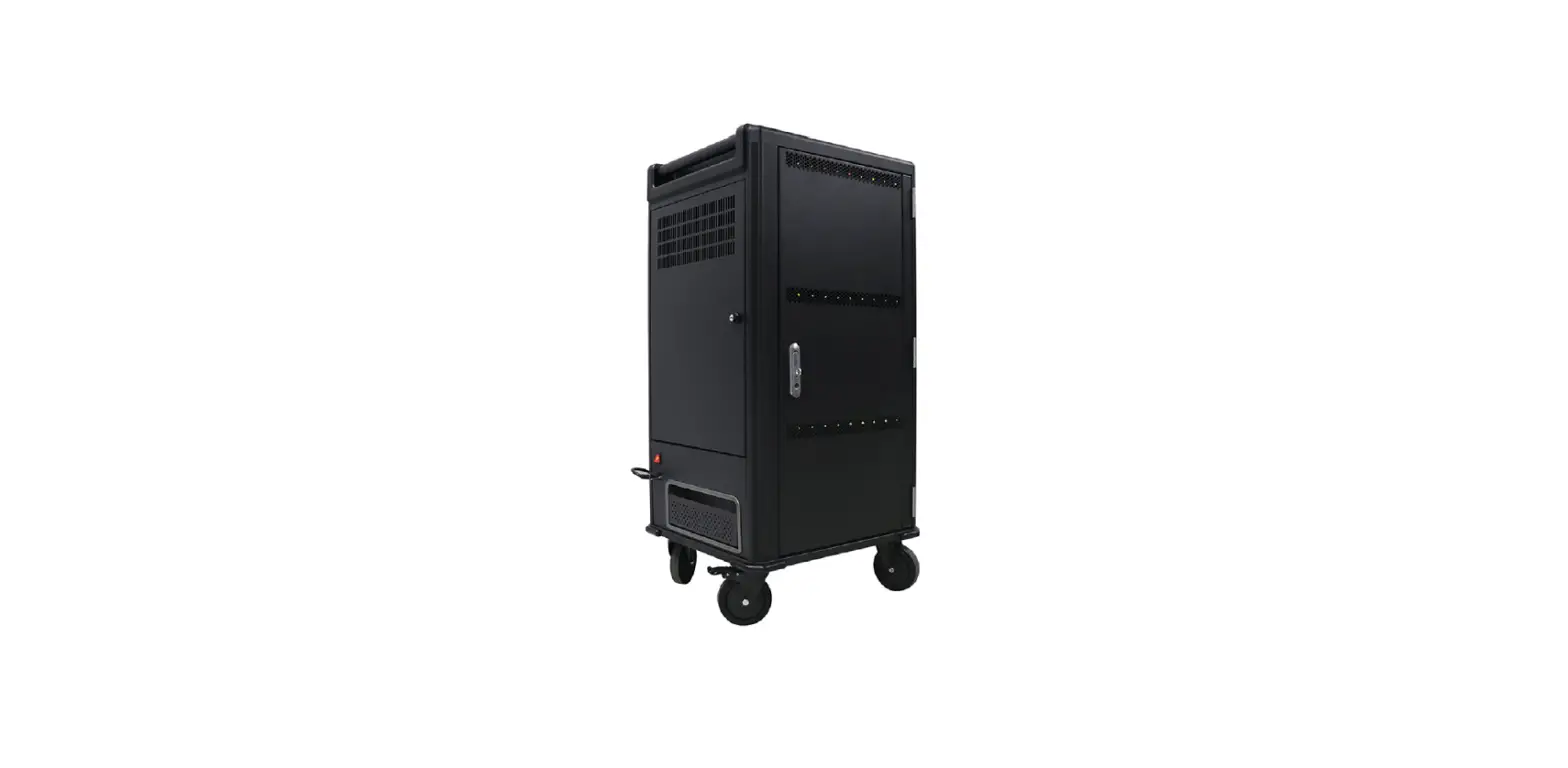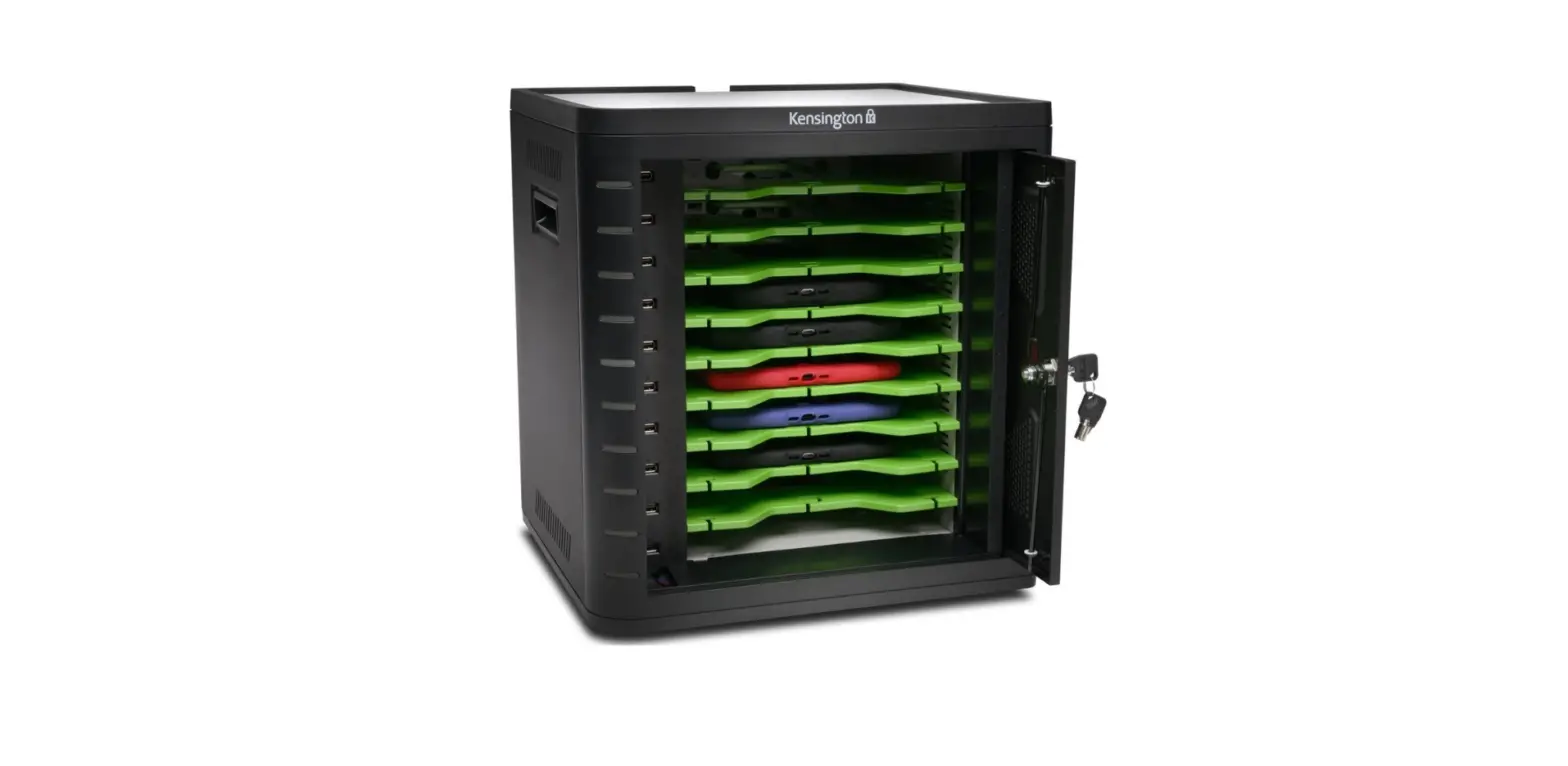

Kensington K67862EU Portable Device Management Cart/cabinet
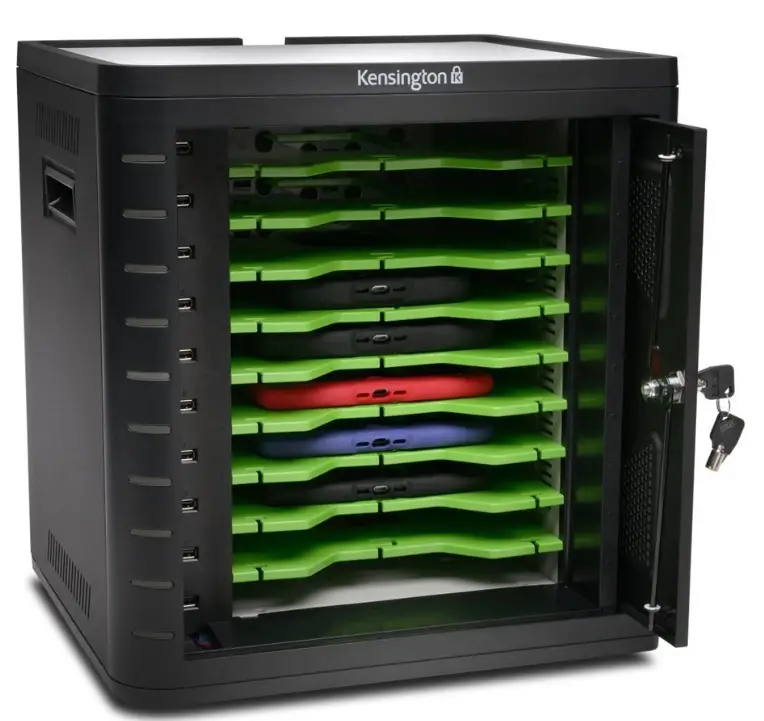
Contents
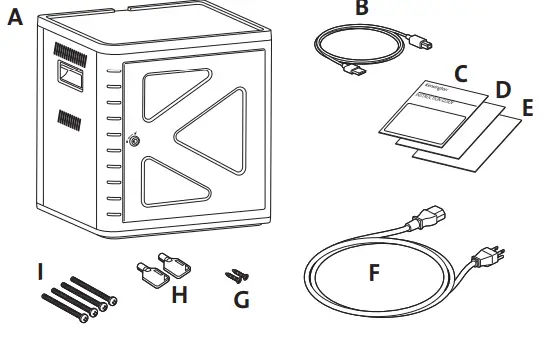
Components
- Charge and Sync Cabinet
- USB Cable
- Instruction Guide
- Warranty Card
- Safety Information
- Power Cable
- Screws (2X)
- Keys (2X)
- Bolts
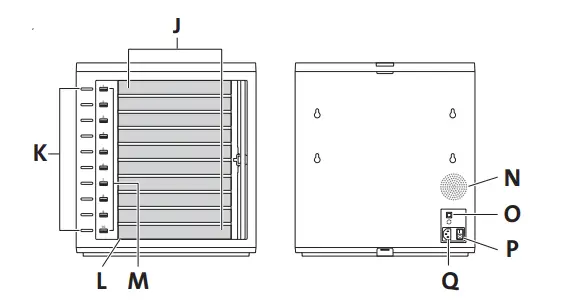
- Slots for tablets
- LED Status Lights
- Sync Button and LED M USB Ports
- Fan
- USB Ports
- Power Switch
- Power Connector
Install Cabinet
Securing
Option 1
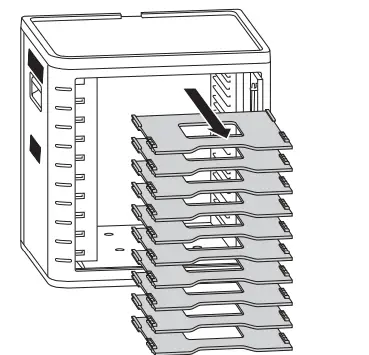
- Remove all shelves from the cabinet.

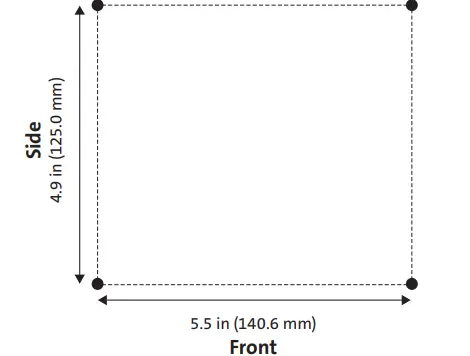
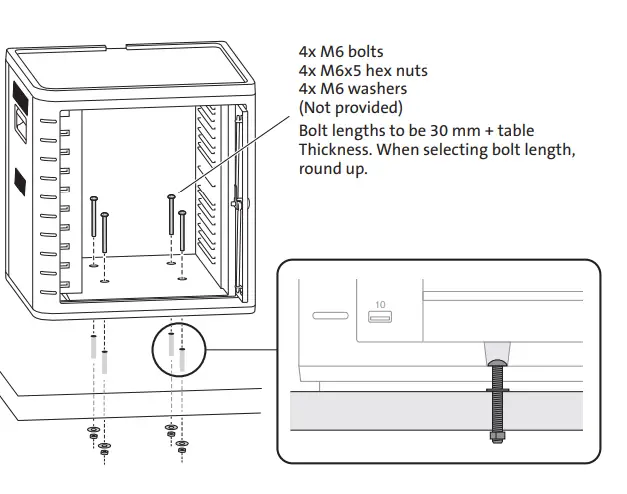
- Mark holes for drilling onto surface (30mm maximum thickness). Insert four bolts (M6 – not provided) from inside the cabinet and fasten with four hex nuts and washers (not provided).

Option 2
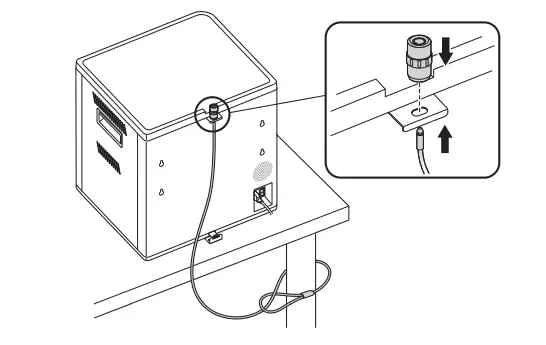
Desktop and Peripherals Locking Kit sold separately. K64615
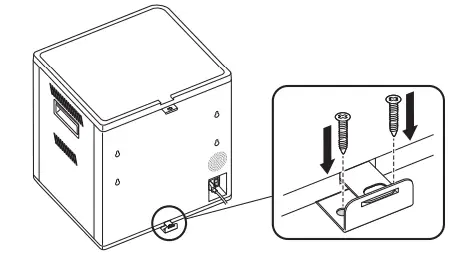
Option 3
Stacking
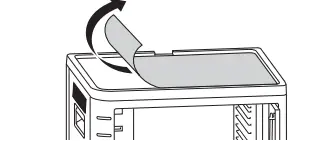
- Remove the silicone pad from the cabinet.

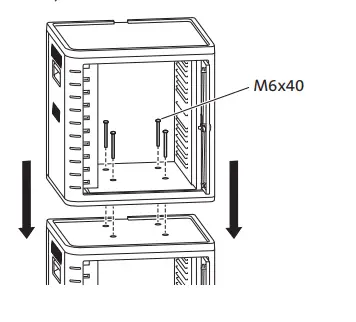
- Lower the second unit on top of the secured base unit. Fasten the top unit with four screws (M6X40 – provided).

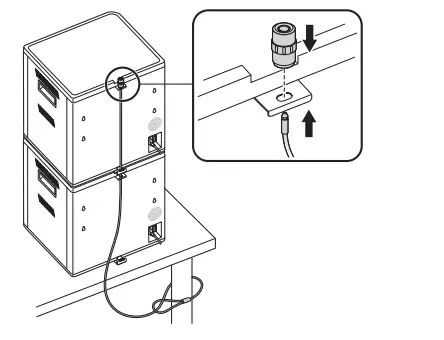
Use a cable lock to lock the units together and tether them to an anchor.
NOTE
Up to two Charge and Sync Cabinets can be stacked together.
Locking
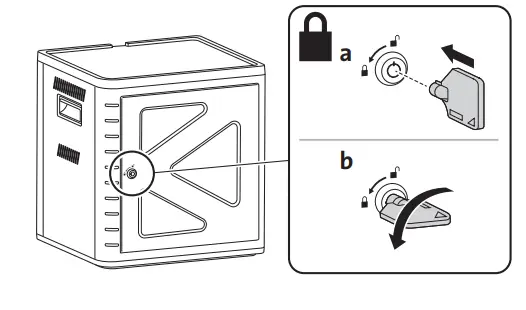
Set Up the Cabinet for Your Tablets
Power On
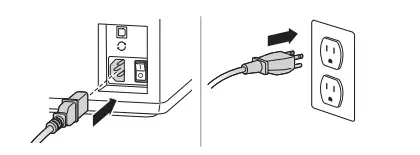
- Connect the power cable.

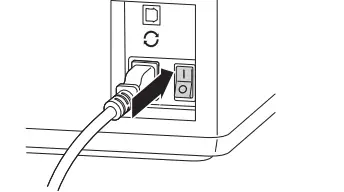
- Turn the power switch On.
Load the Tablets
- Insert one tablet into each slot.

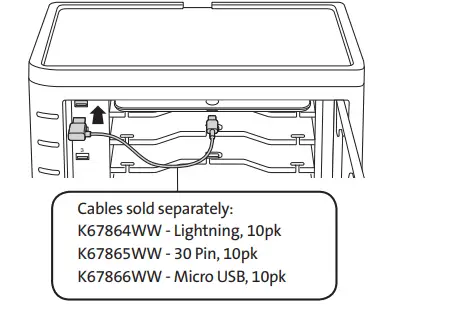
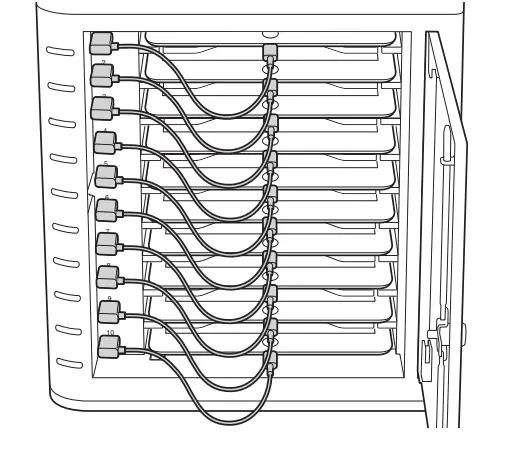
- Plug the USB end of the dock connector cable into the USB port on the Charge and Sync Cabinet.

- Plug the other end of the cable into the dock connector on the tablet.
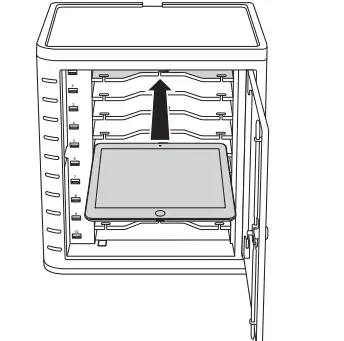
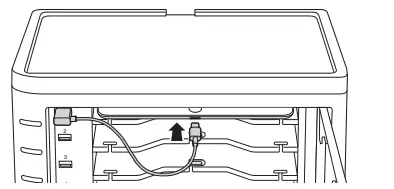
For larger cases, remove shelves and insert vertically
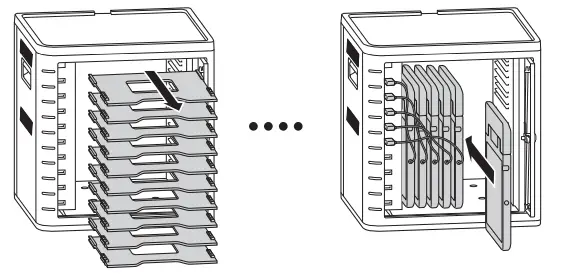
Charge the Tablets
Charging automatically begins when the dock connector is plugged into the iPad.
NOTE: The Charge and Sync Cabinet will not charge and sync the tablets at the same time.
LED Status
Green = Charged
Red = Charging in progress
Red and Green Flashing = Sync in process
Red Flashing = Over current protection
NOTE
Remove the Device and turn off the AC power for over current reset.
Configuring Your Charge & Sync Cabinet for iPads®
If you need to sync the classroom’s iPads using your laptop or desktop, simply visit Apple’s Configuration page at http://help.apple.com/configurator/mac/1.0/?lang=en-
us#cadf1802aed to learn more. The site has all the information you need with easy-to-follow directions.
Sync
iTunes Setup
- Launch the iTunes
 application on the host computer.
 - Under Preferences, click on the Advanced tab. Uncheck Check for new software updates automatically. This will prevent the automatic update process from interfering with the syncing process.

- Click on the Device tab, make sure all options are unchecked.

- Prepare the iTunes library with apps and media that you intend to sync to the iPads.
 application on the host computer.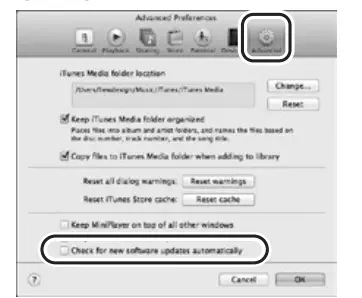
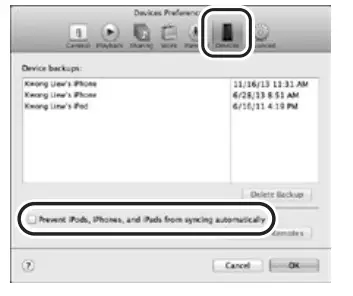
iPad Setup
Configure each iPad before starting the syncing process. This can be done by connecting the iPad directly to the host computer or by inserting it into the Charge and Sync Cabinet. If connecting through the cabinet, only one iPad can be configured at a time.
- Connect the supplied USB cable to the host computer.

- Connect the other end of the USB cable to the USB port recycle on the back of the Charge and Sync Cabinet.

- Insert one iPad into the Charge and Sync Cabinet.

- In the iTunes sidebar, select the iPad under Devices.

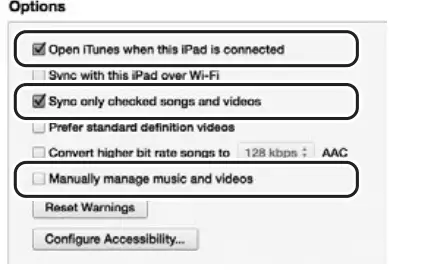
- Click on the Summary tab, select Open iTunes when this iPad is connected and Sync only checked songs and videos. Verify Manually managed music and videos is not selected (this function would require you to drag and drop your selections to each iPad).

- Click on each of the tabs at the top (Apps, Music, Movies, TV shows, Books, Photos) and select which type of files you will want to sync on this iPad. Click the Sync or Apply button.

- Repeat Steps 3 to 6 for each iPad that will be used in the Charge and Sync Cabinet.
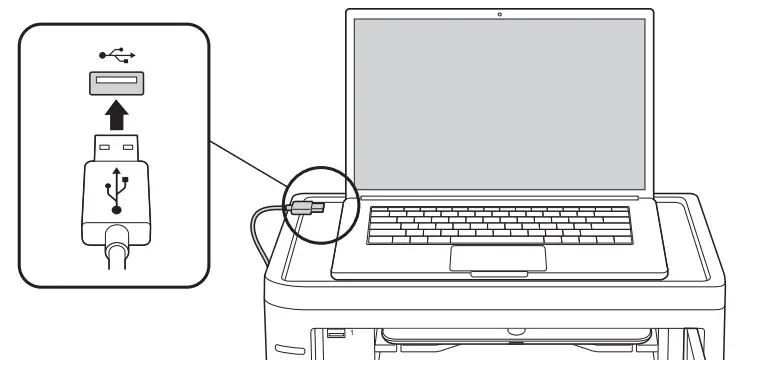
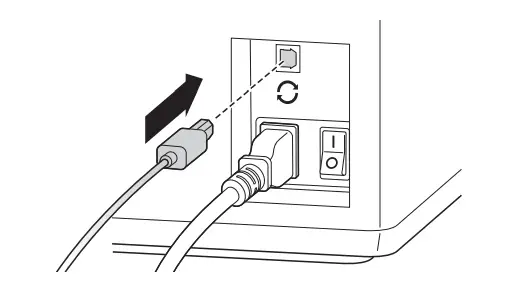
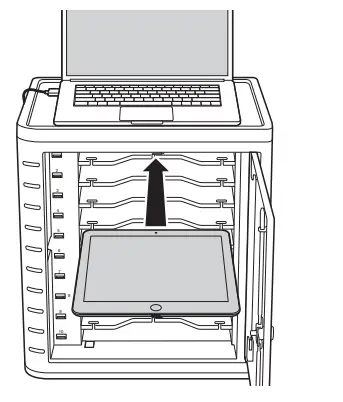
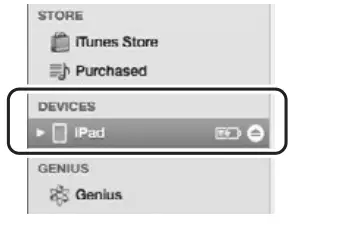

Ready to Sync
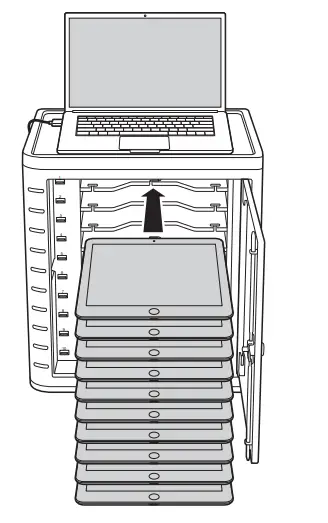
- Insert one iPad into each slot.

NOTE: If the iPads are new, they should be fully charged before attempting to sync. - Plug the USB connectors into the Charge and Sync Cabinet and the iPads. All the iPads loaded in the Charge and Sync Cabinet will appear under Devices in iTunes.

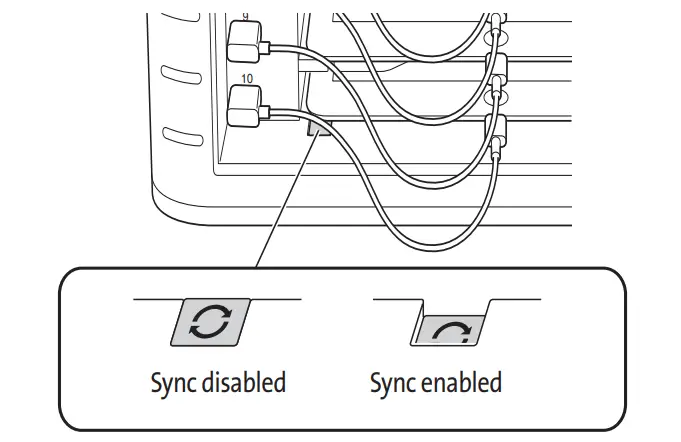
- Press the Sync Button to start the sync process.

- iTunes will launch and syncing will start automatically.
- When syncing is completed, an Eject icon will appear next to each device. Click on the Eject icon or close iTunes to safely eject the iPad.
- Unplug the USB cable from the computer so charging can begin.
IMPORTANT!
Charging will not occur until the USB cable is unplugged from the host computer.
Multi-Cabinet Sync Connection
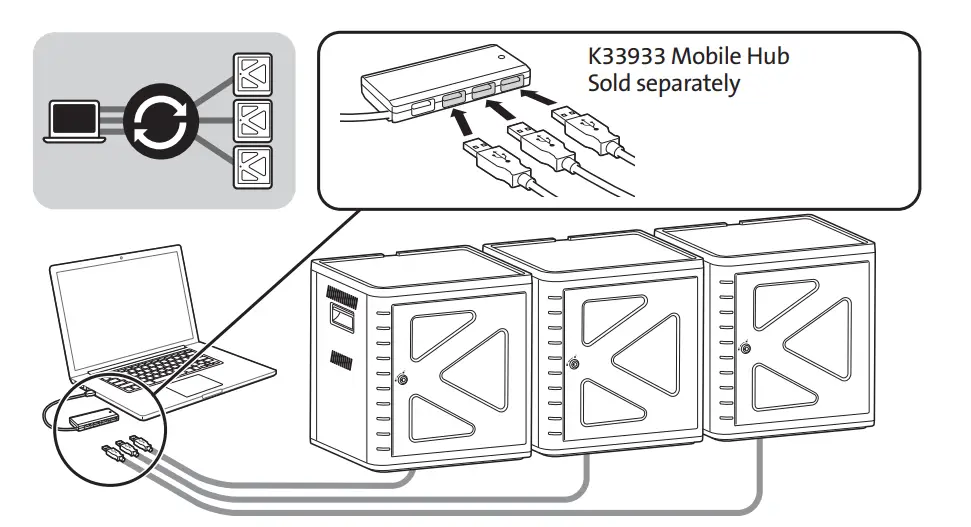
- Arrange the units in order on a secure surface.
- Place configured iPad devices in the slots, connect the dock connector cable to the iPad and USB ports. Push Sync switch button to “ON”, LED light will appear in red.
- Connect all units together using a USB hub (K33933 Mobile Hub, sold separately). iTunes will automatically detect the new searched device name.
NOTE
Adding a new iPad device to the station after the sync button has been activated will require the sync button to be reset. Push the sync button off, and then on again to reset.
Syncing Android Tablets
To sync an Android device, please refer to the manufacturer’s instructions.
Technical Support
Technical support is available to all registered users of Kensington products. Technical Support contact information can be found on the back page of this manual.
Web Support
You may find the answer to your problem in the Frequently Asked Questions (FAQ) section of the Support area on the Kensington Website: www.support.kensington.com.
Telephone Support
There is no charge for technical support except long-distance charges where applicable. Please visit www.kensington.com for telephone support hours. In Europe, technical support is available by telephone Monday to Friday 09:00 to 18:00 (Central European time).
Please note the following when calling support:
- Call from a phone where you have access to your device.
- Be prepared to provide the following information:
- Name, address, and telephone number
- Name of the Kensington product
- Make and model of your computer
- System software and version
- Symptoms of the problem and what led to them
FEDERAL COMMUNICATIONS COMMISSION RADIO FREQUENCY INTERFERENCE STATEMENT
This device has been tested and found to comply with the limits for a Class B digital device, pursuant to Part 15 of the FCC Rules. These limits are designed to provide reasonable protection against harmful interference in a residential installation. This equipment generates, uses. and can radiate radio frequency energy and, if not installed and used in accordance with the instructions, may cause harmful interference to radio communications.
However, there is no guarantee that interference will not occur in a particular installation. If this equipment causes harmful interference to radio or television reception, which can be determined by turning the equipment off and on, the user is encouraged to try to correct the interference by one or more of the following measures:
- Reorient or relocate the receiving antenna.
- Increase the separation between the equipment and receiver.
- Connect the equipment into an outlet on a circuit different from that to which the receiver is connected.
- Consult the dealer or an experienced radio/TV technician for help.
MODIFICATIONS: Modifications not expressly approved by Kensington may void the user’s authority to operate the device under FCC regulations and must not be made.
SHIELDED CABLES: In order to meet FCC requirements, all connections to equipment using a Kensington input device should be made using only the shielded cables.
FCC DECLARATION OF CONFORMITY COMPLIANCE STATEMENT
This product complies with Part 15 of the FCC rules. Operation is subject to the following two conditions: (1) This device may not cause harmful interference, and (2) This device must accept any interference received, including interference that may cause undesired operation. As defined in Section 2.909 of the FCC Rules, the responsible party for this device is Kensington Computer Product Group, 333 Twin Dolphin Drive, Redwood Shores, CA 94065,USA.
INDUSTRY CANADA CONFORMITY
This device has been tested and found to comply with the limits specified in RSS-210. Operation is subject to the following two conditions: (1) This device may not cause interference, and (2) This device must accept any interference, including interference that may cause undesired operation of the device.
This Class [B] digital apparatus complies with Canadian ICES-003.
CE DECLARATION OF CONFORMITY
Kensington declares that this product complies with the essential requirements and other relevant provisions of applicable EC directives. For Europe, a copy of the Declaration of Conformity for this product may be obtained by clicking on the Compliance Documentation link at www.support.kensington.com.
INFORMATION FOR EU MEMBER-STATES ONLY
The use of the symbol indicates that this product may not be treated as household waste. By ensuring this product is disposed of correctly, you will help prevent potential negative consequences for the environment and human health, which could otherwise be caused by inappropriate waste handling of this product. For more detailed information about recycling this product, please contact your local city office, your household waste disposal service, or the shop where you purchased the product.
Kensington and the ACCO name and design are registered trademarks of ACCO Brands. The Kensington Promise is a service mark of ACCO Brands. iPad is a registered trademark of Apple Inc., registered in the U.S. and other countries. All other registered and unregistered trademarks are the property of their respective owners.
© 2014 Kensington Computer Products Group, a division of ACCO Brands USA LLC. Any unauthorized copying, duplicating, or other reproduction of the contents hereof is prohibited without written consent from Kensington Computer Products Group. All rights reserved. 03/14
Frequently Asked Questions
Yes, just get the appropriate mini usb cables, (recommend buying short ones)
yes, this will fit a 12.9″ iPad Pro, without the shelves, when the iPad is placed in the cabinet vertically.
Yes. We use it with the iPad 9.7, but it is in a case. There’s still plenty of room.
No USB charging ports.. There is a power port forwarding all of the slots that then use USB cables to charge
yes, this Charge and Sync Cabinet (K97862AM) will fit up to 10-inch tablets and will work with iPad 5 and iPad 6 pro tablets.
Plenty of room. It will hold 10 Chromebooks which are bigger than ipads.
The recommended 10-pack from Amazon is for the old charge and sync models that were built for iPad only and don’t work with the new “universal” cabinet. The ones you want are model K64864WW and only come in 5-packs. I made the same mistake and it’s because Kensington didn’t differentiate the names of the 2 model cabinets. Major flop by Kensington for not being clear and Amazon for “recommending” the wrong product.
Our local lock shop had no problem making a copy
We have it plugged into the wall and haven’t had any problems. It’s fully loaded