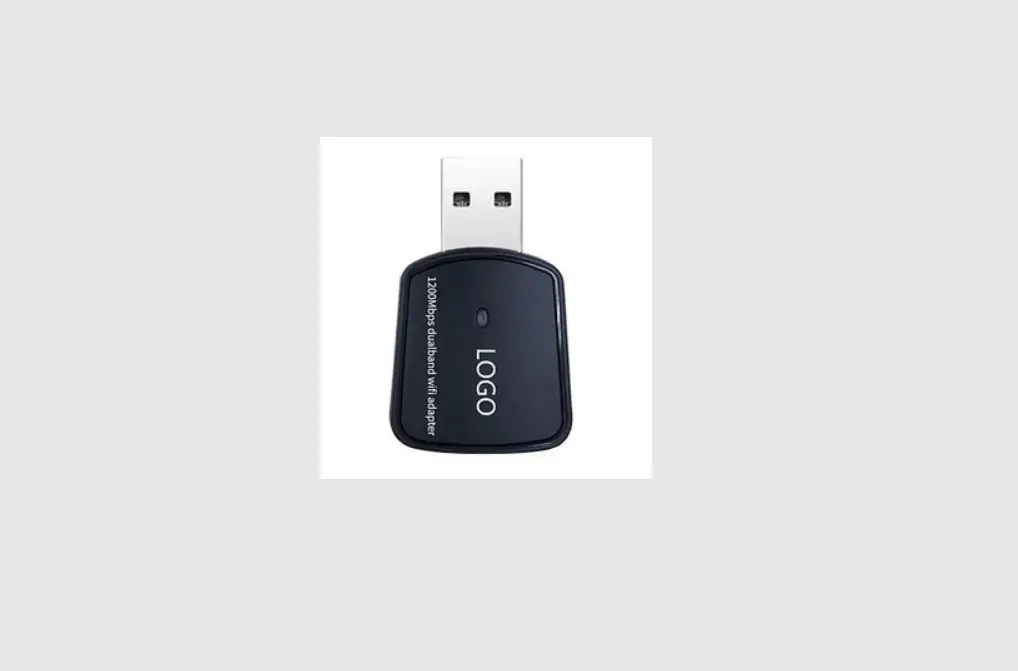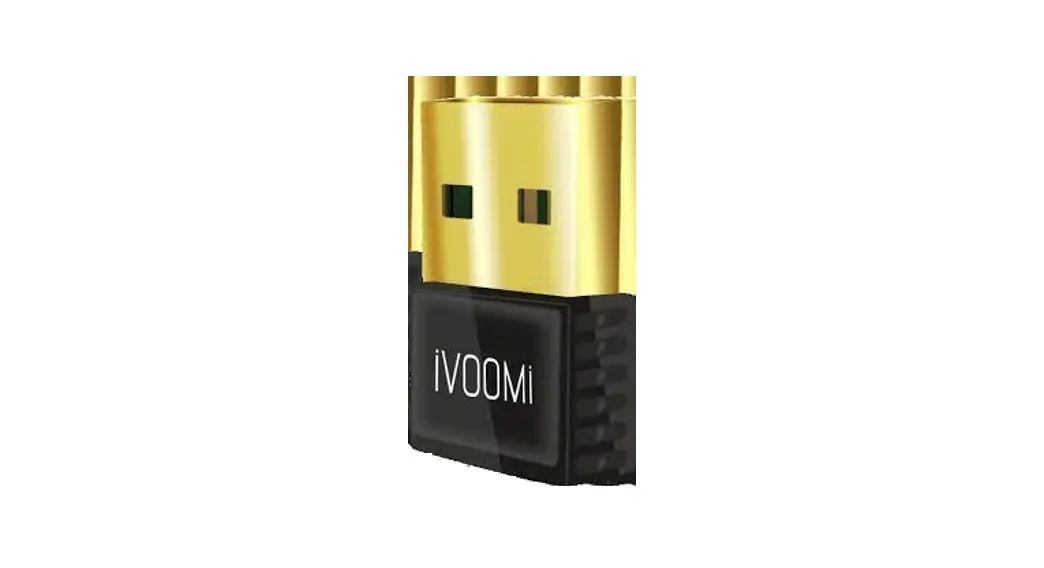

CHEETAH 300
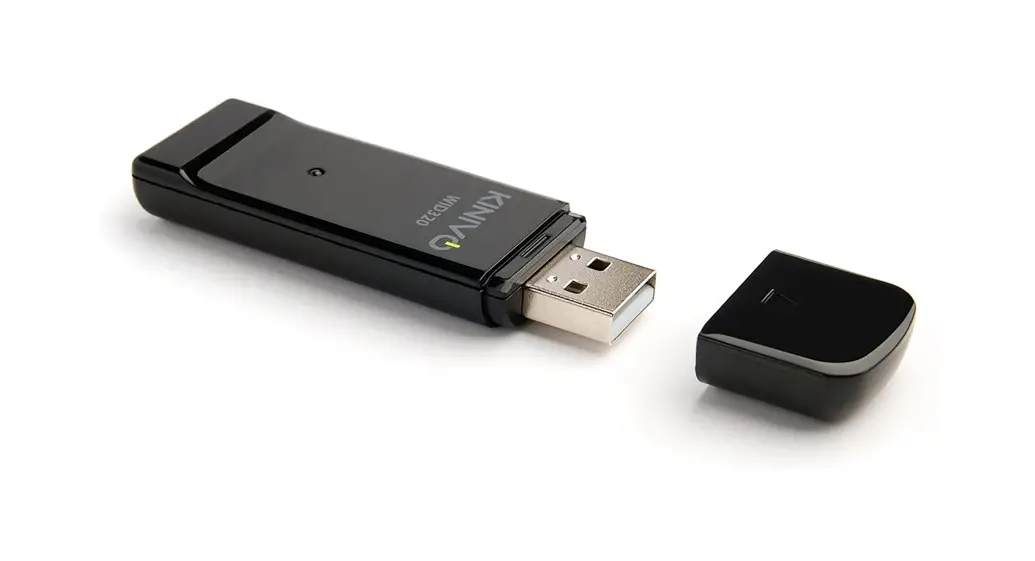
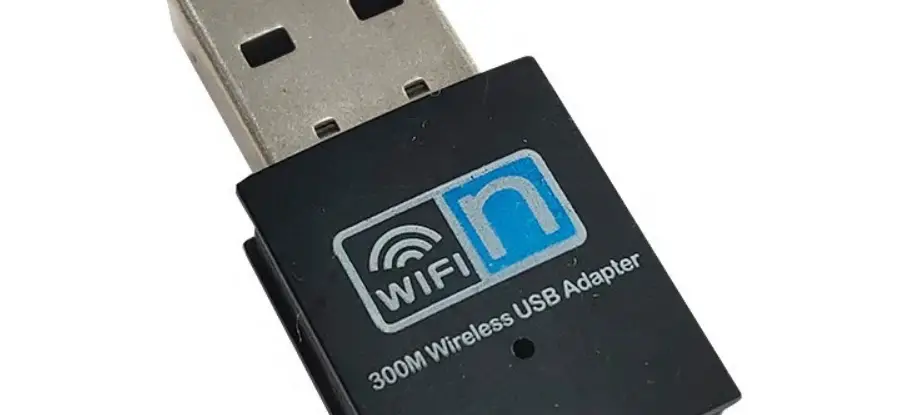
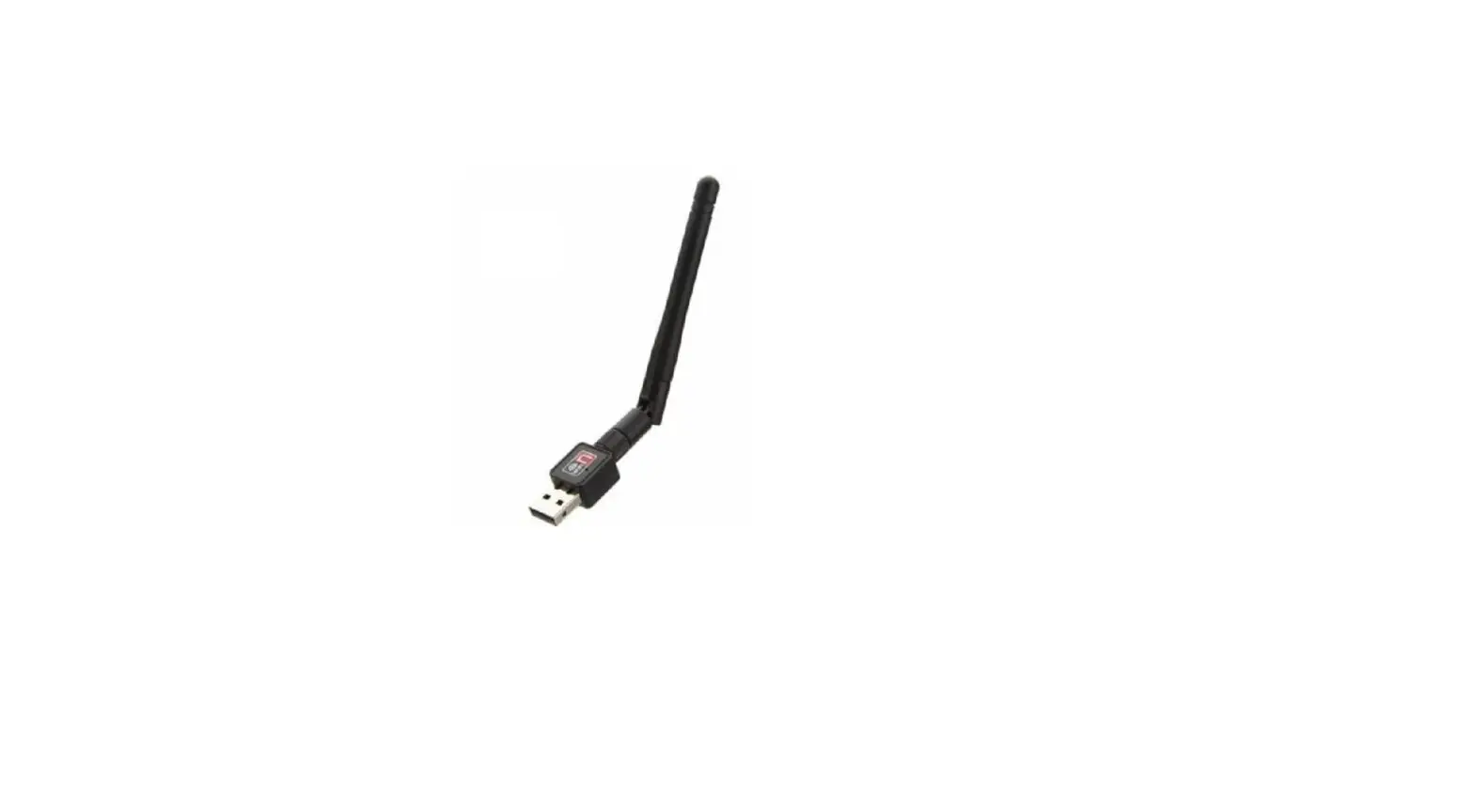
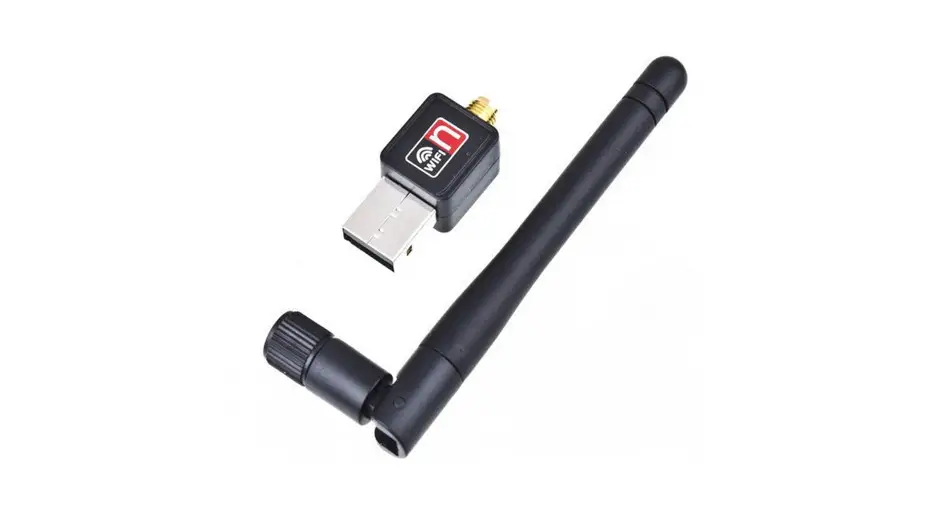
USB 2.0 WIRELESS ADAPTER
802.11b/g/n Wireless USB Adapter V0.1
User Manual & Installation Guide
This manual is divided into three parts: Windows XP, Windows 7 / 8 / 8.1 /10, and Mac
Windows XP
Please do the following steps to set up the soare on your computer:
Step 1. Once the wireless USB adapter has been plugged in to a USB port, the following message will appear on screen. Click “Cancel”. (See picture below please)
(If it does not pop-up, skip this step)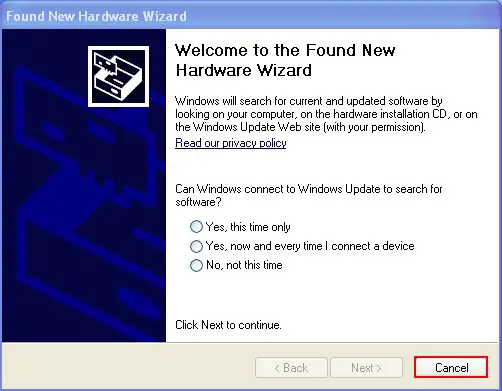 Step 2. Please insert the disc into your CD-ROM drive. The disc should auto start, displaying the following window. If it does not start due to the system segs, open My Computer, find the Setup.exe file in the folder “windows” in your CD-ROM directory.
If you do not have a CD-ROM Drive, you can download at netdynwifi.com Step 3. Double click the “Setup.exe” file and the soware will inialize. Then please choose “I accept the terms of the license agreement” and click “Next”.
Here you have two opons: “Install Driver and Mediatek WLAN Ulity” or “Install Driver Only”
With the WLAN Ulity you will have soare to manage your connecwith. If you choose to only install the drivers, you will use your regular ulity provided by Windows.
Step 4. Once you choose which opn you prefer, connue the installaon wizard and finish it.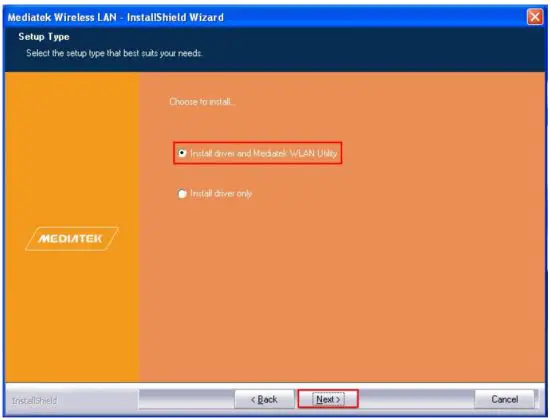
Step 5:
If You Chose “Install Driver Only”:
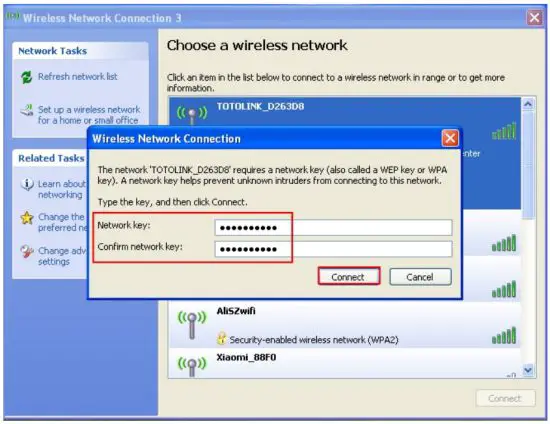
Step 5a. Click the icon in the Windows system tray, which is located in the boom-right corner of your computer screen. It pops up a message and double-clicks the ulity icon (or choose the SSID and click “connect”), enter the wireless network key and click “connect”. Then you will have internet access.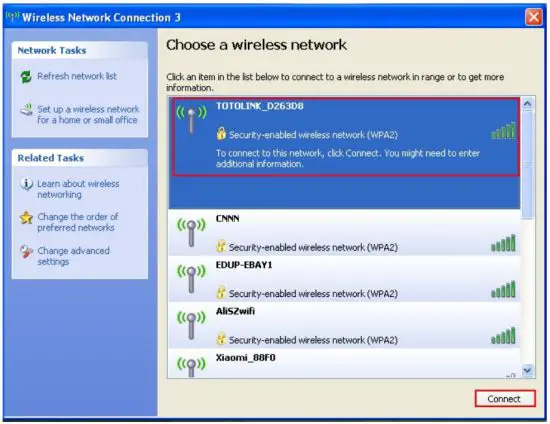
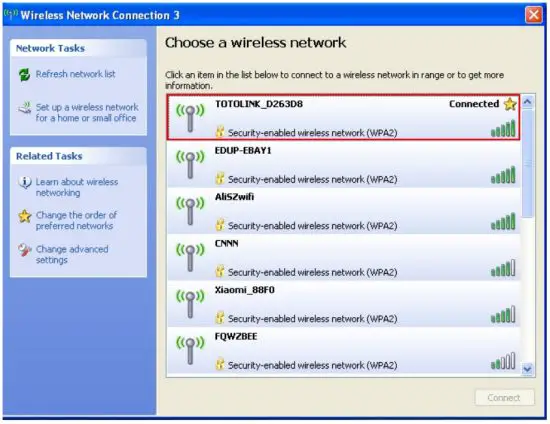 If You Chose “Install Driver and Mediatek WLAN Ulity”:
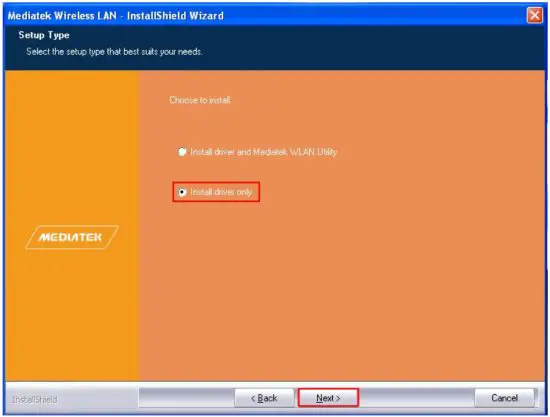 Now Choose between the “Mediatek Configura Tool” or the “Microso Zero ConfiguraTool”. If you choose the “Mediatek Configuratool, proceed with Step 5b. If you choose the “Microso Zero Configuraon Tool”, you have the opn to connect to the internet both ways 5a and 5b.
Step 5b. Double click the Icon in the Windows system tray, which locates in the boom-right corner of your computer screen and open the wireless networking setup page as seen in figure 1. Click “Available Networks” and choose the wireless networking you prefer on the right bar.
Double click wireless signal to open a page and click the ( ) next step buon.
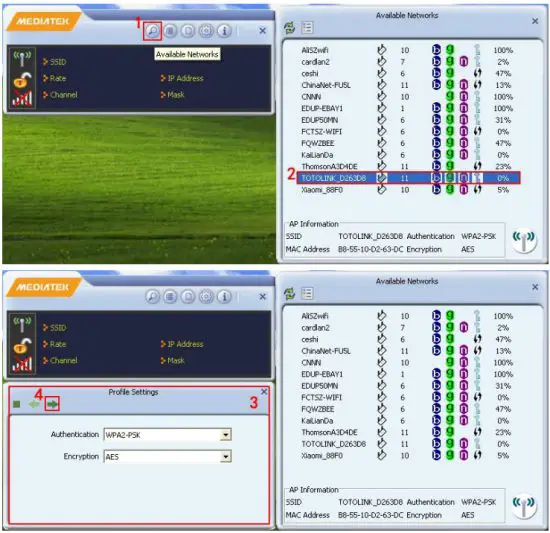 Enter the wireless networking key as seen in figure 5 and click the next step () buon. Now you will be able to connect to the internet.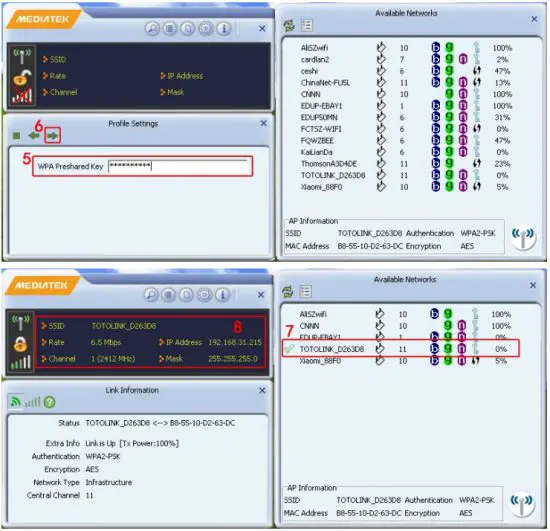
Windows 7 / 8 / 8.1 / 10
This example uses Windows 7, but if you have Win 8 or 10, the steps are the same.
Step 1. Once the wireless USB adapter is plugged into a USB port, insert the CD and locate Setup.exe in the folder “windows” in the disc directory. (If you do not have a CD-ROM slot in your computer, please download the driver from netdynwifi.com) Step 2. Double click on the Setup.exe file, then choose “I accept the terms of the license agreement”. Click “Next”.
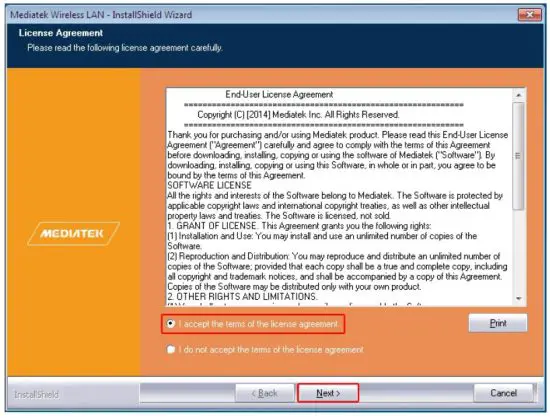 Here you have two opons: “Install Driver and Mediatek WLAN Ulity” or “Install Driver Only”
With the WLAN Ulity you will have soare to manage your connect with. If you choose to only install the drivers, you will use your regular ulity provided by Windows.
Step 3. Once you choose which opn you prefer, connue the installaon wizard and finish it.
Step 4:
If You Chose “Install Driver Only”:
Step 4a. Click on the Icon  in the Windows system tray, which is located in the boom-right corner of your computer screen and then double click the SSID you preferred (or click “connect” buon)
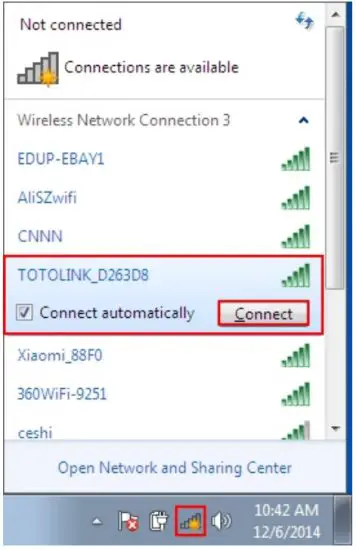 Open the wireless networking page and enter the security key. Click the “OK” button.
Then you should have internet access when you open a internet window with any browser.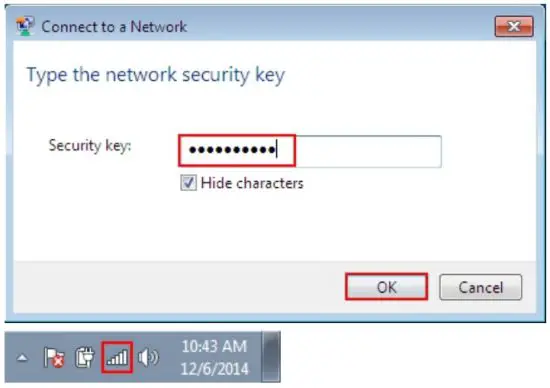 If You Chose “Install Driver and Mediatek WLAN Ulity”:
Step 4b. Double click the icon in the Windows system tray, which is located in the boom-right hand corner of your computer screen, and click on the “Available Networks” buon (See figure 1). Open the right wireless list and choose wireless signal (See figure 2) and double click.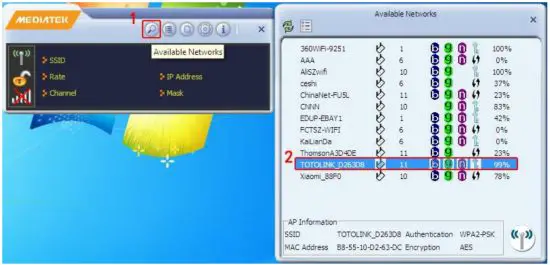
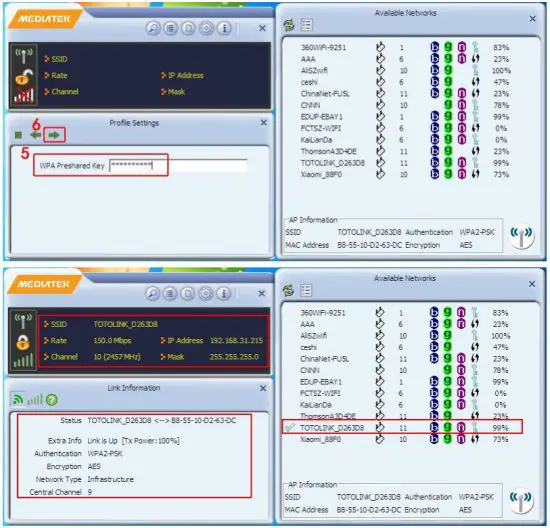
Click “Next “ (figure 4) at the leboom of the page.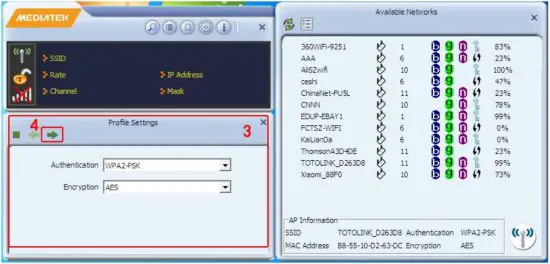 Enter the wireless password (figure5) and click the next arrow. You will now have internet access.
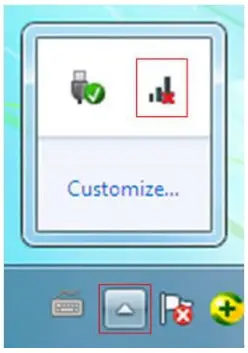
 Note: If there is no icon, please find it by clicking the small triangle at the boom right of the screen. It has been hidden as following the picture shows:
 If you install the Mediatek WLAN Ulity, you can also choose to do step 4a and you will be able to access the internet.
MAC OSX
Step 1. Unzip the Driver for MAC OS, and then open the file “USBWireless-Install.pkg”. Open the .pkg file for the Mediatek Wireless Uy installaon. Step 2. Aer you install the driver, you’ll have to restart your computer.
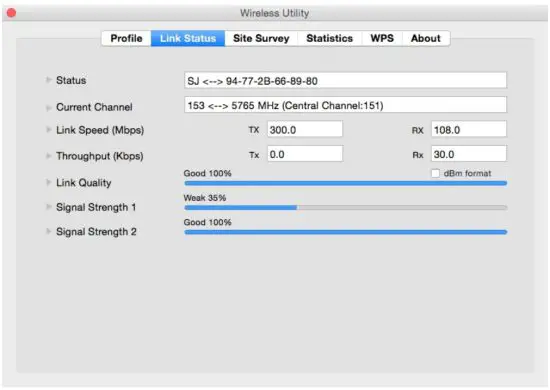
Step 3. Open your Finder, and then click on “Applicas”, find the “Mediatek Wireless Ulity” files. Open it and click “Wireless Ulity”.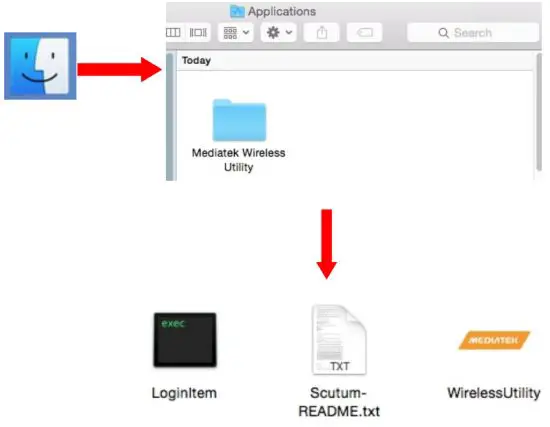 Step 4. In the taskbar at the top you will now see a yellow icon (See below, on older versions of Mac, the Icon might say “Ralink” in blue font). Click this icon and click “Open Wireless Ulity…”
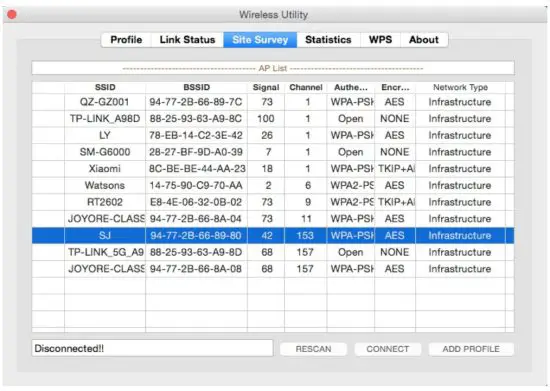
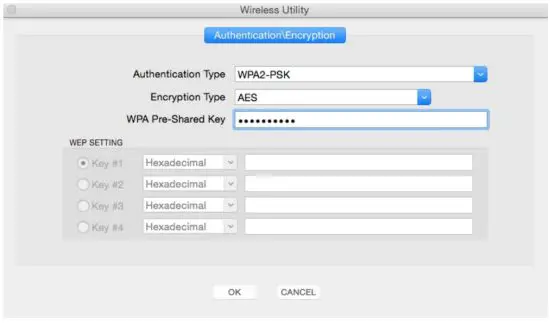
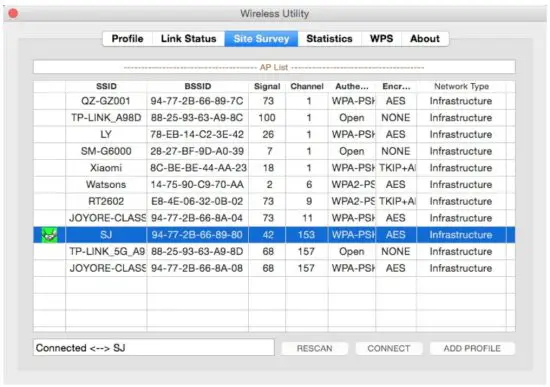
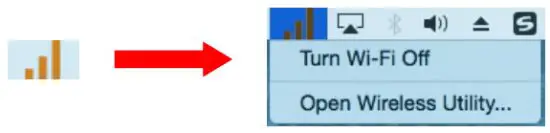 Step. 5 Choose your WiFi, and click “CONNECT”, type your password and you can get access to the Internet.
 www.ivoomi.co
iVoomi Innovation Pvt. Ltd.
Regd. Office: QU-276, A Block, Chitrakoot Apartment, Pitam Pura, Delhi
Customer Care : +91 9335828282 | Email : [email protected]
Website : www.ivoomi.co