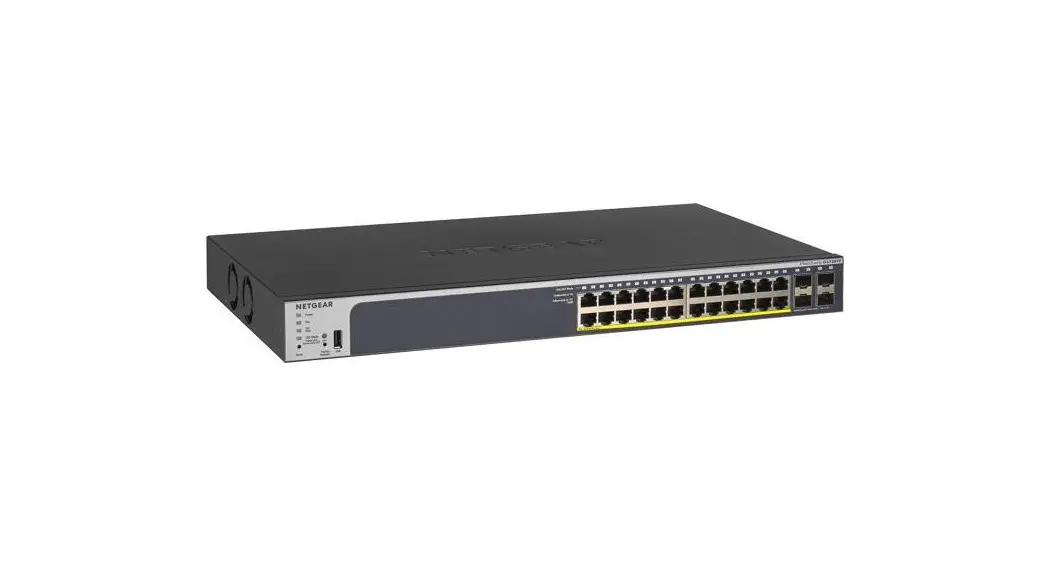
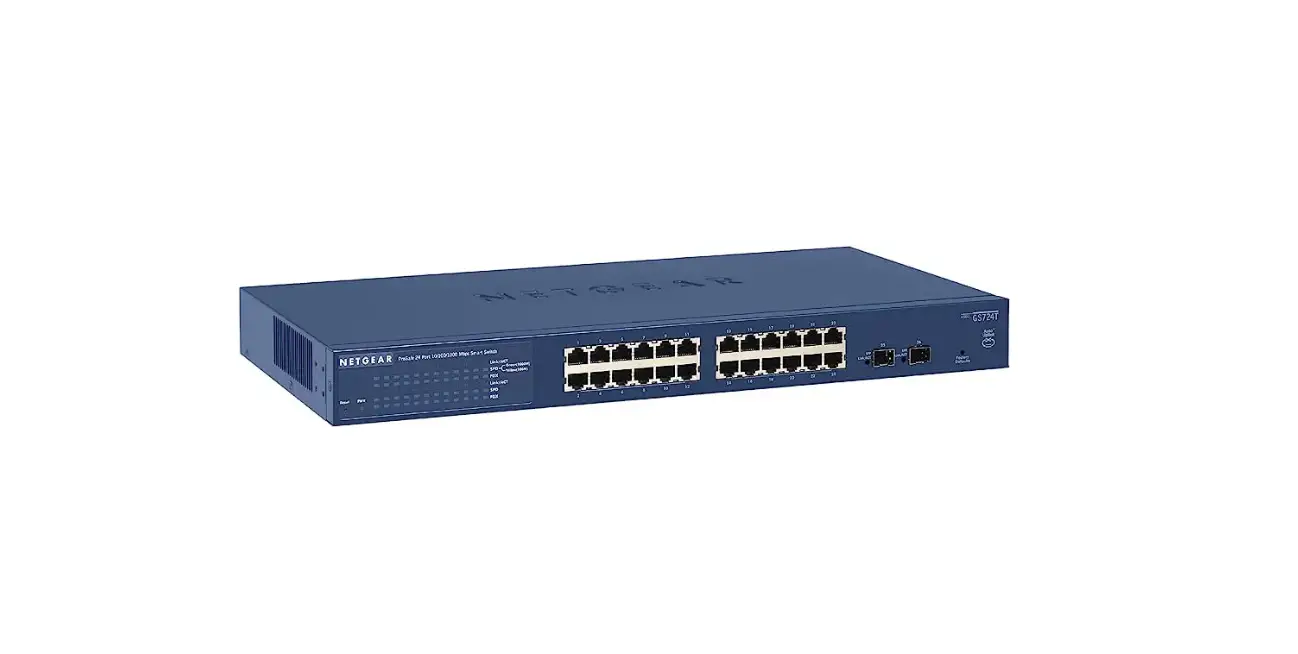
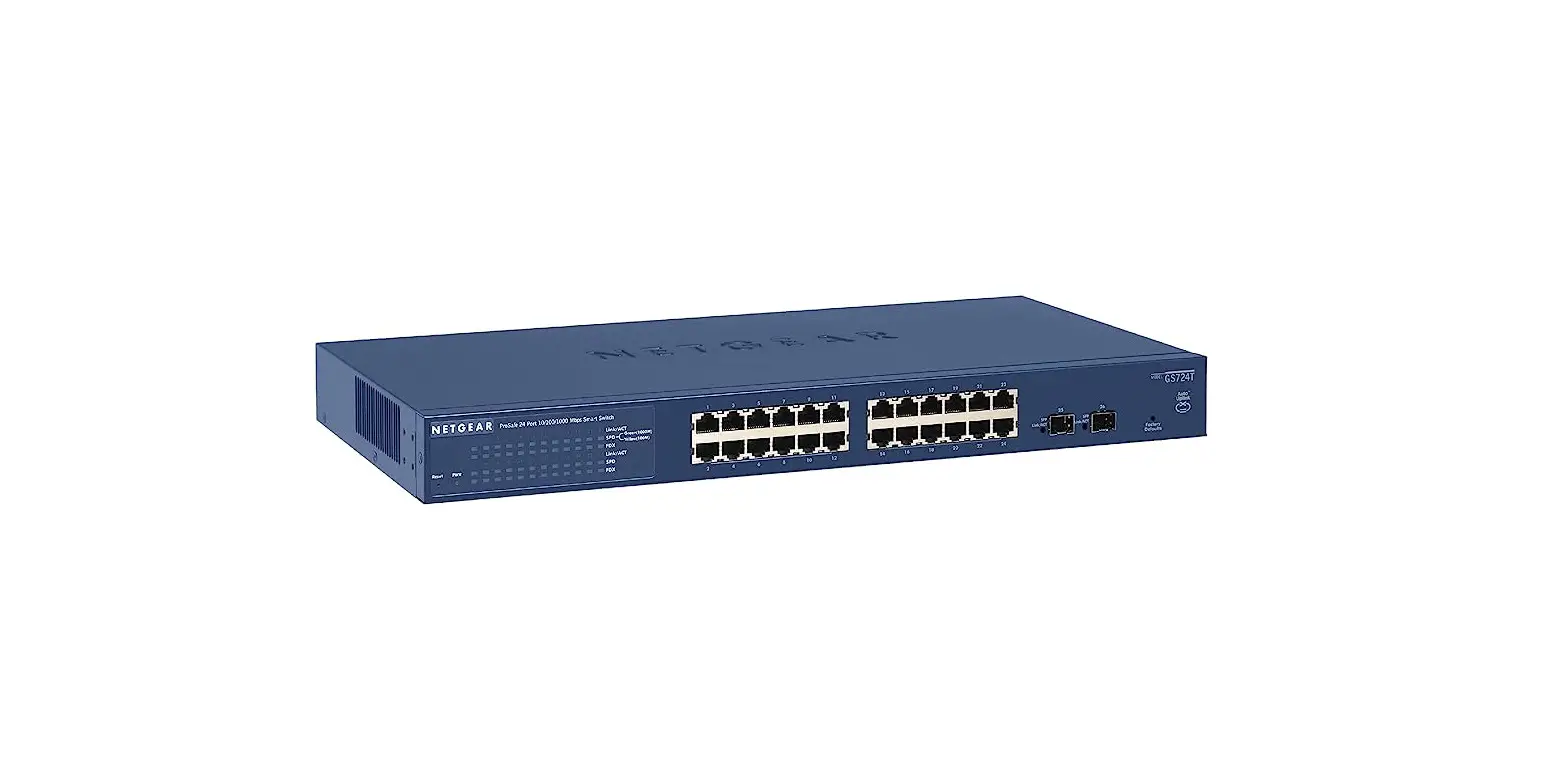
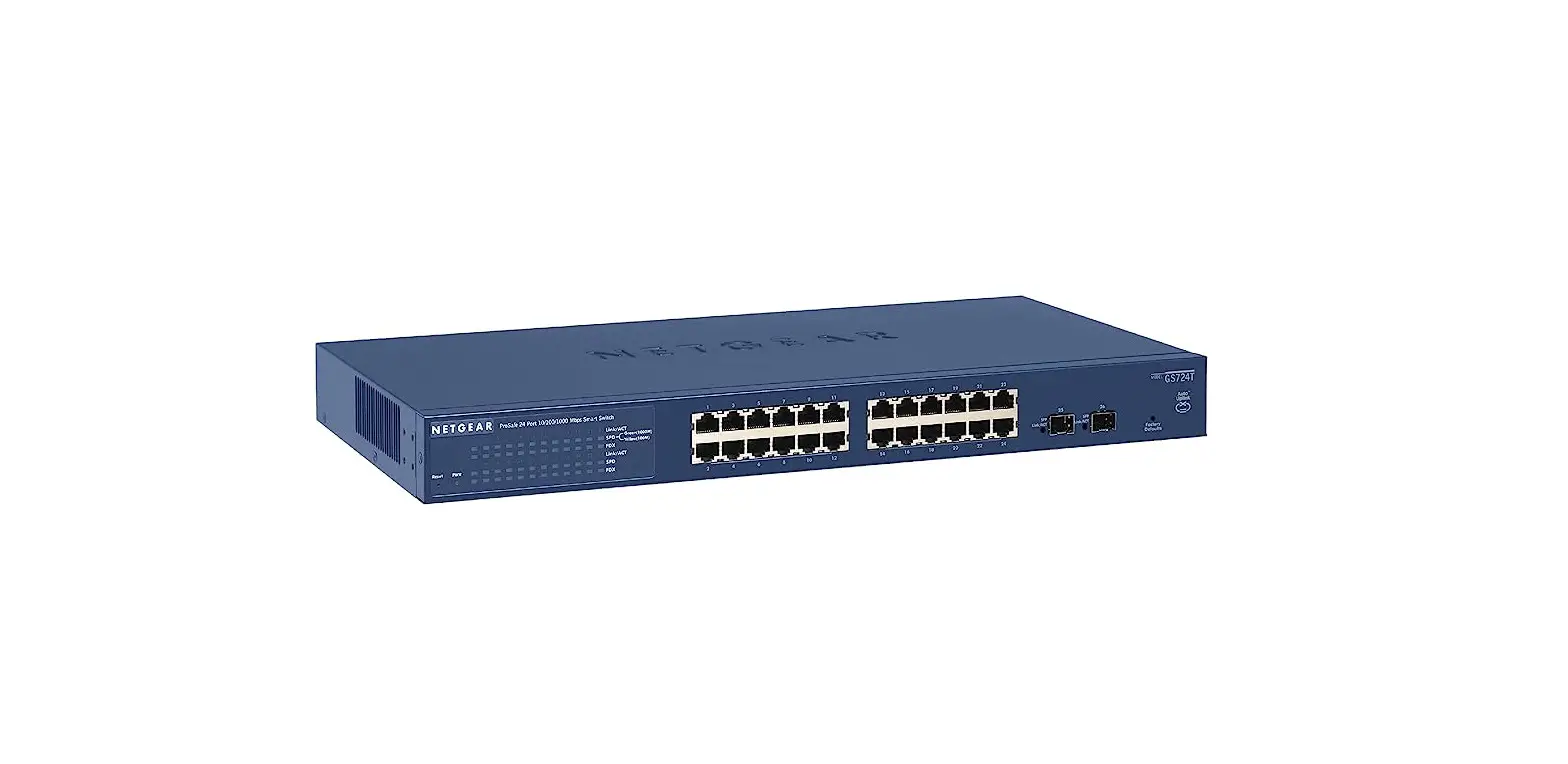
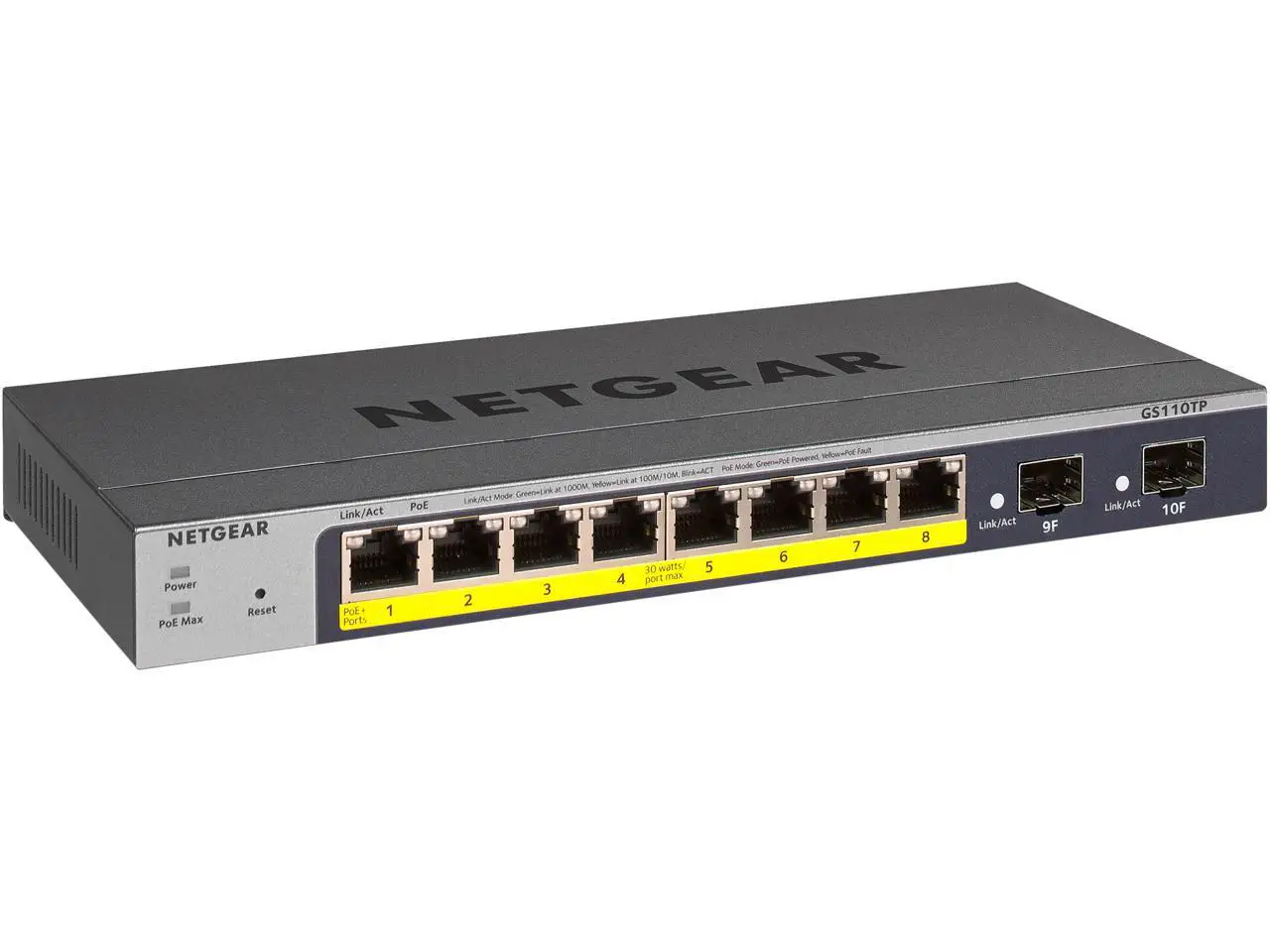
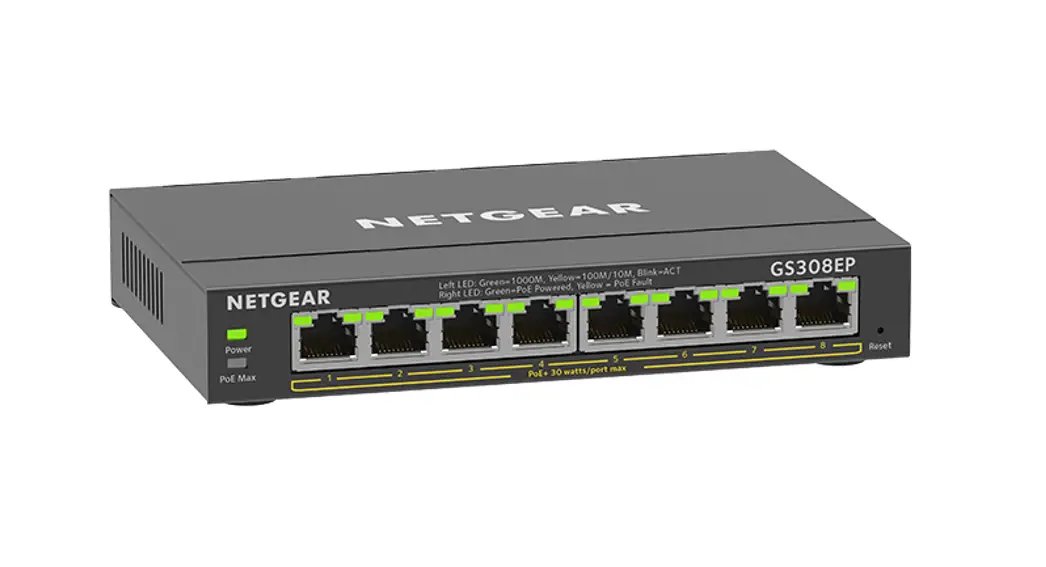
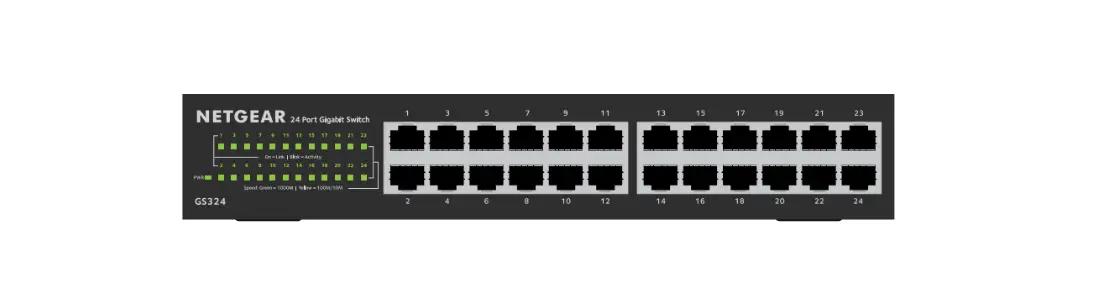
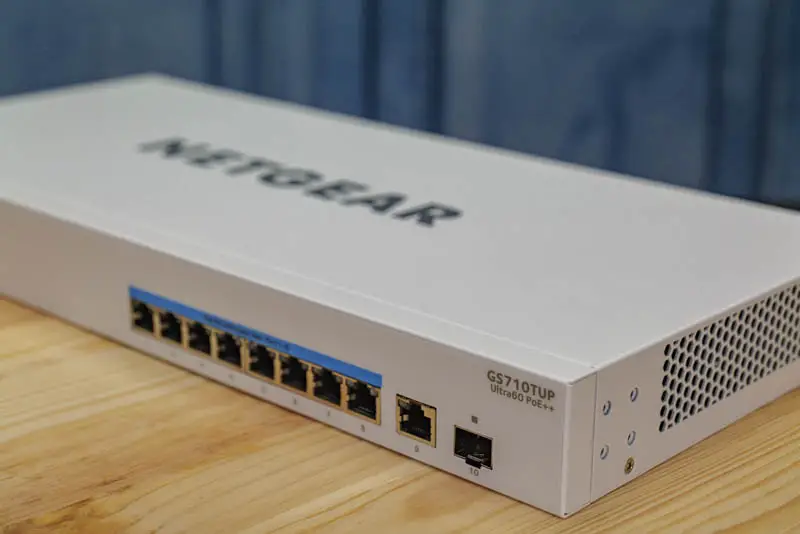
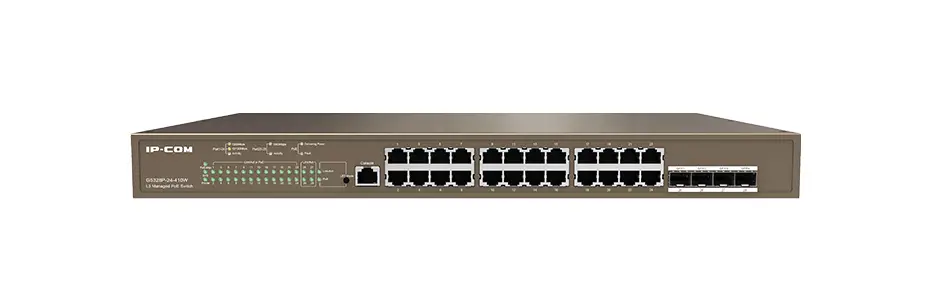
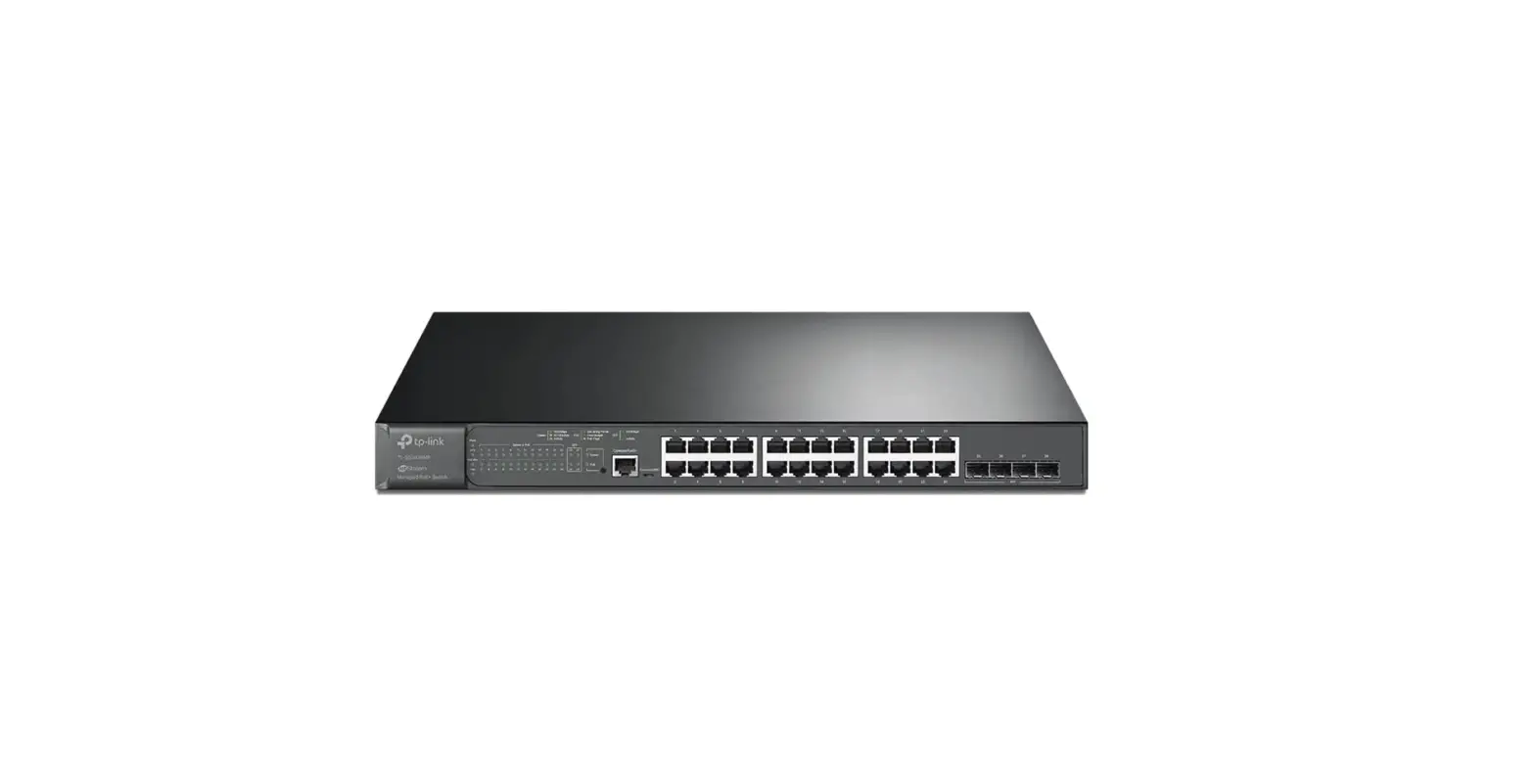
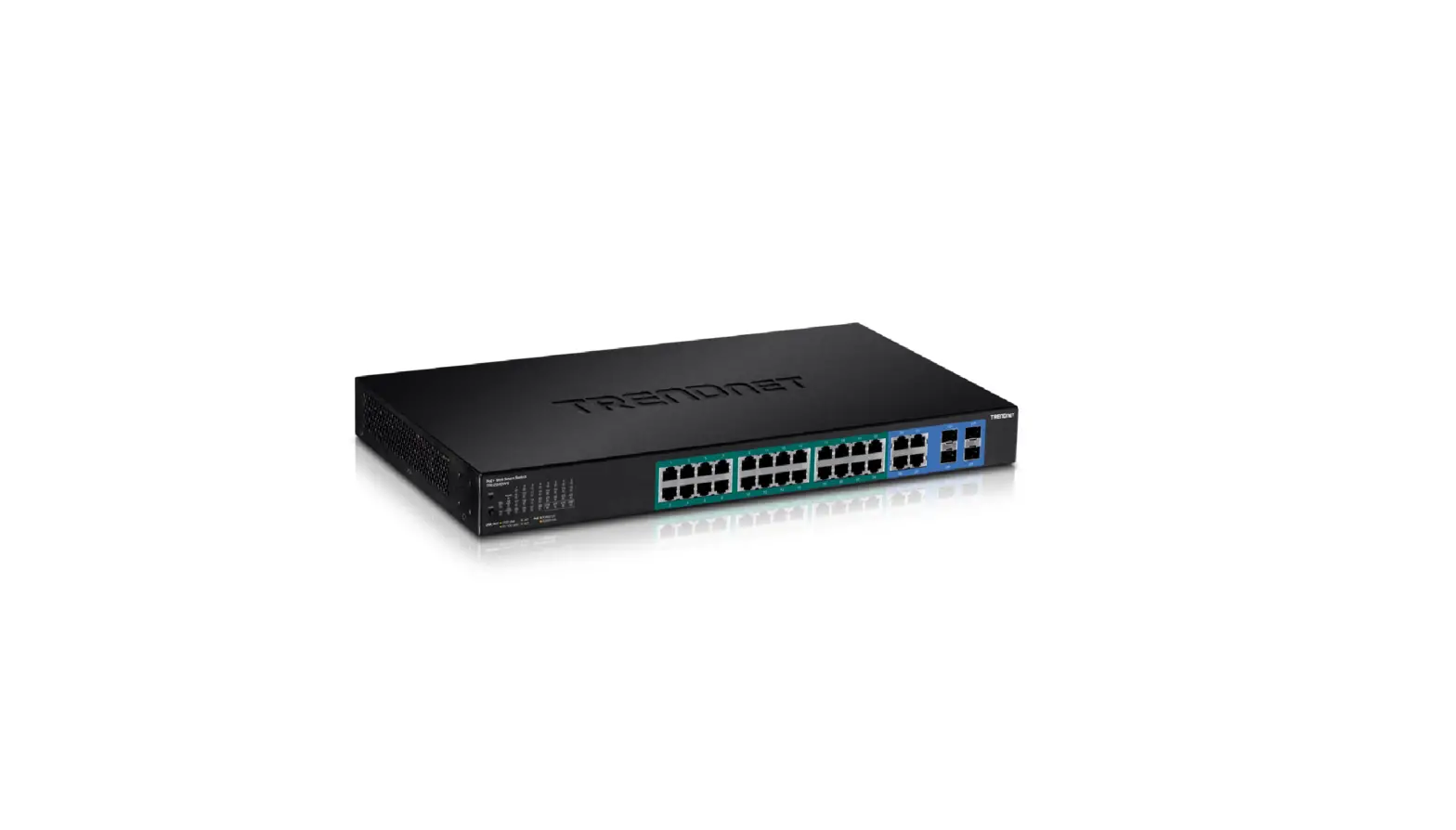
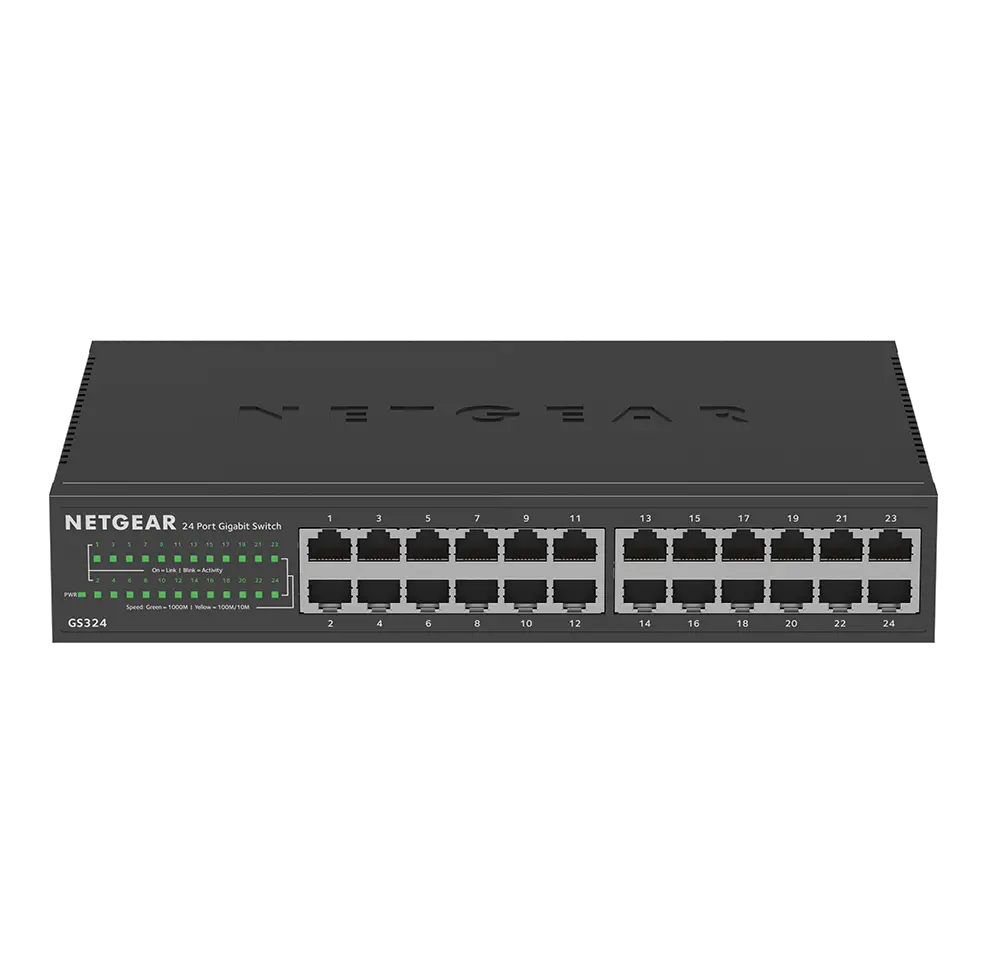
GS728TPv3 24-Port Gigabit Ethernet PoE Smart Switch
Product Information:
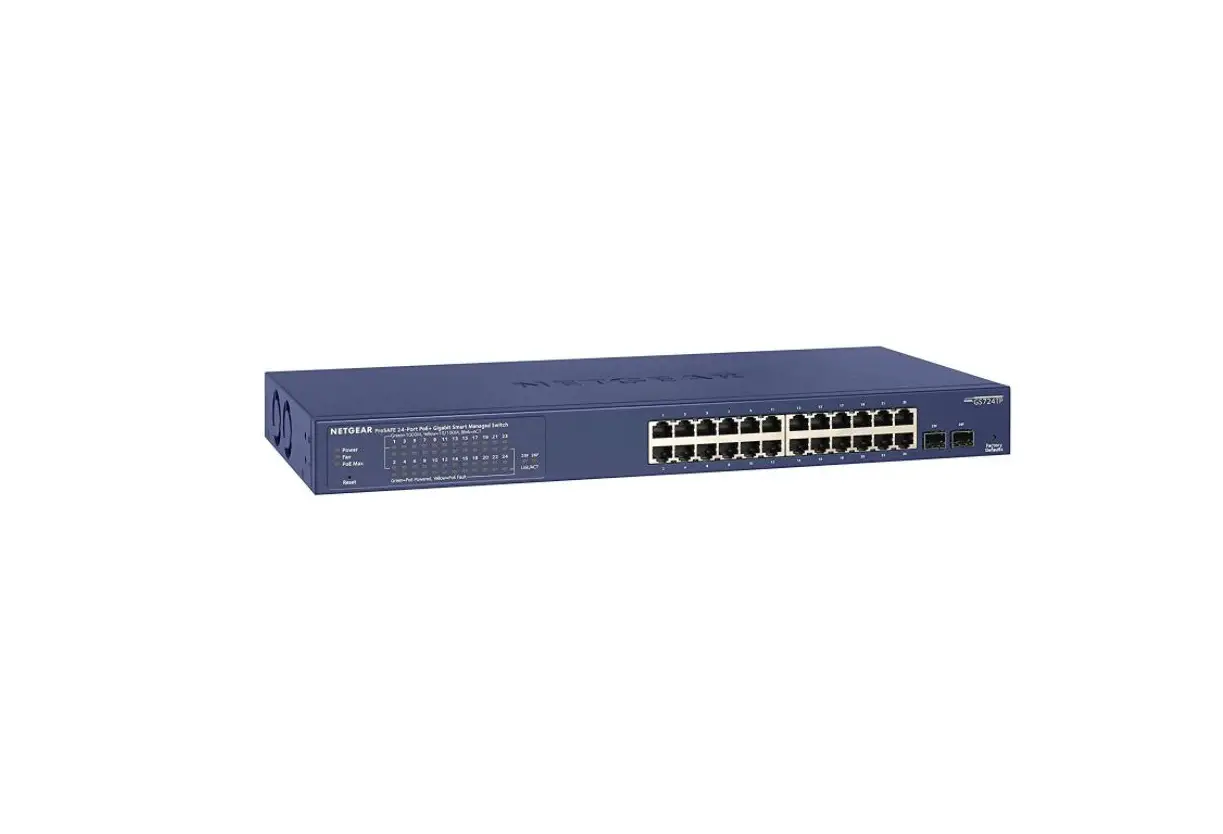
The 24-Port Gigabit Ethernet PoE+ Smart Switch with 4 SFP Ports
(models GS728TPv3 or GS728TPPv3) is a high-performance switch
designed for indoor use. It provides 24 Gigabit Ethernet ports with
Power over Ethernet Plus (PoE+) capability, allowing you to power
compatible devices such as access points and conference phones
through the switch. The switch also features 4 SFP ports for fiber
optic connectivity.
Package Contents: The package includes the switch itself and a
hardware installation guide. For detailed installation
instructions, please download the hardware installation guide from
www.netgear.com/support/.
Important Note: If you plan to connect the switch to outdoor
devices, proper grounding and surge protection are required.
Additionally, an Ethernet surge protector must be installed between
the switch and each outdoor device to prevent damage to the switch.
Please refer to kb.netgear.com/000057103 for safety and warranty
information before connecting the switch to outdoor cables or
devices.
Product Usage Instructions:
Step 1: Connect the Switch
1. Connect one port on the switch to a network that includes a
DHCP server, such as a router. In a small office or home office
network, connect the switch to the LAN port of a router connected
to a modem or gateway.
2. If you want to use an SFP port, insert an SFP transceiver
module (sold separately by NETGEAR) into the desired SFP port.
3. Power on the switch and wait for two minutes. If the switch
is connected to a network with a DHCP server, it will be
automatically assigned a new IP address. The default IP address for
the switch is 192.168.0.239.
Step 2: Check the PoE Status
Verify that power is available for PoE devices connected to the
switch.
Step 3: Discover the Switch in Your Network
Option A: Use the NETGEAR Switch Discovery Tool:
- Download the NETGEAR Switch Discovery Tool from
www.netgear.com/support/product/netgear-switch-discovery-tool.aspx. - Run the tool on a Mac or Windows-based computer connected to
the same network as the switch. The tool will help you discover the
IP address of the switch in your network.
Option B: Use the NETGEAR Insight App:
- Visit the Google Play Store or Apple App Store on your mobile
device and search for “NETGEAR Insight”. Download and install the
latest version of the app. - Open the NETGEAR Insight app and follow the onscreen
instructions to create a NETGEAR account if you don’t have
one. - Log in to the app using your NETGEAR account.
- If the switch is not displayed in the devices list, tap the “+”
button in the upper-right corner and select “Scan Network”. If the
switch still doesn’t appear, follow Option 2 below. - Follow the onscreen instructions to register the switch. Decide
whether you want to manage and monitor the switch locally from the
device UI or remotely from the cloud using NETGEAR Insight.
Step 4: Log in to the Device UI to Configure the Switch
You can either use the switch as a plug-and-play device or
customize its settings by logging in to the device user interface
(UI).
For further configuration and customization options, please
refer to the switch’s user manual or visit www.netgear.com/support/.
Installation Guide
24-Port Gigabit Ethernet PoE+ Smart Switch with 4 SFP Ports
GS728TPv3 or GS728TPPv3
Package contents
· NETGEAR GS728TPv3 or GS728TPPv3 switch · Detachable power cord (varies by region) · Rubber footpads for tabletop installation · Rack-mount kit for rack installation · Installation guide
Note: For information about installation, see the hardware installation guide, which you can download by visiting www.netgear.com/support/.
October 2022
Step 1. Connect the switch
Sample connections
Internet PoE+
GS728TPPv3 switch
PoE+ access points
Network router Internet PoE+ conference phone
1. Connect devices to the RJ-45 ports (124) on the switch front panel. Use Category 5e (Cat 5e) Ethernet cables terminated with RJ-45 connectors to make Gigabit Ethernet connections.
2. Connect one port on the switch to a network that includes a DHCP server such as a router. Note: In a small office or home office network, connect the switch to the LAN port of a router that is connected to a modem, or to a gateway.
To use an SFP port, you must insert an SFP transceiver module, which you can purchase from NETGEAR. 3. Power on the switch and wait two minutes. If you connected the switch to a network with a DHCP server, the switch is automatically assigned a new IP address. (The default switch IP address is 192.168.0.239.)
This switch is designed for indoor use only. If you want to connect it to a device located outdoors, the outdoor device must be properly grounded and surge protected, and you must install an Ethernet surge protector inline between the switch and each outdoor device. Failure to do so can damage the switch.
WARNING: Before connecting this switch to outdoor cables or devices, see kb.netgear.com/000057103 for safety and warranty information.
Step 2. Check the PoE status
The switch can supply up to 30W PoE+ (IEEE 802.3at) to each port. The maximum PoE power budget across all active PoE+ ports is 190W for model GS728TPv3 and 380W for model GS728TPPv3. The PoE Max LED indicates the status of the PoE budget on the switch: · Off: Sufficient. More than 7W of PoE power is available. · Solid yellow: Less than 7W of PoE power is available. · Blinking yellow: At least once during the previous two minutes, less than 7W of PoE
power was available.
Step 3. Discover the switch in your network
You can use the NETGEAR Switch Discovery Tool to discover the switch IP address in your network. NETGEAR Insight subscribers can use the Insight app to discover the switch.
Option A: Use the NETGEAR Switch Discovery Tool
The NETGEAR Switch Discovery Tool lets you discover the IP address of the switch in your network from a Mac or Windows-based computer connected to the same network as the switch. To download this tool, visit www.netgear.com/support/product/netgear-switch-discovery-tool.aspx.
Option B: Use the NETGEAR Insight app
If your switch and mobile device are connected to the same network, you can use the NETGEAR Insight app to discover the switch IP address in your network. Regardless of your setup, you can use the Insight app to register the switch and activate your warranty.
1. On your mobile device, visit the Google or Apple app store, search for NETGEAR Insight, and download the latest version of the app.
2. Open the NETGEAR Insight app. 3. If you do not have a NETGEAR account, tap Create NETGEAR Account and follow the
onscreen instructions. 4. Enter the email address and password for your NETGEAR account and tap LOG IN.
· Option 1: Your switch and mobile device are connected to the same network. Your switch and its IP address display in the devices list. Do the following: a. Select the switch or tap Unclaimed. b. On the next screen, tap ADD DEVICE, and continue with Step 3.5.
If the switch does not display in the devices list, tap + in the upper-right corner, and tap Scan Network. If the switch still does not display, follow Option 2 below.
· Option 2: Your switch and mobile device are not connected to the same network. Your switch and its IP address do not display in the devices list. Do the following: a. Tap + in the upper-right corner. b. Either use the camera on your mobile device to scan the bar code or QR code, or type in the serial number, and then continue with Step 3.5.
5. Follow the onscreen instructions to complete the registration of the switch. During the process, decide if you want to manage and monitor the switch from the device UI or remotely from the cloud using NETGEAR Insight:
· Device UI: Tap Not Now. Then, continue with Step 4. Log in to the device UI to configure the switch.
· NETGEAR Insight Cloud Portal or Insight app: Tap Manage with Insight. Then, continue with Step 4. Log in to the device UI to configure the switch and Step 5: Change the management mode to NETGEAR Insight.
Step 4. Log in to the device UI to configure the switch
You can use the switch as a plug-and-play device or you can change the settings by logging in to the device user interface (UI).
1. Open a web browser from a computer or tablet connected to the same network as your switch. You can use a wired or WiFi connection.
2. In the address field of your web browser, enter the switch IP address that you discovered in Step 3. Discover the switch in your network.
If the switch is connected to the Internet, the Register to activate your warranty page displays. However, if you already registered the switch with the NETGEAR Insight app, the Device UI login page displays, and you can continue with Step 4.4.
3. If you did not yet register the switch with the NETGEAR Insight app, click one of the following buttons:
· Register Your Device: This button displays if the switch is connected to the Internet. You can register the switch and activate the warranty. For information about the many benefits of registering your switch, visit www.netgear.com/why-register/.
· Enter Registration Key: If you obtained a registration key, for example by registering your switch on the MyNETGEAR.com site, you can enter the key and then log in to the device UI.
Continued on the next page
· Skip Registration and Access the UI: Registration is not mandatory, but we highly recommend it. If you do not register the switch within 30 days of purchase, your warranty entitlement might be affected.
4. If prompted, enter the default device admin password, which is password, and click the Go button.
5. If the Change Default Password page displays, specify and confirm a new device admin password, click the Submit button, and log in again using your new password. The System Information page displays. You can now configure the switch. For more information about configuring the switch from the device UI, see the user manual, which you can download by visiting www.netgear.com/support/.
Step 5: Change the management mode to NETGEAR Insight
Note: Follow the instructions in this step only if you want to change the management mode to NETGEAR Insight.
By default, the management mode in the device UI is set to Directly Connect to Web Browser Interface, which lets you configure the switch from the device UI.
Change the management mode in the device UI to manage the switch remotely from the cloud with the Insight Cloud Portal or the Insight app.
1. Open a web browser from a computer or tablet connected to the same network as your switch. You can use a wired or WiFi connection.
2. In the address field of your web browser, enter the IP address of the switch. The Device UI login page displays.
If you did not yet register the switch, the Register to activate your warranty page displays. For more information, see Step 4. Log in to the device UI to configure the switch.
3. Enter your device admin password. This is the password that you set the first time that you logged in to the device UI.
4. Click the Go button. The System Information page displays.
5. Select the NETGEAR Insight Mobile App and Insight Cloud Portal radio button. 6. In the pop-up window, click the OK button.
7. Click the Apply button.
8. In the pop-up window, click the OK button.
Your settings are saved.
The first time that you change the management mode to Insight, the switch is reset to its factory default settings, and you must configure the switch using the NETGEAR Insight Cloud Portal or Insight app. We recommend that you use the Insight Cloud Portal.
Note: You can still log in to the device UI and access a limited menu, but instead of the device admin password, you now must enter the Insight network password for the Insight network location to which you added the switch.
PoE considerations
The PoE and PoE+ power supplied by the switch is prioritized in ascending port order (from port 1 to port 24, with a total power budget of 190W for model GS728TPv3 and 380W for model GS728TPPv3.
The following table shows the standard power ranges without overrides applied, calculated with the maximum cable length of 328 feet (100 meters). If a device receives insufficient PoE power from the switch, consider using a shorter cable.
Device Compatible PoE class standard
0
PoE and PoE+
1
PoE and PoE+
2
PoE and PoE+
3
PoE and PoE+
4
PoE+
Class description
Maximum power
Power delivered
supplied by the switch to the device
Default power (full) 15.4W
0.44W12.95W
Very low power
4.0W
0.44W3.84W
Low power
7.0W
3.84W6.49W
Mid power
15.4W
6.49W12.95W
High power
30.0W
12.95W25.5W
PoE troubleshooting
Here are some tips for correcting PoE problems that might occur:
· If the PoE Max LED is solid yellow, disconnect one or more PoE devices to prevent PoE oversubscription.
· For each powered device (PD) that is connected to the switch, the associated PoE LED on the switch lights solid green. If the PoE LED lights solid yellow, a PoE fault occurred and PoE halted because of one of the conditions listed in the following table.
PoE Fault Condition
A PoE-related short circuit occurred on the port.
The PoE power demand of the PD exceeded the maximum level that the switch permits. The maximum level is 15.4W for a PoE connection and 30W for a PoE+ connection.
The PoE current on the port exceeded the classification limit of the PD.
Possible Solution
The problem is most likely with the attached PD. Check the condition of the PD, restart the PD by disconnecting and reconnecting the PD, or try a shorter cable.
The PoE voltage of the port is outside the range that the switch permits.
Restart the switch to see if the condition resolves itself. Check the condition of the PD, restart the PD by disconnecting and reconnecting the PD, or try a shorter cable.
Support and Community
Visit netgear.com/support to get your questions answered and access the latest downloads.
You can also check out our NETGEAR Community for helpful advice at community.netgear.com.
Regulatory and Legal
Si ce produit est vendu au Canada, vous pouvez accéder à ce document en français canadien à https://www.netgear.com/support/download/.
(If this product is sold in Canada, you can access this document in Canadian French at https://www.netgear.com/support/download/.)
For regulatory compliance information including the EU Declaration of Conformity, visit https://www.netgear.com/about/regulatory/.
See the regulatory compliance document before connecting the power supply.
For NETGEAR’s Privacy Policy, visit https://www.netgear.com/about/privacy-policy.
By using this device, you are agreeing to NETGEAR’s Terms and Conditions at https://www.netgear.com/about/terms-and-conditions. If you do not agree, return the device to your place of purchase within your return period.
Do not use this device outdoors. The PoE source is intended for intra building connection only.
Applicable to 6 GHz devices only: Only use the device indoors. The operation of 6 GHz devices is prohibited on oil platforms, cars, trains, boats, and aircraft, except that operation of this device is permitted in large aircraft while flying above 10,000 feet. Operation of transmitters in the 5.925-7.125 GHz band is prohibited for control of or communications with unmanned aircraft systems.
NETGEAR, Inc. 350 East Plumeria Drive San Jose, CA 95134, USA
NETGEAR INTERNATIONAL LTD Floor 6, Penrose Two, Penrose Dock, Cork, T23 YY09, Ireland
© NETGEAR, Inc., NETGEAR and the NETGEAR Logo are trademarks of NETGEAR, Inc. Any non-NETGEAR trademarks are used for reference purposes only.
References
 Why Register Your NETGEAR Business Devices?
-
English - NETGEAR Communities
-
Do I need to use a surge protector with my NETGEAR Business device? | Answer | NETGEAR Support
-
NETGEAR Privacy Policy | NETGEAR
-
Regulatory | NETGEAR
-
NETGEAR Terms and Conditions | NETGEAR
-
NETGEAR - Common Account Management
-
NETGEAR Support | NETGEAR
-
Download Center | Downloads and Documentation | NETGEAR
-
Switch Discovery Protocol | Product | Support | NETGEAR
 Why Register Your NETGEAR Business Devices?
 English - NETGEAR Communities
 Do I need to use a surge protector with my NETGEAR Business device? | Answer | NETGEAR Support