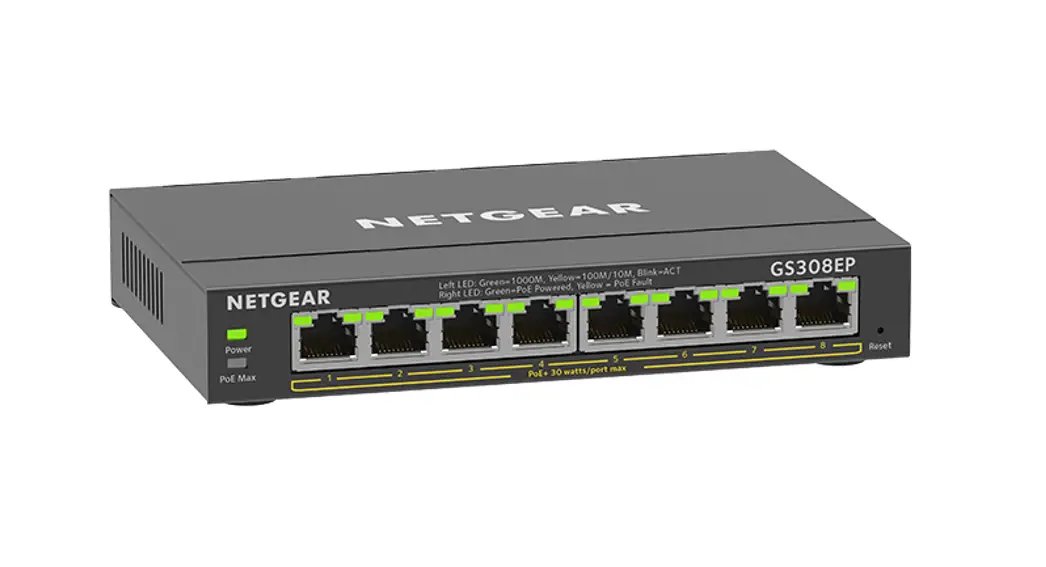
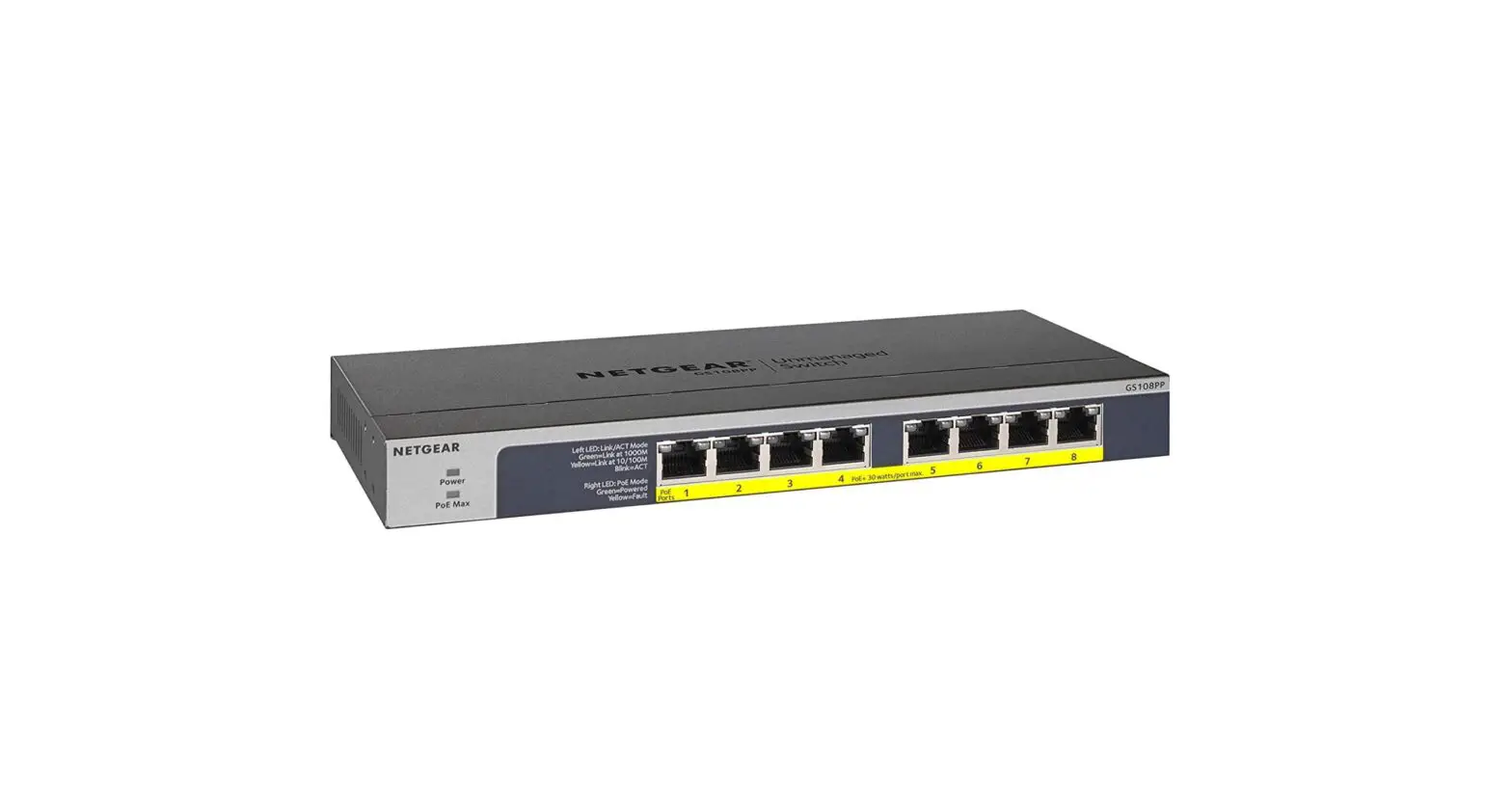
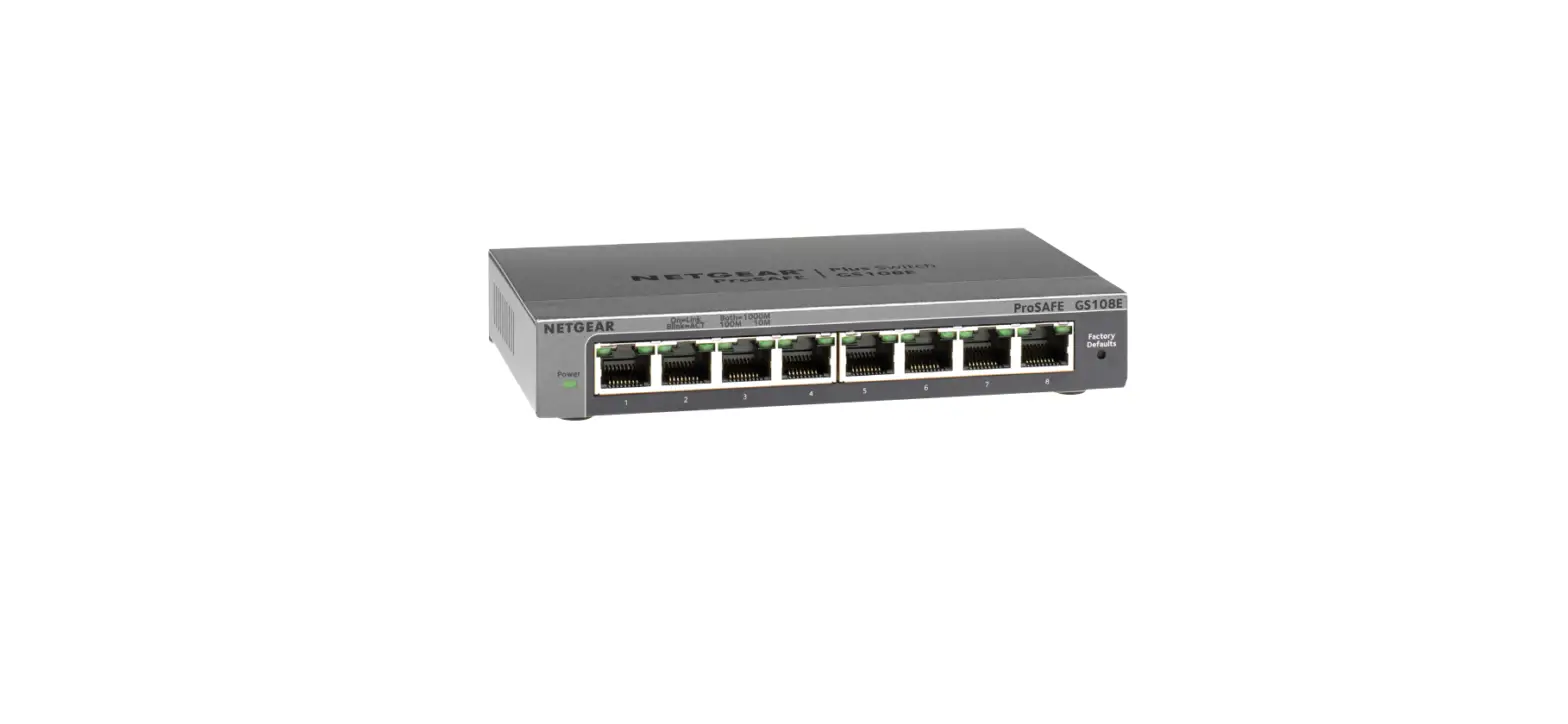
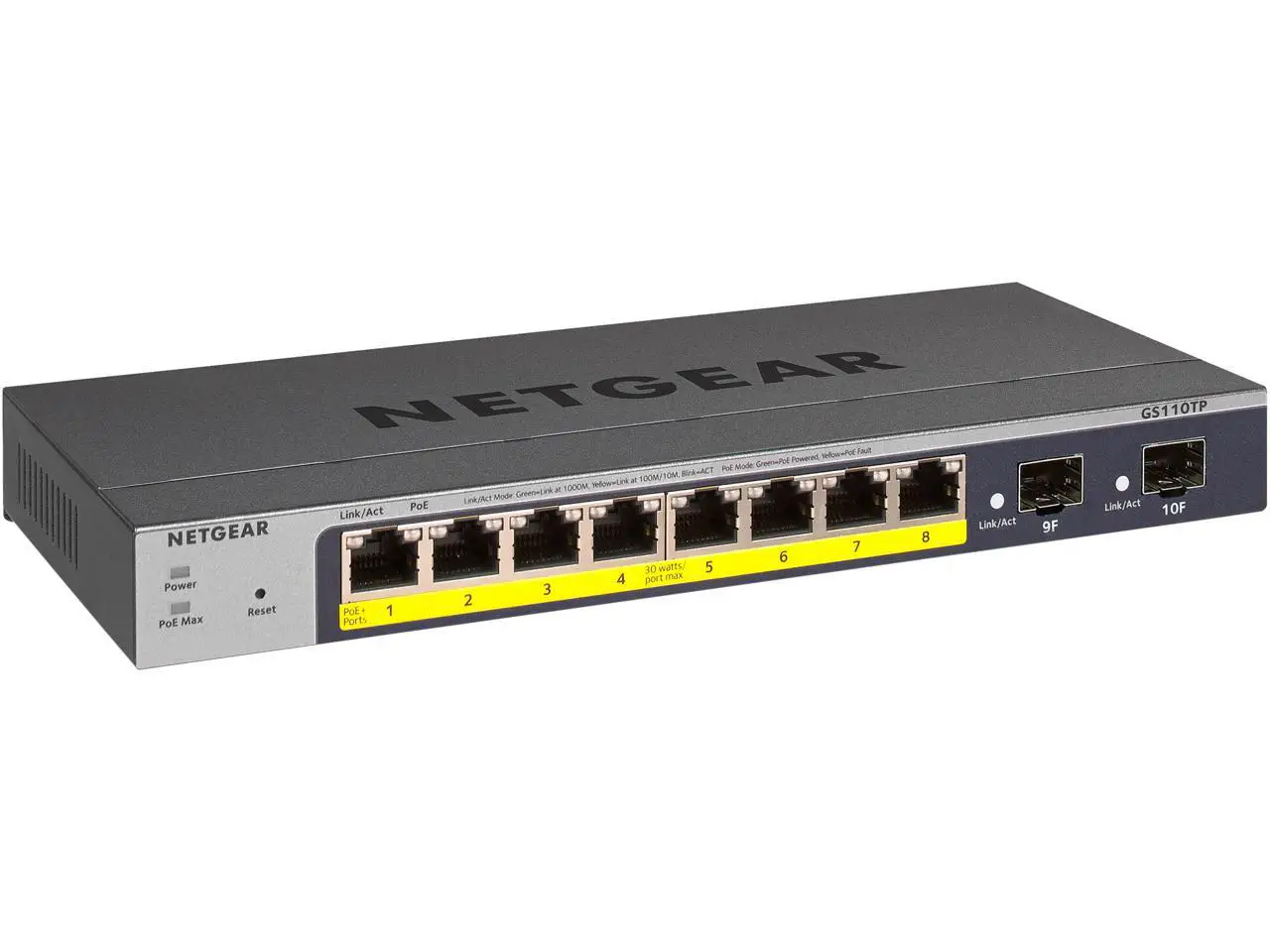
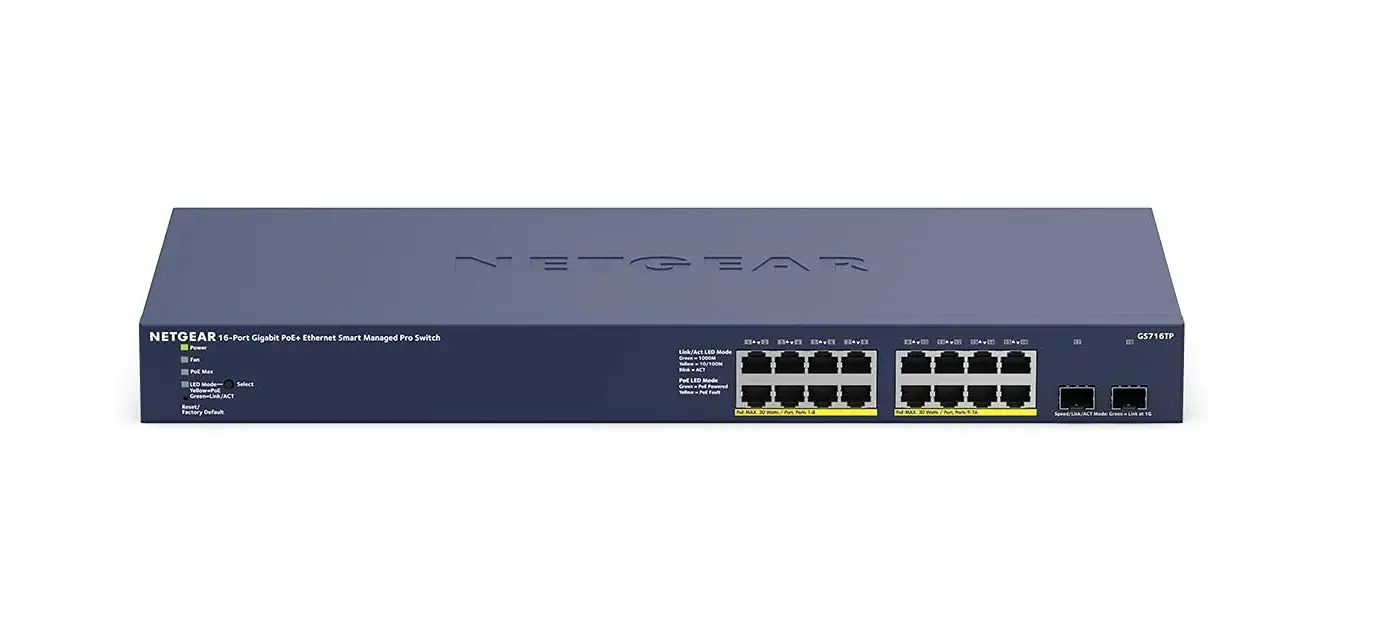
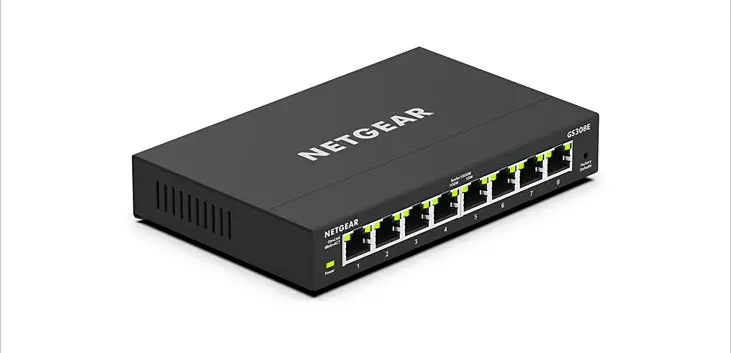
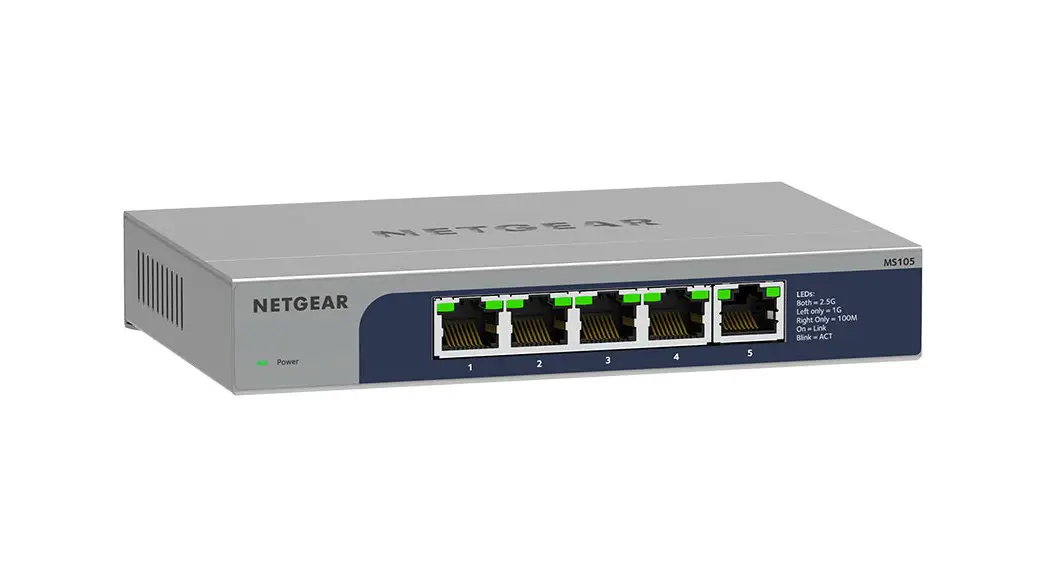
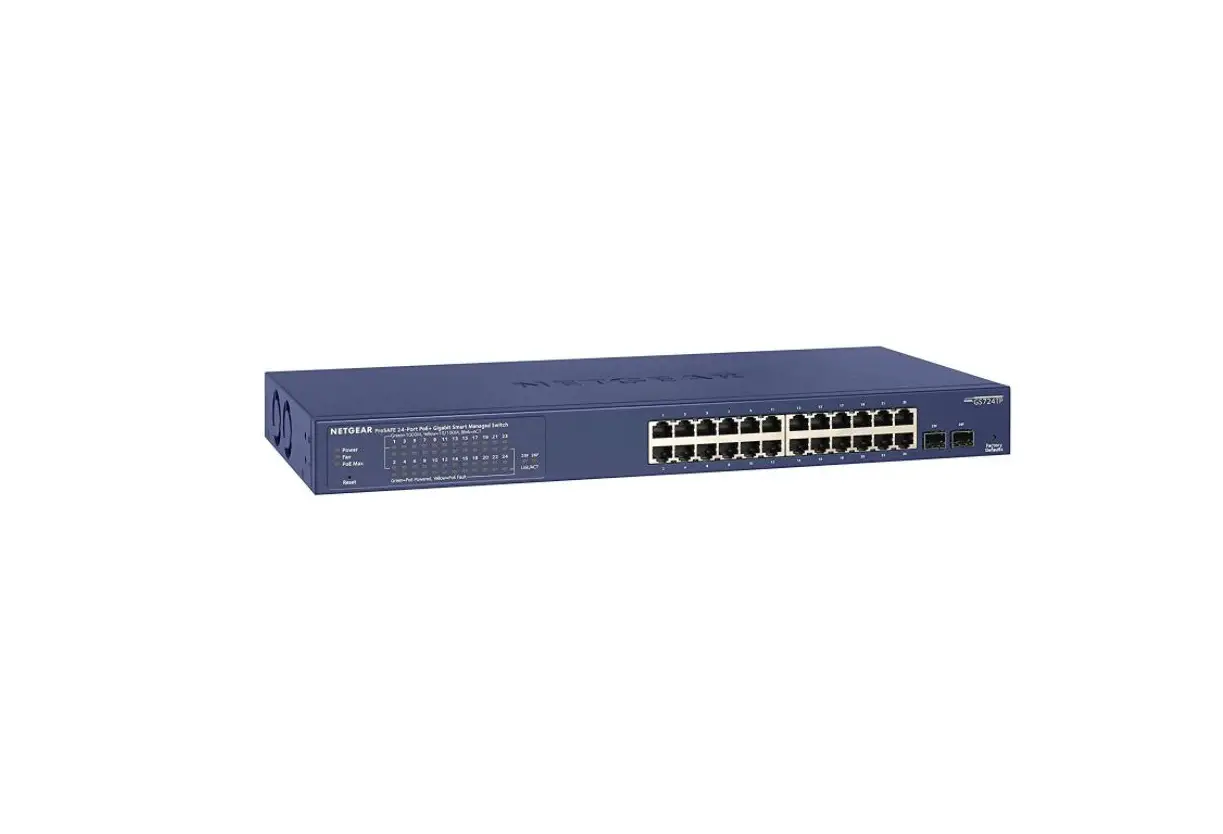
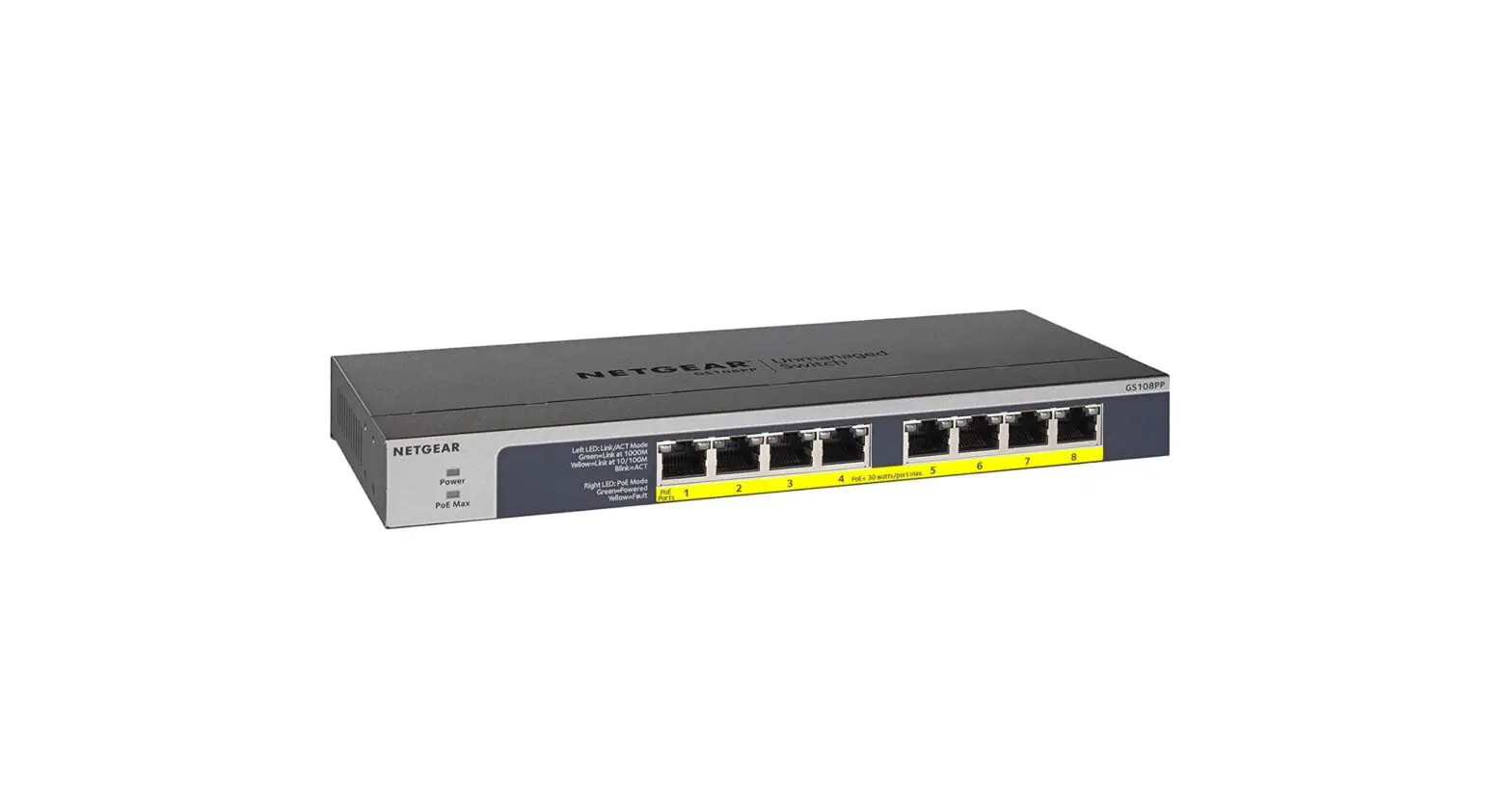
MS108EUP 8-port Ultra60 PoE++ Multi-Gigabit (2.5G) Ethernet Plus Switch
Product Information:
The 8-port Ultra60 PoE++ Multi-Gigabit (2.5G) Ethernet Plus
Switch, model MS108EUP, is a high-performance switch designed for
indoor use. It supports PoE++ (Power over Ethernet) technology,
allowing you to power devices such as APs (Access Points), cameras,
and conference phones through the Ethernet cable. The switch
provides 2.5 Gbps link speed on certain ports, enabling faster data
transfer for compatible devices. It also features LED indicators
for power, PoE budget, and port status.
Package Contents:
- 8-port Ultra60 PoE++ Multi-Gigabit Ethernet Plus Switch
(MS108EUP)
Important Notes:
- For Gigabit Ethernet connections, it is recommended to use a
Category 5e (Cat 5e) cable or higher-rated cable. - If you intend to connect the switch to an outdoor device,
ensure proper grounding, surge protection, and the installation of
an Ethernet surge protector inline between the switch and the
outdoor device. Failure to do so can damage the switch. Refer to
the provided link for safety and warranty information: https://kb.netgear.com/000057103
Product Usage Instructions:
1. Register the switch:
- From a computer or mobile device connected to the Internet,
visit my.netgear.com. - Log in to your NETGEAR account. If you don’t have an account,
you can create one. - On the My Products page, select “Register a Product” from the
left menu. - Enter the 13-digit serial number of your switch in the Serial
Number field. The serial number is printed on the switch
label. - Select the date of purchase from the menu.
- Click the REGISTER button to complete the registration. A
confirmation email will be sent to your NETGEAR account email
address.
2. Connect the switch:
Refer to the provided diagram for sample connections.
- Connect your computer, ReadyNAS, PTZ camera, IP conference
phone, and other devices to the appropriate ports on the
switch. - Connect the switch to your router or modem using an Ethernet
cable. - If you are using PoE devices, ensure they are connected to the
PoE++ or PoE+ ports on the switch accordingly. - Make sure to use a Category 5e (Cat 5e) cable or higher-rated
cable for Gigabit Ethernet connections.
3. Check the LEDs:
When the switch is powered on and connected, check the LED
indicators to verify its status:
- Power LED: Solid green indicates normal
operation, while off means no power supply. - PoE Max LED: Indicates the status of the
switch’s PoE budget. Off means sufficient PoE power is available,
solid yellow means less than 7W of PoE power is available, and
blinking yellow indicates insufficient PoE power during the
previous two minutes. - Left Port LED: Solid green indicates a 2.5
Gbps link on the port, blinking green indicates 2.5 Gbps activity,
solid yellow indicates a 1000 Mbps or 100 Mbps link, blinking
yellow indicates 1000 Mbps or 100 Mbps activity, and off means no
link detected. - Right Port LED: Solid green means the port is
delivering PoE power, off means no PoE power, and solid yellow
indicates a PoE fault occurred.
4. Discover the switch’s IP address and access the switch:
- Download the NETGEAR Switch Discovery Tool (NSDT) from
here. Choose the appropriate version for your computer (Mac,
Windows, or Linux). - Temporarily disable any firewall, Internet security, or
antivirus programs on the computer you will use to configure the
switch. - Launch the NETGEAR Switch Discovery Tool and follow the
instructions to discover the switch in your network, access its
local browser interface (UI), and obtain its IP address.
For further configuration and advanced settings, refer to the
full user manual provided with the product.
Installation Guide
8-port Ultra60 PoE++ Multi-Gigabit (2.5G) Ethernet Plus Switch
Model MS108EUP
Package contents
· NETGEAR 8port Ultra60 PoE++ MultiGigabit (2.5G) Ethernet Plus Switch · Power adapter (power cable varies by region) · Wallmount installation kit · Rubber feet · Installation Guide
1. Register the switch
1. From a computer or mobile device that is connected to the Internet, visit my.netgear.com.
2. Log in to your NETGEAR account. NOTE: If you don’t have a free NETGEAR account, you can create one. The My Products page displays.
3. From the menu on the left, select Register a Product. 4. In the Serial Number field, type the serial number of your switch.
The serial number is 13 digits long. It is printed on the switch label.
5. From the Date of Purchase menu, select the date that you purchased the switch. 6. Click the REGISTER button.
Your switch is registered to your NETGEAR account. A confirmation email is sent to your NETGEAR account email address.
2. Connect the switch
Sample connections MS108EUP switch
Computer ReadyNAS
Internet
Router PTZ camera
PoE++ PoE+ Non PoE
WAX630 PoE++ APs
WAC540 PoE+ AP
IP conference phone
NOTE: We recommend that you use a Category 5e (Cat 5e) cable or higherrated cable for Gigabit Ethernet connections.
This switch is designed for indoor use only. If you want to connect it to a device located outdoors, the outdoor device must be properly grounded and surge protected, and you must install an Ethernet surge protector inline between the switch and the outdoor device. Failure to do so can damage the switch.
WARNING: Before connecting this switch to outdoor cables or devices, see https://kb.netgear.com/000057103 for safety and warranty information.
3. Check the LEDs
When you connect the power adapter to the switch and plug the cable into an electrical outlet, the LEDs indicate the status:
LED
Description
Power LED
Solid green: The switch is powered on and operating normally. Off. Power is not supplied to the switch.
PoE Max LED (The status of the switch’s PoE budget.)
Left Port LED
Off: Sufficient (more than 7W of) PoE power is available. Solid yellow: Less than 7W of PoE power is available. Blinking yellow: At least once during the previous two minutes, less than 7W of PoE power was available.
Solid green: 2.5 Gbps link on this port. Blinking green: 2.5 Gbps activity on this port. Solid yellow: 1000 Mbps or 100 Mbps link on this port. Blinking yellow: 1000 Mbps or 100 Mbps activity on this port. Off. No link is detected on this port.
Right Port LED
Solid Green: The port is delivering PoE power. Off: The port is not delivering PoE power. Solid yellow: A PoE fault occurred.
4. Discover the switch’s IP address and access the switch
The NETGEAR Switch Discovery Tool (NSDT) lets you discover the switch in your network and access the local browser interface (UI) of the switch from a Mac, Windowsbased, or Linuxbased computer.
To install the NETGEAR Switch Discovery Tool, discover the switch in your network, access the switch, and discover the switch IP address:
1. To download the tool, visit https://www.netgear.com/support/product/netgearswitchdiscoverytool.aspx Download the Mac, Windows, or Linux version.
2. Temporarily disable the firewall, Internet security, antivirus programs, or all of these on the computer that you use to configure the switch.
3. Unzip the NSDT files, and click or double-click the executable file (for example, NDST1.2.103.exe) to install the program on your computer. You might see the tool icon appear on your Mac dock, Windows desktop, or Linux desktop.
4. Reenable the security services on your computer. 5. Power on the switch. 6. Connect your computer to the same network as the switch. 7. Open the NSDT.
The initial page displays a menu and a button.
8. From the Choose a Connection menu, select the network for this switch. 9. Click the Start Searching button.
The NSDT displays the IP addresses of the switches that it discovers.
10. Click the ADMIN PAGE button. The login page or login window of the local browser user interface (UI) opens.
11. Enter the default password that is printed on the switch label.
Continued on the next page.
October 2021
© NETGEAR, Inc., NETGEAR and the NETGEAR Logo are trademarks of NETGEAR, Inc. Any nonNETGEAR trademarks are used for reference purposes only.
12. If prompted, enter a new admin password for the switch. The Switch Information page displays, and shows the IP address assigned to the switch.
13. Save the password and IP address for future use. You can now configure and monitor your switch.
Mount the switch on a wall
We recommend that you use the wallmount screws that are included. 1. Locate the two mounting holes on the bottom panel of the switch. 2. Mark and drill two mounting holes in the wall where you want to mount the switch.
The two mounting holes must be 3.937 in. (100 mm) apart, centertocenter. 3. Insert the supplied anchors into the wall and tighten the screws with a No. 2 Phillips
screwdriver. Leave about 0.125 in. (4 mm) of each screw protruding from the wall so that you can insert the screws into the holes on the bottom panel. NOTE: The screws are 0.25 in. (6.5 mm) in diameter, 0.63 in. (16 mm) in length.
PoE considerations
PoE power supplied by the switch is prioritized in ascending port order (from port 1 to port 8). The switch can supply a total of 230W across all active PoE+ and PoE++ ports.
· Ports 14: Each port can supply up to 60W PoE++ (802.3bt) power.
· Ports 58: Each port can supply up to 30W PoE+ (802.3at) power.
This table shows the standard power ranges without overrides applied, calculated with the maximum cable length of 328 feet (100 meters). If a device receives insufficient PoE power from the switch, consider using a shorter cable.
Device Compatible PoE class standard
Class description
Maximum power supplied by the switch
Power delivered to the device
0
PoE, PoE+, and PoE++ Default power (full) 15.4W
0.44W13.0W
1
PoE, PoE+, and PoE++ Very low power
4.0W
0.44W3.84W
2
PoE, PoE+, and PoE++ Low power
7.0W
3.84W6.49W
3
PoE, PoE+, and PoE++ Mid power
15.4W
6.49W13.0W
4
PoE+ and PoE++
High power
30.0W
13.0W25.5W
5
PoE++
Ultra high power
45.0W
25.5W40.0W
6
PoE++
Ultra high power
60.0W
40.0W51.0W
PoE troubleshooting
Here are some tips for correcting PoE problems that might occur:
· If the PoE Max LED is solid yellow, disconnect one or more PoE devices to prevent PoE oversubscription.
· For each powered device (PD) that is connected to the switch, the associated PoE LED on the switch lights solid green. If the PoE LED lights solid yellow, a PoE fault occurred and PoE halted because of one of the conditions listed in the following table:
PoE Fault Condition
A PoErelated short circuit occurred on the port.
The PoE power demand of the PD exceeded the maximum level that the switch permits. The maximum level is 15.4W for a PoE connection, 30W for a PoE+ connection, and 60W for a PoE++ connection.
The PoE current on the port exceeded the classification limit of the PD.
The PoE voltage of the port is outside the range that the switch permits.
Possible Solution
The problem is most likely with the attached PD. Check the condition of the PD, or restart the PD by disconnecting and reconnecting the PD.
Restart the switch to see if the condition resolves itself.
Support and Community
Visit netgear.com/support to get your questions answered and access the latest downloads.
You can also check out our NETGEAR Community for helpful advice at community.netgear.com.
Regulatory and Legal
Si ce produit est vendu au Canada, vous pouvez accéder à ce document en français canadien à https://www.netgear.com/support/download/.
(If this product is sold in Canada, you can access this document in Canadian French at https://www.netgear.com/support/download/.)
For regulatory compliance information including the EU Declaration of Conformity, visit https://www.netgear.com/about/regulatory/.
See the regulatory compliance document before connecting the power supply.
For NETGEAR’s Privacy Policy, visit https://www.netgear.com/about/privacypolicy.
By using this device, you are agreeing to NETGEAR’s Terms and Conditions at https://www.netgear.com/about/termsandconditions. If you do not agree, return the device to your place of purchase within your return period.
Do not use this device outdoors. The PoE source is intended for intra building connection only.
Applicable to 6 GHz devices only: Only use the device indoors. The operation of 6 GHz devices is prohibited on oil platforms, cars, trains, boats, and aircraft, except that operation of this device is permitted in large aircraft while flying above 10,000 feet. Operation of transmitters in the 5.9257.125 GHz band is prohibited for control of or communications with unmanned aircraft systems.
NETGEAR, Inc. 350 East Plumeria Drive San Jose, CA 95134, USA
NETGEAR INTERNATIONAL LTD Floor 1, Building 3 University Technology Centre Curraheen Road, Cork, T12EF21, Ireland