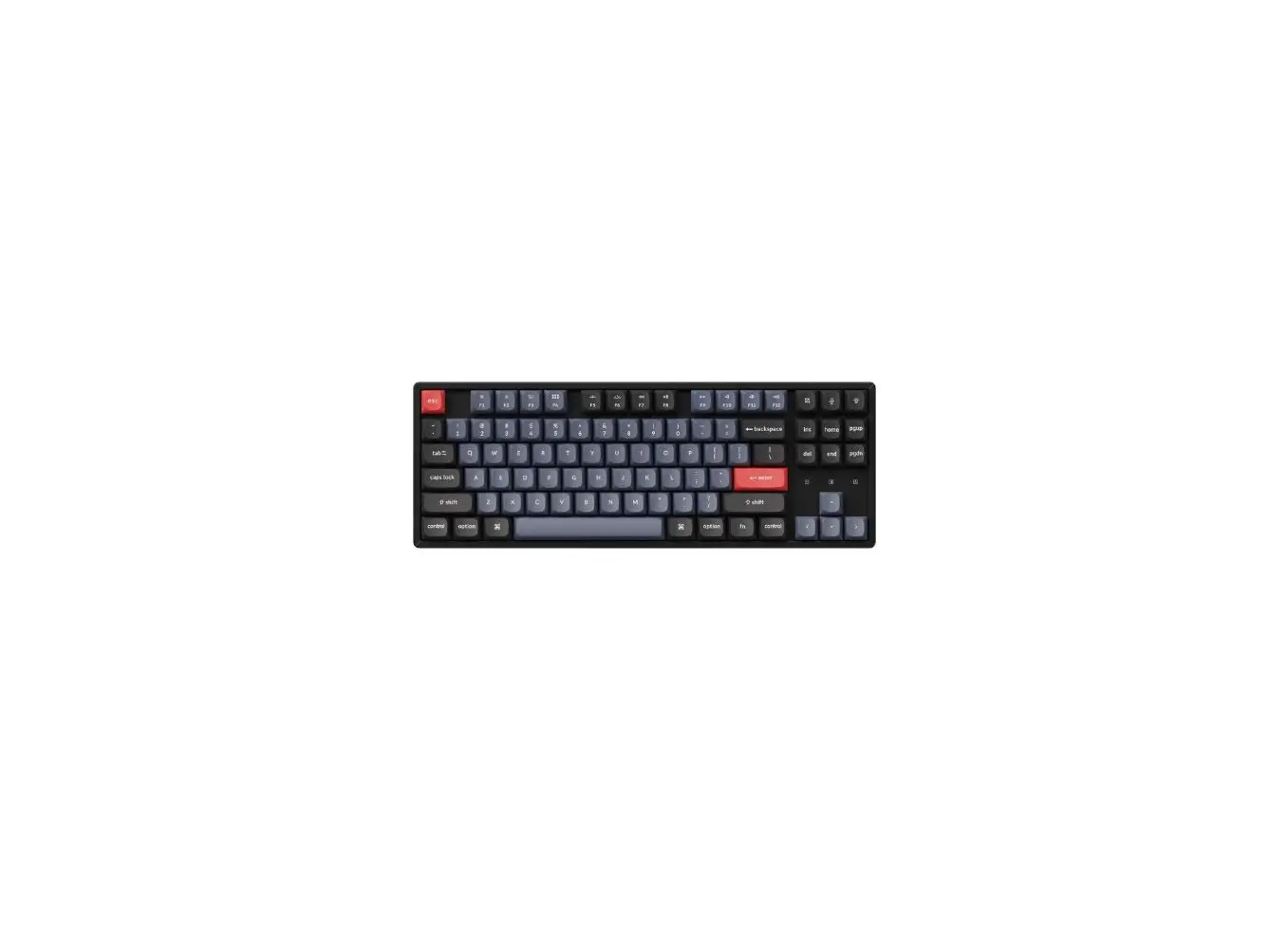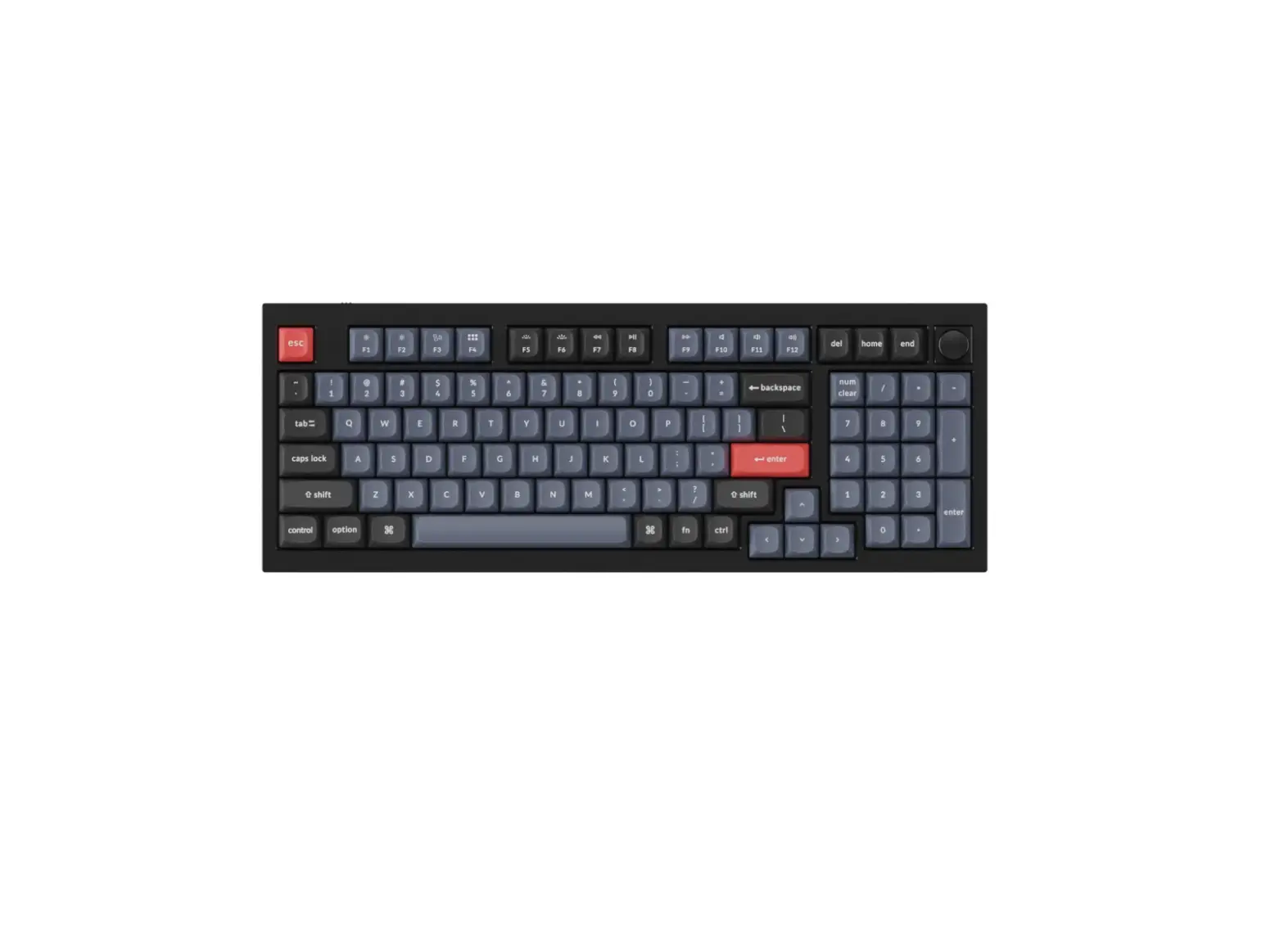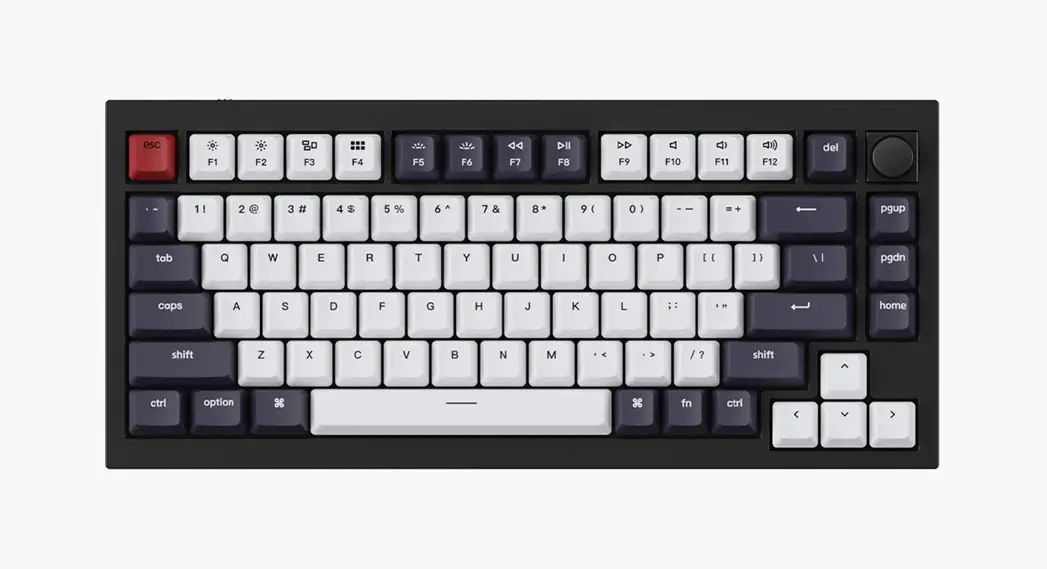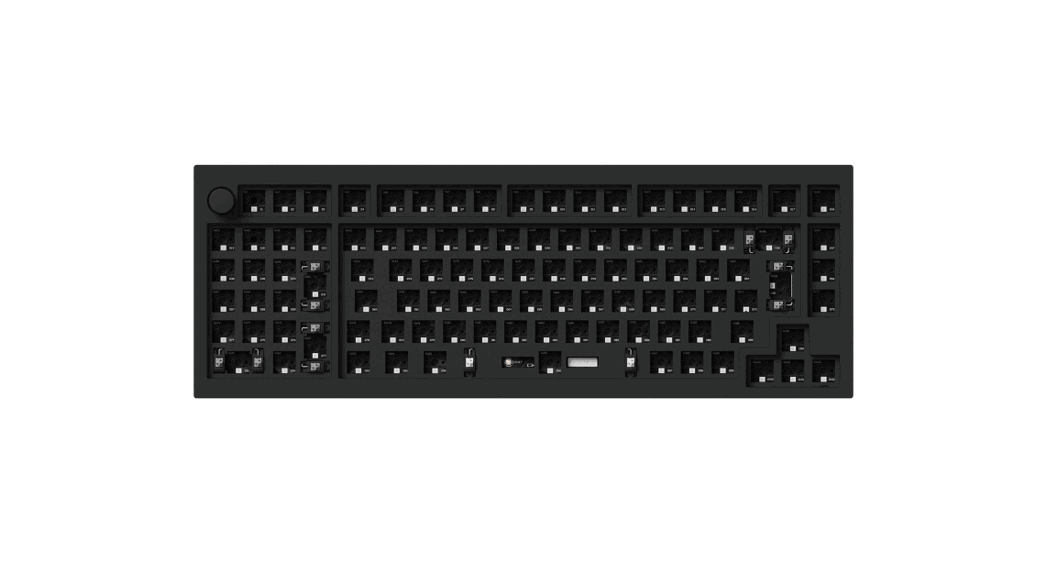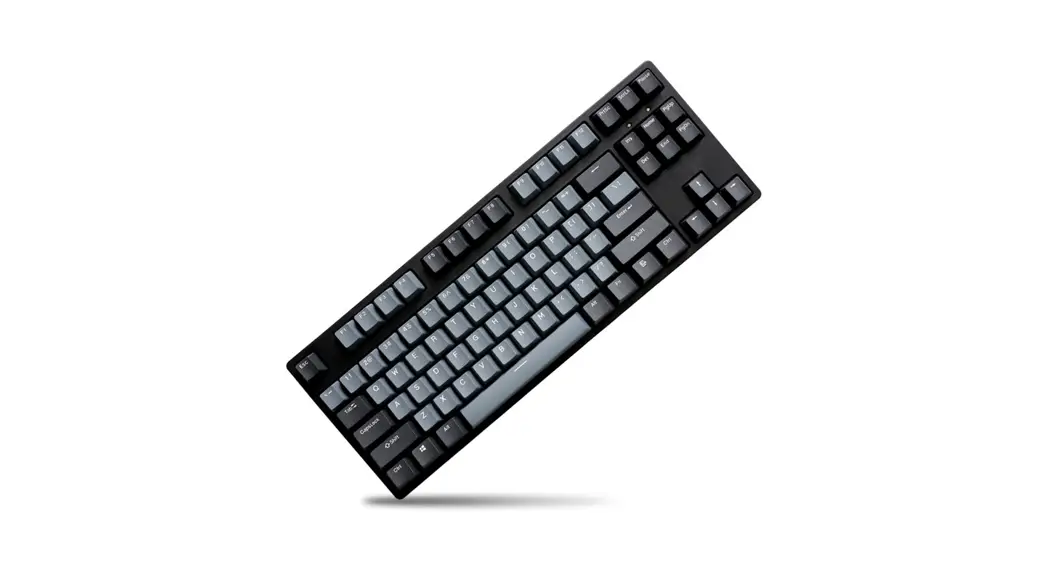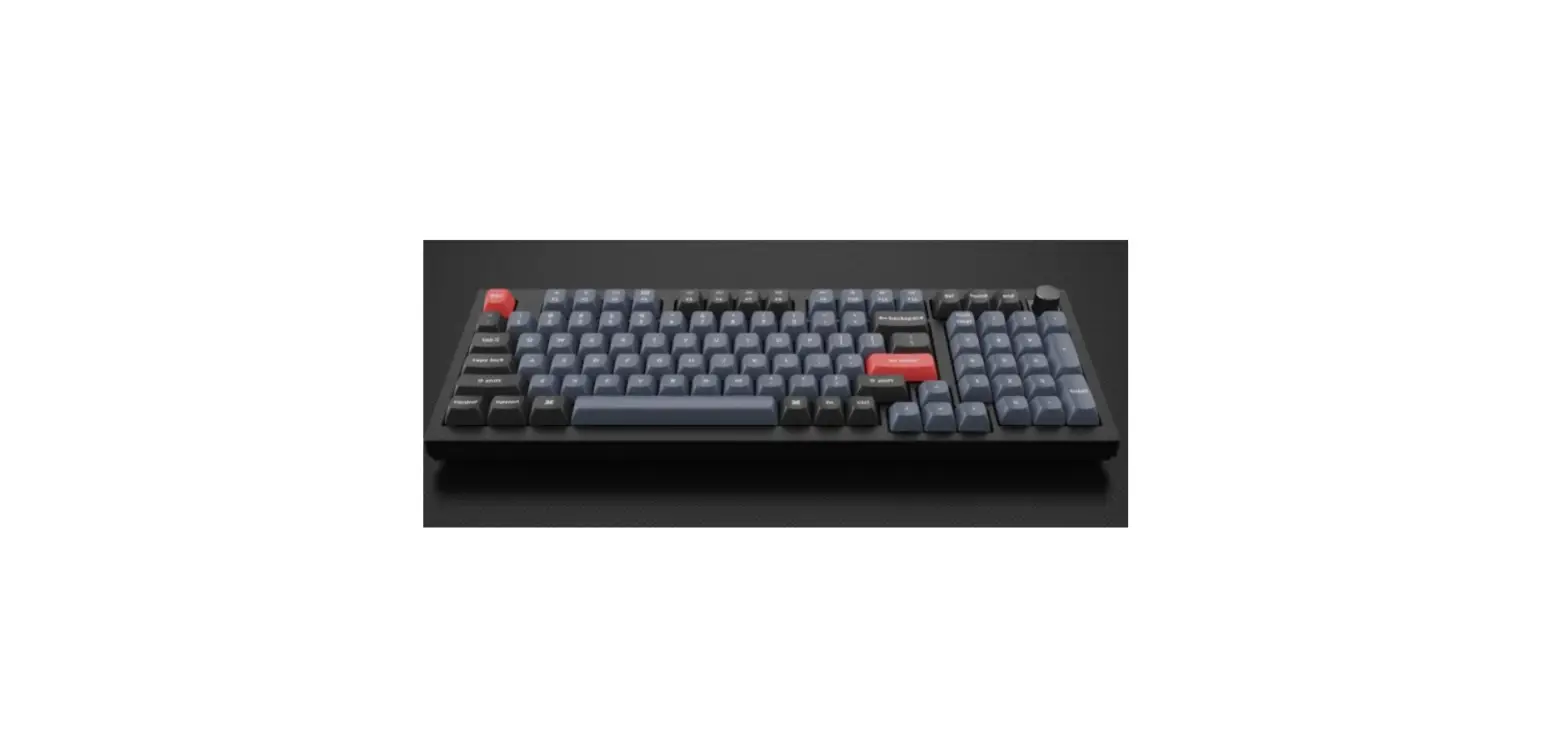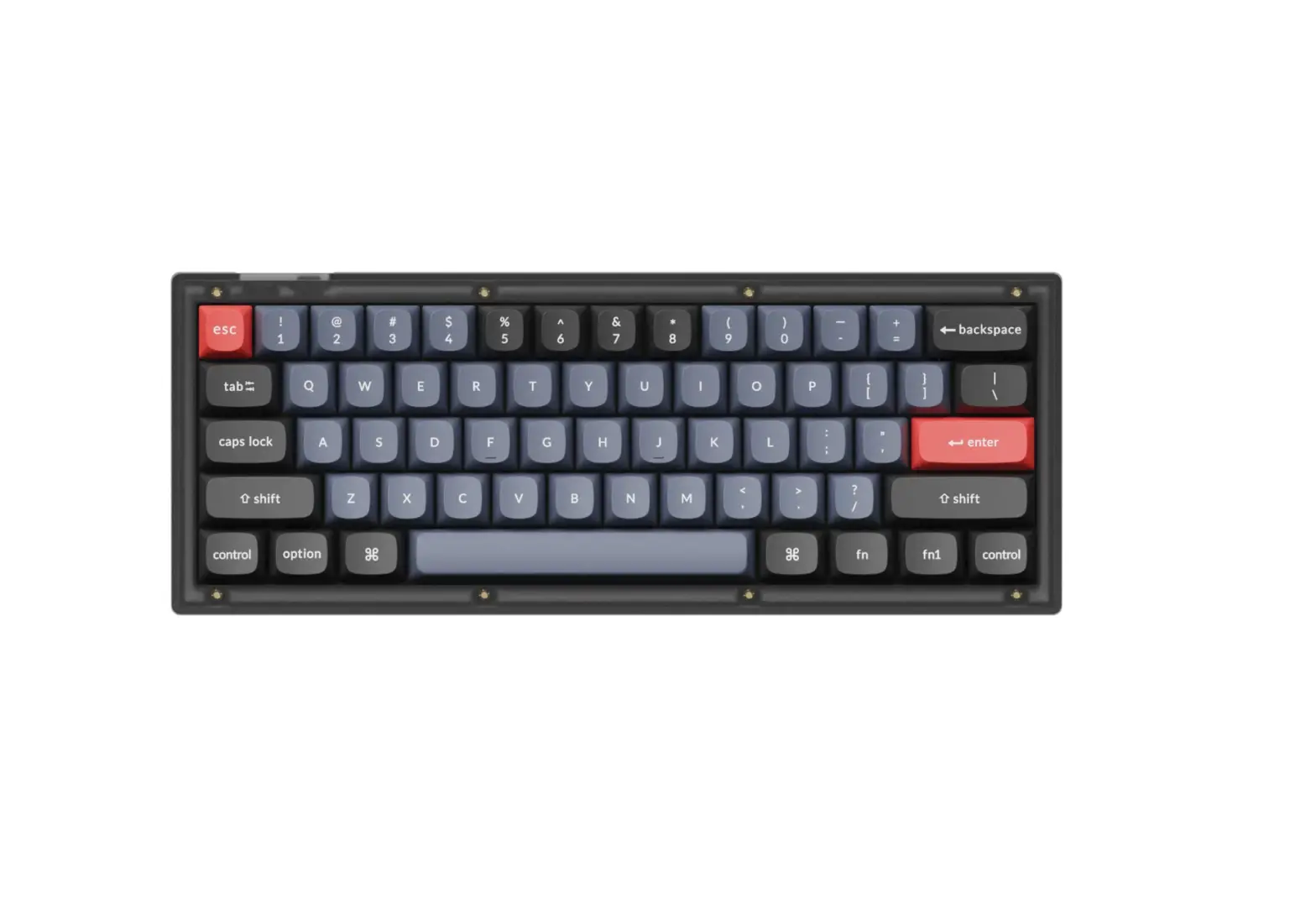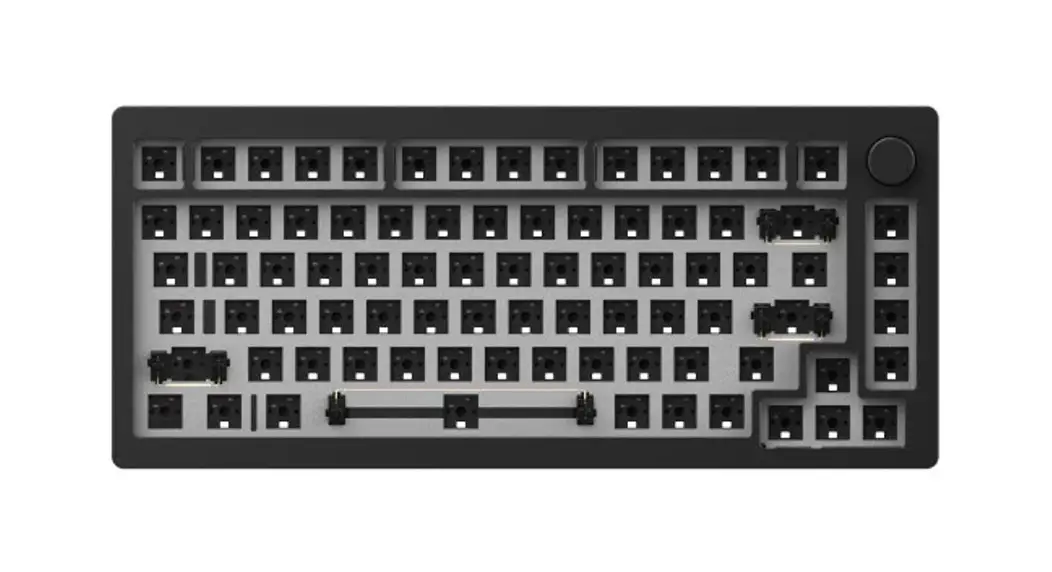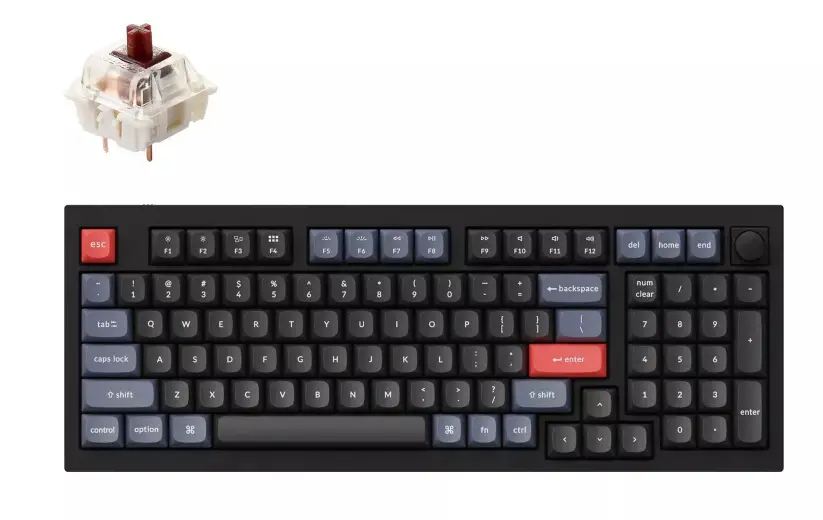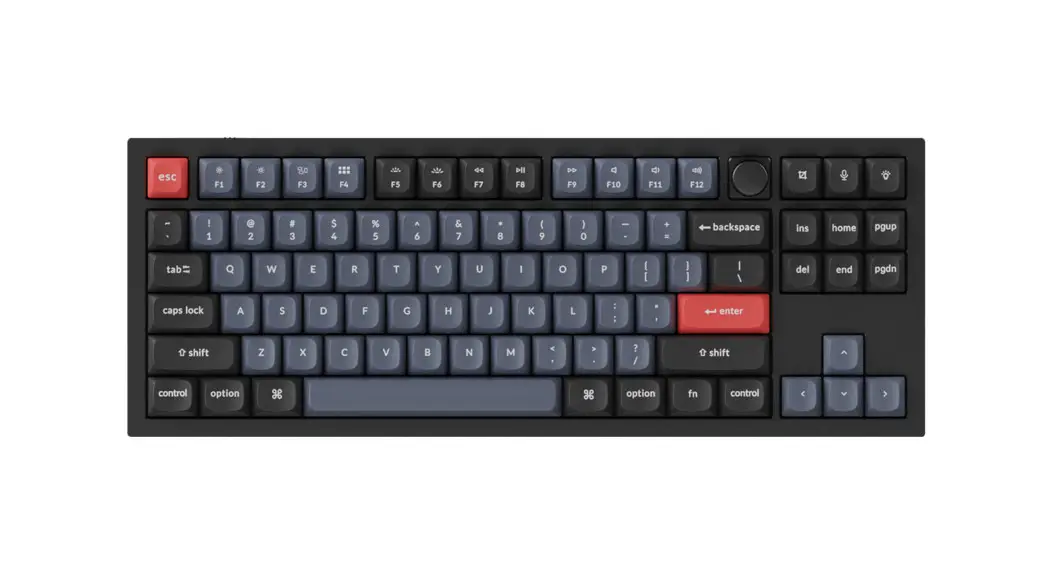

M5 QMK User Manual
Quick Start Guide
Thank you for supporting Mons Geek
To provide you with a better user experience, please read this manual carefully before using the product.
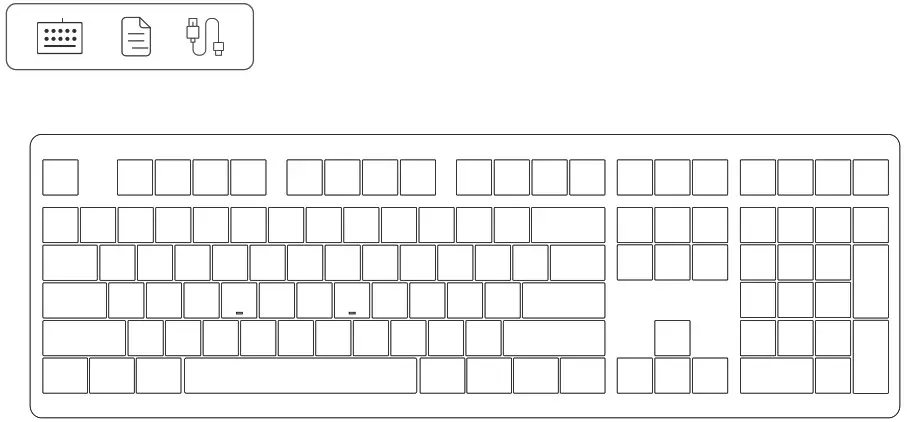
Packing List
System Requirement
Windows® XP / Vista / 7 / 8 / 10 or higher version
Connectivity Method
Connect the keyboard to your computer by plugging in the USB cable into an available USB port to start using it.
Independent Indicator
| Status | Indicator | Indicating Mode |
| Num | LED Indicator 1 | Steady White |
| Caps | LED Indicator 2 | Steady White |
| Lock Win | LED Indicator 3 | Steady White |
M5 QMK HotKeys
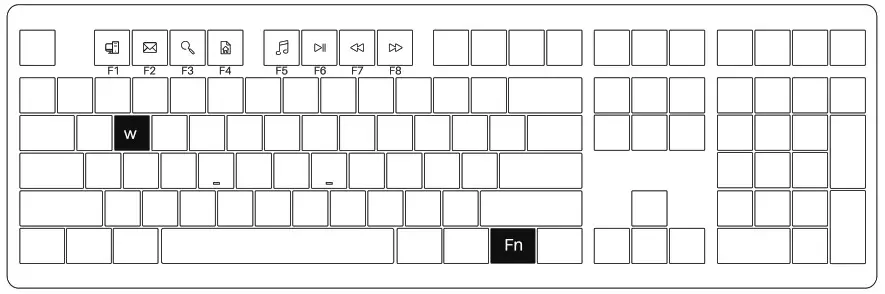
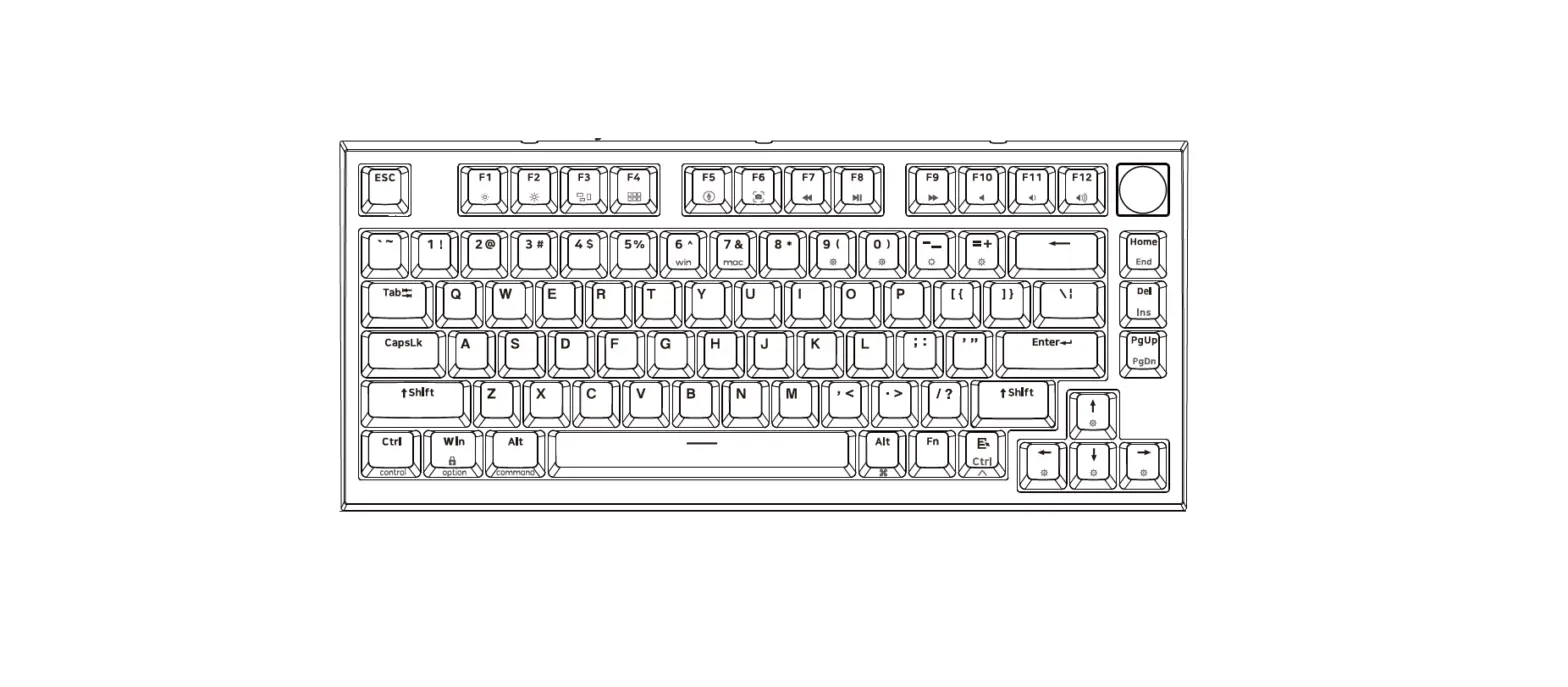
| Fn+ | F1 | = | My Computer |
| F2 | |||
| F3 | Windows Search |
| Fn+ | F4 | = | Browser Homepage |
| F5 | Multimedia Player | ||
| F6 | Play/Pause |
| Fn+ | F7 | = | Previous Song |
| F8 | Next Song | ||
| w | Swap W A S D with ↑↓ ←→ |
M5 QMK System Commands (Windows)
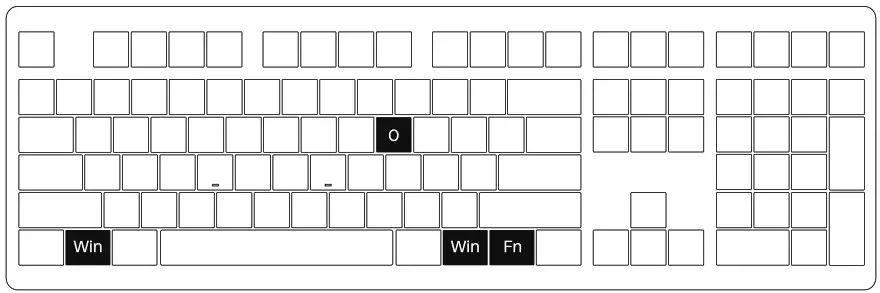
| Lock Win Key | Restore Factory Settings | WIN System  MAC System MAC System |
| Press Fn and left Win key | Hold down left Win and right Win key for 3s | Hold down Fn and O key |
M5 QMK System Commands (Mac)
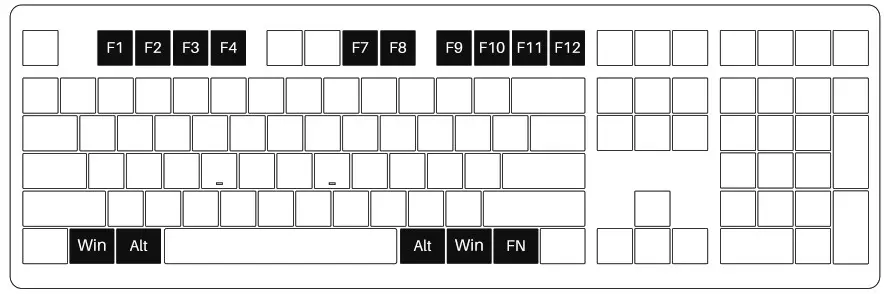
| F1 | Decrease display brightness |
| F2 | Increase display brightness |
| F3 | Open mission control |
| F4 | Activate Siri |
| F7 | Skip back (Audio) |
| F8 | Pause/Play (Audio) |
| F9 | Skip forward (Audio) |
| F10 | Mute |
| F11 | Volume down |
| F12 | Volume up |
| Left Win | Option |
| Left Alt | Command |
| Right Alt | Command |
| Right Win | Option |
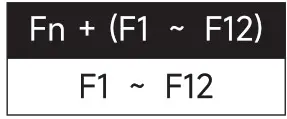
M5 QMK Backlight Settings
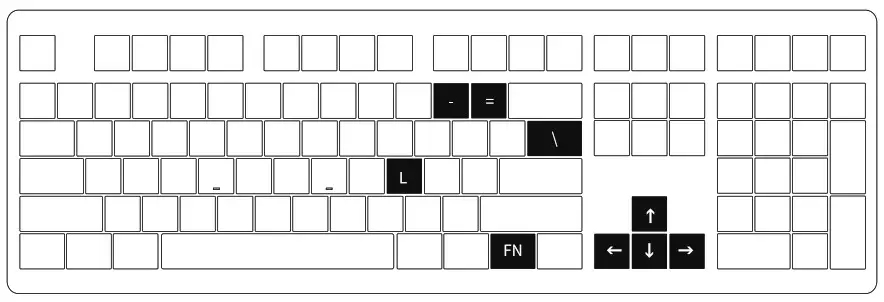
| FN +- | Slower Animation |
| FN += | Faster Animation |
| FN+L | Light On / Off |
| FN+↑ | Bright |
| FN+↓ | Dim |
| FN+← | Light Saturation – |
| FN+→ | Light Saturation + |
| FN+/ | Switch between 18 different lighting effects |
MONSGEEK Warranty and Service Statement
- MONSGEEK provides One-Year warranty for customers in mainland China. For other regions, please contact your seller (MonsGeek distributor) for specific warranty policy.
- If the warranty period expires, customers are responsible for repair costs. MONSGEEK provides instructions for self-repair if preferred, but users assume full responsibility for any losses incurred during the process.
- Dissembling the keyboard without manufacturer/seller’s instruction will immediately void the warranty.
- Return and warranty policies may vary across platforms and are subject to the specific distributor’s terms at the time of purchase.
Company: Shenzhen Yinchen Technology Co., Ltd
Address: 33 Langbi Rd, Bitou Community 1st Industrial Zone, Bao’an District, Shenzhen, China
Tel: 0755-23216420
Website: www.monsgeek.com
Origin: Shenzhen, China
 WARNING:
Water and Beverages can’t be poured into the Keyboard.
Made in China
Precautions Man-made damage is not limited to immersion, falling off, and pulling off the wires with excessive forces, etc.