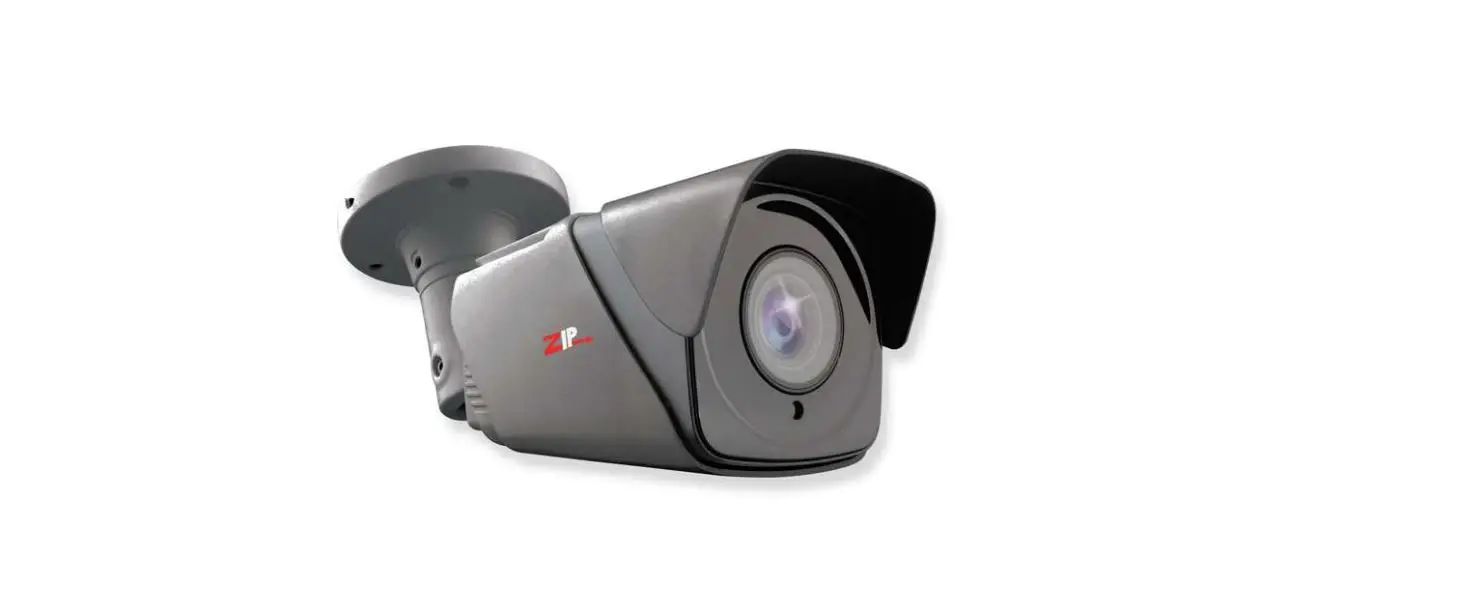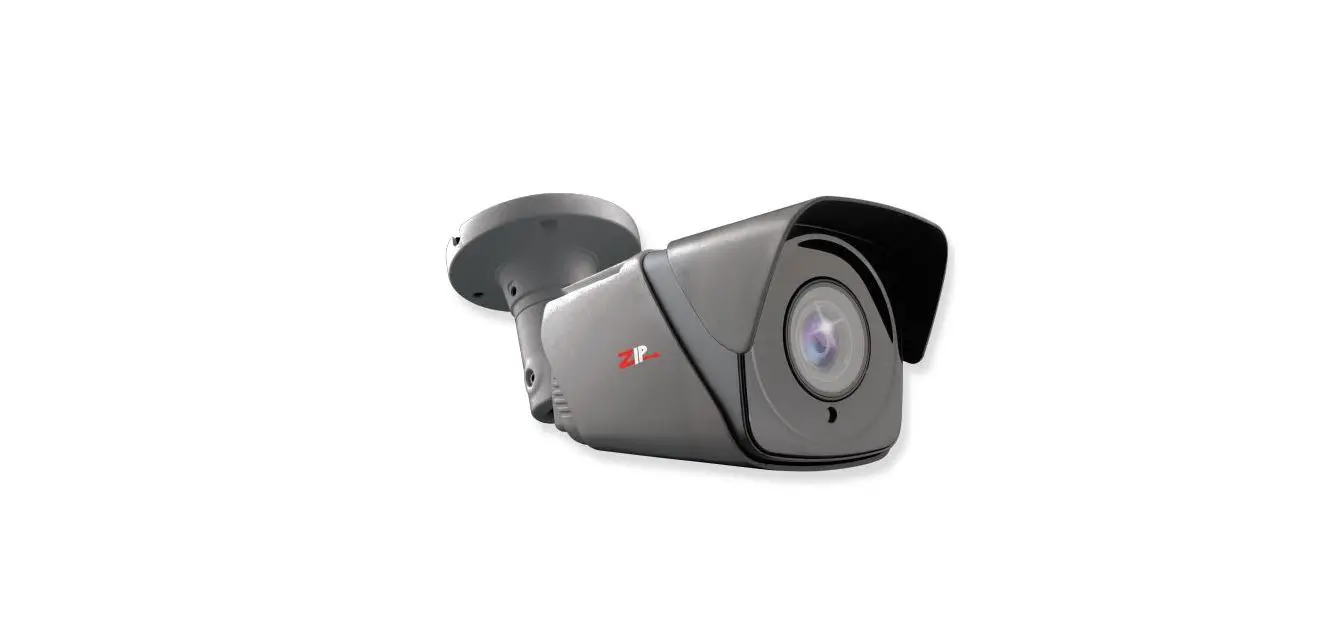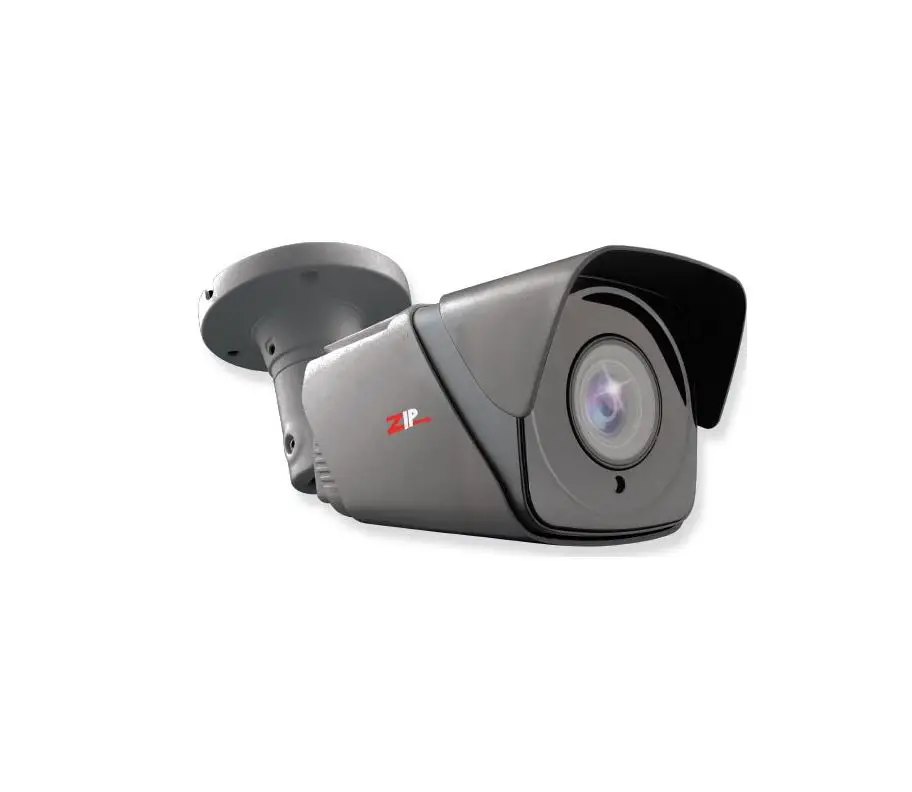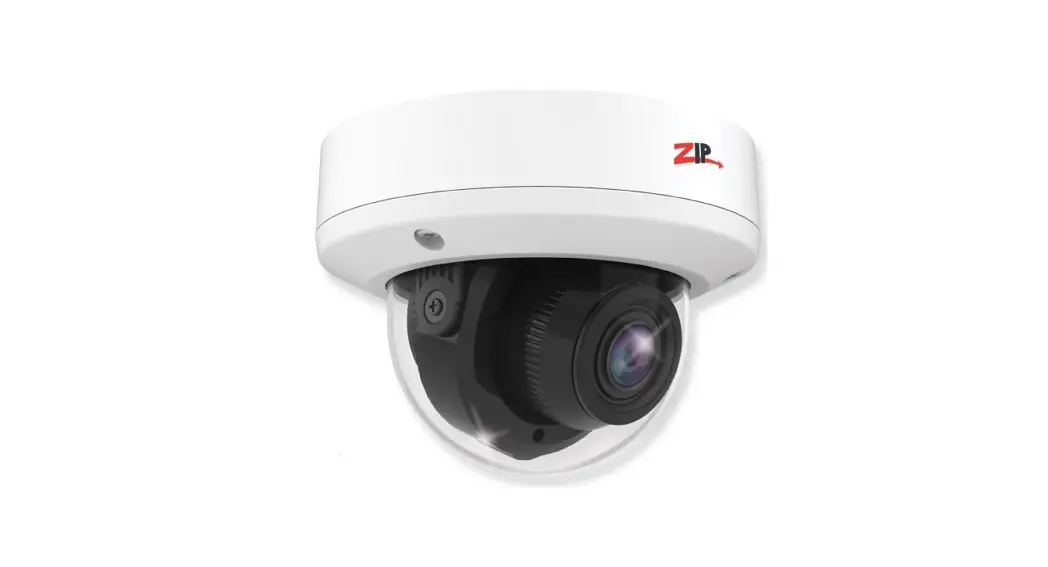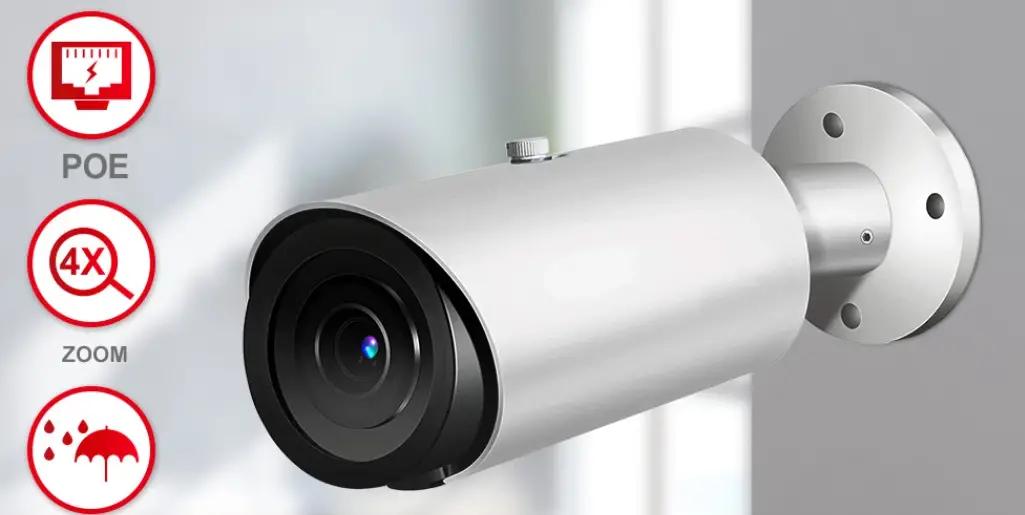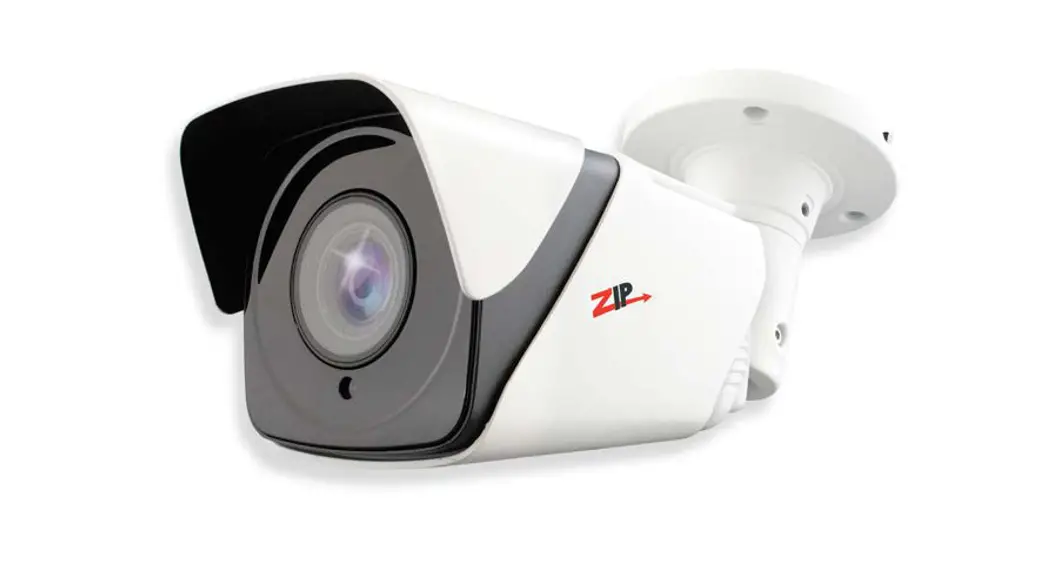

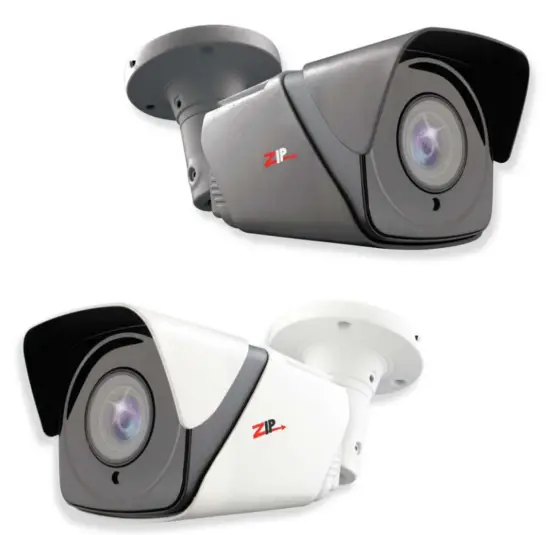

2MP All-In-One 5-50mm Motorised Lens
xSEE882
© 2021 System Q Ltd
Introduction
The SEE882 has multi-format HD modes for TVI, AHD, CVI, and CVBS
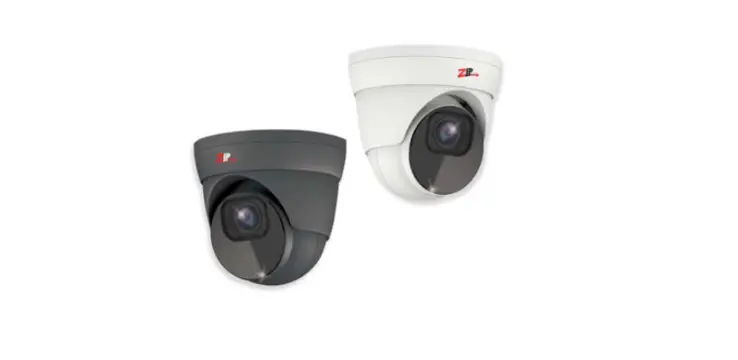
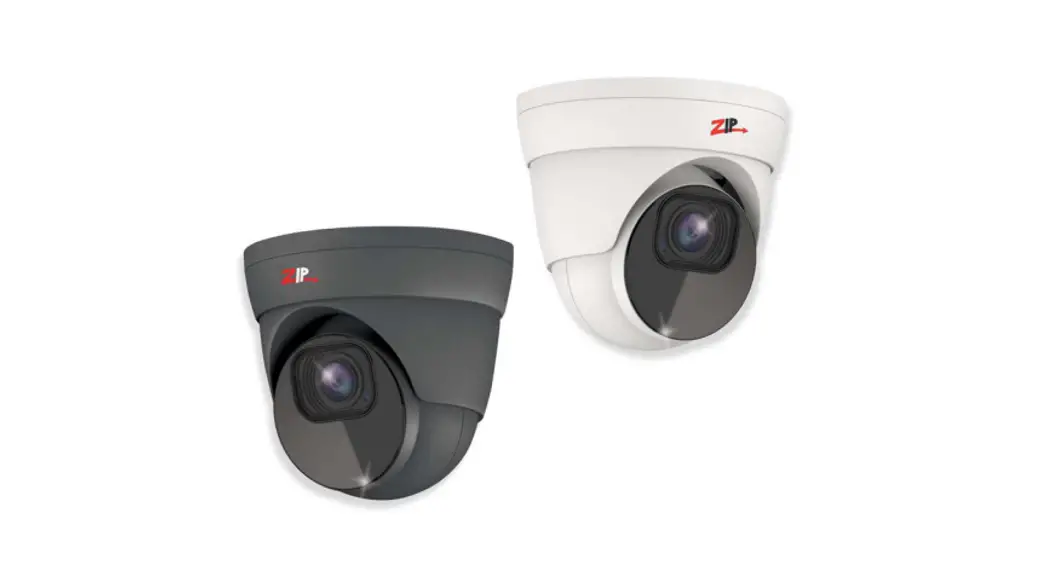
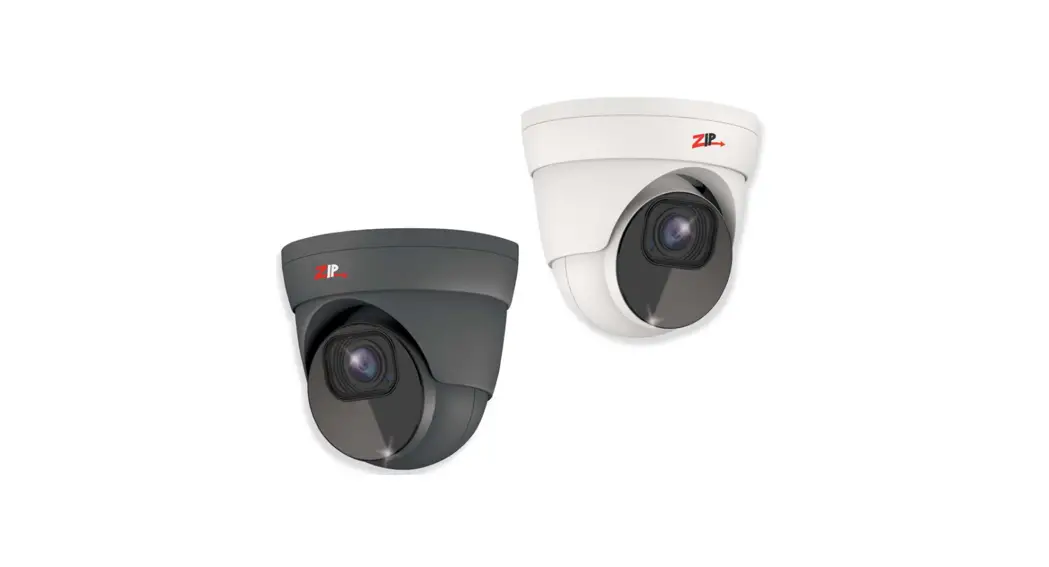
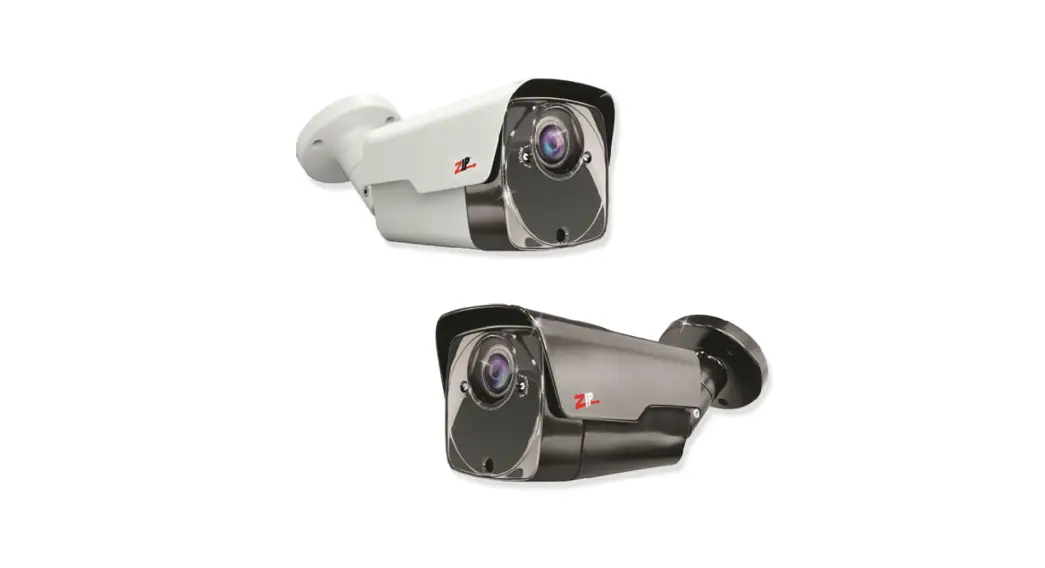
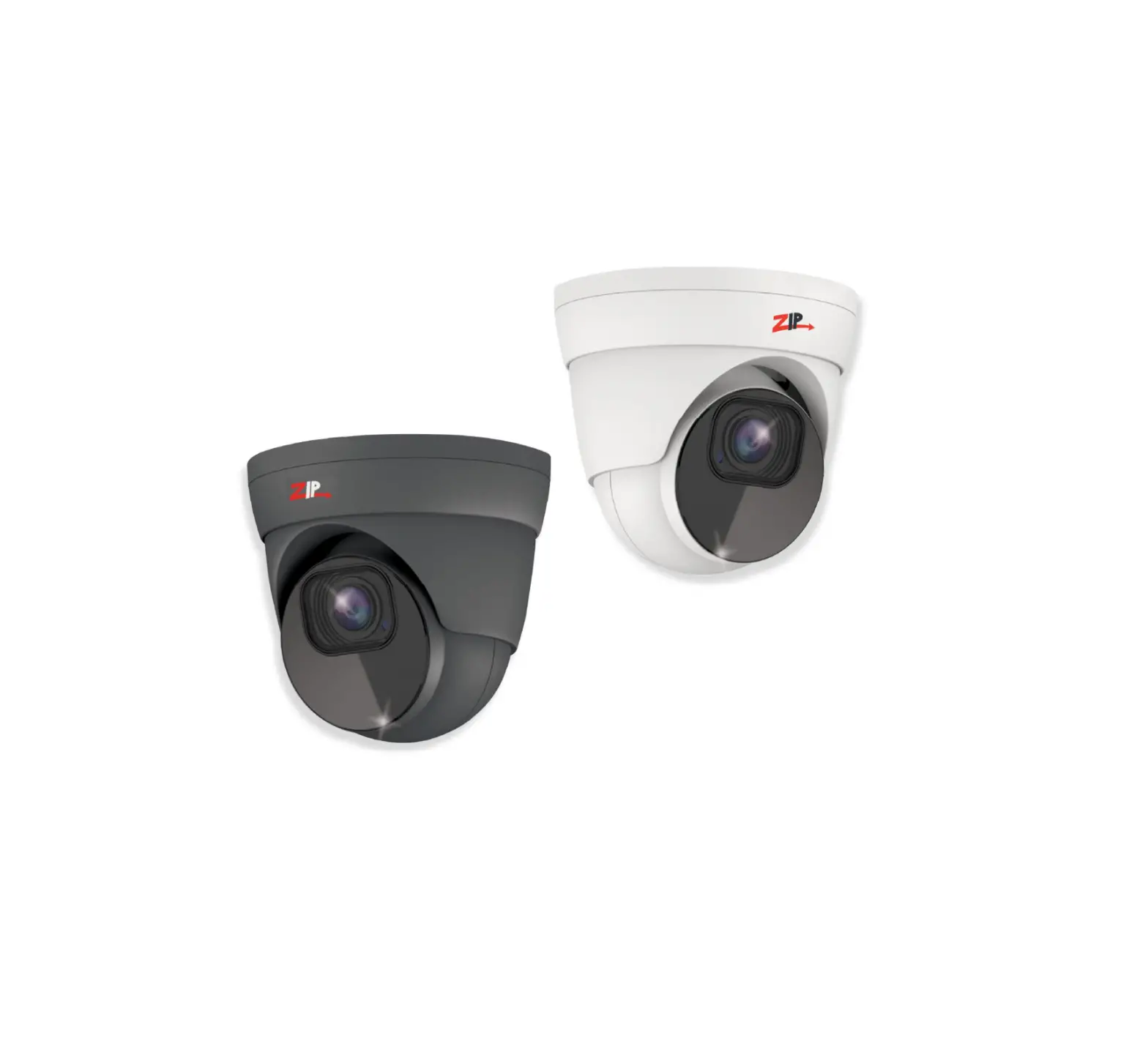
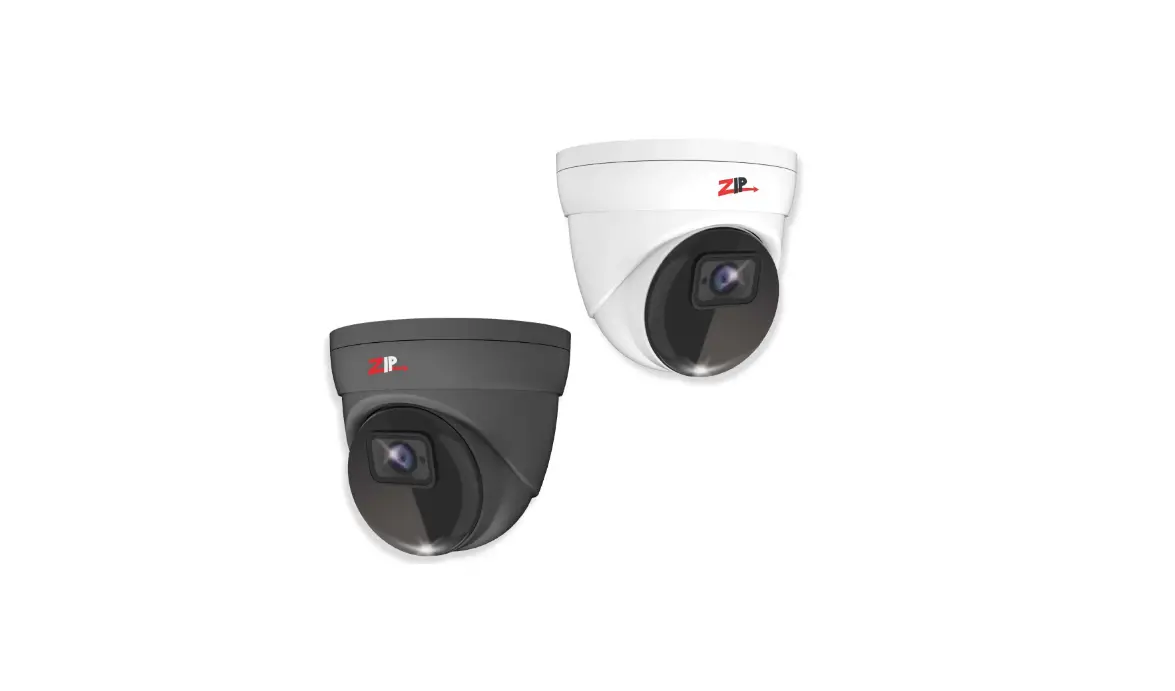
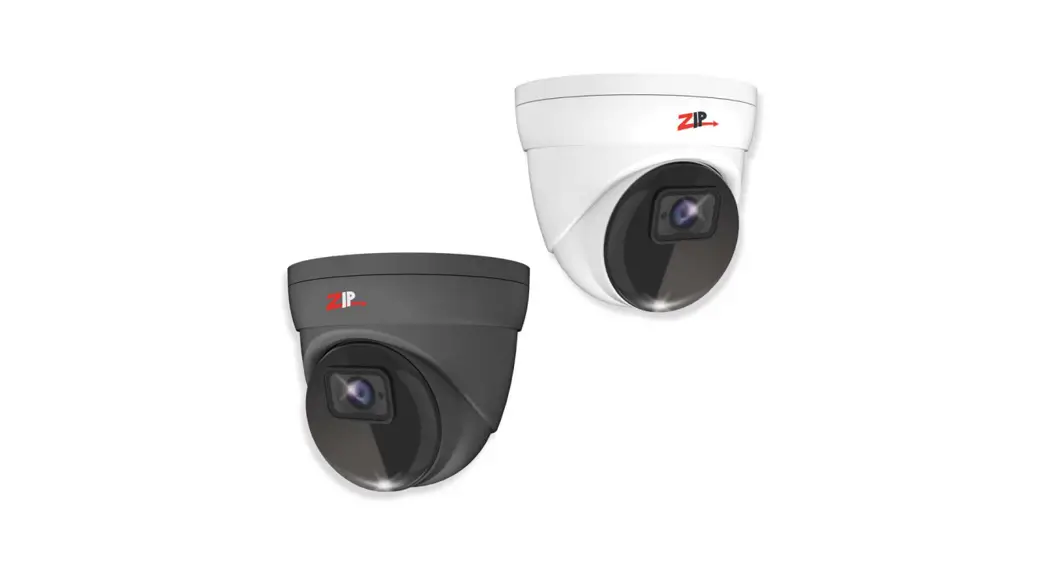
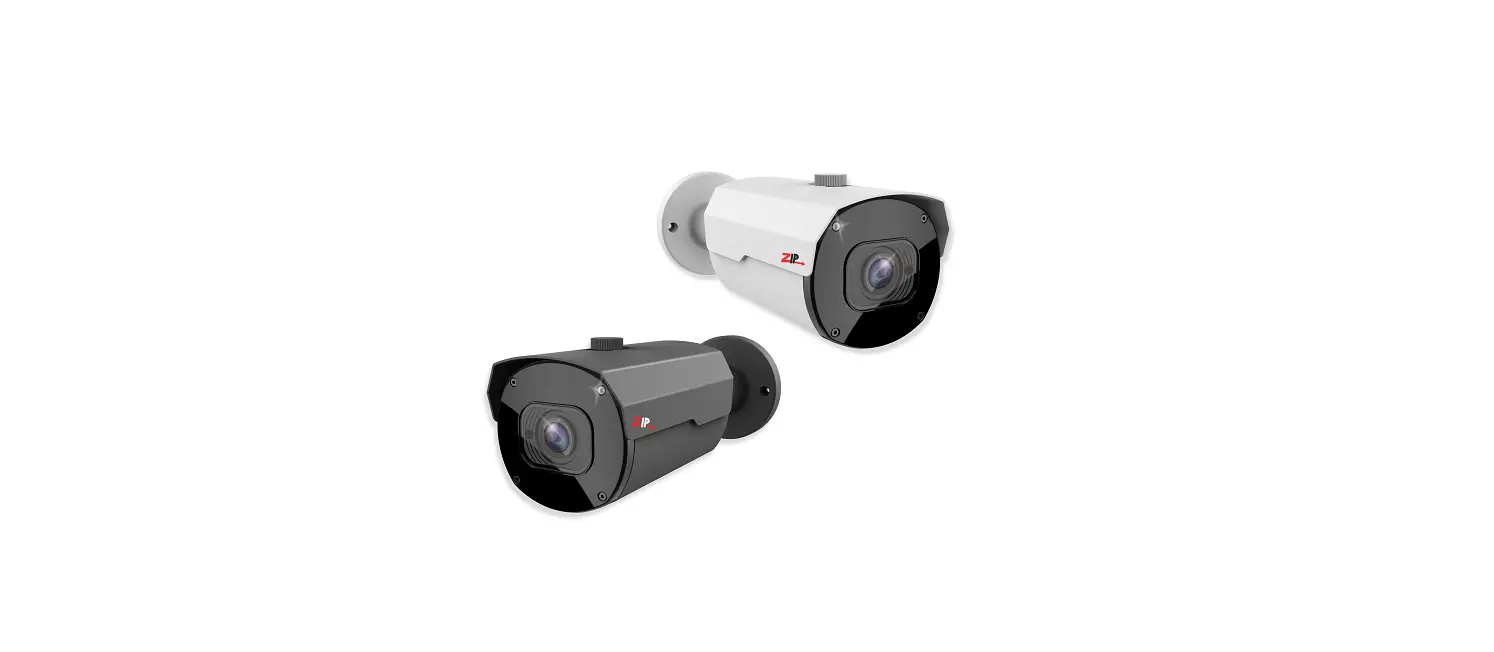
In addition, it comes in two colors, matt Grey & White. The SEE882 camera produces exceptional quality images using the 1/2.8″ Progressive CMOS
With an impressive 80M Infra-Red Range to help improve light capture at night.
The SEE882 has a Coaxitron Control facility for changing the Motorised Zoom & Focus and also the OSD menu specifications via ZipLite, ZipSupa, and ZipXtreme DVRs.
Tools & Handy Extras
- Screwdriver
- Drill
- Hammer
- POW151 – 12V DC 500mA Plug-in PSU
- Drill bits
- BNC Crimp Tool & BNCs
- RG59 Coax Cable
- Digital Multi-Meter
- LCD400K – CCTV Test monitor
Connections, Dimensions & Key Features
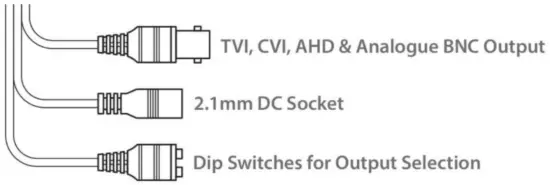
The camera is provided with a fly lead with a 2.1mm DC socket and standard BNC connector It is recommended to use a power supply that is rated higher than the current consumption of the camera i.e. the current consumption is 750mA on so add approximately 50% headroom, and use a regulated power supply rated at 1.2A or above.
The camera is polarity sensitive so connections must be correctly made.
FEATURES
- 2MP Resolution
- TVI, CVI, AHD, or Analogue Output
- 5-50mm Motorized Lens
- 80m IR Range
- Supports Wide Dynamic Range
- Mechanical (True Day-Night)
4-In-1 Technology
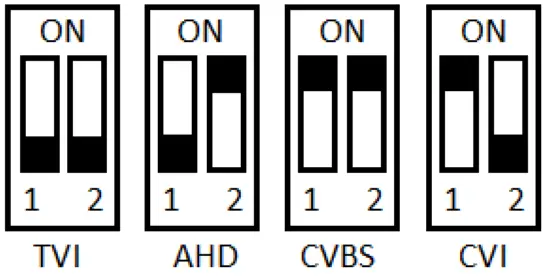
Selectable HD-TVI, HD-CVI, AHD, and CVBS (Analogue) Output. By default, the SEE882 is set to HD-TVI 2MP which will work with the ZipLite, ZipSupa, and ZipXtreme DVRs, however, the output can be changed to AHD, CVI, or CVBS if required.
This output can be changed either with the dip switches on the fly-lead of the camera. Please note the “Output Mode” in the menu of the DVR won’t change the format, as the dip switch overrides the output.
The dip switch configuration can be found below:-
Access to the camera menu is by Coaxitron. For the ZIP DVRs, ZIP Coaxitron is set as default.
To access the Cameras Menu via coalition:-
- Click on the image in Live view
- Click on the PTZ button at the bottom of the screen
- Click on the IRIS + button to display the menu
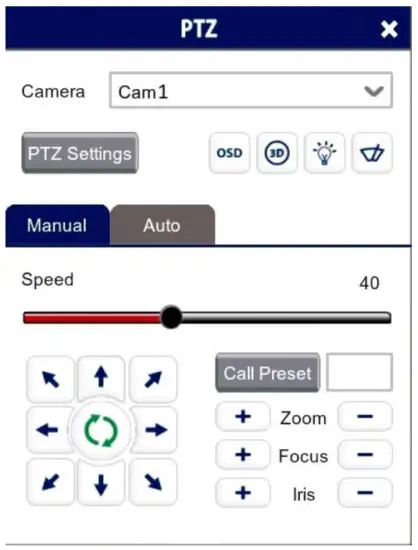
Use the directional arrows to move up and down through the menu.
Use the directional arrows left and right to change the option.
Use IRIS + to select & enter that menu option.
| LENS | MANUAL (No Adjustment) | ||||
| EXPOSURE | SHUTTER | AUTO 1/25 1/50 FLK 1/200 1/400 1/1000 1/2000 1/5000 1/10000 1/50000 / x2 / x4 / x6 / x8 / x10 / x15 / x20 / x25 / x30 | |||
| AGC | 0 ~ 15 (Default 15) | ||||
| SENS-UP | OFF/ AUTO | SENS-UP | x2 / x4 / x6 / x8 / x10 / x15 / x20 / x25 / x30 | ||
| RETURN | |||||
| BRIGHTNESS | 0 ~ 100 (Default 40) | ||||
| D-WDR | ON / AUTO / OFF | LEVEL | 0 ~ 8 (Default 2) | ||
| RETURN | |||||
| DEFOG | OFF/ AUTO | POS/SIZE | POSITION & SIZE | ||
| GRADATION | 0 ~ 2 (Default 0) | ||||
| DEFAULT | (Defaults the above) | ||||
| RETURN | |||||
| RETURN | |||||
| BACKLIGHT | OFF / BLC
HSBLC | LEVEL | MIDDLE / HIGH / LOW | ||
| AREA | POSITION & SIZE | ||||
| DEFAULT | (Defaults the above) | ||||
| RETURN | |||||
| SELECT | AREA 1 / 2 / 3 / 4 | (Selects adjustment area) | |||
| DISPLAY | ON / OFF | POSITION & SIZE | |||
| BLACK MASK | ON / OFF | ||||
| LEVEL | 0 ~ 100 (Default 20) | ||||
| MODE | NIGHT / ALL DAY | AGC LEVEL | 0 ~ 255 (Default 48) | ||
| RETURN | |||||
| DEFAULT | ||||||||
| RETURN | ||||||||
| WHITE BAL | ATW / | |||||||
| AWC–SET / | (Sets Automatic White Balance Control) | |||||||
| INDOOR / | ||||||||
| OUTDOOR / | ||||||||
| MANUAL / | BLUE | 0 ~ 100 (Default 50) | ||||||
| RED | 0 ~ 100 (Default 50) | |||||||
| RETURN | ||||||||
| AWB | ||||||||
| DAY & NIGHT | EXT / | D-N (DELAY) | 0 ~ 60 (Default 3) | |||||
| N-D (DELAY) | 0 ~ 60 (Default 3) | |||||||
| RETURN | ||||||||
| COLOR / | ||||||||
| B/W | BURST | ON / OFF | ||||||
| IR SMART | ON / OFF | LEVEL | 0 ~ 15 (Default 0) | |||||
| AREA | POSITION & SIZE | |||||||
| RETURN | ||||||||
| RETURN | ||||||||
| NR | 2DNR | MIDDLE / HIGH / OFF / LOW | ||||||
| 3DNR | MIDDLE / HIGH / OFF / LOW | |||||||
| RETURN | ||||||||
| SPECIAL | CAM TITLE | OFF /ON | Use on-screen keyboard | |||||
| D-EFFECT | FREEZE | OFF / ON | ||||||
| MIRROR | OFF / MIRROR / V-FLIP / ROTATE | |||||||
| NEG. IMAGE | OFF / ON | |||||||
| RETURN | ||||||||
| MOTION | OFF / ON | SELECT | AREA 1 / 2 / 3 / 4 | |||||
| DISPLAY | ON / OFF | |||||||
| SENSITIVITY | 0 ~ 100 (Default 64) | |||||||
| COLOR | GREEN / BLUE / WHITE / RED | |||||||
| TRANS | 1.00 / 0.75 / 0.25 / 0.00 | |||||||
| ALARM | VIEW TYPE | ALL / OFF / BLOCK / OUTLINE | ||||||
| OSD VIEW | ON / OFF | |||||||
| ALARM OUT | ON / OFF | |||||||
| TIME | 0 ~ 15 (Default 3) | |||||||
| RETURN | ||||||||
| DEFAULT | ||||||||
| PRIVACY | OFF / ON | SELECT | AREA 1 / 2 / 3 / 4 | |||||
| DISPLAY | COLOR / OFF / MOSAIC / INV. | |||||||
| COLOR | WHITE / BLACK / RED / BLUE / YELLOW / GREEN / CYAN / USER | |||||||
| TRANS | 1.00 / 0.25 / 0.50 / 0.75 | |||||||
| DEFAULT | ||||||||
| RETURN | ||||||||
| LANGUAGE | ENG / CHN1 / CHN2 / GER / FRA / ITA / SPA / POL / RUS / POR / NED / TUR | |||||||
| DEFECT | LIVE DPC | OFF / ON | AGC LEVEL | 0 ~ 255 (Default 64) | ||||
| LEVEL | 0 ~ 100 (Default 64) | |||||||
| RETURN | ||||||||
| WHITE DPC | ON / OFF | POS / SIZE | POSITION & SIZE | |||||
| START | STARTS SCAN | |||||||
| DPC VIEW | OFF / ON | |||||
| LEVEL | 0 ~ 100 (Default 3) | |||||
| AGC | 0 ~ 14 (Default 8) | |||||
| SENS-UP | x6 / x8 / x10 / x15 / x20 / x25 / x30 / x2 / x4 | |||||
| RETURN | ||||||
| BLACK DPC | OFF / ON | POS / SIZE | POSITION & SIZE | |||
| START | STARTS SCAN | |||||
| DPC VIEW | OFF / ON | |||||
| LEVEL | 0 ~ 100 (Default 100) | |||||
| RETURN | ||||||
| RETURN | ||||||
| RS485 | CAM ID | 0 ~ 255 (Default 0) | ||||
| ID DISPLAY | OFF / ON | |||||
| BAUDRATE | 38400 / 2400 / 4800 / 9600 / 19200 / | |||||
| RETURN | ||||||
| RETURN | ||||||
| ADJUST | SHARPNESS | AUTO / | LEVEL | 0 ~ 10 (Default 6) | ||
| START AGC | 0 ~ 255 (Default 120) | |||||
| END AGC | 0 ~ 255 (Default 255) | |||||
| RETURN | ||||||
| OFF | ||||||
| MONITOR | LCD / | GAMMA | USER / 0.45 ~ 1.00 | |||
| BLUE GAIN | 0 ~ 100 (Default 64) | |||||
| RED GAIN | 0 ~ 100 (Default 64) | |||||
| RETURN | ||||||
| CRT | BLUE GAIN | 0 ~ 100 (Default 56) | ||||
| RED GAIN | 0 ~ 100 (Default 56) | |||||
| RETURN | ||||||
| LSC | ON / OFF | |||||
| COMET | OFF / ON | |||||
| OUTPUT MODE | NO ADJUSTMENT | |||||
| RETURN | ||||||
| AF | AF MODE | SEMI / AUTO / MANUAL | ||||
| ONE-SHOT AF | Press to detect the focus point | |||||
| TDN AF | OFF / ON | |||||
| LENS INIT | Press to initialize the lens | |||||
| AD ADJUST | Press to Synchronise Autofocus points | |||||
| RETURN / SAVE & END | ||||||
| EXIT | SAVE & END / RESET / NOT SAVE | |||||
5.1 Key Menu Settings
Exposure Mode – AUTO is set as default, it automatically sets the required shutter speed for the current light level. The shutter speed will automatically detect the required length of time to keep the digital sensor exposed to light. FLK option sets the shutter speed to stop synchronization with lighting so that the pulsing effect is minimized.
White Balance – Colour adjustment of the camera to be set up so objects appear a natural color. ATW (Automatic tracking white balance) continually tracks and adjusts the white balance, making it suitable for use in cameras in which the image content and lighting are subject to changes.
Day & Night – The camera can be set to color or B&W mode or have it automatically switch External is set as default, and the switch between color and black & white is controlled by an external trigger In this a light-dependent resistor. Delay can be set which will instruct the camera to wait for a set length of time before switching. This accommodates for any temporary drops in light
DNR (Noice Reduction) – Noise Reduction is the process of removing noise from the video signal by applying a digital filter. 2D noise reduction reduces noise in the oreground of the image whereas 3D noise reduction reduces noise in both the foreground and the background of the image.
D-WDR – Digitally adjusts the exposure in areas of the frame to maintain optimum levels in both the dark and bright areas of an image.
Reset – Defaults the camera to factory settings. This setting helps when fault finding issues with the camera to ensure all settings default.
Troubleshooting
6.1 Camera Rebooting / Turning Off
A. Check the voltage of the camera (under load) if below 10.8V then move the power supply closer to the camera.
B. For 12V DC cameras only ever use regulated power supply rated at above 750mA, 1A would be recommended. So that the camera is always receiving the correct supply.
C. Use thicker gauge copper cabling to reduce the voltage drop.
6.2 Poor Quality Images
A. Check the fly-lead is set to the correct output – see 4-In-1 Technology³
B. If set to CVBS, then this is a low-quality video output for legacy systems (Analogue), when using a 2 MegaPixel DVR or above then use another video format, like HD-TV.
C. Reset the camera menu via Zip Coaxitron – OSD Menu⁴
D. Check if your DVR supports 2 MegaPixel cameras.
6.3 Image is Black & White
A. Check the video format your DVR supports, then set the camera to the relevant video format – see the 4-In-1 Technology3
B. Reset the camera menu via Zip Coaxitron OSD Menu4
C. Check the recorder supports 2 MegaPixel cameras.
6.4 NCD / No Image Displayed on Recorder
A. Test that the camera has the correct voltage supplying it, this must be done with the camera connected so that there is a load on the PSU. A 12V DC camera should have at least 10.5V DC connected to it.
B. The camera can not function without the correct power supply. For 12V DC cameras only ever use regulated power supplies to ensure that the camera is always receiving the correct voltage.
C. Ensure that the BNC – BNC lead that is connected between the camera and DVR has no shorts or open circuits.
General Maintenance
- Ensure that nothing is obscuring the field of view, and position the camera to ensure the Lens can see clearly.
- Routinely clean the camera to prevent dust build-up as this can affect the performance of the camera. We recommend a damp non-abrasive microfibre cloth
- Check that the cameras are firmly attached.
- Check playback in the recorder to ensure the camera is recording properly.
Specification
| Camera Model | SEE882 |
| Image Sensor | 1/2.8″ Progressive CMOS |
| Resolution | 2MP (HD) |
| Lens Type | 5-50 mm motorized lens |
| Image Output | TVI / CVI / AHD / CVBS |
| Min. Illumination | 0 Lux (IR On) |
| Day/Night | Mechanical (True Day-Night) |
| Input Voltage | 12V DC |
| Current Consumption | 750mA |
| Signal to Noise Ratio | 40dB |
| Gain Control | Automatic |
| Video Connection | BNC Socket |
| Power Connection | 2.1mm DC Socket |
| WDR | Yes |
| Protocol | UTC |
| Finish | Matt Grey / White |
| Build | Metal |
| Shutter | 1/15 s to 1/50,000 s |
| White Balance | Auto / Manual |
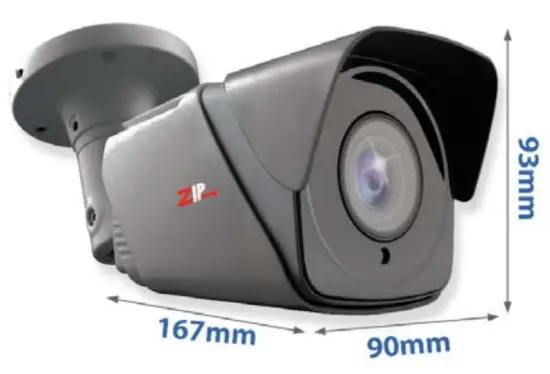
| Dimensions | 167 x 90 x 93mm (Without Bracket) |
| IR Wavelength | 850nm |
| IR Range | 80m |
| IP Rating | IP66 |
Conditions
9.1 General Company Disclaimer
All specifications are approximate. System Q Ltd reserves the right to change any product specifications or features without notice. Whilst every effort is made to ensure that these instructions are complete and accurate, System Q Ltd cannot be held responsible in any way for any losses, no matter how they arise, from errors or omissions in these instructions, or the performance or nonperformance of the equipment that these instructions refer to.
9.2 WEEE Declaration
 This symbol on the products and/or accompanying documents means that used electronic equipment must not be mixed with general household waste. For treatment, recovery, and recycling please return this unit to your trade supplier or local designated WEE/CG0783SS collection point as defined by your local council.
9.3 Copyright
© Copyright 2021
Zip is a registered trademark of System Q Ltd, Chesterfield. Derbyshire. S40 2WB
 ZipNVR: Home