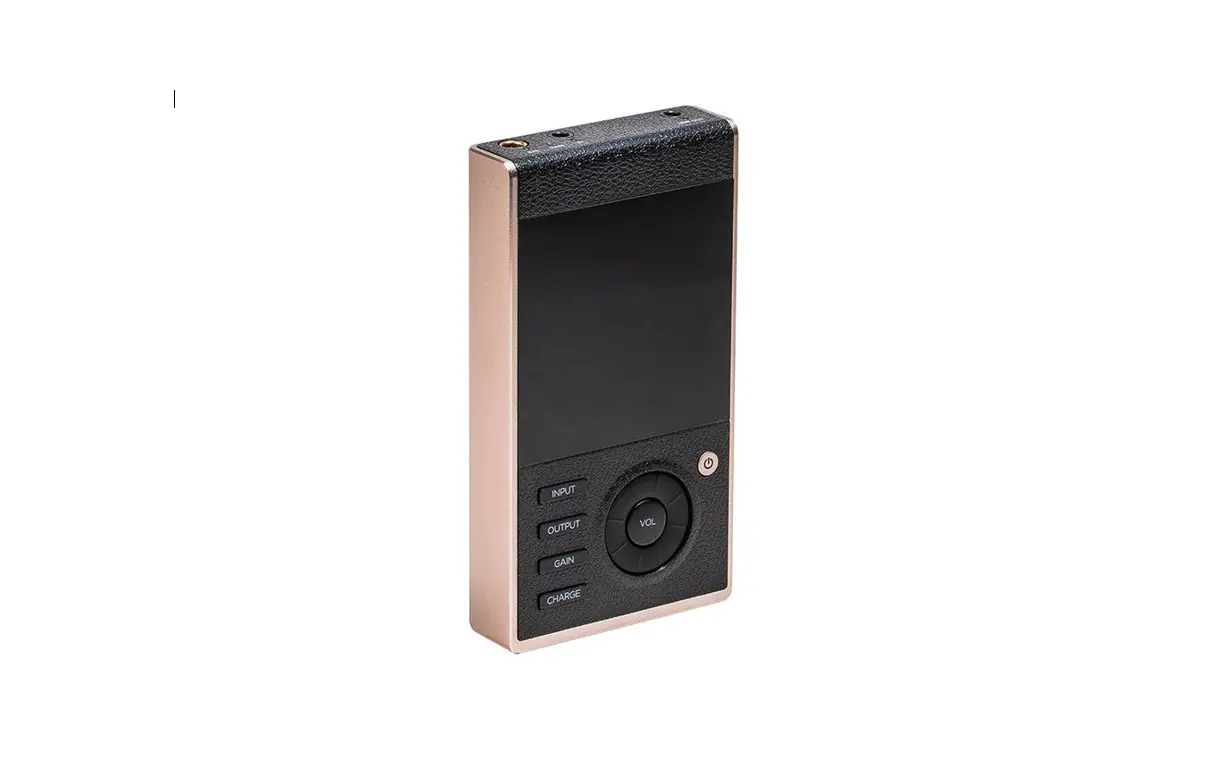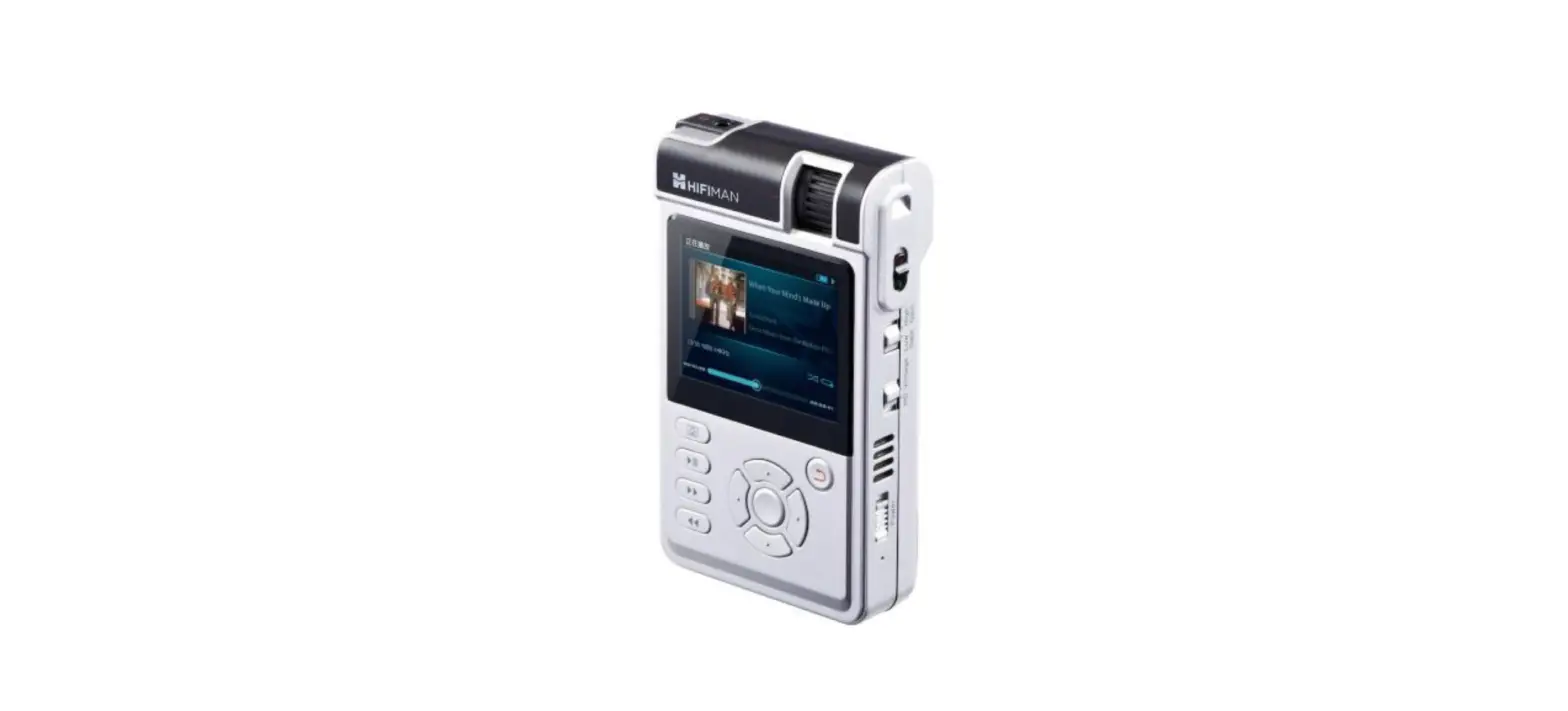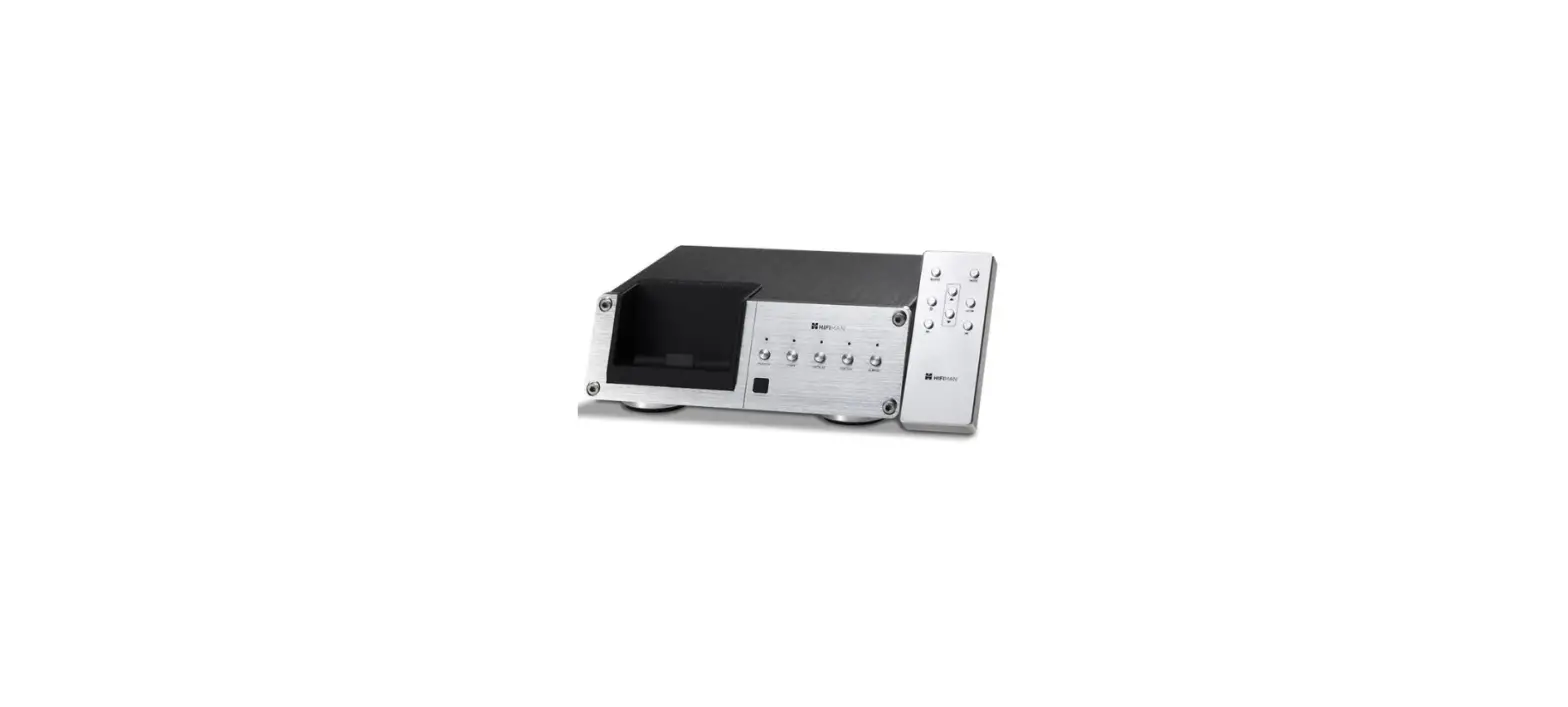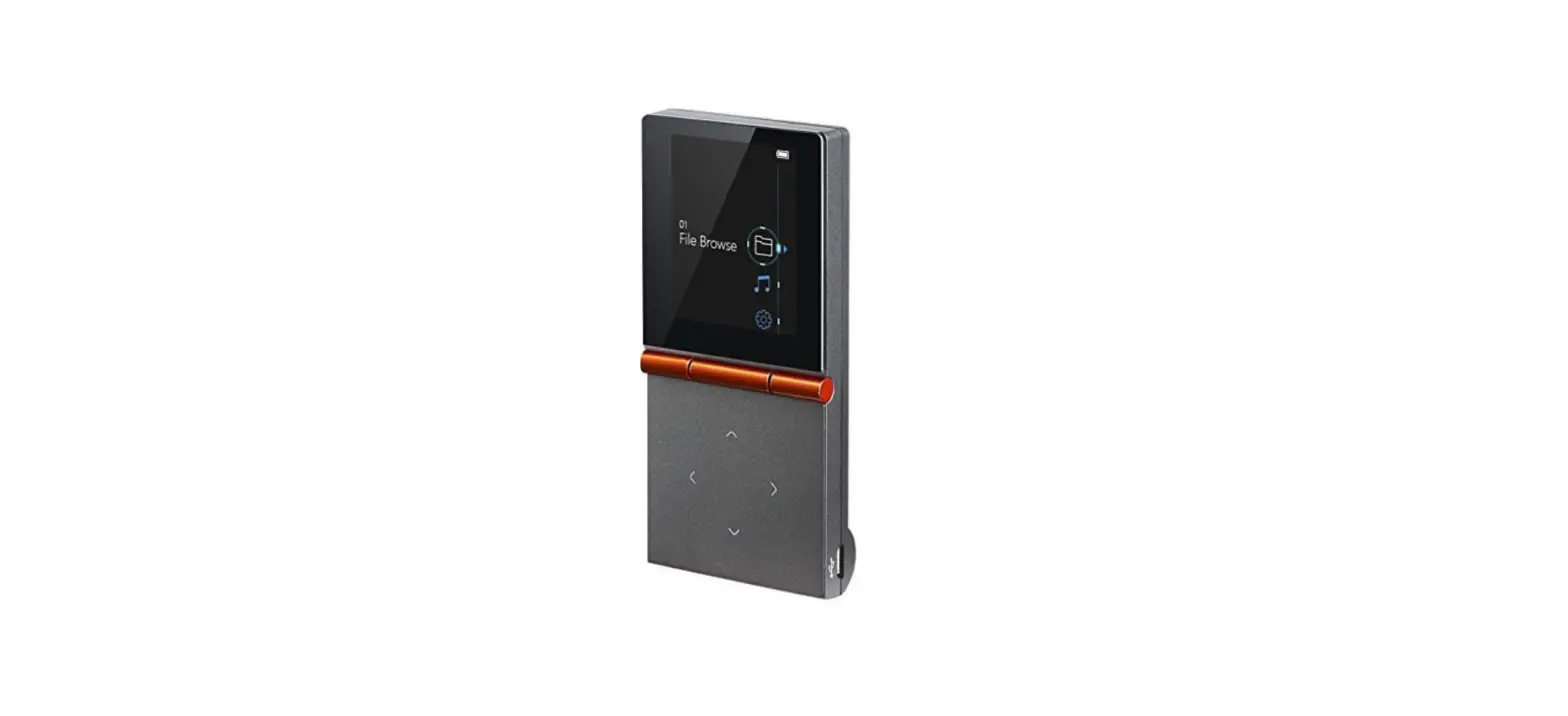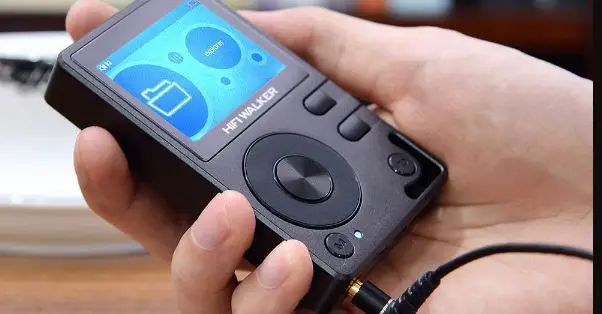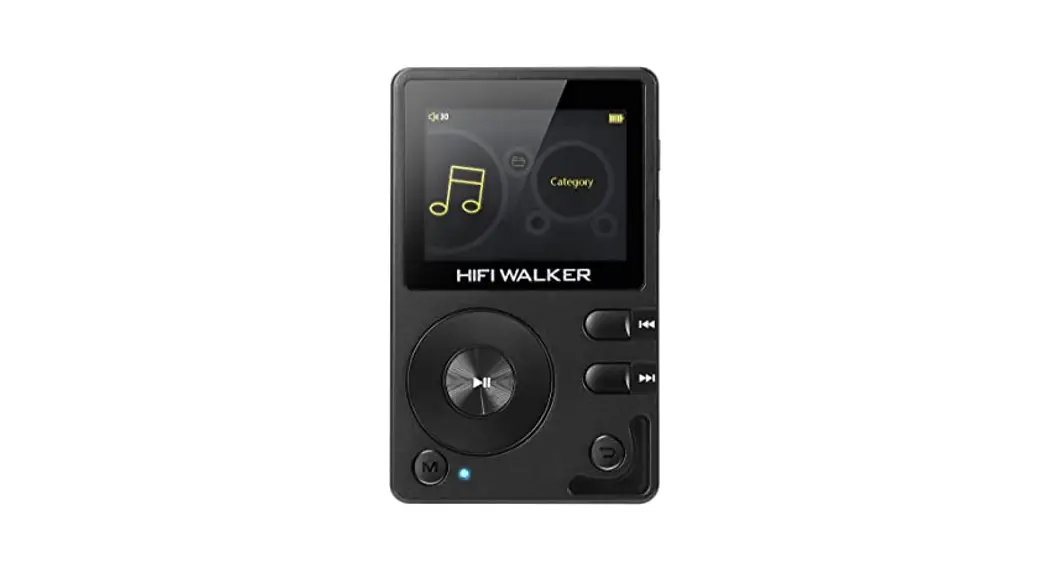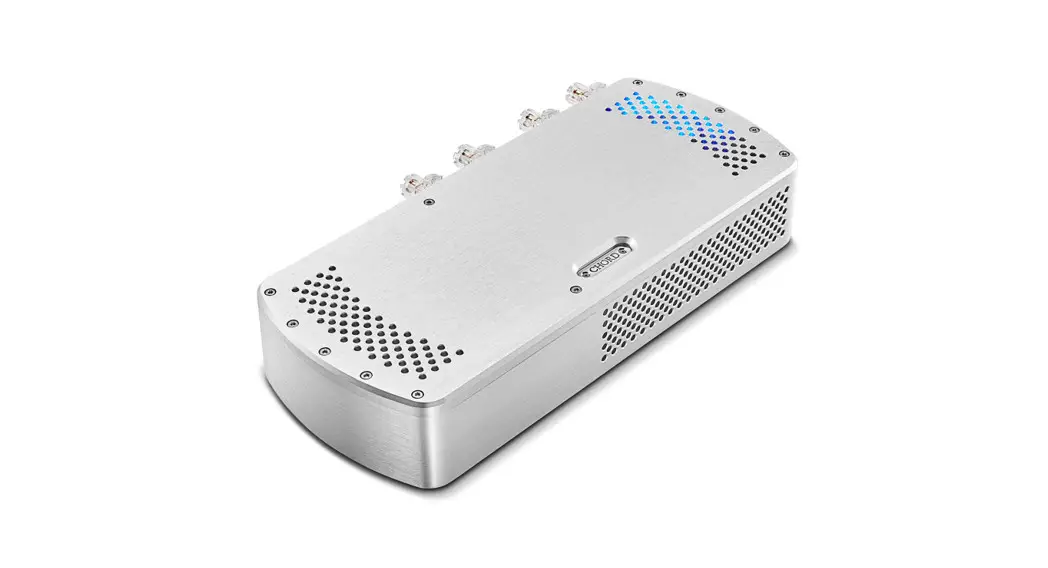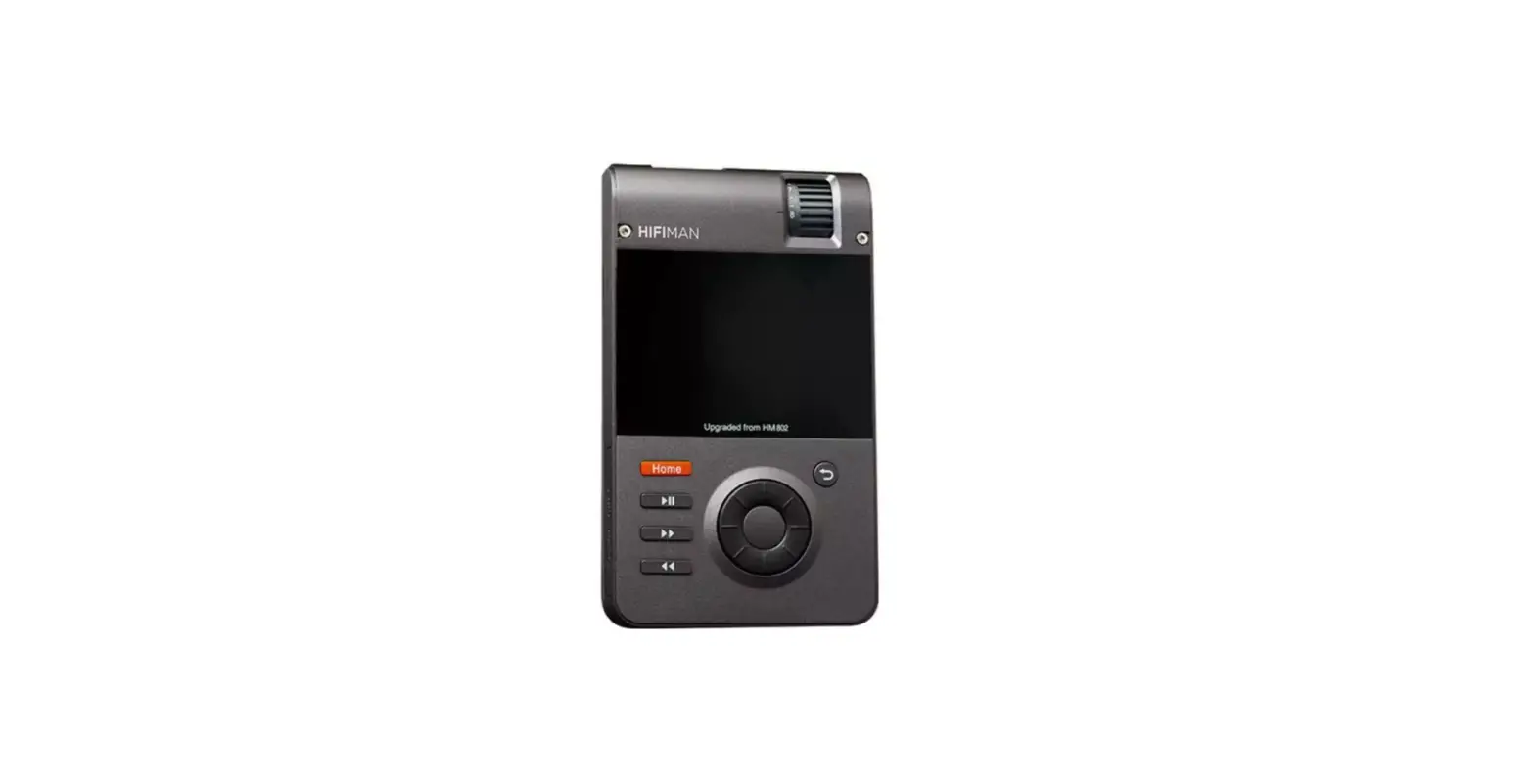

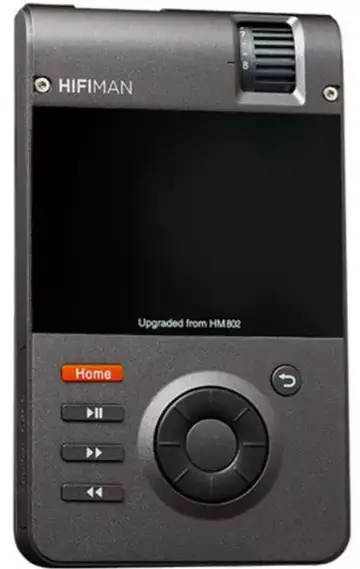
HIFIMAN HM802U Music Player with Power II Amp Card
SPECIFICATION
- Dimensions: 72mm W* 117mm H* 27mm D
- Weight: 300g (with battery and amp card)
- Battery Life: 11 hours
- D/A Chip: WM8740*2
- Frequency Response: 20HZ-20KHz
- Distortion: 0.008% (Line out)
- S/N: 106±4dB
- SD Card Memory: Up to 256G
- Supported Music Formats: 16/24Bit: WAV, FLAC, APE, AIFF (44.1KHz-192KHz)
- MP3, WMA, ALAC, AAC, OGG
- DSD64(DFF、DSF)
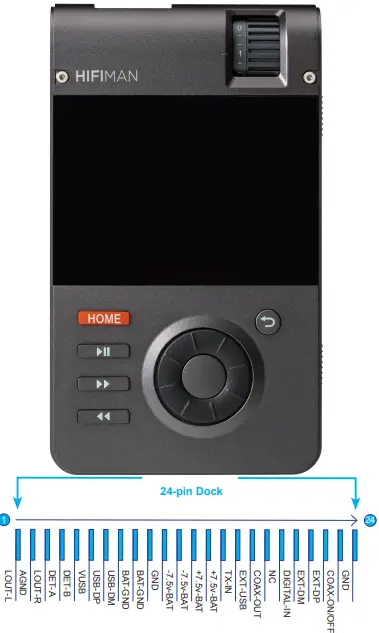
Function Buttons
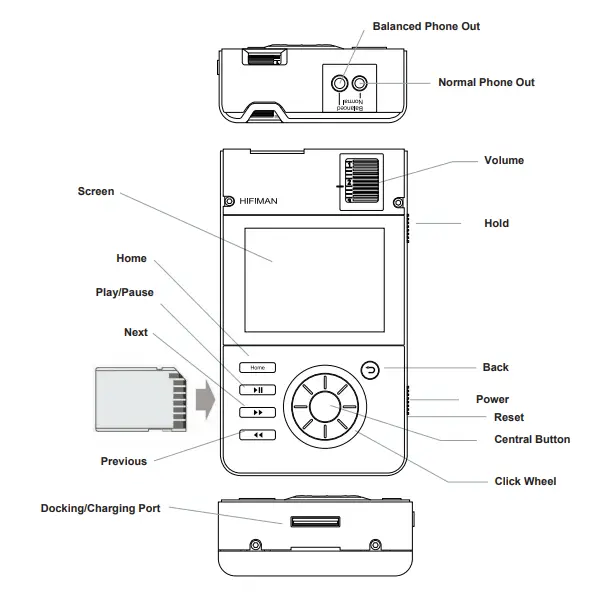
Power Key
Hold the power key up for 2-3 sec to turn on the player when HM802s is powered off.
Click Wheel
The icon will show on the main menu after the player is powered on. Central Button Press the central button in play menu to play music of pause. Back Press the button to return to the previous folder.
HOME In Play menu, press the HOME button to go to the main menu; press HOME again to return to play menu.
Play/Pause After pressing the Play/Pause button, the player will play music or pause from anywhere.
NEXT Press the button to go to next song from anywhere
PREVIOUS Press the button to return to previous song from anywhere.
Volume Please turn the volume to “0” before playing music to protect your hearing. After the player is powered on, adjust the volume as you like.
HOLD Press the HOLD button to lock or unlock the player. When the switch is set to hold, all the buttons (except for volume button) are disabled. When the player is unlocked, all the buttons will once again be working.
Accessories
- Amplifier module
- RCA cable: for line out (red and white), for S/P DIF IN (black)
- Charger, for charging HM802s
- Battery: Li-ion +7.4V 1600 mAh, -7.4V 500mAh
- Owner’s Guide
Using HM802s
Note Please read this manual thoroughly on how to best install and operate your player for many years of enjoyment
Card Installation The HM802s will automatically detect and update the files in the SD card after the player is turned on. The time for detection depends on the size of the files on the SD card. After the update, the HM802s will be ready to play.
To Remove SD Card Choose “Remove SD Card” from the Main Menu. Wait until vou see “Please remove the SD card”. The SD card is then safe to be removed.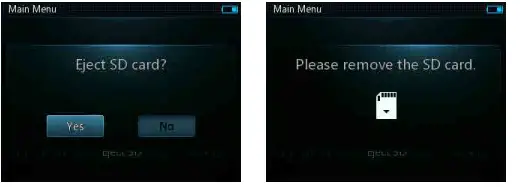
Power ON/OFF/Stand by
Hold the power key on the right side of HM802s up for 3 sec. After releasing thee power key, the player will power on and the HIFIMAN logo will appear.Push the power key up when the player is powered on, it will enter Stand by mode.Under Stand by mode, push the power key up for 3 sec, the player will be on. Go to Seting and select Power OFF to power the player off when the player is powered on.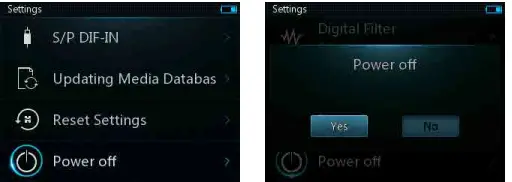
Reset
Should the player LCD become “frozen'”, carefully insert a fine-point pen or needle in the reset hole to reboot the player.
Charging
The average battery life of HM802s is nine hours. Please charge the player when you see a reminder of low power. We recommend that you use the original HIFIMAN charger.
Note:
- The player can only be charged fully with Power OFF or under Stand by mode.
- It cannot be charged via a USB port.
Replacing the Battery
How to remove the back Cover of HM802s:
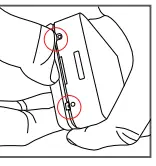
- Remove the screws on the bottom (shown in red circles).
- Gently lift the back cover.

How to replace the cover back:
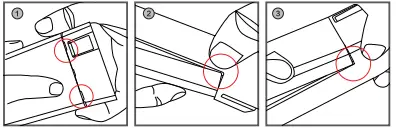
- Insert the back cover to fit in the two latch holes on the top.(Pictures 1).
- Make sure the back cover falls into place along the frame.
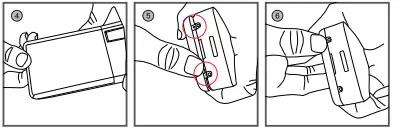
- Fit in the two latch holes on the bottom (Pictures 2 and 3).

- Slightly press the back cover down. Check if it is securely in place without any slant (Pictures 4 and 5).
- Replace the two screws on the bottom (Picture 6).
Replacing Amplifier Module
Please remove the battery first as instructed above. Then the amp module can be replaced. Several optional amplifier cards are available for your HM802s to meet different needs. Below is a figure on how to replace the amp module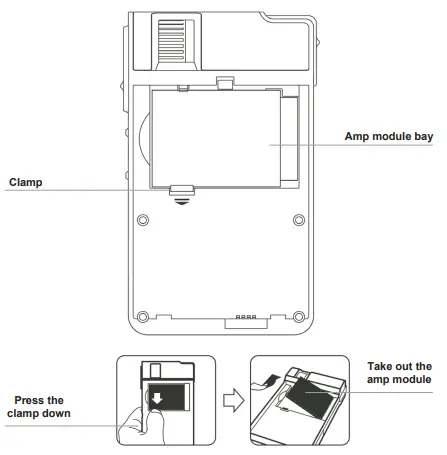
Connecting
Connecting HM802s to PC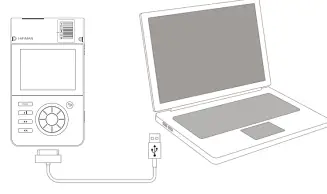
- Use the USB cable to connect HM802s to the computer.
- Wait for the system to show “USB connecting”.
- Copy the file or folder to SD card.
Note:
- It is important not to remove the USB cable while music is being downloaded as the music files could be corrupted.
- The speed for data transfer will vary depending on the size of the transferred files and/or the operating system of your computer
Disconnecting HM802s from PC
Click the USB device icon on the computer and disconnect the player. The USB cable can then be removed.
Note:
- The USB device icon might be concealed under other programs. If you cannot see it, click the “show the concealed device” and you will find the USB device icon.
- When the SD card is in operation, you should not disconnect the player.
- It is important not to remove the USB cable while the music is being downloaded. Or you might damage the music files.
Operation
Main Menu
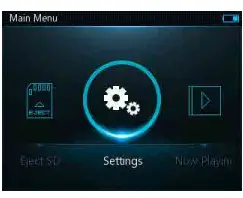
When the player is being started, the system will automatically detect the music files on the SD card and update the database. After the update, the HM802s will go to main menu.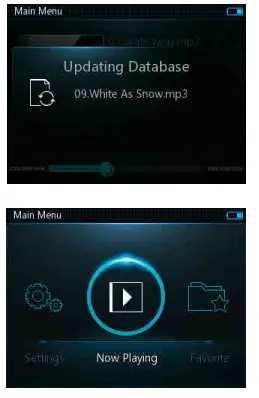
SD Card
On the main menu, rotate the wheel to SD card and click the central button to enter the SD card menu and view the music files. When the wheel highlights a single track, press the central button to play the song. By default, non-music friles will not be visible.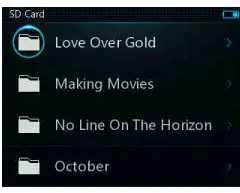
Artist Album and Genre
After the player is started, the music files on the SD card are classified according to the artist, album and genre. Accordingly, three menus are shown on the main menu.
All Songs
After the player is started, you can go to “browse all songs” from the main menu and play music.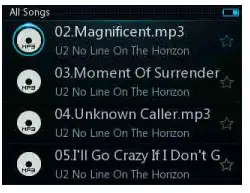
Favorite
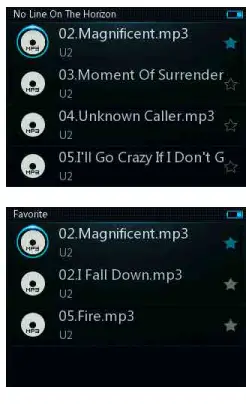
When you browse all songs, you will see a star following each song on the right. If you press the central button for several seconds, the song you are browsing will be added to “Favorite” with the star being solid. By entering Favorite from the main menu, you will see all the added songs.
Delete a File
On the song list, press the Back button for seconds and a window will show up. Press Yes to delete the file you select. Note: the song being played cannot be deleted.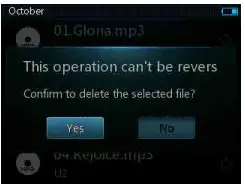
Play Menu
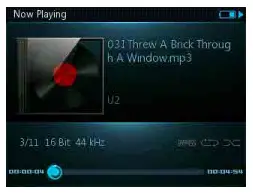
Below is the play menu. You can press Central Button to pause/play music.
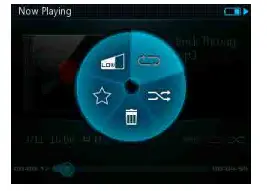
In play menu, press the Central button for secs will enable the play setting window. Users can change the Repeat/Shuffle, Low/High Gain, and Favorite. Users can add or delete the playing song from Favorite
Setting
System Version
Click to see the information on your HM802s’ current software version.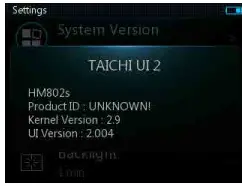
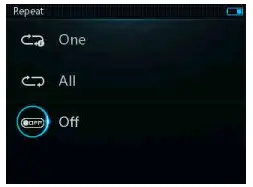
Repeat
On Main Menu, select “Setting” then go to “Repeat” to make your selection.
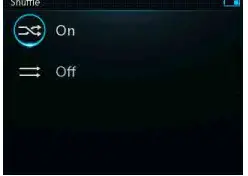
Shuffle
On Main Menu, select “Setting” then go to “Shuffle” to make your selection.
Backlight
You have the option to set the time for the player backlight as “always on, 10s, 30s, 1min and 2 mins”.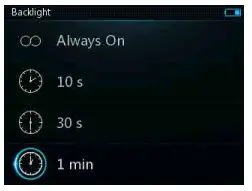
Resume Playback
On Main Menu, select “Setting” then go to “Resume Playback” to tum on of turn off this function.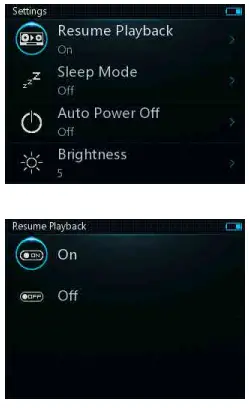
Stand by Mode
On Main Menu, select “Setting” then go to “Stand by Mode” to set up the Stand by function and desired amount of time. The player wil Stand by at the pre-set time calculated by when the player was operated for the last time.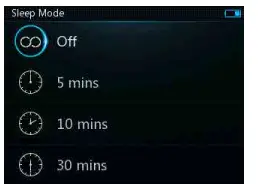
Auto Power Off
On Main Menu, select “Setting” then go to “Auto Power Off. The player will be powered off at the pre-set time calculated by when the player (non-playing status) was operated for the last time.

Brightness
Set the display brightness from 1 to 5. The brighter it is, more power will be consumed.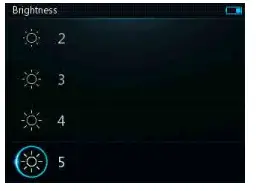
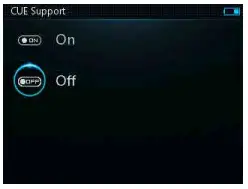
CUE Support
On main menu, please go to Settings and then select CUE Support to turn on/off this function.
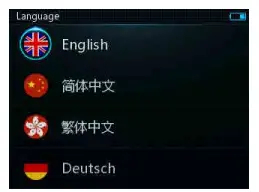
Language
On Main Menu, select “Setting” then go to “Language” to make your selection.
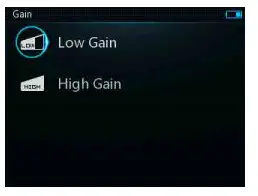
Gain
On Main Menu, select Setting” then go to “Gain” to make your selection.
S/P DIF
Switch between DAP and S/P DIF
In S/P DIF menu, press the central button to select the input sampling frequency.
In S/P DIF menu, press the Back button to exit S/P DIF press
Updating Media Database
Refresh the files on the SD card and update the index information for all files in the data base.
Reset Settings
Perform Factory Data Reset.
Other information
Product Safety
Note:
- Make sure not to place heavy items on HM802s to avoid possible damage to the player
- Be careful not to drop or hit your player
- Keep the player away from rain, water, drinks, chemicals and cosmetics, etc.
- Any damage caused by the player being soaked will not be covered in the warranty whether it is within or without the warranty period.
- Avoid putting the player in a humid, dusty or smoky environment.
- Any attempt to remove, repair or modify the player without permission is forbidden and will void the warranty.
- Keep the player from direct sunlight. Proper operating environment:
- 21.2F-104′ F(-6 C-40C). Do not use any chemicals or detergents to clean the player.
- Do not disconnect the player with PC when the downloading do not complete.
- Do not plug any other device into the headphone output port except for headphones.
- It is recommended not to use headphones while riding, driving or operating motor vehicles.
- If you experience ringing in your ears, please reduce the volume or turn off your player
HM802s Service and Support
Should it become necessary to return your product to HIFIMAN for warranty or post-warranty service, please contact our customer service team to obtain an RA#. Returm shipping to HIFIMAN or an authorized service facility is at the responsibility of the owner.
Disposal and Recycling Information
HM802s Disposal and Recycling:
Dispose of your HM802s according to your local environmental laws and regulations. The disposal of your HM802s should be separated from household waste because the player contains electronic parts and battery. When your HM802s reaches its end of life, please contact your local environ- mental department for disposal and recycling information or you could simply send it back to us. The battery will be removed and properly recycled.
European Union-Disposal information:
This symbol means that according to local laws and regulations your product should be disposed of separately from household waste. When this product reaches its end of life, take it to a collection point designated by local authori- ties. Consumers can be punished by penalty for inappropriate disposal of electronic device. The separate collection and recycling of your product at the time of disposal will help conserve natural resources and ensure that it is recycled in a manner that protects human health and the environment.
FAQS
To transfer these songs, audios, and podcasts to Poweramp, connect your smartphone to your device using a USB cable. Once the connection is secured, transfer the downloaded songs to your smartphone and enjoy them offline
Poweramp offers a 14-day trial, which is what we used for this review. We also recommend that you check out the app on free trial before you buy, so that you can figure out if this is the right music player for you. You can check out Poweramp’s website here.
Poweramp gets Android Auto support and improved Google Assistant integration. Poweramp is arguably one of the most popular audio players for Android. While it’s user interface never turned any heads, it was the functionality that had users loving the app.
No, it is impossible to play Spotify using Poweramp. Spotify music has encryption protection so Poweramp may not play Spotify music directly.
One shot payment or monthly payment.
Poweramp music player has added Powerstream feature, allowing users to stream online radio through HTTP. Read on to know more about this new feature
Features like gapless play, an unmatched equalization system, great crossfade, and support for most popular music file format might all make Poweramp the best $5.49 you have ever spent in your life.
It’s well supported, customization, and feature-packed, and it’ll only cost you a one-time fee of $3.99, no in-app purchases or advertisements to be found anywhere. If you aren’t ready to make the move to streaming, Poweramp is where you’ll want to be.
Poweramp is not available for Windows but there are plenty of alternatives that runs on Windows with similar functionality. The best Windows alternative is VLC Media Player, which is both free and Open Source.
Poweramp now supports almost 20 different music file types. Those file types include: mp3, mp4/m4a/alac/aac, ogg, wma, flac, wav, ape, wv, tta, mpc, aiff, opus, dsd (dff/dsf), mka, tak, and flv. In its press release, the company even states that a reason for such wide support is because mp3 is “trash
Try PowerAmp – it’s a very powerful and customizable music player that supports WMA (Windows Media Audio) files.
Absolutely. DJs have to purchase the singles, albums, tracks and anything else that they plan to alter and include in their mixes. However, besides this legal purchase, they may or may not need a specific license that allows them to play copyrighted music in front of a large crowd.
About us. Systems is a leader in the design and manufacturing of loading dock levelers and equipment. The company’s 60 year history demonstrates its success in the industry and its commitment to safety, quality, innovation, and customer satisfaction. Poweramp is the original division of Systems and was founded in 1961.
What next, connect your android tablet to your computer using the USB cable. Then drag and drop the downloaded Spotify music to your device. You are good to go. You are now free to play Spotify music through the Poweramp application on your android without issues
Apart from great sound quality, PowerAmp also has a very nice GUI. It is organized in a very intuitive way and also looks pretty good. As for now I have encountered no crashes or serious bugs. There are several things that I think should be improved, but in no way do they prevent from enjoying music.