
ListenTech-Note
Updating ListenTALK Firmware
Stations Instructions
Overview:
The purpose of this document is to provide step-by-step instructions on how to update the firmware of the ListenTALK units and docking stations.
Tools Needed:
- ListenTALK Software Suite – available for free download here: https://www.listentech.com/listentalk-software-suite-download/.
- Windows OS computer to run software suite (Internet connection is required for the software to download the latest firmware update files).
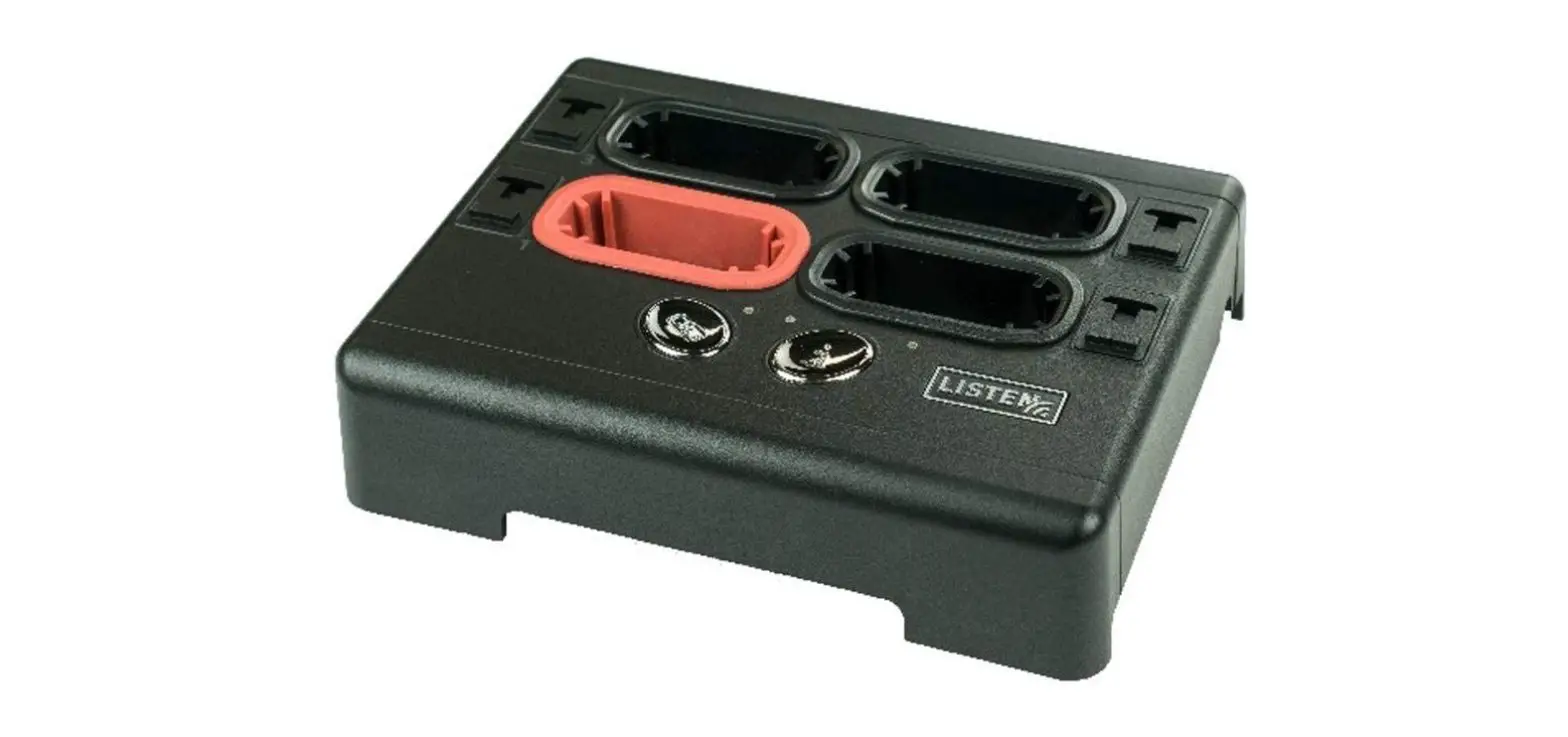
- USB (type A) to USB (type B) cable for the LA-480/LA-481/LA-482 docking stations (included with purchase of unit). – Listen Part #: LPT-A110
OR - USB (type A) to micro USB cable if updating individual ListenTALK units (LK-1, LKR-11, LKR-12). – Listen Part #: LA-422
NOTE: To avoid interruption of the firmware update process, please do not disconnect power to the dock, remove units from the dock or disconnect units from the USB. Also, please ensure the computer remains powered on and does not go into sleep mode.
Updating the Docking Station:
With the LA-480, LA-481, or LA-482 powered and connected to the computer, open the ListenTALK Software Suite (if prompted that a new update is available, accept the update before proceeding). The update may be done with or without units placed in the dock.
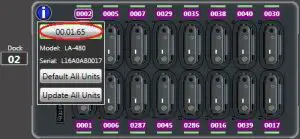
- Click on the info
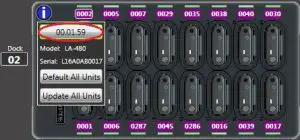
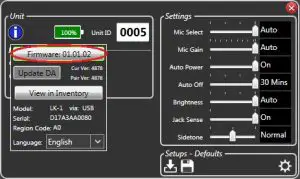
 button of the dock that needs to be updated; this will display the current firmware version, model and serial number of the dock.
 - Click on the button showing the current firmware version.

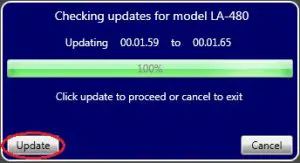
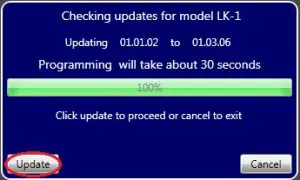
- The software will search the web and local files for the latest update. After the update file has been found click the Update button.

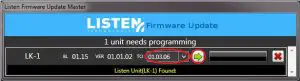
- The docking station on the software will disappear, after a few seconds the Firmware Update Master window will pop up. The drop-down menu will have the latest firmware selected, click the green arrow button to begin the firmware update.

- The update should take approximately 1 minute to complete. After it has completed the Update Master window will close and then the dock will repopulate on the software screen. Click on the dock info button again to verify the dock has now been updated and shows the latest firmware version.


Updating All ListenTALK Units While Docked (Preferred Method):
Insert all ListenTALK units to be updated into the docking station. Please ensure the docking station is updated prior to updating units in the dock, see previous section.
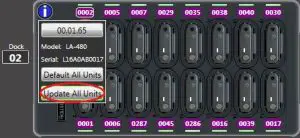
- Click on the info button of the dock which holds the units requiring an update.
- Click on the Update All Units button.

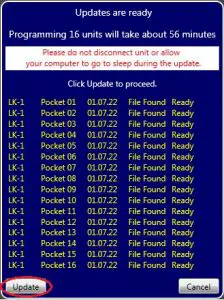
- The software searches the web and local files for the latest update file. A window pops up and displays the new firmware version that was found and the approximate time it will take to complete the update. Click the Update button to begin the update process.

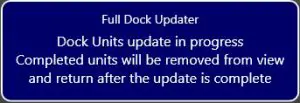
- After the update has started, a message window pops up stating the update is in progress.

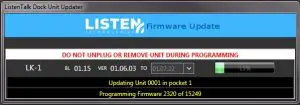
- After a few seconds, the Dock Unit Updater window will pop up. The firmware update begins automatically and displays the completion percentage of the update for each unit.

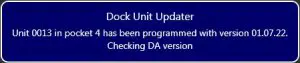
- After the firmware update has completed, another message will pop up confirming the new version and do a quick DA version check (this is a separate firmware for the radio IC).
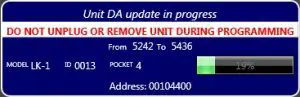
 6.1. If needed, the DA update automatically begins updating after the firmware update has completed, a progress window displays during the update.
 NOTE: Steps 5 and 6 will repeat for each unit in the dock and takes approximately 1 minute or 4-5 minutes if a DA update is required.
 - After all the units in the dock have been updated, a firmware update results window pops up and displays all updated units in the dock. A confirmation check mark appears on top of every unit updated.

 6.1. If needed, the DA update automatically begins updating after the firmware update has completed, a progress window displays during the update.
 NOTE: Steps 5 and 6 will repeat for each unit in the dock and takes approximately 1 minute or 4-5 minutes if a DA update is required.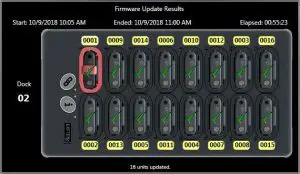
Updating Individual ListenTALK Units via USB:
This section goes over updating units via USB. Connect the ListenTALK unit(s) to the computer with a USB to micro USB cable and open the software suite.
- Click on the unit that requires an update to open that unit’s info & settings window.
Click on thebutton under the Unit field to display the unit’s info. - Click on the button showing the unit’s current firmware version.

- The software searches the web and local files for the latest update, after the update file has been found click the Update button.

- The unit on the software will disappear while a driver is installed, after the driver installs the Firmware Update Master window will pop up. Press the green arrow button to begin the firmware update for each unit.

- The update should take approximately 1 minute to complete. After it has completed the Update Master window will close and then the unit(s) will repopulate on the software screen. Select the unit and click on the info button again to verify the unit has now been updated and shows the latest firmware version.
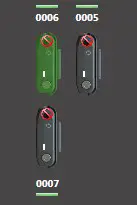
- Some firmware updates will require a new DA update in addition to the firmware. If a unit has a mismatch in DA version, a red slash symbol will appear over the unit on the software screen, as seen in the image below.

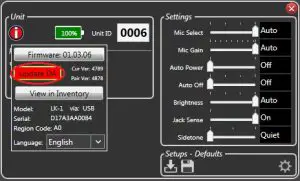
- Select the unit with the red slash symbol and click the info
 button to check the unit’s info. Click the red Update DA button to start the update.
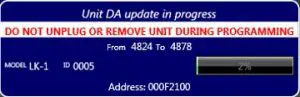
- A DA update window will pop up and the update automatically starts. This update should take approximately 3 minutes to complete.
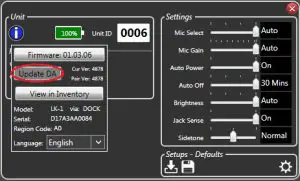
- After the DA update has been completed, the red slash symbol will no longer appear on the unit. Select the unit and click the info button to verify the Update DA button is no longer red and the Current Version and Pair Version match.Should you have any further questions, please feel free to contact Listen’s technical services team at 801.233.8992 or [email protected] for further assistance.
 Should you have any further questions, please feel free to contact Listen’s technical services team at 801.233.8992 or