 USER MANUAL
UARK Series Smart delivery box
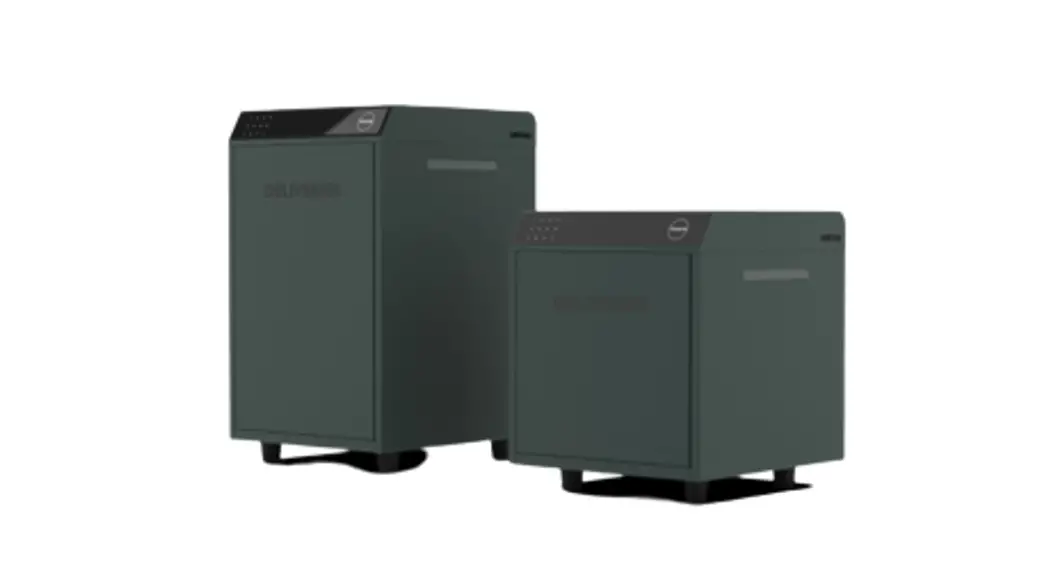
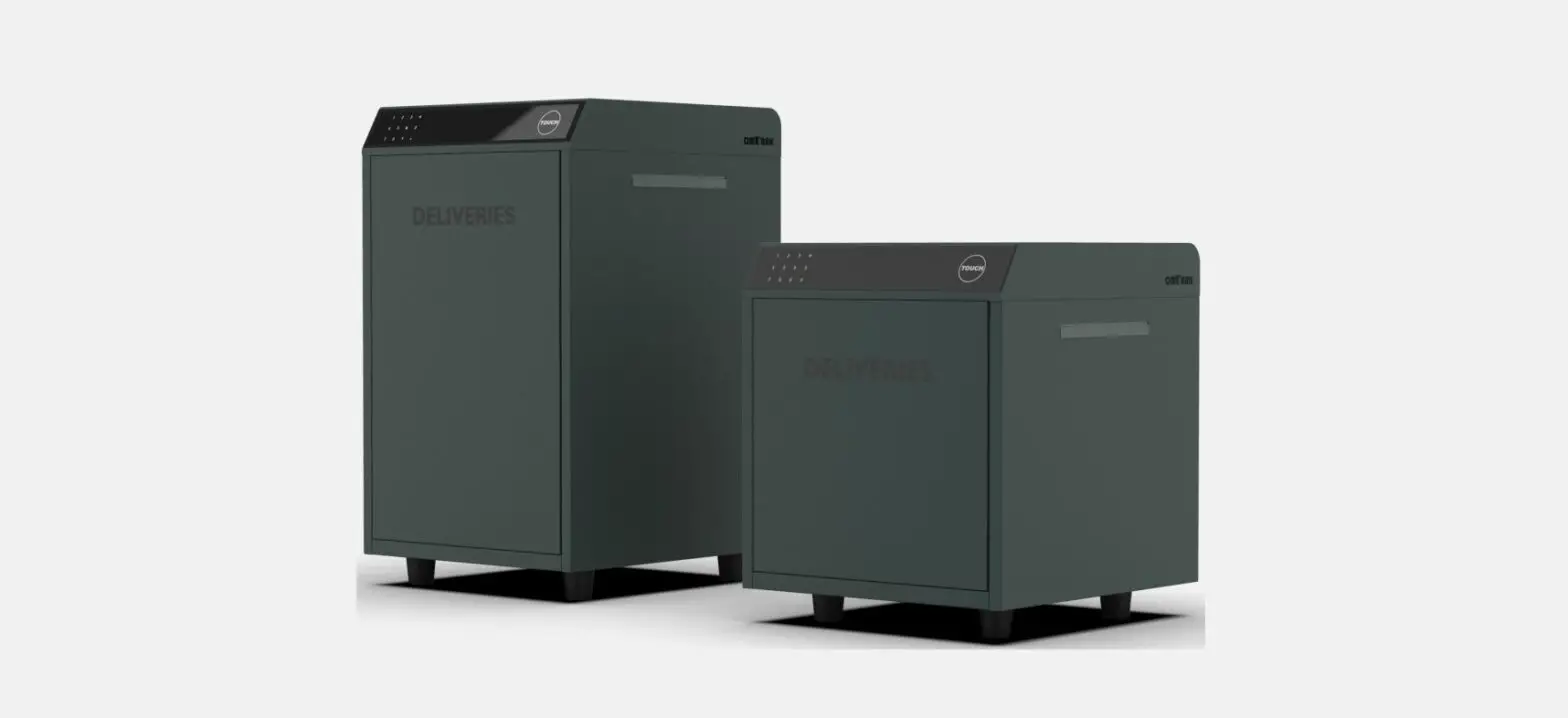
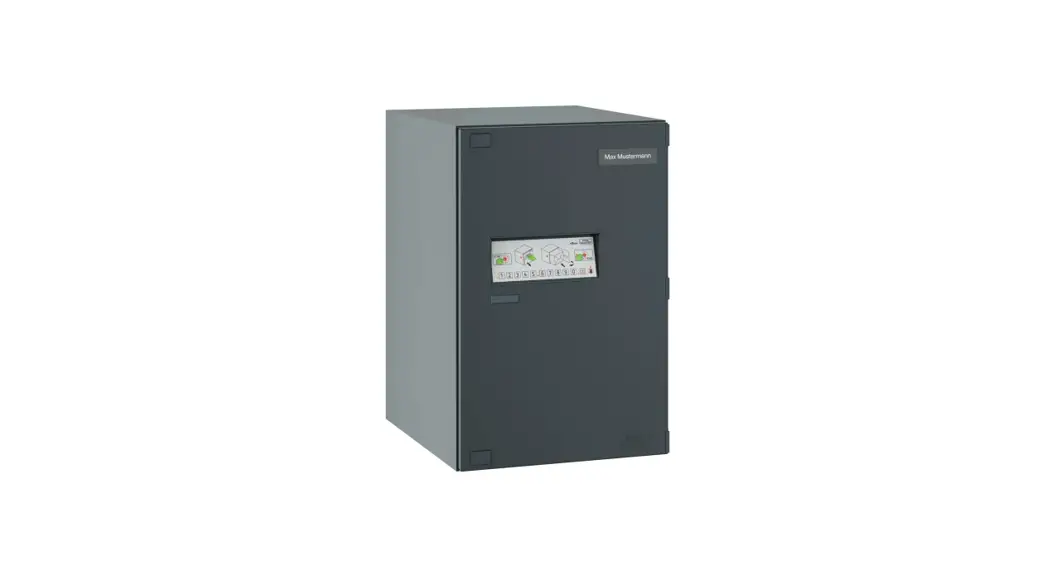
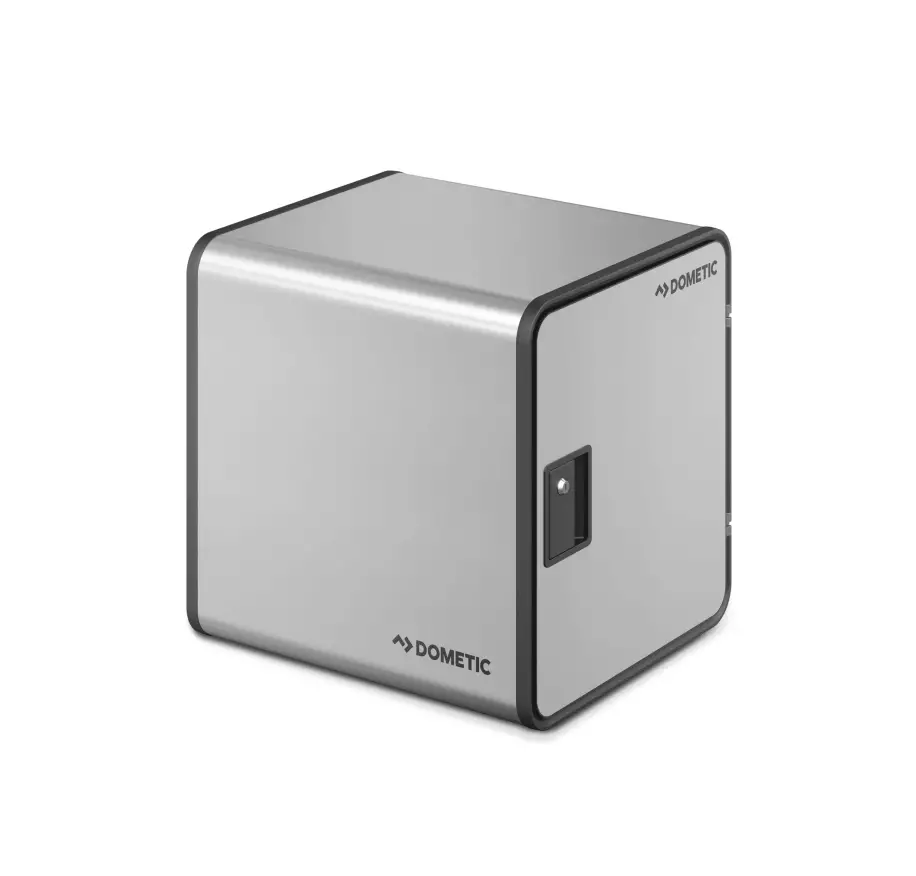
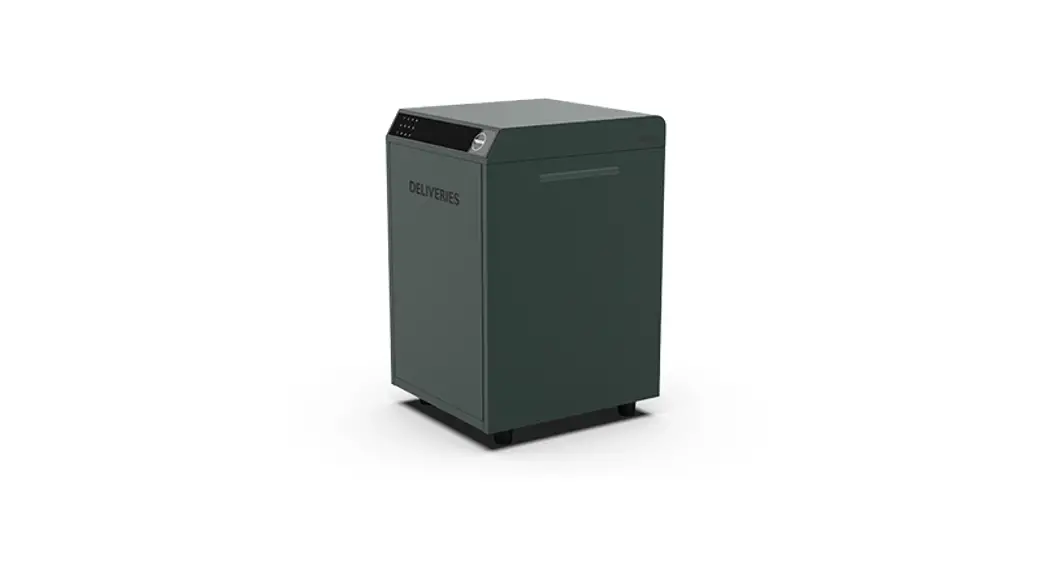
SMART DELIVERY BOX
UArk
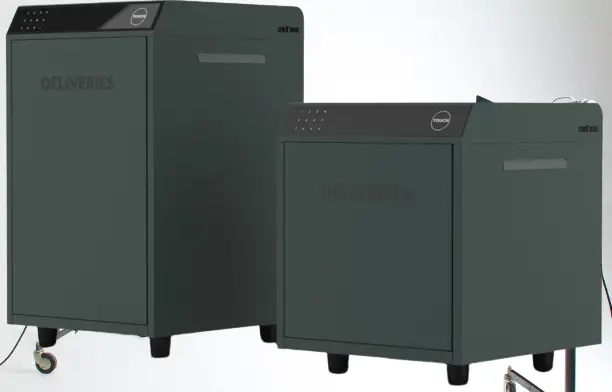
UArk Mini
Support Packages/Letters Delivery
UVC Sterilization
Voice Prompts
All Metal Design
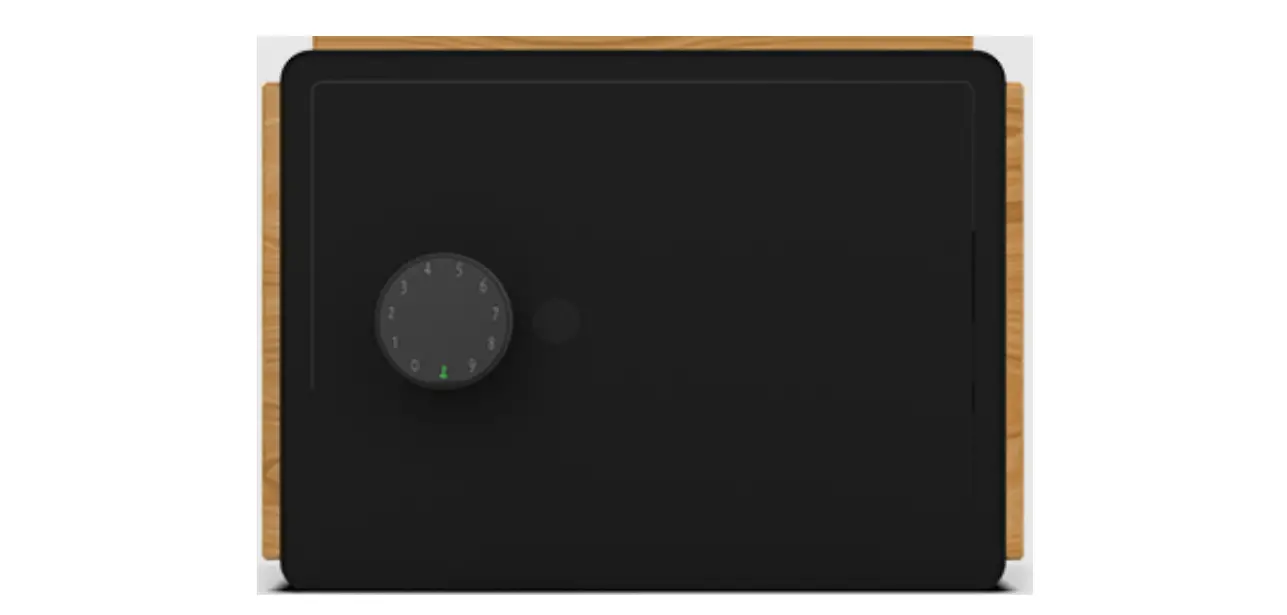
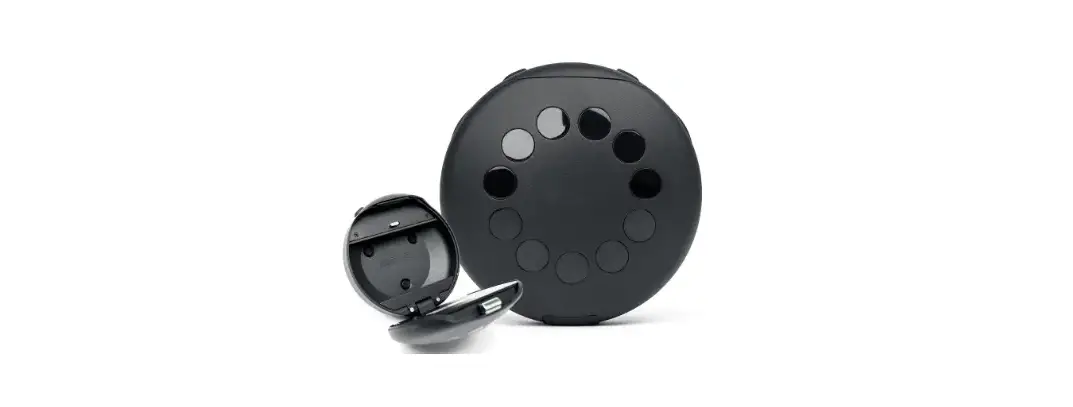
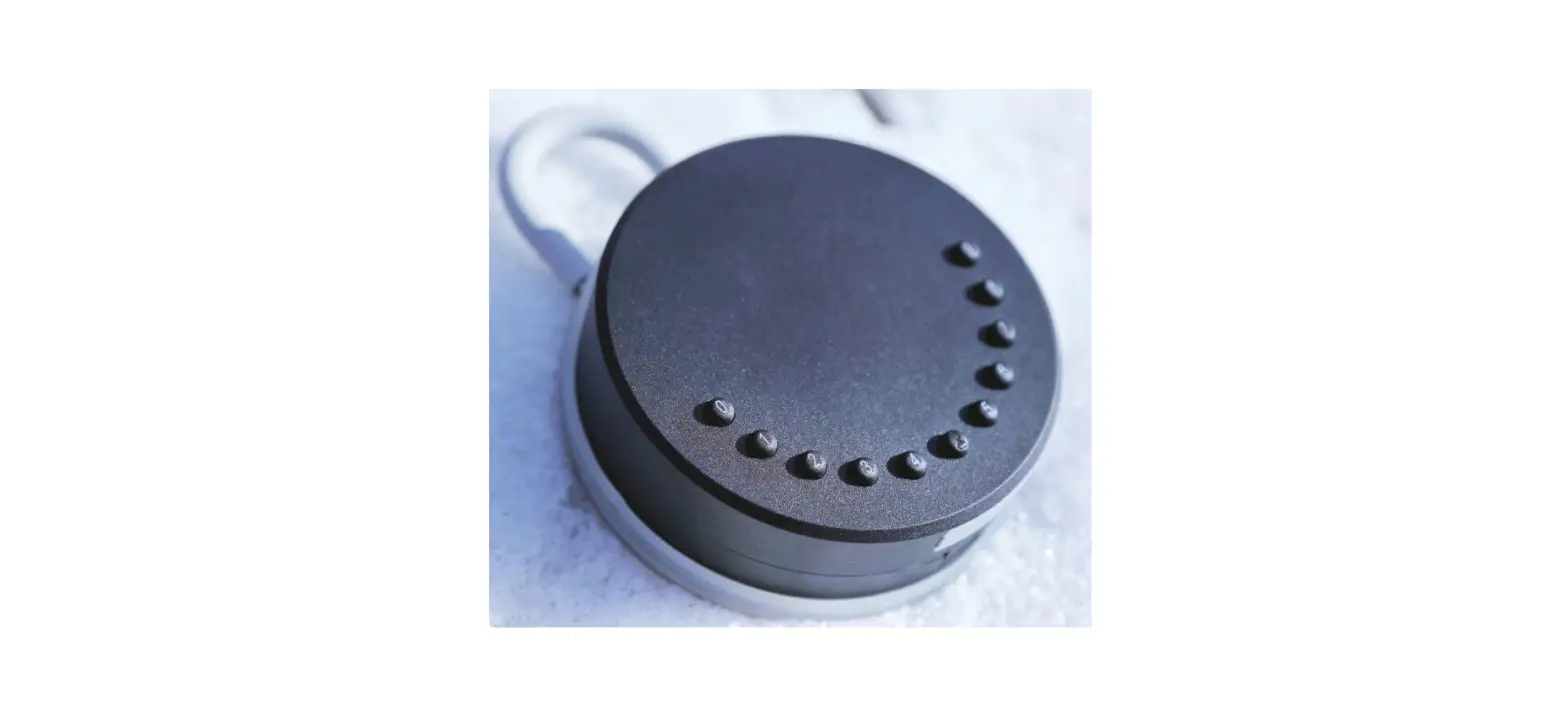
Touch Button Unlock
Smart Mobile App Management
Customized House Number Plate
Two Sizes Available
Thanks for Choosing our products.
For more information, please visit our official website www.omuark.com www.omconnect.com
OMFOCUS TECH is committed to the design, production and marketing of smart security products. The new brand OMUARK symbolizes yoUr Ark, which will escort your smart and safe life. OMUARK is for all our smart box products.
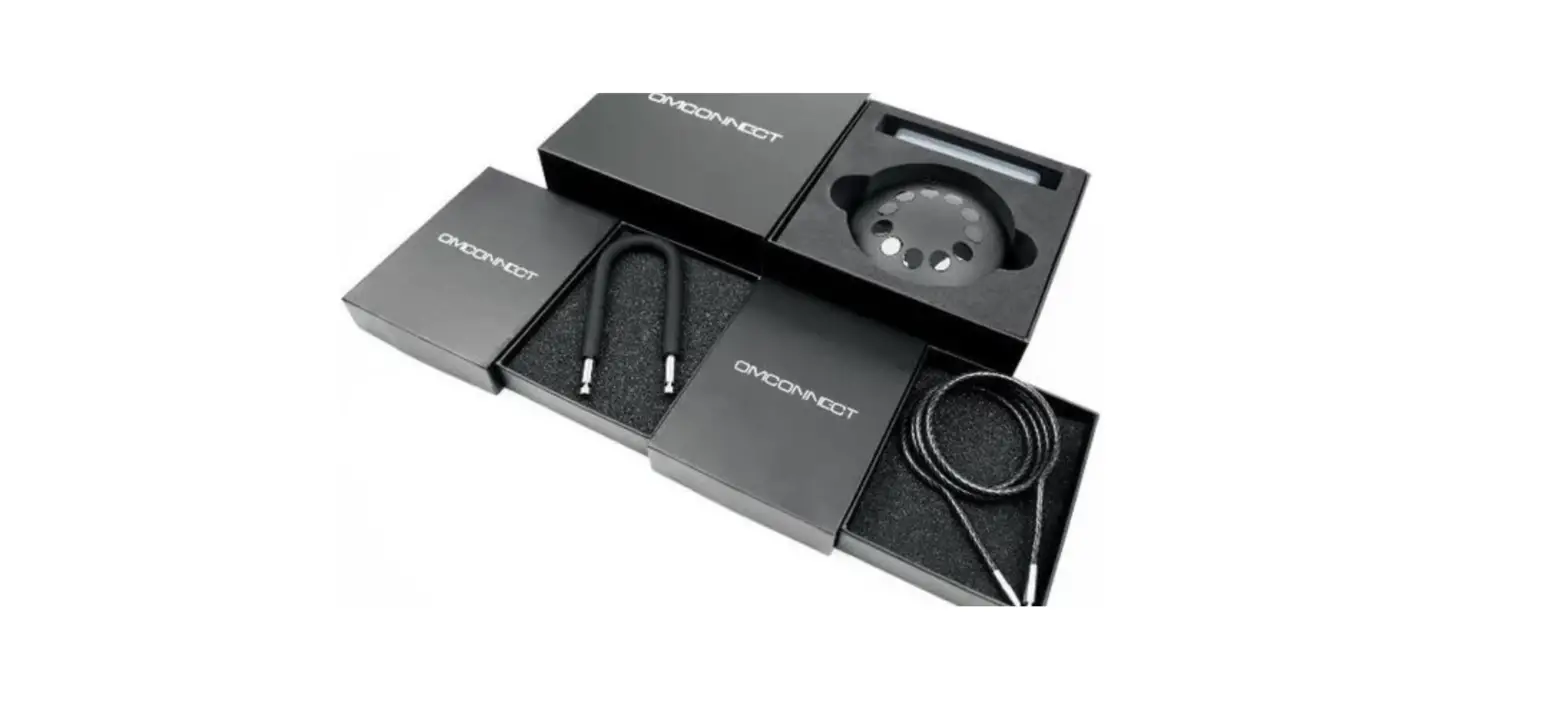
What’s Included
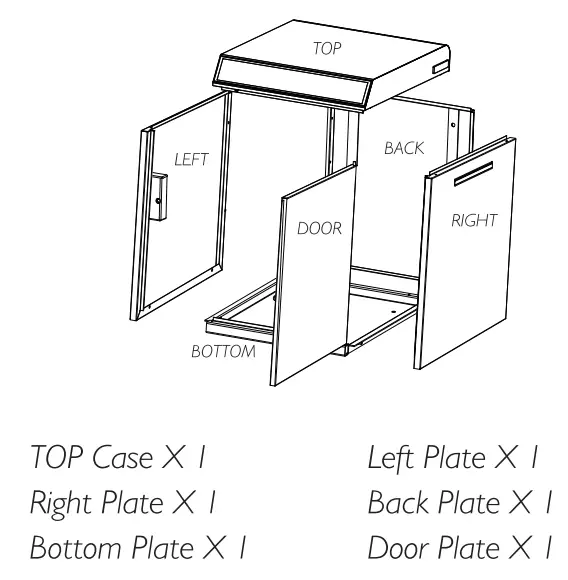
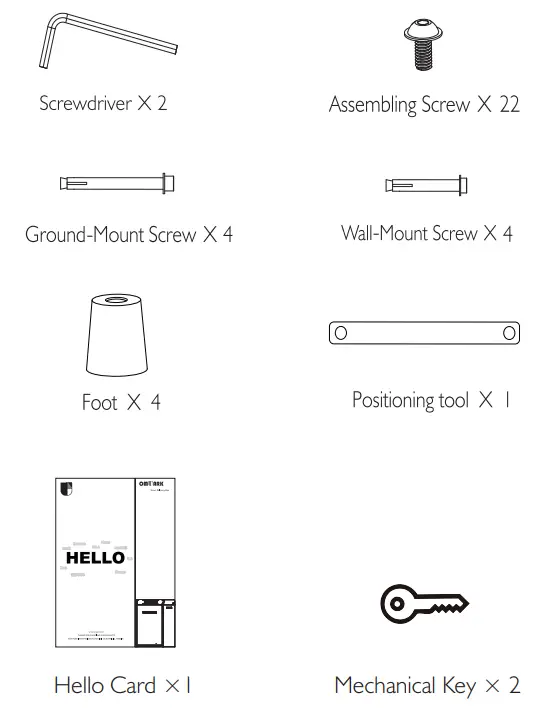
Specification
| Model | Delivery Box U Ark |
| Material | Galvanized steel |
| Battery | 2 Sets of 2 ×18650 Lithium Rechargeable Battery |
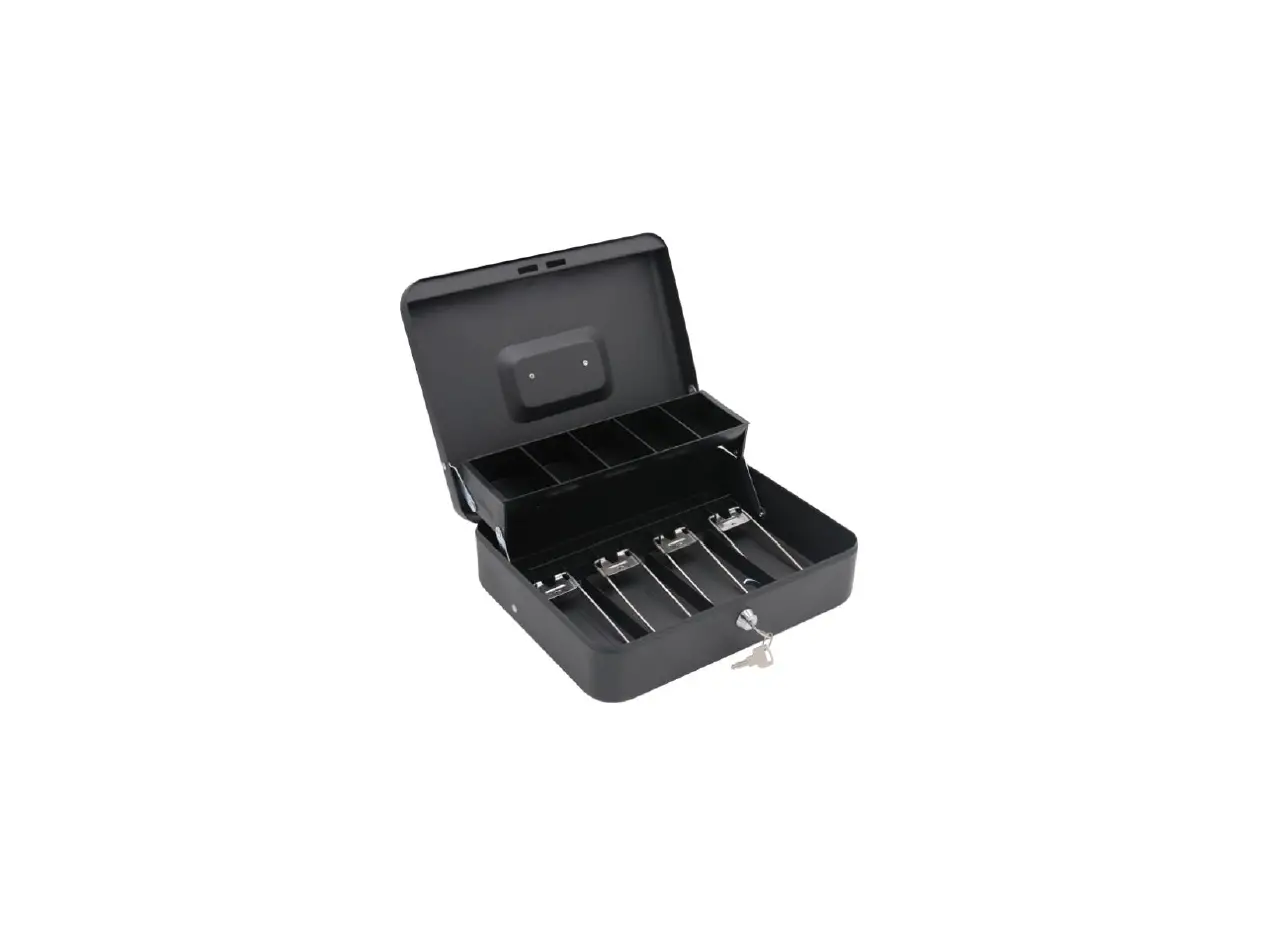
| Unlock Mechanism | Bluetooth, PIN Code, App, Mechanical Key |
| UARK | UARK MINI |
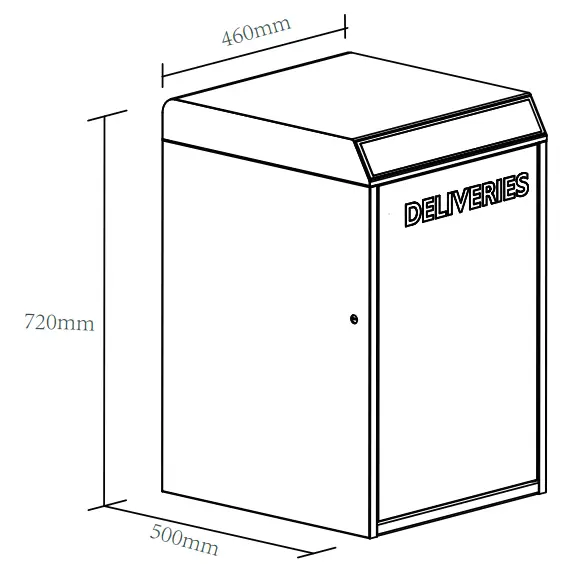 | 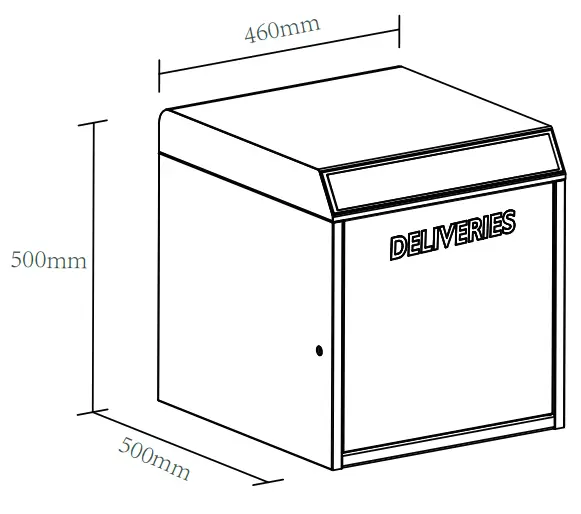 |
Features
Lock&Unlock
 Administrator Unlock
Set a Master Administrator PIN for Unlocking, settings, operations etc. and only the administrator could change the administrator PIN code. User Unlock
This Delivery Box allows to add up to 100 user PIN codes for your family and friends.
Mobile Control Bluetooth one-touch unlock
With your Mobile you could unlock the Delivery Box by tapping the ” ” on the App.
 Mobile Administrator
Set Administrator PIN Codes from your Mobile to unlock, add users, delete users, etc. Remote Sharing
You could generate offline code through mobile App and let your friends and family retrieve the packages from Delivery Box easily.
Battery
 Battery Life
The battery lifetime will be 12 months for operating.
Please use good batteries above 3000mAh. Low Consumption
BLE broadcasting turns to sleep mode if no operations. Low Battery
When the battery runs out of power, system will remind you to replace the batteries. Letter Delivery
Easy mail and letter delivery with standard mail slot on the right.
UVC Sterilization 15 minutes UVC Sterilization after the package is delivered. Independent power supply by one set of 2 × 18650 Lithium Rechargeable Battery. You could turn on or turn off the UVC Sterilization by ’’UVC Switch’’.
Emergency Emergency Unlocked
When the power is down, we can use Mechanical Key to open the Delivery Box. System Lockdown
The lock will be lockdown for 5 minutes if continuously enter wrong PINs for 5 times.
Installation
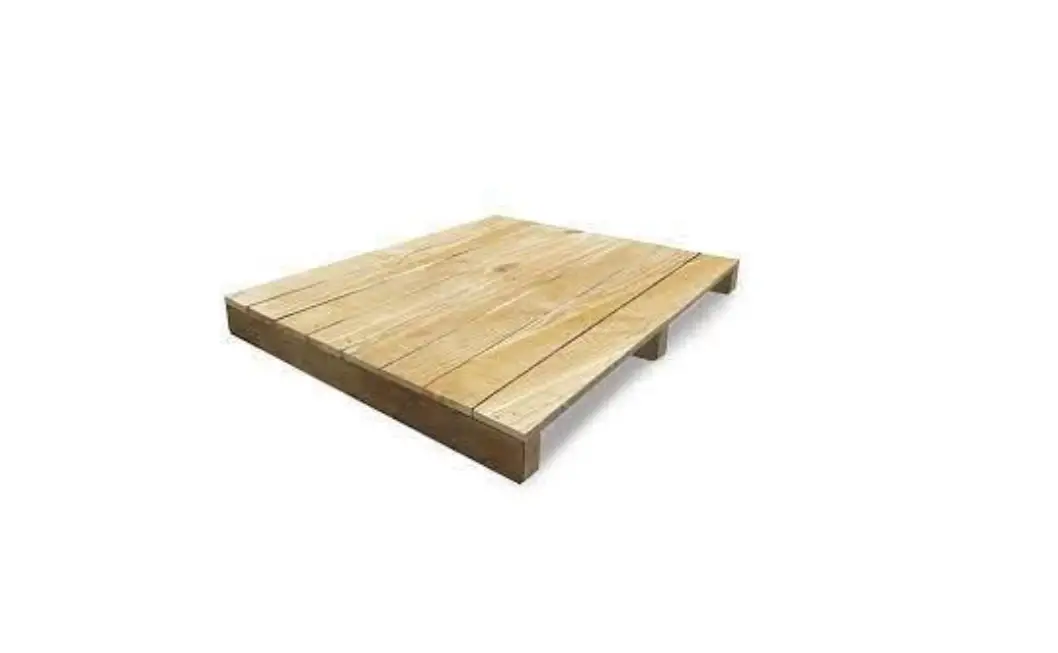
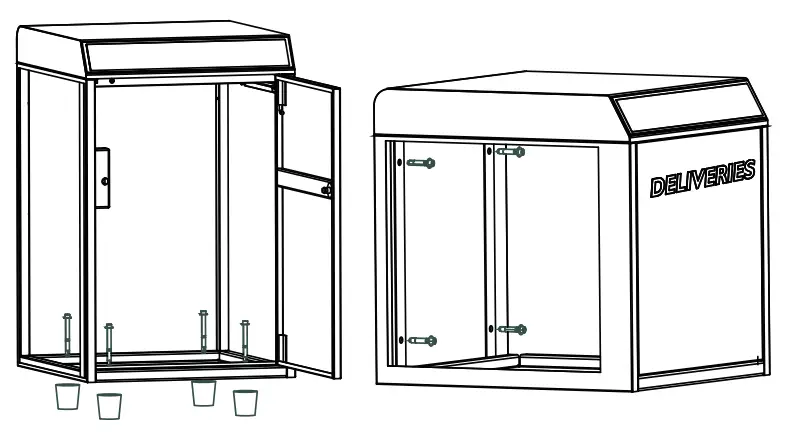
- Delivery Box U ARK/ U ARK Mini can be mounted on the ground with 4 ground mounting screws.
- Delivery Box U ARK Mini can be mounted on the wall with
- wall mounting screws.
Quick Start
Step 1>Install Battery
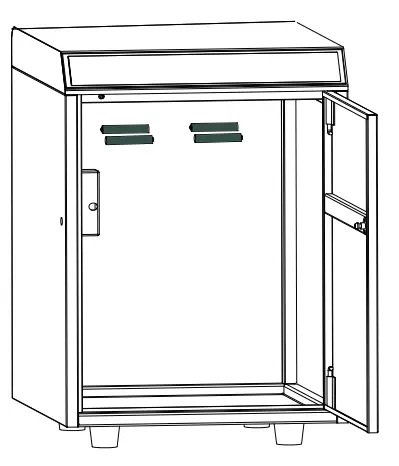
>. Put 2 Sets of 2 ×18650 Lithium Rechargeable Battery into the battery dock on the top.
Step 2>Download Mobile App
>1. Scan QR Code below and download the App and turn on your mobile Bluetooth
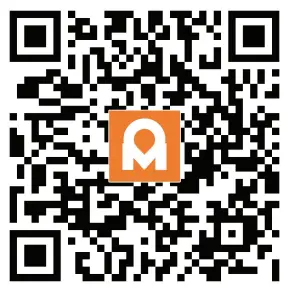 https://a.smart321.com/omconnectapp
Step 3>Add Device
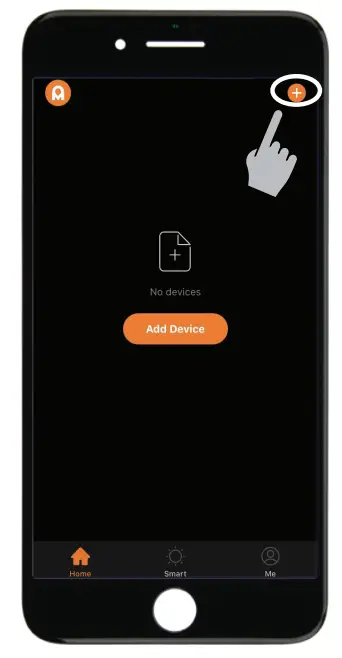
>1. Go to App Home page, click “Add Device” or click “+” on the upper right.
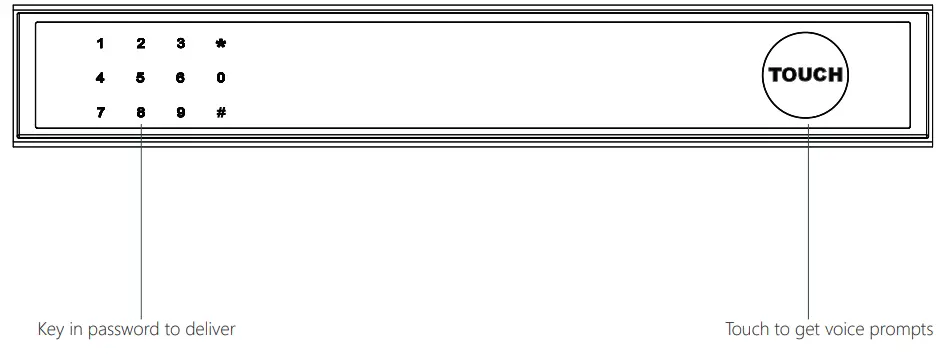
> 2. Tap *+ 9 +* + admin code + #, when you hear a long beep with green light the Delivery Box is ready to pair.
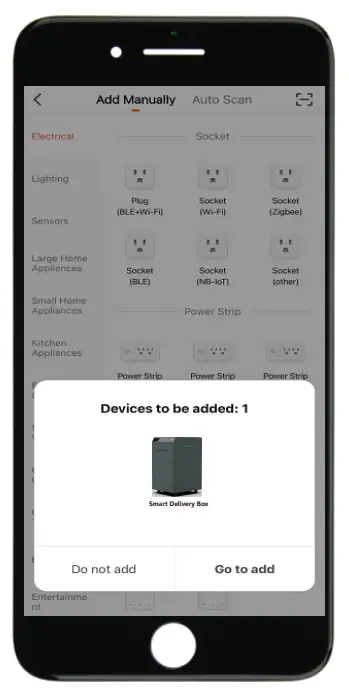
>3. You will see the detected device and click “Go to add”.
>4. Connecting, you need to wait for few seconds to let it finish.
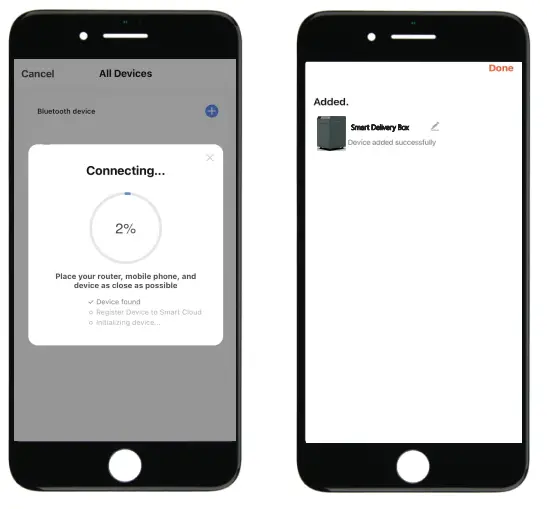
>5. Device added
Step 4>Change Admin Password-Initial Admin Password:123456
>1. Tap* + 0 + *and wait for 2 quick beeps
 >2. Right after the 2 beeps please key in:
Initial Admin code 123456 + # +new admin code+ # +new admin code again +#, when you hear a long beep with green light, the new admin password has been set.
Mechanical Instructions
Password & Factory Mode:
- Password Length
• Password must be 6 digits (no more or less) - Add Delivery Password
• Tap *+1+ *until the blue light blinks
>. Enter admin password + #
>. Enter new delivery password + #
>. Enter new delivery password again and tap #
>. When the button blinks in green, delivery password has been set. - Delete Delivery Password
• Tap *+ 2 +* until the blue light blinks
>. Enter admin password + #
>. Enter the delivery password you wish to delete and tap #
>. Enter new delivery password again and tap #
>. When the button blinks in green the password has been deleted. - Delete All Delivery Passwords
• Tap *+ 00000 + * until the blue light blinks
>. Enter admin password and tap #
>. When the button blinks in green all passwords have been deleted. - System Lockdown
• Delivery box will Lockdown for 5 minutes if entering wrong password continuously 5 times. - Switching Languages
• Tap *+ 4 + *
>. Enter admin password and tap #
>. Tap the number to select the language you want:
Number 1: English(initial) Number 2: French Number 3: German Number 4: Spanish
Number 5: Dutch Number 6: Italian Number 7: Japanese Number 8: Russian Number 9: Korean
>. Tap # and when the button blinks in green the language has been switched
Bluetooth broadcasting & re-connecting:
- Bluetooth will turn to sleep mode and lights out if no operations within 1 minute.
- Tap any key to activate the Bluetooth, App&Device will get reconnected each other.
App Instructions
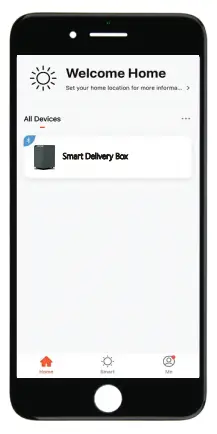
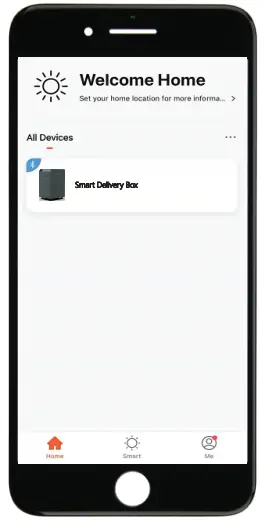
- You will see all devices and rooms on the home page.
- Tap the Device to start operating.
- Tap “Me” at the bottom to manage your home.

- Touch the lock sign to unlock and lock.
- Tap
 to check the alarm records.
 - Tap “Members” to add or delete members.
- Tap “Opening Logs” to check opening logs.
- Tap “Intelligent Linkage” to turn on and off go home mode.
- Tap “Setting” to manage passwords.
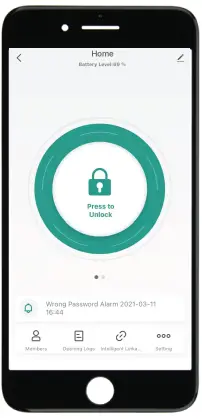
 to check the alarm records.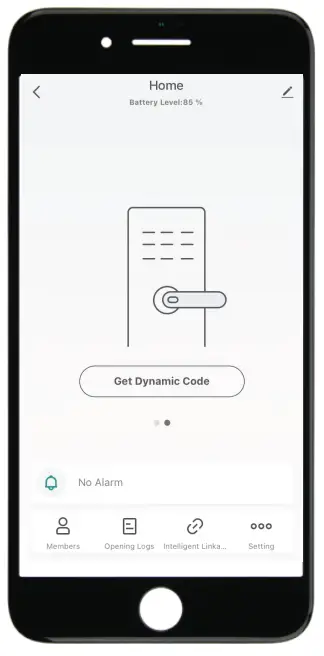
- Tap “Get dynamic code” to get a code.
- Tap “Copy Code” and send it to friend or family.
- Tap
 to edit your personal information.
 to edit your personal information.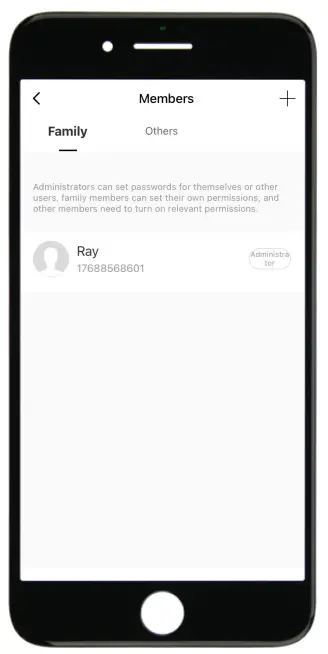
- Tap “+” to add family member or others.
- Tap added members to edit member’s information.
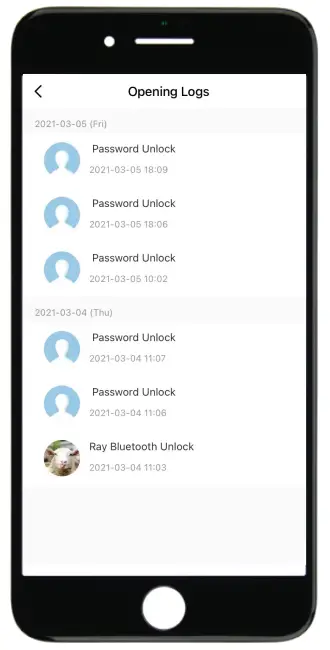
- You will find out when and whom opened the delivery box.
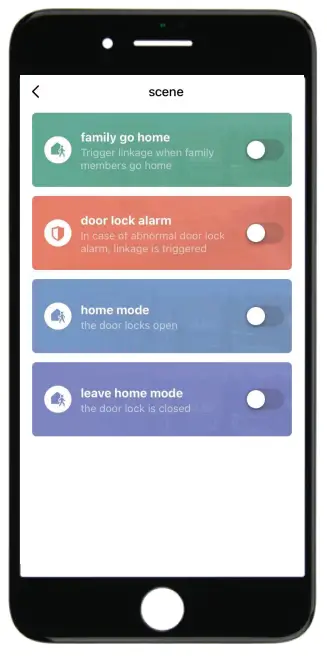
- Tap the green bar and save to turn on the function.
- Tap the orange bar and save to turn on the function.
- You will get notification if user unlocked with Bluetooth
- Go to “Me” homepage and go to message center to check the records.
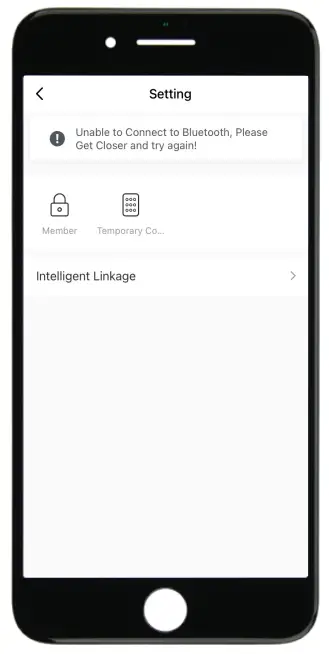
- Tap “Member” to manage members’ information.
- Tap “Temporary Code” to manage online and offline codes.
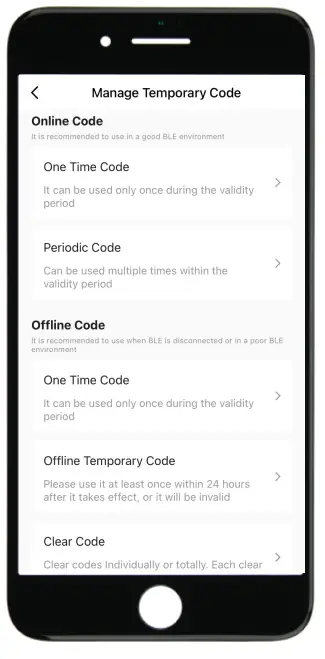
- Tap “One-Time Password” under Online Password to set an online one-time code.
- Tap “Add Online Periodic Code” under Online Code to set an online code which will be available in a period of time.
- Tap “One-Time Password” under Offline Password to generate an one-time offline code which will be a 10 digits code and use it when the device is offline.
- Tap “Add Offline Periodic Code” under Offline Code to generate an offline code (10 digits) which will be available for a period of time, and use it when the device is offline or Bluetooth disconnected with device.
- Tap “Clear Code” to generate a code (10 digits) which will be able to clear single or all the offline codes.
- Please note if the code less than 10 digits you need to regenerate a new code, the code must be 10 digits.
OMUARK
www.omuark.com
31 Building, Shahe Rd, Longgang District, Shenzhen 518115, China Copyright @ 2016 – 2022 OMFOCUS TECH. All rights reserved.
 OMCONNECT
 OMUARK