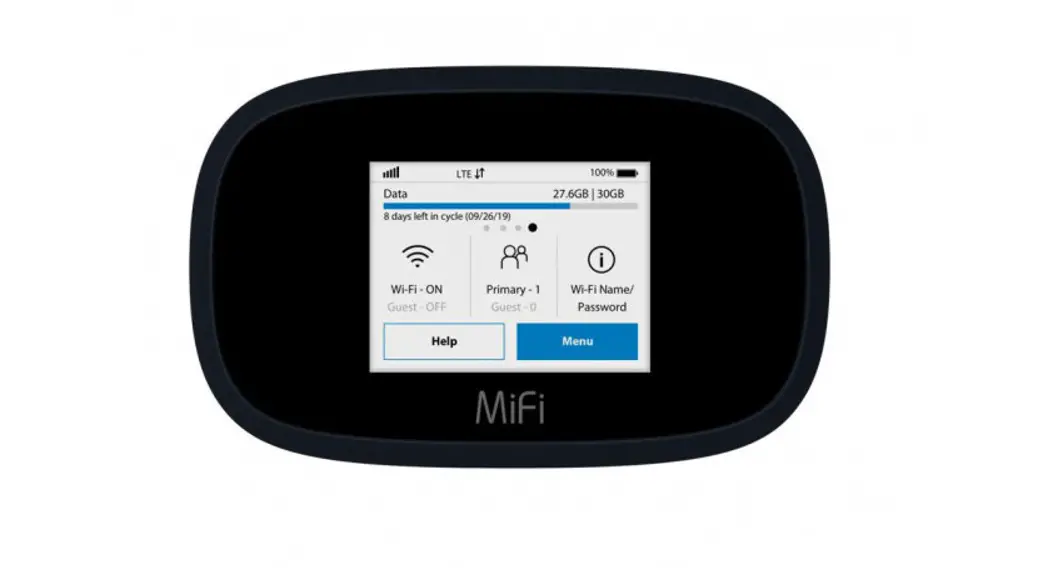
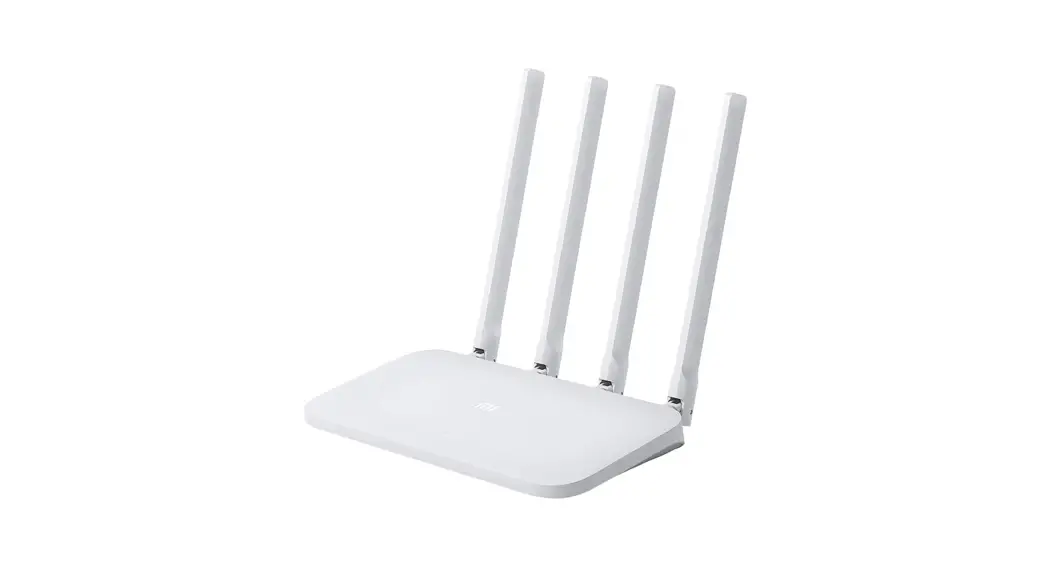
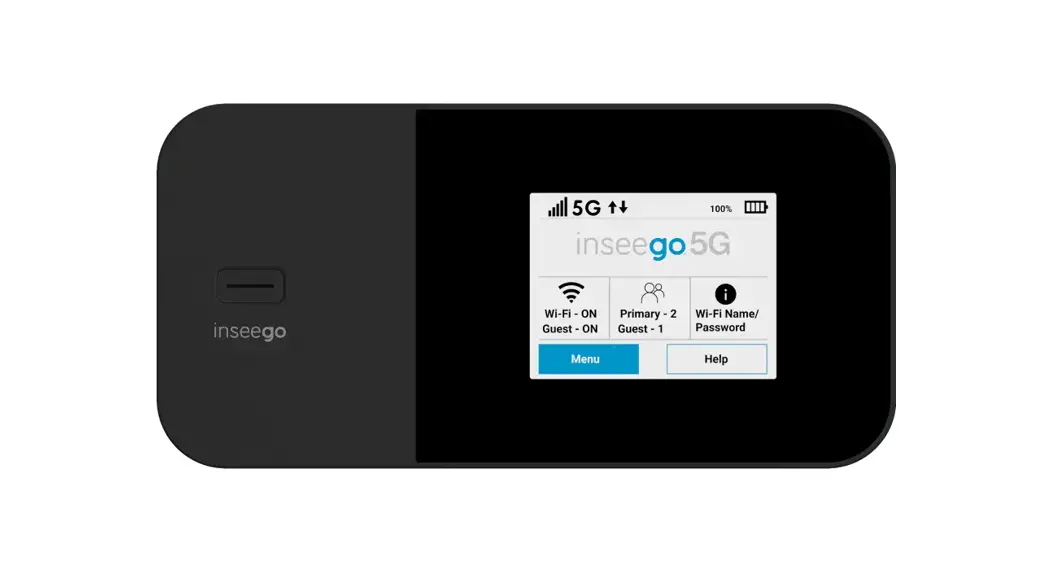
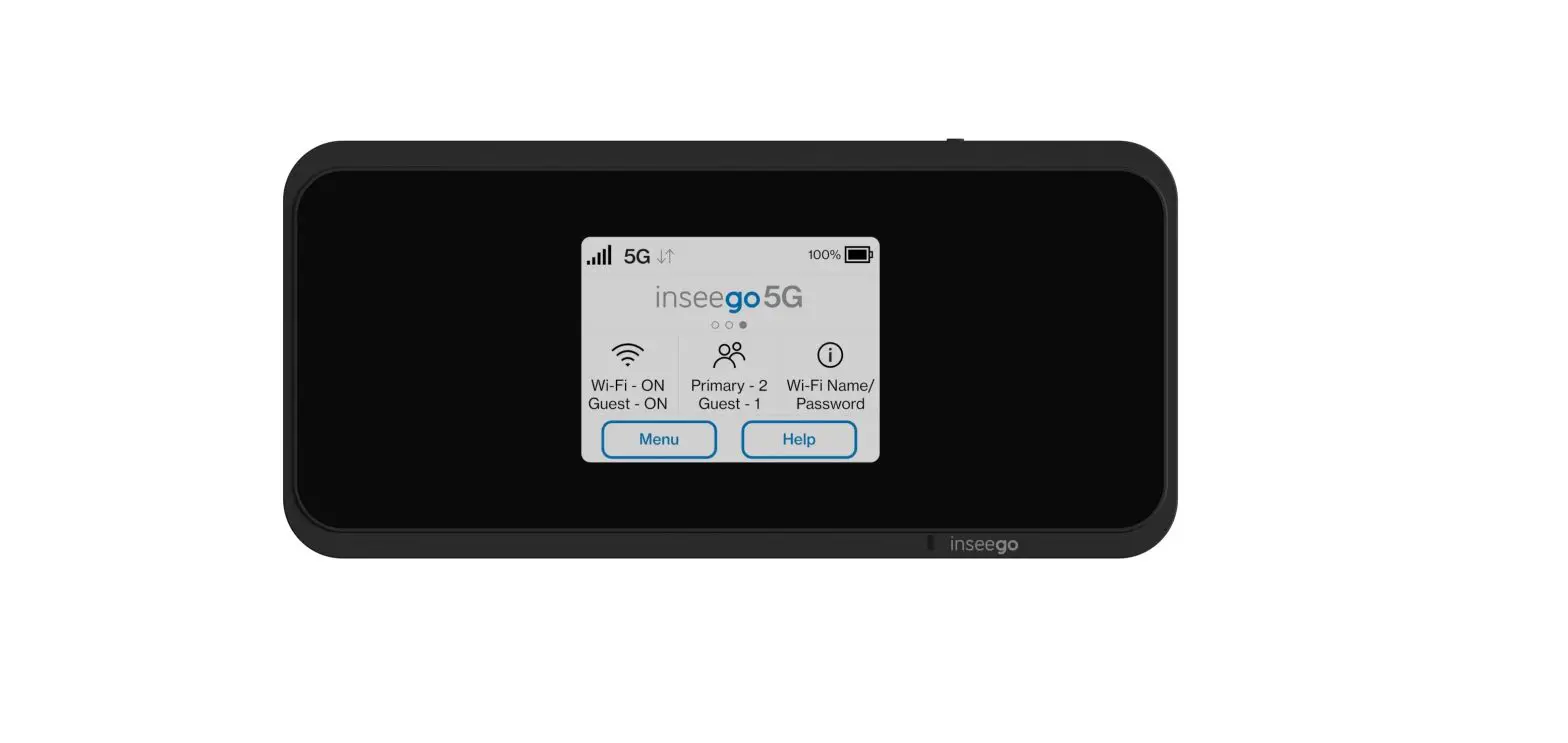
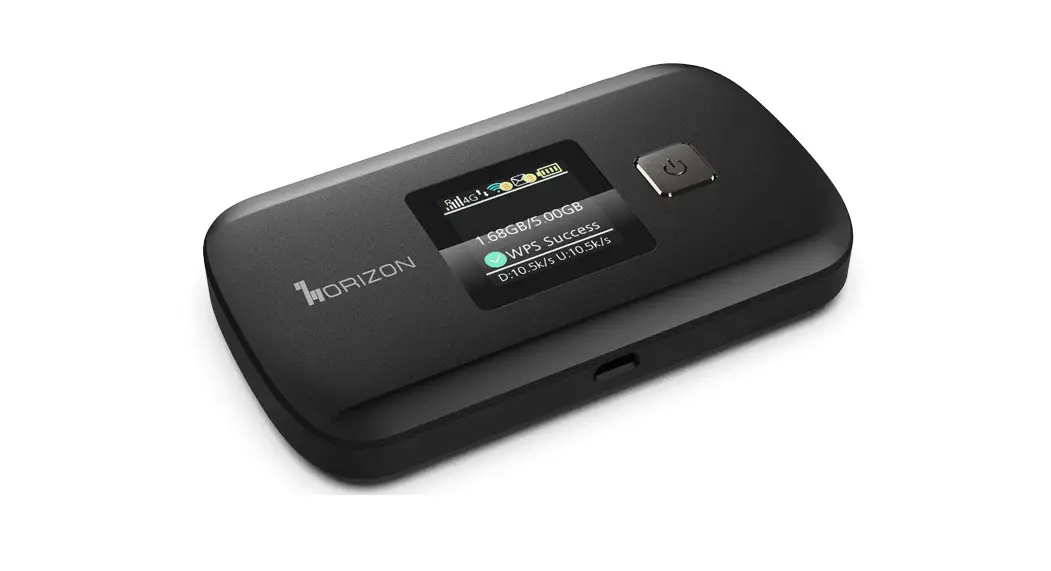
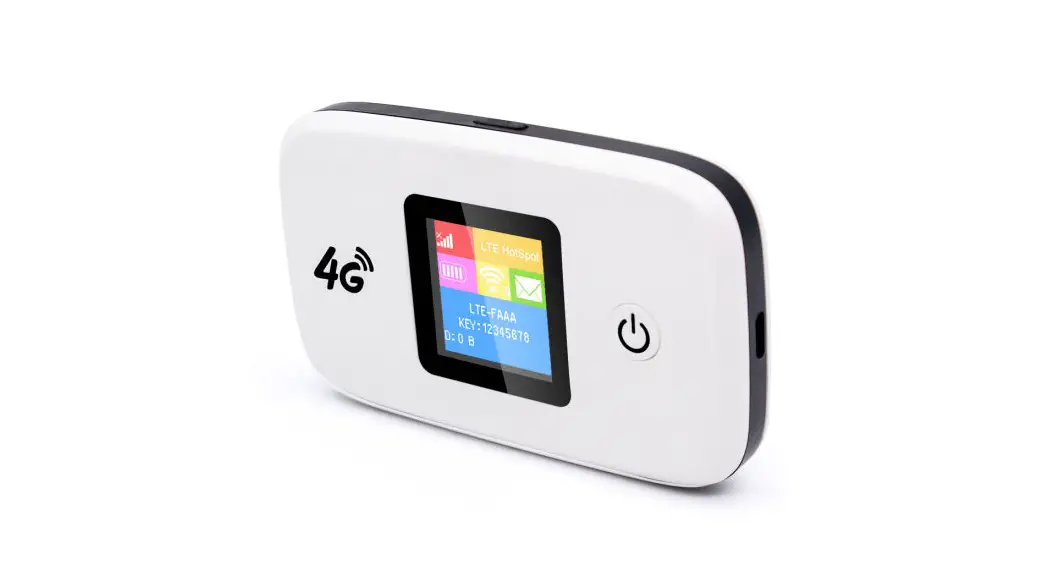
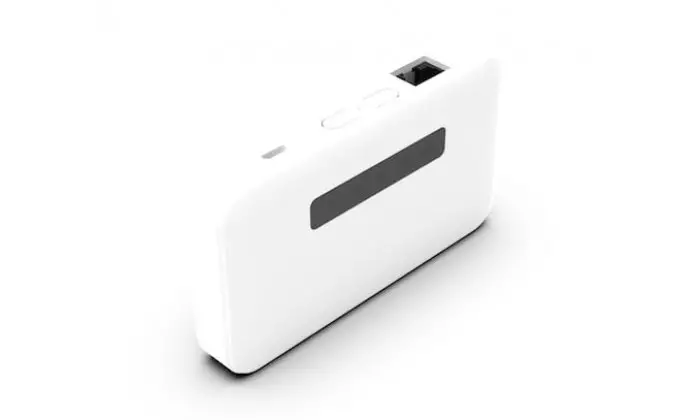
MIFSPOTE5573S 4G Hotspot Wifi Router
Product Information
The 4G Wifi Router is a device that allows you to connect to the
internet using a SIM card. It provides high-speed internet access
and can be configured using the Web Configuration utility. The
device has signal and battery lights to indicate its status, and it
supports various network bands for optimal connectivity.
Product Usage Instructions
1. Managing Your Device
To manage your device, follow these steps:
- Connect your computer/smartphone to the device using the USB or
Wi-Fi interface. - Open a web browser and enter the URL
192.168.8.1
in the address bar to access the web configuration page. - Click on the “Login” button and enter “admin” as the password
to access the homepage of the Web Configuration utility. - From there, you can change settings such as the network name
(SSID), security mode, key, sleep mode, and other
configurations.
2. Troubleshooting and Support
If you are facing issues with internet connectivity, follow
these troubleshooting steps:
- Make sure your device is connected to the Wi-Fi network by
checking the SSID. - Ensure that the battery sticker has been removed from the
device. - Verify that the SIM card is properly inserted into the
device. - Check if your Wi-Fi is connected to the network.
- Ensure that your SIM card is activated and has sufficient data
balance available.
3. Changing SSID Name and Password
To change the SSID name and password of your device, follow
these steps:
- Access the web configuration page as described in step 1 of
“Managing Your Device”. - Find the option to change the SSID name and password.
- Enter your desired SSID name and password.
- Save the changes to apply the new settings.
4. Knowing Bands
To know the supported network bands of your device, refer to the
product specifications or contact the manufacturer.
5. Choosing the Band You Want
To select a specific network band, follow these steps:
- Access the web configuration page as described in step 1 of
“Managing Your Device”. - Disable data connection.
- Choose the Network Settings option.
- Select the desired network band from the available
options. - Save the changes to apply the new band selection.
6. Setting APN
To set the APN (Access Point Name) for your device, follow these
steps:
- Disable data connection.
- Access the device settings.
- Find the APN settings for your SIM card carrier.
- Enter the appropriate APN information in the designated
fields. - Save the changes to apply the new APN settings.
Note: Please refer to the FCC Statement for regulatory
information regarding the device.
User Manual
Manage your device
Using the Web Configuration utility Change the network nameSSIDthe Security Mode and Keyconfigure the sleep modem and other settings. 1. Connect your Computer/Smartphone to device over USB or Wi-Fi interface. 2. Enter the URL: 192.168.8.1 in address bar of the browser to open the web configuration page 3. Click on Login button on the middle of web page screen by using “admin” as password to access the homepage of Web Configuration utility.
For fast support
A user connected access the internet
Please check if the user is connected to wifi SSID. Make sure your battery sticker is removed. Make sure your SIM card is properly inserted. Check if your wifi is connected to the network Ensure your sim card is activated and has adequate data balance avaiable.
4G Wifi Router how to set your device through the web configuration page
1. Know your Wifi.
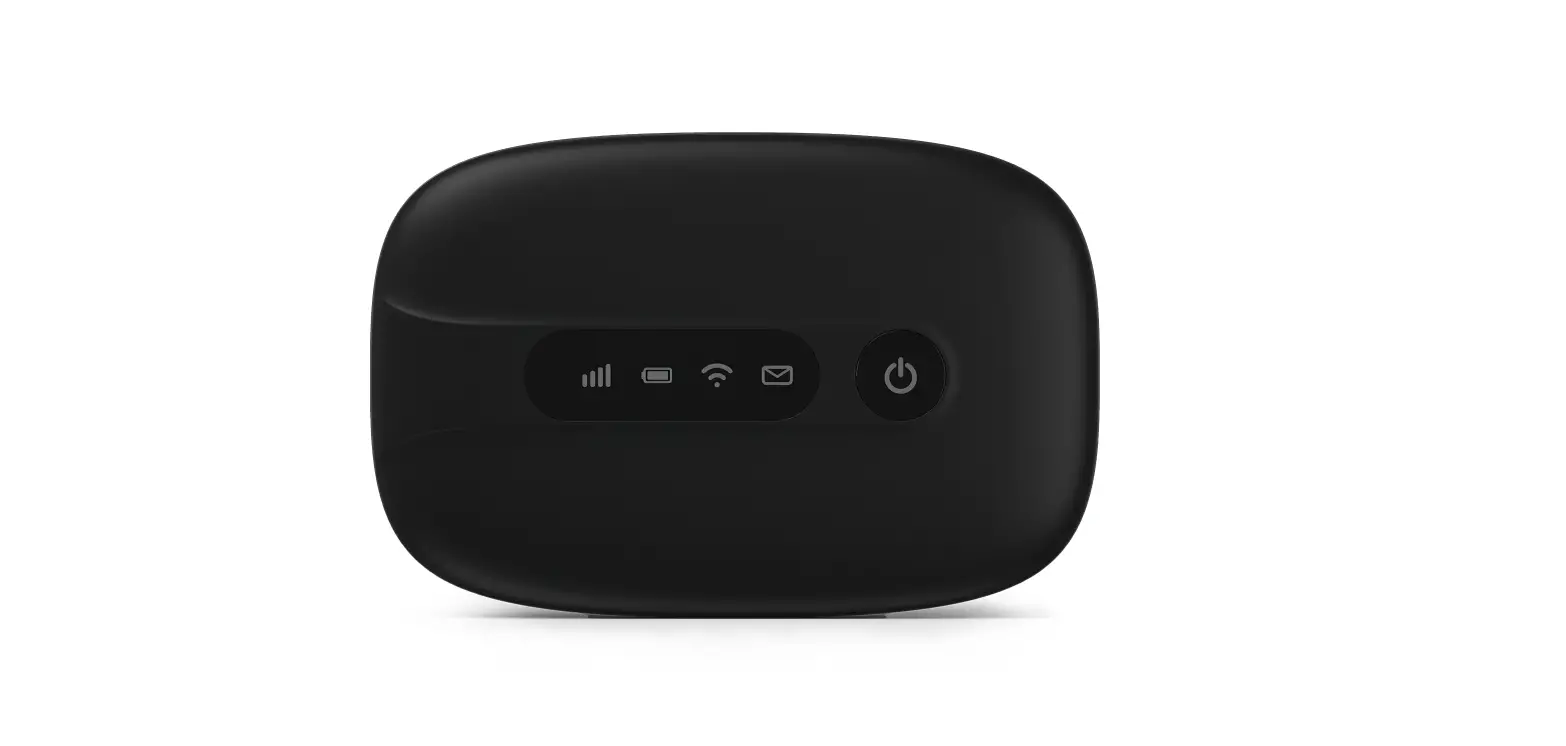
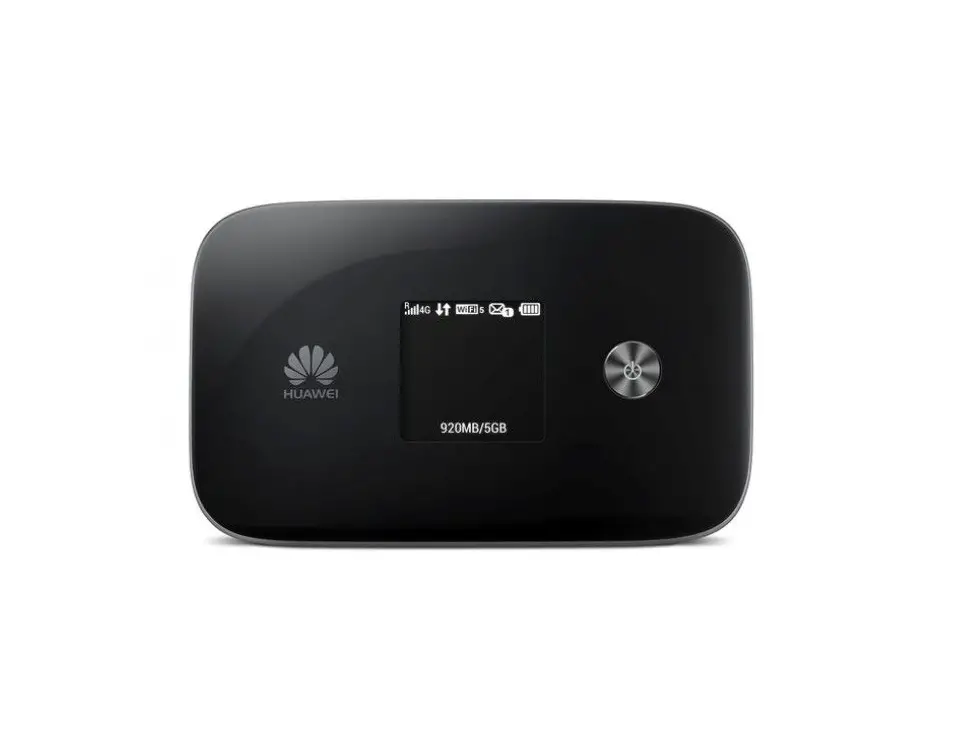
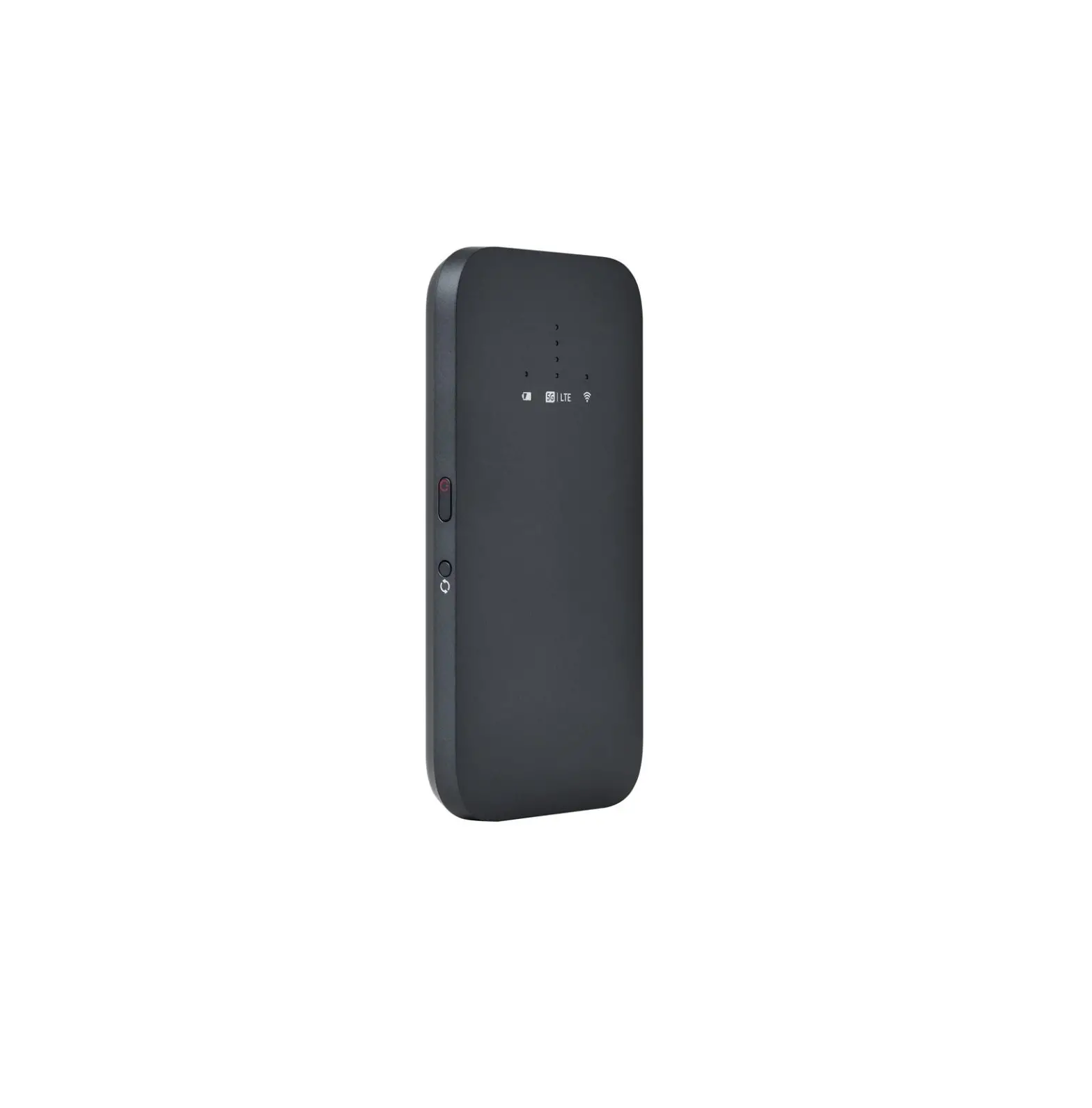
The signal light on the left, battery light on the right. If the battery light flashes red, it means your machine needs to be charged. If the signal light flashes green after inserting the card, it means the machine is in normal use. If red, you need to check whether the data of the SIM card is sufficient, or whether the SIM card is inserted in the correct position.
2. How to change SSID name and password.
3. How to know bands
4. How to choose the band you want
5. How to choose 4G only —- Network Settings
A. Keep data disconnected
B. Choose the Network Settings
6. How to set APN
A. First keep the data disconnected
B.Then choose setting, find sim card carrier APN and then fill in.
FCC Statement
This equipment has been tested and found to comply with the limits for a Class B digital device, pursuant to part 15 of the FCC Rules. These limits are designed to provide reasonable protection against harmful interference in a residential installation. This equipment generates, uses and can radiate radio frequency energy and, if not installed and used in accordance with the instructions, may cause harmful interference to radio communications. However, there is no guarantee that interference will not occur in a particular installation. If this equipment does cause harm full interference to radio or television reception, which can be determined by turning the equipment off and on, the user is encouraged to try to correct the interference by one or more of the following measures: · Reorient or relocate the receiving antenna. · Increase the separation between the equipment and receiver. · Connect the equipment into an outlet on a circuit different from that to which the receiver is connected. · Consult the dealer or an experienced radio/TV technician for help. Caution: Any changes or modifications to this device not explicitly approved by manufacturer could void your authority to operate this equipment. This device complies with part 15 of the FCC Rules. Operation is subject to the following two conditions: (1)This device may not cause harmful interference, and (2) this device must accept any interference received, including interference that may cause undesired operation.
Specific Absorption Rate (SAR) information: This Device meets the government’s requirements for exposure to radio waves. The guidelines are based on standards that were developed by independent scientific organizations through periodic and thorough evaluation of scientific studies. The standards include a substantial safety margin designed to assure the safety of all persons regardless of age or health. FCC RF Exposure Information and Statement the SAR limit of USA (FCC) is 1.6 W/kg averaged over one gram of tissue. Device types: Device has also been tested against this SAR limit. This device was tested for typical body-worn operations with the back of the device kept 10mm from the body. To maintain compliance with FCC RF exposure requirements, use accessories that maintain an 10mm separationdistance between the user’s body and the back of the device. The use of belt clips, holsters and similar accessories should not contain metallic components in its assembly. The use of accessoriesthat do not satisfy these requirements may not comply with FCC RF exposure requirements, andshould be avoided.