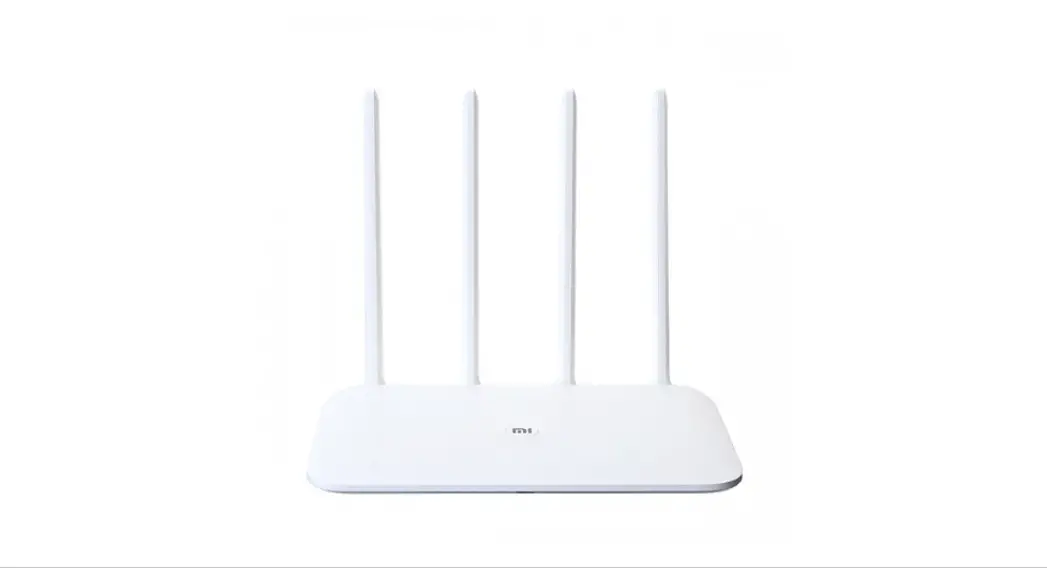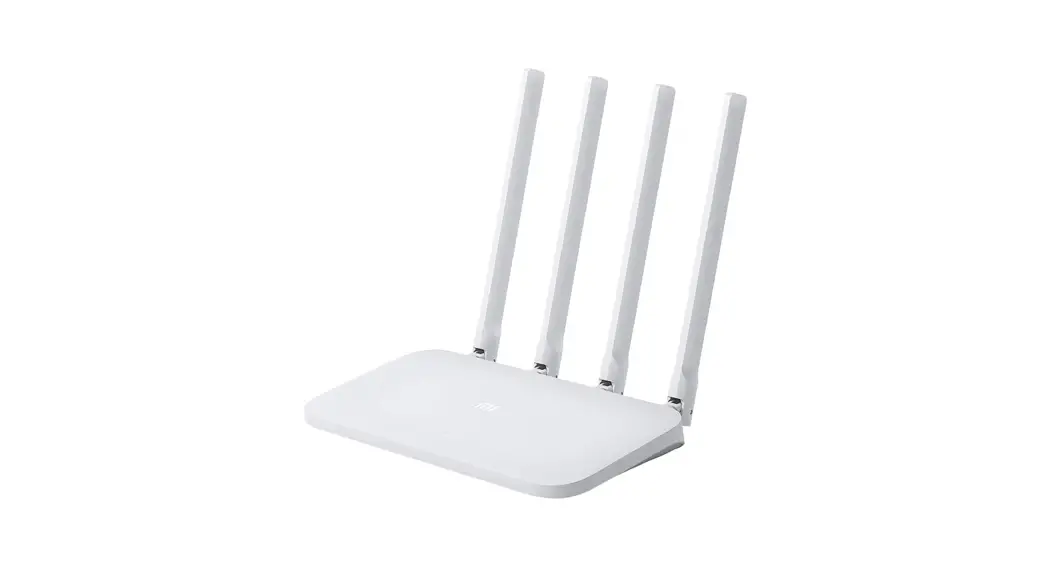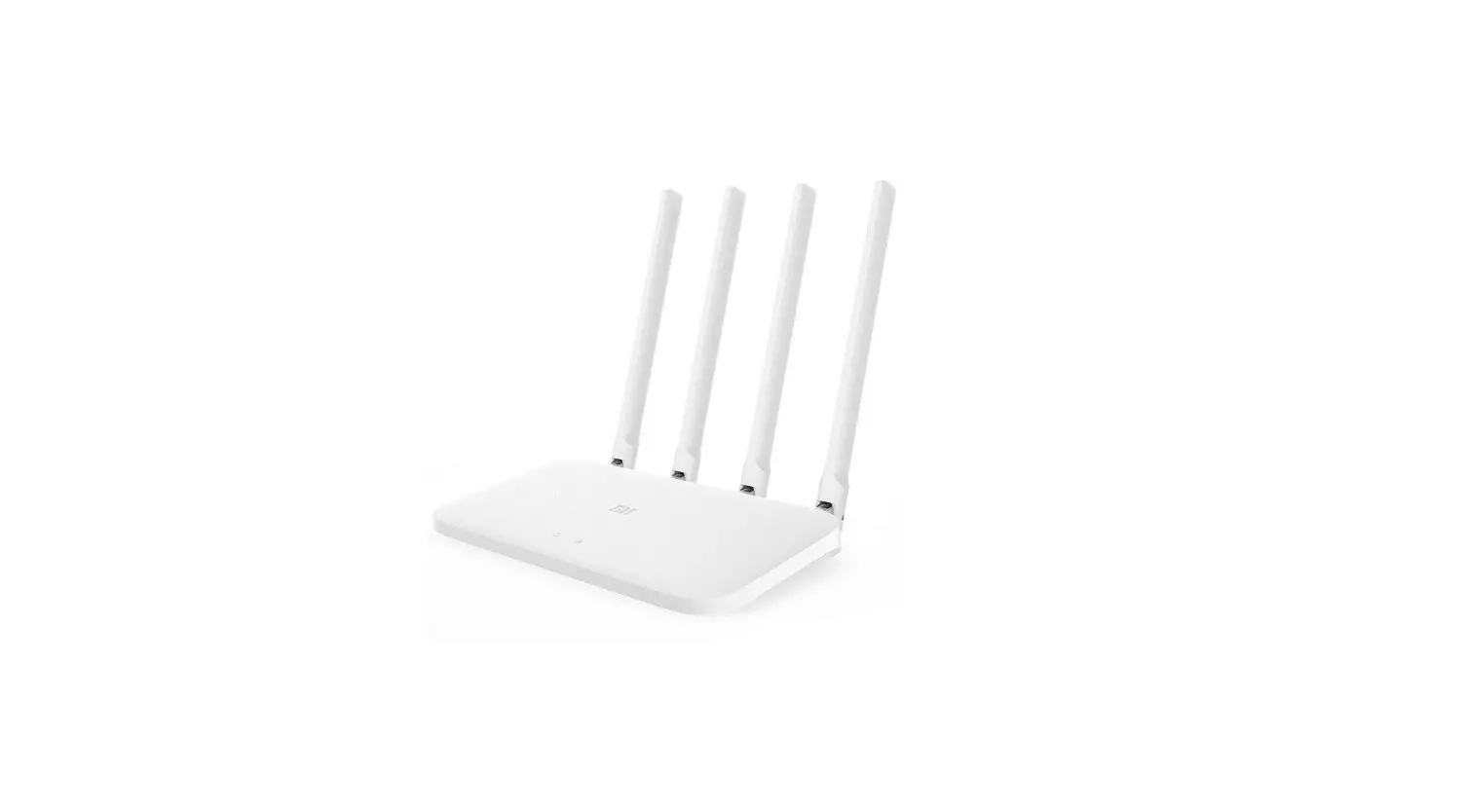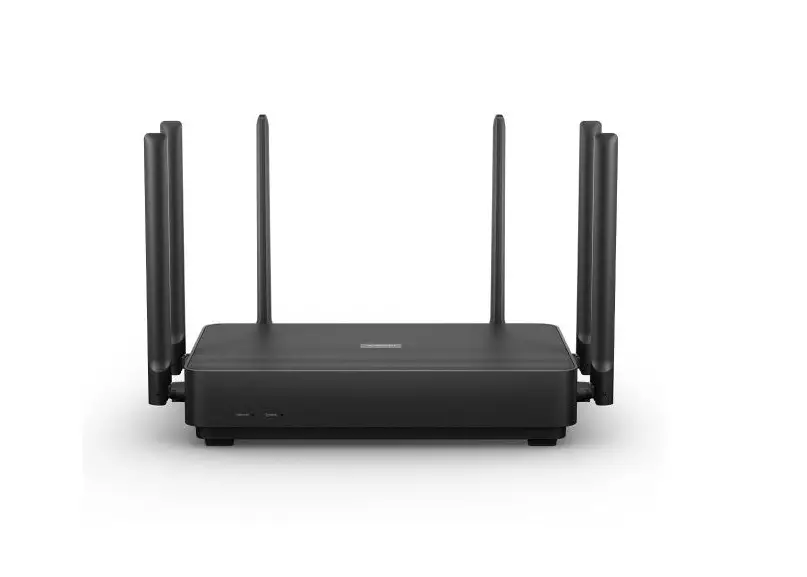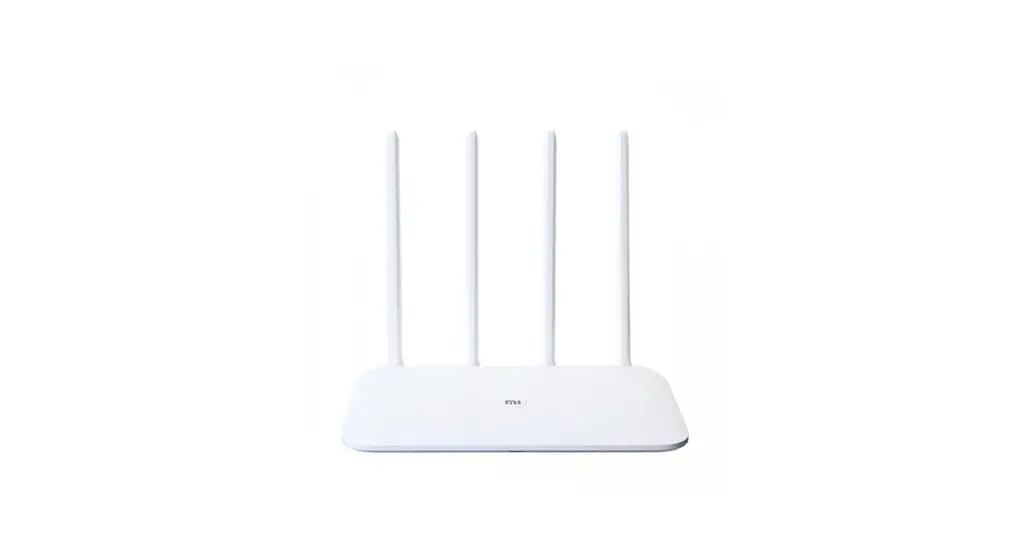
 User Manual of Mi Router 4A Gigabit Edition
All images are for illustration purposes only and may differ from the actual product by model and region.
Step 1: Connect the cables
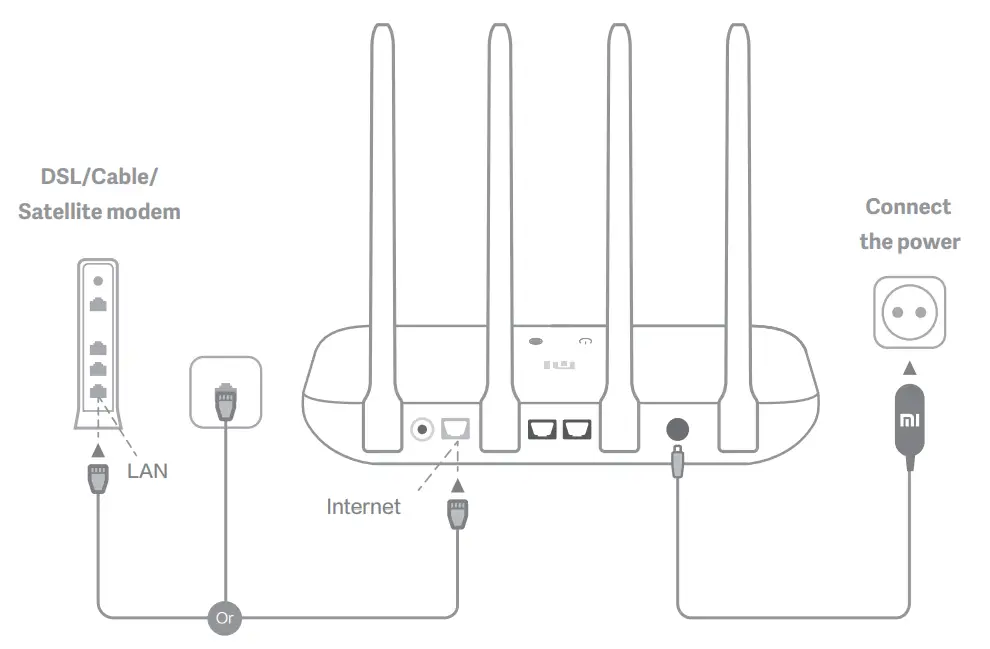
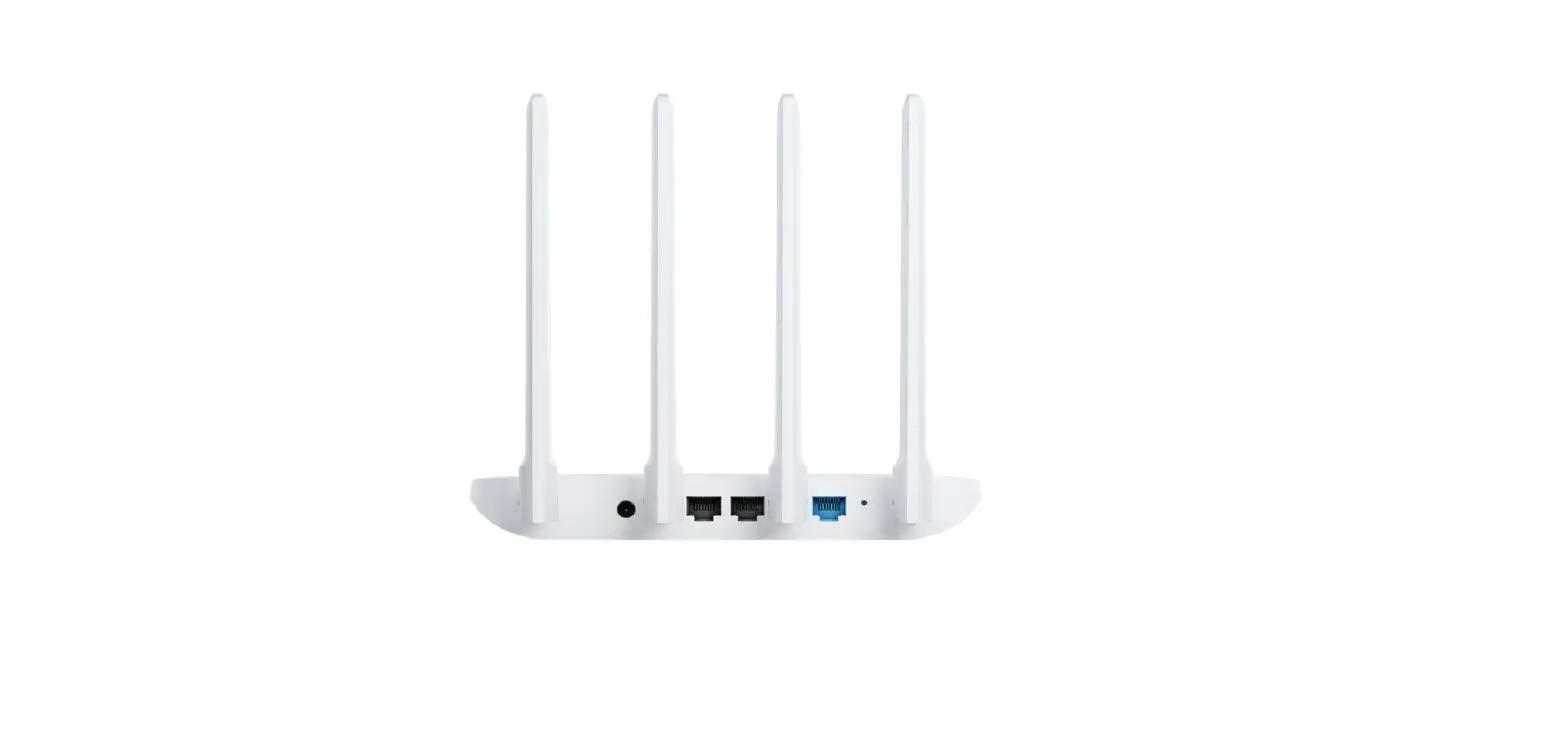
Power on the router, then connect the Internet (WAN) port to the DSL/Cable/satellite modem
* If your Internet network is connected by a network cable via the Internet wall socket, connect the cable directly to the router’s WAN port
Step 2: Set up the network connection
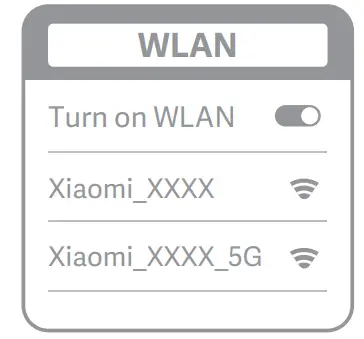
- Connect to the Wi-Fi using a phone or computer (no password). Refer to the information on the boom of the router for the Wi-Fi name
* Wait until the system indicator light turns blue. Search for the Wi-Fi network and connect
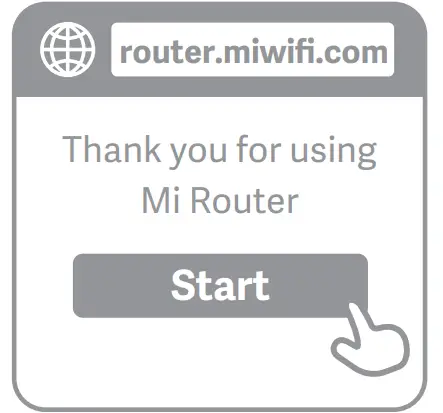
- Once the Wi-Fi is connected, you will be directed to the configuration page. If the configuration page is not present, open the browser and go to “router.miwifi.com” or “192.168.31.1” to complete the configuration
* Mi Router EULA is available at –http://www1.miwifi.com/router/eula/20191230.html
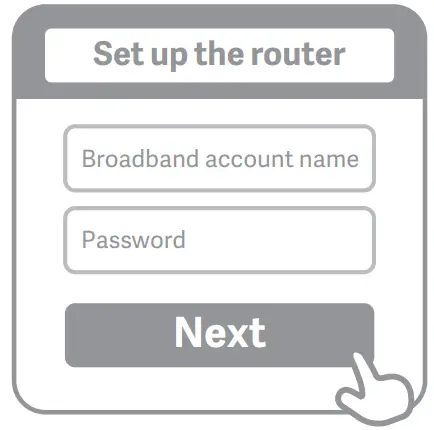
- Enter the account name and password provided by your broadband provider, then click/tap Next (It depends on the Internet Service Provider you selected, whether your account name and password are required or not)
* If you have forgone your broadband account name or password, please contact your broadband provider
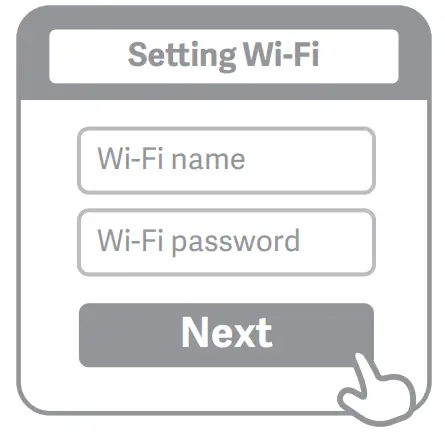
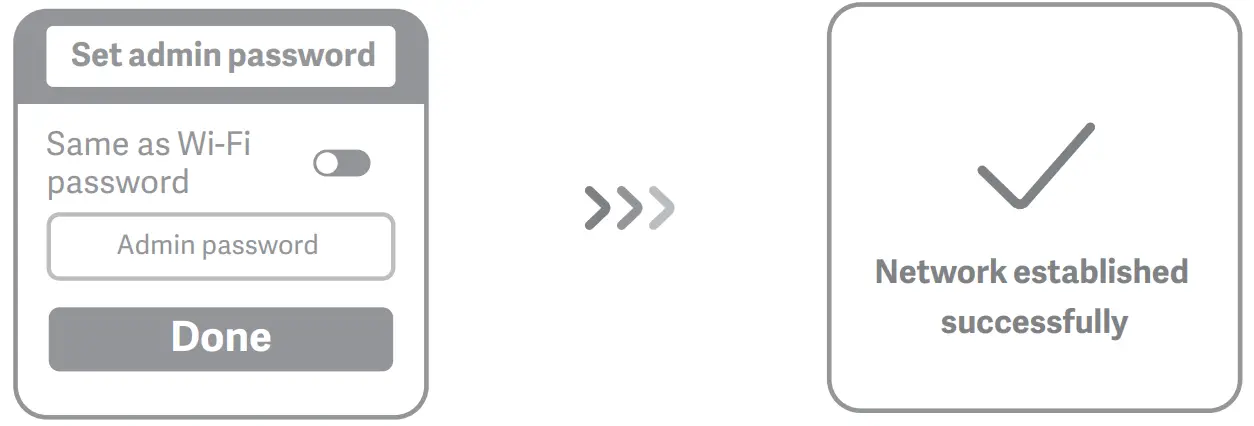
- Set a new Wi-Fi and administrator password.
You can choose to use your Wi-Fi password as your administrator password as well
* Please wait until the indicator light turns blue and stops flashing, then reconnect to the Wi-Fi

Manage Mi WiFi
The web management website is router.miwifi.com and supports basic Internet functions
Scan the QR code, download the Mi WiFi app, and manage your router anytime, anywhere
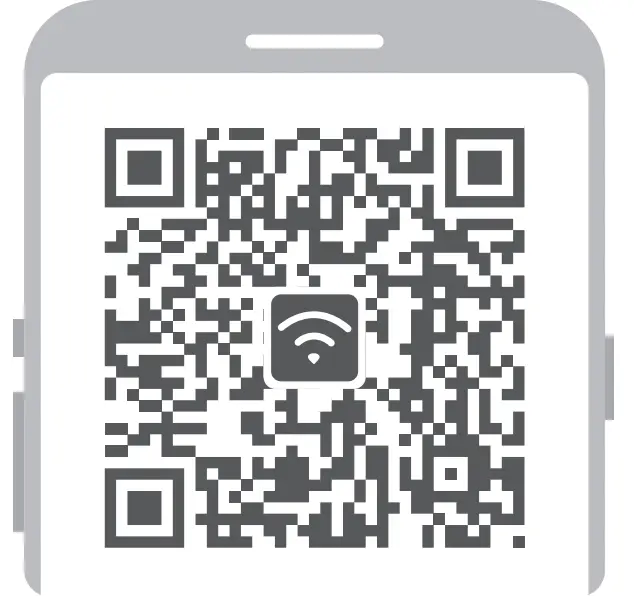 http://www1.miwifi.com/app_download.html
 | QoS |
 | Unauthorized access prevention |
 | Wi-Fi optimization |
 | More features |
FAQ
I have finished setting up my network. Why can’t I connect to the Internet?
– Step 1: Use your phone to search for the Wi-Fi network set by your router. If you can’t find it, make sure that the router is connected to the power and starts working normally
Step 2: Connect your phone to your router’s Wi-Fi network, go to “router.miwifi.com”, and try to fix the problem based on the network diagnostics results
– I’ve forgone the administrator password for my router. What should I do?
If you haven’t set a specific password, your administrator password will be the same as your Wi-Fi password, so try using this to log in. If the problem persists, it is recommended
that you restore your router to the factory settings, then set up the network again
How do I restore my router to the factory settings?
– First make sure that the router starts working normally, then hold down the Reset bu on at the base of the router for more than 5 seconds and let go when the system status light turns orange. When the router finishes restarting, the reset was successful
What do the different indicator lights mean on the router?
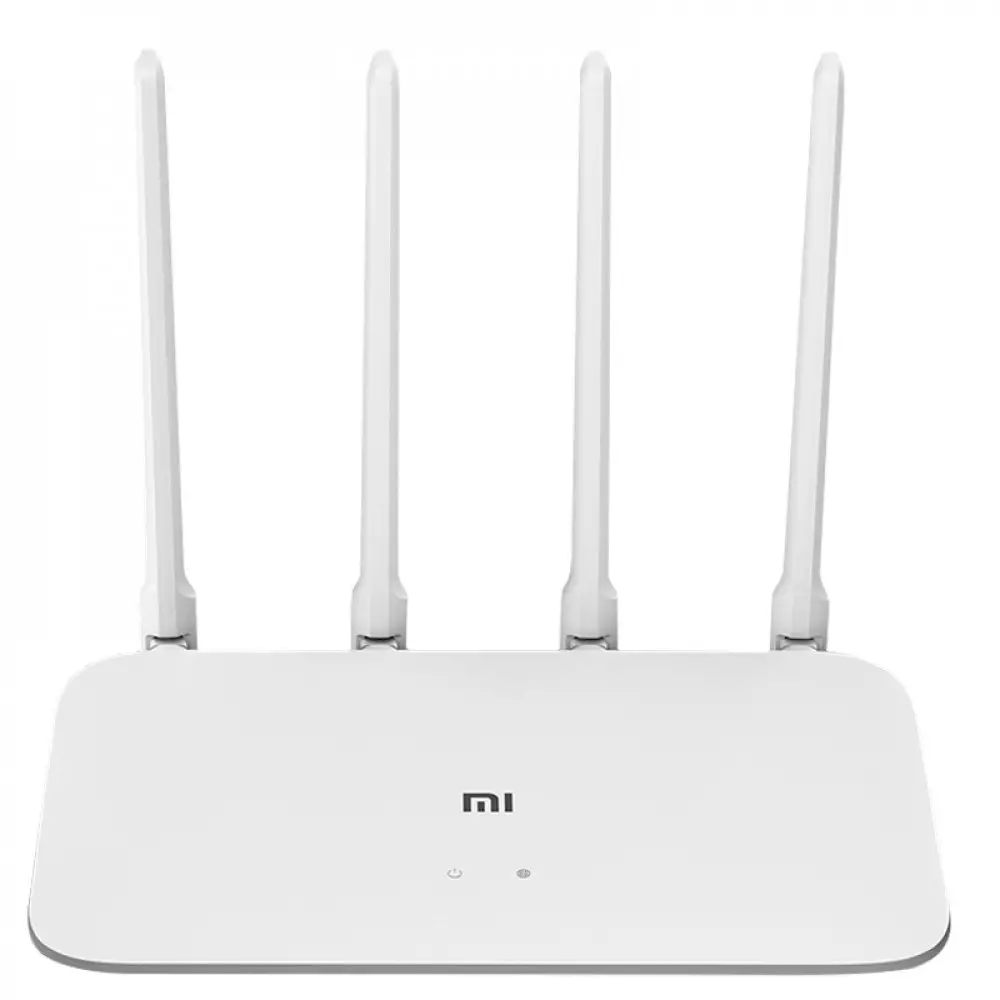
– There should be two indicator lights on the front panel, which are the network status light (blue light) and the system status light (three colors: blue, orange, and purple)
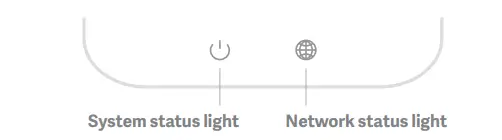
| Network status light | Light with one color (blue) |
| Off | Nothing is plugged into the external Internet port or there is a problem with the connection |
| On | Network connection normal |
| Flashing | Sending or receiving data |
| System status light | three colors (blue, orange, and purple) |
| Off | Switched off or not connected to the power |
| Orange | System updating (flashing), system booting up (on, not flashing) |
| blue | Safe mode (flashing), system failure (on, not flashing) |
| purple | Functioning normally (on, not flashing) |
Specifications:
Name: Mi Router 4A Gigabit Edition
Model: R4A
Operating Temperature: 0~40 ℃
Input: 12V, 1A
Operating Frequency: 2400MHz~2483.5MHz(≤20dBm), 5150MHz~5250MHz(≤23dBm)
Certifications:
Hereby, Xiaomi Communications Co., Ltd declares that the radio equipment type R4A is in compliance with Directive 2014/53/EU. The full text of the EU declaration of conformity is available at the following internet address: http://www.mi.com/global/service/support/declaration.html
All products bearing this symbol are waste electrical and electronic equipment (WEEE as in directive 2012/19/EU) which should not be mixed with unsorted household waste.
Instead, you should protect human health and the environment by handing over your waste equipment to a designated collection point for the recycling of waste electrical and electronic equipment, appointed by the government or local authorities. Correct disposal and recycling will help prevent potential negative consequences to the environment and human health. Please contact the installer or local authorities for more information about the location as well as terms and conditions of such collection points.
Caution: The product can be used within all European Union countries (BE/FR/DE/IT/LU/NL/DK/ IE /GB/GR/PT/ES/AT/FI/SE/CY/CZ/EE/ HU/LV/LT/MT /PL/SK/SI/BG/RO/HR).
To comply with CE RF exposure requirements, the device must be installed and operated 20cm (8 inches) or more between the product and all person’s body.
The adapter shall be installed near the equipment and shall be easily accessible.
Manufactured by: #019, 9th Floor, Building 6, 33 Xi’erqi Middle Road, Haidian District, Beijing,
China, 100085