Contents hide

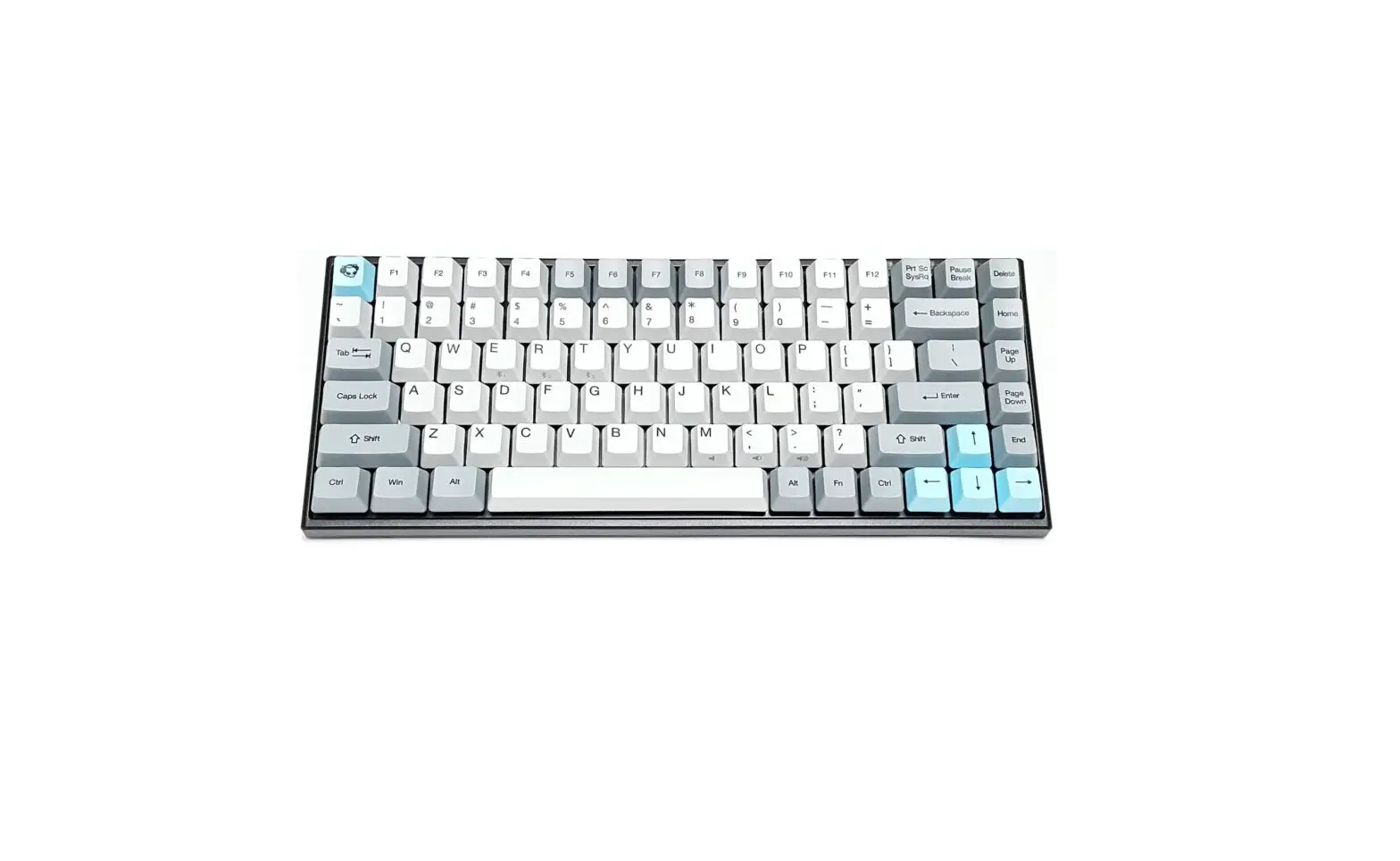
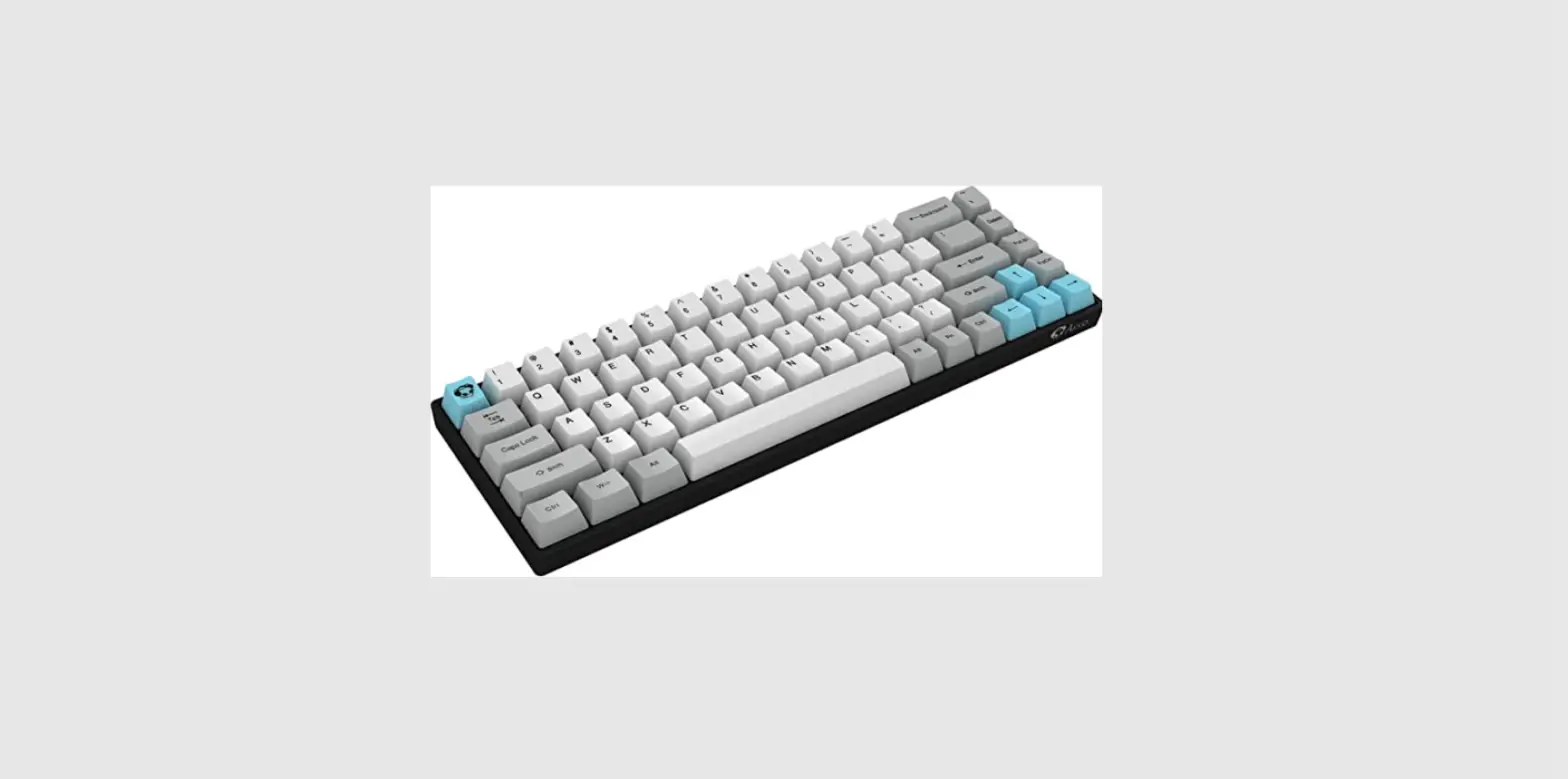
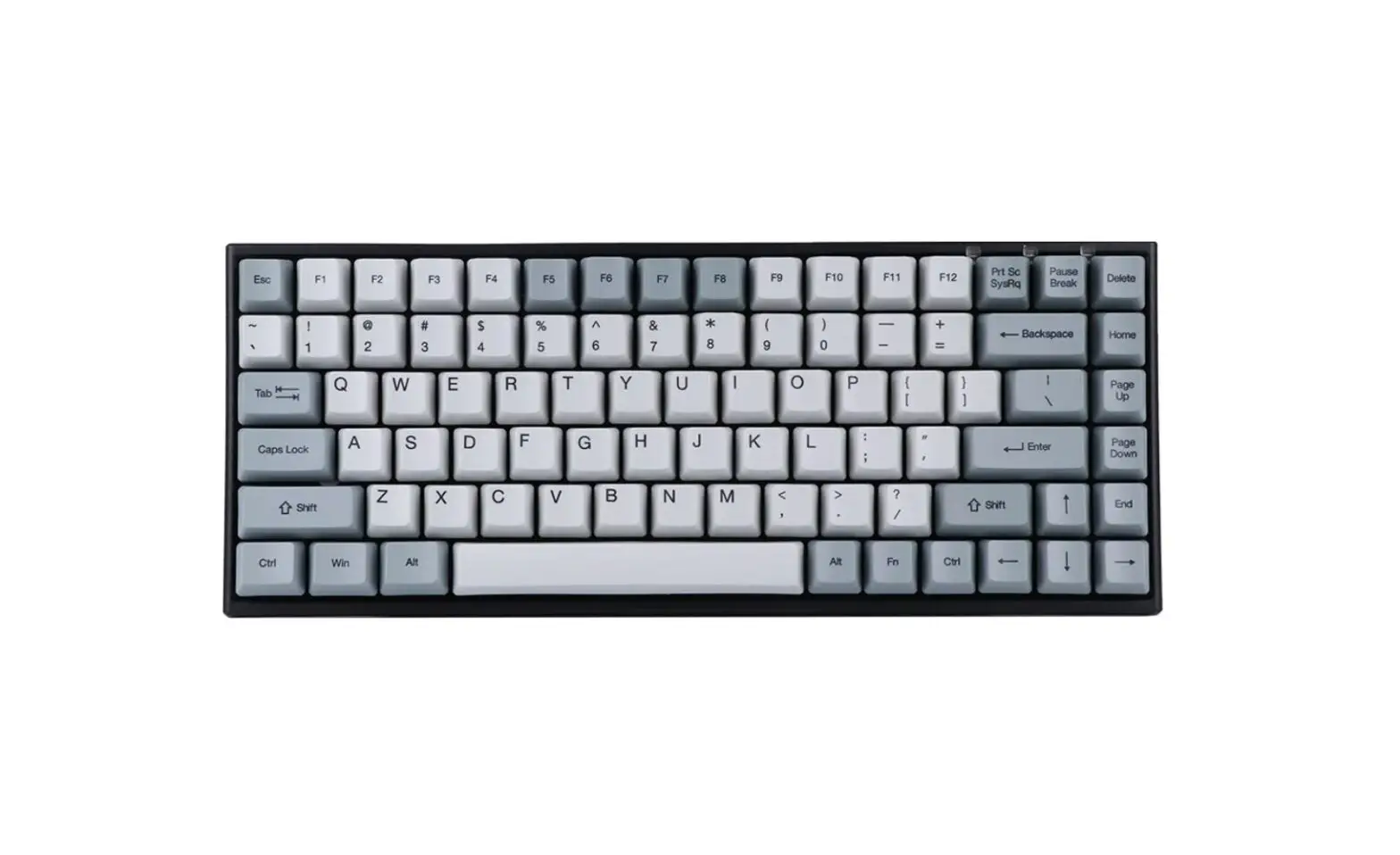
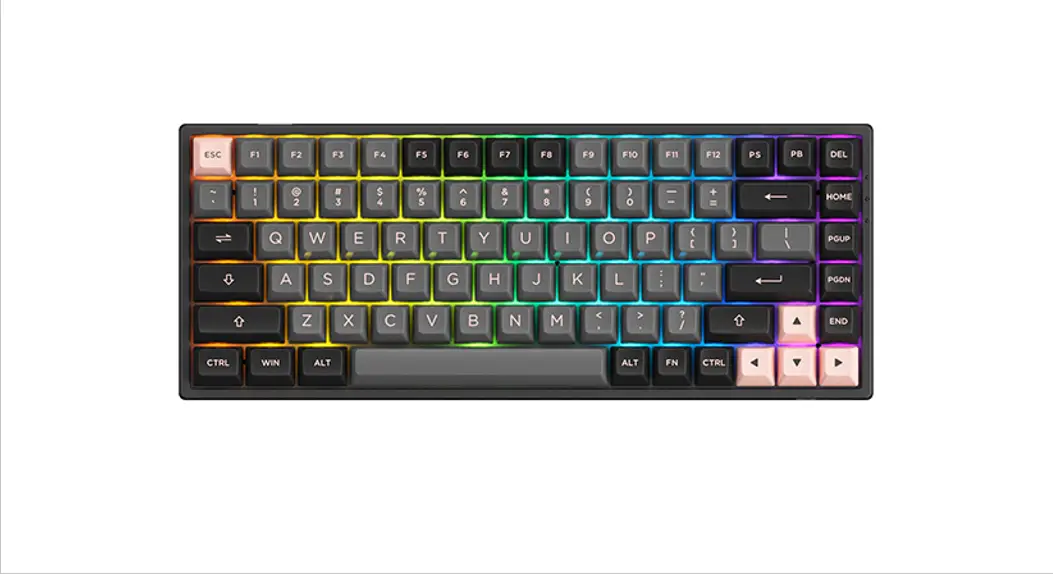
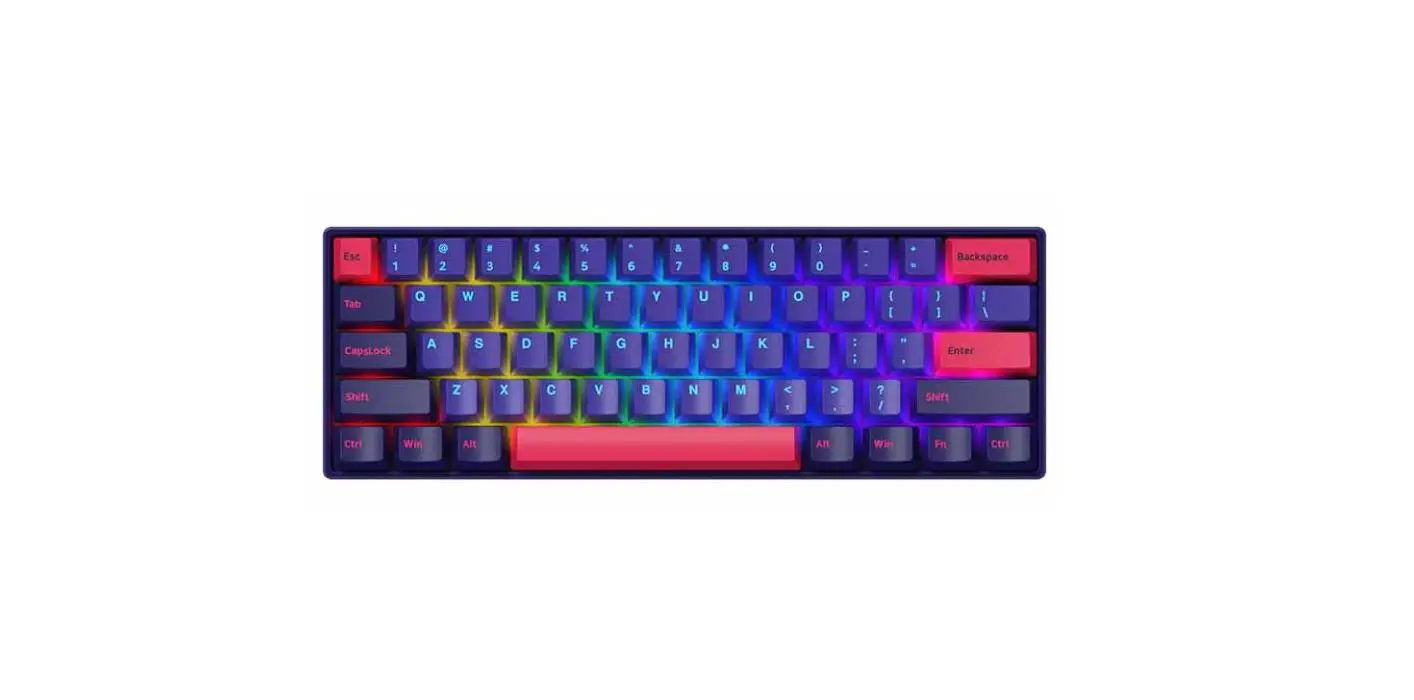
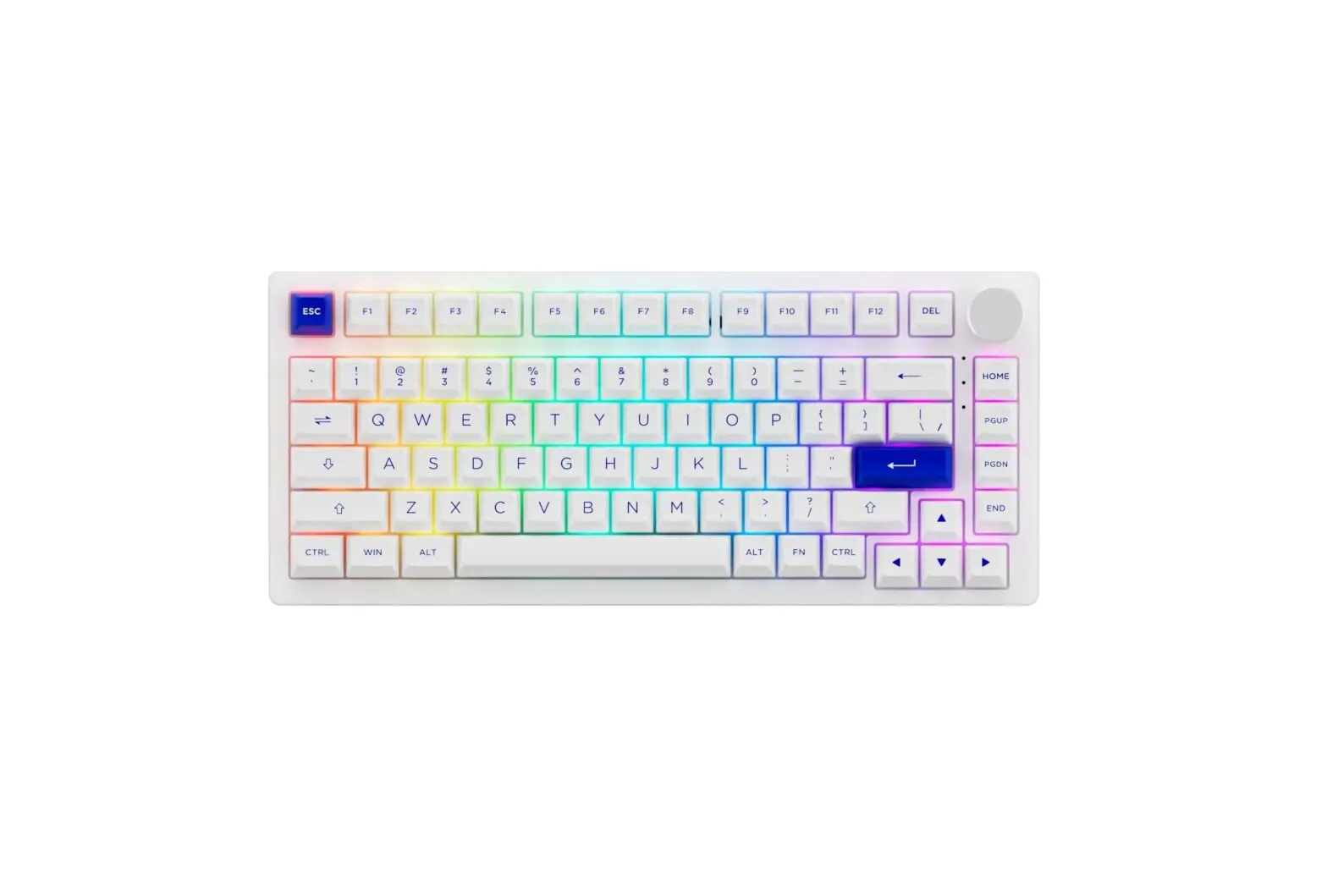
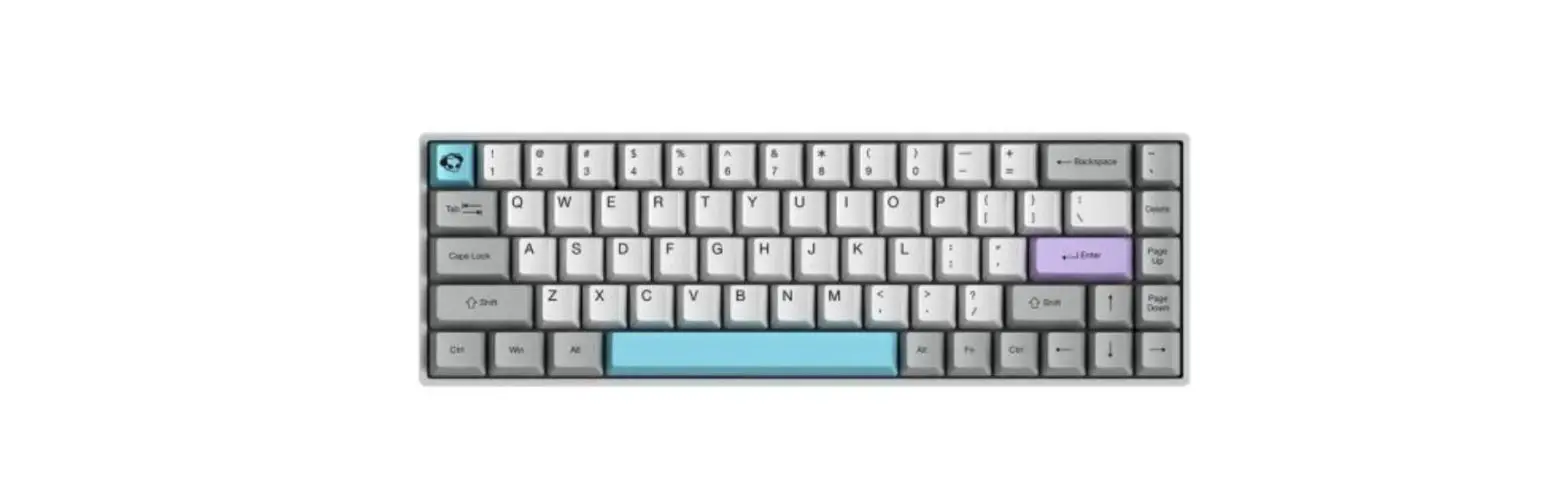
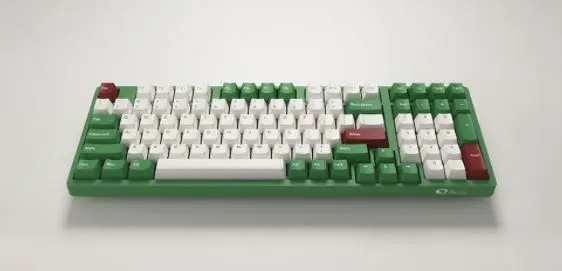
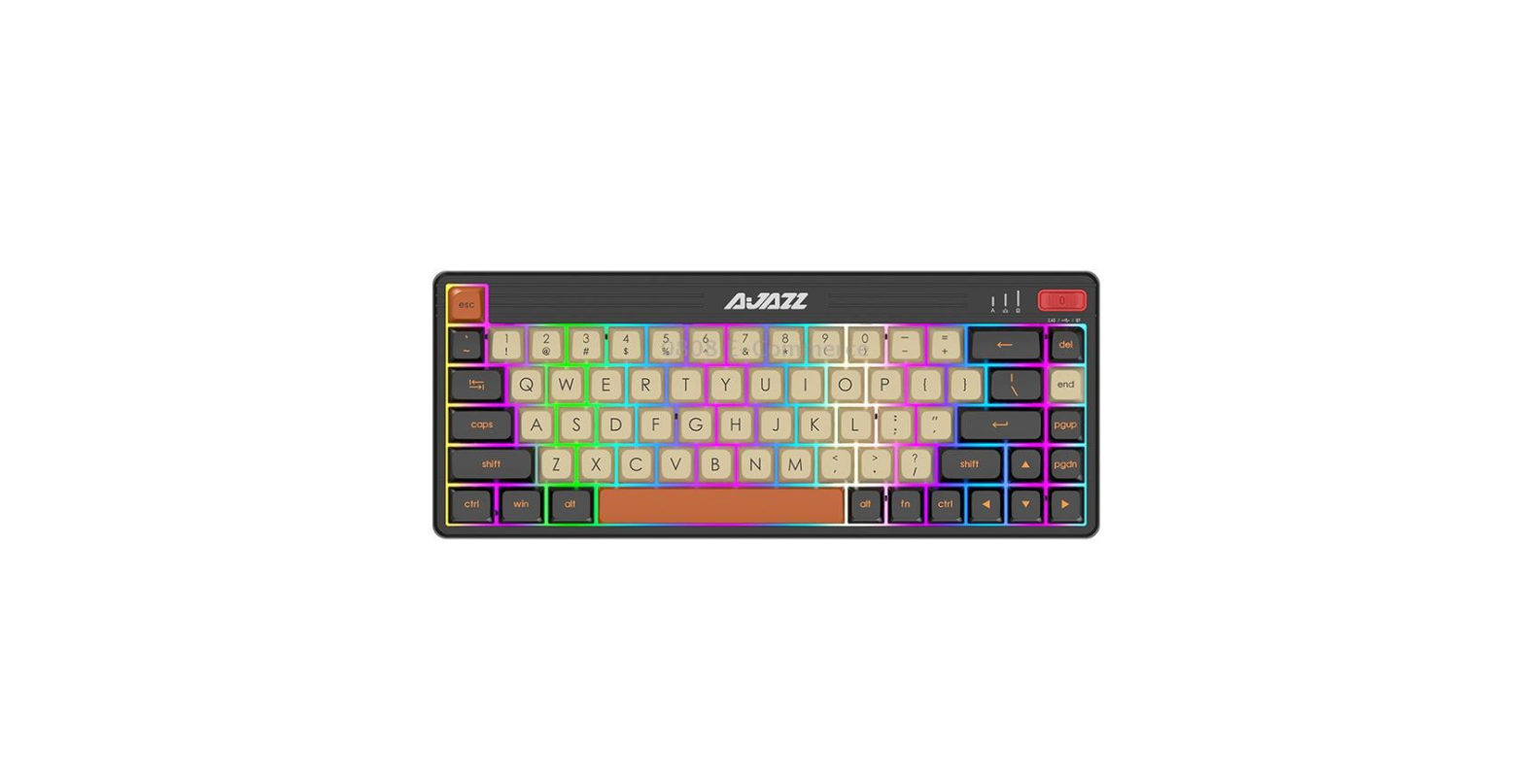
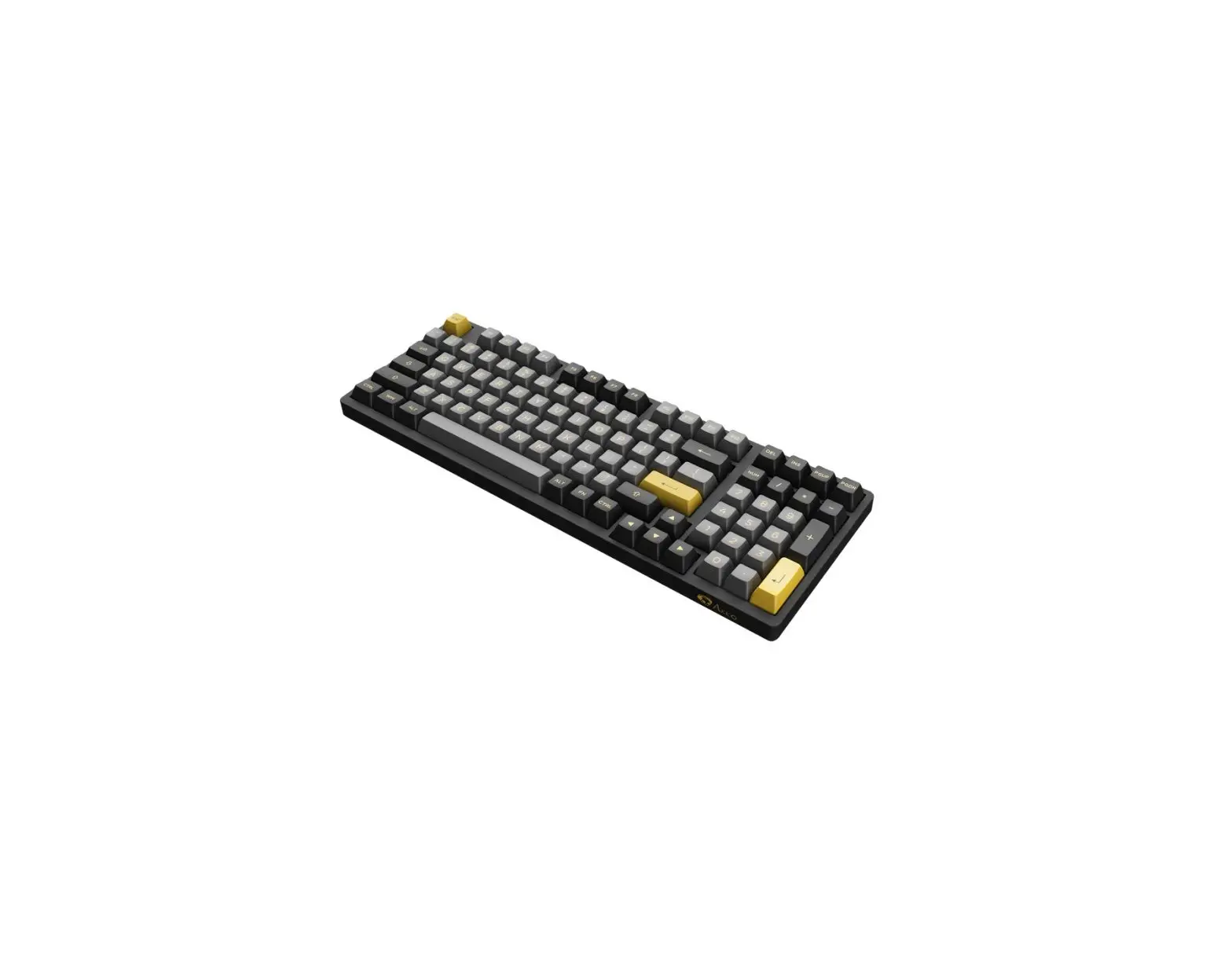
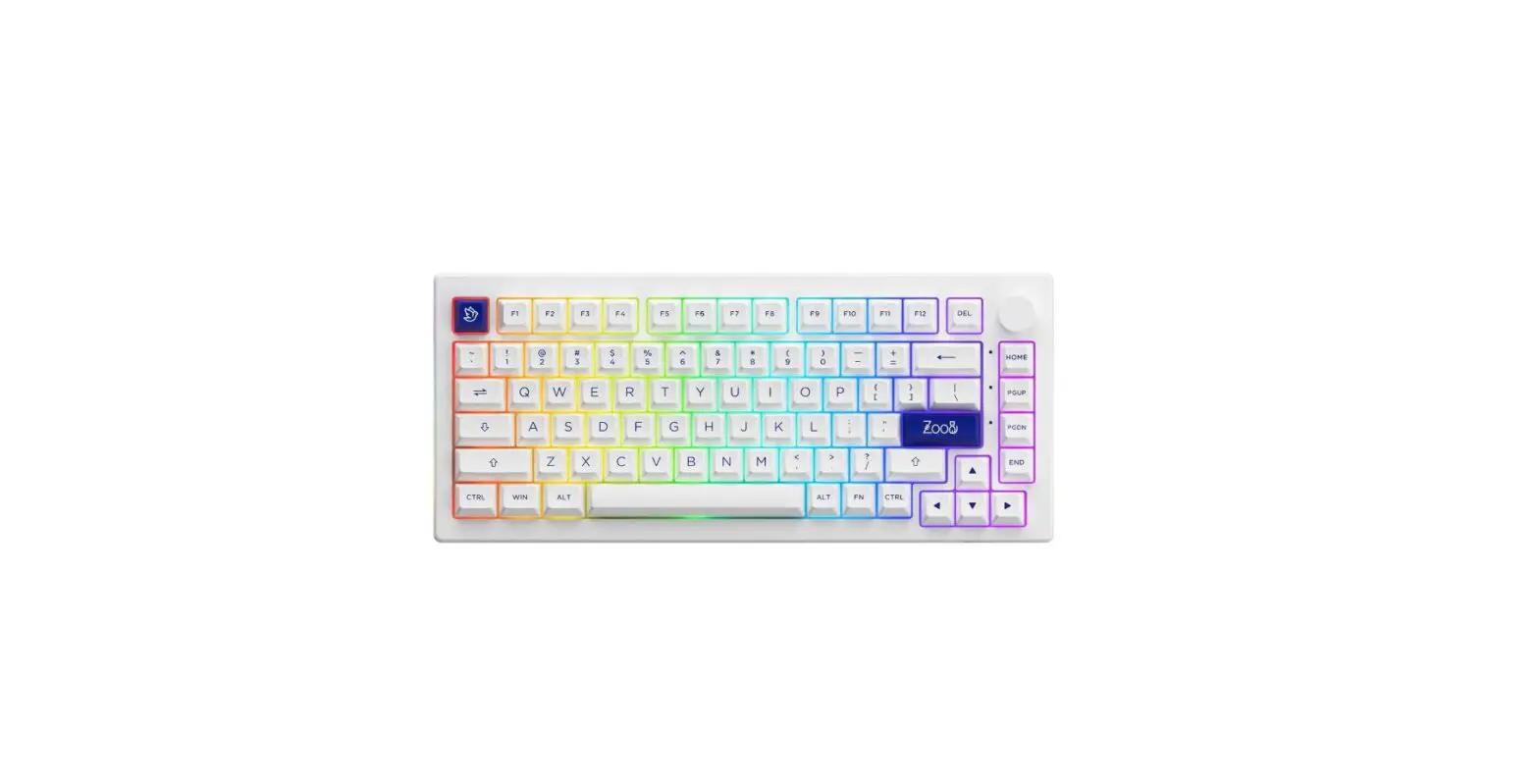
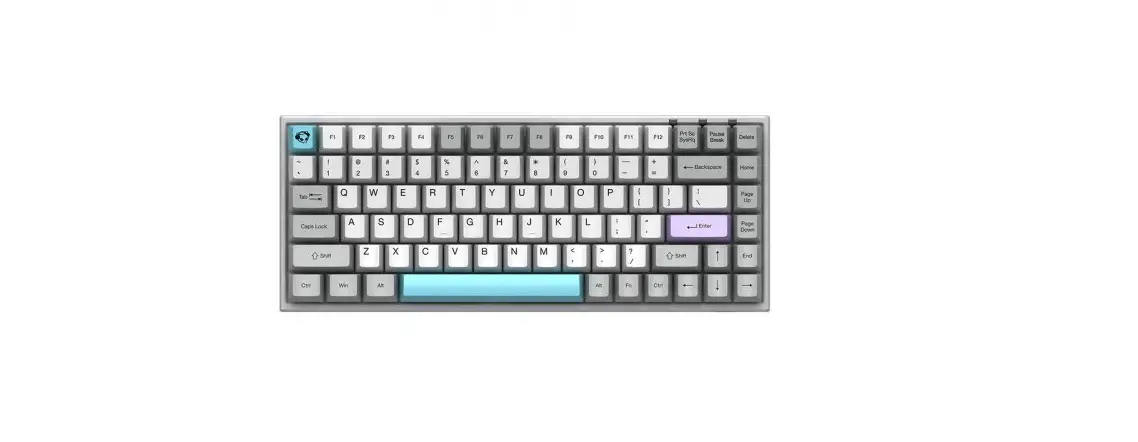
AKKO 3084 Dual Mode Bluetooth 3.0 USB Wired Mechanical Gaming Keyboard
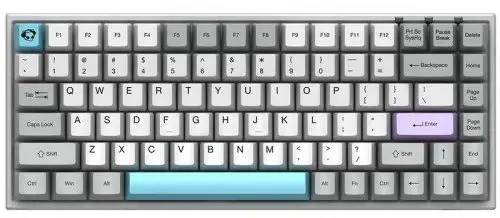
3084 Technical Specifications
| Dimensions | 315x126x38mm |
| Weight | Approximately 0.85KG |
| Country of Origin | China |
| Type | Mechanical Keyboard |
| Keycap | PBT Material |
| Interface | Type-C To USB |
| Multimedia Keys | YES |
| N-Key Rollover | YES |
| Custom Keys | YES (use Akko Marco V1.0) |
3084 HotKeys
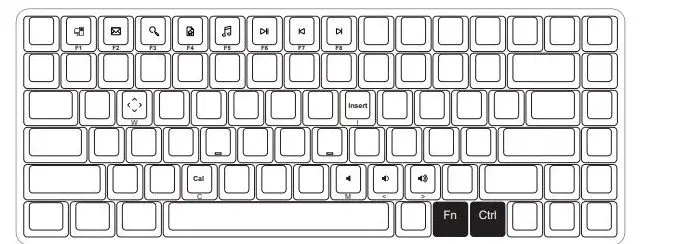
| Fn+ | F1 | File Explorer | |
| F2 | |||
| F3 | = | Windows Search | |
| F4 | Browser Homepage | ||
| F5 | Media |
| Fn+ | F6 | Pause/Playback | |
| F7 | Previous Song | ||
| F8 | = | Next Song | |
| C | Calculator | ||
| I | Insert |
| Fn+ | M | Mute | |
| < | Decrease Volume | ||
| > | = | Increase Volume | |
| W | Swwitahp ↑W↓A ←S →D |
Hold down FN and press right Ctrl Revert Ctrl into Menu (APP) key
3084 System Commands
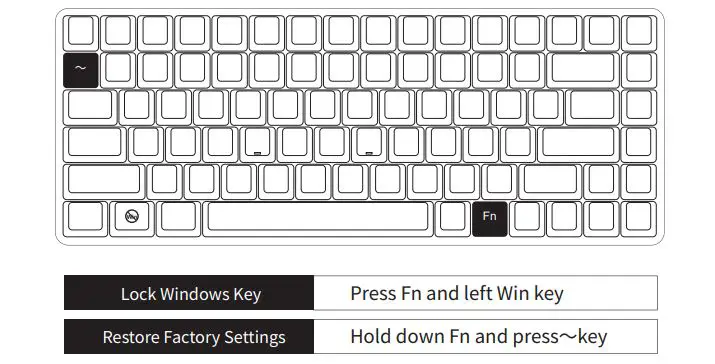
3084S Single-Color Backlight
*Backlight function is only available on the backlight version of 3084s.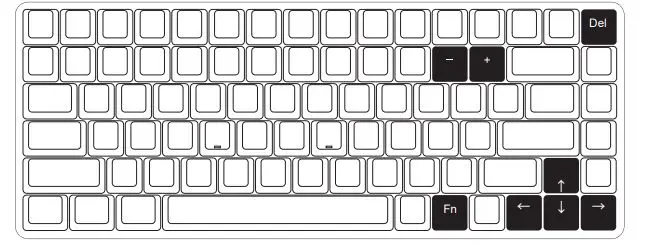
Fn+Del
Lighting effects cycles among Steady / Breathe / One-key light up / One-key light off Wave / Ripple / Raindrop
|
Fn+ | “↑” | Bright Dim | The adjustments on the left is for generic lighting effects. Some lighting effects cannot be tweaked. For example, effects with constant light can only adjust brightness as they don’t have animation speed and direction. | |
| “↓” | ||||
| “←” | = | Set animation direction to left | ||
| “→” | Set animation direction to right | |||
| “-” | Slower Animation | |||
| “+” | Faster Animation |
3084S Custom Backlight
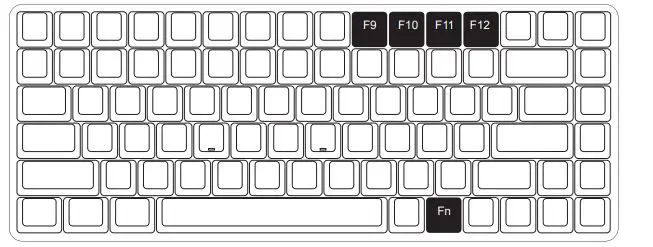
- The keyboard provides 4 groups of Fn + (F9 ~ F12) customizable lighting effects.
The system has 4 groups of default pre-loaded lighting effects that can be triggered. - Press Fn + (F9 ~ F12) to trigger custom lighting effects.
- Edit custom lighting effects:
Step 1. Press Fn + (F9 ~ F12) to entFn+er the cust =om lighting mode.
Step 2. Press Fn + (F9 ~ F12) again to start editing. Press to specify the desired illuminated keys for the specific lighting effect group.
Step 3. Continue to press Fn + (F9 ~ F12) to save the changes.
Akko Macro V1.0 Macro Setup Instruction 1
- Akko Macro V1.0 is hardware-based and works without software-driven.
- The following keys cannot be programmed: “Esc”, “Fn”, “Left Win”.
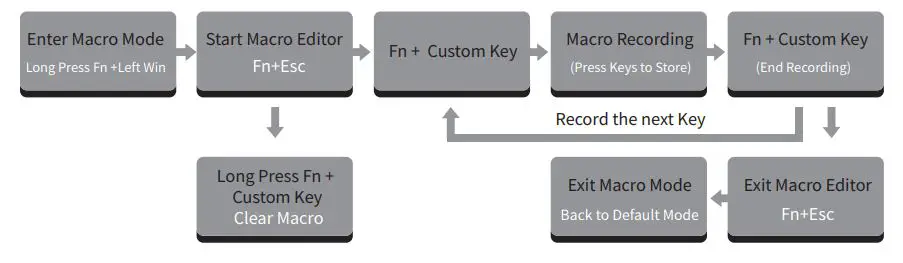
- Press and hold Fn + Win for 3 seconds to switch to the Macro mode. When the keyboard is re-connected or the system is restarted, the Macro mode will be exited. You need to switch to the Macro mode again to use programmed keys.
- Akko Macro V1.0 does not support simultaneous trigger, that is, pressing “AB” at the same time will trigger the two keys in the order of A followed by B.
- Akko Macro V1.0 does not support customized interval time, that is, the trigger interval between key A and key B cannot be defined and will follow the system’s default trigger time.
Akko Macro V1.0 Macro Setup Instruction 2
Akko Macro V1.0 Macro Setup Instruction 3
Macro Recording Example: Define “A” as “AKKOGEAR”
- Step 1: Press Fn + left Win for 3 seconds to enter the Macro mode.
- Step 2: Press Fn + ESC to launch Macro editor.
- Step 3: Press Fn + A. This means we choose key “A” to record.
- Step 4: Press A, K, K, O, G, E, A, R in order as replacement definition of “A”.
- Step 5: Press Fn + A again to end the Macro recording of key “A”.
At this point, pressing “A” in the notepad will display “AKKOGEAR”.
If you want to create a Macro for key “B”, press Fn + B to start the Macro recording. - Step 6: Press Fn + Esc to exit Macro editor.
Under the Macro mode, you can configure the keys and Macros you set. - Step 7: Press and hold Fn + Left Win for 3 seconds to exit the Macro mode and return to the default key definition.
Akko Warranty and Service Statement
- Akko provides 1-yr warranty for customers in mainland China. For other regions, please contact your seller (Akko distributor) for a specific warranty policy.
- If the warranty window expires, customers need to pay for repairs. Akko will also provide instructions if users prefer to repair the keyboard by themselves. However, users shall take full responsibility for any loss that happened during self-repair.
- Dissembling the keyboard without the manufacturer/seller’s instruction will immediately void the warranty.
- The return and warranty policy may vary in different platforms and are subject to the specific distributor at the time of purchase.
Precautions
Man-made damage is not limited to immersion, falling off, and pulling off the wires with excessive forces, etc.