5075 VIA Wireless Keyboard
Product Information
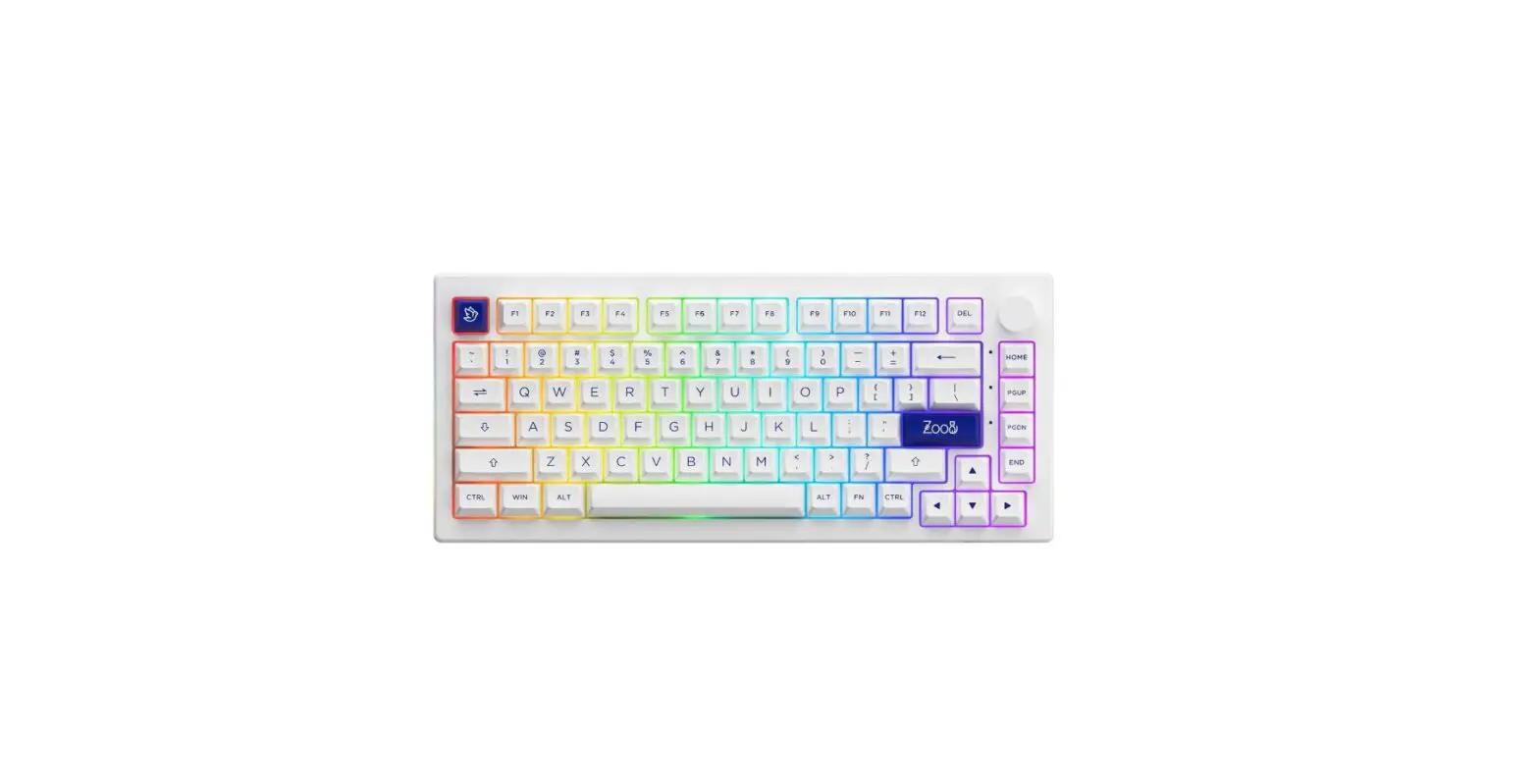
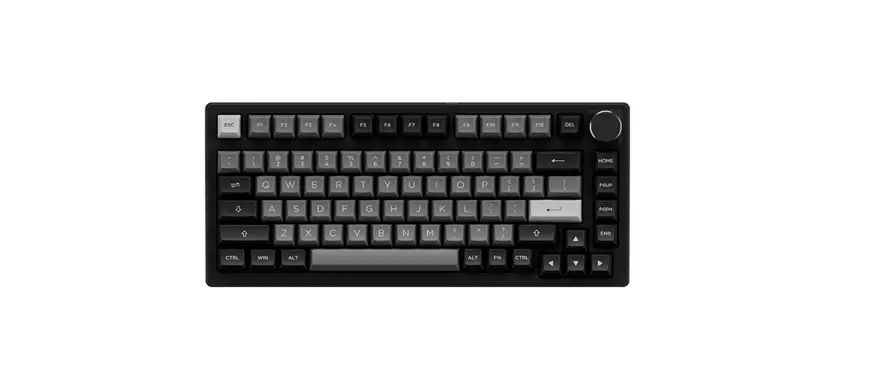
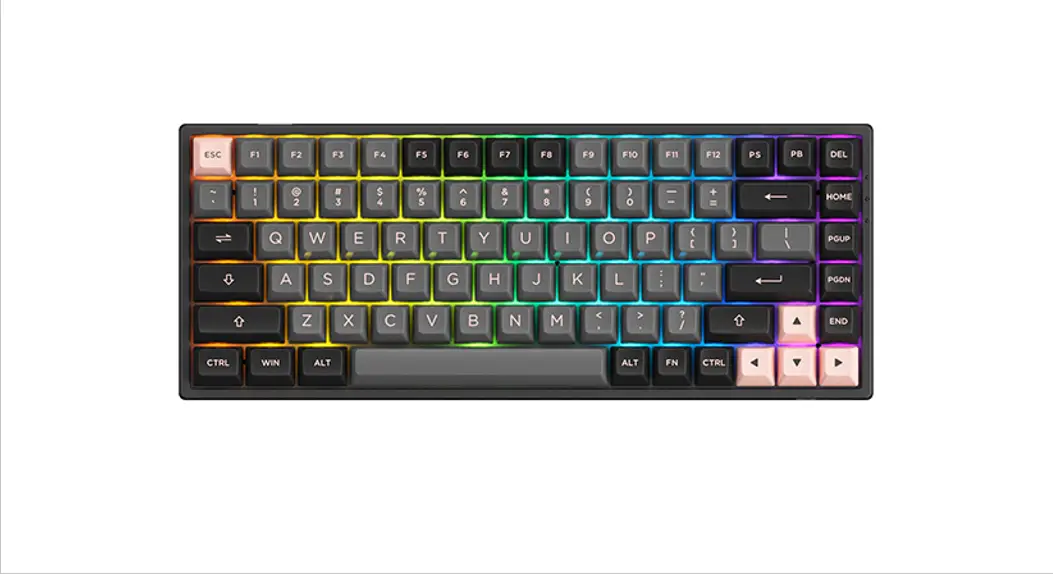
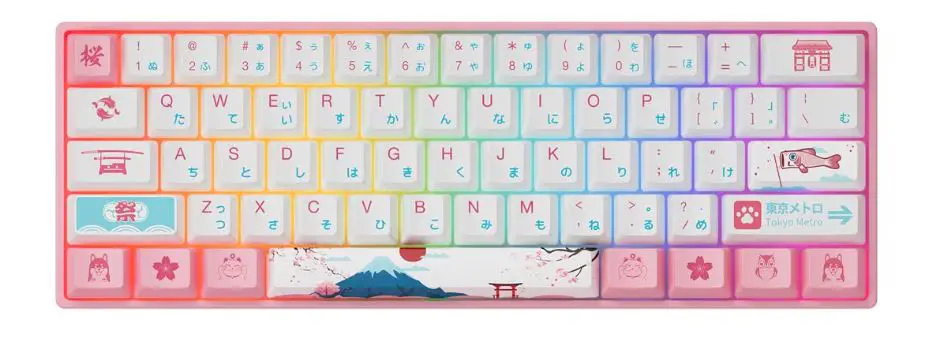
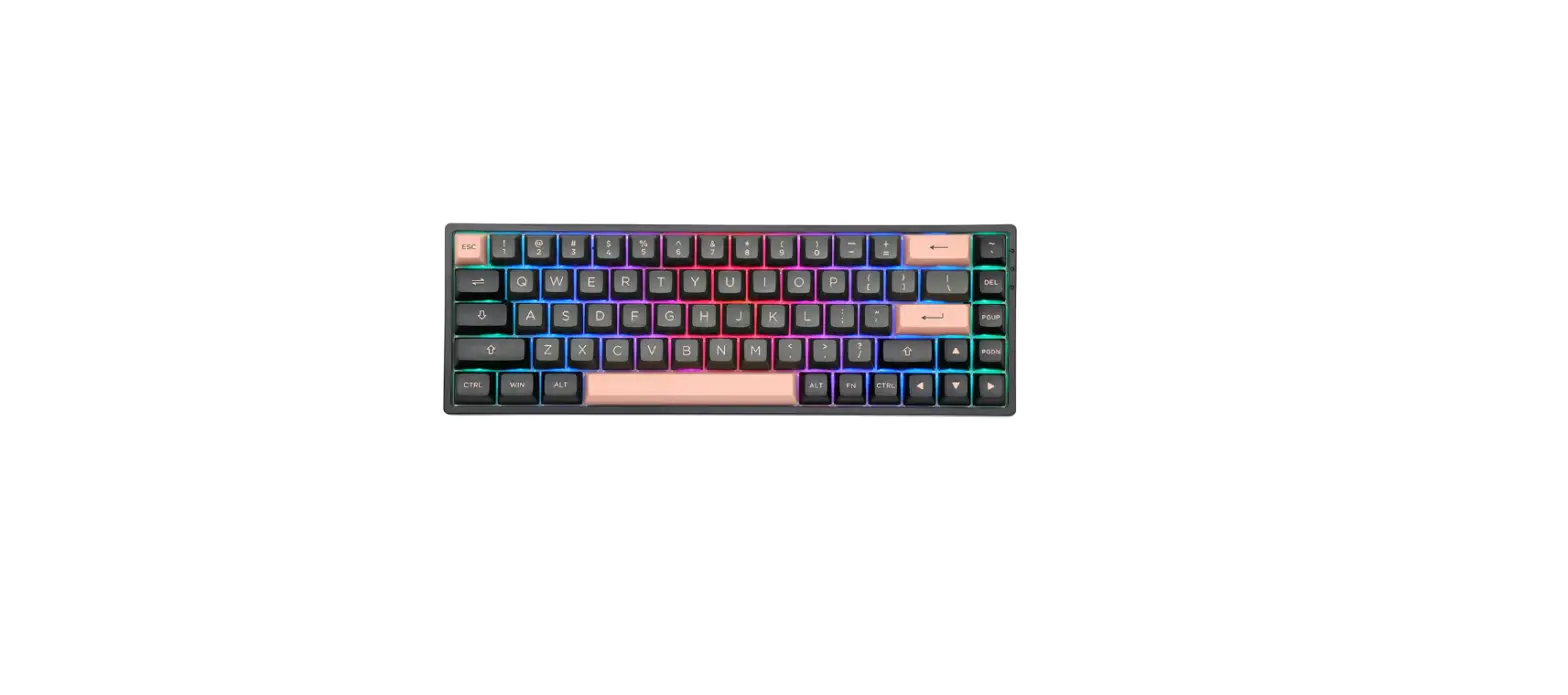
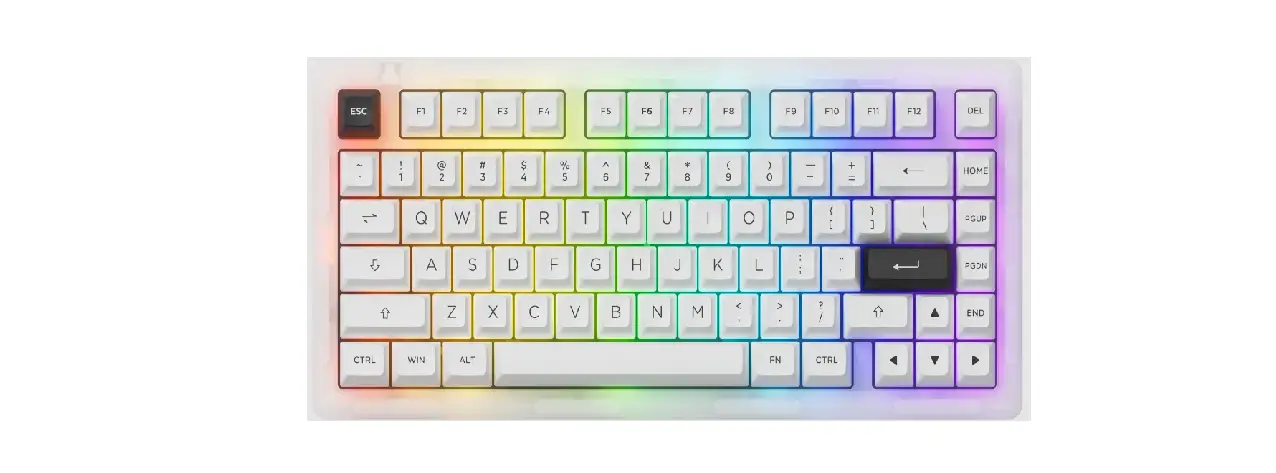
The AKKO 5075 VIA keyboard comes in both Windows and Mac
versions and features LED indicators for Caps, System and Lock Win.
It has a back switch for different lighting effects, and a rotary
encoder knob for volume control and muting. The keyboard has
hotkeys for My Computer, E-mail, Windows Search, Browser Homepage,
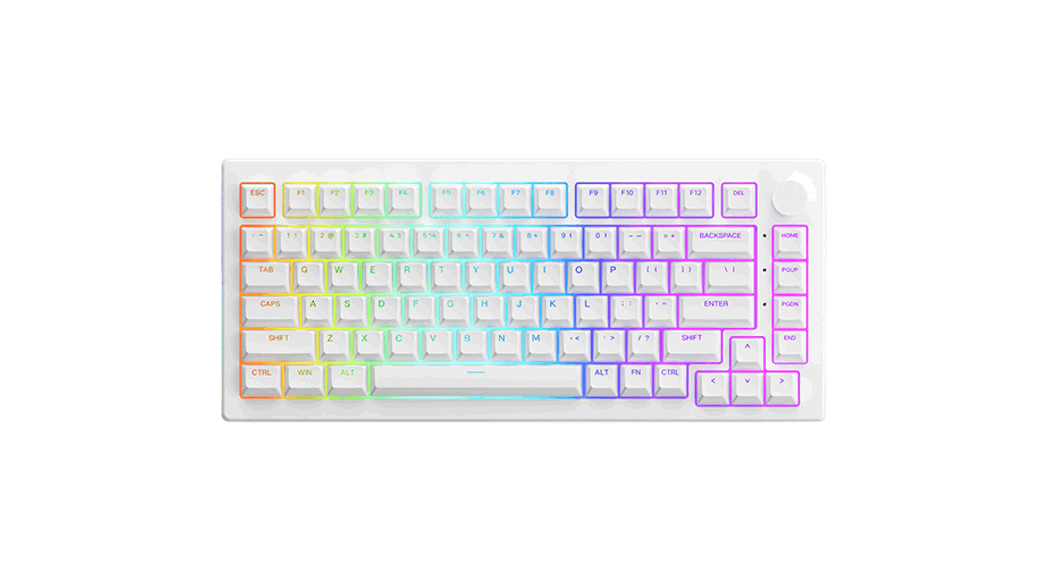
and Multimedia Player. It also has backlight settings for
brightness, color saturation, and animation speed.
System Requirements
The AKKO 5075 VIA keyboard is compatible with Windows and Mac
operating systems. It can be plugged into any USB port on your
computer to start using it.
Product Usage Instructions
1. Plug the USB cable of the keyboard into a USB port on your
computer to start using it.
2. Use the hotkeys for My Computer, E-mail, Windows Search,
Browser Homepage, and Multimedia Player by pressing the
corresponding keys on the keyboard.
3. Use the rotary encoder knob to adjust the volume or mute the
sound by pressing the knob.
4. Use the back switch to change the lighting effects or adjust
the backlight brightness and color saturation by pressing the FN
key and turning the knob clockwise or counterclockwise.
5. Use the hotkeys for system commands such as Lock Win Key,
Restore Factory Settings, or Volume Control by pressing the
corresponding keys on the keyboard.
6. Use the keyboard’s LED indicators to check the status of
Caps, System, and Lock Win.
7. Follow the warranty guidelines provided by AKKO to ensure
proper use and care of the keyboard.
VIA
User Manual Benutzerhandbuch
Quick Guide
1
Caps
2
3
WIN
MAC/Win
Windows Windows MAC
-+
FN+ -+
Windows®XP / Vista / 7 / 8 / 10
USBUSB 01
5075VIA
Insert
PrtSc
Cal Fn
F1 F2 Fn+ F3 F4 F5
= Windows
F6 F7 Fn+ F8 I P
/ = Ins Print SCR
C M Fn+ < > w
=
W A S D
5075VIA (Windows)
~ Win
O Fn
Win Fn + Win
Fn + ~ 3
021
5075VIA (Mac)
F1 F2 F3 F4
F7 F8 F9 F10 F11 F12
Win Alt
Alt Fn
F1 F2 F3 F4 Siri
Alt Command
F7 () F8 /() F9 () F10
Fn + (F1 F12) F1 F12
F11 F12 Win Alt
Option Command
5075VIA
-=
L
Fn
FN+FN+= FN+L
/
FN+ FN+ FN+
18
FN+ FN+
+
031
Akko
1. Akko Akko
2. Akko
3. /
4. 10001800
5.
33 0755-23216420 www.akkogear.com · Company: Shenzhen Yinchen Technology Co., Ltd Address: 33 Langbi Rd, Bitou First Industrial Zone, Bao’an District, Shenzhen, China
/Made in China
041
Thank you for supporting Akko
To provide you with a better user experience, please read this manual carefully before using the product.
LED Indicator
LED Indicator 1
Caps
LED Indicator 2
System Indicator
LED Indicator 3
Lock Win
Steady White Mac OSX (Steady White) / Windows (OFF) Steady White
Press the Knob = Mute; Turn the encoder counterclockwise = Volume -; Turn the encoder clockwise = Volume +.
Back Switch
Press FN key + Knob = Switch to a different lighting effect; Press FN + Turn the knob counterclockwise = Backlight Brightness -; Press FN + Turn the knob clockwise = Backlight Brightness +.
Left: Windows
Center: Windows Rotary Encoder Right: MAC
Packing List
System Requirement
Windows®XP / Vista / 7 / 8 / 10 or higher version
Installation Guide
Plug the USB cable of the keyboard into a USB port on your computer to start using it.
0051
5075 VIA HotKeys
Insert
PrtSc
Cal Fn
F1 F2 Fn+ F3 F4 F5
My Computer E-mail = Windows Search Browser Homepage Multimedia Player
F6 F7 Fn+ F8 I P
Play/Pause
C
Previous Song
M
= Next Song
Fn+ <
Ins
>
Print SCR
w
Calculator
Mute
= Decrease Volume
Increase Volume Swap W A S D with
5075 VIA System Commands (Windows)
~ Win
O Fn
Lock Win Key
Press Fn and left Win key
Restore Factory Settings
Hold down Fn and ~ key for 3s
5075 VIA System Commands (Mac)
F1 F2 F3 F4
F7 F8 F9 F10 F11 F12
Win Alt
Alt Fn
F1 Decrease display brightness F2 Increase display brightness F3 Open mission control F4 Activate Siri
F7 Skip back (Audio) F8 Pause/Play (Audio) F9 Skip forward (Audio) F10 Mute
Right Alt
Command
Fn + (F1 F12) F1 F12
F11
Volume down
F12
Volume up
Left Win Option
Left Alt Command
5075 VIA Backlight Settings
-=
L
Fn
FN+FN+= FN+L
Slower Animation Faster Animation Light On / Off
FN+ FN+ FN+
Bright
FN+ Color saturation-
Dim
FN+ Color saturation+
18 different lighting effects will be changed
071
AKKO Warranty and Service Statement
1. Akko provides One-Year warranty for customers in mainland China. For other regions, please contact your seller (Akko distributor) for specific warranty policy.
2. If the warranty window expires, customers need to pay for repairs. Akko will also provide instructions if users prefer to repair the keyboard by themselves. However, users shall take full responsibility for any loss happened during self-repair.
3. Dissembling the keyboard without manufacturer/seller’s instruction will immediately void the warranty.
4. The return and warranty policy may vary in different platforms and are subject to the specific distributor at the time of purchase.
Company: Shenzhen Yinchen Technology Co., Ltd Address: 33 Langbi Rd, Bitou Community 1st Industrial Zone, Bao’an District, Shenzhen, China Tel: 0755-23216420 Website: www.akkogear.com Origin: Shenzhen, China
/Made in China
instagram.com/akkogear facebook.com/akkogear tiktok.com/@akkogear
Precautions
Man-made damage is not limited to immersion, falling off, and pulling off the wires with excessive forces, etc.
0081
 Akko (@akkogear) • Instagram photos and videos
 Akko (@akkogear) | TikTok
 Akko艾酷官方网站 | æ½®æµæ—¶å°šå¤–设_Akko机械键盘官网