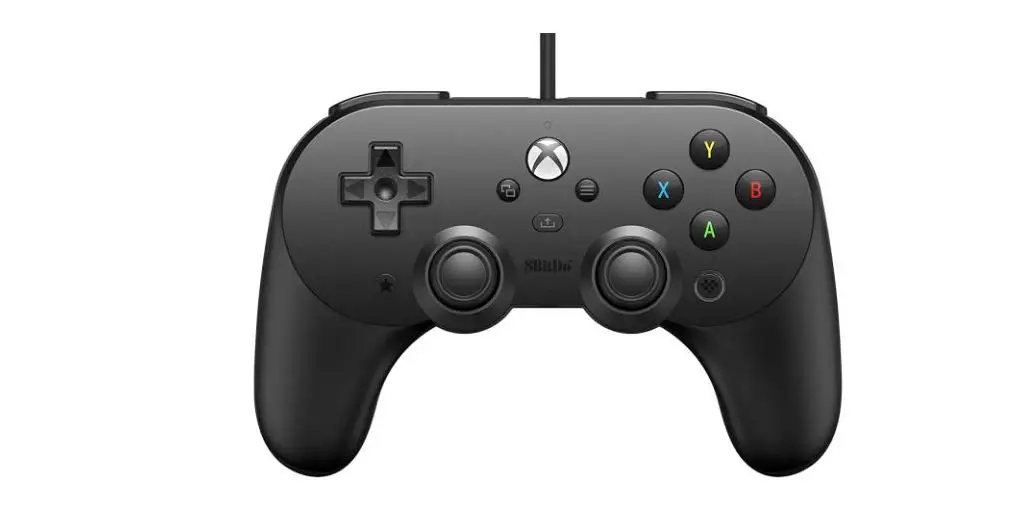
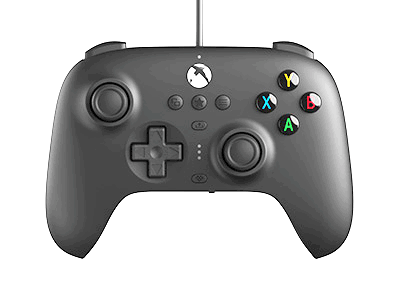
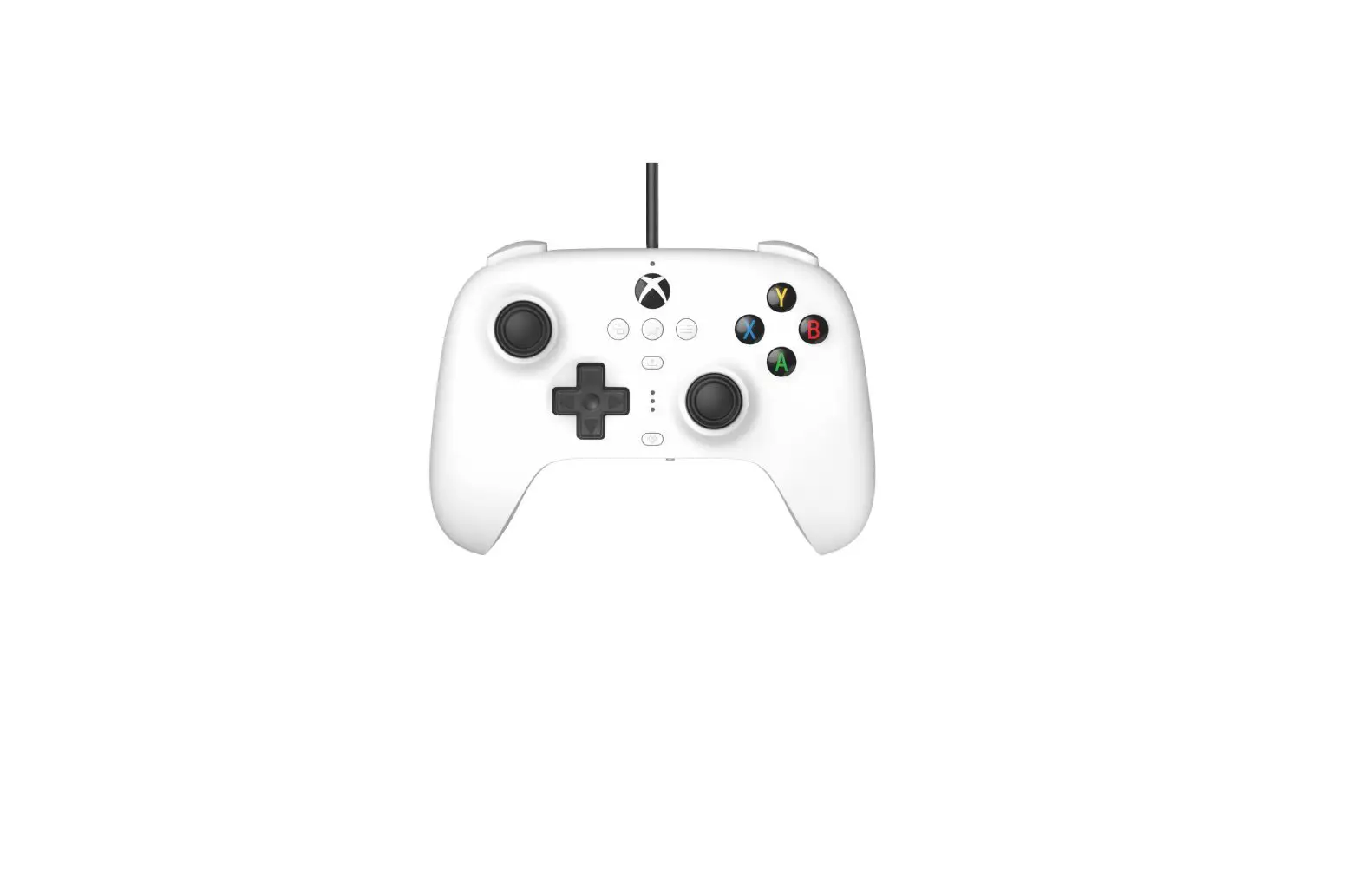
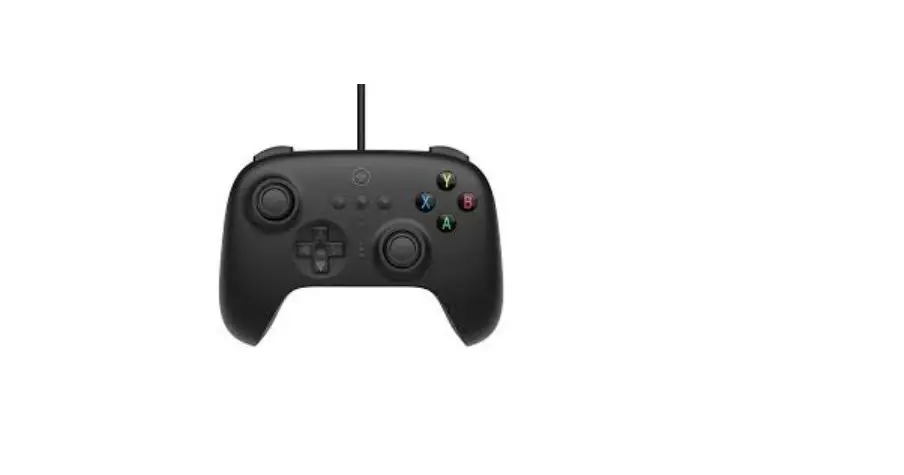
8BitDo Pro 2 Wired Controller Designed for Xbox User Manual
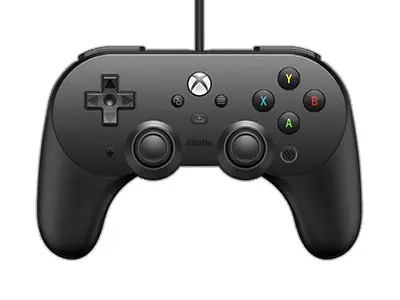
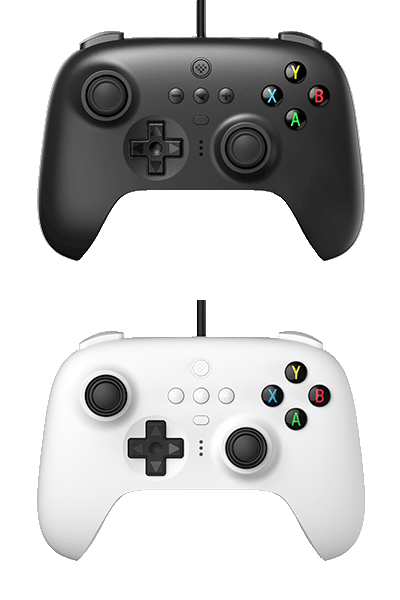
Pro 2 Wired Controller Designed for Xbox
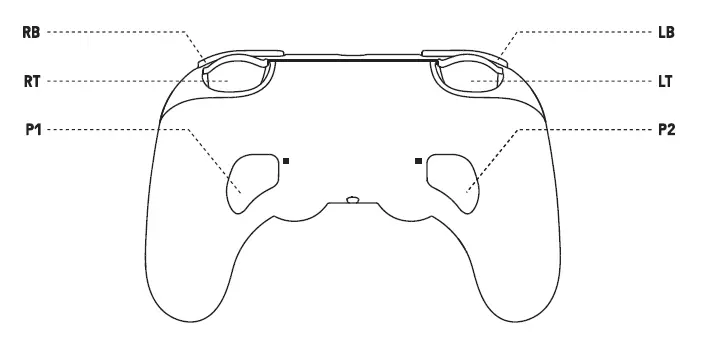
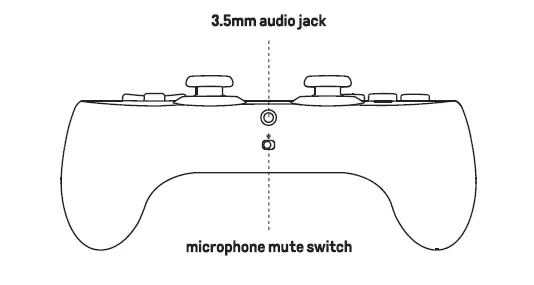
Connectivity
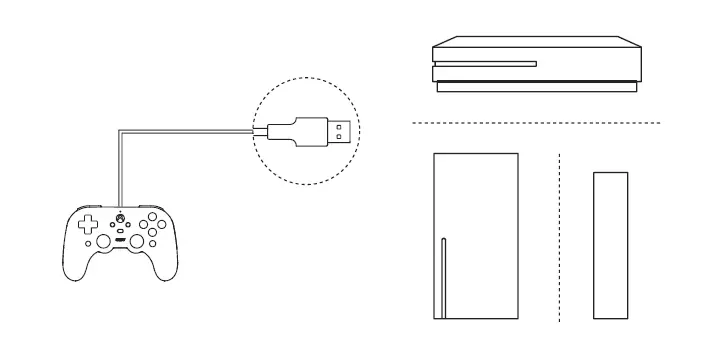
Xbox One / Xbox Series X / Xbox Series S
Connect the controller to your Xbox One and Xbox Series X/S via its USB cable. Status LED is on when the controller is successfully connected
Windows10
- Connect the controller to your Windows device via its USB cable. Status LEO is on when the controller is successfully connected
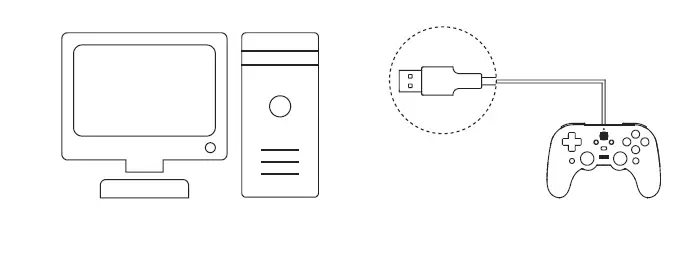
- Required system: Windows 10 or above
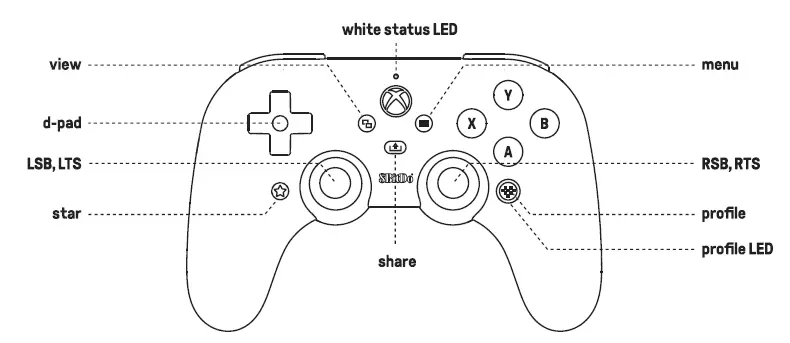
1. press end hold any two of A/B/X/Y /LB/RB/LSB/RSB buttons you would like to swap
2. press the star button to swap them,profile LEO blinks to indicate the success of the action
3. press and hold any of the two buttons which have been swapped and press the star button to cancel it
- Button mapping goes back to its default mode when controller is turned off
- Please visit support.Sbitdo.com for further information and assistance
Volume Control
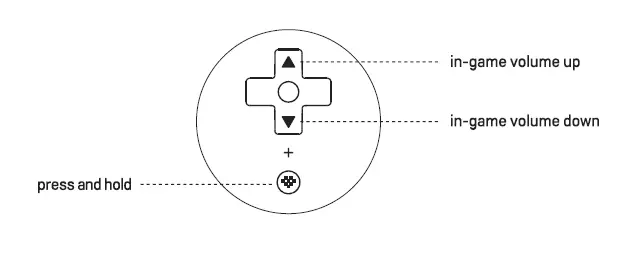
1. Press and hold profile + up/down to turn up/down in-game volume
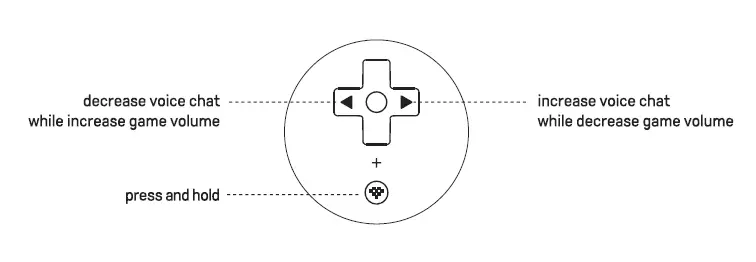
2. Press and hold profile + left/right to adjust the balance between voice chat and game volume
8BitDo Ultimate Software
Button mapping, thumb stick sensitivity adjustment & trigger sensitivity alteration
Press profile button to activate/deactivate the customization. LEO turns on to indicate the activation
- e.g. set P1/P2 buttons as L3/R3 and more
- Available on Xbox/Windows 10/Android/iOS
- Please visit Microsoft Store, App Store, Google Play or support.Sbitdo.com to download the software
Support
Please visit support.8bitdo.com for further information & additional support
FAQ – Frequently Asked Questions
It works with Xbox One / Xbox Series S / Xbox Series X consoles & PC for Window 10/11.
The length of the cable is 3 meters, which can meet most of the requirements. The front head part is a breaker, which is used to prevent the console from falling down accidentally when dragging.
ATTENTION!!! The breaker can’t make sure to prevent the console from falling effectively every time, it should also keep the controller close enough to the console even the breaker is on the cable, so as not to cause cable tension.
Make sure your earphones/headsets has a 3.5mm jack (4-segment, downward compatible with 3-segment). The 4-segment jack has the microphone function and adopted with international standard CTIA. The microphone and your earphones/headsets won’t work if it’s a jack with a 4-segment international standard OMTP. The 3-segment jack is compatible with general stereo earphones/headsets without microphone function. Please confirm the specifications of your earphones/headsets with the manufacturer before using.
About Volume Control:
Press home button(heart icon)+D-pad(↑↓) to adjust the volume in games.
Press home button(heart icon)+D-pad(← →)to adjust the balance between voice and game volume.
In the process, the controller vibrates when the volume is 50%(Default) and you can hear the beep sound when you adjust the volume to maximum or minimum.
Yes. You can use the 8BitDo Ultimate Software on Windows PC , Xbox console(Download from Microsoft Store) and Android /iOS devices. It connects the Android and iOS mobile phones with BLE wireless Bluetooth, it doesn’t interrupt the operation during the game, the settings take effect immediately and it’s much more convenient.
No. You can only do settings on 8BitDo Ultimate Software for the controller, it’s not compatible with the games on Android/IOS.
The trigger button adopted with hall sensor, the magnetic trigger button feels more evenly elastic with longer service life and accurate pressure sensing control. At the same time, the trigger button is equipped with independent rumble motor, which can be more immersive in games.
It gives you elite control over every piece of your controller: customize button mapping, adjust stick & trigger sensitivity and vibration control. The macro function is not available on this controller.
No. It only has the version for Windows PC & Xbox consoles.(From Microsoft Store)
The games that support the impulse triggers are [FORZA HORIZON 4/5] [Gear of wars 4] [Halo 4] [COD] and etc. For any further information please refer to the relevant support description of the game developer.
The controller has the quick buttons swapping feature, the keys you have set for swapping cause the LED indicator to blink when pressing. Hold either two buttons you would like to swap (A/B/X/Y/LB/RB/LSB/RSB) and then press the STAR button to enable the quick swapping function.(LT/RT are not included). Hold the buttons you have set then press the STAR button can return to the default setting.
* The swapping buttons won’t be saved after you power off and reboot the device.
It is an USB – A connector.
No, it doesn’t. Neither in the 8BitDo Ultimate Software.
No. But it has the 8BitDo Ultimate Software for iOS/Android.
Yes, it is.
No. You can only disconnect the breaker on its cable.
Yes you can. Just set L3/R3 as “Null” in the 8BitDo Ultimate Software and map them to P1/P2.
Download
8BitDo Pro 2 Wired Controller Designed for Xbox User Manual – [ Download PDF ]