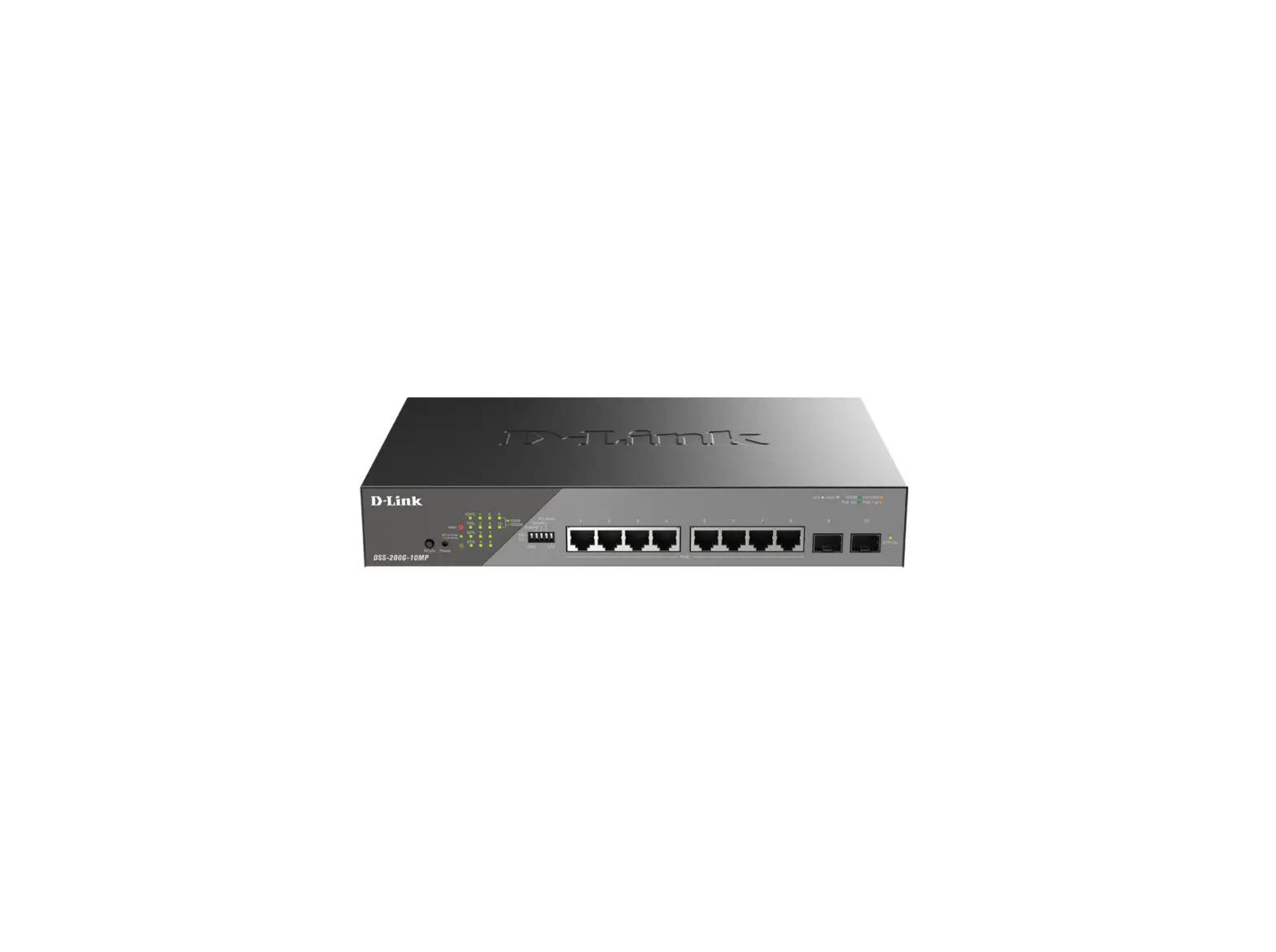
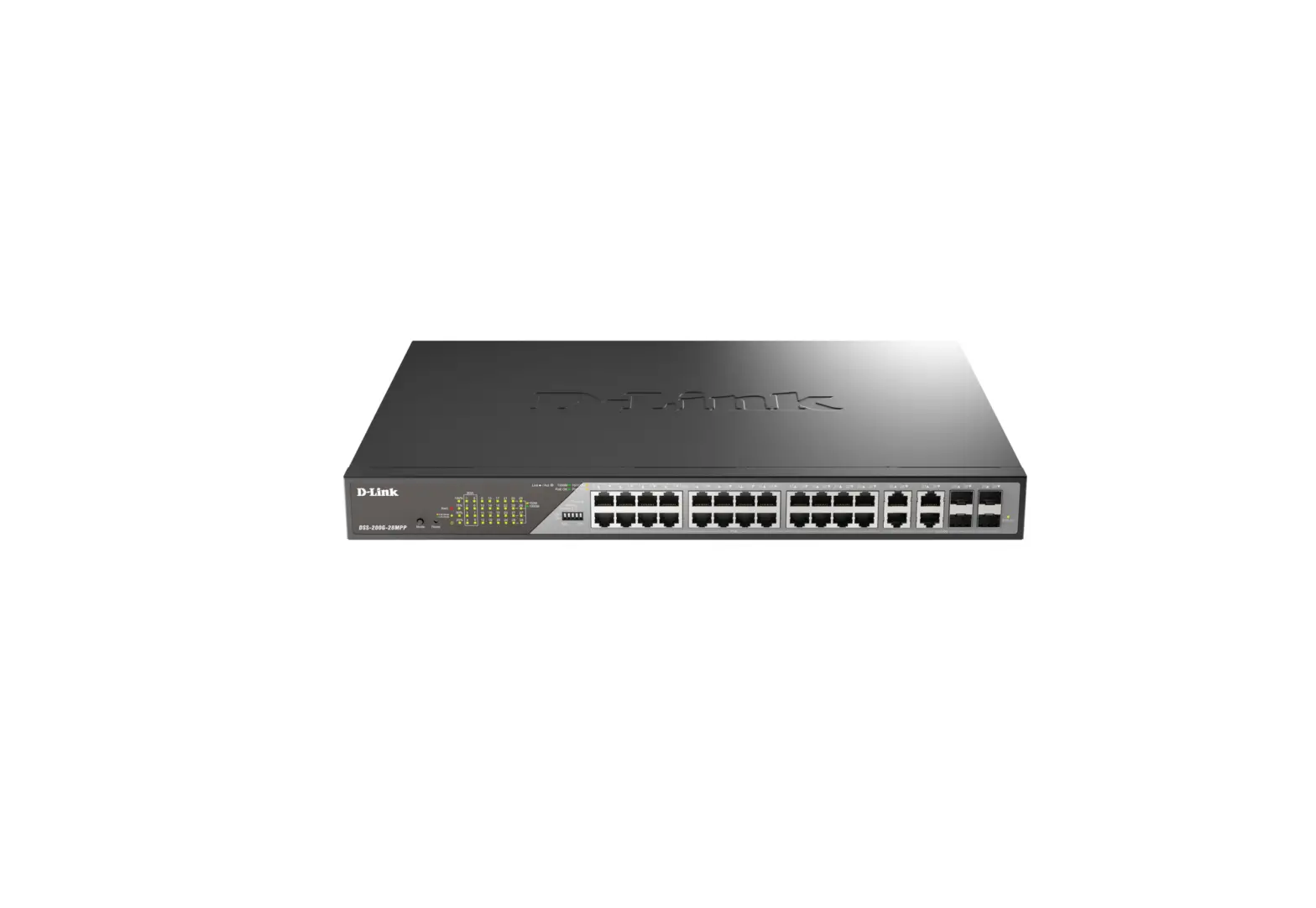
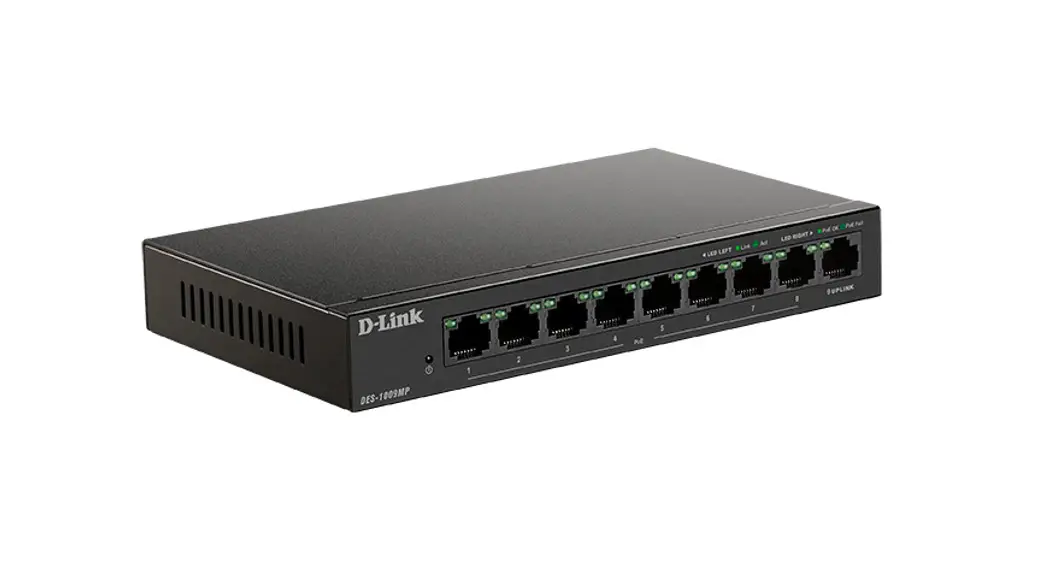
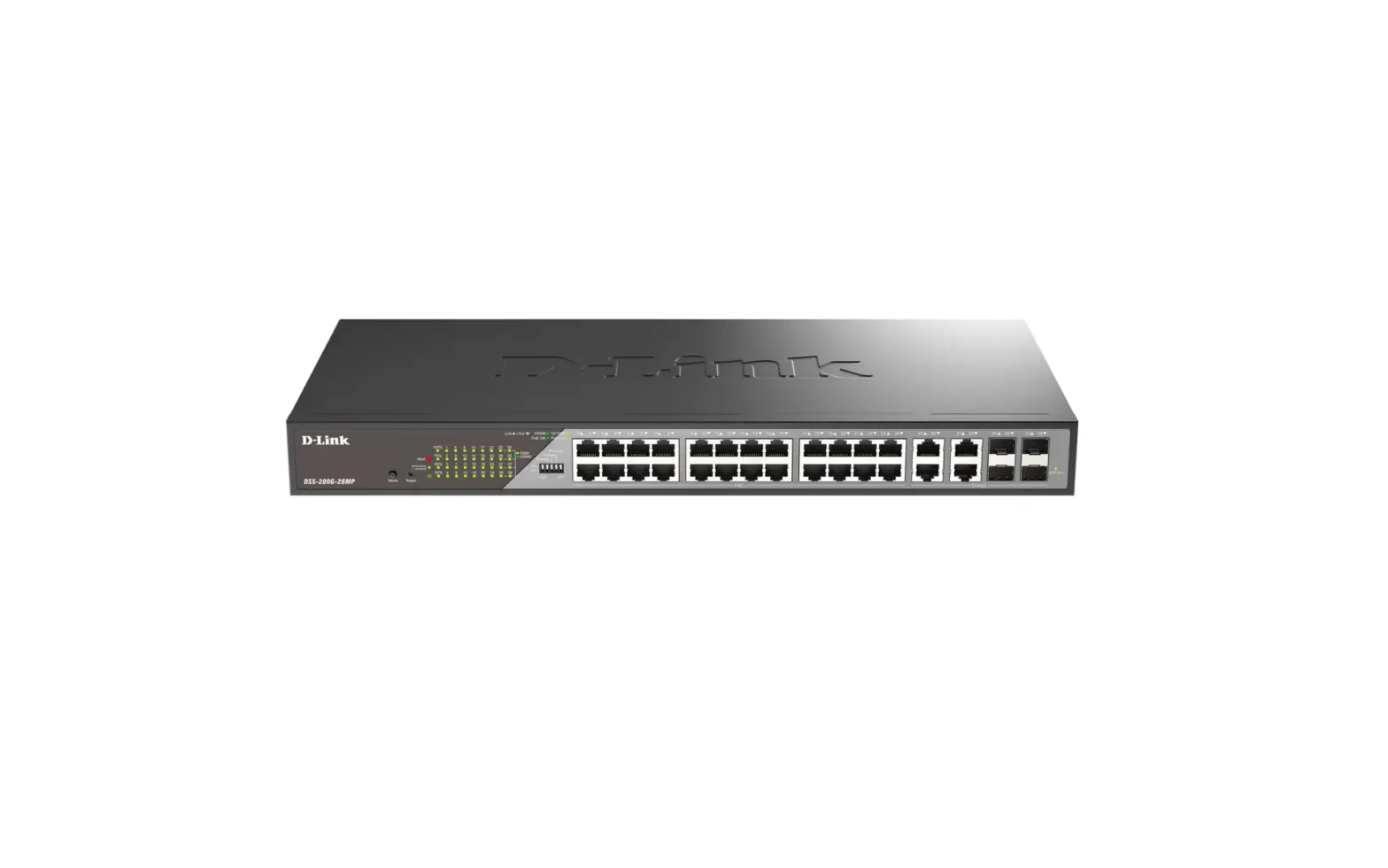
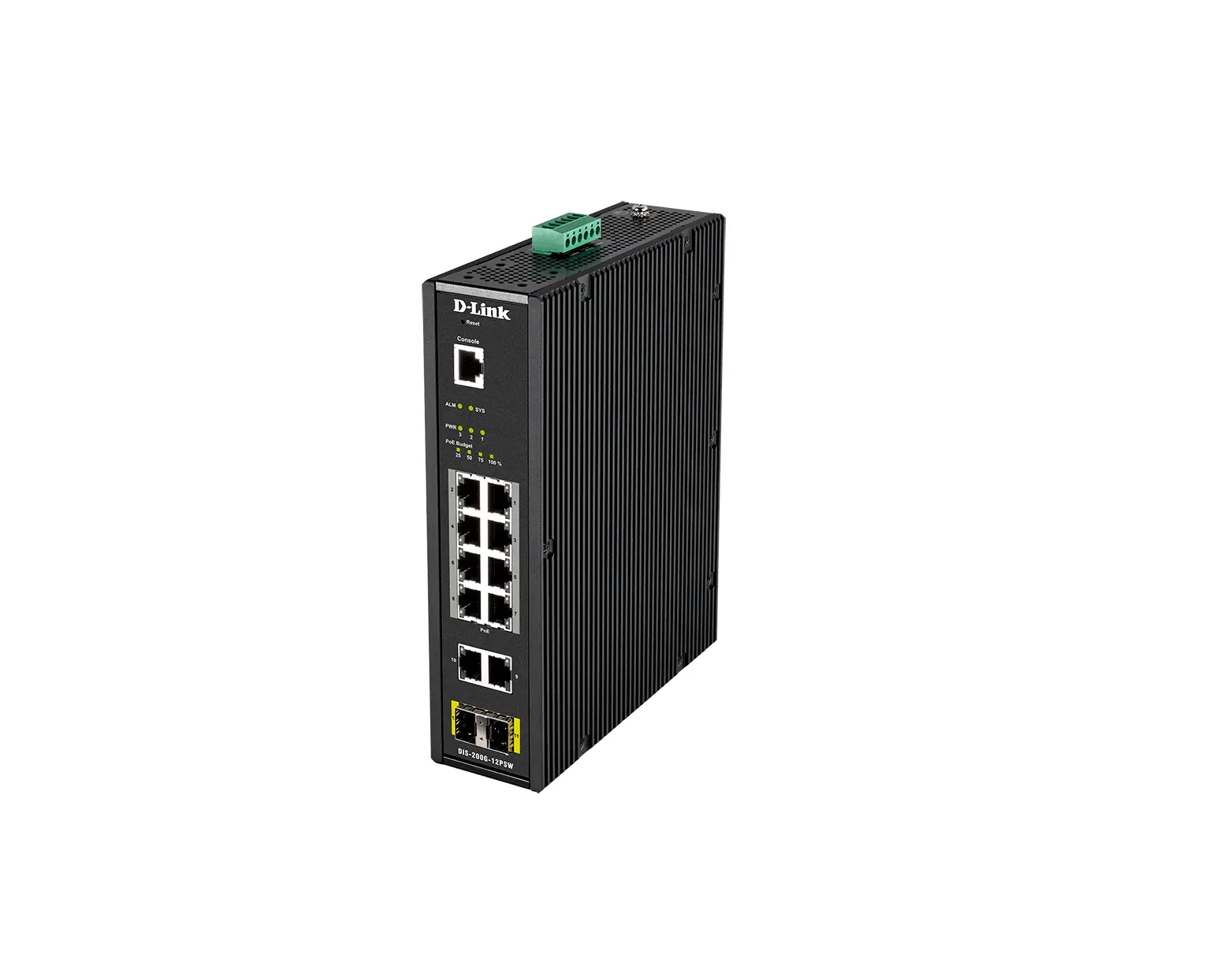
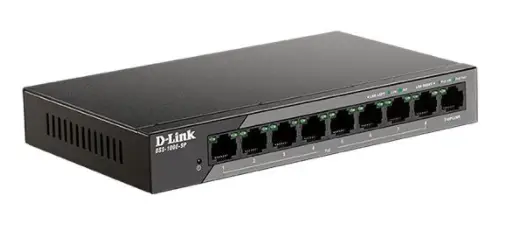
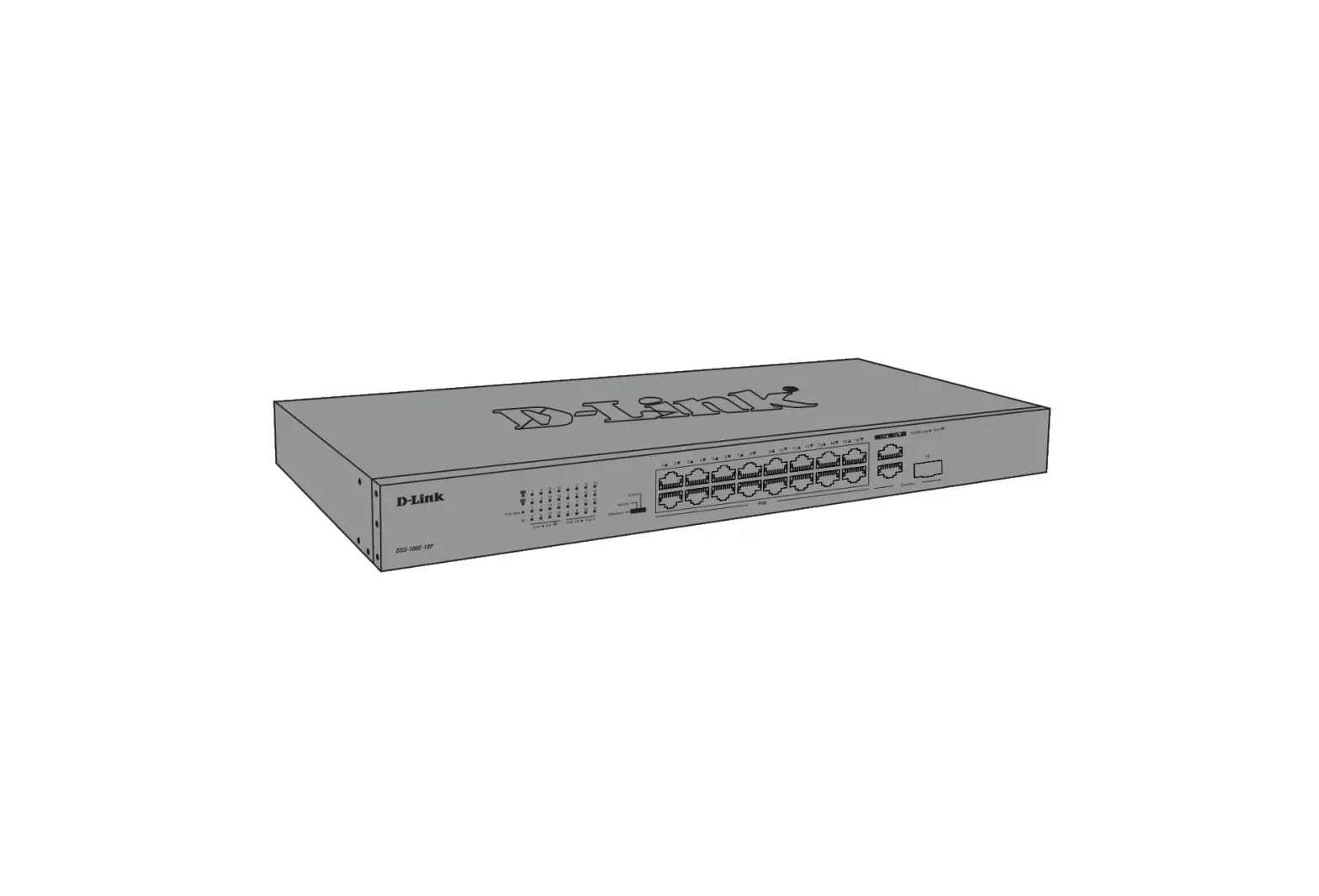
DSS-200G-10MPP PoE Switch
Product Information:
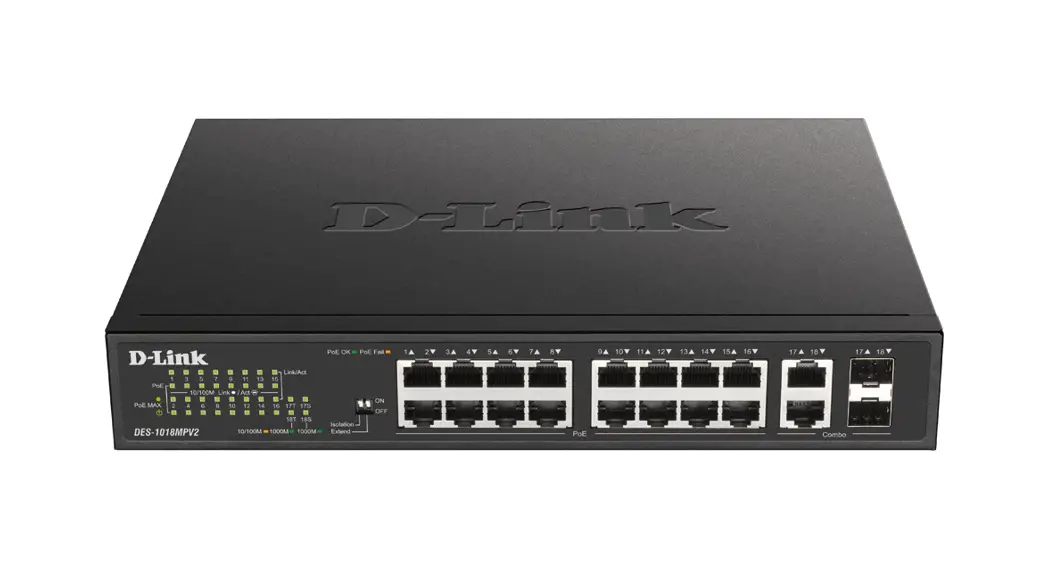
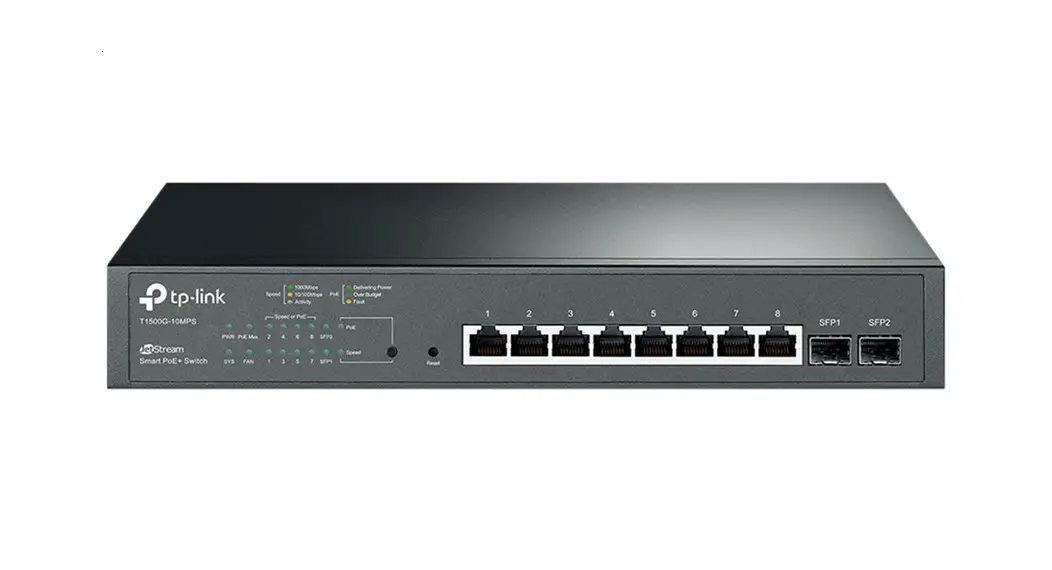
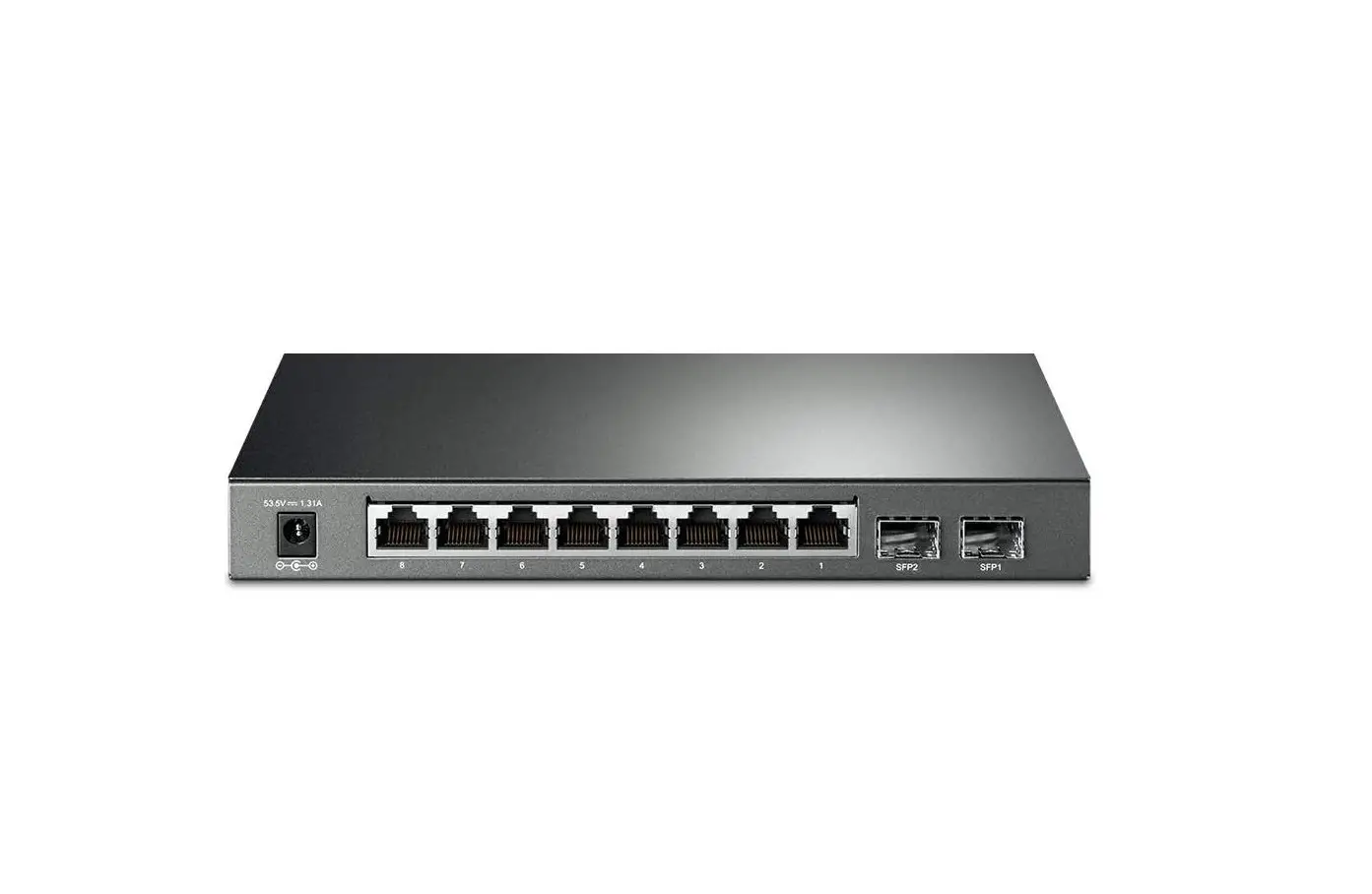
The D-Link DSS-200G-10MPP is a PoE (Power over Ethernet) switch
that features 8 10/100/1000Base-T ports and 2 1000Base-X SFP ports.
It supports L2 networking and provides PoE capabilities with
support for 802.3af/at/bt standards. The switch comes with a Quick
Installation Guide and the package contents include the
DSS-200G-10MPP switch, an AC power cord, and the Quick Installation
Guide.
Device Interfaces:
- 8 10/100/1000Base-T PoE ports (10/100/1000 Mbps connection
speed) - 2 1000Base-X SFP ports (100/1000 Mbps connection speed)
- RJ-45 Alarm port for connecting external alarm devices
LEDs:
- Power: Solid green (Power on), Light off (Power off)
- Alert: Solid red (Alert), Light off (No alert)
- PoE Mode/Link Mode: Solid amber (PoE mode/link mode), Solid
green (Link/activity/speed), Blinking green (Link/activity/speed),
Solid amber (Link/activity/speed), Blinking amber
(Link/activity/speed), Light off (No link/activity/speed) - PoE OK/PoE Fail: Solid green (PoE OK), Solid amber (PoE Fail),
Light off (No PoE status) - PoE Power Budget: Solid red (100% PoE power), Solid amber (75%
PoE power), Solid green (50% PoE power), Solid green (25% PoE
power)
Product Usage Instructions:
Installation Guidelines:
Follow these guidelines to properly and safely install the
DSS-200G-10MPP switch:
- Visually inspect the power cord to ensure it is securely
connected to the AC power connector. - Ensure there is proper heat dissipation and adequate
ventilation around the switch. - Avoid placing heavy objects on the switch.
Desktop or Shelf Installation:
When installing the switch on a desktop or shelf:
- Attach the rubber feet to the bottom corners of the device’s
base for stability. - Allow sufficient ventilation space between the device and
surrounding objects.
Figure 1:

Rack Installation:
The switch can be mounted in a standard 19-inch rack. Follow
these steps:
- Attach the mounting brackets to the side panels of the switch
(one on each side) using the provided screws. - Securely mount the switch in the rack using the screws provided
with the equipment rack.
Figure 2:

Figure 3:

Installing Transceivers into the Transceiver Ports:
The DSS-200G-10MPP switch has ports for connecting SFP
transceivers. Follow these steps to install the transceivers:
Figure 4:

Grounding the Switch:
Before powering on the switch, follow these steps to connect it
to the ground:
- Use one M4 x 6 mm (metric) pan-head screw as a ground
screw. - Ensure you have a grounding cable (not included in the
accessory kit).
D-Link DSS-200G-10MPP
PoE Switch with 8 10/100/1000Base-T Ports and 2 1000Base-X SFP Ports
L2 8 10/100/1000Base-T 2 1000Base-X SFP (8 PoE 802.3af/at/bt, PoE- 242 , 250 )
Quick Installation Guide
Package Contents
Open the shipping carton of the switch and carefully unpack its contents. Please consult the packing list to make sure all items are present and undamaged. If any item is missing or damaged, please contact your local reseller for replacement.
One DSS-200G-10MPP switch One AC power cord One Quick Installation Guide
Note: the model you have purchased may appear slightly different from those shown in the illustrations.
Device Interfaces
Port 10/100/1000Base-T PoE ports
1000Base-X SFP ports RJ-45 Alarm port
Description 8 10/100/1000Base-T PoE ports (10/100/1000 Mbps connection speed). 2 1000Base-X SFP ports (100/1000 Mbps connection speed). RJ-45 Alarm port for connecting external alarm devices.
LEDs
LED Power
Alert
Status Solid green Light off Solid red
PoE Mode/Link Mode Solid amber
Solid green
Link/Activity/Speed (per port 1-8)
Solid green Blinking green
Solid amber
Blinking amber
Light off
Link/Activity/Speed (per port 9-10)
Solid green Blinking green
Solid amber
Blinking amber
Light off
PoE OK/PoE Fail Solid green
(per PoE port)
Solid amber
Light off
Description The switch is powered on. The switch is powered off. The alarm is triggered. Switch will send out traps and logs when error event. LEDs for ports 1-8 are in PoE Mode (PoE OK/PoE Fail). LEDs for ports 1-8 are in Link Mode (Link/Activity/Speed). There is a secure 1000 Mbps connection at the port. There is reception or transmission occuring at the port. There is a secure 10/100 Mbps connection at the port. There is reception or transmission occuring at the port. No link. There is a secure 1000 Mbps connection at the port. There is reception or transmission occuring at the port. There is a secure 100 Mbps connection at the port. There is reception or transmission occuring at the port. No link. PD device insert and power feeding. PD device insert but failure occurs. No PD device insert.
2
PoE Power Budget
100% LED: Solid PoE power has reached 100%. red
75% LED: Solid PoE power 75%. amber
50% LED: Solid PoE power 50%. green
25% LED: Solid PoE power 25%. green
Installation Guidelines
This section will discuss the hardware installation guidelines that the user must follow in order to properly and safely install this switch into the appropriate environment.
Visually inspect the power cord to see that it is secured fully to the AC power connector.
Make sure that there is proper heat dissipation and adequate ventilation around the switch.
Do not place heavy objects on the switch.
Desktop or Shelf Installation When installing the switch on a desktop or shelf, the rubber feet must be attached on the bottom at each corner of the device’s base. Allow enough ventilation space between the device and the objects around it.
Figure 1 — Attaching rubber feet to the switch
Rack Installation The switch can be mounted in an EIA standard size 19-inch rack, which can be placed in a wiring closet with other equipment. To install, attach the mounting brackets to the switch’s side panels (one on each side) and secure them with the screws.
Figure 2 — Attaching rack-mount brackets to the switch
3
Then, use the screws provided with the equipment rack to mount the switch in the rack.
Figure 3 — Installing the switch in a rack
Installing Transceivers into the Transceiver Ports
The DSS-200G-10MPP switch is equipped with the ports for connecting the SFP transceivers.
Figure 4 — Inserting transceivers into the transceiver ports
Grounding the Switch
This section describes how to connect the switch to the ground. You must complete this procedure before powering on the switch. Required tools and equipment:
Ground screws: One M4 x 6 mm (metric) pan-head screw. Grounding cable (not included in the accessory kit): The grounding cable should be
sized according to local and national installation requirements. Depending on the 4
power supply and system, a 12 to 6 AWG copper conductor is required for installation. Commercially available 6 AWG wire is recommended. The length of the cable depends on the proximity of the Switch to proper grounding facilities. A screwdriver (not included in the accessory kit). You can connect the switch to a protective ground by following the steps below: 1. Verify if the switch power is off. 2. Attach the terminal lug ring of the grounding cable to the ground screw opening of the switch with the grounding screw. 3. Attach the terminal lug ring at the other end of the grounding cable to an appropriate grounding stud or bolt on the rack where the switch is installed. 4. Verify if the connections at the ground connector on the switch and the rack are securely attached.
Plugging in the AC Power Cord
Plug one end of the AC power cord into the power socket of the switch and the other end into the electrical outlet (preferably one that is grounded and surge protected). Power Failure In the event of a power failure, just as a precaution, unplug the power cord from the switch. After the power returns, plug the power cord back into the power socket of the switch.
5
, , ,
. , . (/ ), , . , , , . . . . -5 +50 °. , . ! . . / / . . , . . , . . .
5 .
c . 2 , 6 () 7 () , . : E – 2014, F – 2015, G – 2016, H – 2017, I – 2018, J – 2019, 0 – 2020, 1 – 2021, 2 – 2022, 3 – 2023. : 1 – , 2 – , …, 9 – , A – , B – , – .
D-Link.
6
. , . – , .
DSS-200G-10MPP
: .
10/100/1000Base-T
PoE
8 10/100/1000Base-T PoE ( 10/100/1000 /).
1000Base-X SFP
2 1000Base-X SFP ( 100/1000 /).
RJ-45 Alarm- RJ-45 alarm-.
Power
.
.
Alert
alarm-. .
PoE Mode/Link Mode 1-8 PoE Mode (PoE
OK/PoE Fail).
1-8 Link Mode (Link/
Activity/Speed).
Link/Activity/Speed 1000 /.
( 1-8)
.
10/100 /.
.
.
Link/Activity/Speed 1000 /.
( 9-10)
7
.
100 /.
.
.
PoE OK/PoE Fail ( PoE.
PoE)
PoE.
PoE,
PoE .
PoE.
PoE
100% PoE 100%.
75% PoE 75%.
50% PoE 50%.
25% PoE 25%.
: , . . .
– , . .
1 —
8
19- EIA, , , . .
2 —
.
3 —
DSS-200G-10MPP SFP.
9
4 —
. .
: M4 x 6 . ( ): . ( 12 6 AWG). 6 AWG. . ( ).
, : 1. , . 2. . 3. , . 4. .
( ).
. .
10
500
128
Flash-
32
8 10/100/1000Base-T PoE 2 1000Base-X SFP RJ-45
Power Alert PoE Mode/Link Mode Link/Activity/Speed ( ) PoE OK/PoE Fail ( PoE) PoE
DIP-
5 DIP-: – QoS – Extend – Isolate – PD-Alive – STP
Reset Mode
( )
IEEE 802.3 10Base-T IEEE 802.3u 100Base-TX IEEE 802.3ab 1000Base-T IEEE 802.3z 1000Base-X IEEE 802.3az Energy-Efficient Ethernet IEEE 802.3x MDI/ MDIX
20 /
Store-and-forward
MAC-
8K
. 64-
14,88 Mpps
11
512
Jumbo-
10 000
PoE
PoE
IEEE 802.3af IEEE 802.3at IEEE 802.3bt
PoE 1-8
PoE 242 ( . 90 PoE)
( x x )
280 x 230 x 44
2,05
100 240 , 50/60
267,5 ( PoE )
15,4 ( PoE )
15,4
25,48 ( 87 /)
MTBF ( )
508 112
50,6
6
( IEC61000-4-5)
1
: -5 50 °CC : -40 70 °CC
: 0% 95% : 0% 95%
cUL, UL, LVD, CB, BSMI
EMI
FCC/IC, CE, BSMI
12
– D-Link. D-Link . D-Link . D-Link , . . D-Link: 8-800-700-5465 : http://www.dlink.ru e-mail: [email protected] : – , 11494, , , , 3-, 289 , : “- ” 390043, . , . , .16 .: +7 (4912) 575-305 : , , 14 .: +7 (495) 744-00-99 e-mail: [email protected]
1.0 2023-03-13
13
 D-Link Главная