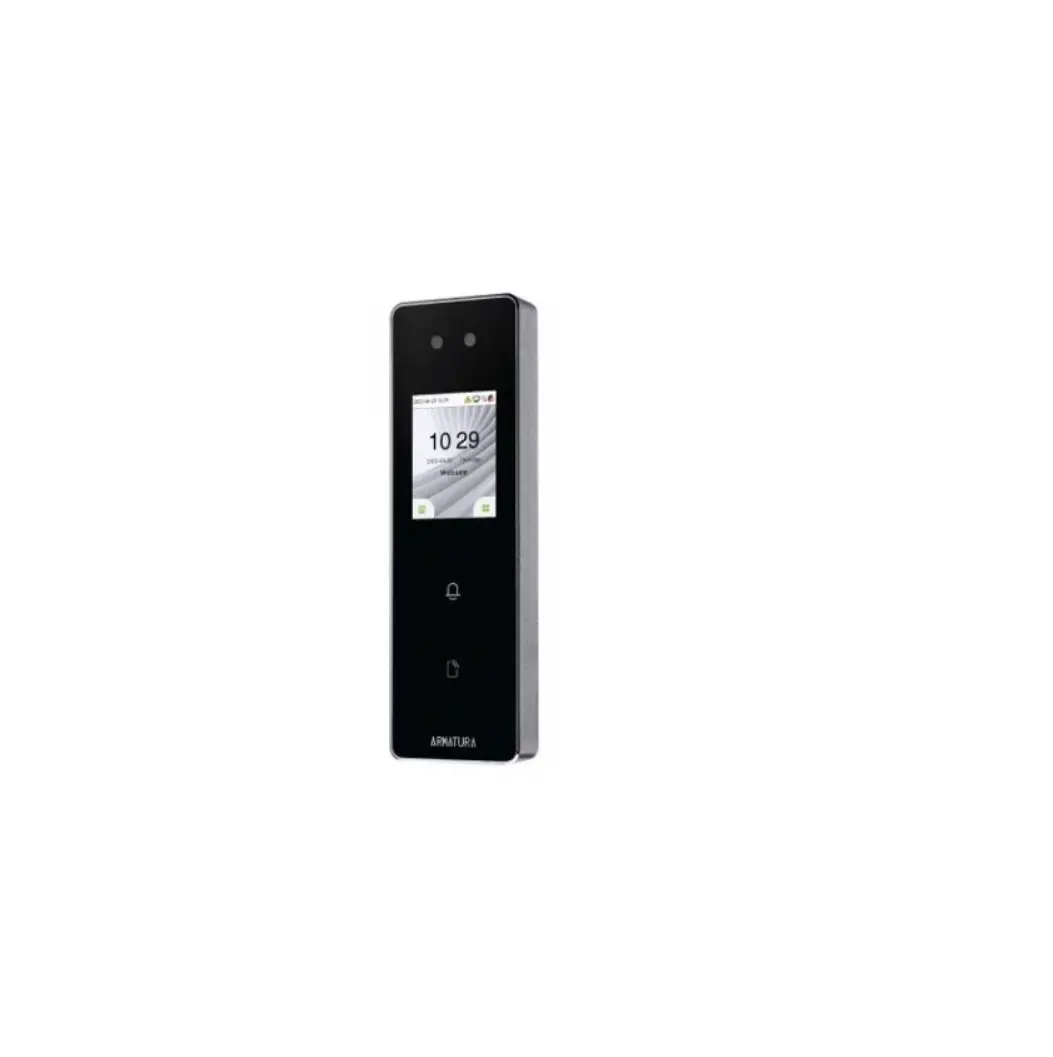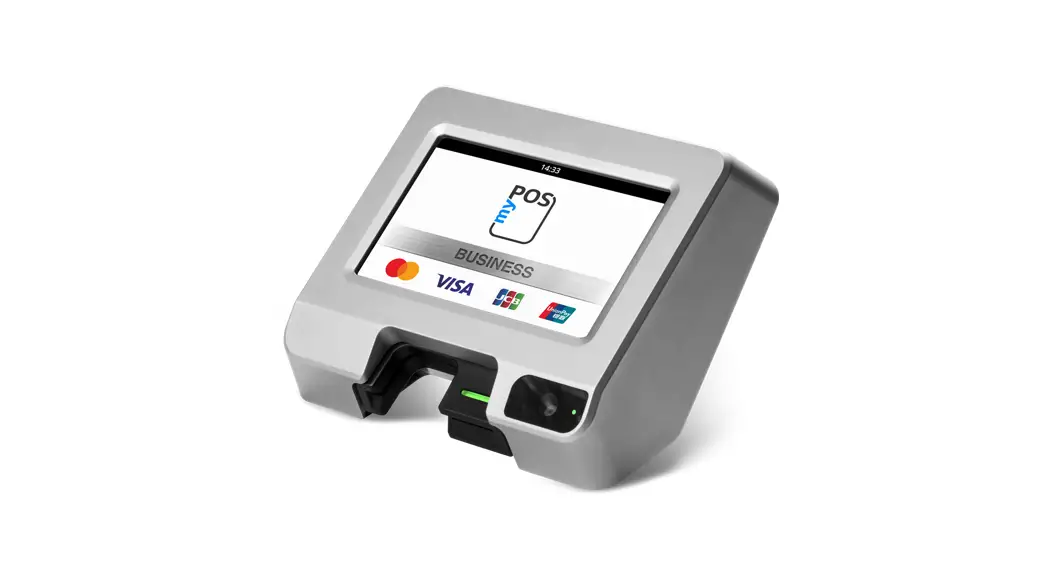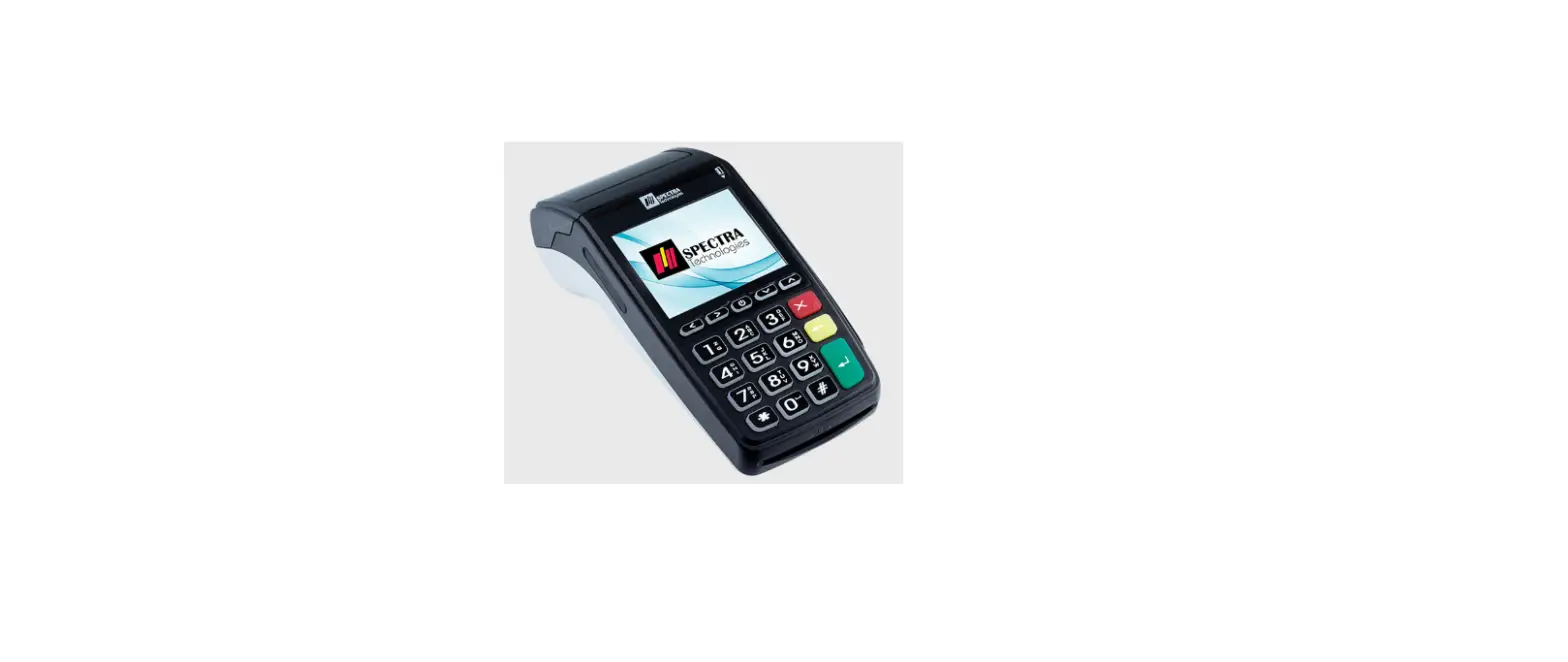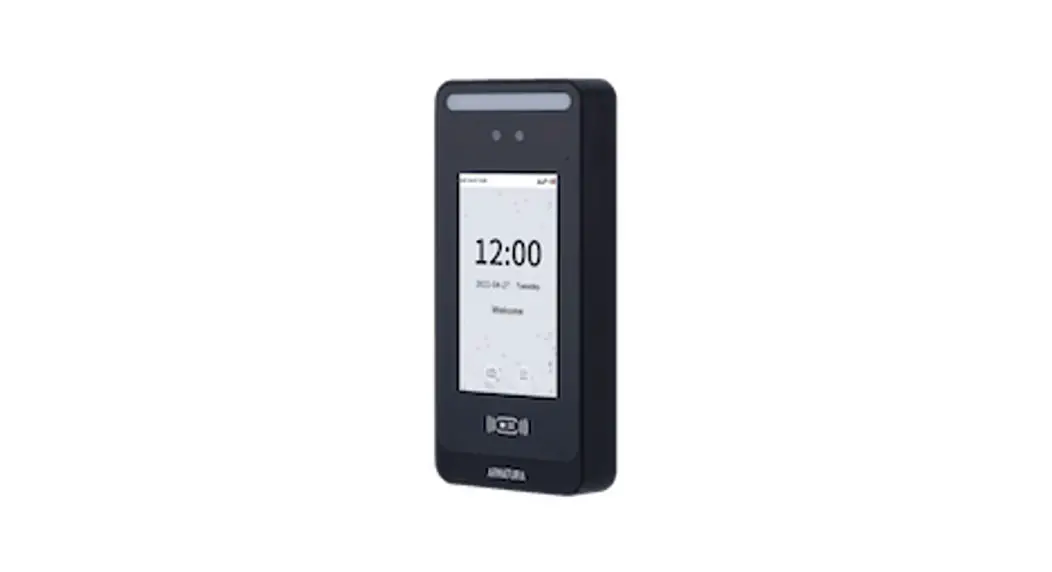
 Omni AC30 CAPQ Smart Terminal
Installation Guide
Version: 1.1
How to Install the Device?
Installation Environment
Please refer to the following recommendations for installation.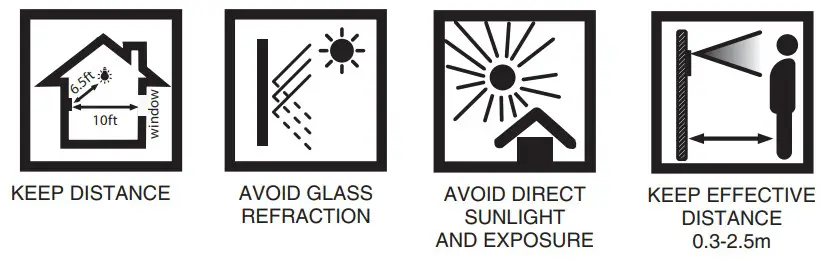 Device Installation
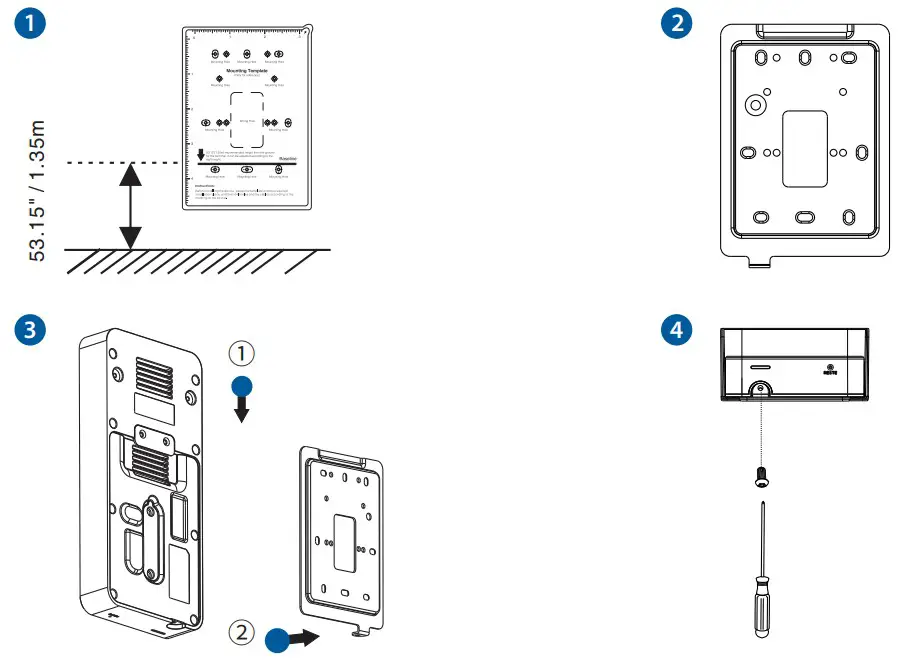
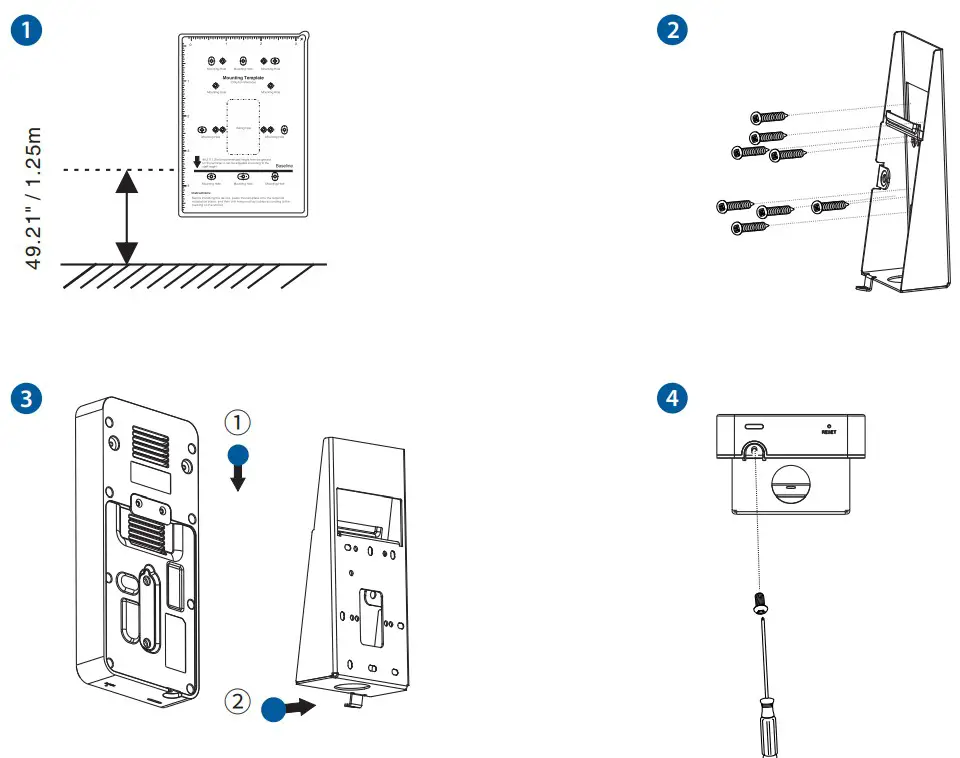
With Backplate ★:
- Attach the mounting template sticker to the wall, and drill holes according to the mounting paper.
- Fix the Backplate on the wall using wall mounting screws.
- Attach the device to the Backplate.
- Fasten the device to the Backplate with a security screw.
 With Back Cover:
- Attach the mounting template sticker to the wall, and drill holes according to the mounting paper.
- Fix the Back Cover on the wall using wall mounting screws.
- Attach the device to the Back Cover.
- Fasten the device to the Back Cover with a security screw.
Wiring Diagram
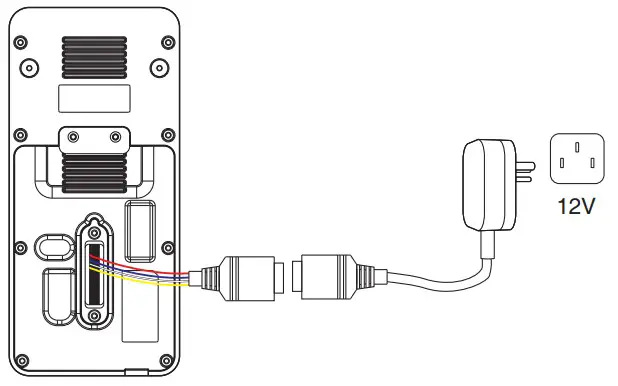
Power Connection
Recommended AC Adapter
- 12V ± 10%, at least 3000mA.
- To share the power with other devices, use an AC Adapter with higher current ratings.
 Ethernet Connection
Connect the device and computer software over an Ethernet cable. As shown in the example below: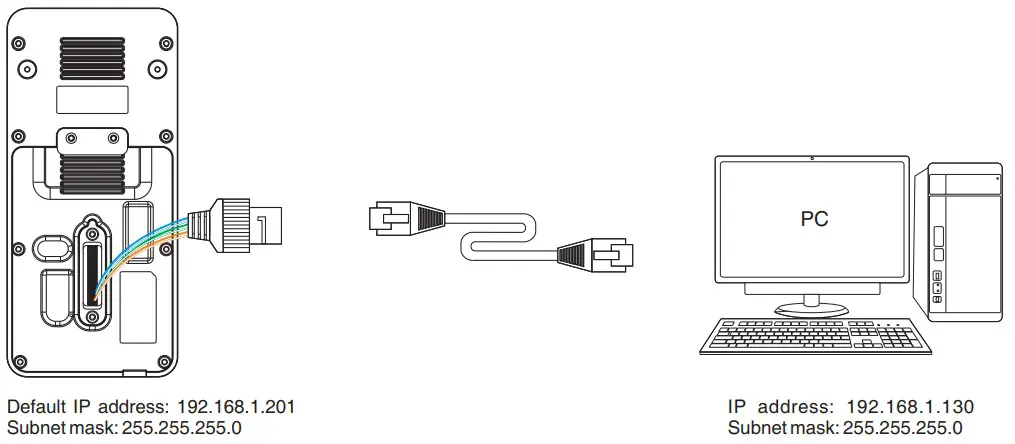 Click on [COMM.] > [Ethernet] > [IP Address] , input the IP address and click on [OK].
Note: In LAN, the IP addresses of the server (PC) and the device must be in the same network segment when connecting to the software.
Wiegand Reader and RS485 Connection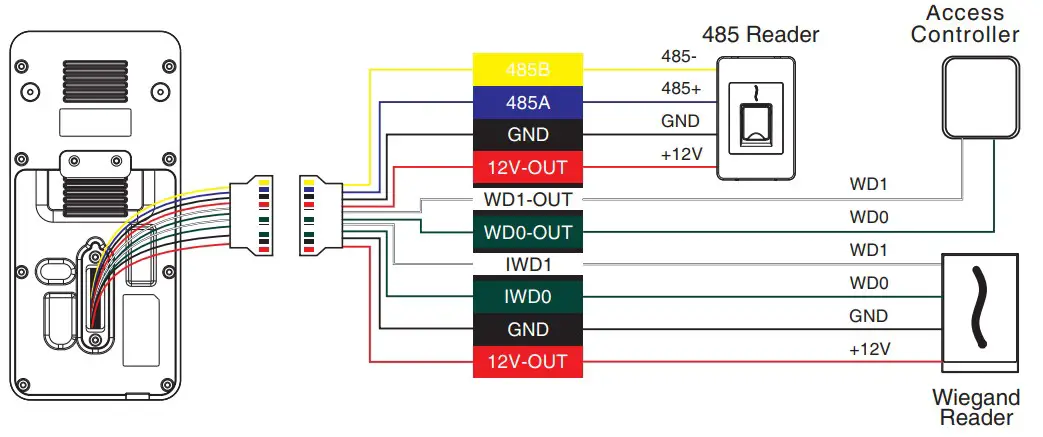 Door Sensor, Exit Button, Auxiliary Connection
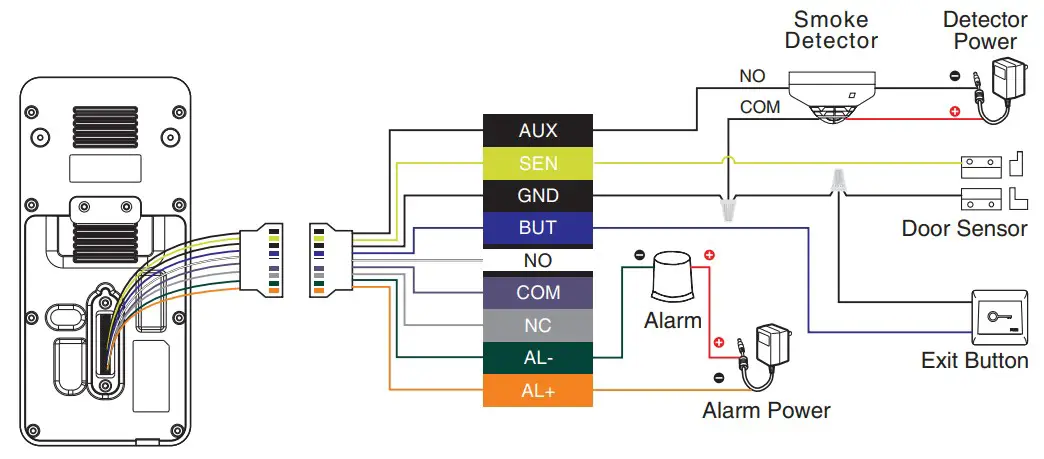 Lock Relay Connection
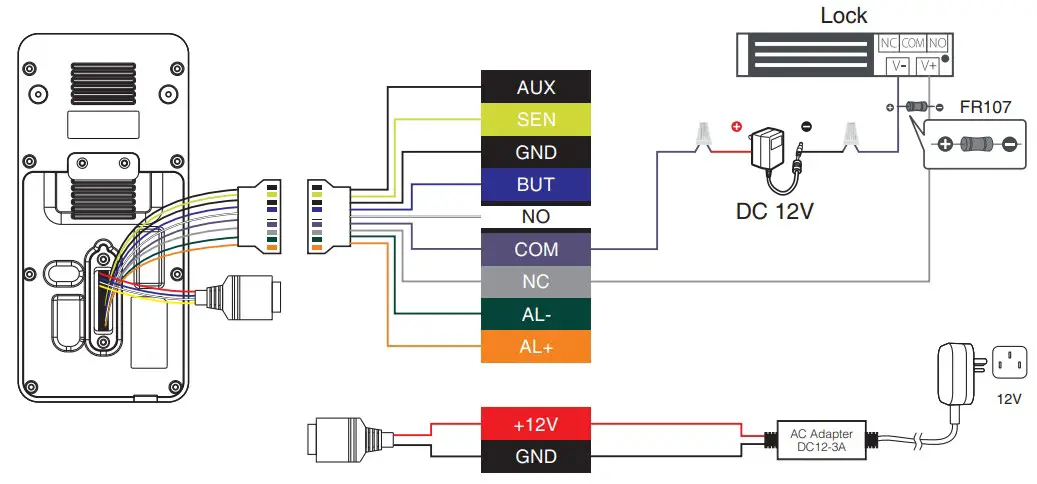
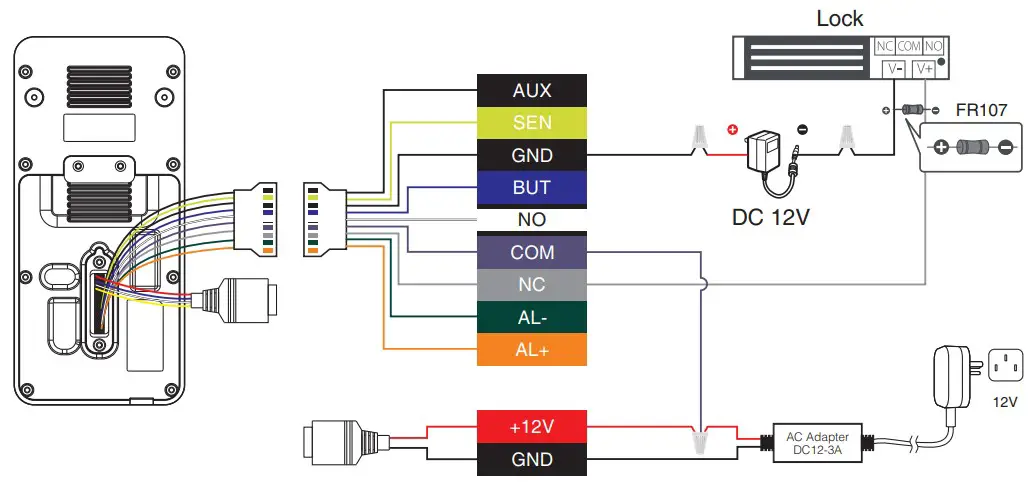
The system supports Normally Opened Lock and Normally Closed Lock.
The NO LOCK (normally unlocked when power-on) is connected with ‘NO’ and ‘COM’ terminals, and the NC LOCK (normally locked when power-on) is connected with ‘NC’ and ‘COM’ terminals. Take NC Lock as an example below:
- Device not sharing power with the lock

- Device sharing power with the lock

Printer Connection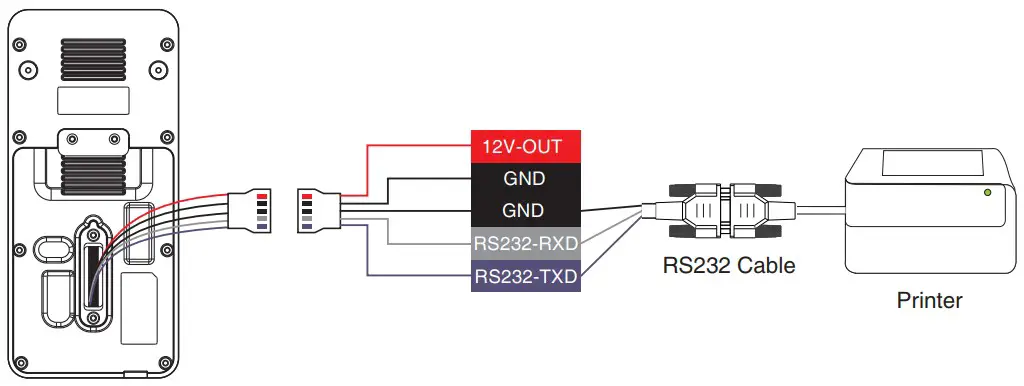
ARMATURA LLC
www.armatura.us
E-mail: [email protected]
Copyright © 2022
ARMATURA LLC.
All rights reserved.