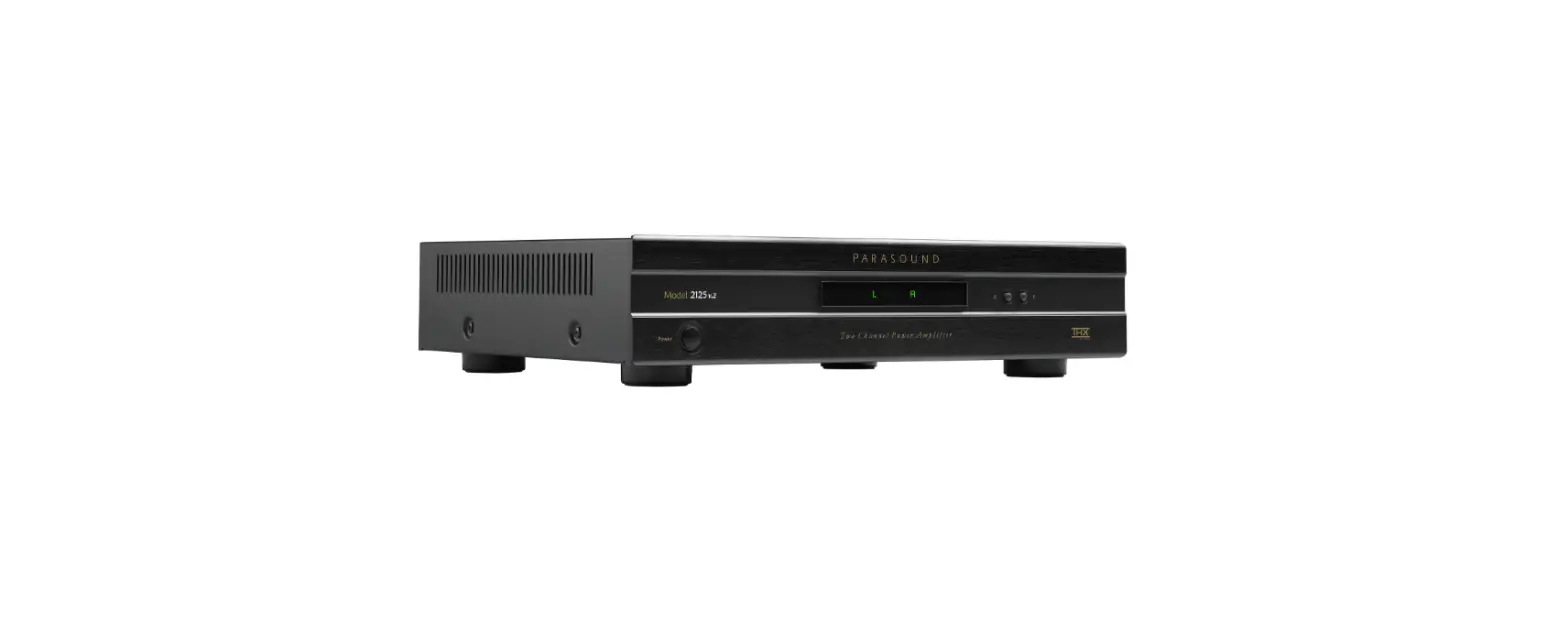
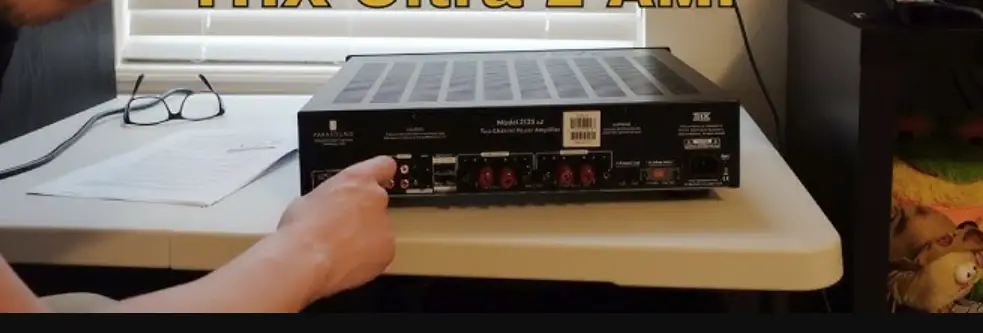
IMA-240 Forum 50W Amplifier with Two Infrared
Product Information: ForumTM (IMA-240) Sound System
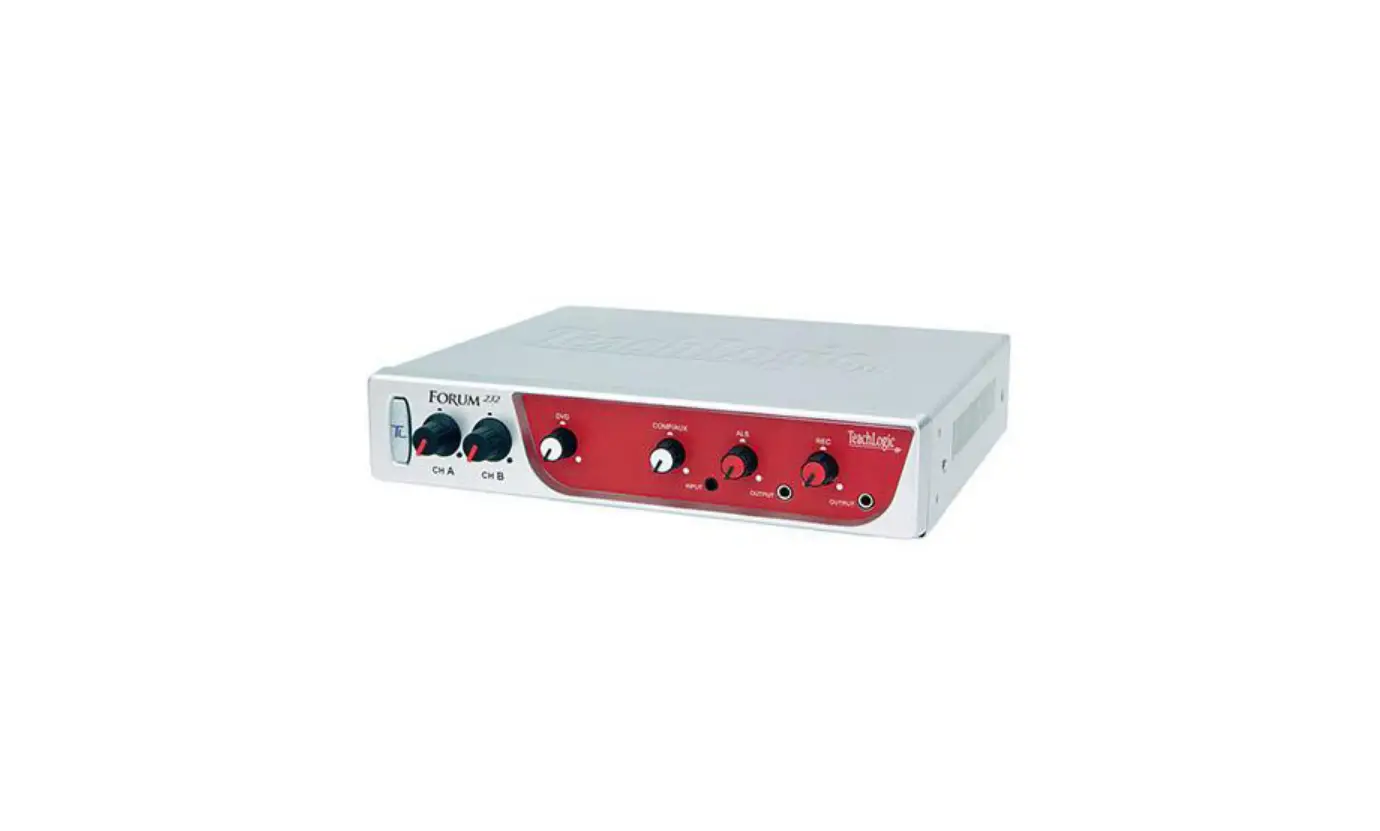
The ForumTM (IMA-240) Sound System is a classroom audio system
that includes an amplifier/receiver, battery-powered microphones,
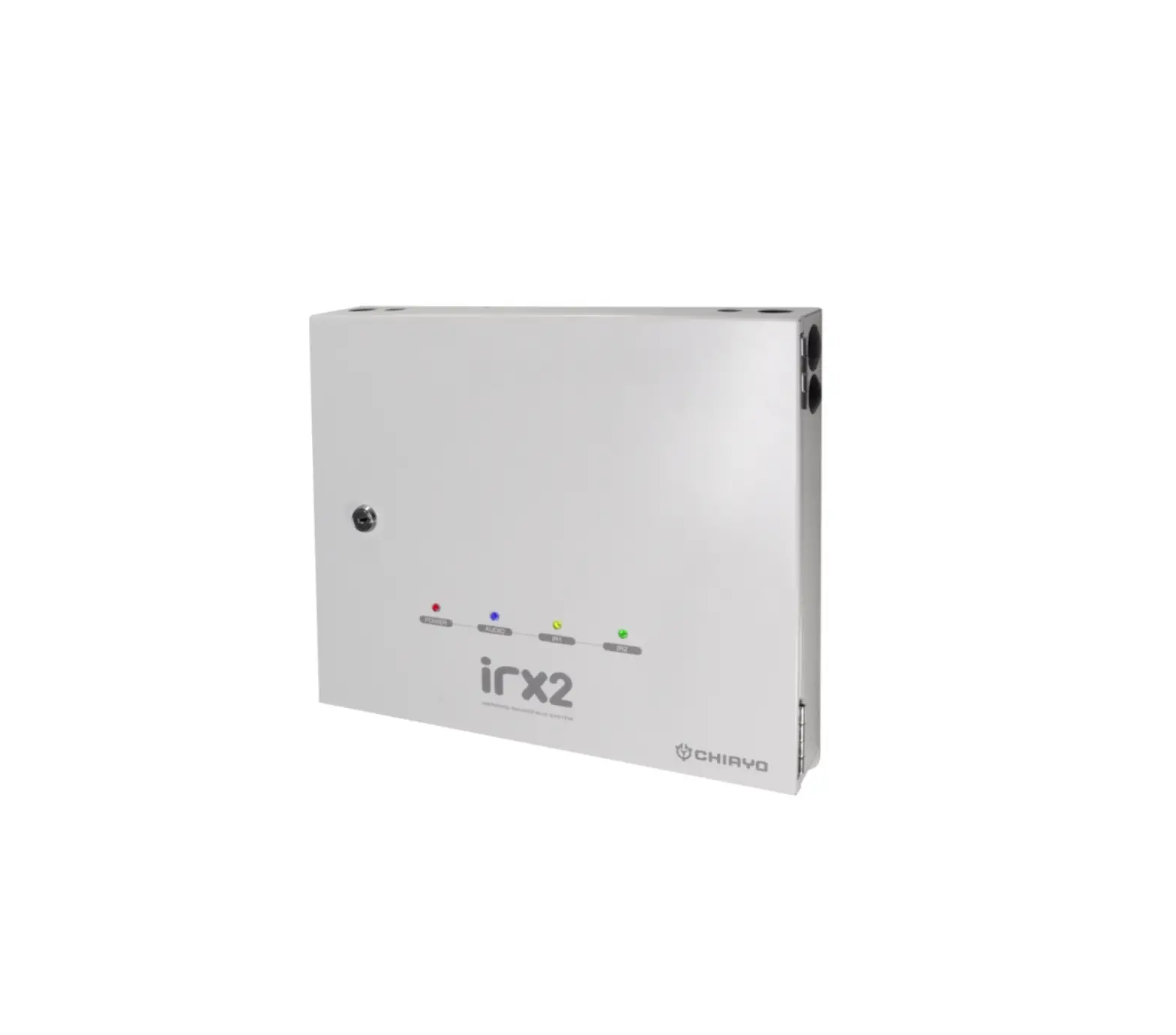
and ceiling sensor. The sound system is designed to amplify the
teacher’s voice and distribute it evenly throughout the classroom,
providing clear and consistent audio to all students. The system
includes a SapphireTM pendant microphone and a handheld microphone,
both of which are rechargeable. The system also includes an Aux
input for connecting external devices like music players.
Product Usage Instructions
Getting to Know Your Sound System
Before using the sound system, make note of the location of the
speakers and ceiling sensor in your classroom. Ensure that you have
unpacked and charged your battery-powered microphones. Keep the
Quick Start Guide handy for future reference.
Using the Amplifier
- Plug in the amplifier and turn it on by pressing the power
button. The power button will illuminate solid blue when powered
on. - Set the CH A and CH B volume controls to the 12 o’clock
position. - Refer to the markings on the amplifier/receiver or user manual
for more information on their function.
Using the SapphireTM Pendant Microphone
- Connect the lanyard to the metal clip on the SapphireTM pendant
microphone and place it around your neck. Adjust the lanyard so the
top of the mic sits on your collar bone. - Turn on the SapphireTM pendant microphone by pushing and
holding the power button until the light turns on (takes about 3
seconds). - Use the Aux input to connect external devices (like music
players) to the microphone. - Activate the security alert feature by pressing the power
button twice. The light will flash green and red, then return to
solid blue.
Using the Handheld Microphone
When using the handheld microphone, repeat the process using CH
B to set the ideal volume level.
DO NOT USE ALKALINE OR OTHER NON-RECHARGEABLE BATTERIES in the
handheld microphone.
Setting Up the Microphones
- Turn on the amplifier/receiver by pressing the power button.
The power button will illuminate solid blue when powered on. - Set the CH A and CH B volume controls to the 12 o’clock
position. - Connect the lanyard to the metal clip on the SapphireTM pendant
microphone and place it around your neck. Adjust the lanyard so the
top of the mic sits on your collar bone. Set the gain switch on the
side to Normal. - Turn on the SapphireTM pendant microphone by pushing and
holding the power button until the light turns on (takes about 3
seconds). - Check to confirm that the LED next to CH A volume control is
illuminated green, indicating IR signal is being received. - Have another person move around the room while you are talking
to verify the volume level is sufficient in each student seating
location. - Have the other person give you a thumbs up/down and adjust the
amplifier volume level accordingly until you reach the ideal
level. - While talking, walk around the room to ensure you have
reception without feedback. - Repeat this process using CH B to set the ideal volume level
for the handheld microphone.
Charging the Microphones
Ensure that both the charger and SapphireTM pendant microphone
are aligned in the same direction facing front as shown. Do not
force mics into the cradle. If using a cord (BRC-15 Mirco-USB) to
charge, disconnect it after charging is complete to maintain
battery life.
Troubleshooting
If the sensor is not receiving mic signal, refer to the user
manual or contact teachlogic.com for assistance.
Quick Start Guide – ForumTM (IMA-240)
Getting to Know Your Sound System
Make note of the location of the speakers and ceiling sensor in your classroom. Ensure that you have unpacked and charged your battery-powered microphones. Keep this guide handy for future reference.
Please note that some amplifier/receiver controls will differ. Refer to their markings, user manual, or our teachlogic.com for more information on their function.
STEP 1. USING THE AMPLIFIER
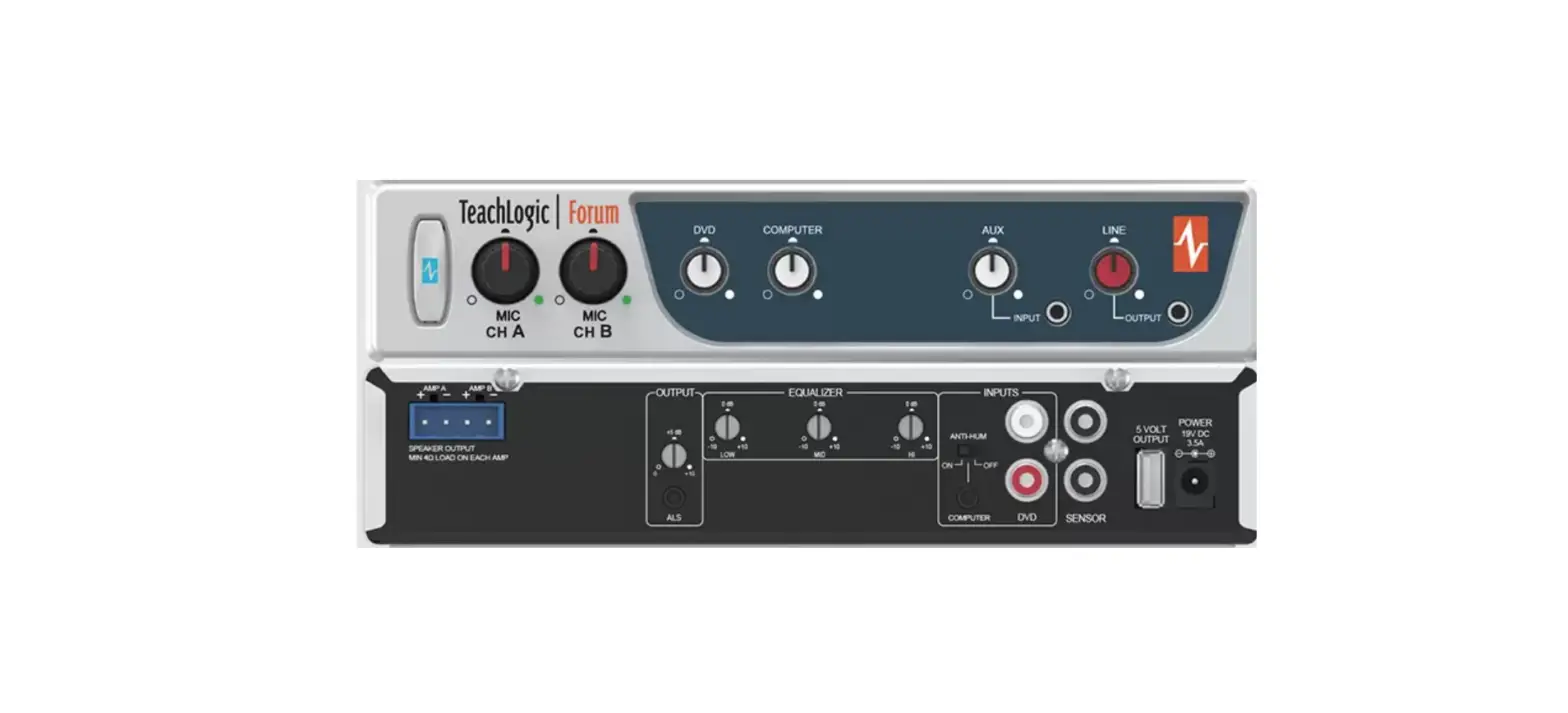
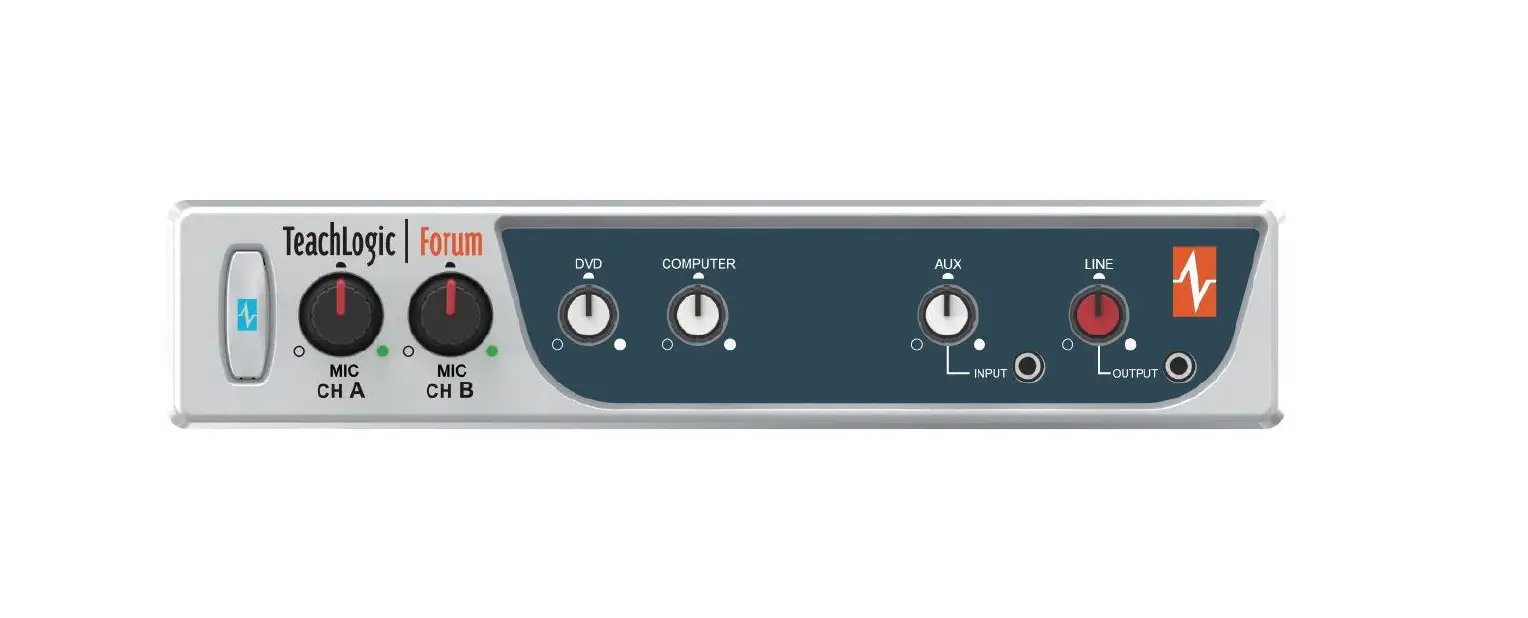
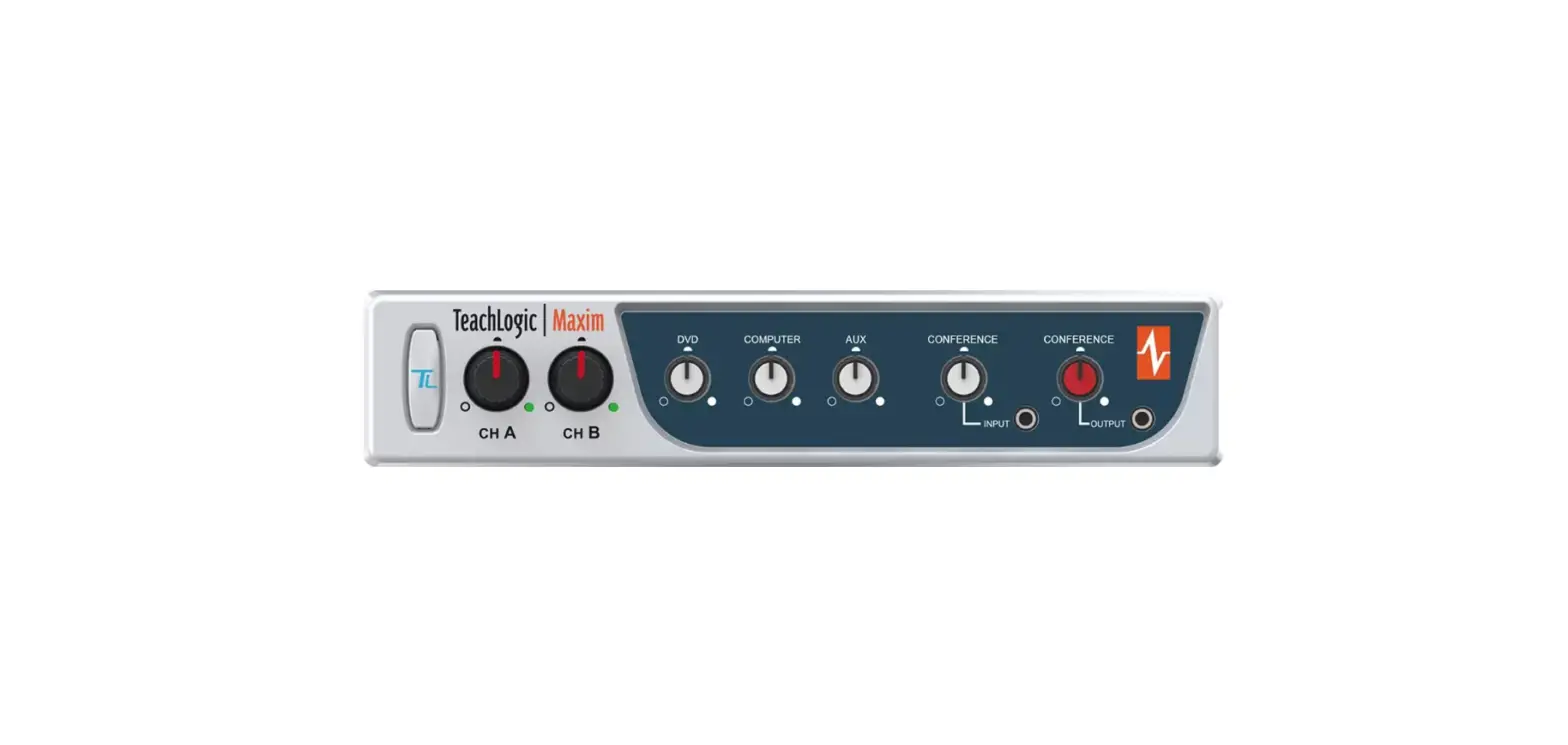
1. Power & Status Indicator · Red: OFF · Blue: ON and activated · Amber: STANDBY
1
2. Mic Channels/Volume Controls · Green light: Microphone on and connected to channel · No light: Microphone is not on; and/or sensor is not
plugged in; and/or sensor is not receiving mic signal
3. Input Volume Controls · Controls volume of connected external devices
2
3
4
5
4. Input Jack and Volume Control · Connects additional external devices to the system (ex. iPhone or mp3 player)
5. Output Jack and Volume Control · Connects devices for recording lessons · Use one input + one output to connect to computer for video conferencing
STEP 2. USING THE SAPPHIRETM PENDANT MICROPHONE
1. Power button and status indicator · No Light: OFF · Solid Blue: ON · Solid Purple: 25-50% Battery Life · Solid Red: 0-25% Battery Life
2. Power Button Function for Power & Muting
· To turn the mic ON press and hold button for 3 seconds. To turn OFF, repeat.
· Mute microphone: Tap power button once (blinking blue).
1
· Unmute microphone: Tap power button again (solid blue).
2
3. Aux Input: Connects devices (like music player) to microphone.
3
6 4,5
4. Priority Switch: Changes volume of devices plugged into amp inputs · To increase/decrease volume level: Slide button up or down · To immediately quiet volume level of external device: Push button once · To resume volume level of external device: Push button again
5. Activate Security Alert Feature (when enabled)
7
· Hold Priority Switch down for 3 seconds. The power light on the amp
will flash green & red, then return to solid blue.
6. Gain Switch · There are 3 levels to adjust your microphone volume: Normal | -3 dB | -6 dB · You may increase/reduce the volume to accommodate changes in room noise.
7. Micro-USB Charge Port (found on the bottom of the mic) · Take care to insert the charging cable right side up.
(1)
STEP 3. USING THE HANDHELD MICROPHONE
1. ON/OFF switch 2. Battery Level Indicator · Green: ON & Charged · Amber: Low Battery · Red: Very Low Battery – Recharge Soon
12
DO NOT USE ALKALINE OR OTHER NON-RECHARGEABLE BATTERIES
STEP 4. SETTING UP THE MICROPHONES
1. Power ON the amp by pressing the power button. The power button will illuminate solid blue when powered ON.
2. Set the CH A and CH B volume controls to the 12 o’clock position.
3. Sapphire Mic: Connect the lanyard to the metal clip and place around neck. Adjust lanyard so the top of the mic sits on your collar bone. Set the gain switch on the side to “Normal”.
4. Turn “ON” the Sapphire via the front switch; push and hold until light turns on (takes about 3 seconds).
5. On the amp, check to confirm that the LED next to CH A volume control is illuminated green, indicating IR signal is being received.
2 1
Normal ·3dB -6dB
6. Have another person move around the room while you are talking to verify the volume level is sufficient in each student seating location.
7. Have the other person give you a thumbs up/ down and adjust the amplifier volume level accordingly until you reach the ideal level.
8. While talking, walk around the room to ensure you have reception without feedback.
9. Handheld Mic: Repeat this process using CH B to set the ideal volume level.
STEP 5. CHARGING THE MICROPHONES
Do not force mics into the cradle. Ensure that both the charger and Sapphire are aligned in the same direction facing front as shown.
· Charging takes approx 6-8 hrs. · Battery typically lasts 8-9 hrs. · Fully charge mic before its initial use.
BRC-60 Drop-in Charger Status Indicator Light” · Blue: ON · Red: Battery charging · Green: Charging complete · Blinking Red: Faulty Battery
If using a cord (BRC-15 Mirco-USB) to charge, disconnect it after charging is complete to manitain battery life.
TROUBLESHOOTING
1. System is turned on but there is no LED indicator light · Check if system has been unplugged. · Verify that electrical outlet is generating power. 2. System has power (LED indicator blue) but no sound · Make sure microphone is on. · Ensure the mic signal indicator light is illuminated green. · Ensure ceiling sensor LED is green. If not, the sensor is not receiving power. 3. Voice is distorted or sound drops · Ensure there’s nothing between the mic and ceiling sensor (mics will not work if placed in pockets, for example). · Battery charge level may be low. Charge and retest. 4. Hum is heard w/computer plugged into Comp/Aux input · Locate the “COMP ANTI-HUM” switch on the back panel of the amp and slide to “ON”. 5. Receiver does not “wake up” from standby · Volume of external device too low when played · Microphone not on or not working properly
20230128 (2)
 TeachLogic Instructional Audio Systems - TeachLogic