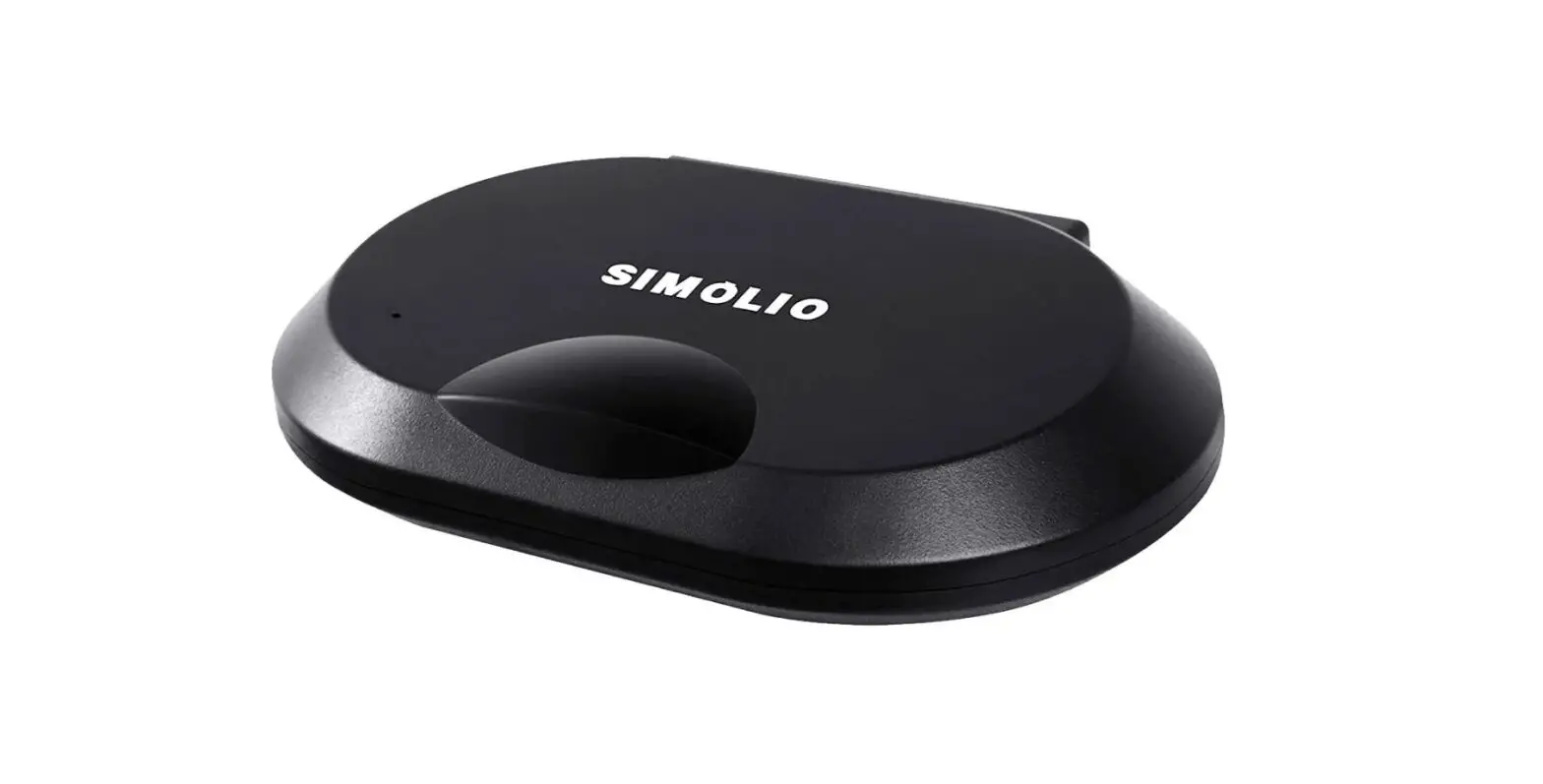
SM-264D Dual Channels Infrared Audio Transmitter
Product Information
Product Name: Dual Channels Infrared Audio
Transmitter (SM-264D)
Email for Sales & Support:
[email protected]
Compatibility: Universal infrared
headphones
Usage: Car and home
Features:
- Compatible with car DVD/TV, home TV/PC, and other audio/video
devices - Wireless listening system
- Dual channel capability for separate audio transmission
- RF interference-free
- Built-in Digital/Analog(D/A) Optical audio input
- Allows multiple IR headphones to work simultaneously
- No need for pairing or adjustment
- No interference from WiFi, mobile phones, or other electric
devices - Provides high-quality sound without the need for a digital
converter - Eliminates disturbance from noisy animated cartoons or while
watching TV/DVD
Product Usage Instructions
A. Safety Instructions
Please read and follow the safety instructions before using the
product:
- Always follow basic safety precautions to avoid electrical
shock or personal injury. - Prolonged exposure to high sound levels can adversely affect
hearing. Start with the volume turned to the lowest level. - Follow step-by-step instructions carefully to prevent any
adverse effects on hearing. - Clean the product using a soft cloth and inorganic cleaner,
ensuring the power adapter is removed before cleaning. - Use only the provided mains adapter and avoid using any other
type. - Securely install the unit on a stable surface with proper
ventilation and free space around the transmitter. - Place the unit where the power cord will not be damaged or
cause a tripping hazard. - For servicing, consult qualified personnel and do not attempt
to open the unit yourself.
B. Overview
The Simolio SM-264D Infrared Audio Transmitter is designed for
car and home use. It allows wireless listening with universal
infrared headphones on various audio/video devices:
- Car users can enjoy the car entertainment system wirelessly,
allowing rear passengers to freely enjoy the audio. - Setting two transmitters to separate channels (A and B) enables
two kids in the same row to watch different movies without
interference. - For home users, this transmitter can be combined with car
infrared headphones to create a wireless TV headphone system. - One transmitter can support multiple IR headphones
simultaneously. - The transmitter utilizes infrared technology, eliminating RF
interference and ensuring a reliable connection. - Built-in Digital/Analog(D/A) Optical audio input allows
compatibility with various digital TV/Smart TV box/Cable TV
box/Set-top box/DVD devices without the need for an additional
digital converter. - This wireless system provides a quiet and undisturbed
experience while watching TV/DVD, even in the presence of noisy
animated cartoons or sleeping children.
Sales & Support Email: [email protected]
®
Dual Channels Infrared Audio Transmitter for car and home use
(with optical in)
SM-264D
Manual
Sales & Support Email: [email protected]
SM-264D Manual
Contents
A. Safety instructions B. Overview C. Features D. Product parts E. Part function F. Transmitter Setup and User’s Instruction 1. Operation in vehicle 2. Operation for TV/cable box/Home DVD/Direct TV/WiFi TV box 3. Operation for PC/iPAD … 4. Headphones setup 5. Notes G. Technical Parameter H. Troubleshooting
[email protected]
SM-264D Manual
A. Safety Instructions
Please read and follow the safety instructions before using the product. * When using this unit, basic safety precautions as below should always be followed to avoid the
risk of electrical shock or personal injury. * Listening to uncomfortable sound levels for a prolonged period could adversely affect your
hearing. * The volume must always be turned to the lowest level before turning the unit on. Failure to do
so can result in high sound levels that could adversely affect your hearing. * Using this product inappropriately could adversely affect your hearing. Please follow the step-
by-step instructions carefully! * To clean the product, use only a soft cloth and an inorganic cleaner. Always remove the power
adapter before cleaning the product. * Only use the applied mains adapter. Do not use any other type of mains adapter. * Install the unit securely on a stable surface, well ventilated with at least 5 cm free space around
the transmitter and install the unit where the power cord will not be subject to damage or cause a tripping hazard. * Please refer all servicing to qualified personnel ONLY! Do not attempt to open the unit!
01
SM-264D Manual
B. Overview
Simolio SM-264D Infrared Audio Transmitter is especially designed to be compatible with any universal infrared headphones to turn any Audio/Vedio devices such as car DVD/TV or home TV/PC into a wireless listening system.
For car users, the rear passengers can wirelessly enjoy the car entertainments system freely.Setting two transmitters to channel A and B separately enables two kids in the same row watching different movies without interference. For home users, this transmitter combines with your car infrared headphones can make out a perfect set of wireless TV headphone system. One transmitter can support several IR headphones to work at the same time.
It’s free of the RF interference, use the speed of light infrared tech to send the audio signal from transmitter to headphones. You neither need to pair or adjust it nor need to
02
SM-264D Manual
worry about the interference from WiFi, mobile phones or other electric devices at home
Built-in Digital/Analog(D/A) Optical audio input, compatible with any brand of digital TV/Smart TV box/Cable TV box/Set-top box/DVD etc. You can enjoy top quality sound without spending extra cost on a digital converter.
Whether you are at home or on a trip, you will not being disturbed from the children’s noisy animated cartoons or you can watch TV/DVD quietly with this wireless system without disturbing sleeping children .
C. Features
1. Make your car DVD/TV having the wireless infrared audio transmitting function. A car power adapter is included. 2. Make your home TV/PC having the wireless infrared audio transmitting function. A home use power adapter is included.
03
SM-264D Manual
D. Product parts
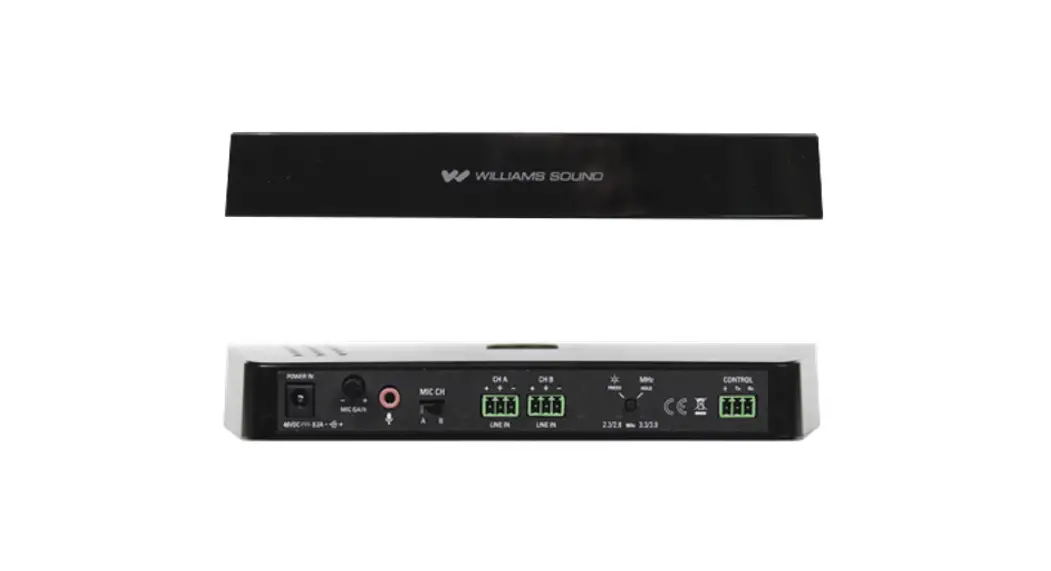
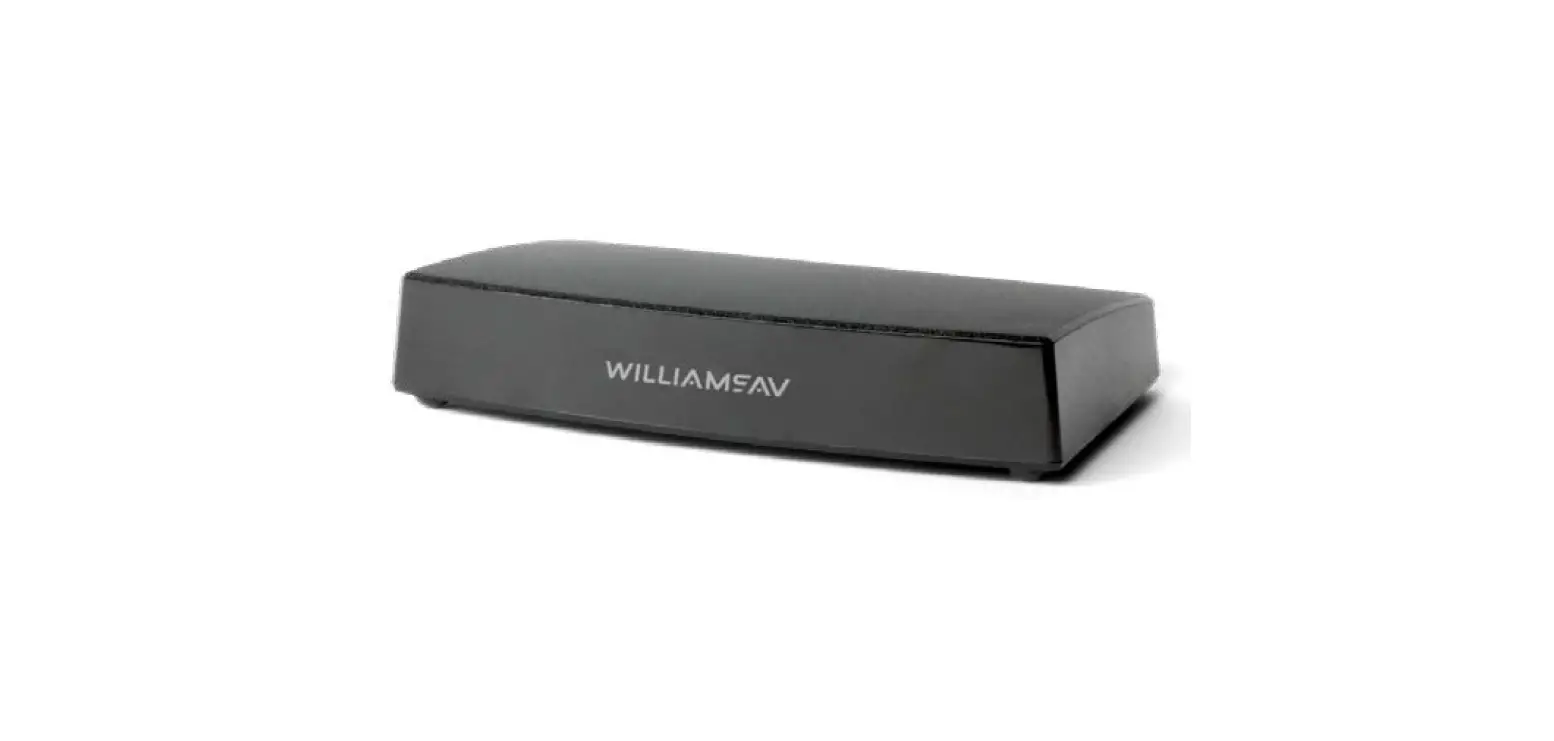
1. Transmitter
2. Optical Cable1 3. 3.5mm to 3.5mm 4. RCA to 3.5mm
audio cable2
audio cable3
DC Out: 12V/400mA DC plug: 4.0X1.7mm
AC Input: 110~240V DC Out: 12V/400mA DC plug: 4.0X1.7mm
®
Dual Channels Infrared Audio Transmitter for car and home use (with optical in)
SM-264D
Manual
Sales & Support Email: [email protected]
5. Car power adapter
6. Home use Power adapter 04
7. Manual
8. Service card
SM-264D Manual
E. Part function
Power ON/OFF
Power in (DC12V)
Channel A/B Audio in
Optical in
Working indicator Red for channel A Green for Channel B
Infrared transmitting window
F. Transmitter Setup and User’s Instruction
1. Operation in vehicle (usually use AUDIO CABLE2 connection)
Try to put the transmitter at a high place, in case the infrared ray is blocked.
05
SM-264D Manual
(1) Connect the transmitter to the audio out port (it’s the headphone’s port usually)
In the car
of the desired device (like the car DVD) DVD Player
with the audio cable2.
Single Screen Connection
(2) Power the transmitter by plugging the
car poweradapterinto the cigarette lighter plug.
(3) Switch the transmitter to A or B Channel.
(4) Switch on your wireless infrared headphones and make sure they are on the same
channel as the transmitter which is in front of you.
Note: *To watch two different movies in the same row, you need to connect two transmitters to two DVDs respectively, one of which uses channel A and the other uses channel B.
main unit1
channel A channel B
main unit2
Dual DVD connection
06
SM-264D Manual
*for aftermarket Dual screen DVD player,
we suggest to hook up the transmitter with
your main unit, and only connect the video
out RCA plug (yellow) to the secondary
main unit
screen. The main unit will not produce
sound out once the audio cords (RCA white
and red) are plugged in the secondary
screen. Remember to keep the video cord
(yellow) connected with the secondary screen.
Yellow Red
Yellow
White
Unplug audio cords
secondary screen
Dual Screen Connection
2. Operation for TV/cable box/Home DVD/Direct TV/WiFi TV box
For home users, the situation is more complex in many cases. (1) Optical Cable Connection Hook up the transmitter to the Optical Audio Out port of your TV/Set-top box/Cable TV box/Smart TV box/DVD/other audio device in priority to enjoy the super sound quality with optical cable.
07
SM-264D Manual
Power the transmitter by plugging the home use power adapter into the wall electrical outlet Switch the transmitter to A or B Channel. Switch on your wireless infrared headphones and make sure they are on the same channel as the transmitter.
NOTE: *The unit will not work with the optical audio if the optical cable is carrying a Dolby Digital or DTS signal. In this case, set the “Audio Out Format” of your TV and TV related AV devices (e.g., cable box/DVD etc) to “PCM” to get the unit to work. PS: for certain smart Samsung models, the TV is retaining separate settings for regular tv and internet tv. When you turn to the “Smart Hub” Internet source, please use the TV remote to go to Settings > Sound > Expert Settings > Audio Format, then select PCM.
08
SM-264D Manual
* Three different audio cords: digital optical cord, RCA cord and 3.5mm cord. In the end, only one of these cords is needed to complete the installation. * Don’t forget to remove the plastic caps from the ends of the optical digital audio cord before using. * If your audio source only has an optical audio out and is occupied by a sound bar, we suggest to buy an optical splitter, so you can connect your sound bar/ HiFi and the transmitter to your TV at the same time.
CAP
Smart TV
Audio Out Optical
TV Rear
Optical splitter
Optical In
Transmitter SM-264D
Power In
Optical Out
OFF ON
DC 12V OPTICAL IN AUDIO IN
B A CHANNEL
Optical In
(2) RCA Analog Cable Connection If no Optical Audio out port at your TV available. Make sure your TV/Smart TV box/ Cable TV box/Set-top box/DVD or other audio device has RCA AUDIO OUT ports available. Check the side or rear of your TV/Cable TV box. If you only watch cable TV,
09
SM-264D Manual
you can connect the transmitter to your cable TV box too. For your TV, the ports arrangement maybe different. This figure is just for reference.
At Home
Connect the transmitter to the audio out port (usually they are RCA audio out ports) of the desired device (TV/cable box/Home DVD/Direct TV box/WiFi TV box) withthe RCA audio cable3. Power the transmitter by plugging the home use power adapter into the wall electrical outlet. Switch the transmitter to A or B channel. Switch on your wireless infrared headphones and make sure they are on the same channel as the transmitter.
3. Operation for PC/iPAD…
(1) Connect the transmitter to the desired device (PC/iPAD) to the audio out port (usually it’s the headphone’s ports) with the audio cable2.
10
SM-264D Manual
(2) Power the transmitter by plugging the home use power adapter into the wall electrical outlet. (3) Switch the transmitter to A or B Channel. (4) Switch on your wireless infrared headphones and make sure they are on the same channel as the transmitter.
4. Headphones set-up
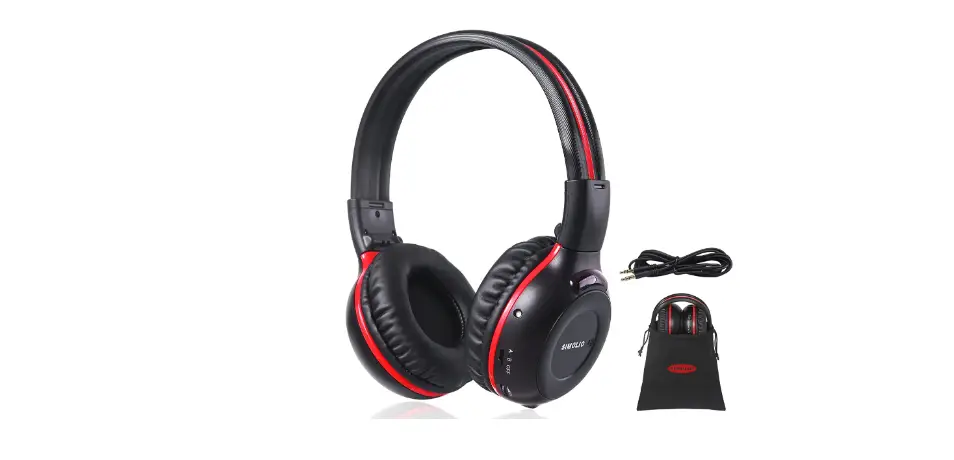
We suggest first to choose Simolio’s infrared headphones to use. For other brand headphones, some issues maybe occurred because of their quality or parameters. (1) Make sure the headphones’s batteries are powerful enough to get good receiving effect. (2) Switch on your wireless infrared headphones and make sure they are on the same channel as the transmitter. (3) For Simolio’s infrared headphones, there are automatic power off function to prevent batteries from draining. If you forget to switch the headphones off, you need to switch it off and then to the same channel as the transmitter again when using next time.
11
SM-264D Manual
5. Note
(1) Set the volume of car DVD/PC/TV and TV related AV devices (e.g., cable box, STB, DirecTV etc) to a sufficient level to ensure steady audio signal, or sound will be cut out. If you want to adjust the volume, please scroll the volume key of the headphone directly. (2) Switch off the power when the device is not in use. Unplug the power adapter from the power source if the device is not used for a long period of time. (3) When using this IR product, try to avoid any obstacles which may block the signal from transmitter to IR headphone. Adjust the position of the transmitter according to your environment in order to gain best receiving angle:
* The transmitter should be put on a high place, like the top of a TV. * The infrared window of the transmitter should face the receiver. (4) The transmitter will be in standby if there is no audio signal in after 5 minutes. When you switch on the TV or input signal, the transmitter will start to work again.
12
SM-264D Manual
(5) Also ensure that the IR headphones are within the effective distance. The IR signal being blocked or excessive distance may result in poor performance.
G. Technical Parameter
Power Supply: Car power adapter: DC out 12V/400mA, 4.0X1.7mm DC plug Home use power adapter: AC input 110~240V, DC out 12V/400mA, 4.0X1.7mm DC plug
Frequency: Channel A: L-2.3MHz, R-2.8MHz Channel B: L-3.2MHz, R-3.8MHz
Transmission Distance: <8m
No signal standby time: 5 minutes (when no signal put in, the transmitter comes into standby state automatically.)
13
SM-264D Manual
H. Troubleshooting
Part 1
Symptom
Cause
Solution
Sound cuts out
within one or
several minutes The volume of your audio source (DVD/
and then
PC/TV/Cable box etc) is set too low to get
headphone
steady audio signal.
shut off
automatically.
Set the volume of the audio source to high enough until the headphones receive a steady sound. (NOTE: If you use STB/Cable box/DVD to connect to TV to watch programs, then the audio source is the STB/Cable box/DVD.) Turn off the headphone and then select the same channel as the IR transmitter to work again.
Audio cable is not well connected with the transmitter.
Audio-out socket of the audio source is not connected.
Connect it correctly.
Connect with the correct audio-out socket of the audio source.
No Sound
The sound of audio source is not turned on . Turn on the volume of audio source.
The transmitter’s infrared window is not toward the receiving direction or it is blocked by something.
Adjust the position and direction of the transmitter, let its infrared window face the headphone’s IR window, don’t let anything block the signal.
The “Audio Out”format of your TV and TV Pls go to “Settings>Sound > Digital Audio Out> relative audio source (e.g.,TV/cable box/ Dolby Digital/PCM”, select “PCM” to work Blue-ray disc etc)are not set to “PCM”. ( menu depends on TV ).
14
SM-264D Manual
Symptom
Cause
No Sound
The headphone is not turned on or its volume is adjusted to the lowest position.
Solution
Part 2
Turn on the power, adjust the volume properly.
The headphone is not on the same channel Switch the headphone to the same channel as
as the IR transmitter.
the IR transmitter.
Some noise occurs
The headphone is out of the transmitting range.
Take the headphone near the transmitter.
The power of batteries in the headphone are too weak.
Replace them with new batteries.
There is some obstacles between the transmitter and headphone. The transmitter is put at a very low place. Deviation angle of the headphone is too large.
Move away the obstacles.
Put the transmitter at a higher place. Move the headphone to the front place of the transmitter.
Volume is The volume from the transmitter is too low. Adjust the volume of audio source properly.
low
The volume of headphone is too low.
Adjust the volume of the headphone.
15