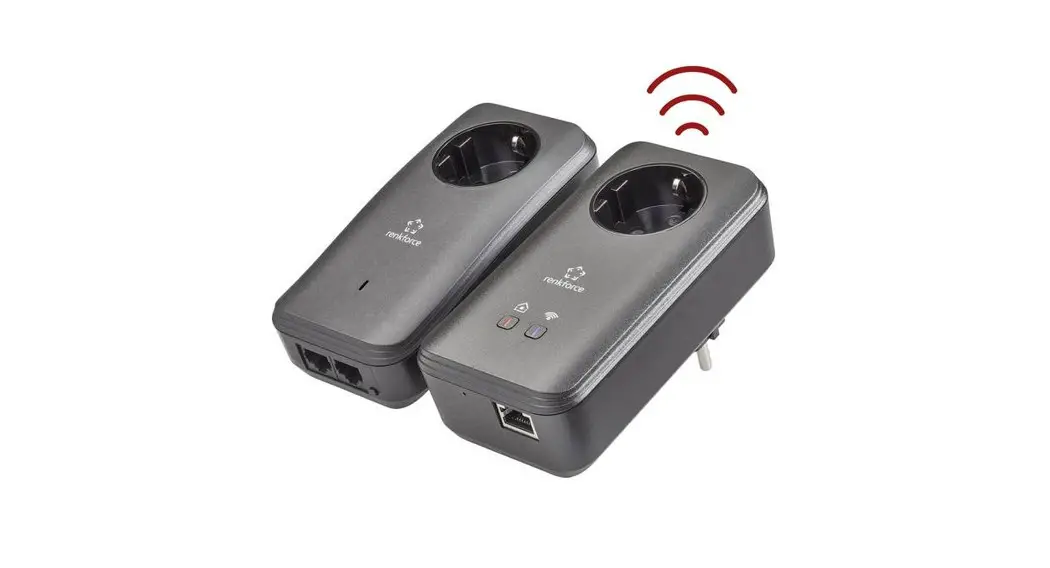
Power Line Communication Module
Product Information:
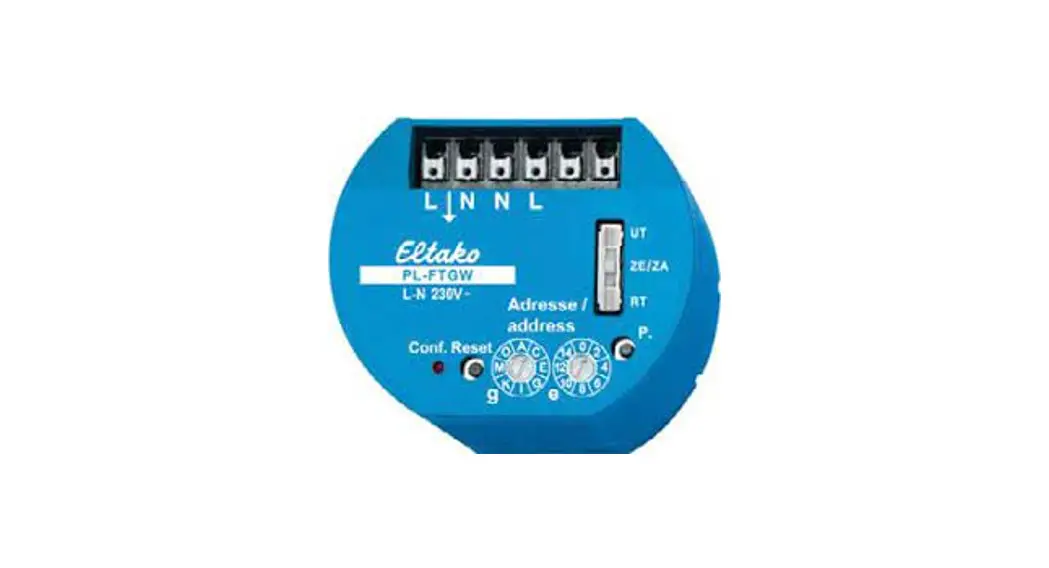
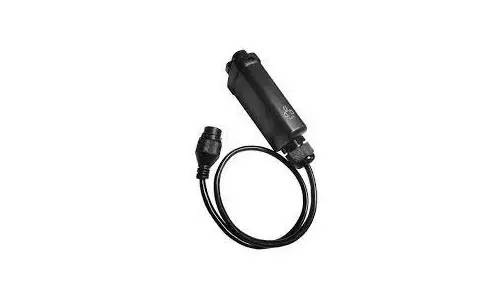
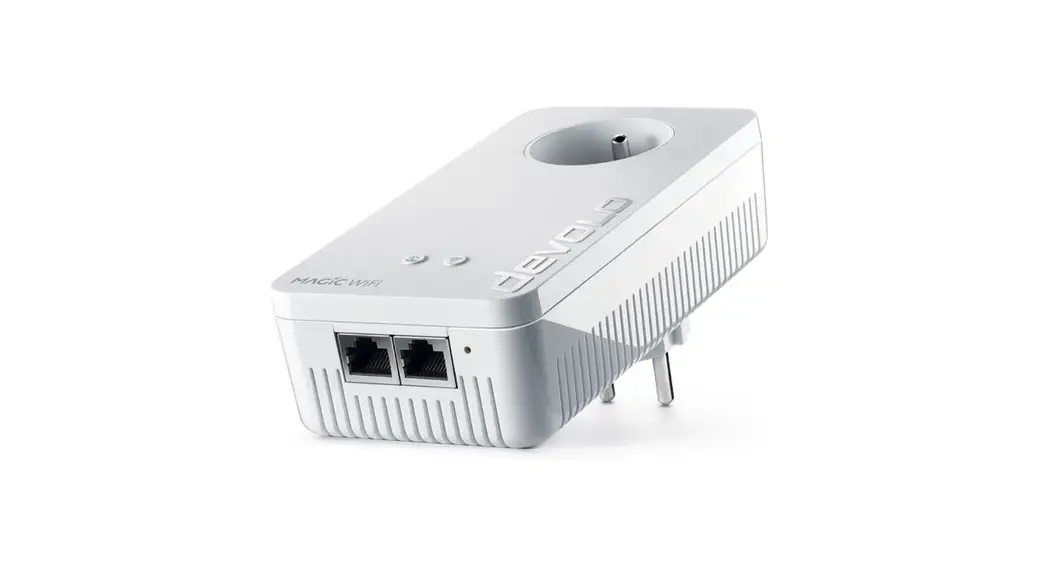
The PLC module is a device that converts a wired internet
connection (network cable) to the internet over the local power
grid. It requires a connection to the mains power cabling and a
standard Ethernet. The module is mounted on a DIN rail and should
only be connected to terminals marked L1-N and PE. Connecting the
PLC module to the 3-phase power or using L2 or L3 terminals can
reduce signal strength. The PLC module can be configured using the
Zaptec App.
Product Usage Instructions:
- Open the Zaptec App and log in with your Zaptec account.
- From the Home screen, tap the … at the
top-right. - Select Configure product and connect to the charger
with Bluetooth. - Scroll down to Network settings and tap Configure
PLC. - Tap Scan Network Name.
- Use the camera to scan the QR code on the PLC module or upload
an image from the gallery. - Tap Save to connect to the network.
- Repeat these steps for each charging station to be connected to
the PLC module.
Note: For installations with multiple PLC
modules, make sure to encrypt the PLC to belonging chargers.
Status Light Indicator:
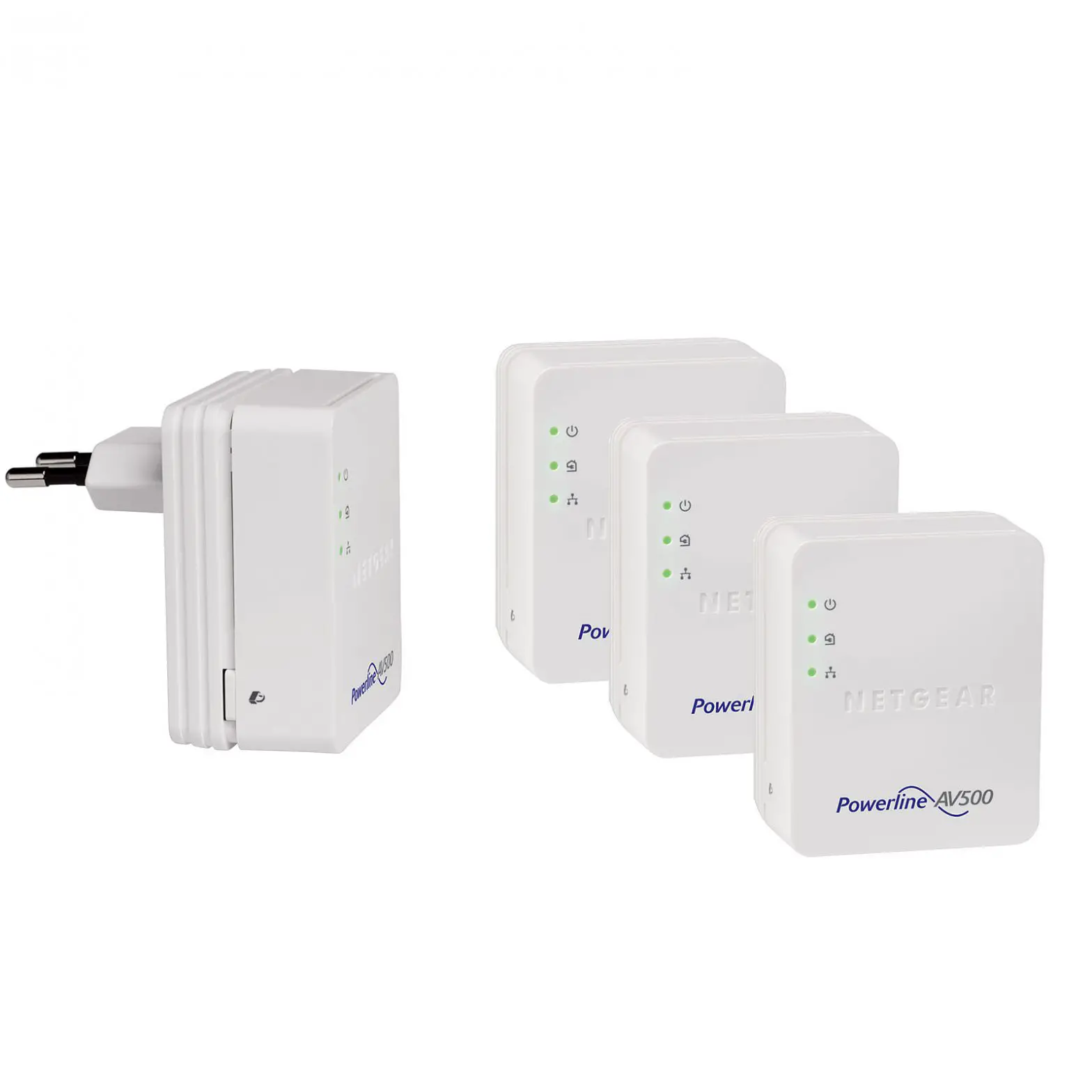
- Green: PLC is connected to power.
- No Light: PLC is not connected to power.
- Red: PLC communicates with charger(s).
- Green: PLC is not communicating with other
units on the PLC network. This could be because the chargers are
not encrypted with the same encryption key as PLC. - Green: PLC is connected to the network
router. - No Light: PLC is not connected to an open port
on the router. Even though it is communicating with the router, it
does not have access to the internet.
If you encounter any issues, please refer to the troubleshooting
section at zaptec.com/PLC. For
further assistance, you can contact our technical support team at
+47 919 03 676.
PLC Installation Guide
The PLC module converts wired internet connection (network cable) to the internet over the local power grid.
Installation
The PLC module is mounted on a DIN rail. It requires a connection to the mains power cabling and a standard ethernet. Only use connection terminals marked L1- N, PE
Connecting the PLC 3 phase or using L2 or L3 will extend the cable length which can reduce the signal strength.
To ensure reliability: · Minimum one PLC module for each circuit · Each PLC can support up to 30 chargers · Install the PLC module in an enclosure near the charging stations. Network cable should not exceed 90 meters · Remove/ isolate noise sources from network
Connection TN system
Connection IT system
Configure the PLC module
After installation, the PLC module must be configured in the Zaptec App.
1. Open the Zaptec App and log in with your Zaptec account
2. From the Home, tap the
at the top-right
3. Select “Configure product ” and connect to the charger with Bluetooth
4. Scroll down to Network settings. Tap “Configure PLC”
5. Tap “Scan Network Name”
6. Use the camera to scan the QR code on the PLC module or upload image from
gallery
7. Tap “Save” to connect to network
Repeat these steps for each charging station to be connected to the PLC module.
Note! For installations with more than one PLC module, be sure to encrypt the PLC to belonging chargers
Status light indicator
Green
PLC is connected to power
No Light PLC is not connected to power
Red
PLC communicates with charger(s)
Green
PLC is not communicating with other units on the PLC network. This could be because the chargers are not encrypted with the same encryption key as PLC
Green
PLC is connected to network router
No Light
PLC is not connected to open port on router. Even though it is communicating with router, it does not mean it has access to the internet.
Support
If you discover an issue, please read our troubleshooting section at zaptec.com/PLC If you have any further questions feel free to contact our technical support team at: +47 919 03 676