 SUPERVISION USER GUIDE
PACKING LIST
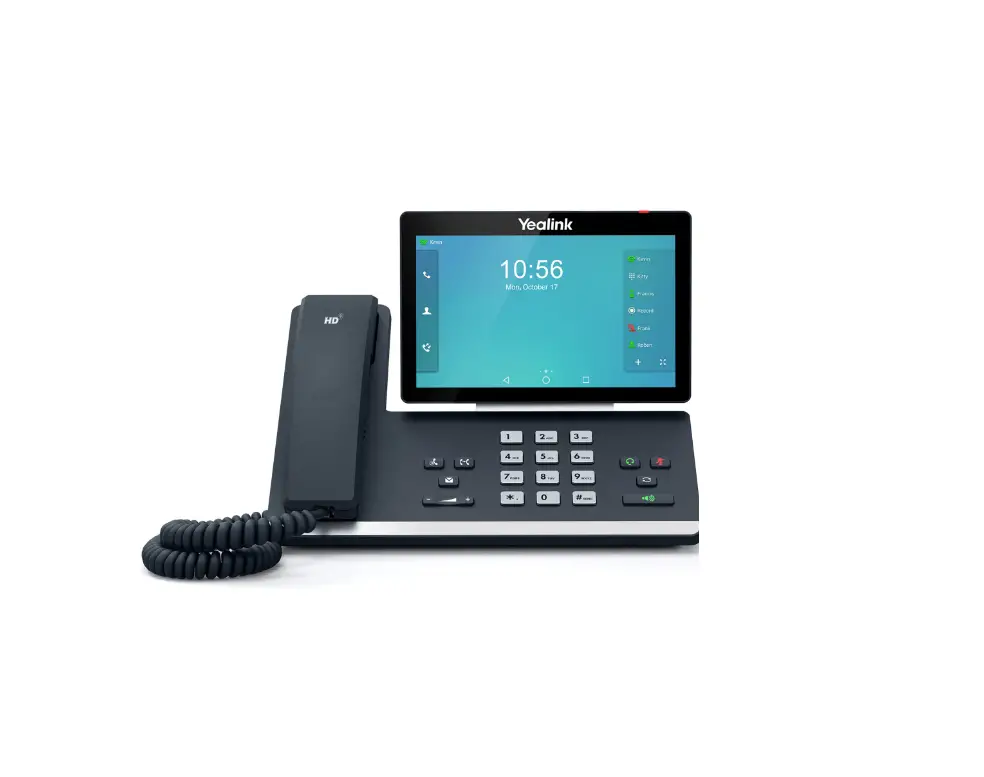
1 x SuperVision phone
1 x handset
1 x handset cord
1 x removable webcam
1 x stand
SAFETY INFORMATION
https://www.wildix.com/safety-information/
CONNECTION
The ports are situated on the rear panel of the phone
- Connect the phone to the network PoE switch using an RJ-45 cable

- Connect the handset to the port using the handset cord

- (Optional) Connect USB headset

- (Optional) Connect the port to the PC using an RJ-45 cable

- (Optional, this is a PoE device) Connect the phone to the power supply (power adapter can be purchased separately, WMP code: PS-12V2A )

- (Optional) Connect to the port using an HDMI cable

FIRST TIME LOGIN
After the phone has been booted, Wildix Phone App opens automatically.
To log in, fill out the following fields:
- Domain: PBX name or IP address
- User name: extension number or email address
- Password: enter your WEB password.
Note: Google/ Office 365 Single Sign-On options are available to log in.

CHANGE USER STATUS
Tap User status menu to set user status DND / Away.
You can add your status message and, by checking the field “until”, set the time and date when DND/Away status should go back to Available.
PHONE OVERVIEW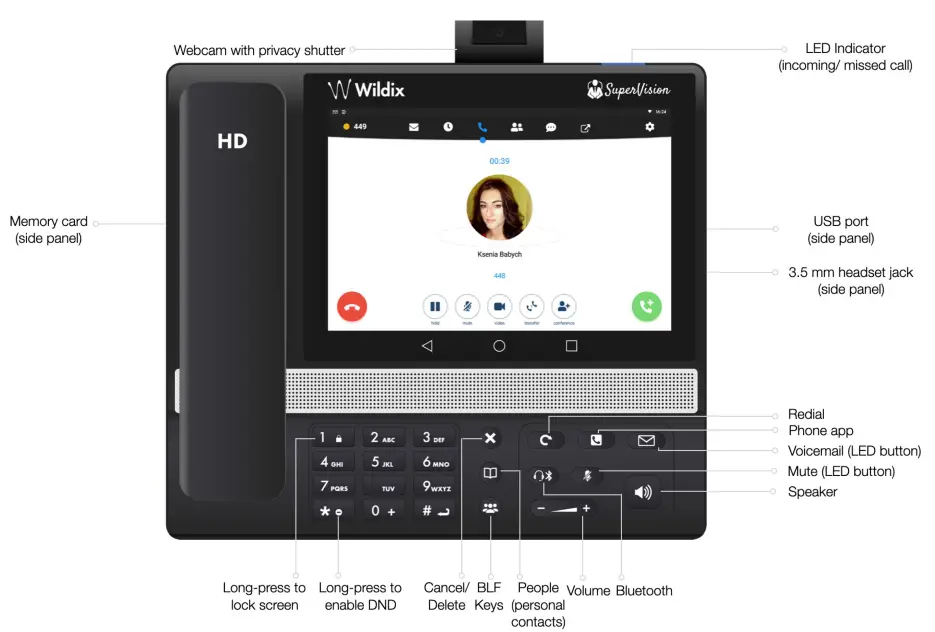
SUPERVISION USER GUIDE
BLF KEYS
BLF keys must be set up in Collaboration Settings -> Function keys. This phone supports up to 120 BLF keys.
You can change the number of BLF keys displayed per page in the Phone App
Settings -> Advanced.
PLACE A CALL
- Manually from Dialpad: enter the phone number and then tap the green button.
- Search in phonebook: open Dialpad and start entering a number / a name, results that match your search are listed below, tap on the contact to place a call.
- From history: tap the History menu. Tap the contact or the phone number, then tap Call.
- Dial a user whom you have assigned a Colleague Function key: tap BLF keys, then tap the BLF key assigned to the colleague.
HOLD / SECOND CALL
Press during a call to put a call on hold/resume.
Press to place a second call, enter the number, and then tap the green button.
VIDEO CALL
Tap  during a call to start/stop video streaming.
CALL TRANSFER
- Tap
 during a call (the call is put on hold)
 - Enter the phone number:
• Tap for direct transfer (blind transfer without notification)
• Otherwise tap to place an outgoing call (attended transfer), then tap from the call window to complete the transfer.
 for direct transfer (blind transfer without notification)
Call transfer via BLF keys:
- During a call, tap the BLF keys menu
- Tap the BLF key of colleague/call group:
- Tap Transfer for direct transfer (blind transfer without notification)
- Otherwise tap Call to place an outgoing call (attended transfer), then tap from the call window to complete the transfer.
CONFERENCE CALL
Put the first call on hold to make a second call to the contact you would like to invite to the conference call When the third party answers, tap from call window.
LISTEN TO VOICEMAIL MESSAGE
Tap Voicemail/ Press the Voicemail button
Tap the Play icon  next to the message to listen to it
To delete: check the message(s) and tap the Bin icon .
.
To mark as read: check the message(s) and tap the Eye icon
VOLUME CONTROL, SPEAKER, MUTE
Mute the microphone: Press the Mute key  during a call.
Adjust the volume: Press Volume Up / Down keys during a call.
Turn on the Speaker mode: Press the Speaker key during a call. Press the key to answer a ringing call in Speaker mode.
RINGTONE SELECTION
Tap Settings menu: tap Ringtone to view the list of available ringtones.
CHAT AND FILE EXCHANGE
Tap Chat menu: all the colleagues added to your roster in Wildix Collaboration are displayed in this menu.
To send a chat message:
- Tap on a colleague
- Type your message into the input field
- Tap the Paper plane icon
 to send the message.
To send a file / a picture (up to 100Mb) / to send a Post-It: tap the Plus icon + next to the input field and select a file / a picture (up to 100Mb).
You can disable new chat messages notifications in Settings -> Advanced.
CHECK PHONE APP VERSION
Tap Settings menu -> About.
full guide online: https://confluence.wildix.com/x/lQOIAQ
www.wildix.com
 Wildix PBX | VoIP Solutions | Unified Communications | WebRTC