Contents hide

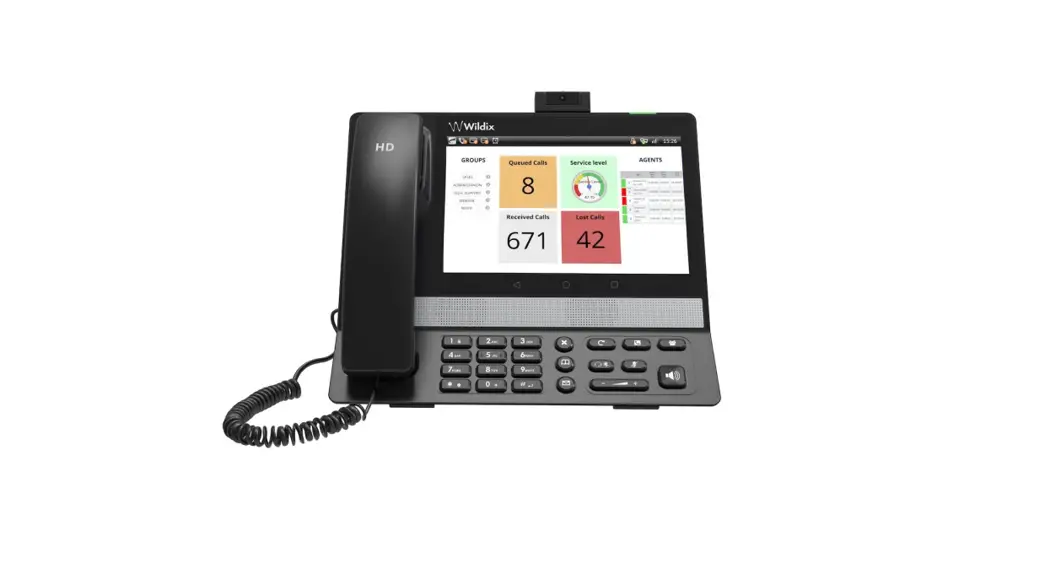
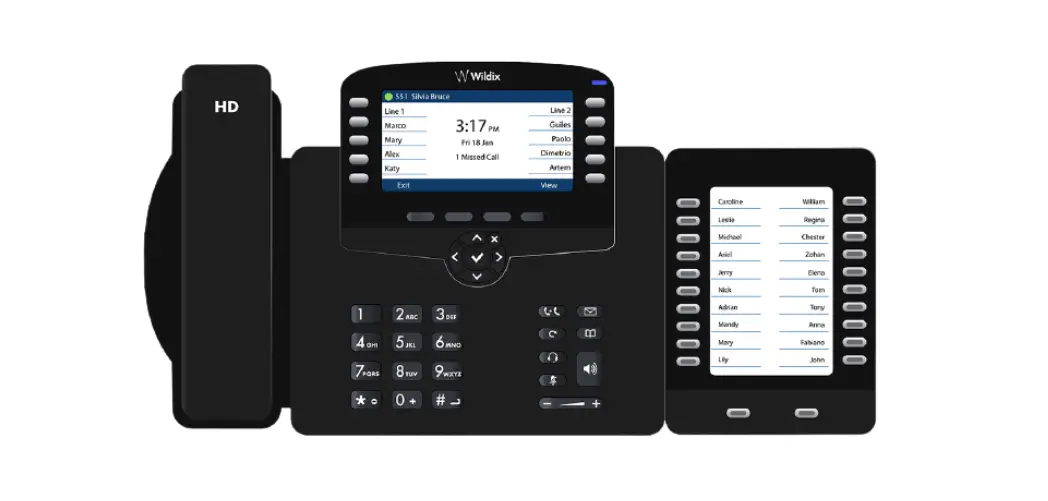
Wildix Welcome Console Phone
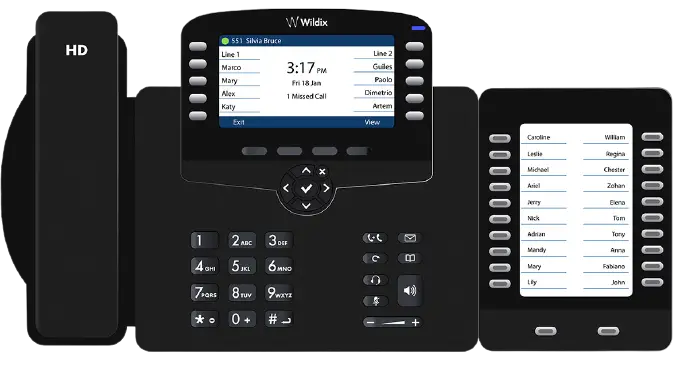
PACKING LIST
- 1 x WelcomeConsole phone
- 1 x handset
- 2 x handset cords, 2,5 m and 3,5 m
- 1 x RJ12 cord
- 1 x stand
SAFETY INFORMATION
https://www.wildix.com/safety-information/
MOUNTING INSTRUCTIONS
Attach the stand to the phone (desk mounting).
CONNECTION
The ports are situated on the rear panel of the phone
- Connect the handset to the port using the handset cord
- Connect the phone to the network PoE switch using RJ-45 cable
- Connect a keypad extension module using RJ12 cord (up to 2 additional modules can be connected, code: Welcome Console-EXT)
- (Optional) Connect the port to the PC using RJ-45 cable
- (Optional, this is a PoE device) Connect the phone to the power supply (power adapter can be purchased separately, WMP code: PS-5V2A)
- (Optional) Connect the headset to the port (headsets can be purchased separately)
- (Optional) Connect the USB headset to the port (headsets can be purchased separately)


LOGIN
- Lift the receiver and dial 99
- Enter your extension number
- Enter the first five characters of your password
- Press 1 when prompted
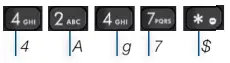
To enter your password from the phone’s keypad: press once an alphanumeric key corresponding to a letter which you need to enter; press the star button (*) to enter any special characte
Example: Password: 4Ag7$Zl@
Enter: 4247*
BLF / FUNCTION KEYS
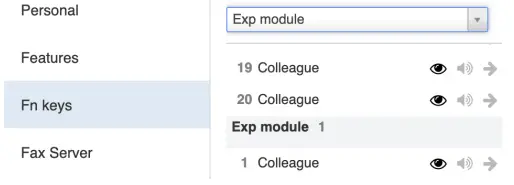
- Function keys must be set up in Collaboration Settings -> Function keys or by the PBX administrator.
- This phone supports up to 60 Function keys including keypad extension. To use the keypad extension, add “Exp module” Function key after having added 20 keys.

CALL FEATURES
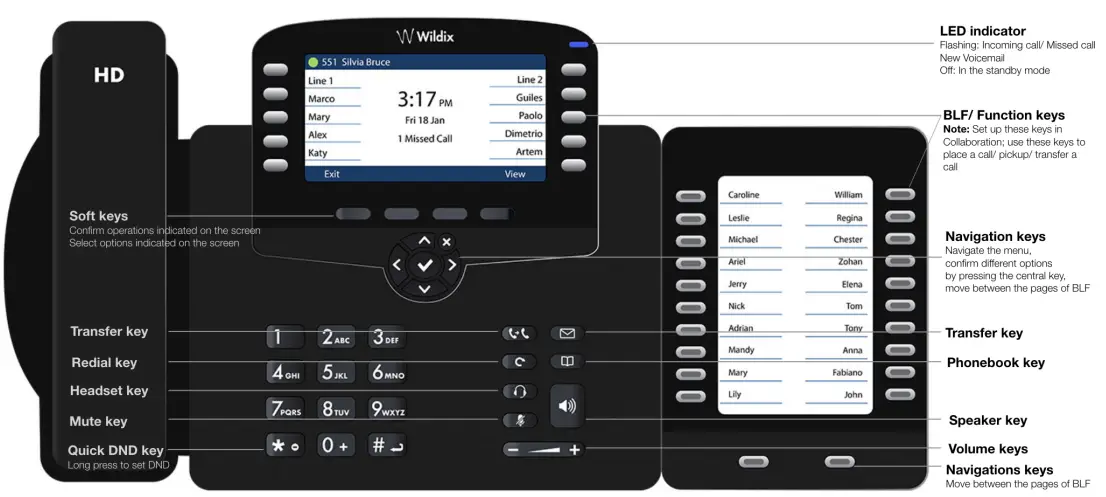
- Press Feature. Soft key from idle to set the following call features for each call type (Internal, External, Blacklist, Whitelist), based on user status (Available, DND, Away): Call reject, Call forwarding, Call Waiting, Mobility, Ring Tone.
- Features can be also set up in Collaboration Settings -> Features.
PHONE OVERVIEW
PLACE A CALL
- Manually: Enter the number and press Send Soft key.
- To switch between speaker mode and handset mode during a call: press Speaker key.
- To switch between speaker mode and headset mode during a call: press Headset key.
- Dial a user for whom you have assigned a Colleague Function key: press the corresponding Function key.
- Call from call history: press History Soft key from idle and select the number using Navigation keys, then press Dial
Soft key. - Call from Phonebooks:
- Press Phone book key.
- Press Filter Soft key and select the phone book
- Press Search Soft key to search this phone book and enter the name or phone number
- Press Enter Soft key and select the contact using Navigation keys
- Press Dial Soft key Phone books must be set up by user via Collaboration or by the PBX administrator.
MUTE, SPEAKER, VOLUME CONTROL
- Press Mute key to mute / unmute the microphone.
- Press Volume Up / Down keys to adjust the volume.
- Press Speaker key to turn on the Speaker mode.
HOLD / SECOND CALL
- Press Hold Soft key during a call to put a call on hold.
- Press New Soft key to make a second call, then enter the number manually or press Select Soft key to search for the contact in call history / in phone books.
CONFERENCE
- Press New Soft key during a call (the call is put on hold)
- Make a second call to the contact you would like to invite to the conference call
- When the third party answers, press Conference Soft key
ACCESS VOICEMAIL
- Press Voicemail key
- If requested, enter the first five characters of your password
- Select the message and press Play Soft key to listen to it; press Info Soft Key for more information or to delete the message.
Full guide online


CALL TRANSFER
Blind transfer (the desired party/extension is not notified of the impending transfer)
- Press Transfer key during a call (the call is put on hold)
- Dial the desired party/extension
- Hang up
Blind transfer via Colleague BLF / Function key:
Make sure Direct transfer option is enabled for this Function key in Collaboration:

- Press the corresponding Function key during a call
Attended transfer (the desired party/extension is notified)
- Press Transfer key during a call (the call is put on hold)
- Dial the desired party/extension
- Notify the third party of the impending transfer
- Hang up to transfer the call
Attended transfer via Colleague BLF / Function key:
Make sure Direct transfer option is disabled for this Function key in Collaboration:

- Press the corresponding Function key during a call (the current call is put on hold)
- Notify the third party of the impending transfer
- Hang up to transfer the call
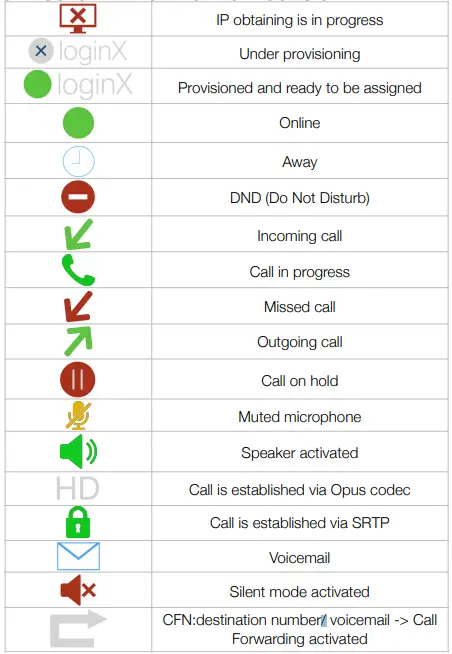
STATUSES AND NOTIFICATION ICONS OVERVIEW
 Wildix PBX | VoIP Solutions | Unified Communications | WebRTC