
SYRIS SYKD2N-H1 OLED Display Reader
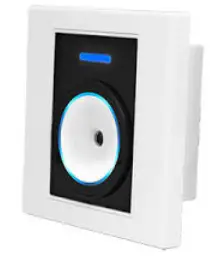
Features & Specification
Feature:
- Multi-mode access control
- Support ISO15693 / ISO14443A (Mifare) / ISO14443B / DESFire / NTAG203
- 2.42 inch OLED Display
- Multi communication interface
- Provide protocol to develop.
Specification
| Frequency | 13.56MHz |
| Interface | RS485 / Wiegand / Ethernet / Wi-Fi |
| Wiegand | Wiegand (support 26/32/34/35/37/42/66 bits) |
| RS485 baud rate | 19,200 bits/sec (4,800~460,800) |
| Ethernet | 10M/100M Ethernet Port |
| Wi-Fi | 802.11 b/g/n |
| Display | 2.42 inch 128 x 64 OLED display |
| Status Indicator | Tricolor LED(RGB) & Beeper |
| Keypad | 13 capacitive touch button |
| IR Sensor | 1 IR sensor for waving hand to access door (adjustable range 0~10cm) |
| Digital Input | Up to 3 (1 DI+2 no-voltage DI share the same port with Wiegand) |
| Digital Output | Up to 4 (2 Relay output+ 2 open collector DO share the same port with Wiegand) |
| HF Protocols | ISO15693 / ISO14443A / ISO14443B / DESFire / NTAG203 |
| HF Read range | Up to 5 cm |
| ID | 0001~9999 |
| Number of Cards | 10000 |
| Capacity of Records | 100000 |
| Power Supply | 9 ~28 VDC (12 VDC) |
| Power consumption | 1W~6W |
| Operating temperature | -10°C to 60°C |
| Dimensions (mm) | 124 x 90 x 27mmv |
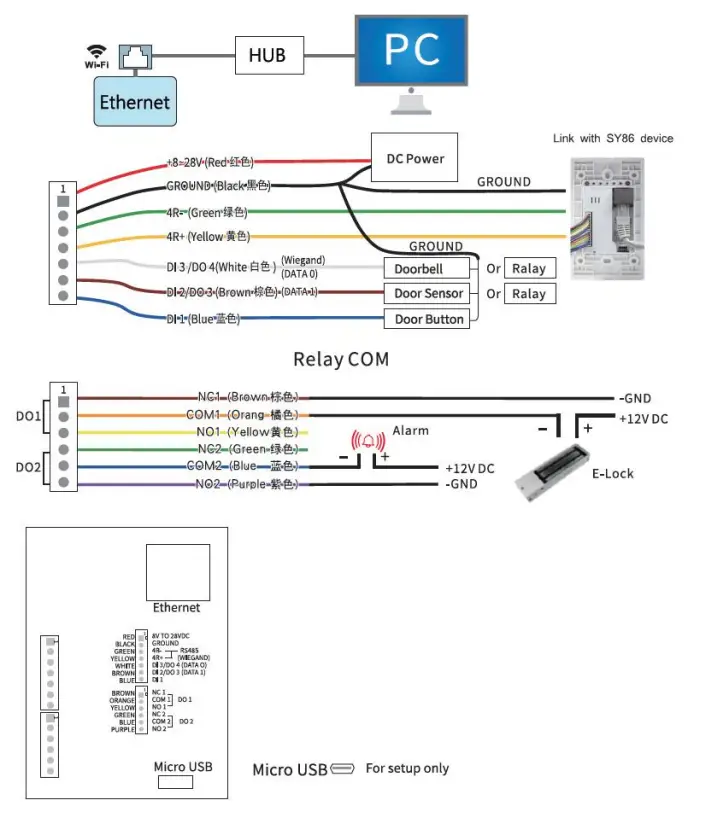
Wiring Diagram
Network Parameter Setting
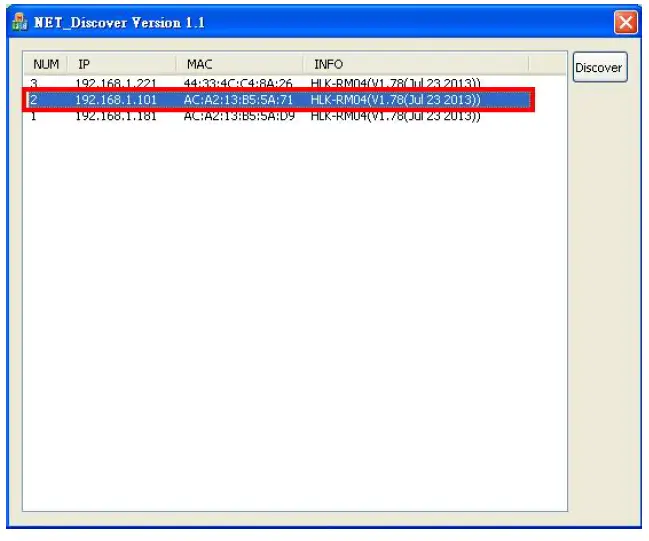
- Execute “NET_Discover_V0110.exe” and press to search SYRIS series product.
- Factory default IP is “192.168.1.101”. User can check the MAC address from product sticker with IP to confirm the device.

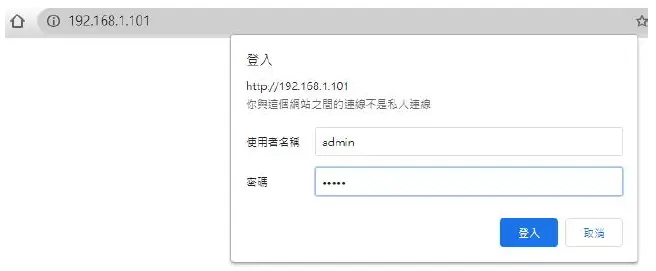
- Double click IP (192.168.1.101) to open the web configure page(http://192.168.1.101) Default login ID / Password : admin / admin


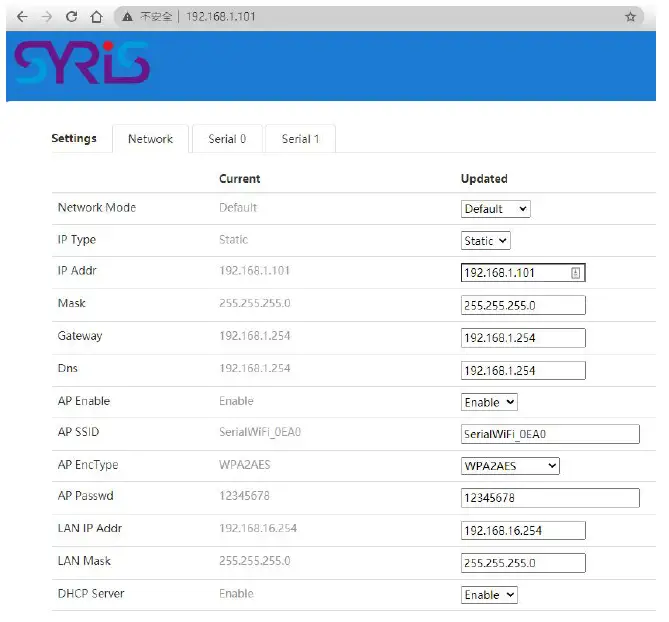
- Default Net Mode is the same as the following. User can modify Net Mode and other parameters. If device cannot communicate properly after setting, user can reset NET module via Micro USB.

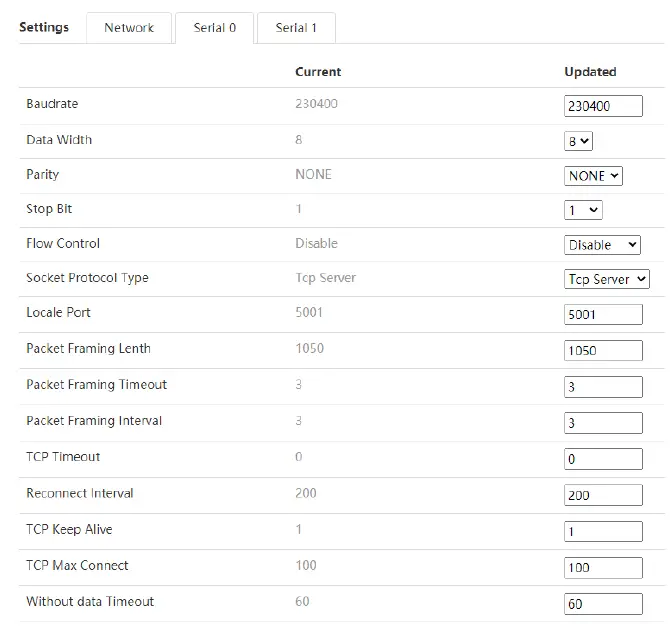
| Communication Parameter | Factory Default |
| Serial Configure | 230400,8,n,1 |
| Serial Framing Length | 1050 |
| Locale/Remote Port Number | 5001 |
Network Mode Switch
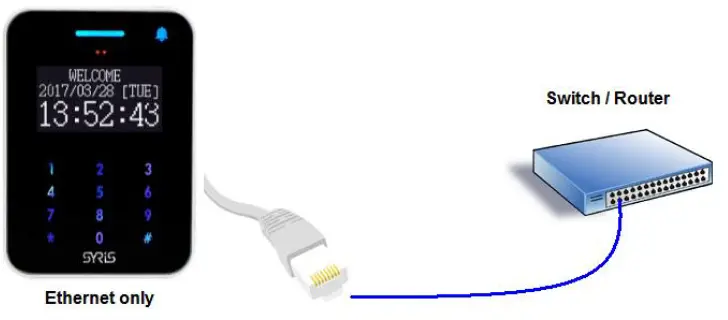
SYRIS device support 4 network modes: Default、ETH(Ethernet)、Wi-Fi(STA)
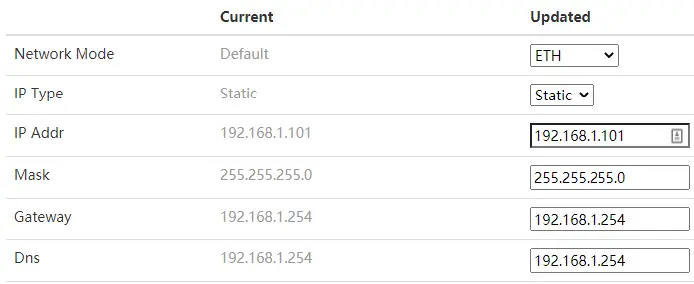
- ETH:Factory default is ETH-SERIAL. ( Standard TCP/IP Reader )

When user modify the IP and click on Apply button, device will reboot and apply the setting after 30 seconds.
- WIFI(STA):SYRIS can be set to communicate via Wireless AP without Ethernet. STA

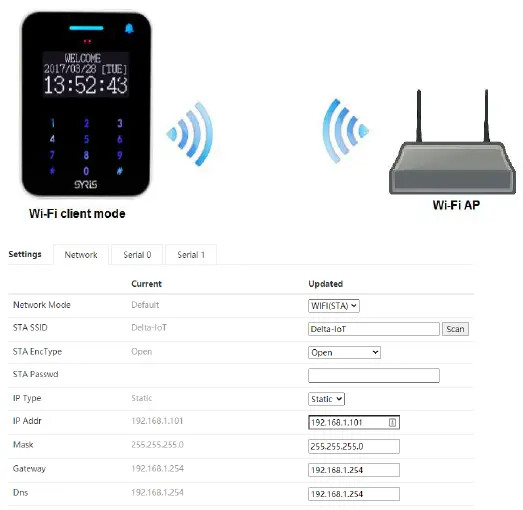
- STA SSID: Enter the SSID from AP you will connect to network.
- Scan : User can scan AP in range of device and select one to connect. But user cannot scan the AP after changing default network mode (Ethernet only) to Wi-Fi (Client). Device need to power off /\ on to enable the scan function.
- STA EncType : Select Encrypt type for AP connection.
- Password: Enter password for AP.
- IP Type: DHCP is default mode. If user have to setup a static IP, please select Static.
PS: Wi-Fi MAC address is Ethernet MAC subtract 1. Ex. Ethernet MAC : AC:A2:13:B5:5A:B5, Wi-Fi MAC : AC:A2:13:B5:5A:B4
Default mode:Ethernet (DHCP) +Wi-Fi AP mode. It’s Dual-Mode ( Ethernet and Wi-Fi AP,but Ethernet only support DHCP.)
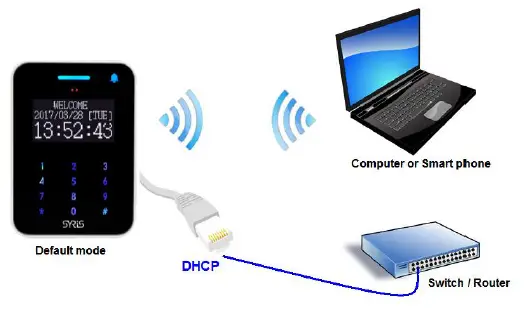
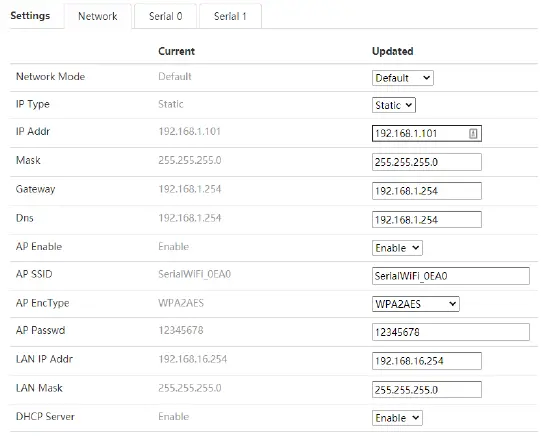
AP SSID: Setup device’s SSID. AP Passwd: Device’s Wi-Fi password. (Default is 12345678)
USB Connection
Setup parameters via Micro USB.
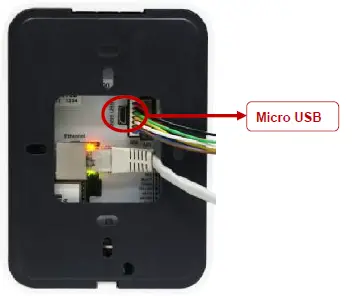
- Install USB driver ”CDC_USB_Driver_VCP_V1.4.0_Setup.exe”
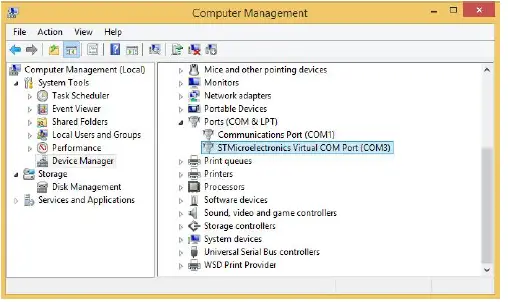
- System will generate a virtual COM port.
For example. Check port in device manager.(below picture is COM 3) User also can update driver manually. The driver is saved in the folder that is same as following.
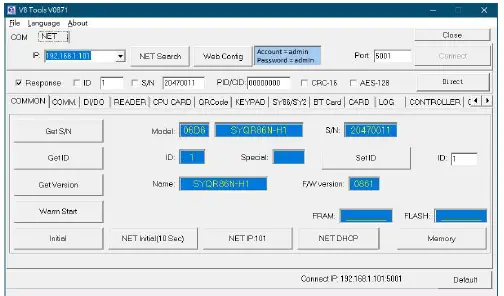
- Get device Model information and serial number by using V8 Tools with correct COM port or Ethernet connection.

 User also can update driver manually. The driver is saved in the folder that is same as following.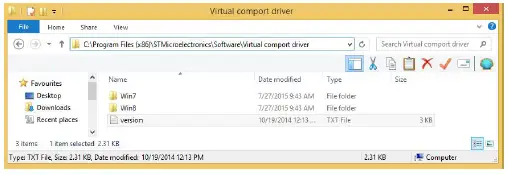
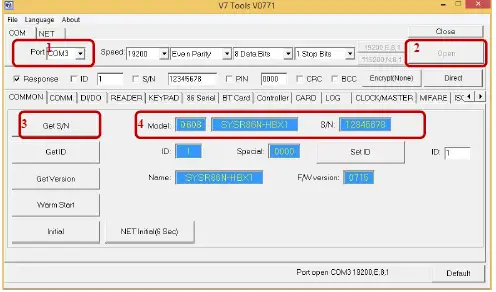
V8 Tools Tool Parameter Setting
- Basic:

- Basic: Get device serial number、device ID and firmware version
- Warm Start: Reboot device
- Initial: Restore device to factory default (It is NOT including network setting).
- NET Initial (6 sec): Restore network parameter of device to Default mode.
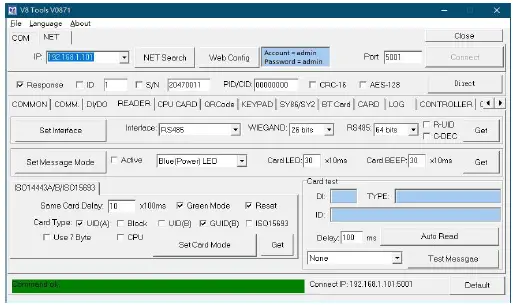
- Reader

- Set Interface: Setup reader’s communication interface. Default is “RS485”.
- Set Message Mode:
- Card LED: Time for read card LED ON, default is 30 x 10ms
- Card Beep: Time for read card beep on, default is 30 x 10ms
- ISO14443A/B/ISO15693 :
- Same Card Delay: Setup time gap for reading the same card, default is 10 x100ms (1 second)
- Green Mode: Slow down the card read speed to power saving.
- Reset: Reset RF IC after read card.
- Card Type: Choose card type to enable device’s read specific card.
- UID(A): Read ISO14443A Card UID.
- Block: Read Block data (Must disable other card type).
- UID(B): Read ISO14443B Card UID.
- GUID(B): Read the China second generation of resident identification card.
- ISO15693: Read ISO15693 Card UID
- 7 byte: Read 7byte format Card UID
- Card Test: Test the reader function.
- Display : Set up display language and encode for different country

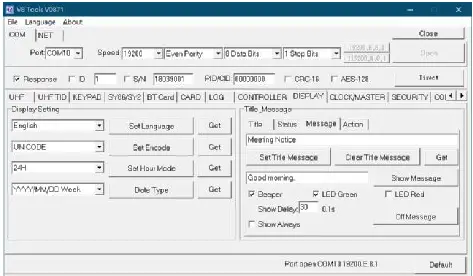
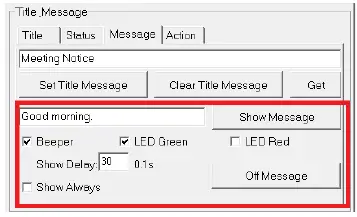
Test send message command with tools.
Auto send reader mode
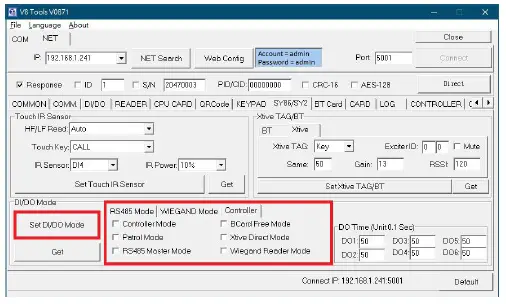
- Un- Select “Controller Mode” and then click “Set DI/DO Mode” to disable controller mode.

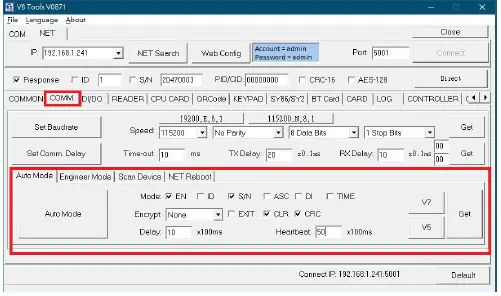
- Select “EN” (means enable), “S/N”, “CLR”, “CRC” and set heartbeat to 50 (means 5 sec) and then click “Auto Mode” to finish configure