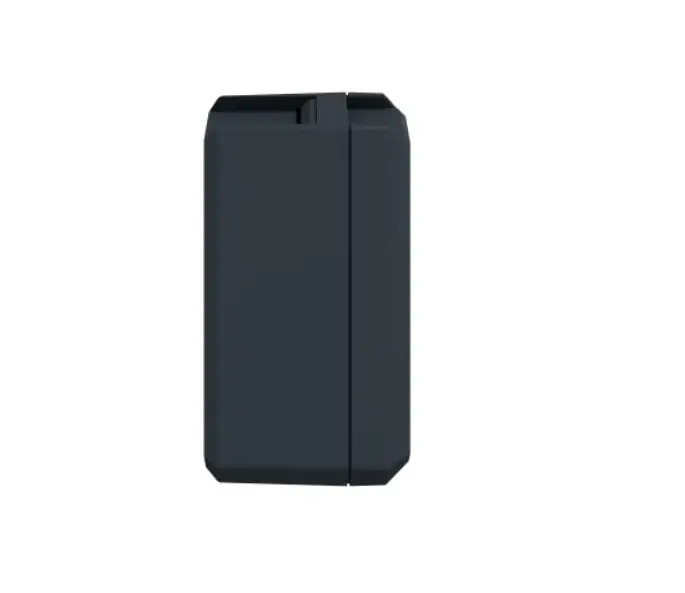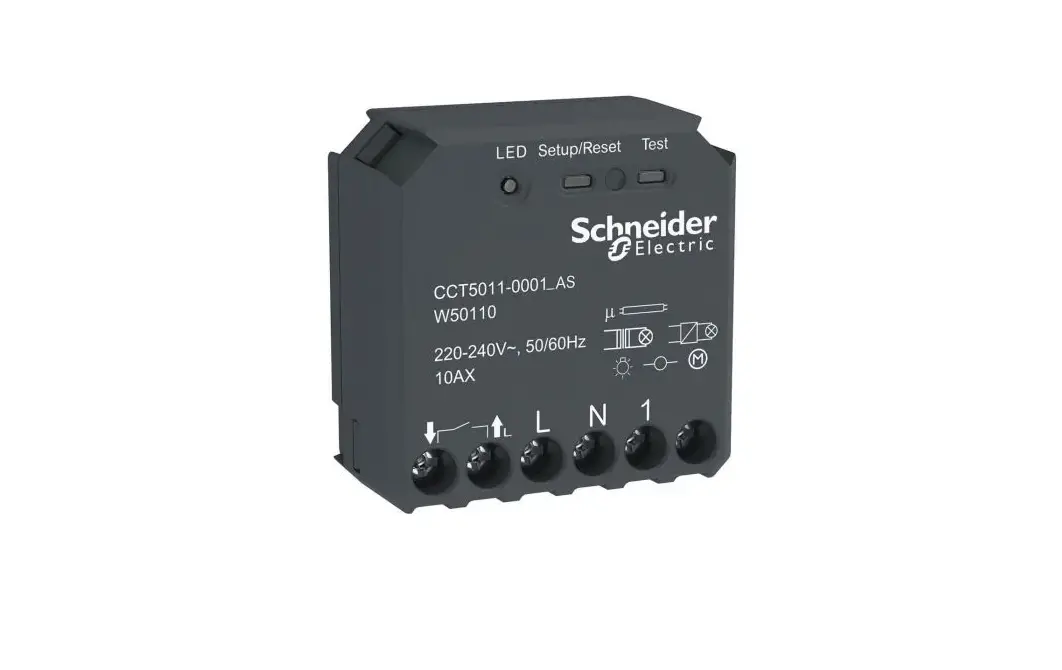
 CCT5011-0001_AS Wiser Micro Module Light Switch
User Guide
CCT5011-0001_AS Wiser Micro Module Light Switch
Information about features and functionality of the device.
11/2021
Legal Information
The Schneider Electric brand and any trademarks of Schneider Electric SE and its subsidiaries referred to in this guide are the property of Schneider Electric SE or its subsidiaries. All other brands may be trademarks of their respective owners.
This guide and its content are protected under applicable copyright laws and furnished for informational use only. No part of this guide may be reproduced or transmitted in any form or by any means (electronic, mechanical, photocopying, recording, or otherwise), for any purpose, without the prior written permission of Schneider Electric.
Schneider Electric does not grant any right or license for commercial use of the guide or its content, except for a non-exclusive and personal license to consult it on an “as is” basis. Schneider Electric products and equipment should be installed, operated, serviced, and maintained only by qualified personnel.
As standards, specifications, and designs change from time to time, information contained in this guide may be subject to change without notice.
To the extent permitted by applicable law, no responsibility or liability is assumed by Schneider Electric and its subsidiaries for any errors or omissions in the informational content of this material or consequences arising out of or resulting from the use of the information contained herein.
Safety information
Important information
Read these instructions carefully and look at the equipment to become familiar with the device before trying to install, operate, service, or maintain it. The following special messages may appear throughout this manual or on the equipment to warn of potential hazards or to call attention to information that clarifies or simplifies a procedure. The addition of either symbol to a “Danger” or “Warning” safety label indicates that an electrical hazard exists which will result in personal injury if the instructions are not followed.This is the safety alert symbol. It is used to alert you to potential personal injury hazards. Obey all safety messages that accompany this symbol to avoid possible injury or death.
 DANGER
DANGER indicates a hazardous situation which, if not avoided, will result in death or serious injury.
Failure to follow these instructions will result in death or serious injury. WARNING
WARNING indicates a hazardous situation which, if not avoided, could result in death or serious injury. CAUTION
CAUTION indicates a hazardous situation which, if not avoided, could result in minor or moderate injury.
NOTICE
NOTICE is used to address practices not related to physical injury.
Wiser Micro Module Light Switch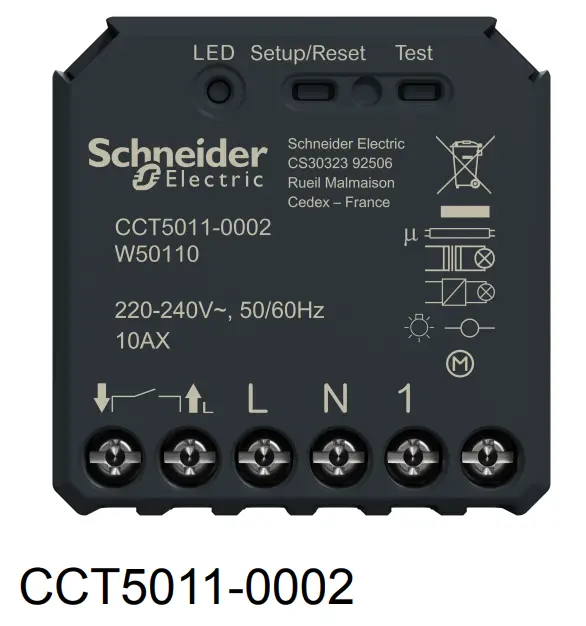 For your safetyDANGER
HAZARD OF ELECTRIC SHOCK, EXPLOSION, OR ARC FLASH
Safe electrical installation must be carried out only by skilled professionals.
Skilled professionals must prove profound knowledge in the following areas:
- Connecting to installation networks.
- Connecting several electrical devices.
- Laying electric cables.
- Safety standards, local wiring rules and regulations.
Failure to follow these instructions will result in death or serious injury.DANGER
HAZARD OF ELECTRIC SHOCK
- Make sure that the terminal connection area does not come in contact with the metallic parts of any device installed in the same location.
- Do not short the outputs to neutral.
- The switch contact and live conductor connection must be separated from one another by a 240 VAC basic insulation.
Failure to follow these instructions will result in death or serious injury. WARNING
HAZARD OF ELECTRIC SHOCK
- Observe the regulations for working on live parts.
- Only actuate the device buttons using insulated auxiliary equipment that meets the requirements of EN 60900.
Failure to follow these instructions can result in death, serious injury, or equipment damage.
About the device
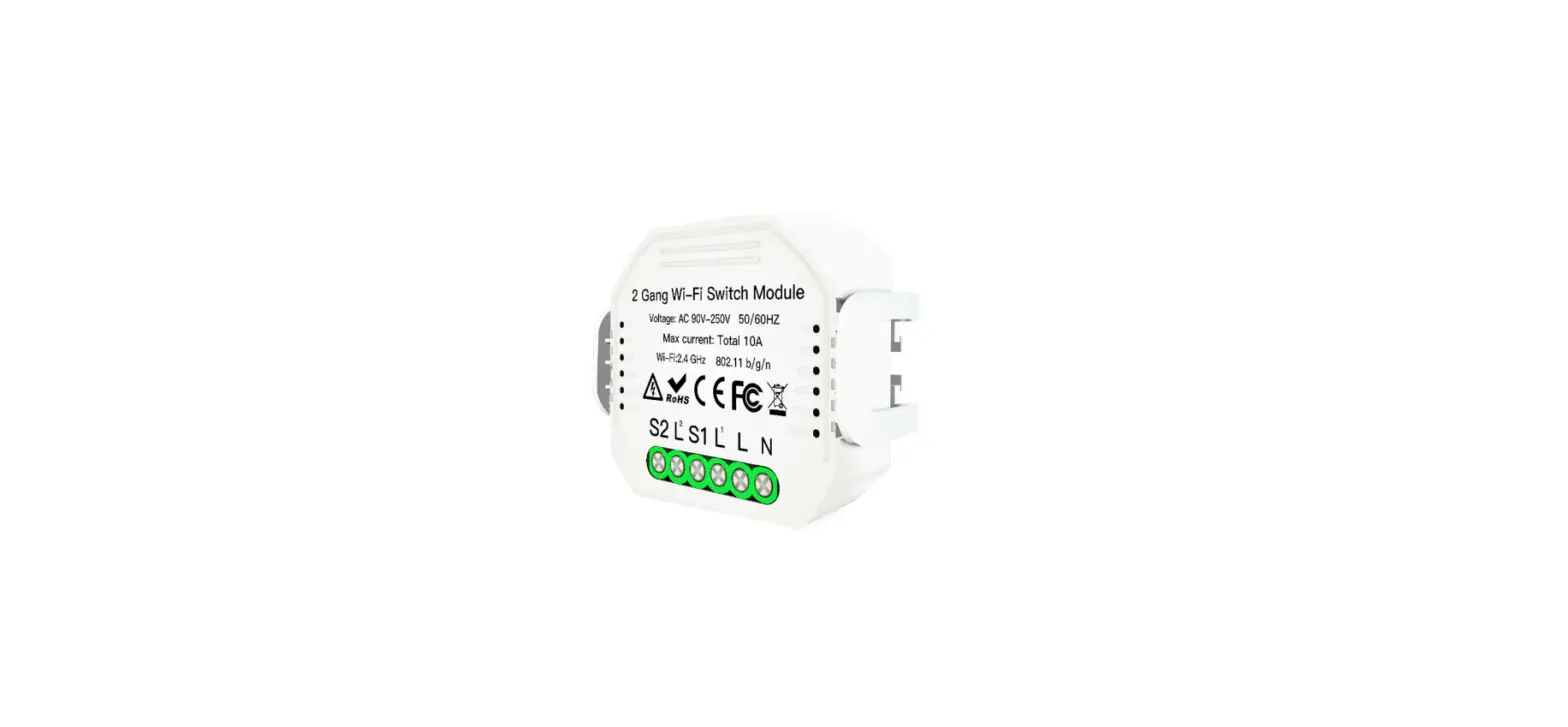
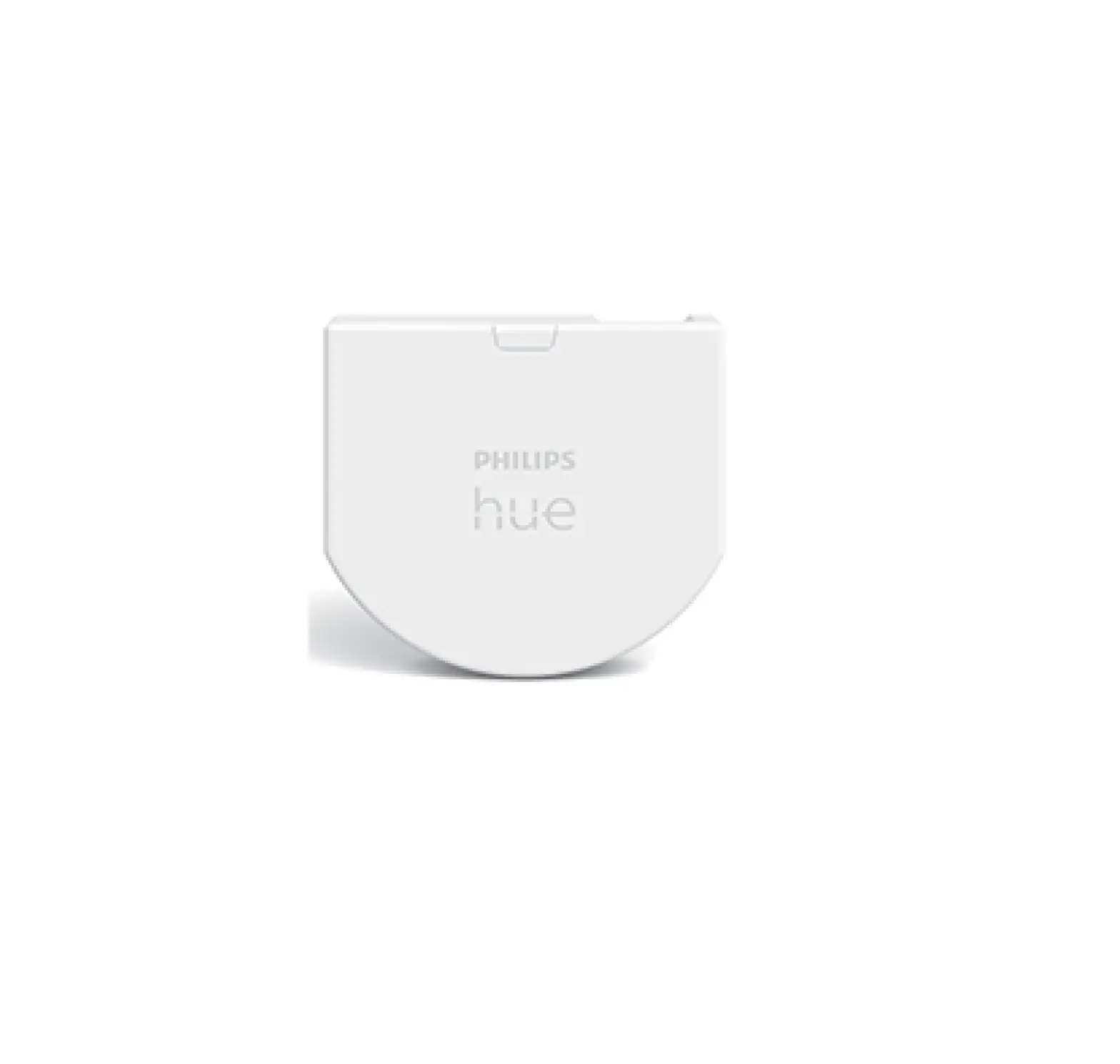
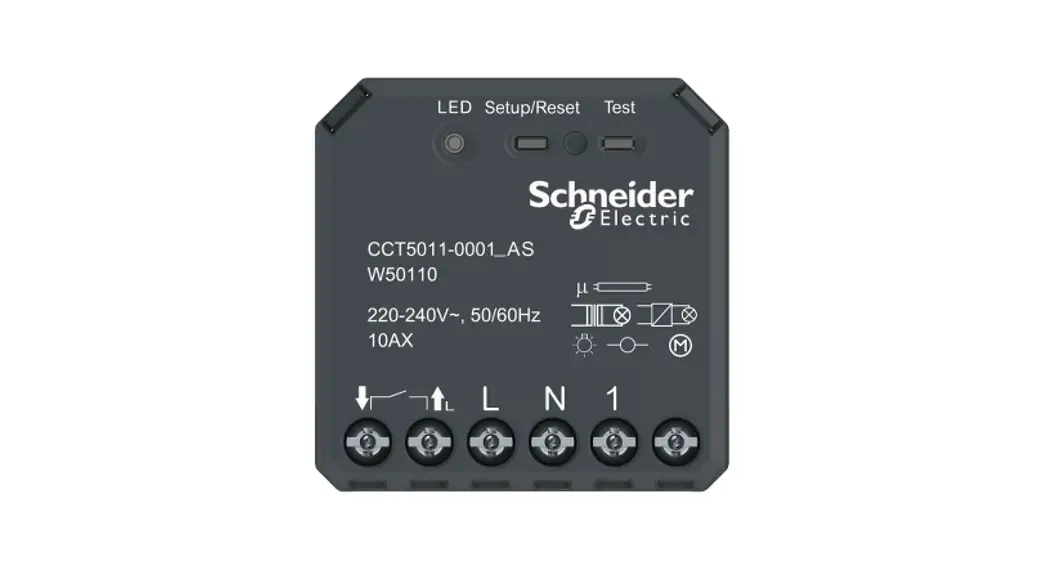
The Wiser Micro Module Light Switch (hereinafter referred to as Puck) combines the advantages of smart switch functionality with ordinary mechanical push-button switches. It transforms a conventional switch into a connected device that can be controlled from the switch or through the Wiser app. It can switch ohmic, inductive or capacitive loads.
NOTE: Do not control any devices that depend on a permanent power supply.
Additional features:
- Remote controlled with maximum of 10 mechanical push-buttons.
- Setting a time schedule.
Installing the device
Refer to the installation instruction supplied with this product.
See Wiser Micro Module Light Switch.
Testing the device
Before using the Puck, manually test the Puck and make sure that it works when connected to the devices.’ WARNING
HAZARD OF ELECTRIC SHOCK
- Observe the regulations for working on live parts.
- Only actuate the device buttons using insulated auxiliary equipment that eets the requirements of EN 60900.
Failure to follow these instructions can result in death, serious injury, or equipment damage.
Short press the test button once, the connected device turns On/Off.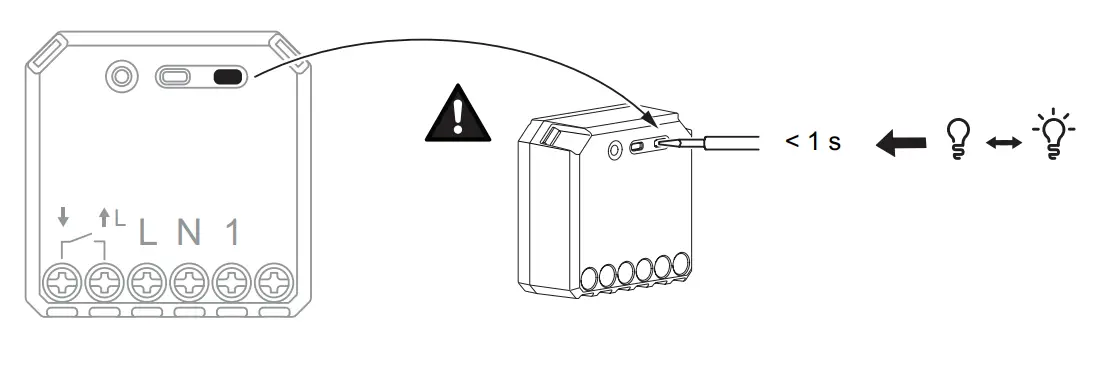 Pairing the device
Using the Wiser app, first pair your device with the Gateway to access and control the device. You can either add the device manually or do an auto-scan to pair it.
Pairing device manually
Follow the steps to pair the device manually:
- On Home page, tap + icon.
- Tap icon
 and select the Wiser Hub.
 - Select any one of the options to add device (A):
– Add Device with Install Code
– Add Device without Install Code
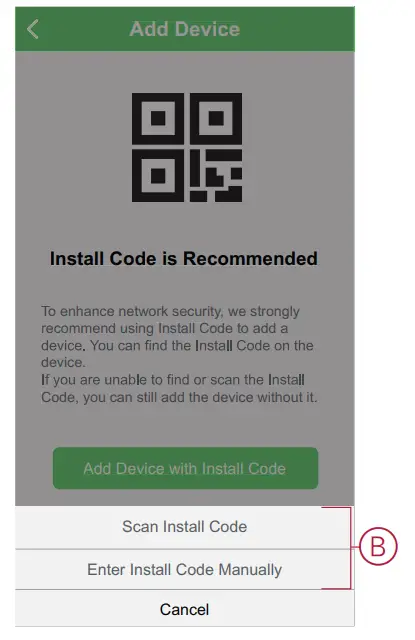
- To add the device with Install Code, tap Add Device with Install Code button to open the slide-up menu. Select any one of the options (B):
– Scan Install Code – You can scan the device for the Install Code
– Enter Install Code Manually – You can manually enter the install code from the device
After adding the device with Install Code, proceed to Step 6. TIP: It is recommended to add the device with Install Code for security purpose.
 - To add the device without Install Code, tap Add Device without Install Code.
- Select any one of the options to add the device:
– Short press the S/R (setup/reset) button 3 (<0,5 s) times on the Puck with a screwdriver.
– Short press the push button 3 times. The LED blinks orange.
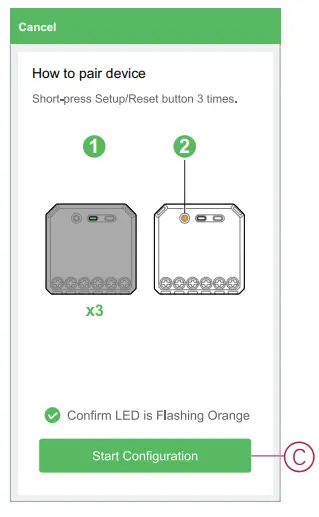
NOTE: If the puck is located behind the push button, the status LED is not visible. - In the app, select Confirm LED is flashing orange and tap Start configuration (C).
 The app displays the progress of connecting the device.
 - Wait for a few seconds until the LED turns green. You can also see in the app that the device is joined.

- After the device is added in the app, tap Done.
 and select the Wiser Hub.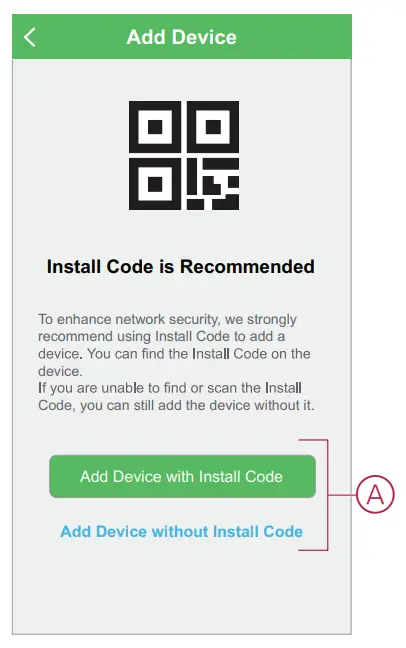
 TIP: It is recommended to add the device with Install Code for security purpose.
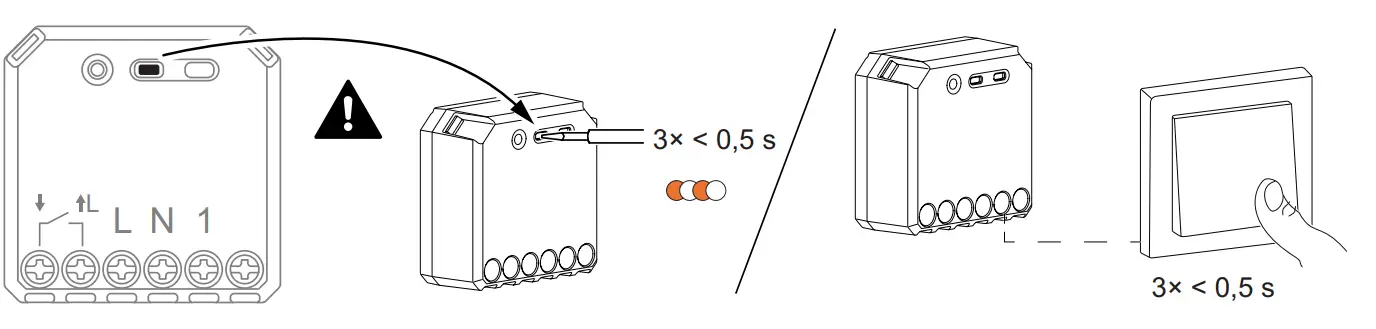 The LED blinks orange.
 The app displays the progress of connecting the device.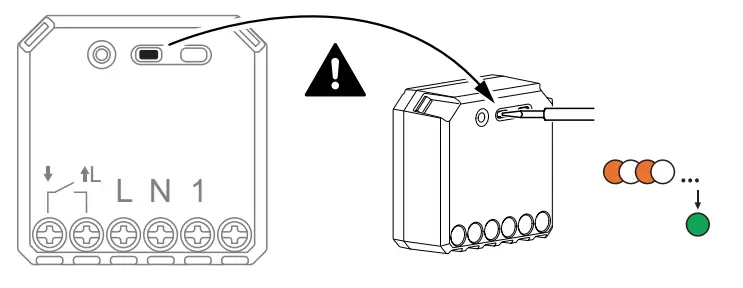
Pairing device with auto scan
Pairing the device with auto scan automatically discovers the device when the corresponding device is powered on.
Follow the steps to pair the device:
- On the Home page, tap + icon.
- Tap Auto scan tab and tap Confirm.
- If you have multiple hubs, do Step 4 or proceed to Step 5.
- Tap Select hub and select the Wiser hub from the slide-up menu.
- Short press the setup/reset button 3 times (< 0,5 s).
NOTE:
• The LED blinks orange.
• Wait for a few seconds until the device search is complete. - Tap on the Micromodule Switch icon and tap Next (A).

- Once the device is added successfully, tap Done.
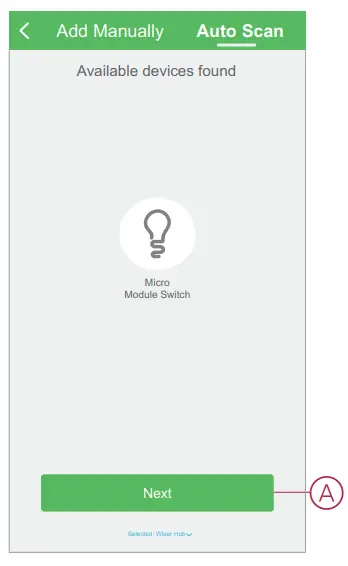
Configuring the device
Changing the device icon’
Using the Wiser app, you can change the icon of the device. Follow the steps to change the device icon:
- On the Home page, tap All devices > Micromodule Switch.
- Tap
 icon and tap
 .
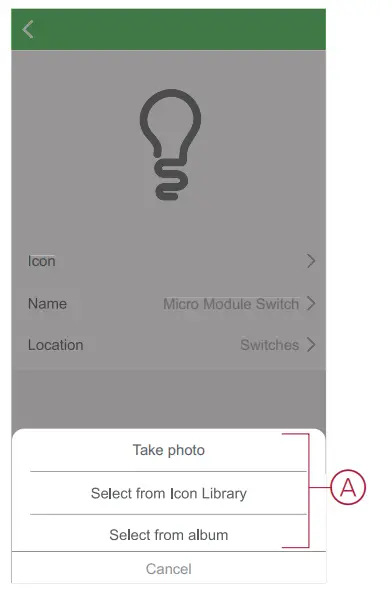
. - Tap Icon to view the menu.
- In the slide-up menu, select any one of the following (A):
– Take photo – Allows you to take a photo from the mobile camera.
– Select from Icon Library – Allows you to select an icon from the app library.
– Select from Album – Allows you to select photo from the mobile gallery.
- Tap on the required photo/icon to change the icon.
 icon and tap
 .
.
Renaming the device
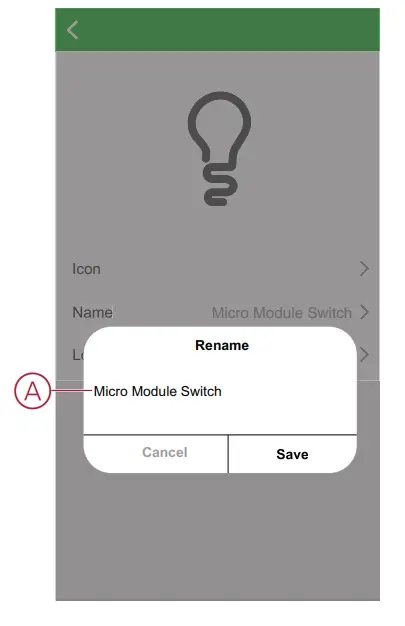
Using the Wiser app, you can rename your device for easy identification. Follow the steps to rename the device:
- On the Home page, tap All devices > Micromodule Switch.
- Tap icon and tap.
- Tap Name, enter the name (A) and tap Save.
 Changing the device location
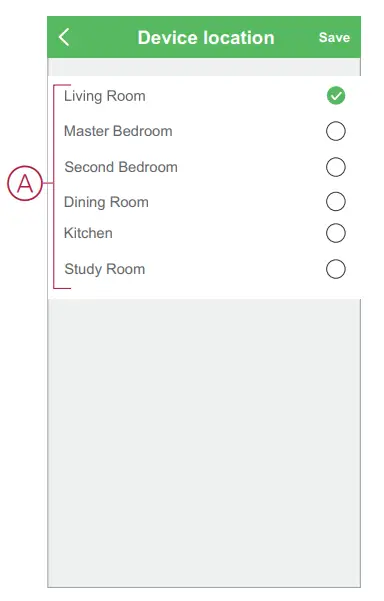
Using the Wiser app, you can change the location of the device. Follow the steps to change the device location:
- On the Home page, tap All devices > Micromodule Switch.
- Tap icon and tap.
- Tap Location, select any location from the list (A) and tap Save.
 Removing the device
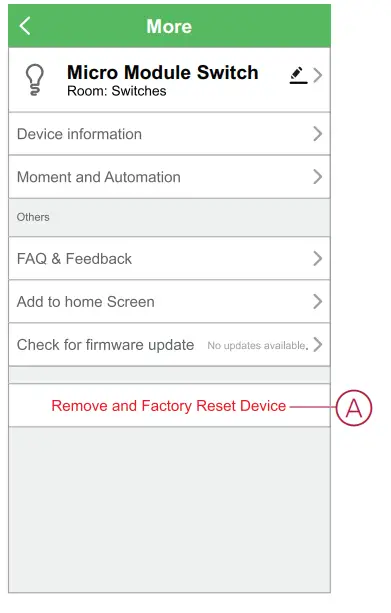
Using the Wiser app, you can remove a device from the device list. Follow the steps to remove the device:
- On the Home page, tap All devices > Micromodule Switch.
- Tap icon to display more details.
- Tap Remove and Factory Reset Device (A).
 TIP: Alternatively, you can long tap on the Micromodule Switch on the Home page to remove the device.
NOTE:
- Removing the device will reset the Puck. After reset the LED turns orange indicating that the Puck is ready to pair with another network.
- If there is a problem while pairing or resetting the Puck, refer to Resetting the device manually, page 12.
Resetting the device
You can reset the device to factory default manually.
Follow the steps to reset the device:
- Short press ( <0,5 s) the Setup/Reset button 3 times and then long press the Setup/Reset button once for 10 s to reset the Puck to factory default mode. or Short press the push button 3 times and then long press the push button once for 10 s.
- After 10 s, LED starts blinking red then release the operation button.
NOTE: All configuration data, user data, and network data are deleted. After which
• No connectivity to other devices or rooms
• No timer settings
The LED stops blinking upon successful reset of the device. - The Puck restarts and blinks green for a few seconds.
NOTE: After reset, the LED turns orange indicating that the device is ready for pairing.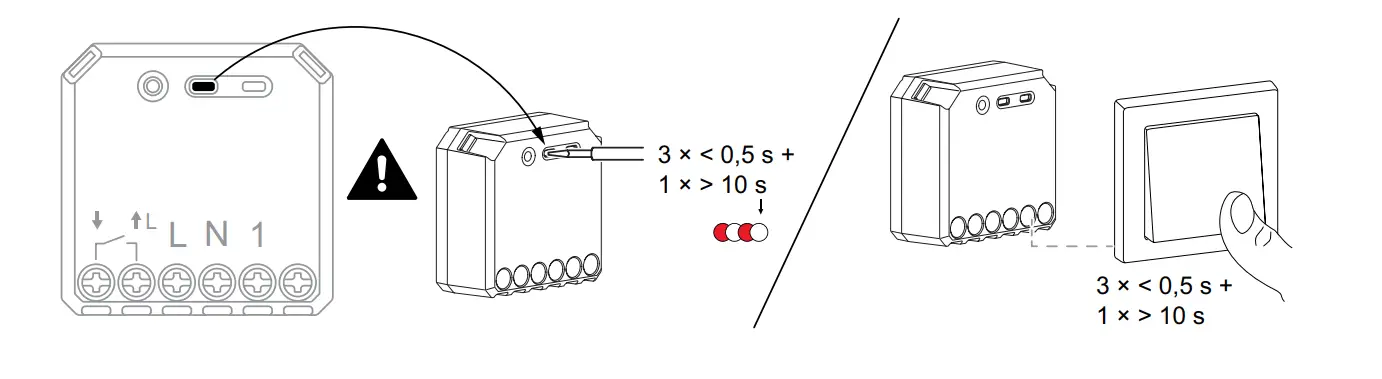 Using the device
Manual operation
When the puck is connected to a mechanical push button, the connected devices can be controlled manually by short pressing the push-button rocker.
NOTE: Since the puck is installed inside the wall box, the status LED is not visible while using the puck.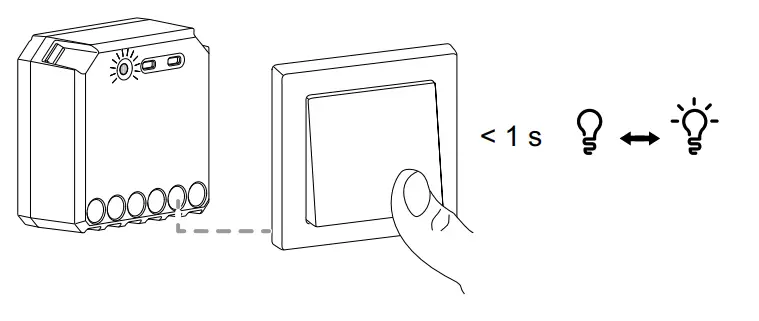 Turning the Light Switch On/Off using app
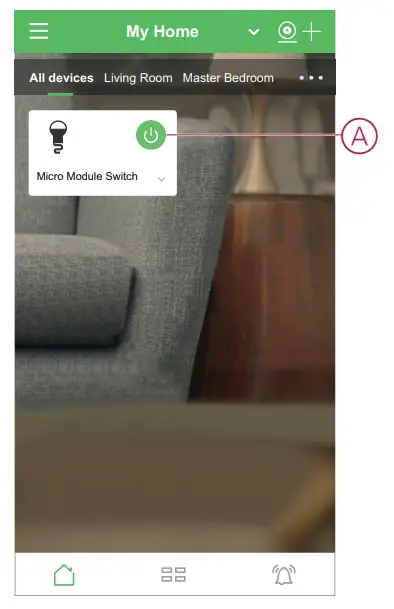
Using the Wiser app, you can turn On/Off the Light Switch remotely.
Follow the steps to turn the light switch On/Off using the app:
- On the Home page, tap All devices.
- In Micromodule Switch tap on
 icon to turn On/Off the light switch.
 Setting up a schedule
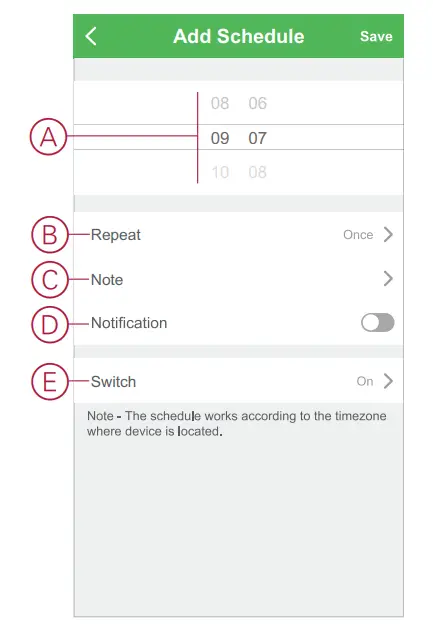
The devices can be fully controlled by schedule. Once the schedule is set, the devices operate at a given time.
Follow the steps to create a schedule:
- On the Home page, tap All devices > Micromodule Switch.
- Tap Schedule > Add Schedule to add a schedule.
- In Add Schedule menu, set the time (A).
NOTE: The Schedule works according to the time zone where the device is located. - Tap Repeat (B) to select the days you want to set the schedule.
- Tap Note (C), enter the note and tap Confirm.
- Tap the toggle switch (D) to turn On the Notification for the schedule. The app will send a notification that the scheduled task is executed at the time of schedule.
- Tap Switch (E) and select any one option, On / Off.

- Tap Save
Creating a moment
A Moment allows you to group multiple actions that are usually done together.
Using the Wiser app, you can create moments based on your needs.
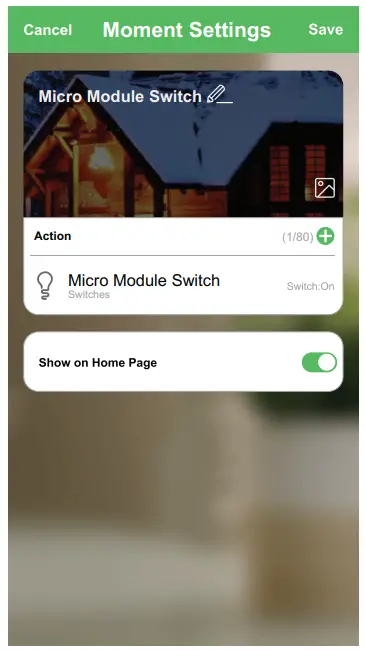
Follow the steps to create a moment:
- On the Home page, tap
 icon.
icon. - Go to Moment > + icon to create a moment.
- Tap Edit name (A), enter the name of the moment and tap Save.
TIP: You can choose the cover image that best represents your moment by tapping icon.
icon.
- In the Action section, tap Add task (B) to open the slide-up menu.
- In the Add task menu, you can do either or all of the following actions (C):
– Run the device – Select the devices that you want in a moment
– Enable or disable on moment creation – Select Automation
– Delay – Set the delay time
NOTE: You can add one or more actions using icon.
icon.
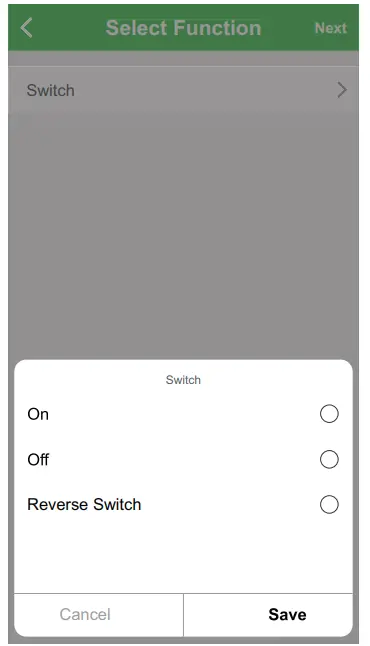
- Tap Run the device > Micromodule Switch.
- Tap on Switch and select either On / Off / Reverse Switch and tap Save.

- Tap Next and once the actions is set, tap Save.

 icon.
icon. icon.
icon.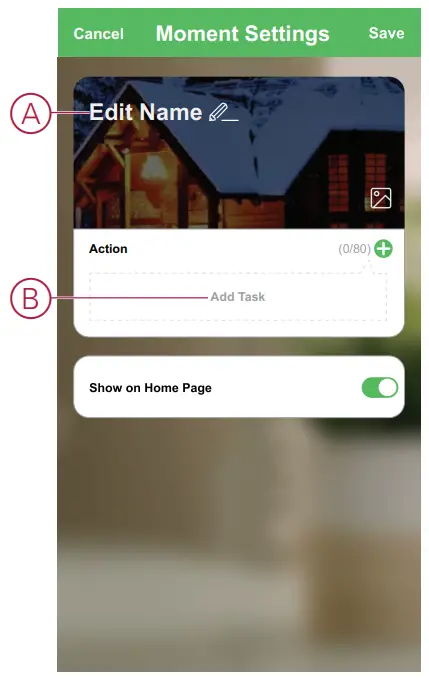
 icon.
icon.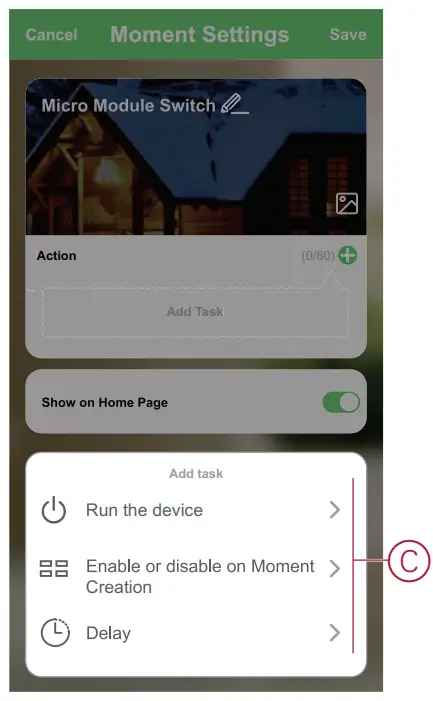
Editing a moment
Follow the steps to edit a moment:
- On the Moment tab, locate the moment you want to edit and tap
 icon.
icon. - On the Edit page, you can tap the item to change the settings and tap Save.

 icon.
icon.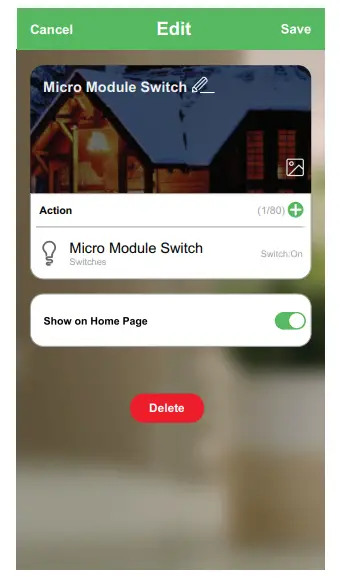
Deleting a moment
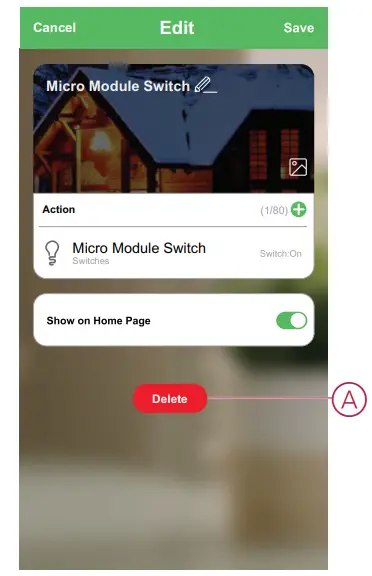
Follow the steps to delete a moment:
- On the Moment tab, locate the moment that you want to delete and tap icon.
- Tap Delete (A).

Creating an automation
An automation allows you to group multiple actions that are usually done together, triggered automatically or at scheduled times. By using the Wiser app, you can create automations based on your needs.
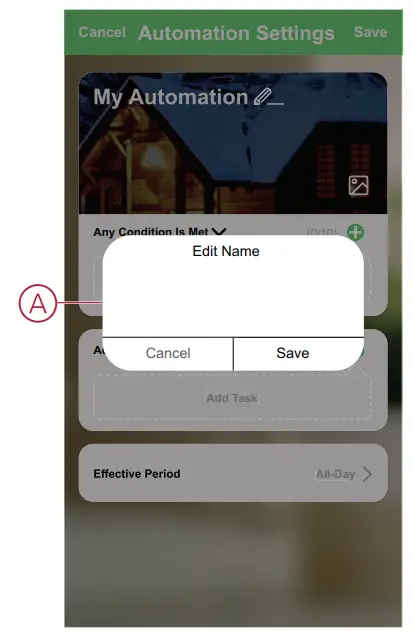
Follow the steps to create an automation:
- On the Home page, tap the icon.
- Go to Automation > + icon to create an automation.
- Tap Edit name (A), enter the name of the automation and tap Save.
TIP: You can choose the cover image that best represents your automation by tapping icon.
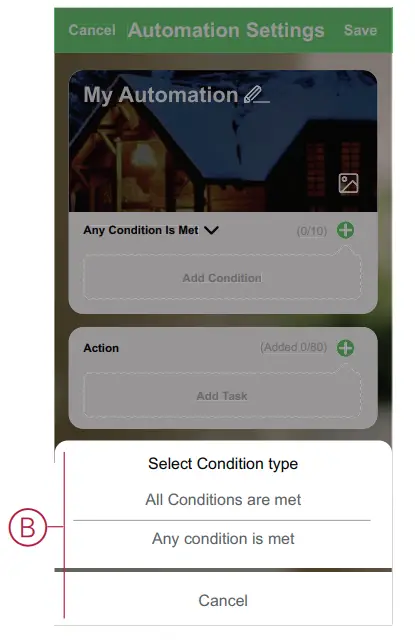
- Tap Any condition is met to select any one of the condition type (B):
– All conditions are met – The automation is triggered when all the conditions re met
– Any condition is met – The automation is triggered when at least one condition is met
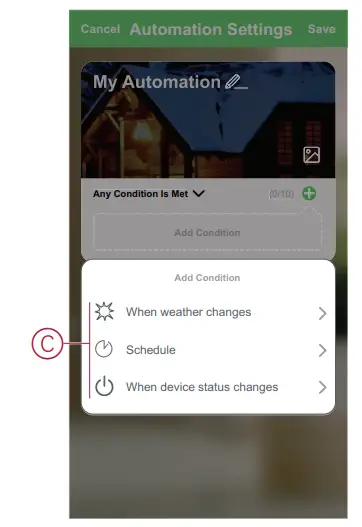
- Tap Add Condition to open the slide-up menu.
- In the Add Condition menu, you can do either or all of the following options (C):
– When weather changes – Select the various weather settings
– Schedule – Set the time and day
– When device status changes – Select the device and it’s function
NOTE: You can add one or more conditions using icon.
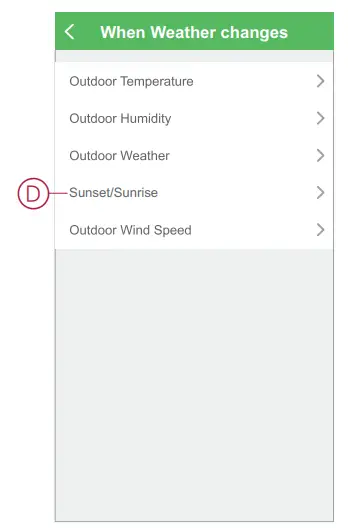
- Tap When weather changes > Sunset/Sunrise(D).

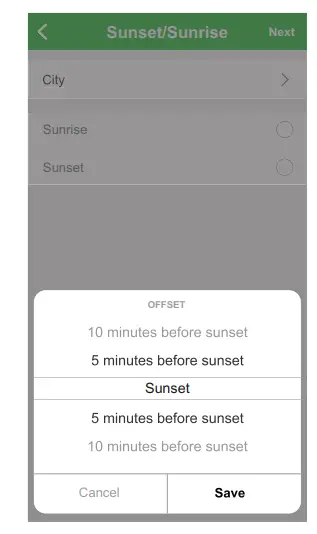
- Tap on either Sunrise or Sunset to open the slide up menu in which you can select the required offset condition and tap Save

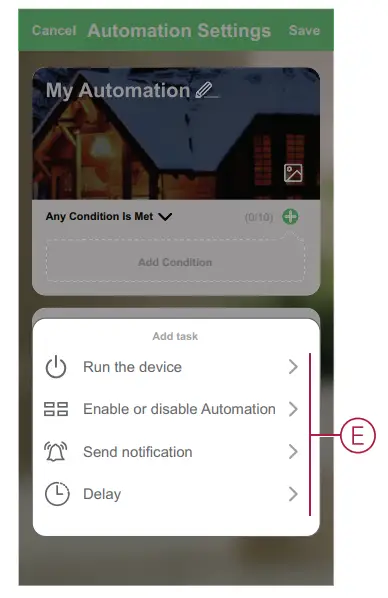
- Tap Add task to open the slide-up menu.
- In the Add task menu, you can do either or all of the following options (E):
– Run the device – Select the devices that you want to be triggered
– Enable or disable Automation – Select the automation that you want to enable or disable
– Send notification – Turn On notification for the automation
– Delay – Set the delay time
NOTE: You can add one or more actions using icon.
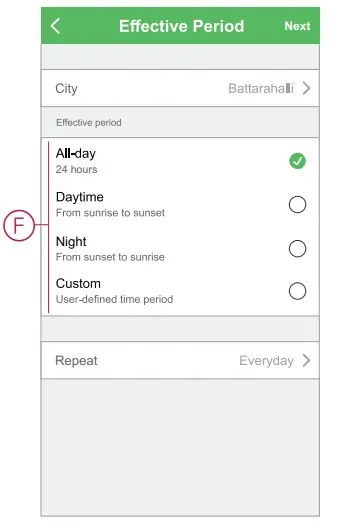
- Tap on Effective period to set the time range for the automation. You can select any one of the following (F):
– All-day – 24 hours
– Daytime – From sunrise to sunset
– Night – From sunset to sunrise
– Custom – User defined time period
- Once all the actions and conditions are set, tap Save.
Once the automation is saved, it is visible on the Automation tab. You can tap the toggle switch on the automation to enable it.
Example of an automation
This demonstration shows you how to create an automation to turn off the light switch at the scheduled time.
- Go to Automation > + icon to create an automation.
- Tap Edit name, enter the name of the automation and tap Save.
TIP: You can choose the cover image that best represents your automation by tapping icon. - Tap Add Condition > Schedule.
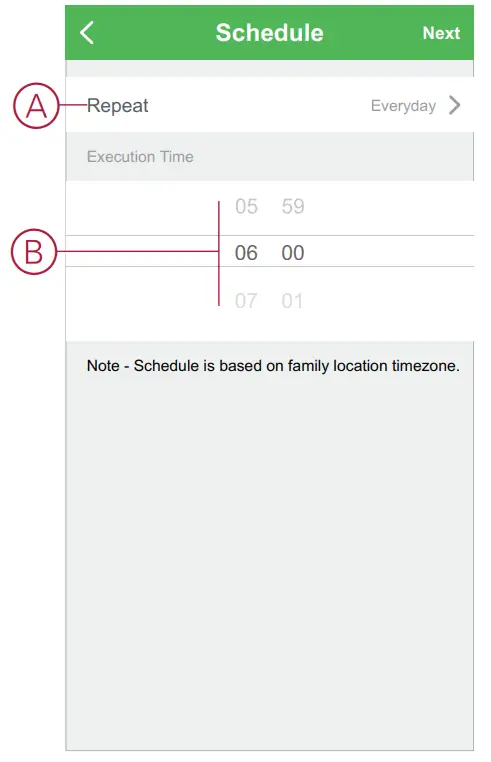
• Tap Repeat (A), select the days you want to set the schedule and tap Save.
• Set the time (B) at which the automation must start and tap Next.
- Tap Add task > Run the device > Micromodule Switch.
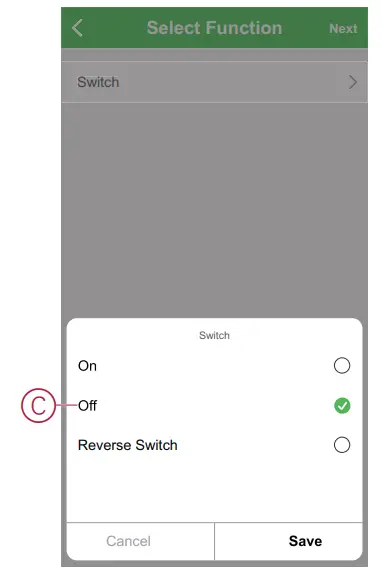
- Tap Switch on the slide-up menu select Off(C) and tap Save.

- Tap Next.
- In the Automation Settings page, tap Save.

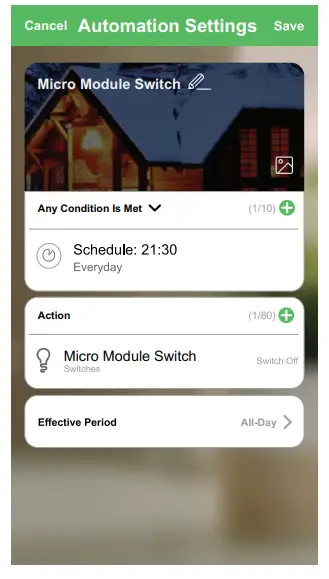
Once the automation is saved, it is visible on the Automation tab. You can tap the toggle switch on the automation to enable it.
Editing an automation
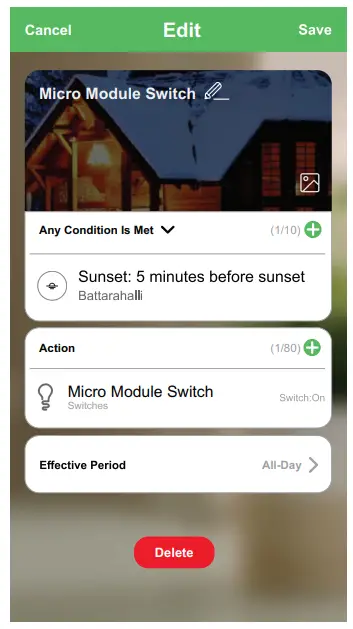
Follow the steps to edit an automation:
- On the Automation tab, locate the automation you want to edit and tapicon.
- On the Edit page, you can tap the item to change the settings and tap Save.

Deleting an automation
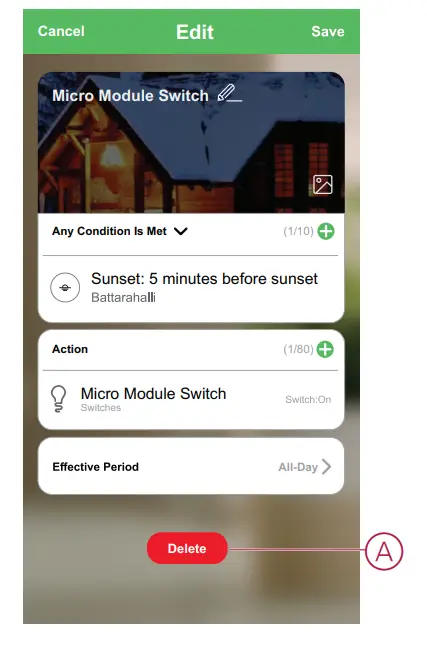
Follow the steps to delete an automation:
- On the Automation tab, locate the automation you want to delete and tap icon.
- Tap Delete (A).

LED indication
Pairing the device
| User Action | LED Indication | Status |
| Short press the setup/reset button or push button 3 times. | LED blinks orange once per second. | Pairing mode is active for 30 seconds. When pairing is completed, LED glows green for a few seconds before turning Off. |
Resetting the device
| User Action | LED Indication | Status |
| Short press the setup/reset button or push button 3 times and hold it down once for > 10 s. | LED blinks red once per second. | The device is in reset mode. The device then restarts and LED turns orange indicating that the device is ready for pairing. |
Troubleshooting
| Error | Possible cause | Solution |
| The device is not ready to pair after the device is removed from the app. | The device is not reset correctly. | Reset to factory default settings, refer to Resetting the device manually, page 12  |
Technical data
Nominal power rating for load type
 | 2200 W |  | 1000 VA |  | 200 W |
 | 2000 W |  | 1050 VA 10 A, 140 µF | ||
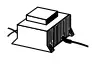 | 500 VA |  | 100 W |
| Nominal voltage | AC 220-240 V, 50/60 Hz |
| Nominal current | 10 AX |
| Switching channel | 1, dry contact |
| Standby | Max. 0.3 W |
| Operating Temperature | 0 ºC to 35 ºC |
| Neutral conductor | Required |
| Connecting terminals | Max. 2 x 2.5 mm², solid or stranded types |
| Extension connection | Max. 10 mechanical push buttons |
| Length of all cable sections | Max. 50 m for 3-wire NYM cable |
| Fuse protection | 16 A circuit breaker |
| Operating frequency | 2405 – 2480 MHz |
| Max. radio-frequency power transmitted | <10 mW |
| IP rating | IP20 |
| Product dimensions (H x W x D) | 43 x 43 x 22 mm |
| Communication protocol | Zigbee 3.0 certified |
Compliance
Compliance information for Green Premium products
Find and download comprehensive information about Green Premium products, including RoHS compliance and REACH declarations as well as Product Environmental Profile (PEP) and End-of-Life instructions (EOLI).
General information about Green Premium products
Click the link below to read about Schneider Electric’s Green Premium product strategy.
https://www.schneider-electric.com/en/work/support/green-premium/
Find compliance information for a Green Premium product
Click the link below to search for a product’s compliance information (RoHS, REACH, PEP and EOLI).
NOTE: You will need the product reference number or product range to perform the search.
https://www.reach.schneider-electric.com/CheckProduct.aspx?cskey= ot7n66yt63o1xblflyfj
Trademarks
This guide makes reference to system and brand names that are trademarks of their relevant owners.
- Zigbee® is a registered trademark of the Connectivity Standards Alliance.
- Apple® and App Store® are brand names or registered trademarks of Apple Inc.
- Google Play™ Store and Android™ are brand names or registered trademarks of Google Inc.
- Wi-Fi® is a registered trademark of Wi-Fi Alliance®.
- Wiser™ is a trademark and the property of Schneider Electric, its subsidiaries and affiliated companies.
Other brands and registered trademarks are the property of their respective owners.
Schneider Electric
35 rue Joseph Monier
92500 Rueil Malmaison France
+ 33 (0) 1 41 29 70 00
www.se.com
As standards, specifications, and design change from time to time,
please ask for confirmation of the information given in this publication.
© 2021 – Schneider Electric. All rights reserved.
Device user guide_00
www.se.com
 Schneider Electric Global | Global Specialist in Energy Management and Automation
 Green Premium | Schneider Electric Global