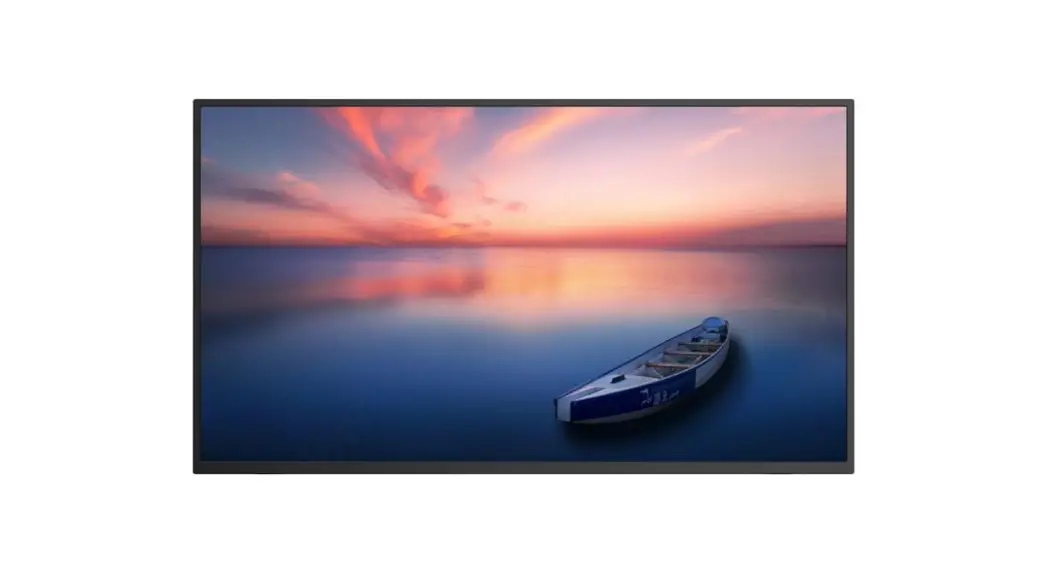
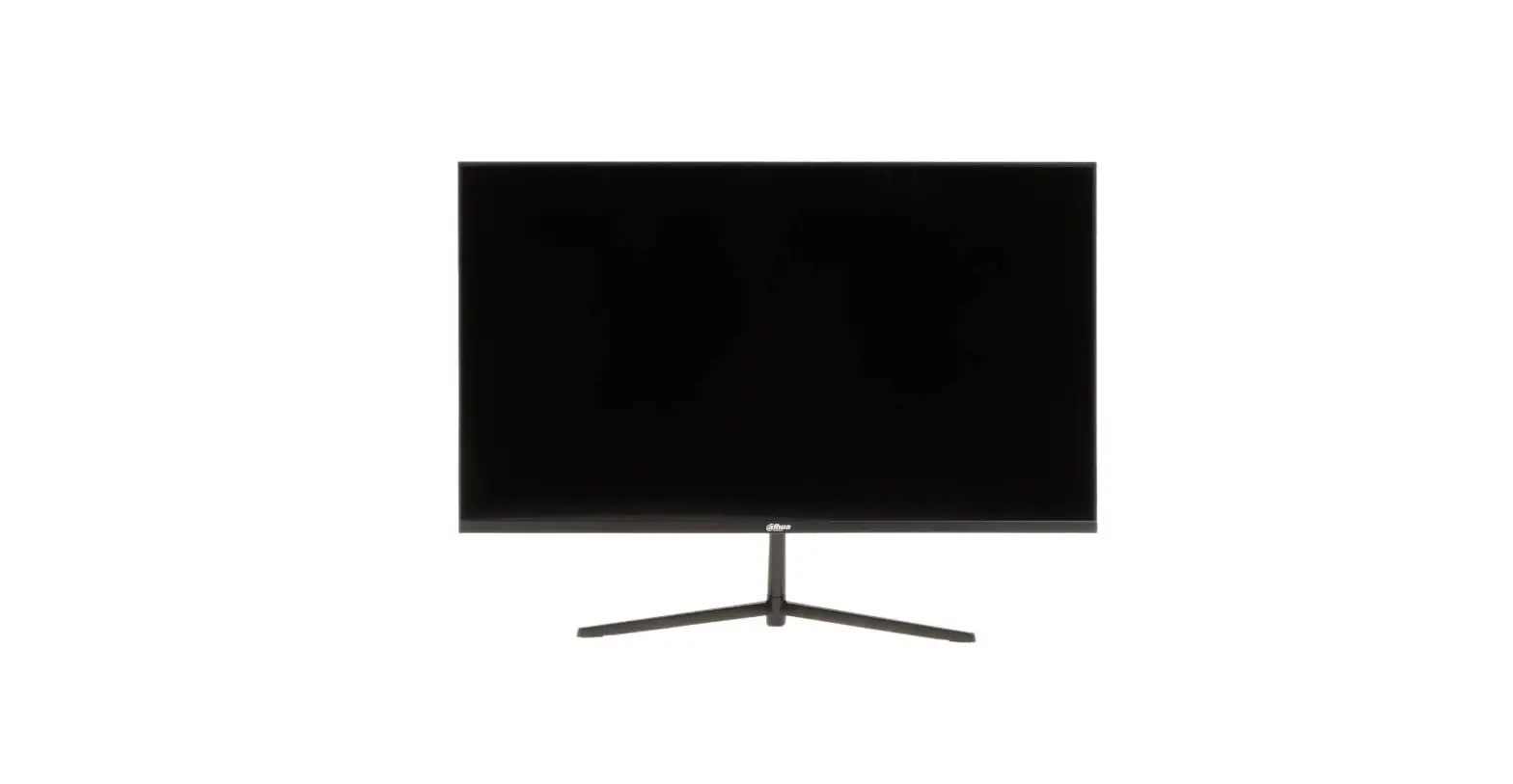
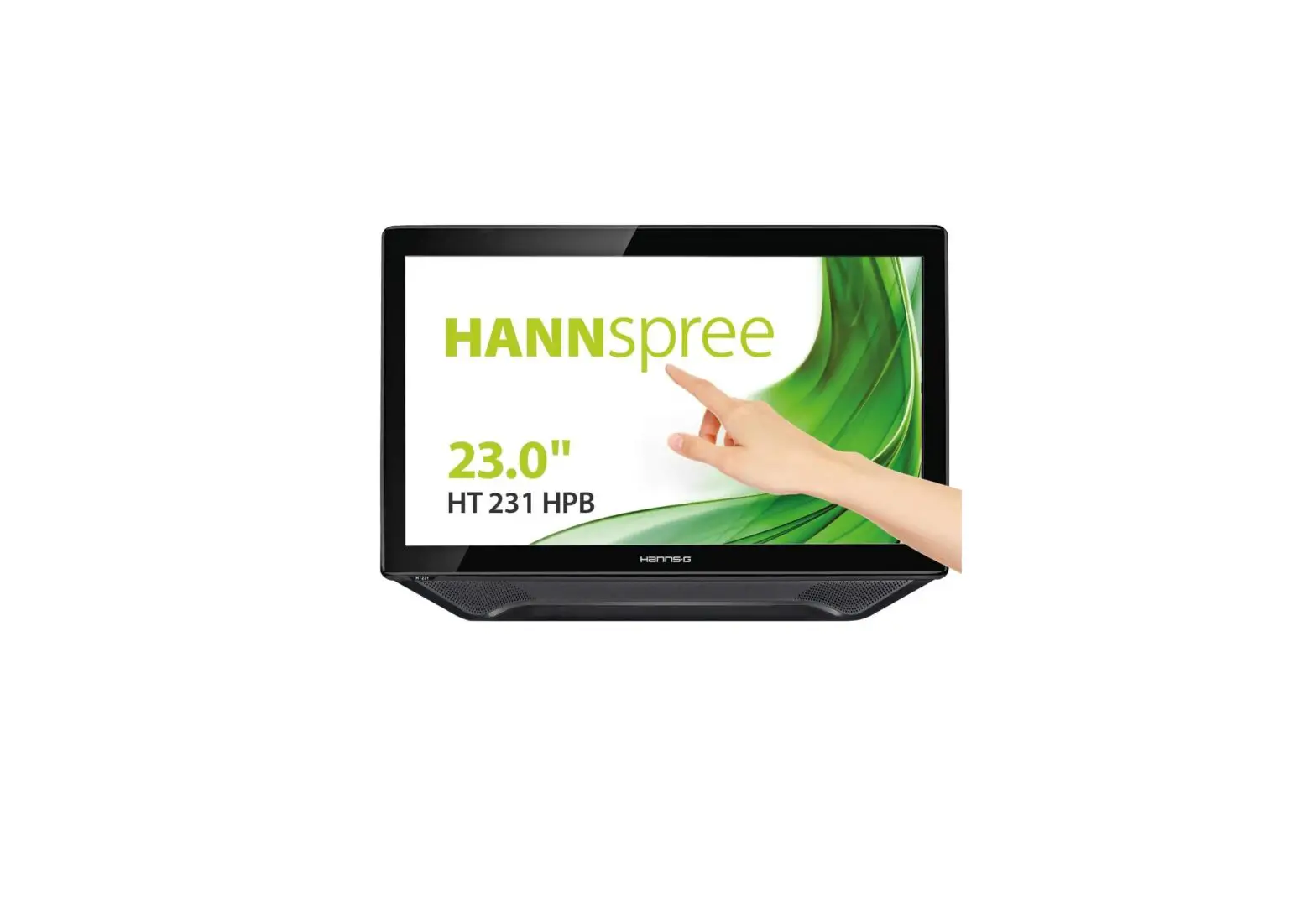
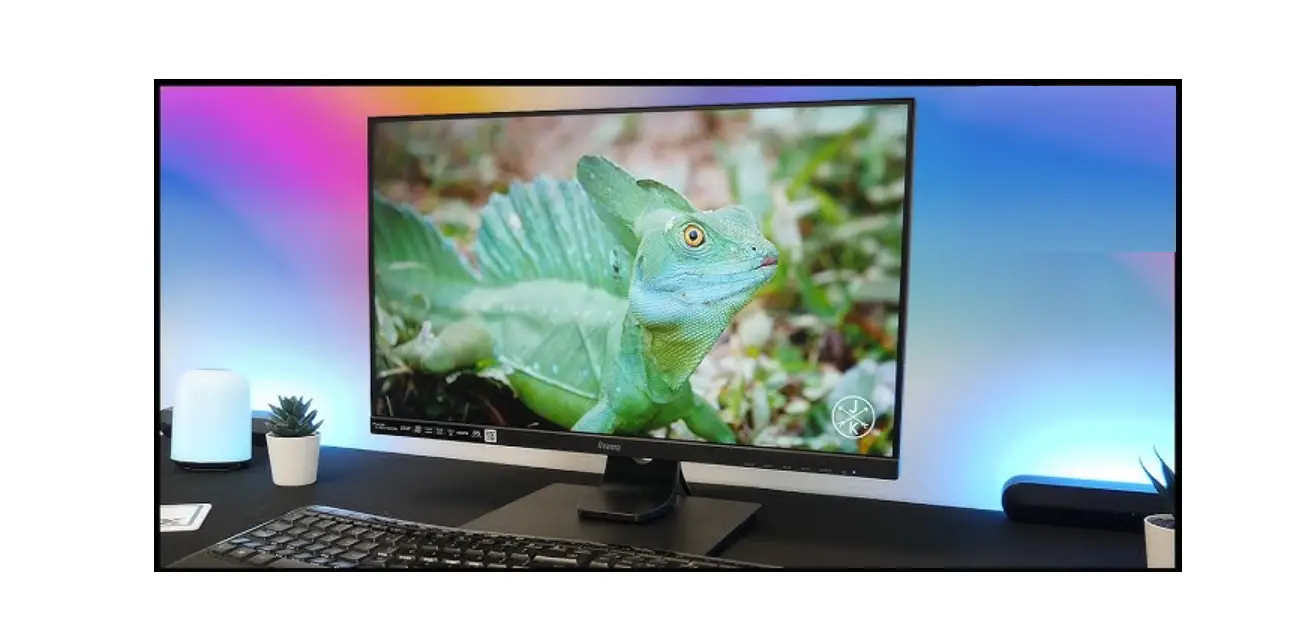
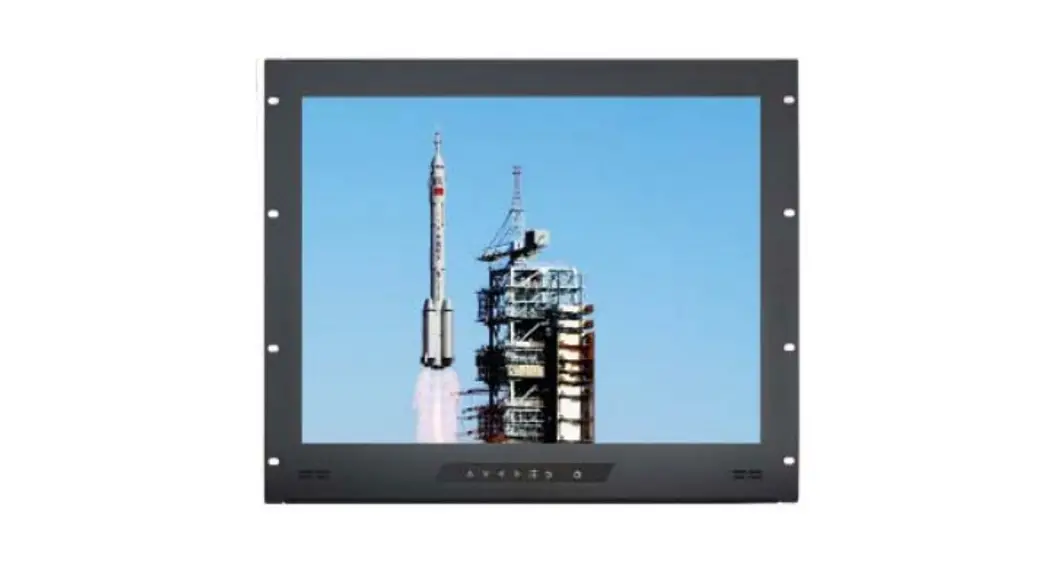
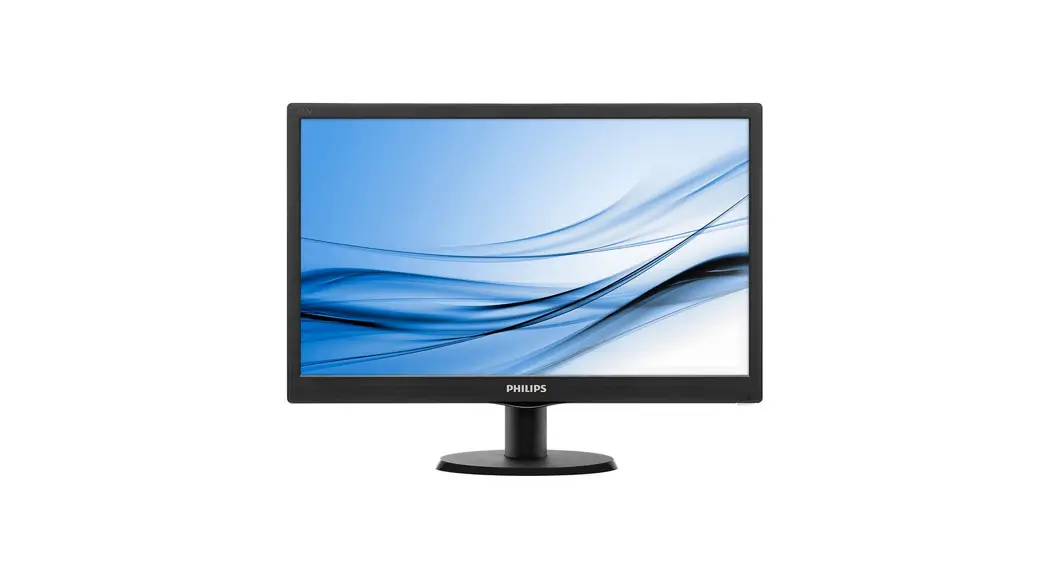
DHL550UDM-EG LCD Display Wall Unit
Product Information: LCD Display Wall Unit
The LCD Display Wall Unit is a video wall that is designed to be
installed indoors. It has an LCD display and is equipped with a
vent for airflow. The device can generate, use, and radiate radio
frequency energy that may cause harmful interference to radio
communication if not installed and used in accordance with the
guide. The device complies with part 15 of the FCC rules.
Cybersecurity Recommendations
The user manual provides cybersecurity recommendations to ensure
the safety of the device. The recommendations are listed in three
sections.
Regulatory Information
The regulatory information provided in the manual might vary
according to the model purchased. Some information is only
applicable for the country or region where the product is sold. The
device complies with part 15 of the FCC rules and must be operated
under certain conditions to avoid harmful interference.
Safety Instructions
The manual provides safety instructions that are categorized
based on signal words with defined meanings. The signal words are
DANGER, WARNING, CAUTION, TIPS, and NOTE. The manual provides
methods to help users solve a problem or save time.
Table of Contents
The manual has a table of contents that lists the different
sections of the manual. The sections include maintenance and
environmental requirements for the video wall.
Product Usage Instructions: LCD Display Wall Unit
Environmental Requirements
The video wall can only be installed indoors. It is recommended
that the room where the video wall is installed be equipped with
air conditioning. The video wall cannot be operated in an
environment with high humidity and heavy dust. Do not block the
vent of the video wall and the airflow around it; otherwise, the
temperature of the video wall will increase, and fire might
occur.
Maintenance Tips
Comply with the maintenance rules strictly to prolong the
lifespan of the video wall and to implement energy conservation and
emission reduction. Regular cleaning and dusting of the video wall
is required, and it is recommended to follow the maintenance
schedule provided in the manual.
LCD Display Wall Unit
User’s Manual
V1.0.0
1
Cybersecurity Recommendations
Mandatory actions to be taken towards cybersecurity 1. Change Passwords and Use Strong Passwords: The number one reason systems get “hacked” is due to having weak or default passwords. It is recommended to change default passwords immediately and choose a strong password whenever possible. A strong password should be made up of at least 8 characters and a combination of special characters, numbers, and upper and lower case letters. 2. Update Firmware As is standard procedure in the tech-industry, we recommend keeping NVR, DVR, and IP camera firmware up-to-date to ensure the system is current with the latest security patches and fixes. “Nice to have” recommendations to improve your network security 1. Change Passwords Regularly Regularly change the credentials to your devices to help ensure that only authorized users are able to access the system. 2. Change Default HTTP and TCP Ports: Change default HTTP and TCP ports for systems. These are the two ports used to communicate and to view video feeds remotely. These ports can be changed to any set of numbers between 1025-65535. Avoiding the default ports reduces the risk of outsiders being able to guess which ports you are using. 3. Enable HTTPS/SSL: Set up an SSL Certificate to enable HTTPS. This will encrypt all communication between your devices and recorder. 4. Enable IP Filter: Enabling your IP filter will prevent everyone, except those with specified IP addresses, from accessing the system. 5. Change ONVIF Password: On older IP Camera firmware, the ONVIF password does not change when you change the system’s credentials. You will need to either update the camera’s firmware to the latest revision or manually change the ONVIF password. 6. Forward Only Ports You Need: Only forward the HTTP and TCP ports that you need to use. Do not forward a huge range of numbers to the device. Do not DMZ the device’s IP address. You do not need to forward any ports for individual cameras if they are all connected to a recorder on site; just the NVR is needed. 7. Disable Auto-Login on SmartPSS: Those using SmartPSS to view their system and on a computer that is used by multiple people should disable auto-login. This adds a layer of security to prevent users without the appropriate credentials from accessing the system. 8. Use a Different Username and Password for SmartPSS:
Cybersecurity Recommendations 2
In the event that your social media, bank, email, etc. account is compromised, you would not want someone collecting those passwords and trying them out on your video surveillance system. Using a different username and password for your security system will make it more difficult for someone to guess their way into your system. 9. Limit Features of Guest Accounts: If your system is set up for multiple users, ensure that each user only has rights to features and functions they need to use to perform their job. 10. UPnP: UPnP will automatically try to forward ports in your router or modem. Normally this would be a good thing. However, if your system automatically forwards the ports and you leave the credentials defaulted, you may end up with unwanted visitors. If you manually forwarded the HTTP and TCP ports in your router/modem, this feature should be turned off regardless. Disabling UPnP is recommended when the function is not used in real applications. 11. SNMP: Disable SNMP if you are not using it. If you are using SNMP, you should do so only temporarily, for tracing and testing purposes only. 12. Multicast: Multicast is used to share video streams between two recorders. Currently there are no known issues involving Multicast, but if you are not using this feature, deactivation can enhance your network security. 13. Check the Log: If you suspect that someone has gained unauthorized access to your system, you can check the system log. The system log will show you which IP addresses were used to login to your system and what was accessed. 14. Physically Lock Down the Device: Ideally, you want to prevent any unauthorized physical access to your system. The best way to achieve this is to install the recorder in a lockbox, locking server rack, or in a room that is behind a lock and key. 15. Connect IP Cameras to the PoE Ports on the Back of an NVR: Cameras connected to the PoE ports on the back of an NVR are isolated from the outside world and cannot be accessed directly. 16. Isolate NVR and IP Camera Network The network your NVR and IP camera resides on should not be the same network as your public computer network. This will prevent any visitors or unwanted guests from getting access to the same network the security system needs in order to function properly.
Cybersecurity Recommendations 3
Regulatory Information
The regulatory information herein might vary according to the model you purchased. Some information is only applicable for the country or region where the product is sold.
FCC Information
CAUTION
Changes or modifications not expressly approved by the party responsible for compliance could void the user’s authority to operate the equipment. FCC conditions: This device complies with part 15 of the FCC Rules. Operation is subject to the following two conditions: This device may not cause harmful interference. This device must accept any interference received, including interference that may cause
undesired operation. FCC compliance:
This equipment has been tested and found to comply with the limits for a digital device, pursuant to part 15 of the FCC Rules. This equipment generate, uses and can radiate radio frequency energy and, if not installed and used in accordance with the guide, may cause harmful interference to radio communication. For class A device, these limits are designed to provide reasonable protection against
harmful interference in a commercial environment. Operation of this equipment in a residential area is likely to cause harmful interference in which case the user will be required to correct the interference at his own expense. For class B device, these limits are designed to provide reasonable protection against harmful interference in a residential installation. However, there is no guarantee that interference will not occur in a particular installation. If this equipment does cause harmful interference to radio or television reception, which can be determined by turning the equipment off and on, the user is encouraged to try to correct the interference by one or more of the following measures: Reorient or relocate the receiving antenna. Increase the separation between the equipment and receiver. Connect the equipment into an outlet on a circuit different from that to which the
receiver is connected. Consult the dealer or an experienced radio/TV technician for help.
Regulatory Information 4
Foreword
Overview
This User’s Maual (hereinafter referred to as the “Manual”) is about the operation and maintenance of the LCD Video Wall (hereinafter referred to as “video wall”).
Safety Instructions
The following categorized signal words with defined meaning might appear in the Manual.
Signal Words
Meaning
DANGER
Indicates a high potential hazard which, if not avoided, will result in death or serious injury.
WARNING CAUTION
TIPS NOTE
Indicates a medium or low potential hazard which, if not avoided, could result in slight or moderate injury. Indicates a potential risk which, if not avoided, could result in property damage, data loss, lower performance, or unpredictable result.
Provides methods to help you solve a problem or save you time.
Provides additional information as the emphasis and supplement to the text.
Revision History
No.
Version
1
V1.0.0
Revision Content First Release.
Release Time August 22, 2018
Privacy Protection Notice
As the device user or data controller, you might collect personal data of other such as face, fingerprints, car plate number, Email address, phone number, GPS and so on. You need to be in compliance with the local privacy protection laws and regulations to protect the legitimate rights and interests of other people by implementing measures include but not limited to: providing clear and visible identification to inform data subject the existence of surveillance area and providing related contact.
About the Manual
Foreword 5
The Manual is for reference only. If there is inconsistency between the Manual and the actual product, the actual product shall prevail.
We are not liable for any loss caused by the operations that do not comply with the Manual. The Manual would be updated according to the latest laws and regulations of related
regions. For detailed information, see the paper manual, CD-ROM, QR code or our official website. If there is inconsistency between paper manual and the electronic version, the electronic version shall prevail. All the designs and software are subject to change without prior written notice. The product updates might cause some differences between the actual product and the Manual. Please contact the customer service for the latest program and supplementary documentation. There still might be deviation in technical data, functions and operations description, or errors in print. If there is any doubt or dispute, please refer to our final explanation. Upgrade the reader software or try other mainstream reader software if the Manual (in PDF format) cannot be opened. All trademarks, registered trademarks and the company names in the Manual are the properties of their respective owners. Please visit our website, contact the supplier or customer service if there is any problem occurred when using the device. If there is any uncertainty or controversy, please refer to our final explanation.
Foreword 6
Table of Contents
Cybersecurity Recommendations ……………………………………………………………………………………………. 2 Regulatory Information……………………………………………………………………………………………………………. 4 Foreword ………………………………………………………………………………………………………………………………… 5 1 Maintenance…………………………………………………………………………………………………………………………. 8
1.1 Environmental Requirement …………………………………………………………………………………………… 8 1.2 Maintenance Tips ………………………………………………………………………………………………………….. 8 2 Unpacking the Box ……………………………………………………………………………………………………………… 11 3 Introduction………………………………………………………………………………………………………………………… 12 3.1 LCD Video Wall …………………………………………………………………………………………………………… 12 3.2 Port……………………………………………………………………………………………………………………………. 12 3.3 Remote Control …………………………………………………………………………………………………………… 14 4 Interface Configuration……………………………………………………………………………………………………….. 16 4.1 Picture ……………………………………………………………………………………………………………………….. 17
4.1.1 Picture Mode……………………………………………………………………………………………………… 17 4.1.2 Contrast ……………………………………………………………………………………………………………. 17 4.1.3 Brightness …………………………………………………………………………………………………………. 18 4.1.4 Saturability ………………………………………………………………………………………………………… 18 4.1.5 Sharpness…………………………………………………………………………………………………………. 19 4.1.6 Color Temperature ……………………………………………………………………………………………… 19 4.1.7 Aspect Ratio………………………………………………………………………………………………………. 19 4.1.8 Noise Reduction ………………………………………………………………………………………………… 20 4.1.9 Hue ………………………………………………………………………………………………………………….. 20 4.2 Geometry …………………………………………………………………………………………………………………… 20 4.2.1 DVI/HDMI/CVBS Signal………………………………………………………………………………………. 21 4.2.2 VGA Signal………………………………………………………………………………………………………… 21 4.3 Advanced …………………………………………………………………………………………………………………… 22 4.4 Option………………………………………………………………………………………………………………………… 22 4.4.1 OSD Language ………………………………………………………………………………………………….. 22 4.4.2 OSD Duration ……………………………………………………………………………………………………. 23 4.4.3 Blending ……………………………………………………………………………………………………………. 23 4.4.4 Backlight Mode ………………………………………………………………………………………………….. 23 4.4.5 Soft Addr …………………………………………………………………………………………………………… 24 4.4.6 Restore Settings ………………………………………………………………………………………………… 24 4.4.7 Version Info ……………………………………………………………………………………………………….. 24 4.5 Source ……………………………………………………………………………………………………………………….. 25 5 FAQ ……………………………………………………………………………………………………………………………………. 27
Table of Contents 7
1 Maintenance
1.1 Environmental Requirement
The video wall can only be installed indoors. It is recommended that the room where the video wall is installed be equipped with air conditioner. The video wall cannot be operated in environment with high humidity and heavy dust.
Do not block the vent of the video wall and the airflow around it; otherwise the temperature of the video wall will increase, and fire might occur.
1.2 Maintenance Tips
Comply with the maintenance rule strictly to prolong the life span of the video wall and to implement energy conservation and emission reduction.
Operating Time
Because of high temperature, electronic products will age rapidly if they are operated for a long time. The relation of operating time and performance of the video wall is as follows. SeeFigure 1-1.
Figure 1-1 Performance
To prolong the life span of the video wall and save maintenance expenses, follow the suggestions bellow.
Maintenance 8
If the video wall has worked for ten hours, turn it off and then turn it on after 1530 minutes. If the video wall has worked for 7×24 hours, turn it off and then turn it on after two hours.
Temperature, Humidity and Ventilation
The appropriate ambient temperature range for the video wall is 22±4, and the appropriate relative humidity range is 30%70%, no condensation. There must be no great temperature and humidity difference.
If the video wall is used in environment with high temperature and humidity, there will be tiny water drops on the surface and frame of the video wall. The water drops will flow inside the video wall. As a result, the glass structure will be damaged, and the liquid crystal molecule aggregation and outflow will occur. The phenomenon is displayed in Figure 1-2. Figure 1-2 Liquid crystal leakage
During the operation, pay attention to the bellow points. Before turning off the video wall, make sure that the temperatures of the air conditioners in
the server room and the room where the video wall is installed are the same. If the video wall has been off for a long time, check if there are water drops on the surface.
If there are water drops, do not dry the surface with wet cloth. Dry the surface with absorbent paper, do not plug it in, and contact the after-sales personnel.
Free quality assurance service is not applicable to damage (includes but not limited to the damage to the video wall and damage to the user or the third party) results from incorrect using and maintaining the video wall.
Cleaning
Use degreasing cotton or cloth to clean the screen. The ideal detergent is isopropanol or n-hexane. Do not use ketone (like acetone) to clean
the screen. Before you clean the screen, pull the plug out of the socket. Wet cloth is not allowed to clean the video wall because there will be tiny water drops on
the surface and frame of the video wall. The water drops will flow inside the video wall. As a result, the glass structure will be damaged, and the liquid crystal molecule aggregation and outflow will occur. The panel is fragile. As a result, you must not press or scratch the surface of the screen with great force.
Maintenance 9
Power Supply
Stable 100V240V single phase power supply is needed; otherwise the video wall cannot work normally. To get stable voltage and prevent damage result from electrical surge, use the stabilized voltage supply.
Storage Requirement
If the video wall will not be used for a long time, cover it with the dust-cloth. If the video wall has not been used for over six months before you start to use it again, do
dust removal first, or contact professional company to do the maintenance. If the video wall is not in use for a long time, it will gather dust and heat radiation will be influenced.
Dust-Proof Requirement
During debugging and operation, the dust concentration of the working area should not exceed 10mg/m3. If the video wall must be used in environment with high temperature and high humidity, or the video wall must be in single display mode for a long time, we strongly recommend you to contact engineers of our company to get suggestions. Otherwise the reliability and performance could be greatly influenced. Places like airports, banks and stock markets are places with great dust and temperature difference and humidity difference.
Maintenance 10
2 Unpacking the Box
Check against Table 2-1 to see if the components are complete.
The actual appearance, items, or quantity might be different depending on the mode you
purchased, and the actual packing list shall prevail.
Table 2-1 Packing list
Component
Quantity
LCD Display Wall Unit
1
AC Power cable
1
Network cable
1
Remote control
1
AAA battery
2
Unpacking the Box 11
3 Introduction
3.1 LCD Video Wall
The LCD video wall is displayed in Figure 3-1. Figure 3-1 LCD video wall
3.2 Port
Ports are displayed in Figure 3-2. For detailed parameters, see Table 3-1. Figure 3-2 Port
No. Port
1
USB2.0 port
2
HDMI in
Table 3-1 Port description Function
For multimedia playing and upgrade. Inputs HDMI signals. Compatible with 1920×1080/60Hz or lower.
No. Port
3
DVI in
4
VGA in
5
CVBS1 in
6
CVBS2 in
7
CVBS1 out
8
CVBS2 out
9
LAN in
10 LAN out
11 LED
12 IR in 13 ADD
14 Power input 15 Power switch
Function
Inputs DVI signals. Compatible with 1920×1080/60Hz or lower. Inputs VGA signals. Compatible with 1920×1080/60Hz or lower. Inputs CVBS1 signals. Compatible with 1920×1080/60Hz or lower. Inputs CVBS2 signals. Compatible with 1920×1080/60Hz or lower. Outputs CVBS1 signals. Compatible with 1920×1080/60Hz or lower. Outputs CVBS2 signals. Compatible with 1920×1080/60Hz or lower. An RJ-45 port, inputs RS-232 signals. It controls the screen. An RJ-45 port, outputs RS-232 signals. LED indication light Connected to the IR extension cable. Address dial switch.For expanded use Inputs AC current. Controls the on and off of the AC input port.
3.3 Remote Control
Remote control is a must-have device. For functions of its buttons, see Table 3-2.
Table 3-2 Button functions
Picture
No. Name
Function
1 Power
Power on/Standby
Shortcut keyboard for
2 Address
address setting (dedicated to
monitors).
Shortcut keyboard for signal
source selection.
TV1: switch signals to
CVBS1 signal.
TV2: switch signals to
CVBS2 signal. 3 Signal source
VGA: switch signals to
VGA signal.
HDMI: switch signals to
HDMI signal.
DVI: switch signals to
DVI signal.
4 FRZ
Pause button, used to stop playing videos.
Shortcut keyboard for
5 Signal format displaying the current input
signals.
Shortcut keyboard for
6 Version info displaying version of the
system.
Press Menu to display or exit
7 Menu
the menu interface. Press Menu to confirm the
operation you have done.
Left and right direction
button:
Use it to select items on the
Direction 8
button
left or right of the current parameter on the screen (if
you have selected voice, you
can use these buttons to
adjust the volume).
Picture
No. Name
Function
Up and down direction button: Use it to select items up or below the current item you have selected on the screen.
Shortcut keyboard for Picture 9 Picture mode
mode selection.
10 Brightness
Shortcut keyboard for brightness mode selection.
Number 11
buttons
Press number buttons to enter numbers.
Press Enter to confirm and
12 Enter
enter the multimedia
interface.
13 Return
Press Return to exit the multimedia interface.
4 Interface Configuration
Use the remote control to configure parameters for the video wall. Press the menu button, the menu of the video wall is displayed in Figure 4-1.
Figure 4-1 Menu
For introductions of icons on the interface, see Table 4-1.
Table 4-1 Icon description
Icon
Description
Picture icon, used to set display effect for the picture.
Geometry icon, used to set positions for picture. Advance icon, used to do advanced settings to picture. Advanced options must be set by professional personnel. Option icon, used to configure parameters for the system.
Source icon, used to select signal mode.
Press Menu on the remote control, the menu bar is displayed on the video wall, and then you can adjust relevant parameters.
Press down on the remote control to exit the current menu.
Interface Configuration 16
4.1 Picture
Press Menu on the remote control, the menu interface is displayed on the video wall. The default menu bar is Picture menu bar. See Figure 4-2.
Figure 4-2 Picture
4.1.1 Picture Mode
You can adjust the overall effects of picture through Picture Mode. Step 1 Select Picture > Contrast.
The Picture Mode interface is displayed. See Figure 4-3. Figure 4-3 Picture Mode
Step 1 Adjust the picture mode by the up and down buttons on the remote control according to your requirement. There are four picture modes: User Mode, Dynamic, Standard, MIid and User.
4.1.2 Contrast
You can adjust the luminance or color of Pictures to make objects in Pictures distinguishable by adjusting Contrast. Step 2 Select Picture > Contrast.
Interface Configuration 17
The Contrast interface is displayed. See Figure 4-4. Figure 4-4 Contrast
Step 3 Adjust the Contrast by the left and right buttons on the remote control according to your requirement. The range of contrast is 0100.
4.1.3 Brightness
You can adjust the brightness of Pictures. Step 4 Select Picture > Brightness.
The Brightness interface is displayed. See Figure 4-5. Figure 4-5 Brightness
Step 5 Adjust the brightness by the left and right buttons on the remote control according to your requirement. The range of brightness is 0100.
4.1.4 Saturability
You can adjust lightness and darkness of pictures by adjusting sautrability. Step 1 Select Picture>Saturability.
The Saturability interface is displayed. See Figure 4-6. Figure 4-6 Saturability
Step 2 Adjust the Saturability by the left and right buttons on the remote control according to your requirement. The range of saturability is 0100.
Interface Configuration 18
4.1.5 Sharpness
Definition of pictures can be adjusted by adjusting sharpness. The higher the sharpness is, the clearer the pictures are, and picture noise might occur. Step 1 Select Picture > Sharpness.
The Sharpness interface is displayed. See Figure 4-7. Figure 4-7 Sharpness
Step 2 Adjust the sharpness by the left and right buttons on the remote control according to your requirement. The range of sharpness is 0100.
4.1.6 Color Temperature
You can adjust color temperature of pictures. Step 1 Select Picture > Color Temperature.
The Color Temperature interface is displayed. See Figure 4-8. Figure 4-8 Color temperature
Step 2 Adjust color temperature by the up and down buttons on the remote control according to your requirement.
Color temperature has four types: cool, medium, warm, and user.
4.1.7 Aspect Ratio
Display scales can be adjusted by adjusting aspect ratio. Step 1 Select Picture > Aspect Ratio.
The Aspect Ratio interface is displayed. See Figure 4-9. Figure 4-9 Aspect ratio
Interface Configuration 19
Step 2 Select Aspect Ratio by the up and down buttons on the remote control according to your requirement. For parameters of zoom mode, see Table 4-2. Table 4-2 Parameters of zoom mode
Parameter Descriptions
4:3 16:9 Panorama
Pictures are displayed on the scale of 4:3. Pictures are displayed on the scale of 16:9. Display in full screen.
4.1.8 Noise Reduction
To improve quality of pictures, adjust the noise reduction.
Only in CVBS signal mode can you select picture noise deduction function. Step 1 Select Picture > Noise Reduction.
The Noise Reduction interface is displayed. See Figure 4-10. Figure 4-10 Noise reduction
Step 2 Select noise reduction parameters by the up and down buttons on the remote control according to your requirement.
4.1.9 Hue
It is used to adjust the tone of a screen. Only valid under NTSC standard. Step 1 Select Picture > Hue
The HUe interface is displayed. See Figure 4-811 Figure 4-11 Hue
Step 2 Adjust Hue by the left and right on the remote control according to your requirement.
4.2 Geometry
Different signal modes have different geometry parameters.
Interface Configuration 20
4.2.1 DVI/HDMI/CVBS Signal
On the main menu, press the left and right direction buttons until the Geometry interface is displayed. See Figure 4-13.
Figure 4-12 Geometry (DVI/HDMI/AV)
H-Position is used to adjust the horizontal position of the video wall. H-Size is used to adjust the horizontal size of the video wall. V-Position is used to adjust the vertical position of the video wall. V-Size is used to adjust the vertical size of the video wall.
4.2.2 VGA Signal
On the main menu, press the left and right direction buttons until the Geometry interface is displayed. See Figure 4-13.
Figure 4-13 Geometry (VGA)
Horizontal Pos. is used to adjust the horizontal position of the video wall. Vertical Pos. is used to adjust the vertical position of the video wall. Clock is used to adjust the horizontal picture proportion Phase is used to adjust the position of a point in time on a waveform cycle. Auto Adjust: The position of video wall can be automatically adjusted.
Interface Configuration 21
4.3 Advanced
If you are not professional personnel, do not change parameters in the Advanced menu. You can select Advanced by the up and down buttons on the remote control.
4.4 Option
On the main menu, press the left and right direction buttons until the Option displayed. Figure 4-14 OPTION
4.4.1 OSD Language
You can set on-screen display language. Step 1 Select System>OSD Language.
The OSD Language interface is displayed. See Figure 4-15. Figure 4-15 OSD language
Step 2 Select the OSD language by the up and down buttons. OSD language includes English and Chinese.
Interface Configuration 22
4.4.2 OSD Duration
OSD duration is the time displayed on the screen. Step 1 Select System>OSD Duration.
The OSD Duration interface is displayed. See Figure 4-16. Figure 4-16 OSD duration
Step 2 Set OSD duration by the up and down buttons on the remote control according to your requirement. There are four choices for the OSD duration: OFF, 30s, 60s, and 180s. If you select OFF, the menu will not disappear automatically.
4.4.3 Blending
OSD blending is used to set the transparency for the menu. Step 1 Select System>Blending.
The Blending interface is displayed. See Figure 4-17. Figure 4-17 OSD Blending
Step 2 Adjust the menu transparency by the up and down buttons on the remote control according to your requirement.
4.4.4 Backlight Mode
Backlight mode is used to set the backlight luminance for screens. Step 1 Select System>Backlight Mode.
The Backlight Mode interface is displayed. See Figure 4-18. Figure 4-18 Backlight mode
Interface Configuration 23
Step 2 Adjust backlight mode by the up and down buttons on the remote control according to your requirement.
There are three backlight modes: Powersave, Standard, Highlight.
4.4.5 Soft Addr
Soft addr switch is used to set soft address switch. Step 1 Select System>Soft Addr.
The Soft Addr interface is displayed. See Figure 4-19. Figure 4-19 Soft address switch
Step 2 Set soft address by the left and right buttons on the remote control according to your requirement. For detailed parameters, see Table 4-3. Table 4-3 Soft address parameters.
Parameter Descriptions
Row address Line address Row range Line range Unit display
Row address of the screen. Line address of the screen. Row range of the screen. Line range of the screen. There are two options: On and Off.
Here line means column.
4.4.6 Restore Settings
Restore settings is used to restore the system to factory settings. Step 1 Select System>Restore Setting. Step 2 Press right buttons of the remote control to complete the setting.
4.4.7 Version Info
Version is used to display program version Step 1 Select System>Version Info. Step 2 Press right buttons of the remote control to display program version.
Interface Configuration 24
4.5 Source
You can select the types of input signal for video walls. Step 1 On the main menu, press the left and right direction buttons until the Source interface
is displayed. See Figure 4-20. Figure 4-20 source
Step 2 Select input signal types by the up and down buttons. VGA, HDMI, DVI, AV1 and AV1 Press right button to select the needed input signal type. Here AV means CVBS. USB 1) Press Menu, and the multimedia play setting interface is displayed. See Figure 4-21. Figure 4-21 Multimedia (1)
2) Select photo, music, movie, and text by the left and right buttons on the remote control, and then press Enter, the interface of items you selected is displayed. See Figure 4-22. Figure 4-22 Multimedia (2)
3) You can also change settings for the pictures, music, movies, and files that are to be played. See Figure 4-23.
Interface Configuration 25
Figure 4-23 Multimedia (3)
Interface Configuration 26
5 FAQ
Most problems can be solved by the following solutions. If problems you encountered do not
belong to the following descriptions, contact after sales personnel.
Problems
Solutions
Check whether the power source (220V AC) is
connected to alternating current. When you turn on the LCD video
Check whether the power cable is broken. wall, there are no pictures on the
Check whether the power switch is on. screen (blank screen).
Check whether the power switch is broken.
Check whether the indicator light is on.
Check whether the signal wires are in bad contact.
Blank screen (no signal displayed)
Check whether there is signal source output. Check whether the signal wires are broken. Check whether the input signal type does not
belong to the types allowed by the video wall.
Color missing
Check whether the signal wires are in bad contact. Check whether the signal wires are broken.
Remote control cannot control the screen.
Temperature of the video wall is too high.
Check whether buttons on the remote control is broken or stuck.
Check whether batteries of the remote control are installed correctly.
Check whether the ventilation around the video wall is good.
FAQ 27
 AffordableLaundry.com is for sale | HugeDomains