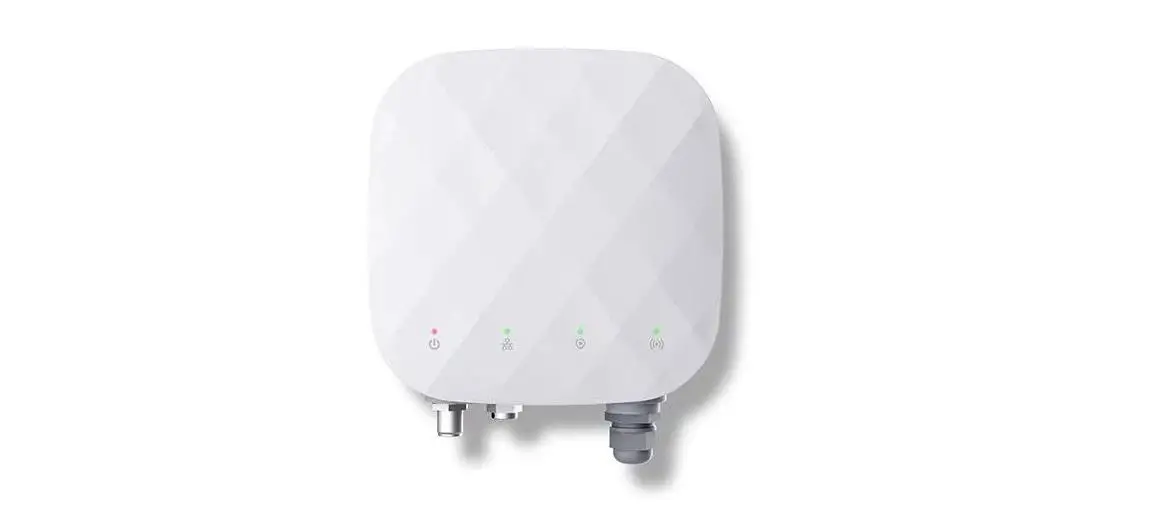
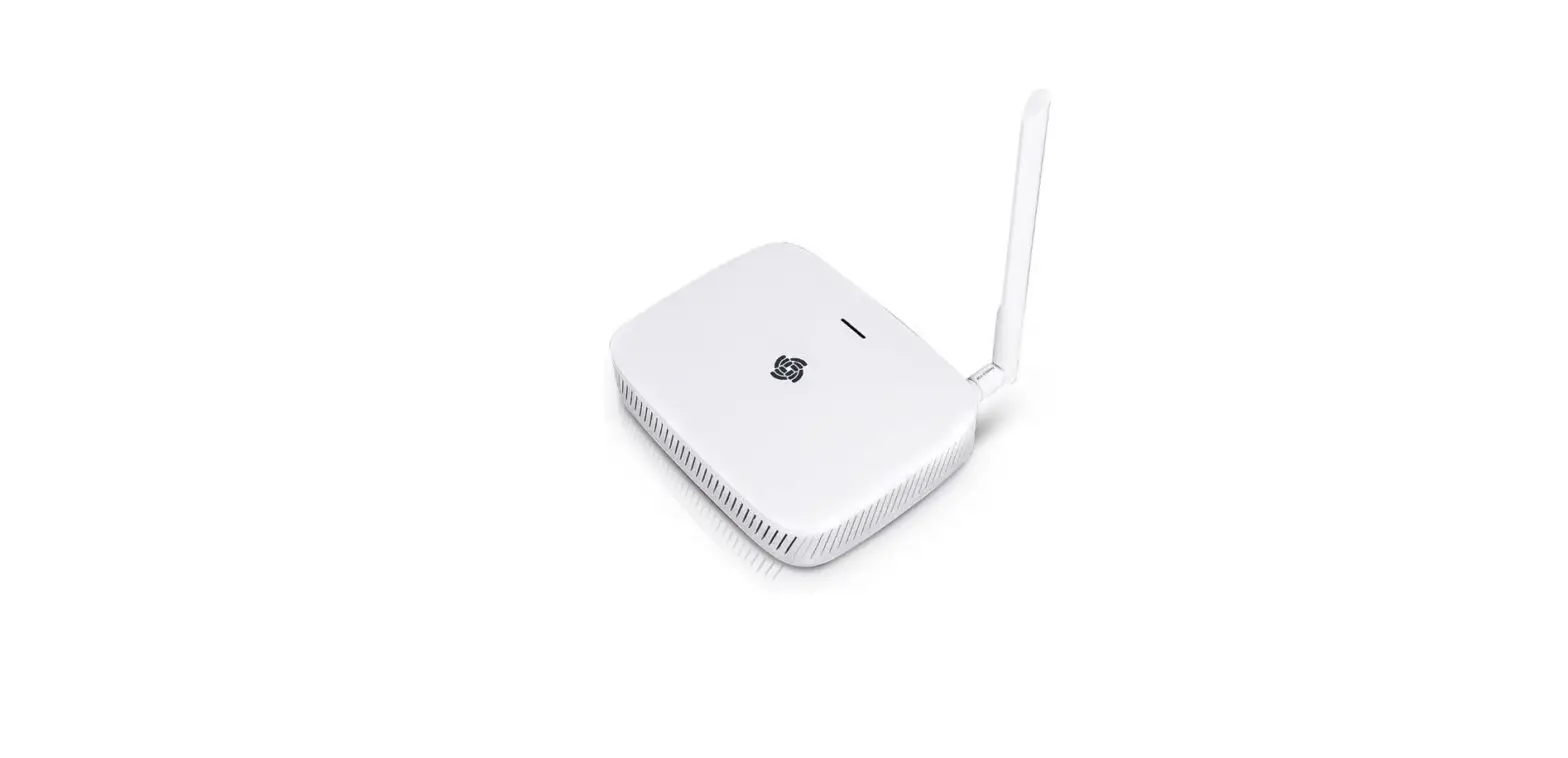
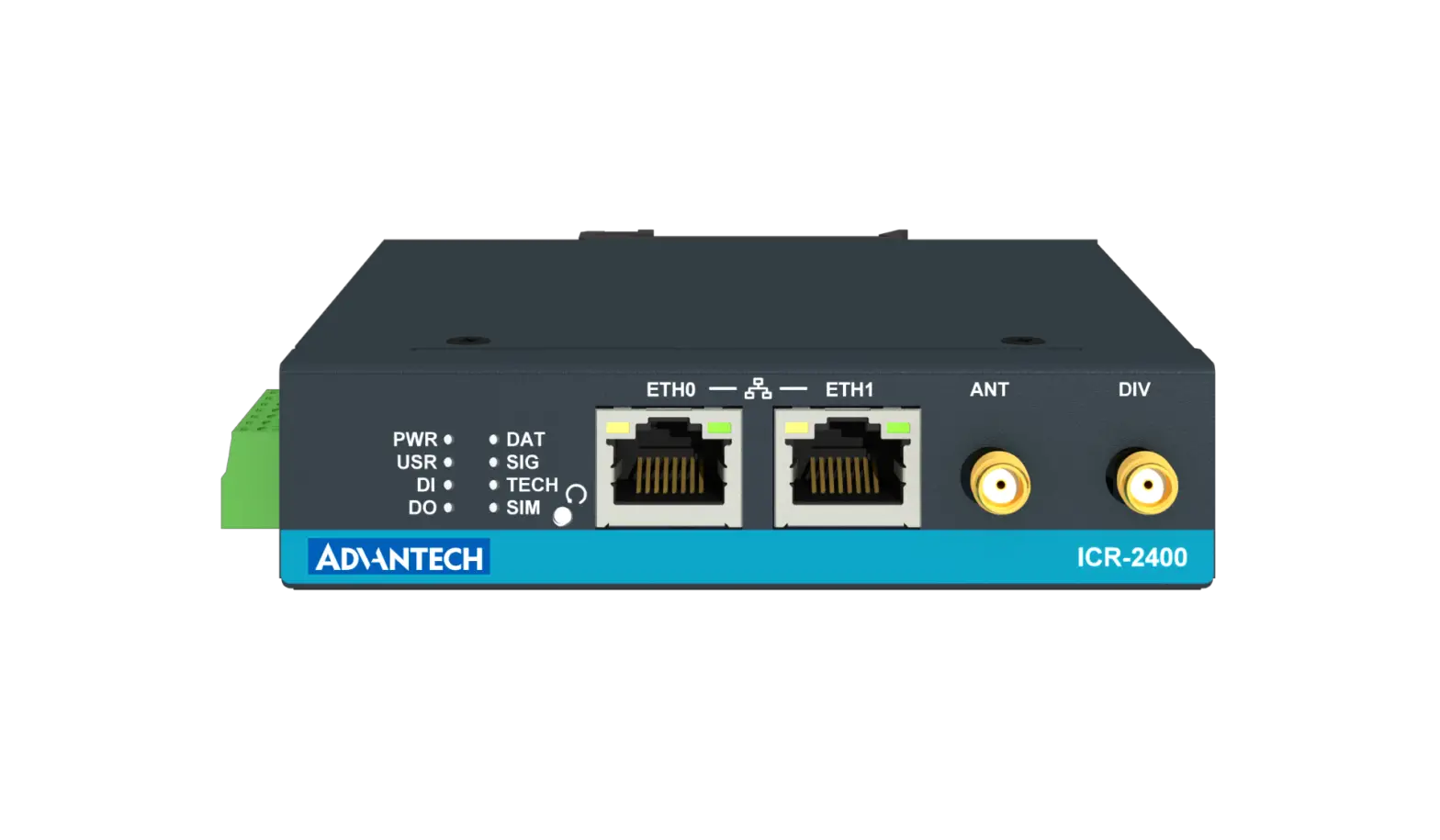
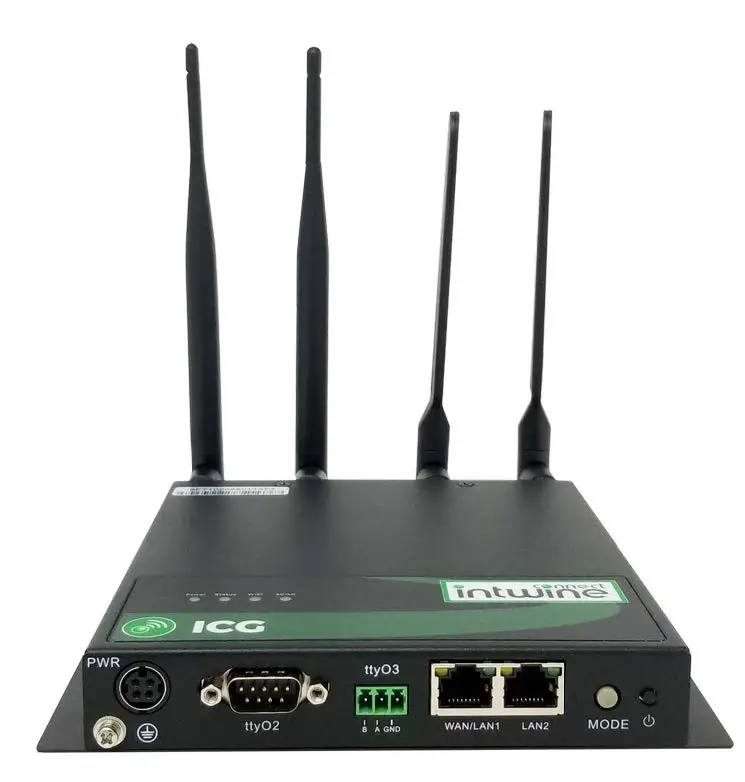
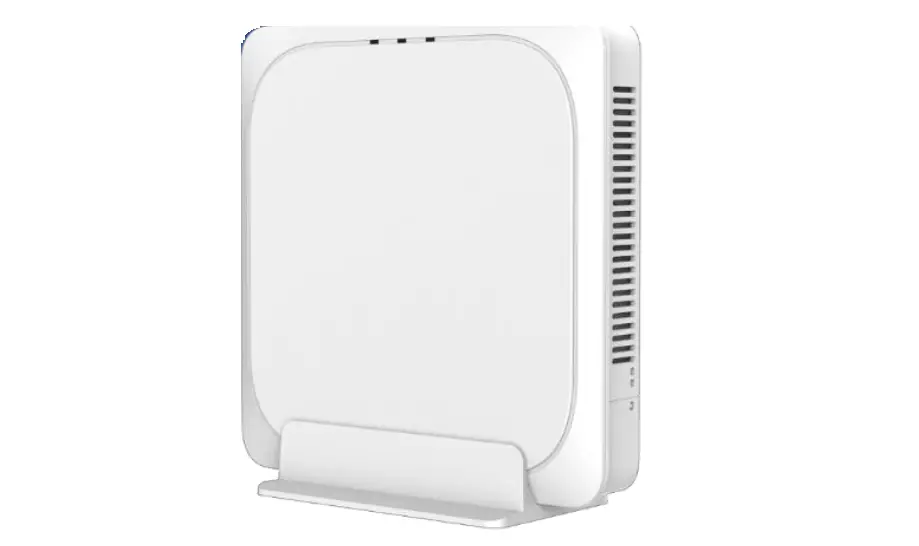
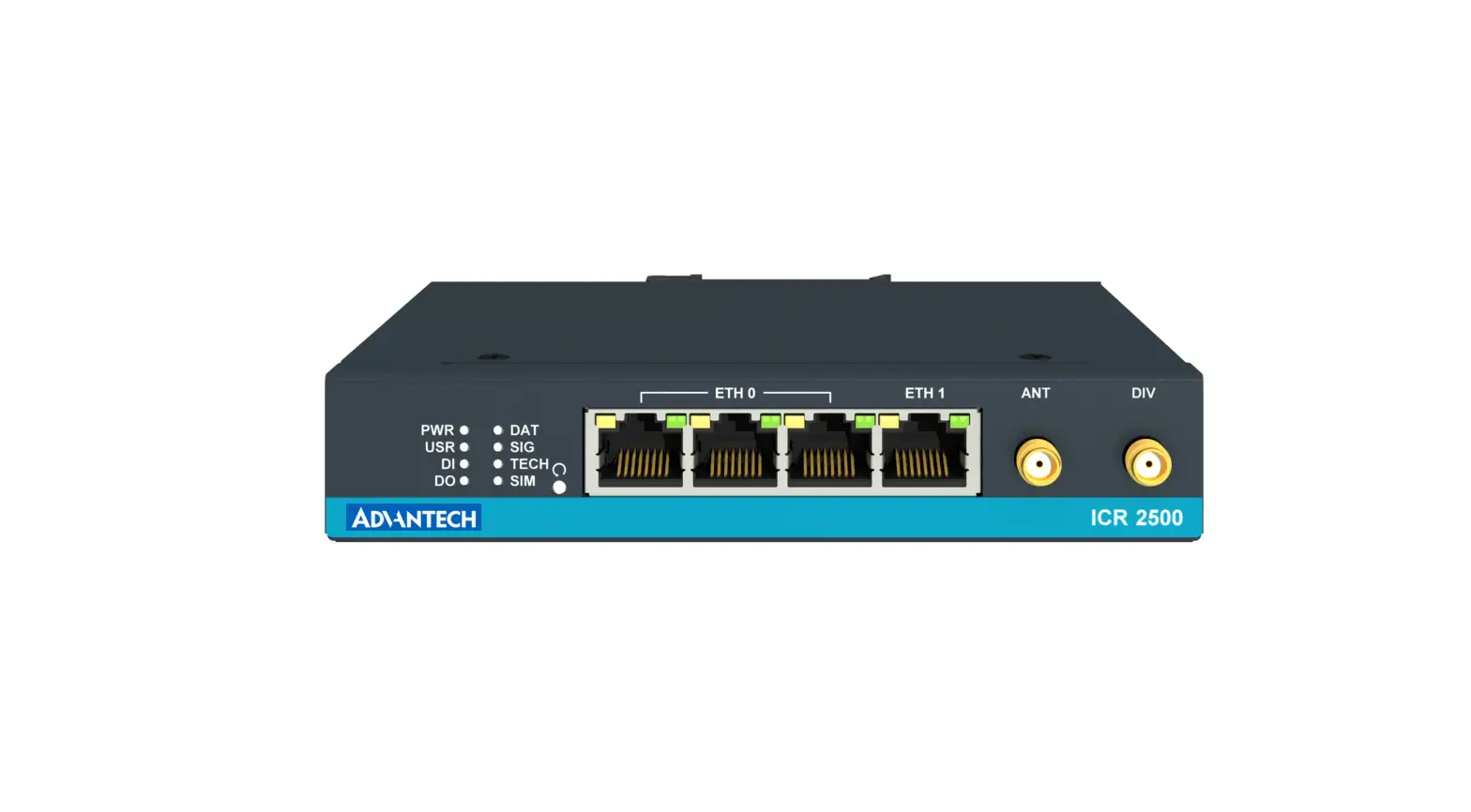
IE-UGW-2TX-2RS232-485 Industrial Gateway
Product Information:
This product is an Industrial Gateway manufactured by
Weidmuller. It is designed to connect various devices and enable
communication between them. The Gateway supports Ethernet and
serial connections and can be used in hazardous or non-hazardous
locations.
Model(s) Covered: IE-UGW-2TX-2RS232/485,
IE-UGW-2TX-4RS232/485
The product complies with ATEX Ex ec IIC T6 Gc Ex II 3G UL 20
ATEX 2469X EN 60079-0:2018 & EN 60079-7:2015+A1:2018 safety
standards for use in potentially explosive environments.
Product Usage Instructions:
- Connect to Network:
- Connect an Ethernet cable between an Ethernet port on the
Gateway and the Ethernet Switch. - Connect an Ethernet cable between the Ethernet Switch and
PC.
- Connect an Ethernet cable between an Ethernet port on the
- Connect Power Supply:
- Ensure the Gateway is booted and the IP address is
displayed. - Use a wire size of 22-14 gauge (2 mm) stranded.
- Tighten the torque to a minimum of 0.22 Nm (2 in/lbs).
- Ensure the Gateway is booted and the IP address is
- Login to the Gateway:
- Type the default IP address 192.168.1.100 into your web
browser. - Enter the default password “Detmold”.
- After changing the password, the main Gateway dialog will
appear.
- Type the default IP address 192.168.1.100 into your web
- Time Setup:
- Select the Time Setup icon.
- Configure the desired time settings in the Time Setup
dialog.
- Configure Network Setup:
- Select the Network icon.
- In the Network Setup dialog, set the desired IP address (if
using Static IP) and configure Gateway and DNS1 (if NTP is selected
in Time Setup).
- Add Devices:
- Select the Devices icon.
- To add an Ethernet device:
- Name the device.
- Select the appropriate Ethernet protocol.
- Select the appropriate TCP Port.
- Enter the IP address of the Ethernet device being connected to
the Gateway. - If necessary, enter the slot number where the processor is
located. - Click the Test Device Connection button.
- To add a Serial device:
- Name the device.
- Select the protocol the serial port will be using.
- Configure Serial Ports:
- Configure the serial port on the Gateway to match the serial
port configuration of the connected device.
- Configure the serial port on the Gateway to match the serial
- Create Tag Maps:
- Select the Tag Map icon.
- In the Tag Map Editor dialog, add a Tag Map by following the
provided instructions.
If you have any questions or need further assistance, you can
access the built-in online help for this product.
IMPORTANT: See back cover for warnings and user requirements. 1. Connect to Network
Connect an Ethernet cable between an Ethernet port on the Gateway and the Ethernet Switch, and connect an Ethernet cable between the Ethernet Switch and PC.
Ethernet Switch
2. Connect Power Supply
Once the Gateway boots, the IP address will display on the Gateway.
Wire size: 22-14 gauge (2 mm) stranded Tightening torque, min 0.22 Nm (2 in/lbs.)
3. Login to the Gateway
Type the default IP address 192.168.1.100 into your web browser. The User Interface dialog appears:
Enter the default password: Detmold After changing the password, the main Gateway dialog appears:
Required from User:
· 24 VDC power supply, all cables and wiring, and Ethernet switch. · Device rating: 10-24 VDC 3W
Models Covered: IE-UGW-2TX-2RS232/485 IE-UGW-2TX-4RS232/485
Questions? Access our built-in online help.
Note: Ambient Temperature Range: 0-55°C
ATEX Ex ec IIC T6 Gc Ex II 3G UL 20 ATEX 2469X EN 60079-0:2018 & EN 60079-7 :2015+A1 :2018
Special condition for safe use (ATEX)
1. Provision shall be made to prevent the rated voltage being exceeded by transient disturbances of more than 140% of the peak rated voltage.
2. The system shall be mounted in an ATEX certified enclosure with a minimum ingress protection rating of at least IP54 (in accordance with EN 60079-15) and used in an environment of not more than pollution degree 2. The enclosure shall be accessible only with the use of a tool.
SUITABLE FOR USE IN CLASS I, DIVISION 2, GROUPS A, B, C, AND D HAZARDOUS LOCATIONS, OR NONHAZARDOUS LOCATIONS ONLY.
WARNING – EXPLOSION HAZARD
DO NOT DISCONNECT EQUIPMENT WHILE THE CIRCUIT IS LIVE OR UNLESS THE AREA IS KNOWN TO BE FREE OF IGNITABLE CONCENTRATIONS.
AVERTISSEMENT – RISQUE D’EXPLOSION
Ne déconnectez l’équipement tandis que le circuit est sous tension ou si la zone est connue pour étre libre de Concentrations in-ammables.
This device shall be installed in an enclosure which can only be opened with the use of a tool. Cet appareil doit être installé dans un boîtier qui ne peut être ouvert qu’avec un outil.
Industrial Gateway
Quick Start Guide
Weidmuller, Ltd 10 Spy Court Markham, Ontario L3R 5H6 Telephone: (800) 268-4080 Email: [email protected] www.weidmuller.ca
Weidmuller, SA de CV Blvd. Hermanos Serdan 698, Col. San Rafael Oriente Puebla, Puebla, Mexico C.P. 72029 Telephone: 01 222 2686267 Email: [email protected] www.weidmuller.com.mx
Weidmuller, Inc. 821 Southlake Blvd. Richmond, Virginia 23236 Telephone: (800) 849-9343 Email: [email protected] www.weidmuller.com
4. Time Setup
Set Up Time icon:
The Time Setup dialog appears:
6. Add Devices
Select the Devices icon:
Adding an Ethernet Device:
1. Name the Device. 2. Select the appropriate Ethernet protocol. 3. Select the appropriate TCP Port. 4. Enter the IP address of the Ethernet
device being connected to the Gateway. 5. If necessary, enter the slot number
where the processor is located.
6. Click Test Device Connection button.
7. Configure Serial Ports
Configure the serial port on the Gateway to match the serial port configuration of the device to which you are connected.
9. Create Tag Maps
A tag map executes a tag copy between PLCs. Select the Tag Map icon:
To add a Tag Map, select the Add Tag Map Icon: The Tag Map Editor dialog appears:
Options are: · Manual. Enter the correct date and time. · NTP. Select a time zone.
5. Configure Network Setup
Select the Network icon: The Network Setup dialog appears:
If setting a Static IP, identify the IP address you plan to use. NOTE: Gateway and DNS1 are required only if NTP is selected in Time Setup. (see step 4)
Adding a Serial Device:
1. Name the Device.
2. Select the protocol the serial port will be using.
3. Configure the serial port to which the device will be connected. (See Step 7)
4. For most applications “Slot Number” should be left at “0”.
5. Select the type of error checking used by the PLC’s serial port protocol.
6. Some applications need the ACK Timeout, NAK Retries, and ENQ Retries values adjusted. If uncertain, use the default values.
7. Click Test Device Connection button.
8. Add Tags
The Gateway moves tag data between connected devices. For each device connected to the Gateway, specify the tags from which data will be read, and the tags to which that data will be written.
To add tags, select a device you added, and select the Add Tags icon:
The Tag Properties dialog appears:
Specify the following:
· Tag Name: Name the tag.
· Data Type: Select data type of the named tag.
· Address: Enter the name of the tag in the PLC, or the address of the tag depending on the protocol.
· Byte Swap/Word Swap/Is Array: Refer to user’s guide for more detailed information. In most applications, these boxes can be left unchecked.
· NOTE: Tags can be imported from a .csv file.
1. Specify the Source tag. i. From “Available Tags”: a. Select a Device. b. Select the Tag that will be used as the data Source. c. Confirm the Source field is highlighted, and select the Move Tag button:
2. Specify the Destination tag. i. From “Available Tags”: a. Select a Device. b. Select the Tag that will be used as the data Destination. c. Confirm the Destination field is highlighted, and select the Move Tag button.
3. Repeat steps 1 and 2 for each additional Source/Destination tag pair needed. 4. Name. Enter a name for the Tag Map. 5. Specify when a tag map executes:
· On Change: Executes a tag map on the state change of a specified tag. · Periodic: Executes the tag map on a user defined rate of frequency.
10. Activate Tag Map & View Live Tag Map Data
1. Activate the Tag Map to begin communication between the Source and Destination tags, select:
2. Select the Live Tag Map Viewer to view the transfer of tag data:
 Weidmüller - Home
 Weidmüller - Home
 Weidmüller - Home