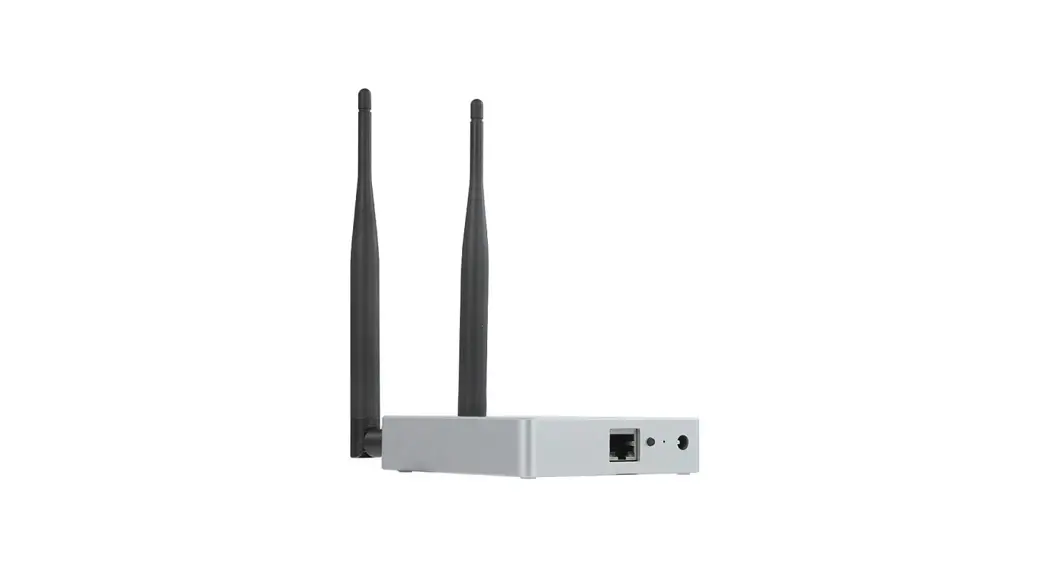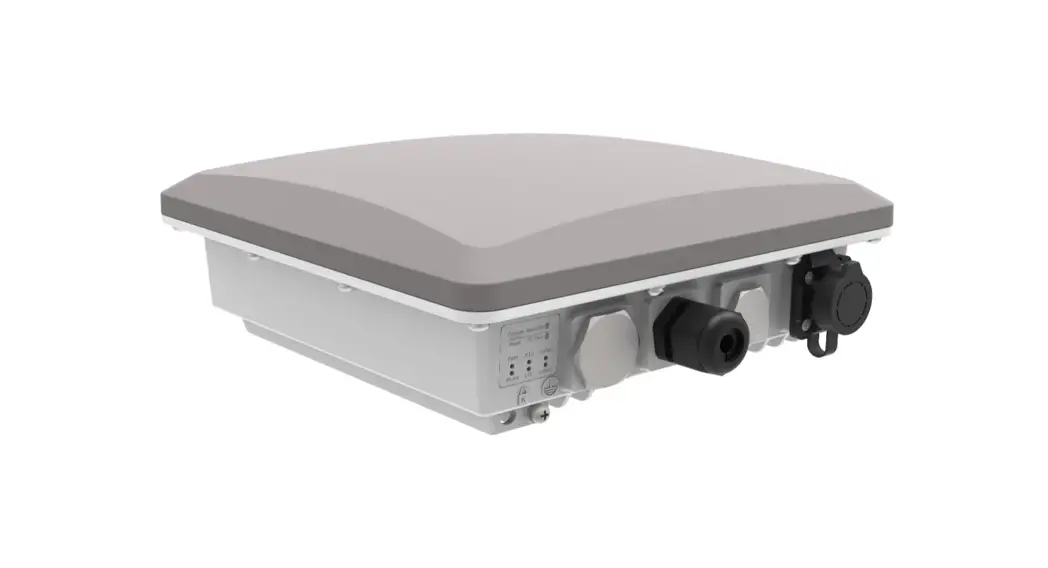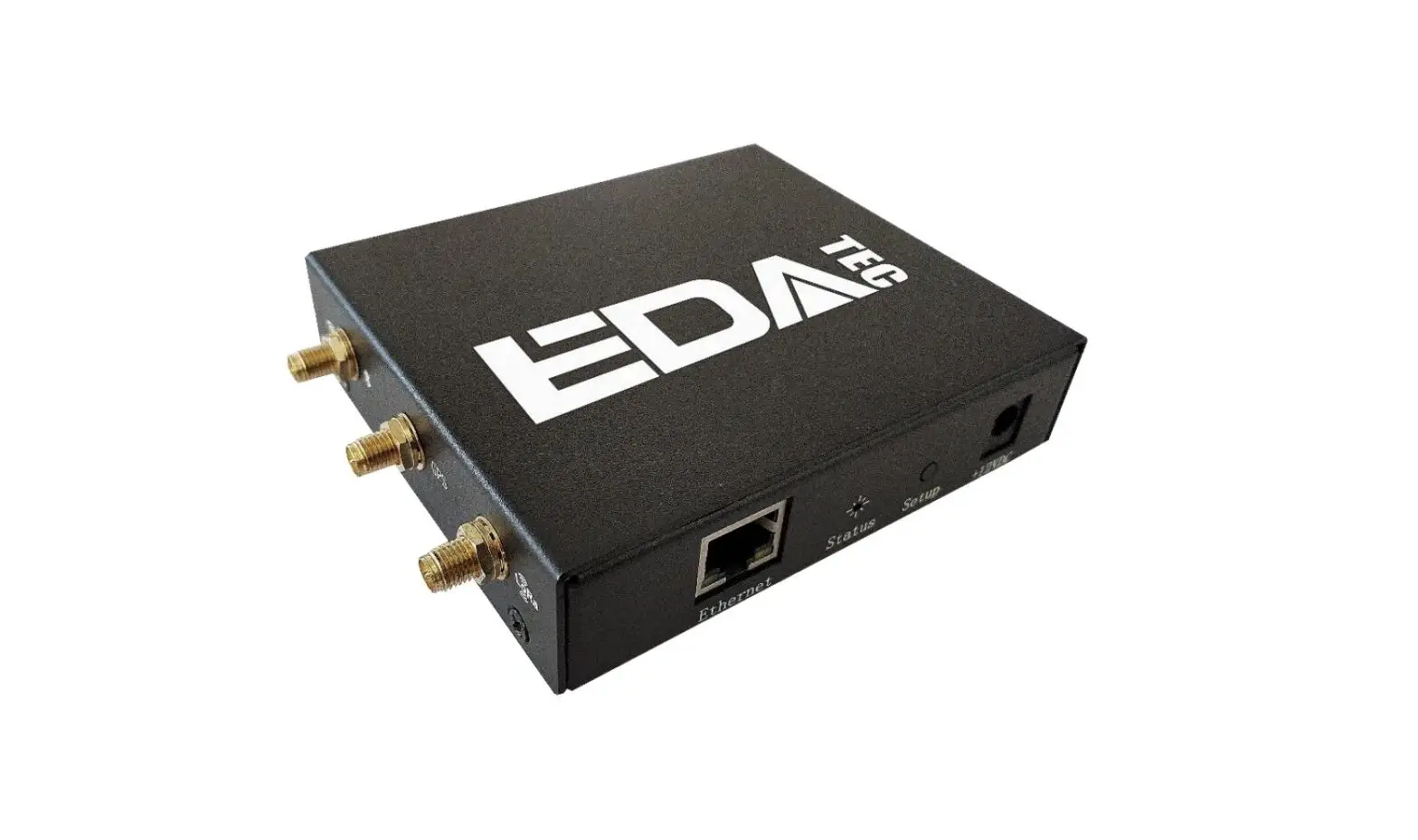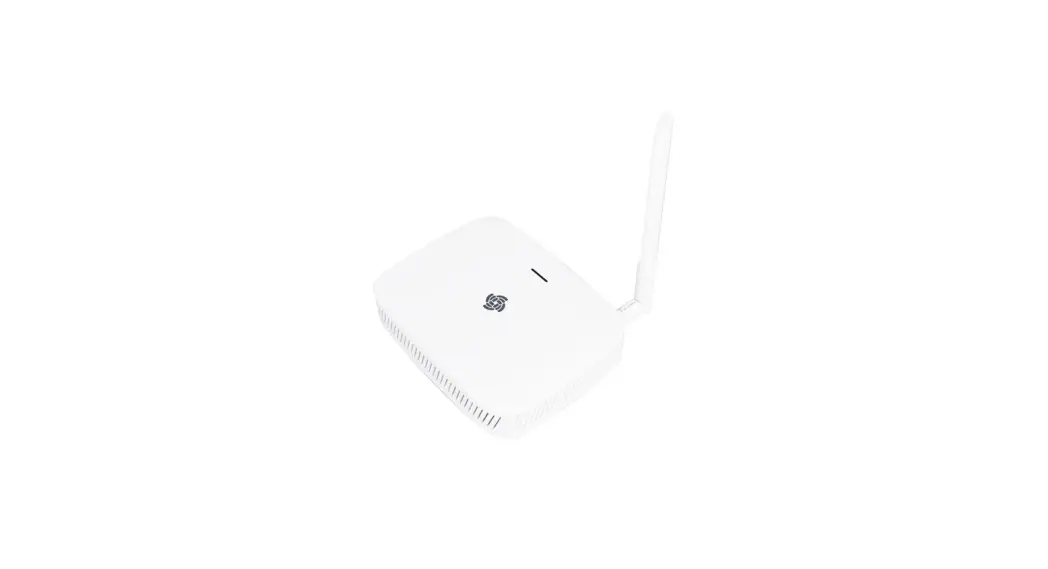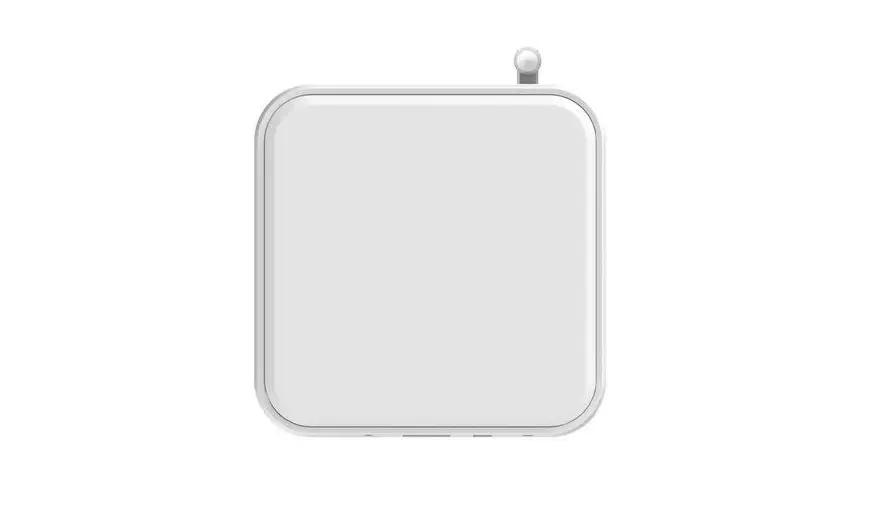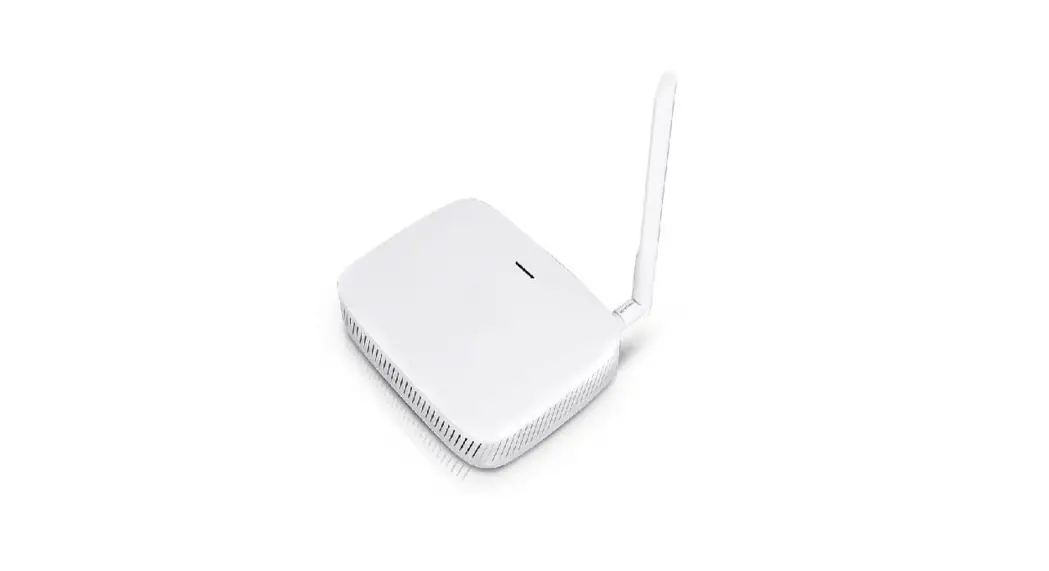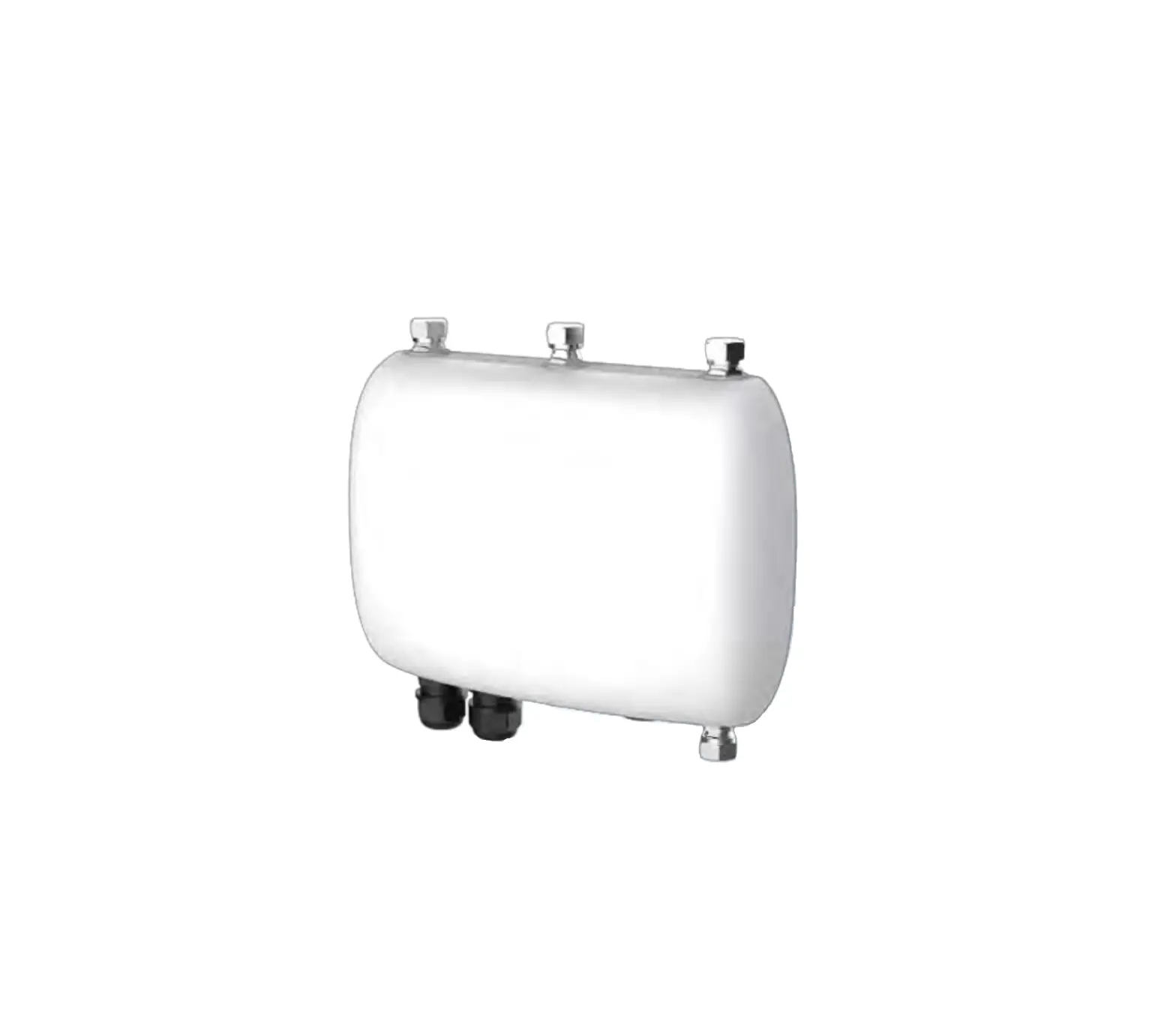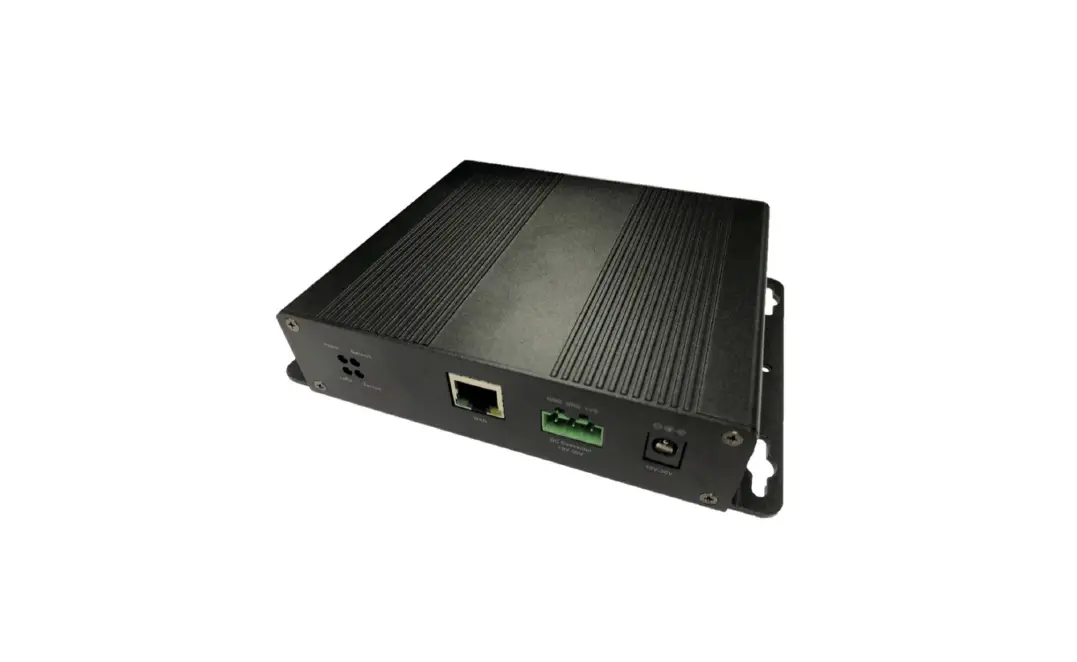

HAC GWW1-U WisGate Edge Lite 2 Indoor Gateway
Overview
This document helps customers quickly understand the hardware interface, F, software, and electrical specifications of HAC-GWW1-U.
Variety of the Product Series
- Main model: HAC-GWW1-U
Description
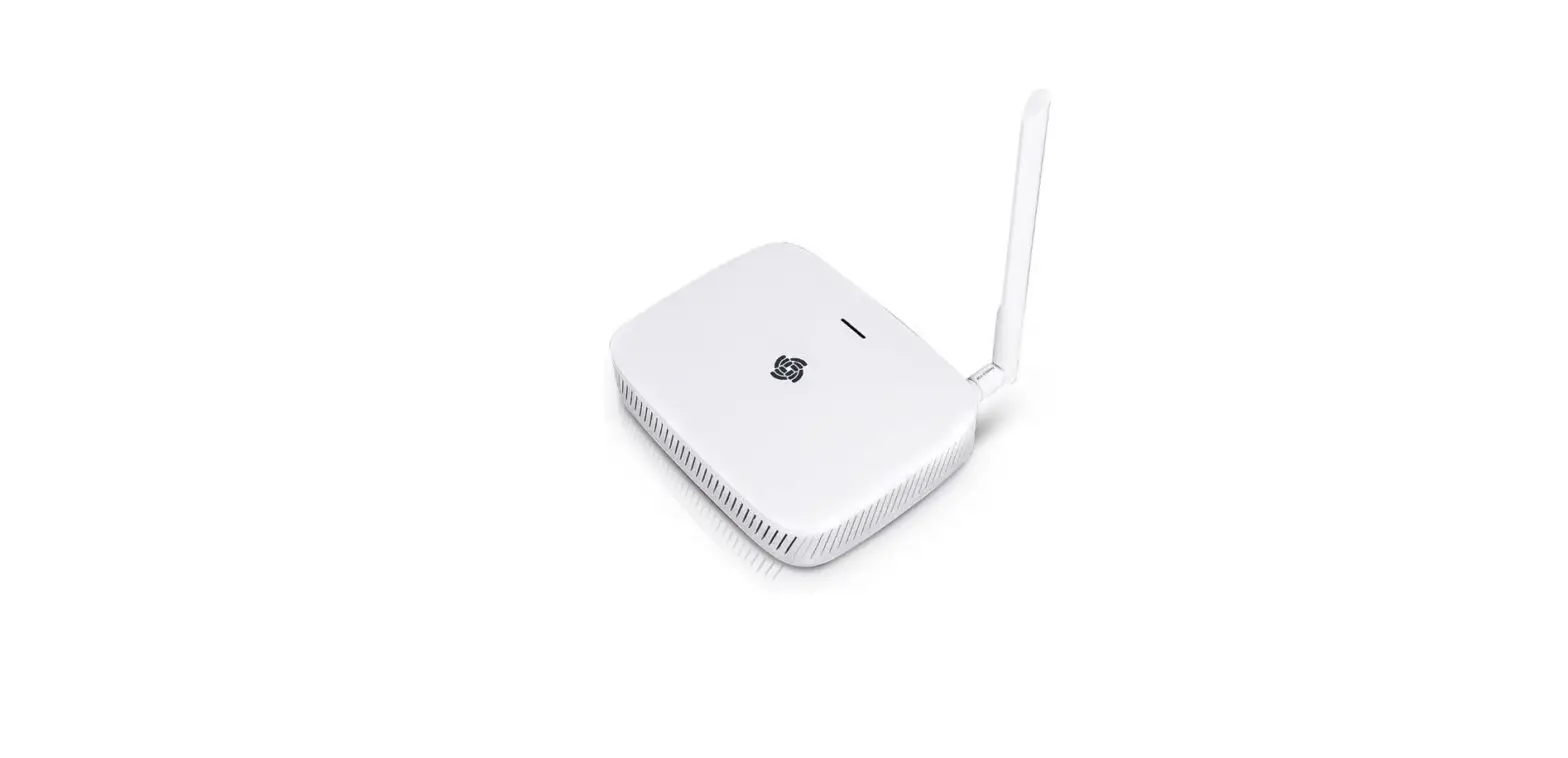
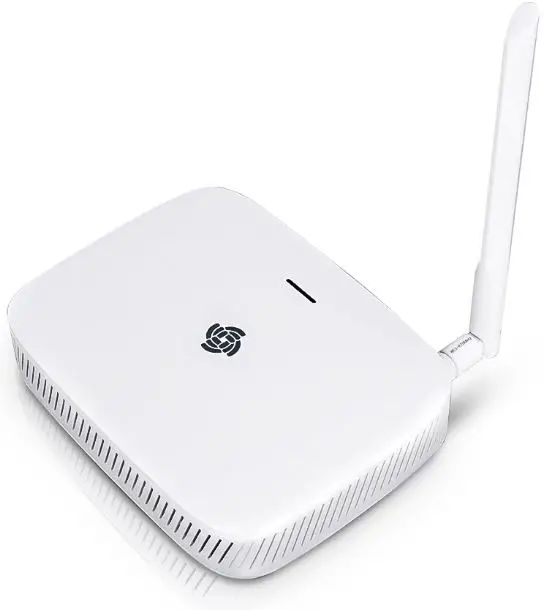
The HAC-GWW1-U WisGate Edge Lite 2 (and all its varieties) is a full 8-channel indoor gateway, based on the LoRaWAN protocol, with built-in Ethernet connectivity for a straightforward setup. Additionally, there is an onboard Wi-Fi setup (supporting 2.4G Wi-Fi) that allows it to be easily configured via the default Wi-Fi AP mode. Additionally, the gateway supports LTE cellular connection available. As with the other HACwireless Industrial Gateways, it also supports MQTT Bridge mode, with the option for TLS authentication. Power-over-Ethernet (PoE) is supported to serve cases where wall or ceiling mounting is required without the need to install additional power lines. The software(WisGateOS/2) for the management and configuration of this gateway device is based on OpenWRT. It has a built-in LoRa packet forwarder and a graphical user interface, allowing for a quick setup without giving up the freedom of a fully customized solution. HAC-GWW1-U also supports the MQTT Bridge function and can use the MQTT integrated into third-party platforms. HAC-GWW1-U is especially suitable for small and medium-sized deployment scenarios in industry applications, saving the additional cost for server and R&D investment, and has the advantage of high execution efficiency.
Product Features
- Full LoRaWAN Stack support in Built-In Server mode
- Supports 2.4 G Wi-Fi AP for configuration
- 100M Base-T Ethernet with PoE
- Multi back-haul with Ethernet and Wi-Fi
- Cellular LTE Cat 4 network (optional, available with C versions)
- BLE connectivity (optional, available with H versions)
- OpenWRT software supports Web UI for easy configuration and monitoring
- Can integrate with both private (e.g. Chirp Stack) and public (e.g. TTN) network servers
- SD card for system logs backup
- Built-in Network Server for easy deployment of applications and integration of gateways
Manufacturers Address
Shenzhen HAC Telecom Technology Co., LTD Floor 9, Block A, Building 1, Shenzhen International Innovation Valley, Xingke 1st Street, Nanshan District, Shenzhen, China.
Specifications
Hardware Interfaces
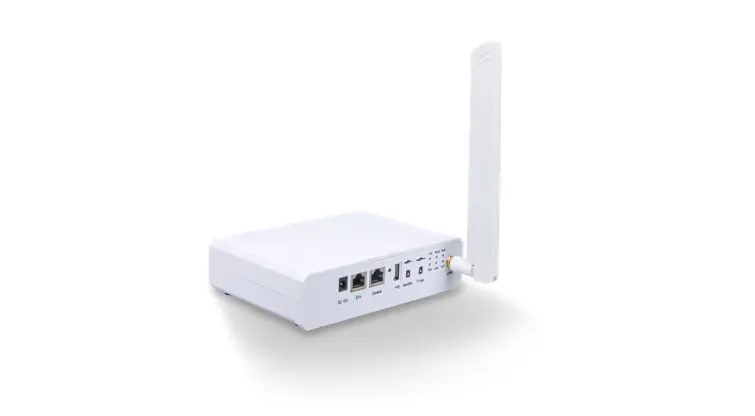
The hardware interfaces of WisGate Edge Lite 2 gateway include DC 12V, ETH interface, Console interface, Reset key, TF Card slot, Status indicator LEDs, Loa Antenna connector, etc. As shown in the following figure.
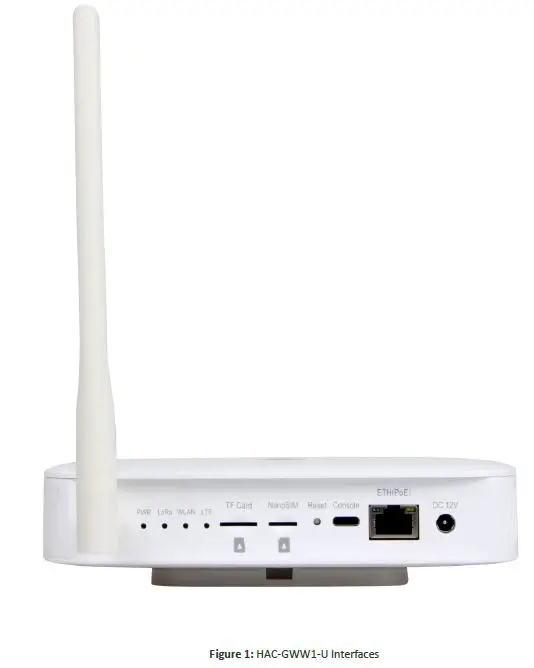
- The function of the Reset key is as follows:
- Short press: Restart the Gateway.
- Long press (5s and above): Restore Factory Settings.
- The following table shows the LED status of HAC-GWW1-U.
| LEDs | Status Indication Description |
| PWR LED | Power indicator – The LED is on when the device power is on |
| Breathing LED | Breathing after system up |
|
ETH LED | ON – Linkup |
| OFF – Link down | |
| Flicker – Data transmitting and receiving | |
|
LoRa LED | ON – LoRa is working |
| OFF – LoRa is not working | |
| Flicker – Indicate LoRa Packet receiving and sending | |
|
WLAN LED | AP Mode: |
| -ON – The AP is up | |
| -OFF – The AP is down | |
| -Flicker – Data receiving and sending | |
| STA Mode: | |
| -Slow flicker (1 Hz) – Disconnected | |
| -ON – Connected | |
| -Flicker – Data receiving and sending | |
|
LTE LED (functional only in C models) | Slow Flicker (1800 ms High / 200 ms Low) – Network searching |
| Slow flicker (200 ms High / 1800 ms Low) – Idle | |
| Fast flicker (125 ms High / 125 ms Low) – Ongoing data transfer |
Note: The SD card and the SIM card do not support hot-swap. Please always turn off the gateway before you insert or take off your SIM or SD card.
Note: Do not power the Gateway without a connected antenna/s. This may damage the radios.
Main Specifications
| Feature | Specifications |
| Power supply | DC 12 V – 1 A |
| Wi-Fi feature Power consumption ETH Console | PoE (IEEE 802.3 af), 36~57 VDC |
| 12 W (typical) | |
| RJ45 (10/100 M) | |
| Type-C USB | |
| Cellular (optional, available with C models) Ingress protection Enclosure material Weight | Breathing LED (Topside) |
| ETH LED (On ETH connector) | |
| LoRa LED | |
| WLAN LED | |
| LTE LED (functional only in C models) | |
| IP30 | |
| Plastic | |
| 0.3 kg | |
| Dimension | 166x127x36 mm |
| Operating temperature Installation method | -10 to 45˚ C |
| Wall mounting |
Software Specifications
The following chapters introduce the software specifications of the HAC-GWW1-U indoor gateway. It includes LoRa, network, and management.
| LoRa | Network | Management |
| · Supports class A, C · Supports LoRa package | · Supports Wi-Fi AP mode · · | WisDM remote management platform |
| forward – Packet Forwarder – Basics™ Station | Supports uplink backup · Supports 802.1q · · Supports | Supports WEB management Supports SSH2 Supports firmware update |
| – Built-In Server · Supports country code setup · Supports TX power setup · Supports data logger | DHCP Server/Client · Supports router module NAT · Supports firewall · | Supports NTP Supports configuring the LoRa Packet Forwarder Supports Build-in LoRa Server |
| · Supports statistic · Supports location setup · Supports server address & port setup | · Supports OpenVPN, Ping Watch Dog · Supports MQTT Bridge |
Configure the Gateway
You can log in to the WEB management page to overview the status of your gateway and configure it. By default, the gateway will work in Wi-Fi AP Mode, which means that you can find an SSID named GWW1 XXXX on your PC’s Wi-Fi Network List. XXXX is the last two bytes of the gateway’s MAC address. No password is required to connect via Wi-Fi. Using your preferred Web browser, access the gateway on the IP address shown below: Browser Address: 192.168.230.1 Username: root Password: root For WisGate Edge Lite 2 models V2 and H you need to set the login password at the first login.
Contact Information
Please contact us if you need technical support or want to know more information.
- Support Center: https://www.rf-module-china.com/
- Email: [email protected]
Certification Information
CE
Operating frequency range:
| Technology | Frequency band [MHz] | Maximum RF output power (dBm) | |
| LoRa | 863-865, 865-868, 868-868.6, 868.7-869.2, 869.7-870 | 14 | |
| 869.4-869.65 | 27 | ||
| BLE | 2402-2480 | 10 | |
| WLAN 802.11 b/g/n | 2400-2483.5 | 20 | |
| GSM 900 | 880-915(TX),925-960(RX) | 33 | |
| GSM 1800 | 1710-1785(TX),1805-1880(RX) | 30 | |
| WCDMA Band I | 1920-1980(TX),2110-2170(RX) | 24 | |
| WCDMA Band VIII | 24 | ||
|
LTE | 880-915(TX),925-960(RX) | ||
| Band 1 | 1920-1980(TX),2110-2170(RX) | 23 | |
| Band 7 | 2500-2570(TX),2620-2690(RX) | 23 | |
| Band 8 | 880-915(TX),925-960(RX) | 23 | |
| Band 20 | 832-862(TX),791-821(RX) | 23 | |
| Band 28A |
Correct Disposal of this product. This marking indicates that this product should not be disposed of with other household wastes throughout the EU. To prevent possible harm to the environment or human health from uncontrolled waste disposal, recycle it responsibly to promote the sustainable reuse of material resources. To return your used device, please use the return and collection systems or contact the retailer where the product was purchased. They can take this product for environmentally safe recycling.
FCC STATMENT
This device complies with part 15 of the FCC Rules. Operation is subject to the following two conditions: (1) This device may not cause harmful interference, and (2) this device must accept any interference received, including interference that may cause undesired operation. Any changes or modifications not expressly approved by the party responsible for compliance could void the user’s authority to operate the equipment.
Note: This equipment has been tested and found to comply with the limits for a Class B digital device, according to part 15 of the FCC Rules. These limits are designed to provide reasonable protection against harmful interference in a residential installation. This equipment generates, uses, and can radiate radio frequency energy and, if not installed and used following the instructions, may cause harmful interference to radio communications. However, there is no guarantee that interference will not occur in a particular installation. If this equipment does cause harmful interference to radio or television reception, which can be determined by turning the equipment off and on, the user is encouraged to try to correct the interference by one or more of the following measures:
- Reorient or relocate the receiving antenna.
- Increase the separation between the equipment and the receiver.
- Connect the equipment to an outlet on a circuit different from that to which the receiver is connected.
- Consult the dealer or an experienced radio/TV technician for help.
FCC Radiation Exposure Statement:
This equipment complies with FCC radiation exposure limits set forth for an uncontrolled environment. This equipment should be installed and operated with a minimum distance of 40 cm between the radiator and any part of your body for HAC-GWW1-U.
 LoRaWAN Module, NB-IoT Module, Pulse Reader, AMR System -HAC