 Setup Guide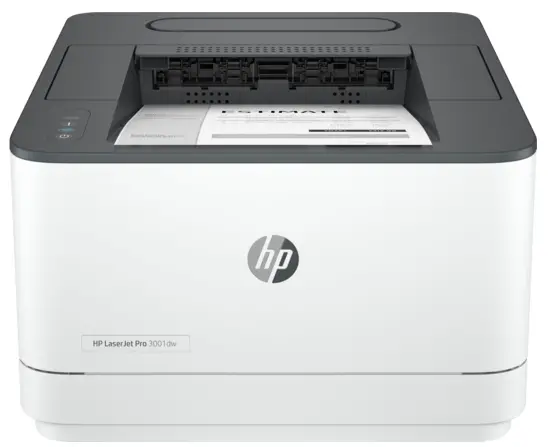
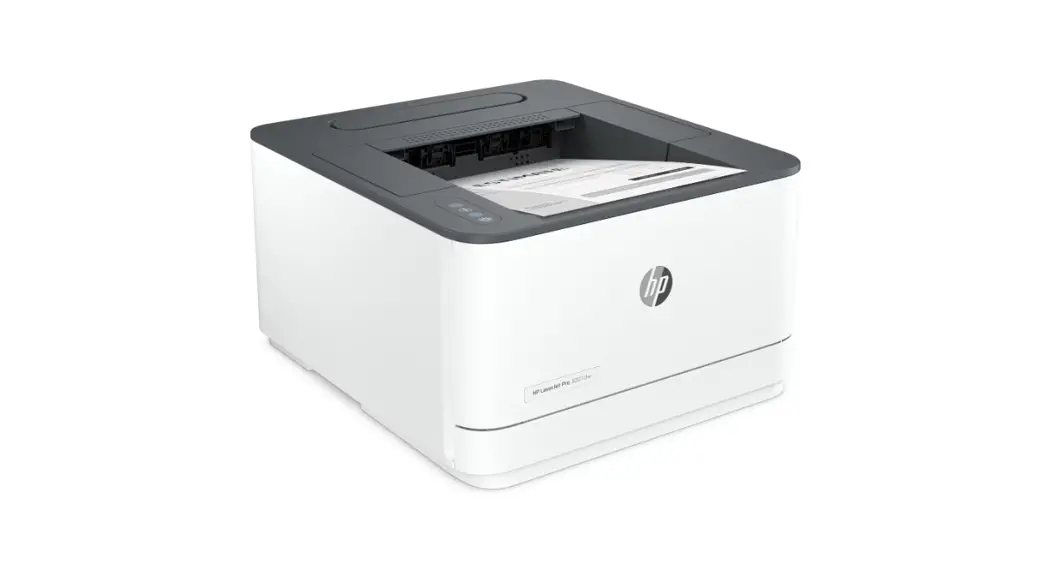
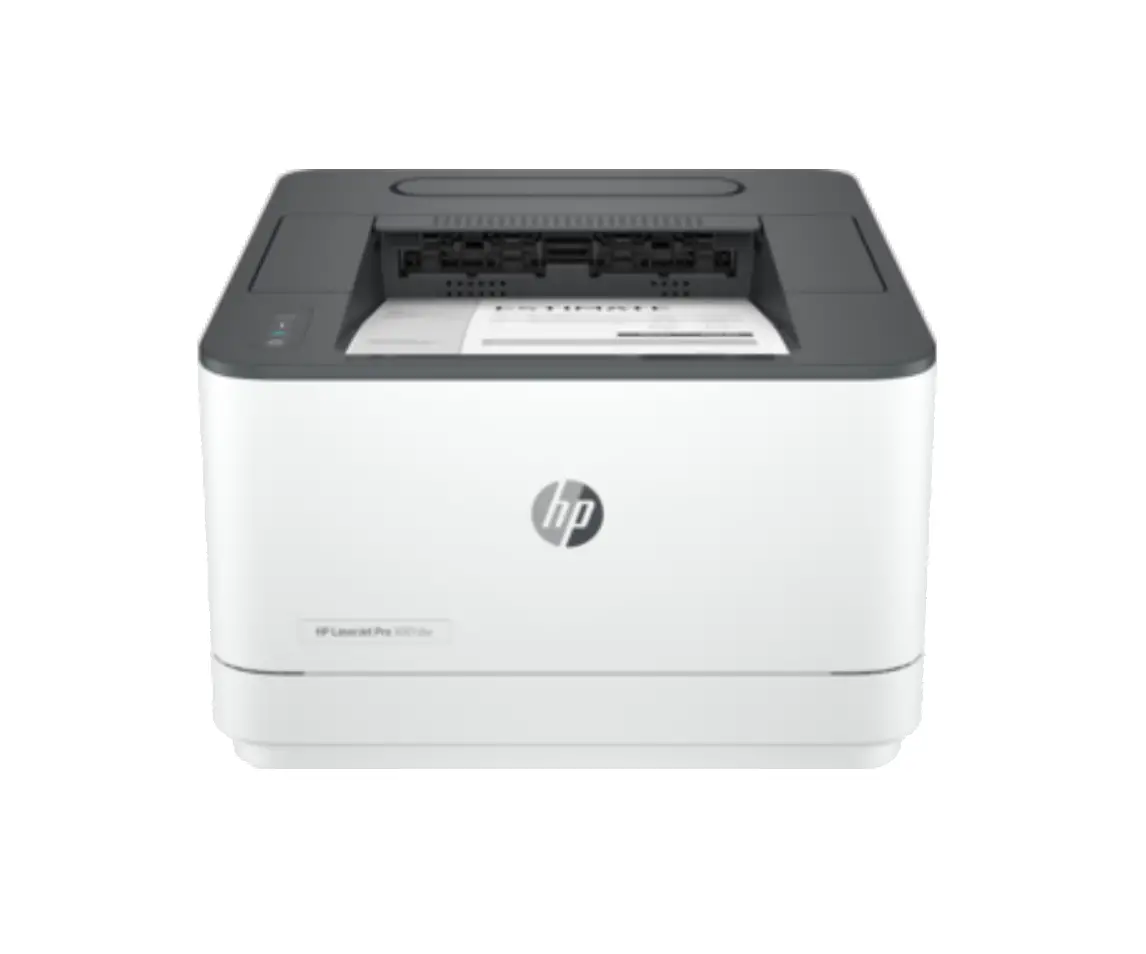
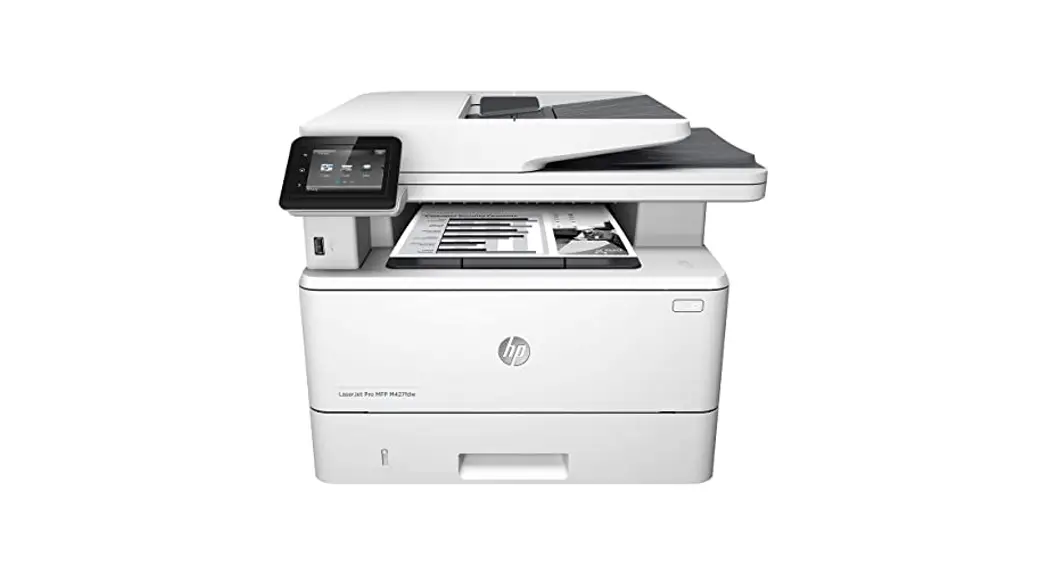
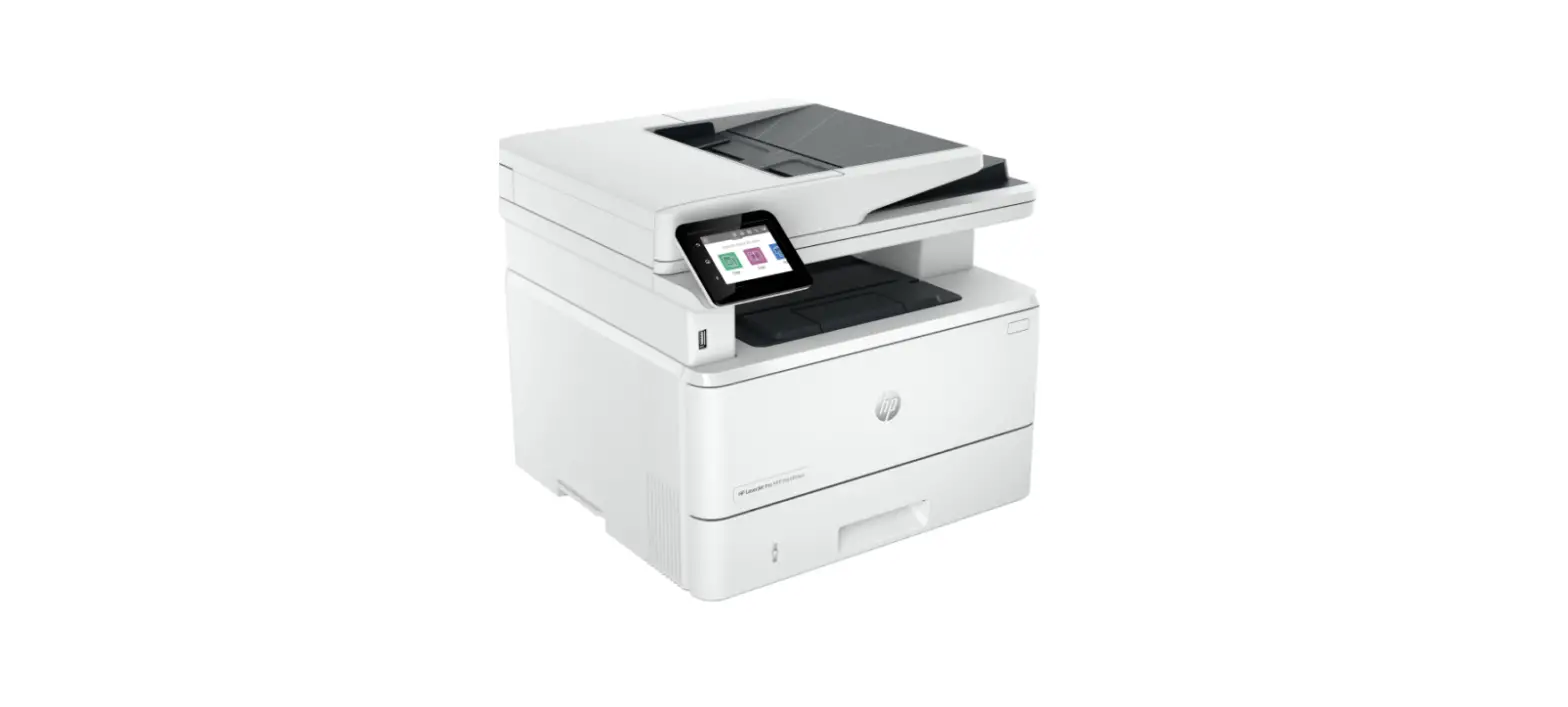
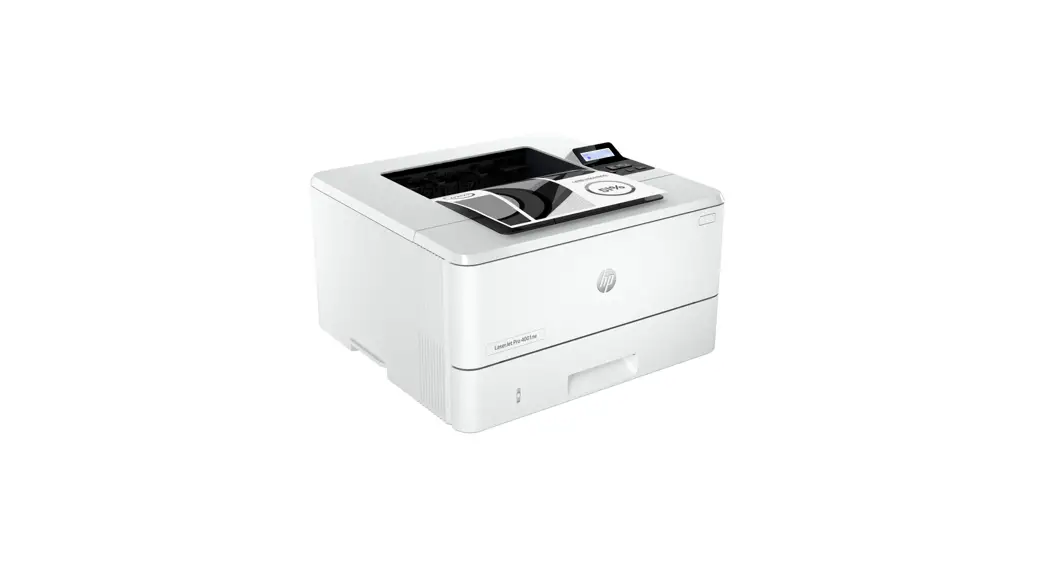
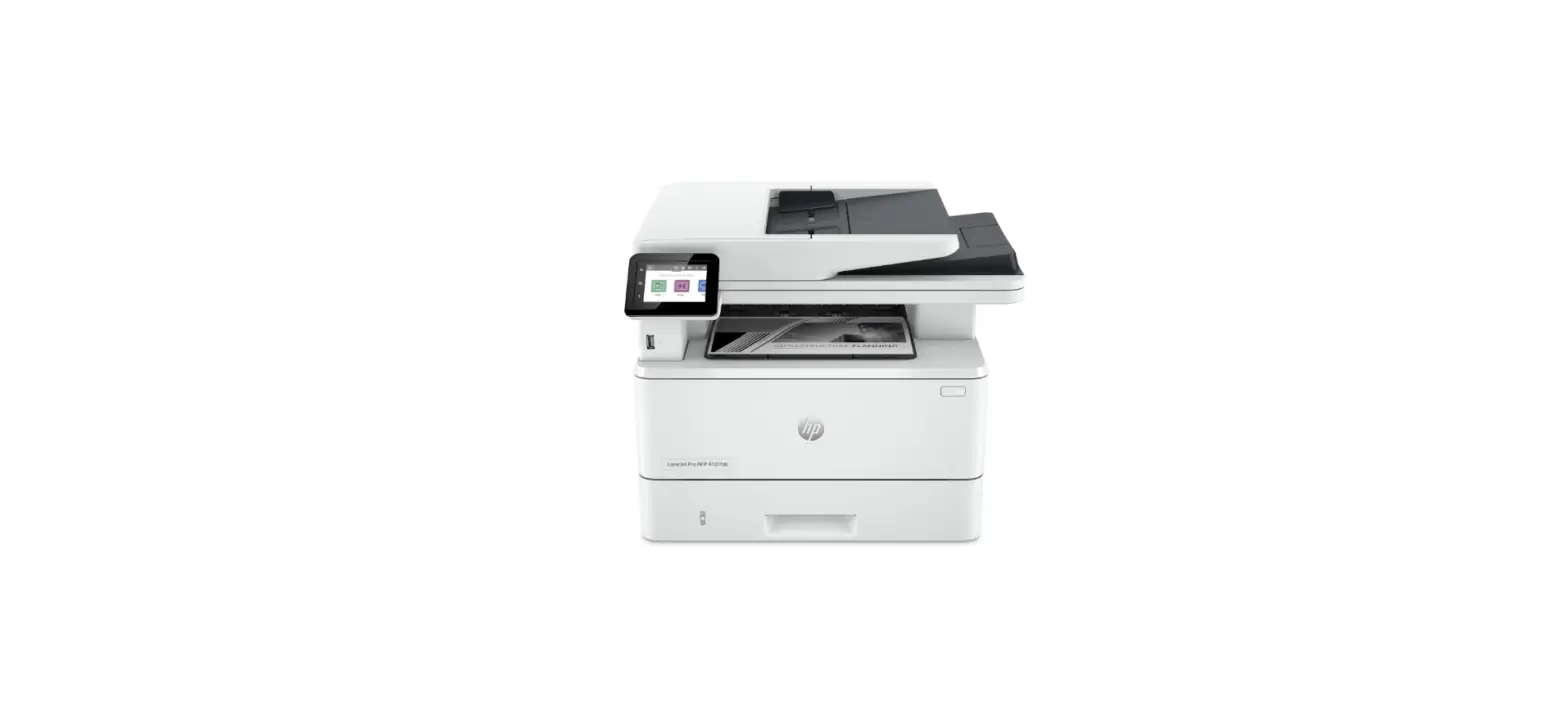
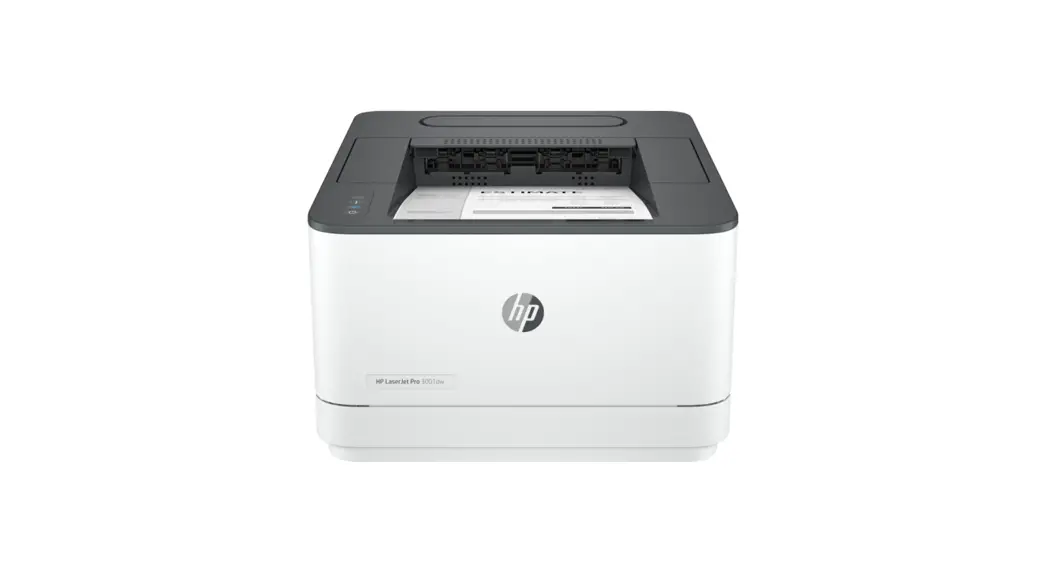
HP LaserJet Pro
3001dw
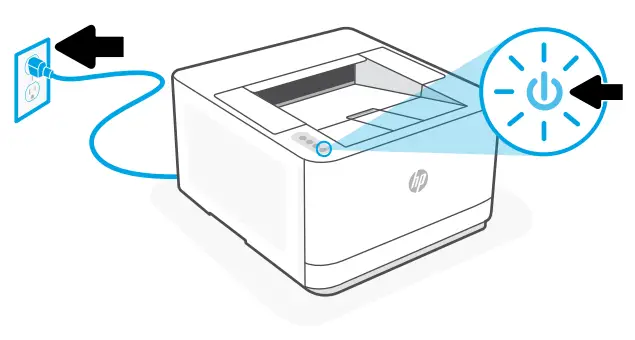
Power on
Plug in and power on.
Load paper
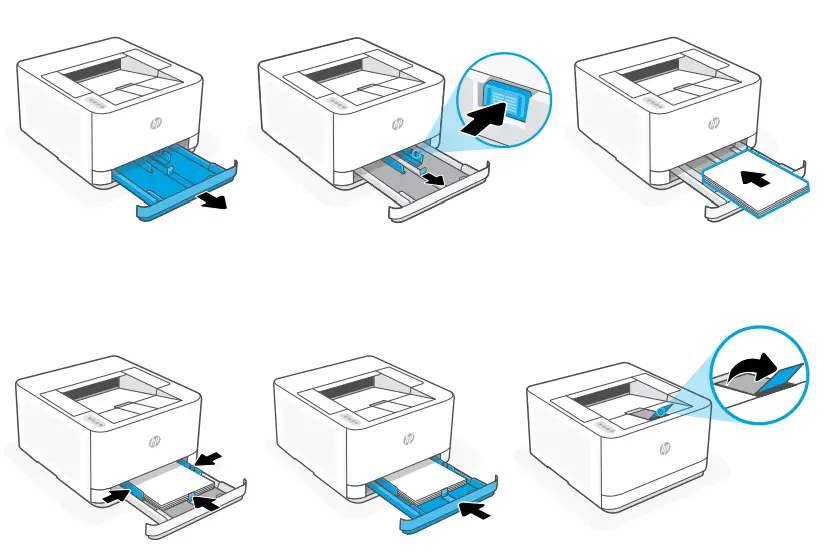
Load paper and adjust the guides.
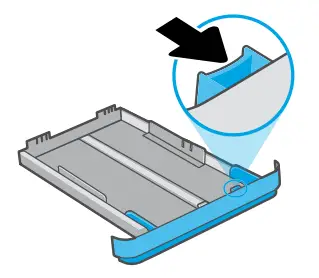
Note: If loading paper larger than A4, pinch the button in the front of the tray and pull forward. The tray will extend forward by approximately 2.36 inches (60 mm).
Connect printer
See Option 1 to set up with Ethernet or USB.
See Option 2 to set up with Wi-Fi.
Option 1: Ethernet or USB
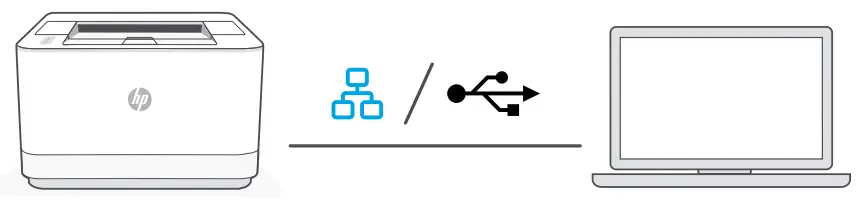
- Choose Ethernet or USB:
 Ethernet
Connect an Ethernet cable from the printer to the same network as the computer. USB
USB
Connect the USB cable to the port on the back of the printer and to the computer. - Install printer software.
i.Go to hpsmart.com/download to download the HP software and print drivers.
ii. Install the software and complete setup.
 Ethernet
 USB
USBOption 2: Wi-Fi
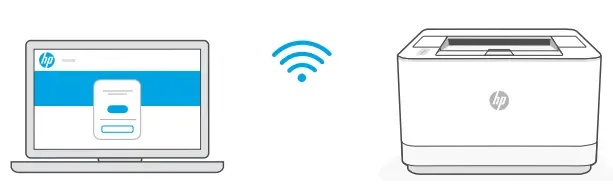
- Make sure the computer Wi-Fi is turned on and in range of the printer during setup.
- Go to hpsmart.com/setup to install HP Easy Start printer software to add the printer to the network.
- After the printer is added to the network, choose the option to install a basic driver and skip connecting to the Internet.
- Complete print driver installation through the software.
 See Reference Guide for Wi-Fi troubleshooting and tips.
 See Reference Guide for Wi-Fi troubleshooting and tips.
Get help with setup
Find setup information and videos online.
 hp.com/support/lj3001-3008
https://www.hp.com/support/lj3001-3008 © Copyright 2023 HP Development Company, L.P.
Printed in xxxxx
 HP LaserJet Pro 3001-3008dn/dw Printer series | HP® Customer Support
 HP Smart