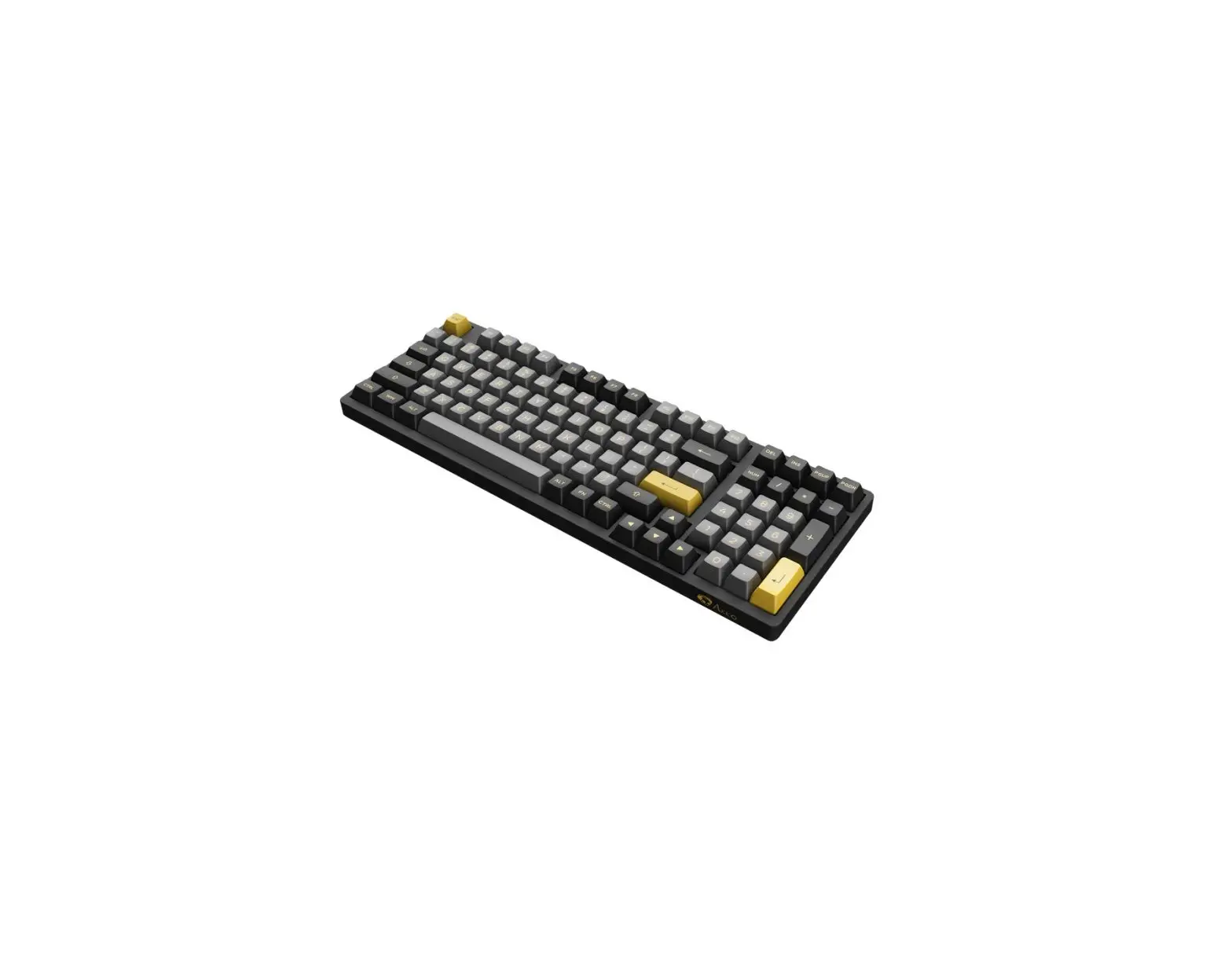
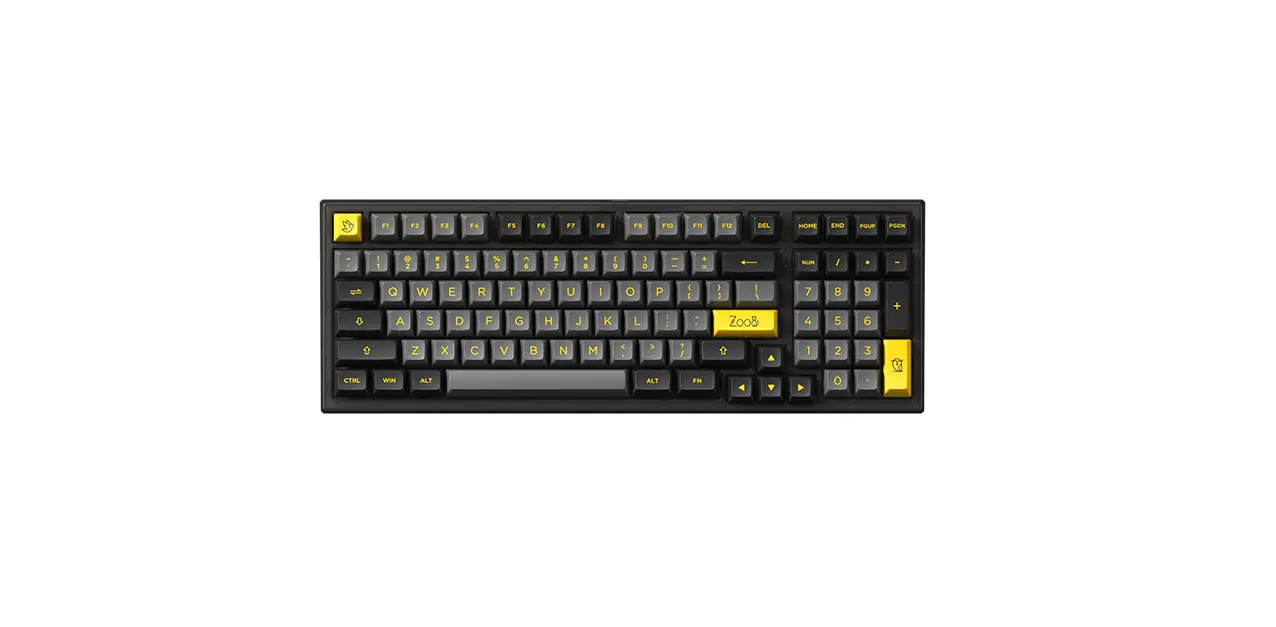
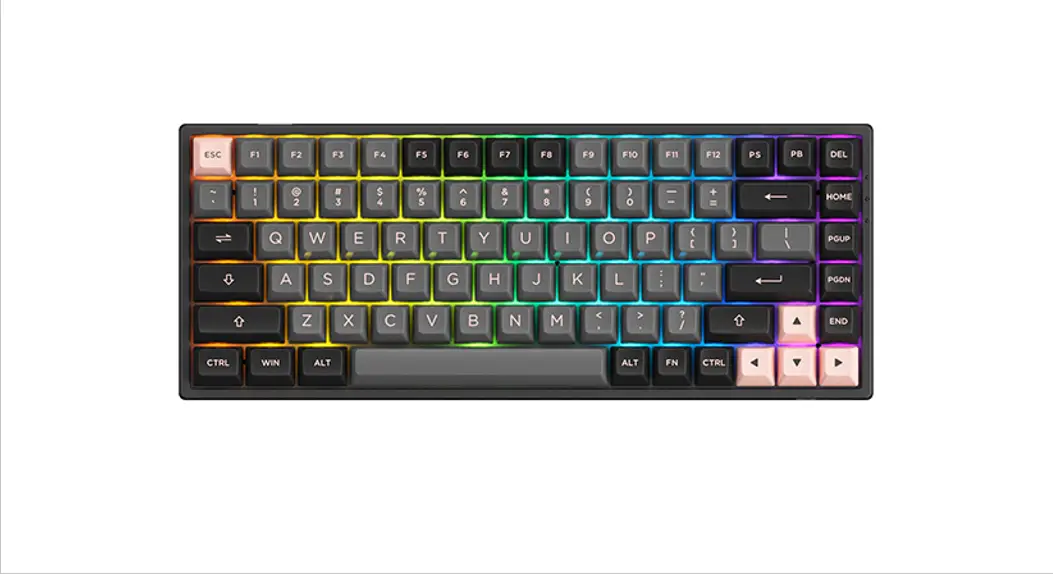
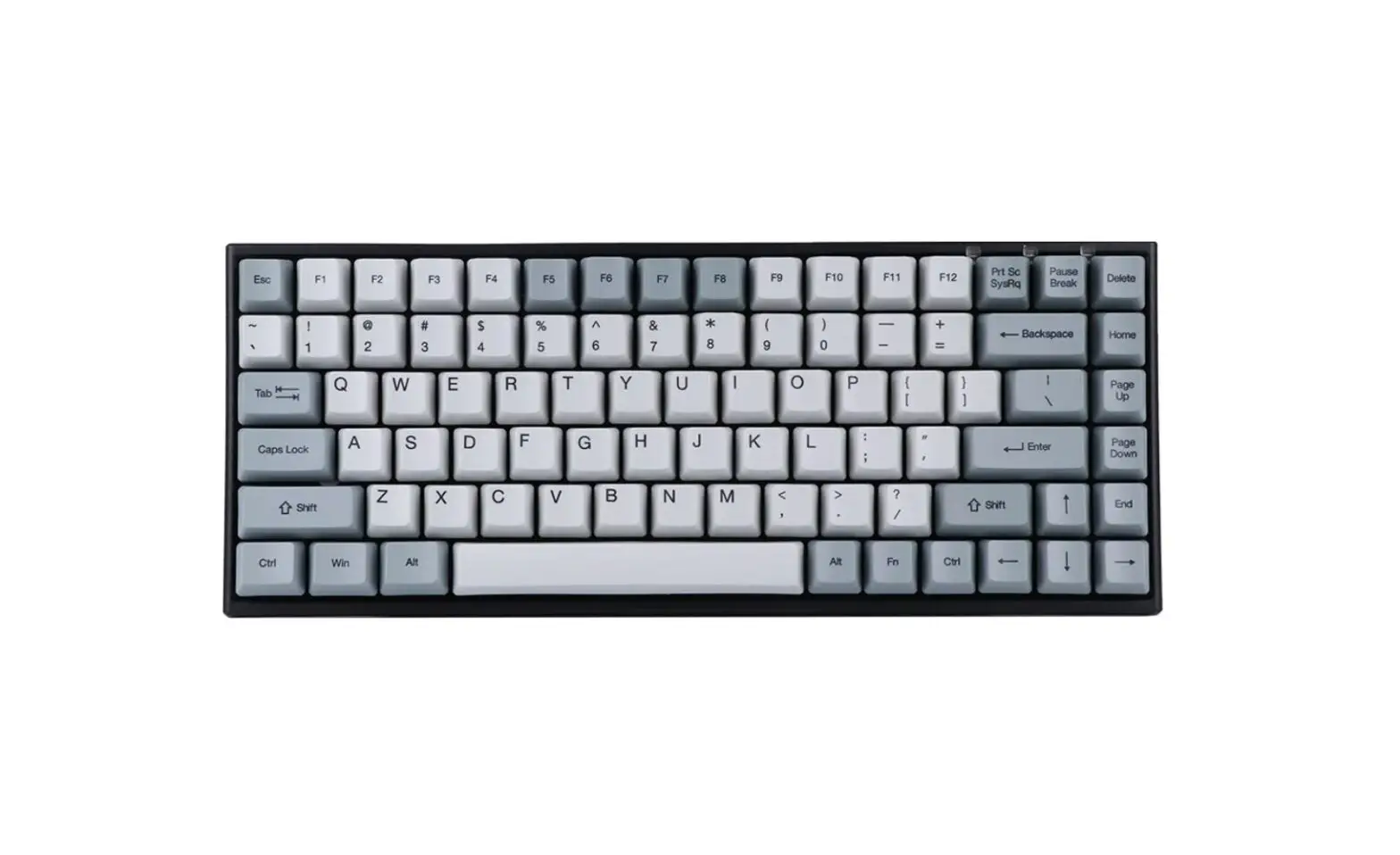
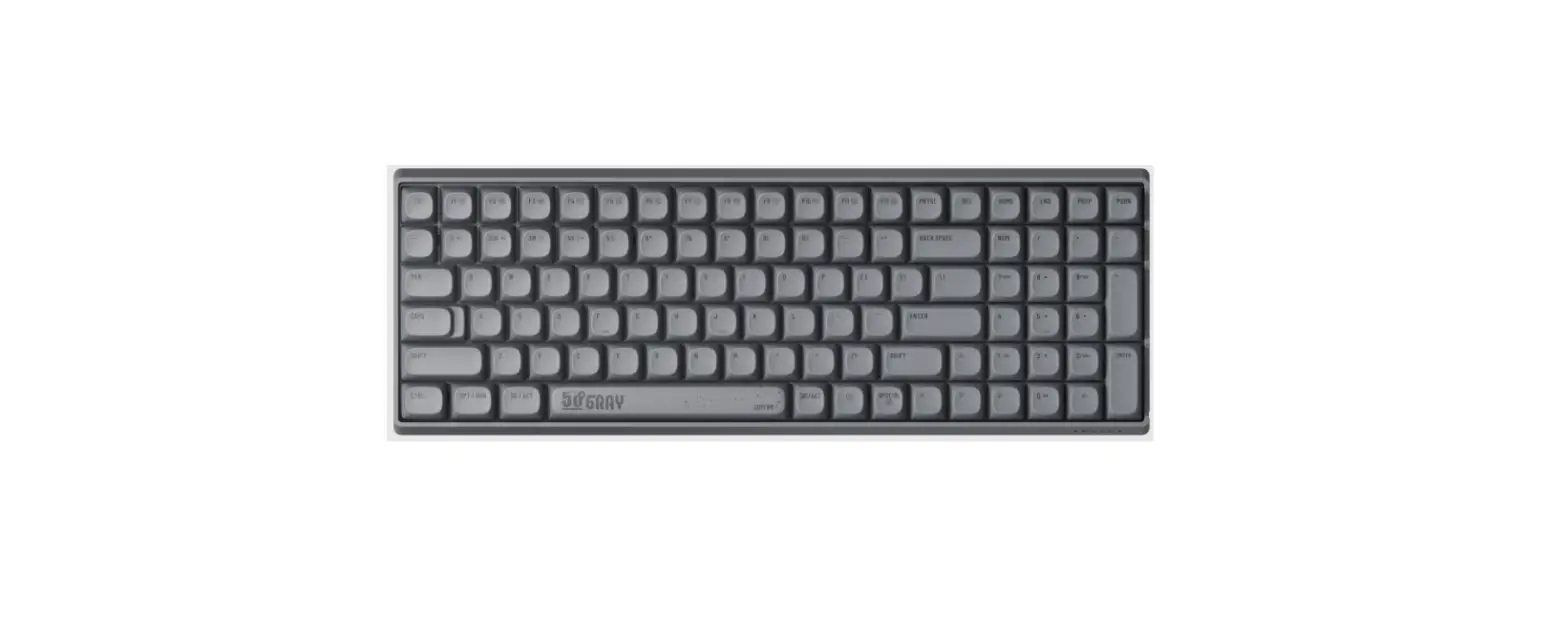
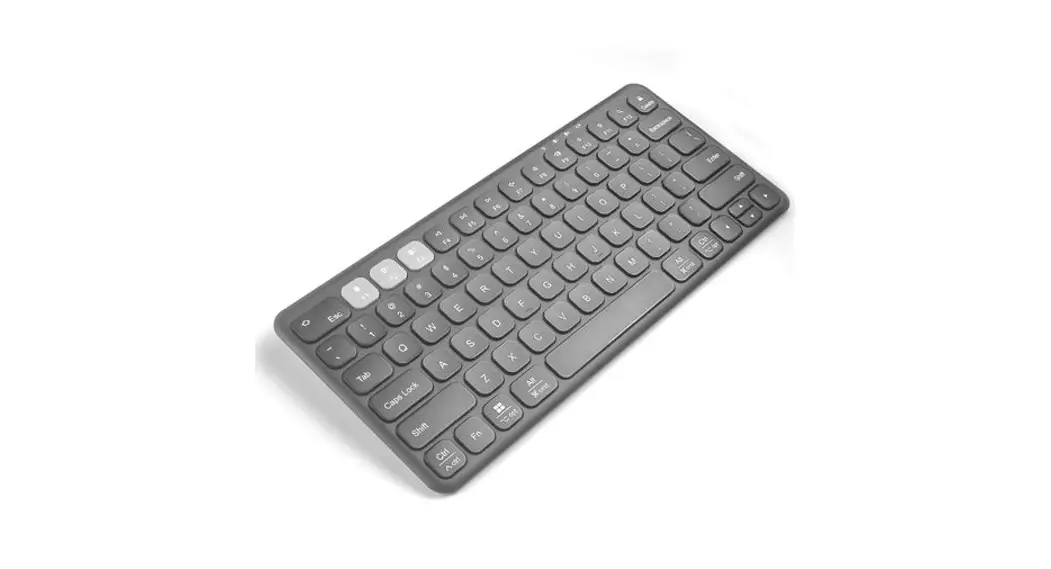
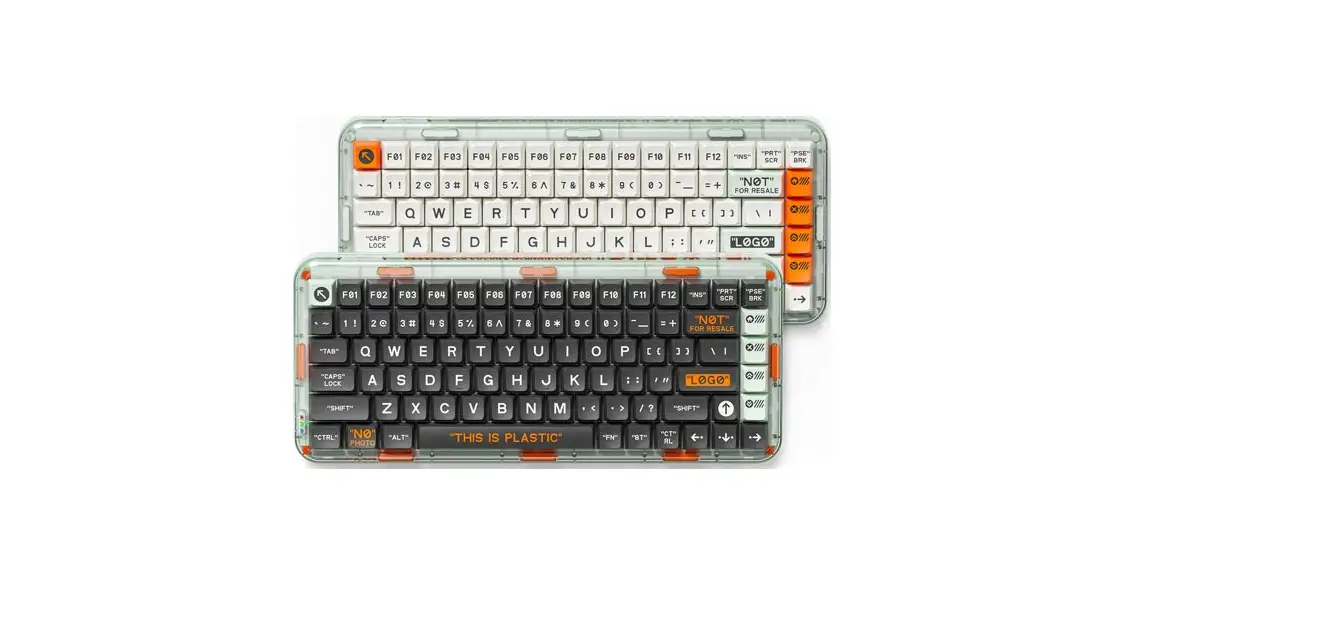
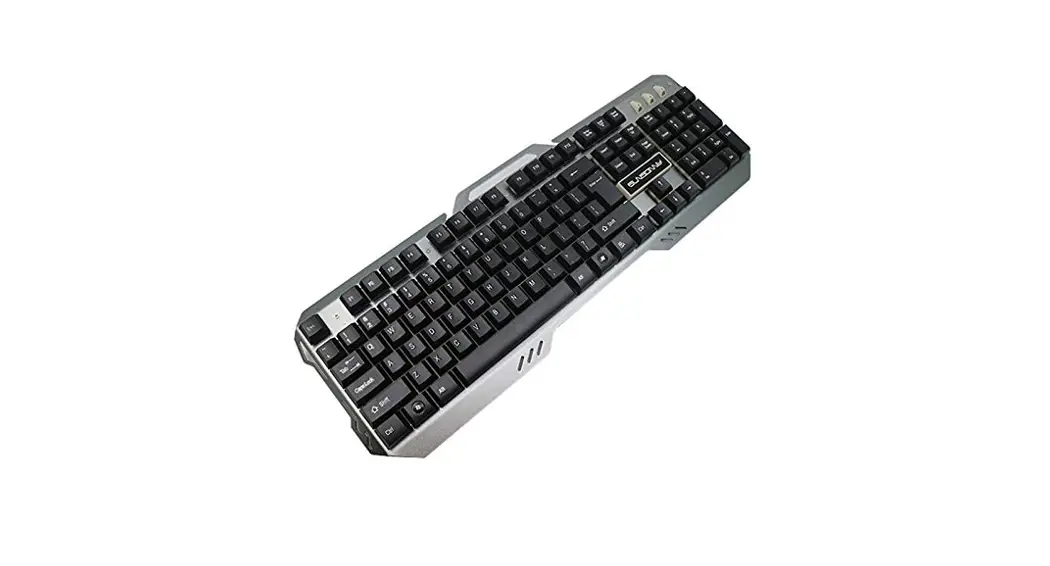
MG108B Multi Modes Keyboard
Product Information
- Product Name: MG108B
- Compatibility: Windows XP / Vista / 7 / 8 / 10 or higher
version - Connectivity Method: USB
- Manufacturer: Shenzhen Yinchen Technology Co., Ltd
- Company Address: 33 Langbi Rd, Bitou First Industrial Zone,
Bao’an District, Shenzhen, China - Website: www.monsgeek.cn
Product Usage Instructions
- Connect the keyboard to your computer by plugging in the USB
cable into an available USB port. - To activate the keyboard, press Fn and left Win key
together. - To access system commands on Windows, hold down Fn and right
Ctrl key for 3 seconds. - To access system commands on Mac, press D.
- To decrease display brightness, press F1.
- To increase display brightness, press F2.
- To open media control, press F3.
- To activate the selected function, press F4.
- To skip back in audio/video playback, press F7.
- To pause/play audio/video playback, press F8.
- To skip forward in audio/video playback, press F9.
- To mute the sound, press F10.
- To decrease volume, press F11.
- To increase volume, press F12.
- To customize backlight settings, refer to the provided
instructions in the user manual. - To switch between different modes (Windows with built-in
battery power on, default Windows with built-in battery power off,
and Mac with built-in battery power on), use the designated
keys. - To pair the keyboard via Bluetooth, press and hold the
Bluetooth pairing key for 3 seconds until the indicator light
flashes. Once connected, the indicator light will stay on for 2
seconds. If the device fails to connect, the light will turn off
and the keyboard will enter sleep mode. - To pair the keyboard via 2.4G connection, enter pairing mode
and then turn on the device. The indicator light will flash
quickly. Once paired successfully, the LED indicator will stay on
for 2 seconds. If no compatible device is found within 30 seconds,
the LED indicator will turn off and the keyboard will enter sleep
mode. - To check the battery level, press Fn + F6.
- To customize key and lighting effects, use the MonsGeek driver
software provided.
I
~
Windows®XP / Vista / 7 / 8 / 10
USB
USB
MG108B
Windows
MG108B
(Windows)
D
MG108B
~
Fl F2 F3 F4 Sir
Win
Option
Alt
Comand
MG108B
D
(Mac)
F7
F8
F9
F10
Win Alt
l
Option Command
Fll
_F12
FN+- FN+=
FN+lns
FN+Home
FN
FN+PGU
FN+J,
FN+Del
FN+
FN+End
FN+-
FN+PGD
FN+
7
+RGB
FN+L
I
MG108B
D I i I I 11 I i I I DDITJ I I I II I I I I
f fi~ m
([ll)
Windows ( Windows (
MAC (
FN+E/RT
FN+E/RT
2S ,
3S ,
2.4G
FN+Y
2 . 4G
FN+Y
3 S
2S ,
30s
Fn+ 30%
30-5%
50-7%
70-9%
90-1%
1
2
3.
” MonsGek_tup”
4.
w
. monsgek
. cn
MONSGEK
1. MONSGEK
(MonsGek
2
MonsGek
3.
4
5.
10: 0
18: 00
3
0755-23216420
www.monsgeek.cn
·
Company: Shenzhen Yinchen Technology Co., Ltd
Address: 33 L.angbi Rd, Bitou First Industrial Zone, Bao’an District, Shenzhen, China
& -=.~! -~, . ,.,,.,.,,
CE O
/Made
;n Ch;na
· Thank you for supporting MonsGeek
To prnv;de yo, w;th , bette, “, e,perienoe, plea ,ead th;, man”‘I ca,efuUy befon, “‘;ng the P”‘d,ct.
Packing List
I
System Requirement Windows”‘XP / Vista / 7 / 8 / 10 or higher version
Connectivity Method Connect the keyboard to your computer by plugging in the USB cable into an available USB port to start using it.
Independent Indicator
MG108B HotKeys
MG108B System Commands (Windows)
Press Fn and left Win key
Hold down Fn and right Ctrl key for 3s
MG108B System Commands (Mac)
D
I I
1 1,1, 1, 1,1,1,1, 1, 1,1,1,1 ,1,
IEEB ITJ
I IIII
Fl Dec ase d; spay b ;ghtoes
F2 lac ase dospay b ;ghtoe
F3 Opeo m o coot,ol
F4 Activates;,;
Right Win Option
Right Alt Command
F7 Sk;p back IA,d;o)
F8
Pause/Play IAudool
F9 Sk;p fo,wa,d IAudool
FlO Mute
Left Win Optioo
Left Alt Commaod
Fll
Vol,me dowa
_F12
Vol,me ,p
MG108B Backlight Settings
D ITIJD DI I I I DDDDI I I II I I I I
li@
-= ~2il l I~ I I
FN·-
S l owe,Ama
n
FN·los
Efect1
Efect2
Efect3
FN· ·
Faste, Ao;maboo
FN·Home
Efect4
Efects
Efect6
FN
0,;ght
F PGU
Efect]
‘ Efects
Ef
Ef tlO
FN· !
” ”
N · ‘ FN·I
D;m
FN·Dol
Efectl
Set , n;m,tion
d;, , ;ont
left
Sot anlmafon di, tlon to nght
FN·Eod
Efect14
FN·PGDN
Efect17
s shortcut allows you to set the backllght colo, to 7 single colo, with RGB loop effect
Efect1
2 Efect13
Efect15
Ef 16
Efect18
E t19 Efoct20
FN·L Light Off/On
MG108B Multi-modes Feature Overview
Left: Windows (built-in battery power on)
Middle: Default Windows (built-in battery power off)
Right: Mac (bu n battery power on)
Bluetooth Pairing
Afte, tumlag o, the keyboa,d, p,e FN·EJR/T
to'”‘” Bl”‘tooth mode. P,-ess aad hold the FN·E/R/T comblaatio, key
fo, 3 seco, to p,t the keyb ,d la paldag mode, with the bl”‘ ladlcato, lig h t sh I q, y. Dace the co””ectloa Is
e bijshed,
the ladlcato, light wlU stay oa fo 2 secoods. If the de,lce falls to coaaect, the ladlcato, light wlU tum off aad
the keyboa,d will eote, sleep mode.
2.4G Pairing
Afte, tum;ng on the keyboa,d, p,e FN·Y
to eoteo 2.4G mode. Then p,, and hold the FN·Y comb;oatioo key to, 3 moods
to eote, p,;,;og mode. Theo ;o,ert the ,ec,;,e,, aod the ;nd;cato, Ught wHI flash qukkly. Ooce p,;,;og ;, suce the LED
,nd;cato, wHI stay on to, 2 seconds. If no .,,; ble de,;ce ;s found w;th;n 30 conds,
the LED ;nd to, wHI tu m off and the
keyboa,d wHI ent S p mode
Battery Level Inquiry
Please p, s Foaod Sp eba, k s to check the batteO/ le L
Key/Lighting Effects Custom1zat1on Instruction
1. The key/lighting effects customization can be programmed by MonsGeek driver in all three modes.
2. In all three modes, the lighting effects can also achieve audio visualizer effects with MonsGeek driver.
3. Please download the MonsGeek Cloud Driver on our website
4. Users can download the driver via www.monsgeek.com
MONSGEEK Warranty and Service Statement
1. MONSGEEK offers a One-Year warranty for customers in mainland China. For other regions, please contact your seller (MonsGeek distributor) for specific warranty details
2. If the warranty period expires, customers are responsible for repair costs. MONSGEEK provides instructions for self-repair if preferred, but users assume full responsibility for any losses incurred during the process.
3. Disassembling the keyboard without manufacturer/seller’s instruction will void the warranty immediately.
4. Return and warranty policies may vary across platforms and are subject to the specific distributor’s terms at the time of purchase.
Company: Shenzhen Yinchen Technology Co., Ltd Address: 33 Langbi Rd, Bitou Community 1st Industrial Zone, Bao’an District, Shenzhen, China Tel: 0755-23216420 Website: www.monsgeek.com Origin: Shenzhen, China
– “‘·
CE:
/Made
O
in China
Ma-m
c m,y·aotl
dto,m”‘
‘”·
agof
,w with O wfo ,
 魔极客中文官方网站 - MonsGeek
 魔极客中文官方网站 - MonsGeek
 MonsGeek - Make Cool Gears Accessible.