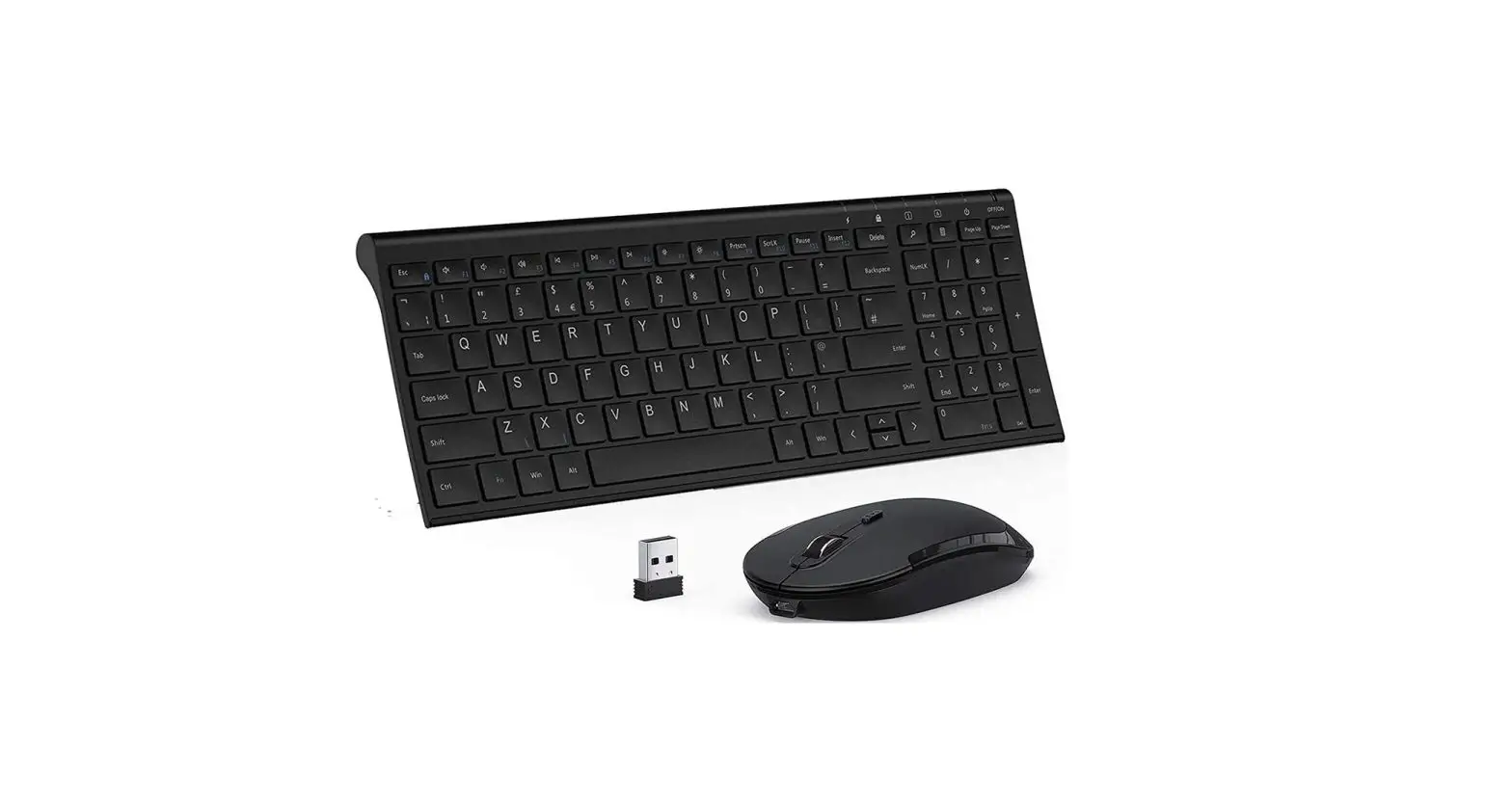
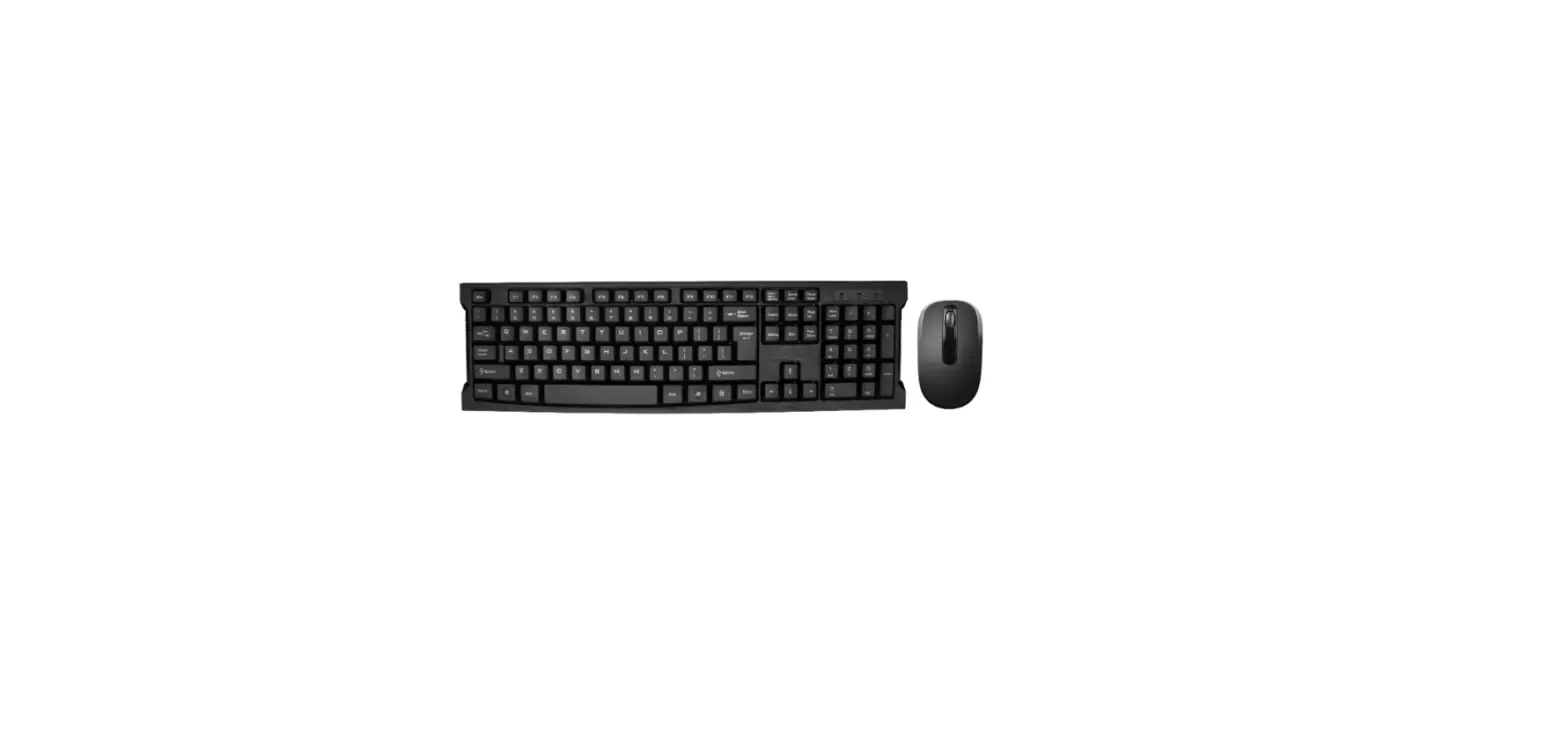
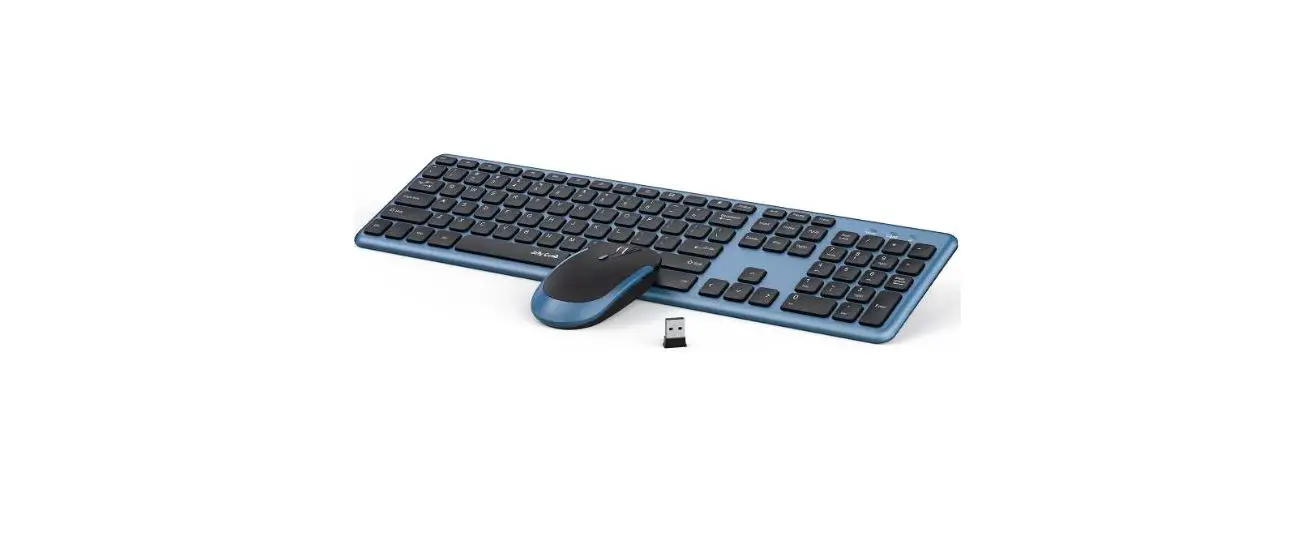
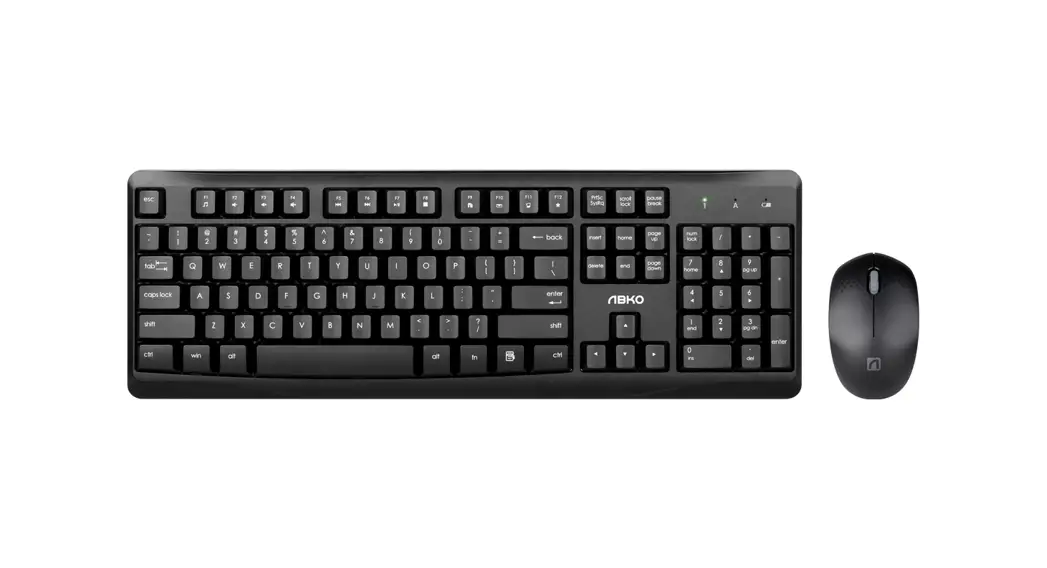
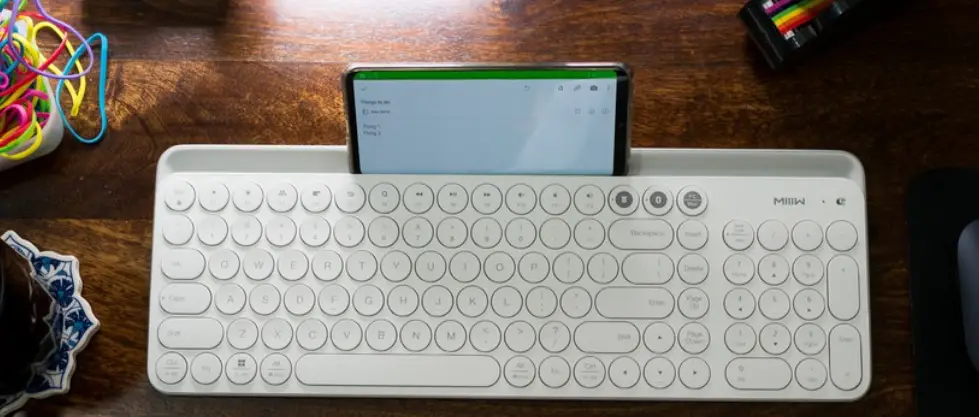
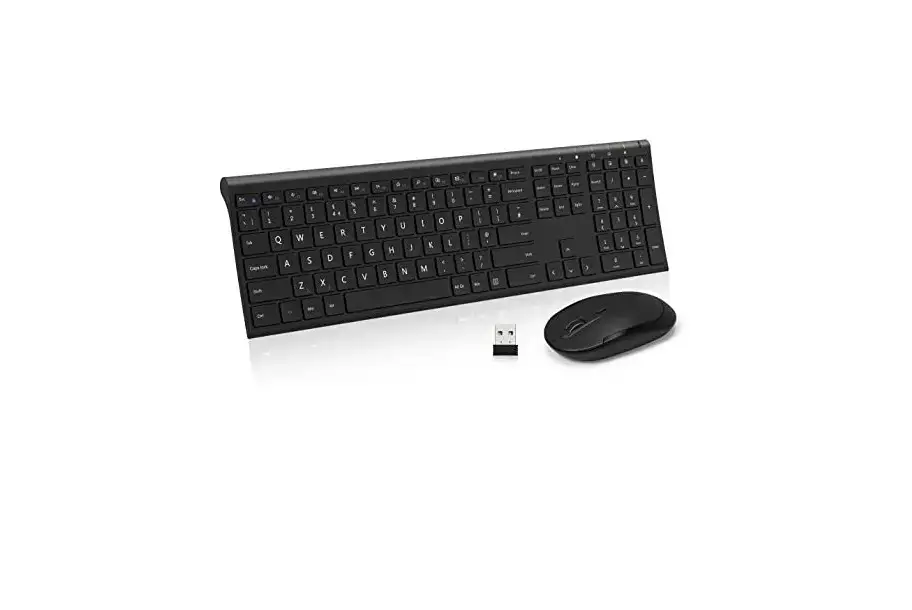
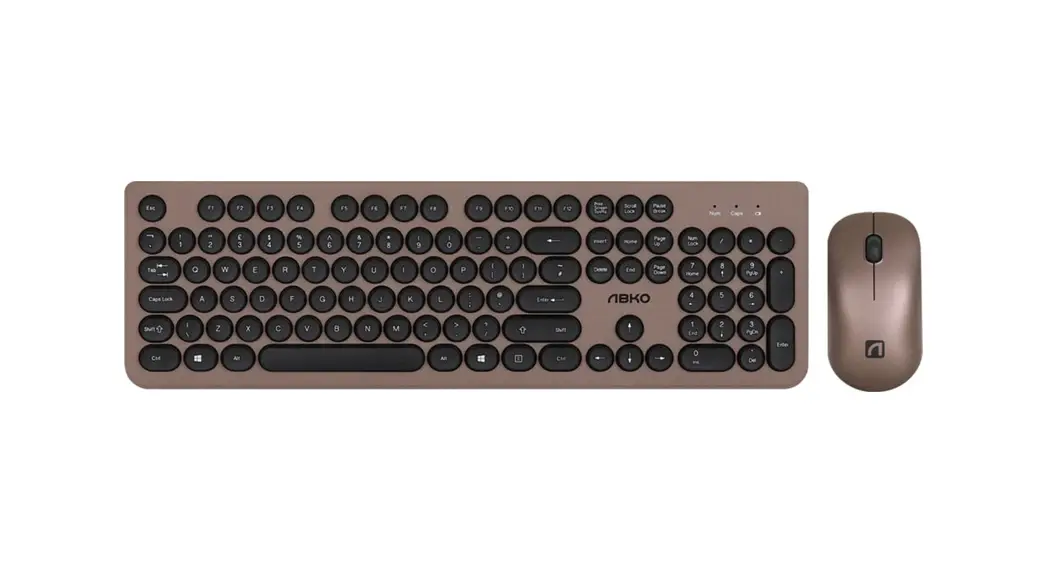
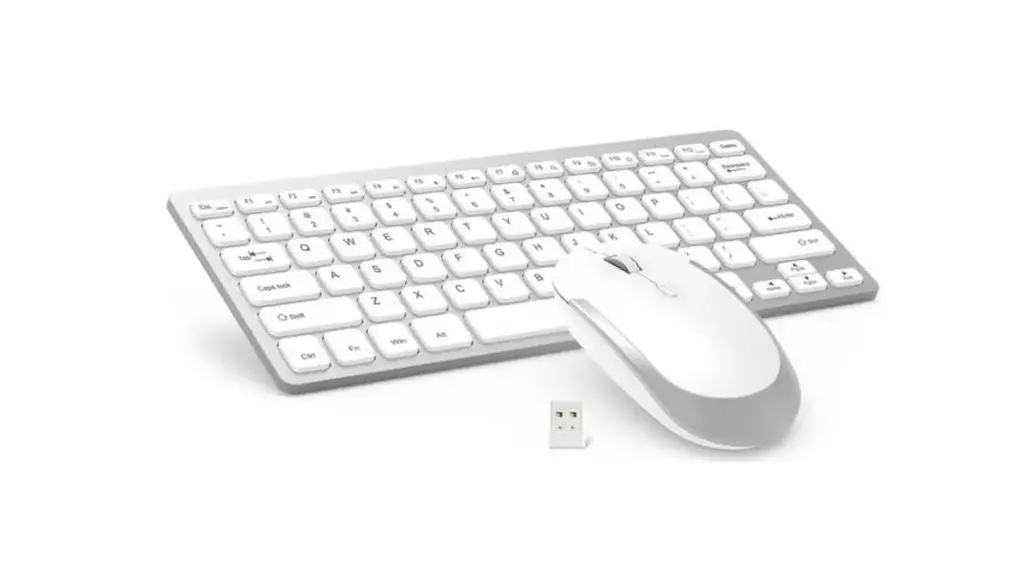
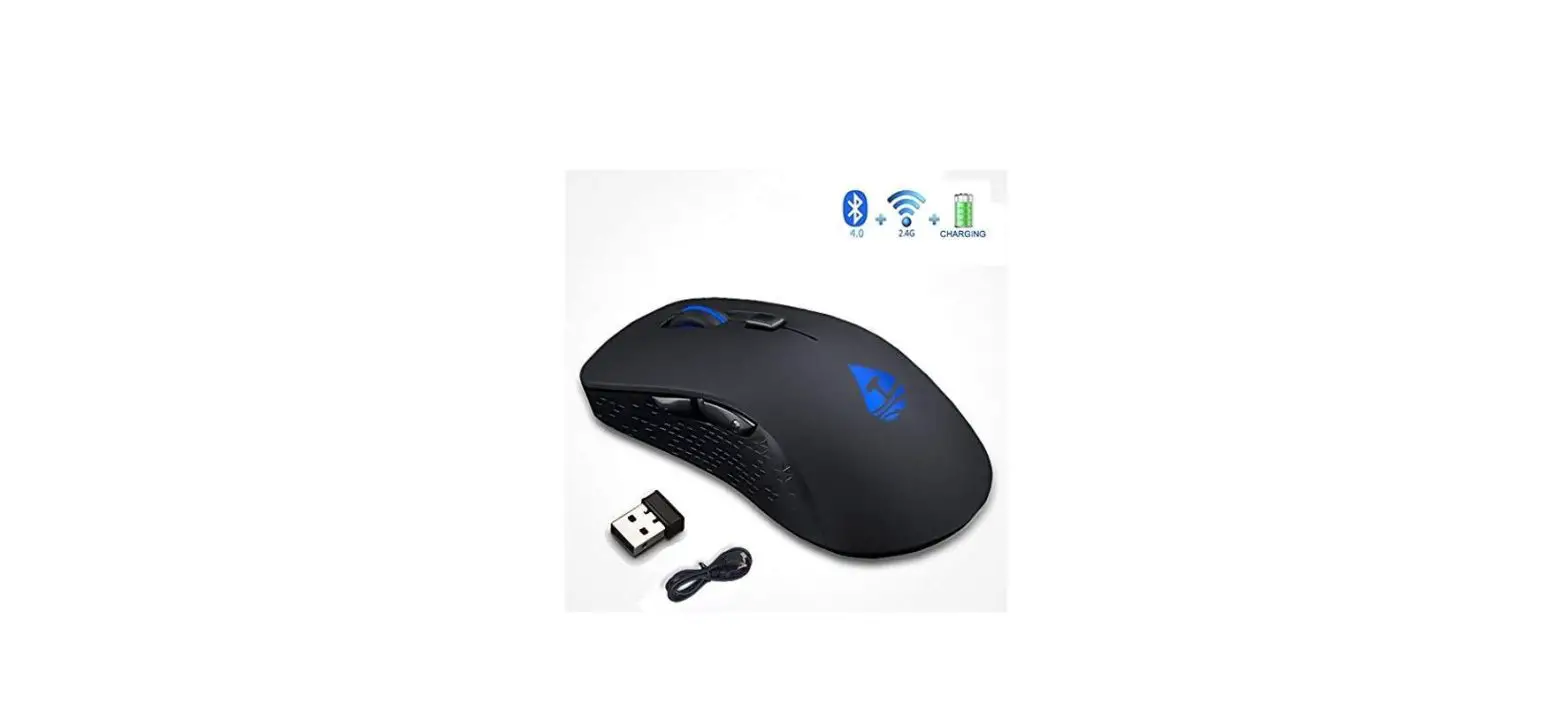
BW090 Dual Mode Keyboard and Mouse Comb
Product Information:
- Product Name: Dual Mode (BT + 2.4GHz) Keyboard and Mouse
Comb - Compatible System: Windows XP / 11 / 10 / 8 / 7
- Connection Methods: Bluetooth and 2.4GHz
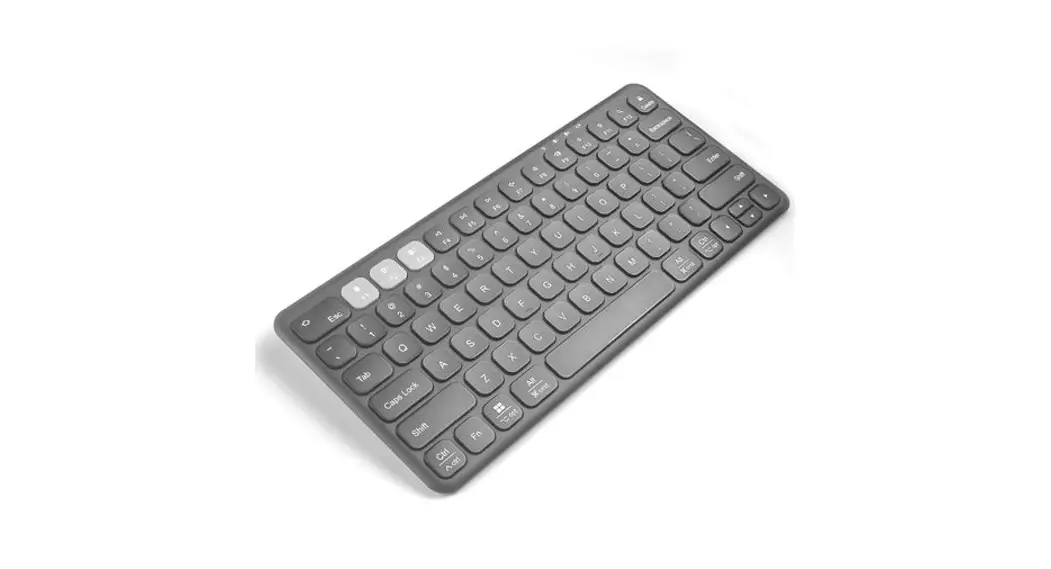
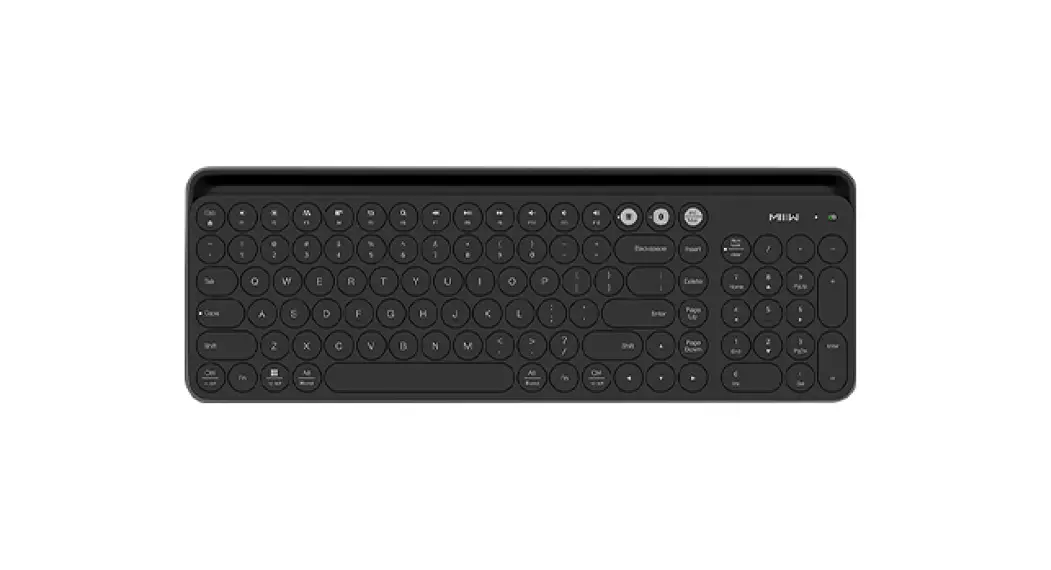
- Keyboard Overview:
- BT 1 indicator / CAPS lock indicator
- BT 2 indicator / Num lock indicator
- 2.4G indicator / Low voltage indicator
- Power switch
- Battery compartment
- Safety Caution:
- Keep the keyboard and mouse away from sharp objects.
- Do not place heavy objects on the keyboard and mouse.
- Away from microwave items.
- Do not force or distort the keyboard and mouse.
- Keep away from oil, chemical, or other organic liquid
items.
- Keys and Functions:
- Esc: Previous Track
- Music Player: Next Track
- Volume: Play/Pause
- Volume+: Stop
- Mute: Browser
- Email: My Computer
- Print Screen: SysRq
- Delete: Num Lock
- The FN key is used in combination with other keys to access
special features.
Product Usage Instructions:
Bluetooth Pairing Instructions:
- Read the user manual carefully before using the product.
- If your computer or laptop has a Type-C port, connect the
supplied USB-C to USB adapter to your computer or laptop, and plug
the 2.4G receiver into it. - To pair with Bluetooth 1, press Fn + 1 and hold for 3 seconds
to start the connection. - To pair with Bluetooth 2, press Fn + 2 and hold for 3 seconds
to start the connection. - To switch to 2.4G channel, press Fn + 3 and hold for 3 seconds
to start the connection. - To use multiple devices at the same time, press Fn + 1/2/3 to
switch between connected devices. - If the connection fails, turn off the Bluetooth keyboard power
supply, restart, and try connecting again.
2.4G Pairing Instructions:
- Take out the USB receiver from the bottom of the mouse.
- Plug the receiver into an available USB port on your laptop or
desktop. - Turn on the mouse by switching it to the “on” position.
- The red light on the mouse will turn on.
- Short press the white circle connect button to switch the small
light above between red, green, and blue. - You can now use the mouse normally.
User Manual
Dual Mode ( BT + 2.4GHz ) Keyboard and Mouse Comb
Bluetooth Pairing Instructions
Compatible System
Compatible with Windows XP /11 / 10 / 8 / 7 Note: Please read the use manual carefully before you start using this product.
1
120*160mm
2.4G Pairing Instructions
2.4G Mouse Use Manual
1. You can take out the USB receiver in the bottom of t.he mouse, then plug the receiver into an available USB port on your laptop or desktop.
1.You can take out the USB receiver in the bottom of the mouse, then plug the receiver into an available USB port on your laptop or desktop.
2.Push the power switch button to ON position to turn on the keyboard.
2.4G
3.Press Fn + 3 to selet 2.4G channel.
2.Open the mouse (switch to “on”position), the red light of mouse will be on.
3.Short press the white circle “connect button”, you can see the small light above switch to the red light state between red,green and blue.
4.Then you can use the keyboard.
4.You can use the mouse normally.
Two Connection Methods
Keyboard Overview
æçè
1.BT 1 indicator / CAPS lock indicator 2.BT 2 indicator / Num lock indicator 3.2.4G indicator / Low voltage indicator 4.Power switch 5.Battery compartment
Safety Caution
1.Keep the keyboard and mouse away from sharp objects. 2.Do not place heavy object on the keyboard and mouse. 3.Away from microwave items. 4.Do not force or distorted the keyboard and mouse. 5.Keep away from oil,chemical or other organic liquid,items.
é
ê
Keys and Functions
If your computer or laptop is just with type-c port, you need to connect the supplied USB-C to USB adapter to your computer or laptop and plug the 2.4G receiver into it.
2.4G receiver for regular laptop, computer, and so on. 2.4GHz wireless transmission technology provides a powerful and reliable connection up to 33ft.
Indicator
No. Light
Keyboard Indicator
Status
æ
BT 1 indicator / CAPS lock Flashing green ( bluetooth 1 pairing) / Enable or disable Caps lock
indicator
ç
BT 2 indicator / Num lock indicator
Flashing green ( bluetooth 2 pairing) / Enable or disable Num key
è
2.4G indicator / Low voltage Flashing red ( 2.4G pairing) / Flashing red when the battery is low
indicator
é
Power switch
ON / OFF switch
ê
Battery compartment
Install 2 x AAA batteries
Multi-channel Connection
1. When connecting the first device, press “Fn + 1 “(Bluetooth 1) and press 3 seconds to start the connection
2. When connecting the first device, press “Fn + 2” (Bluetooth 2) and press 3 seconds to start the connection
3. When connecting the first device, press “Fn + 3” (2.4G channel) and press 3 seconds to start the connection
4.To use multiple devices at the same time, press Fn+1/2/3 to switch to freely switch to connected devices.
Esc Previous Track
Music Player Next Track
VolumePlay/Pause
Volume+ Stop
Mute Browser
My Computer
Print Screen SysRq
Delete
Num Lock
The FN key is used in combination with other keys to access sepcial features.
2 Press Fn + this key to choose bluetooth channel 2.
1 Press Fn + this key to choose bluetooth channel 1.
2.4G Press Fn + this key to choose 2.4G channel.
Tips: If it fails to connect properly,it is recommended to turn off the bluetooth keyboard power supply,restart and connect again.
Power Management
Wireless Mouse
Power Saving Mode
The keyboard will automatically go to sleep after 10 minutes of inactivity. Press any button and wait 3 seconds to activate it.
Replace batteries
Lift the battery compartment up and off the base. Replace the spent batteries with 2 new AAA batteries and reattach the compartment door.(Batteries are include ) Note: Make sure that the positive ( + ) and negative ( – ) terminals are
on the correct sides.
Power switch
Battery compartment
Left Button Scroll Wheel
Right Button DPI Button
Battery Cover
Red2.4G mode Green: Bluetooth 1 Blue: Bluetooth 2
Connect Button
Power Button
Front Side
Back Side
Power Saving Mode The mouse will automatically go to sleep after 10 minutes of inactivity. Press the mouse scroll bar and wait 3 seconds to activate it. Replace batteries
Lift the battery compartment up and off the base. Replace the spent batteries with 1 new AA battery and reattach the compartment door.(Battery is include )
Note: Make sure that the positive ( + ) and negative ( – ) terminals are on the correct sides.
Mouse Specifications
Product Size Mouse Weight Working Voltage Sleep Current
2.48*4.21*1.4 in 0.14 Ib(with USB Receiver) 3V 0.02mA
Keyboard Specifications
Working Distance Working Current Sleep Time Awaken Mouse
33 ft <10mA 10 min Press Key
working voltage 1.8~3.0V
working current 3.0mA
Awake Time Buttons
3 seconds 95 keys
Sleep Current
< 0.2mA
Keycaps Lifetime
3 million
Connect Distance
33 ft
Working Temperature -10¥~55¥
FAQ
Question
The LED indicator did not light up when the keyboard was turned on.
Answer
The keyboard battery is empty.Charge it according to the instructions in the “Charging” section.
The USB receiver does not recognize?
The USB receiver is not inserted into the tablet or computer.Please check if the USB interface is in good contact.
The smartphone computer or tablet did not find Make sure you have pressed the “Connect”button
the keyboard.
You should see a flashing LED. If the LED indicator
not flashing,the keyboard will not be visible to your
device.
Pairing failed.The keyboard isn’t in the list of searched available wireless devices.
Turn off the keyboard and delete it from the search list on your device. Then start the search again and perform a new pairing.
The keys do not work after pairing.
Check the input setting of the device.Make sure that all the settings are ON. If not,change the setting.
Contact Us
1.If you have any use problems with our keyboard,please do not hesitate to contact us [email protected]. Please rest assured that we will definitely help you solve them!
2.The device is provide with one-year limited hardware warranty from the purchase day.
Packing List
1* Wireless Keyboard (with 2 x AAA batteries) 1* Wireless Mouse (with USB receiver and 1 x AA battery 1* Converter 1* Manual
2
3
4
5
6
7
8
9
10