

User Manual
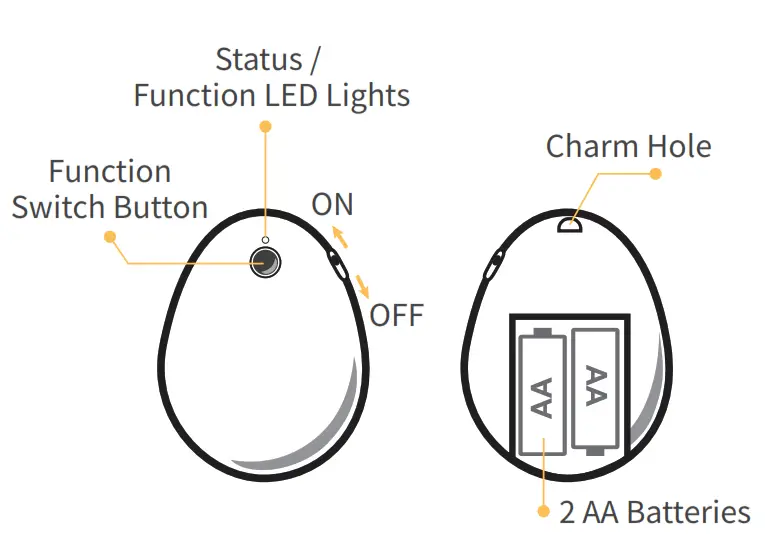
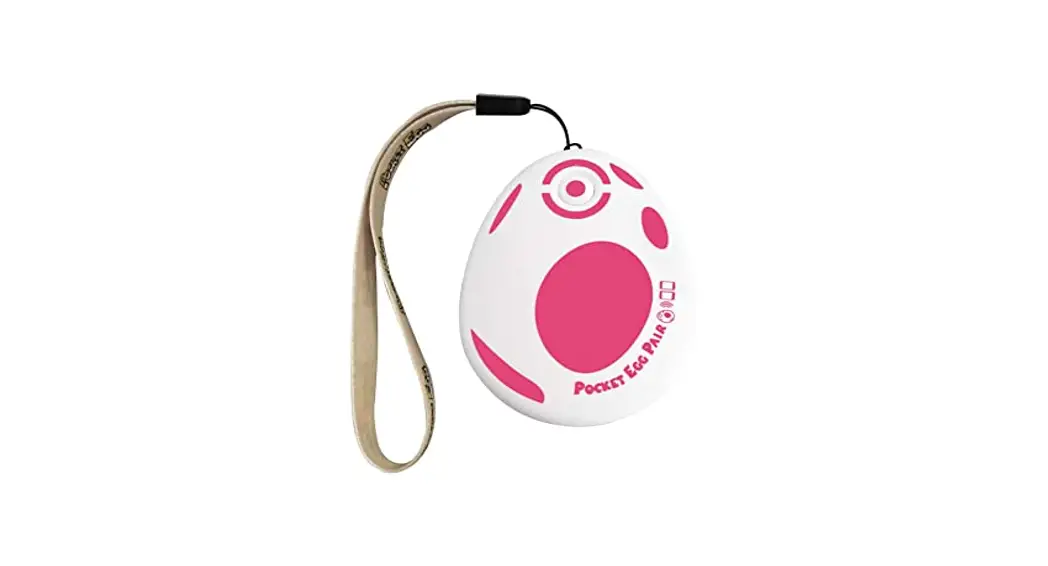
Features
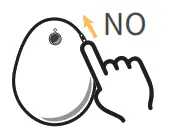
- Turn on the power switch.

- Short press the button to switch between different functions.

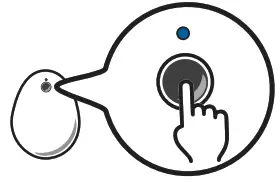
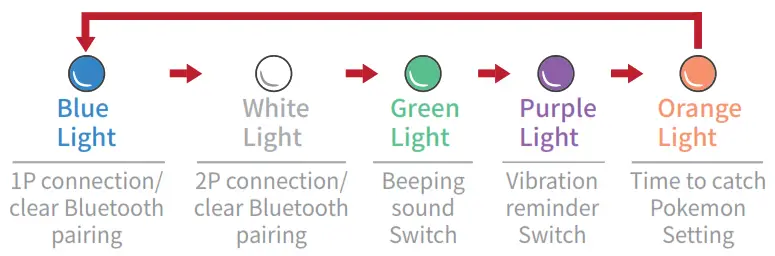
Wait for 5 seconds to leave the function setting automatically
For first-time use, please clear the Bluetooth pairing.
Clear the Bluetooth pairing for the 1P device
Short press until  blue Light is on
Long press untill Blue andC5Yellow
  lights are flashing

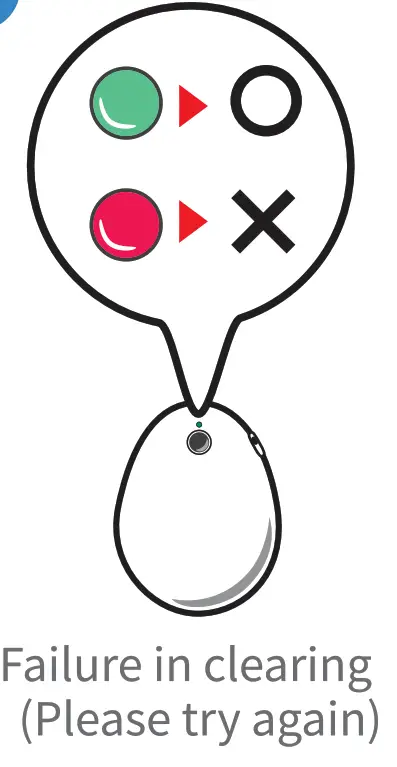
 Green Light flashing three times indicates success in clearing
 Red Light flashing three times indicates failure in clearing
 Clear the Bluetooth pairing for the 2P device
Short press until White Light is on
Long press until White and yellow Lights are flashing Green Light flashing three times indicates success in clearing Red Light flashing three times indicates failure in clearing
 Connection pairing
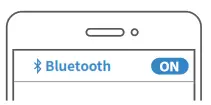
- Turn on the Bluetooth on the device.

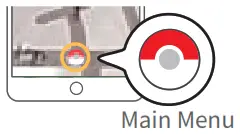
- Open the Pokemon Go App Click I Main Menu ].

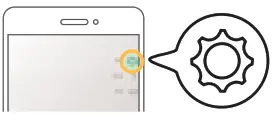
- Click I Settings.

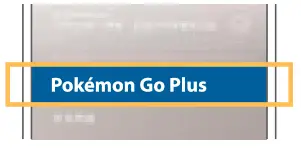
- Select I Pokemon Go Plus ] at the bottom of the settings page.
- Short press to
 Blue Light
• Short press to White Light for 2P device
  Select a device that can be connected to
- Wait for the connection to complete. When the icon changes color, the connection is successful.
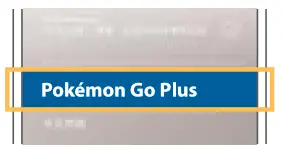
 Select a device that can be connected to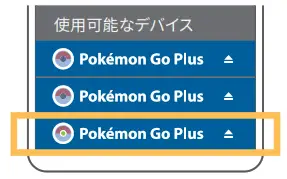

Follow the above steps to connect the 2P device
Beeping sound ON/OFF
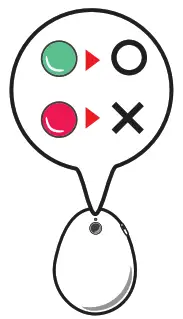
Short press until  green Light is on
Long press untillGreen Light flashes 3 times to turn on
Long press until Red Light flashes 3 times to turn off
Vibration reminder ON/OFF
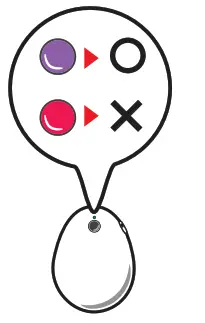
Short press until purple Light is on
Long press until Purple Light flashes 3 times to turn on
Long press until Red Light flashes 3 times to turn off
Turn off Beeping Sound and Vibration at the time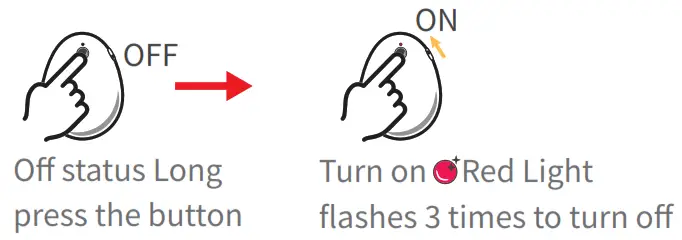
 Turn on the simulate mode
After turning on, it will start to simulate catching Pokemon. It will randomly catch Pokemon in 0 to 2 seconds.
Short press until  Orange Light is on
Long press until Orange Light flashes 3 times to turn on
Lona press until Red Light flashes 3 times to turn off
Description of Light / Beeping sound / Vibration status
| Status | Light | Beeping sound/ Vibration |
| Low Battery | at Flashing Red Light | No beeping sound and vibration reminder during gameplay. |
| Waiting to connect with your phone | Flashing (not yet paired) Flashing (1P is paired) Flashing (1P is paired) Flashing (2P is paired) Flashing (connected) Flashing (2P is paired) Flashing (connected) |  The first The first0-3 minutes Every 15 seconds Lets out one long and two short beeping sounds Vibrates 3 times 3-10 minutesEvery 30 seconds Lets out one long and two short beeping sounds It Vibrates 3 times After 10 minutes Reminder stops |
| Unable to connect to the network | Red Light. is on for a long time | |
| Your bag is full | | Beep 8 times + vibrate 8 times Pauses for 1 second every interval After three cycles Automatically stop |
| No Pokemon balls | at Red Light ‘I’ flashes 3 times | |
| The number of Pokemon has reached the upper limit / Far away from the supply station | |
Battery and recommended, days of use
| AA Battery, type | Milliampere mAh | Days of use(8hrs/day) | Days of use (24hrs/day) |
| Carbon zinc Battery | 1100 |  30 30 | 12 |
| alkaline battery | 2700 | ||
| 90 | 30 |
 Remarks: the days may vary depending on actual battery conditions
 Supplement tips When there are not enough Pokemon balls, follow the steps below to speed up the addition of the Pokemon balls.
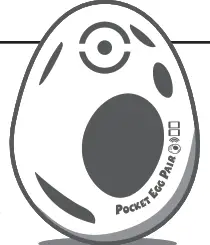
- Enter Pokemon Go Plus

- Close the nearby Pokemon notice

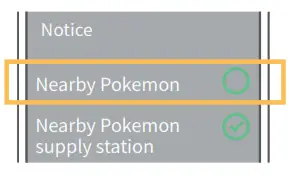
This way you can focus on supplying Pokemon balls.
FCC Requirement
changes or modifications not expressly approved by the party responsible for compliance could void the user s authority to operate the equipment. This device complies with Part 15 of the FCC Rules. Operation is subject to the following two conditions: (1) this device may not cause harmful interference, and (2) this device must accept any interference received, including interference that may cause undesired operation.
Note: This equipment has been tested and found to comply with the limits for a Class B digital device, pursuant to Part 15 of the FCC Rules. These limits are designed to provide reasonable protection against harmful interference in a residential installation. This equipment generates, uses, and can radiate radio frequency energy, and if not installed and used in accordance with the instructions, may cause harmful interference to radio communications. However, there is no guarantee that interference will not occur in a particular installation. If this equipment does cause harmful interference to radio or television reception, which can be determined by turning the equipment off and on, the user is encouraged to try to correct the interference by one or more of the following measures:
— Reorient or relocate the receiving antenna.
— Increase the separation between the equipment and receiver.
— Connect the equipment into an outlet on a circuit different from that to which the receiver is connected.
— Consult the dealer or an experienced radio/TV technician for help.