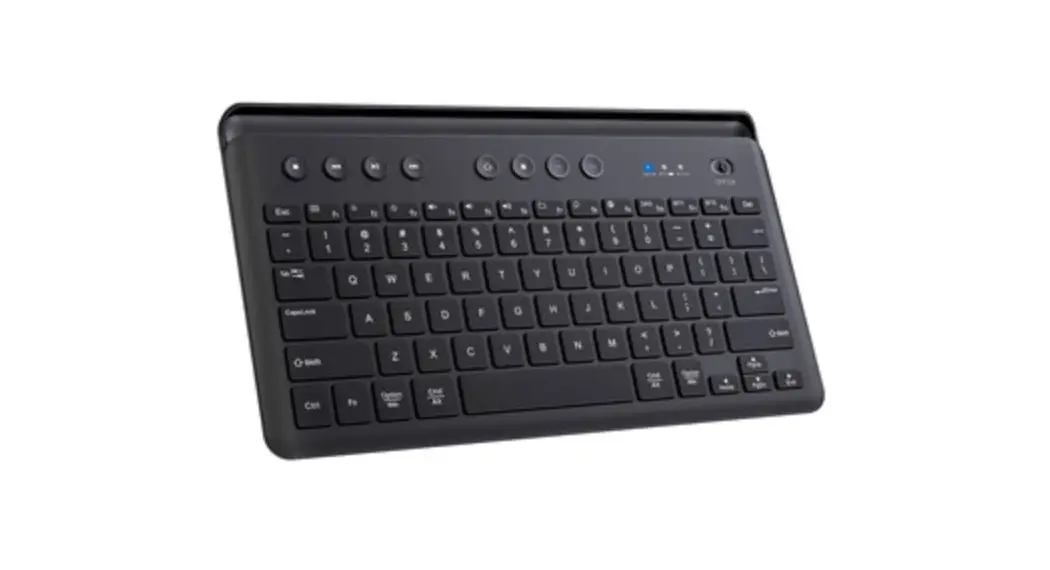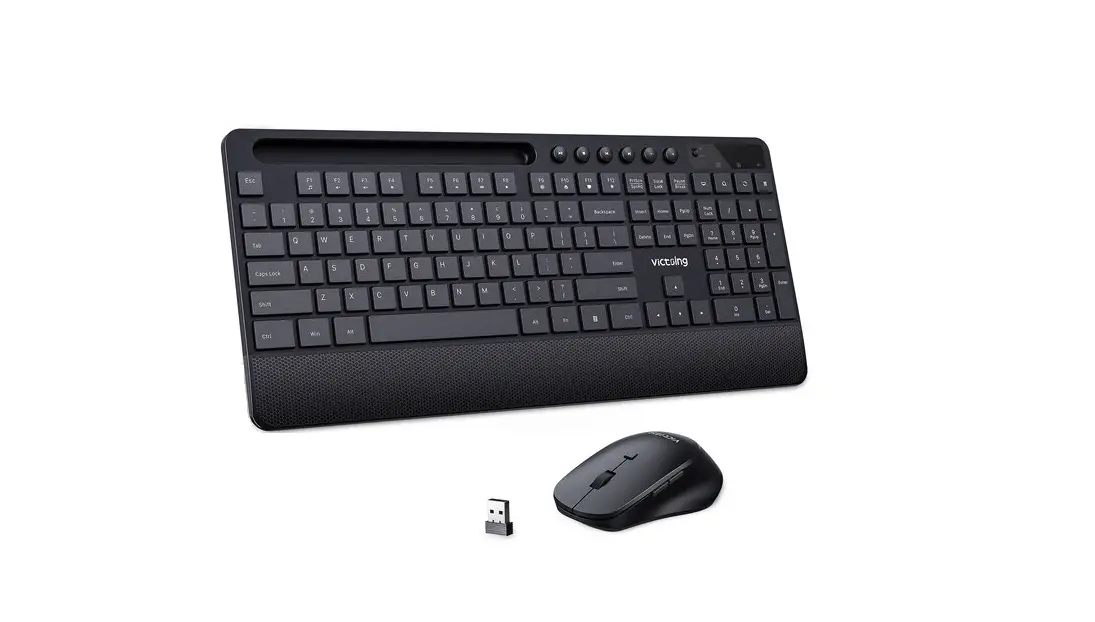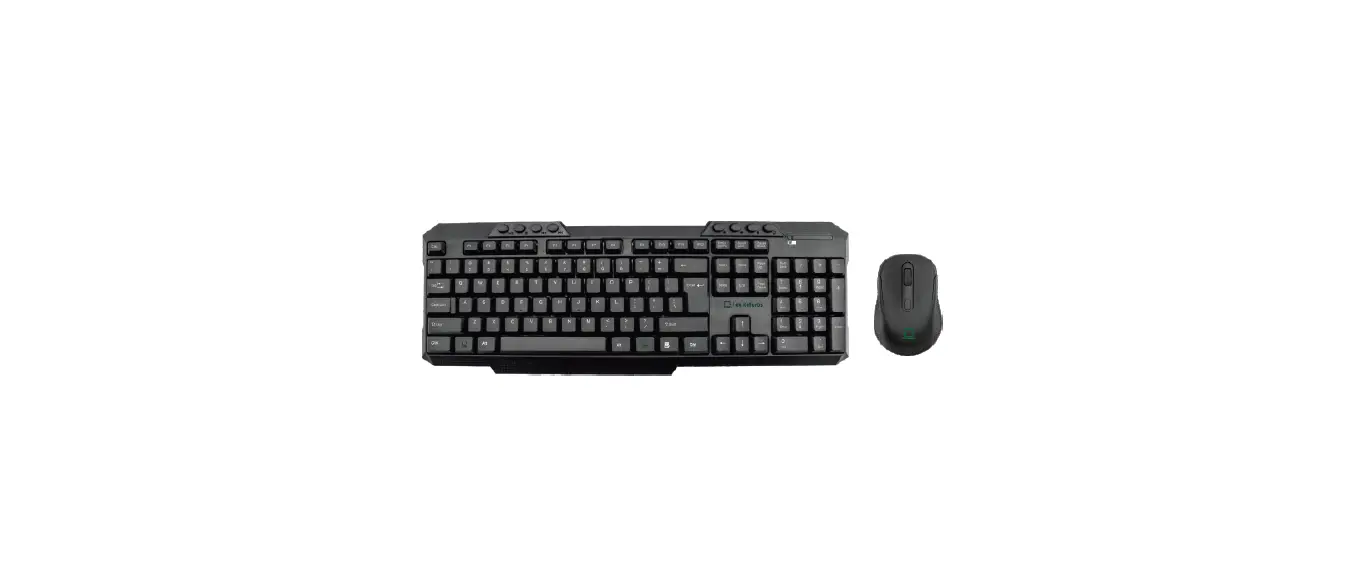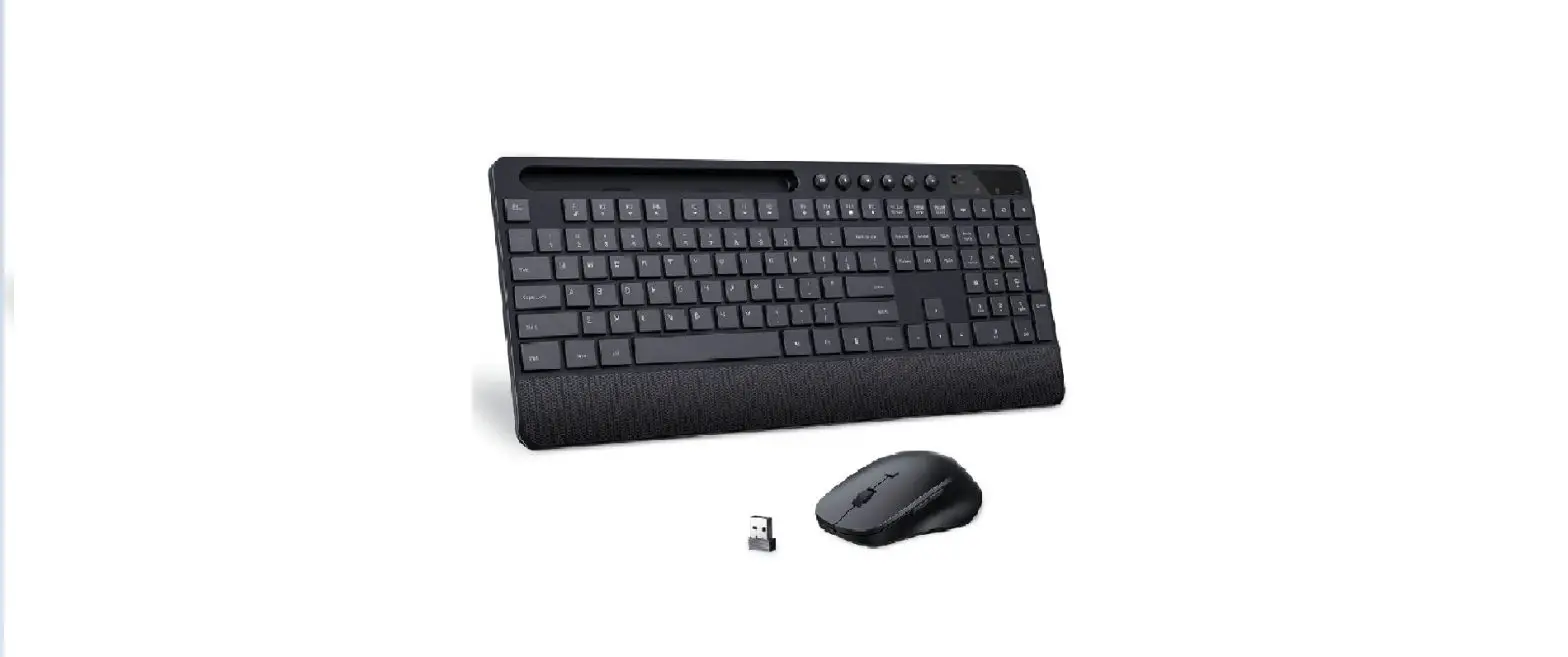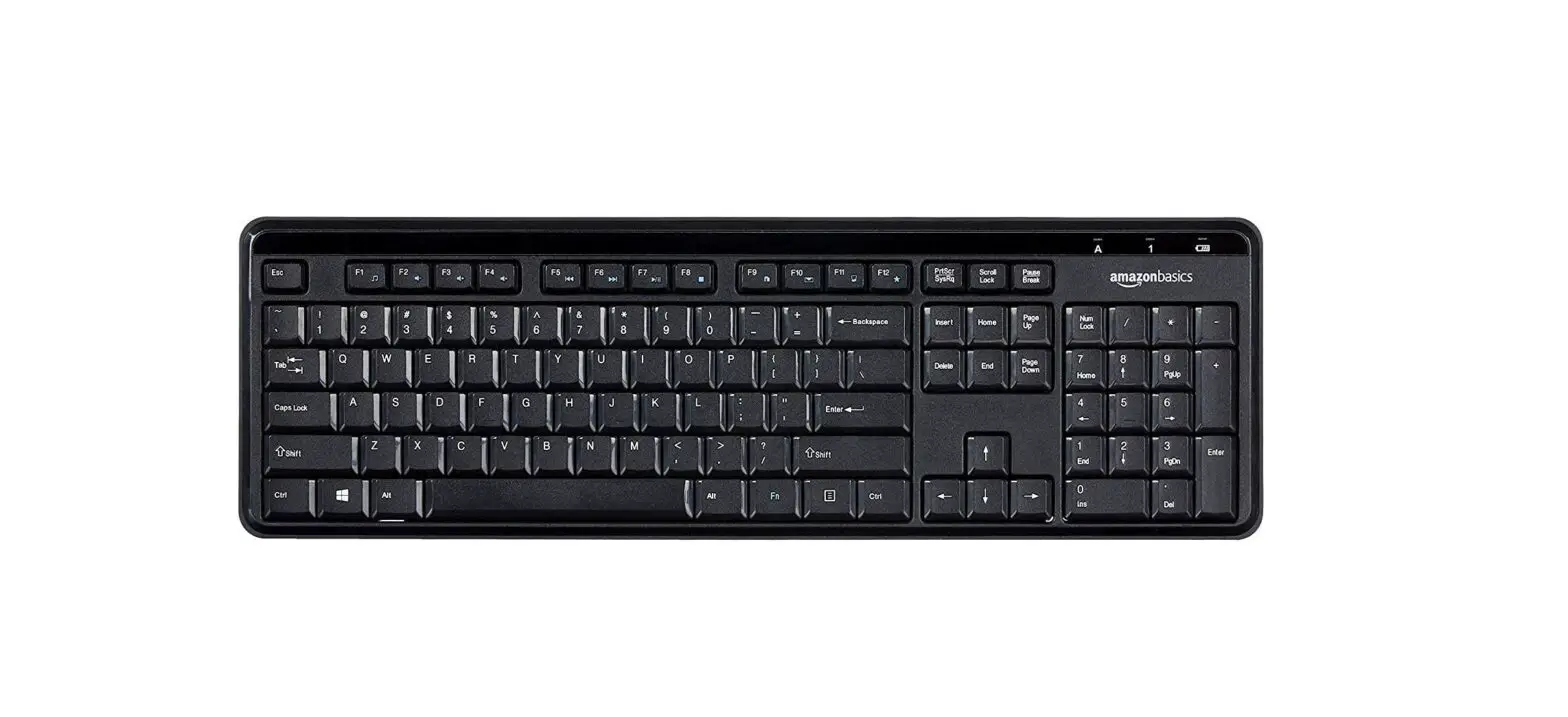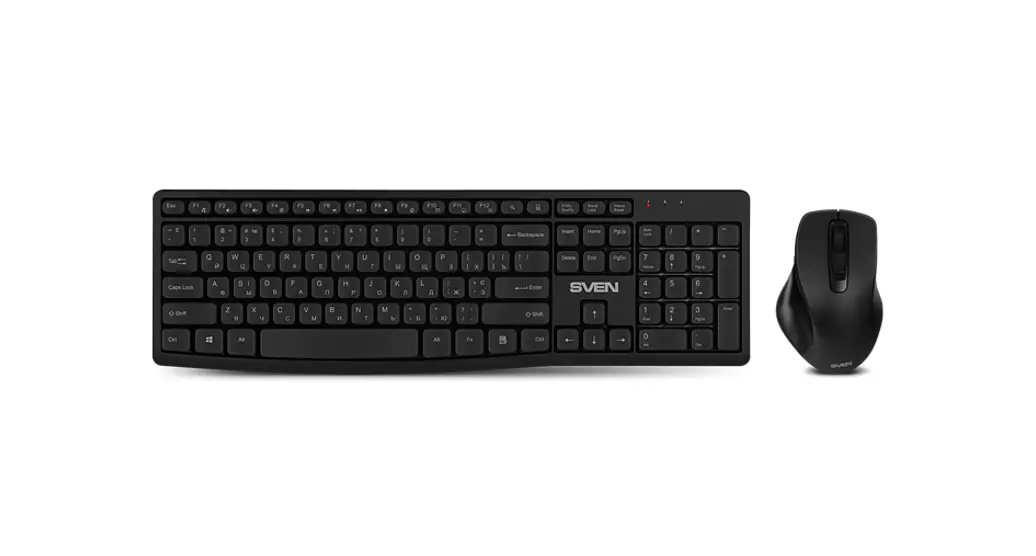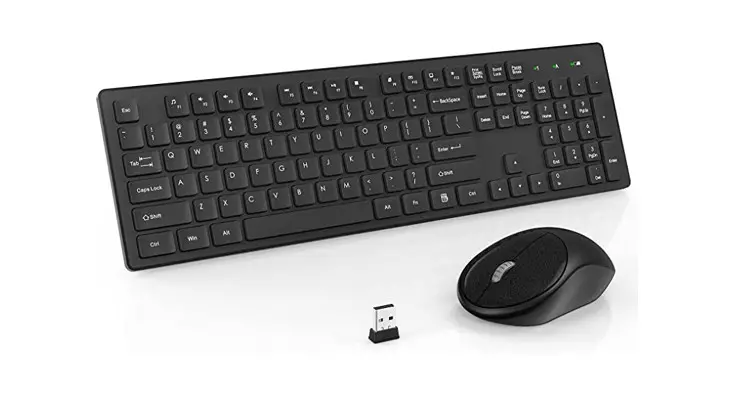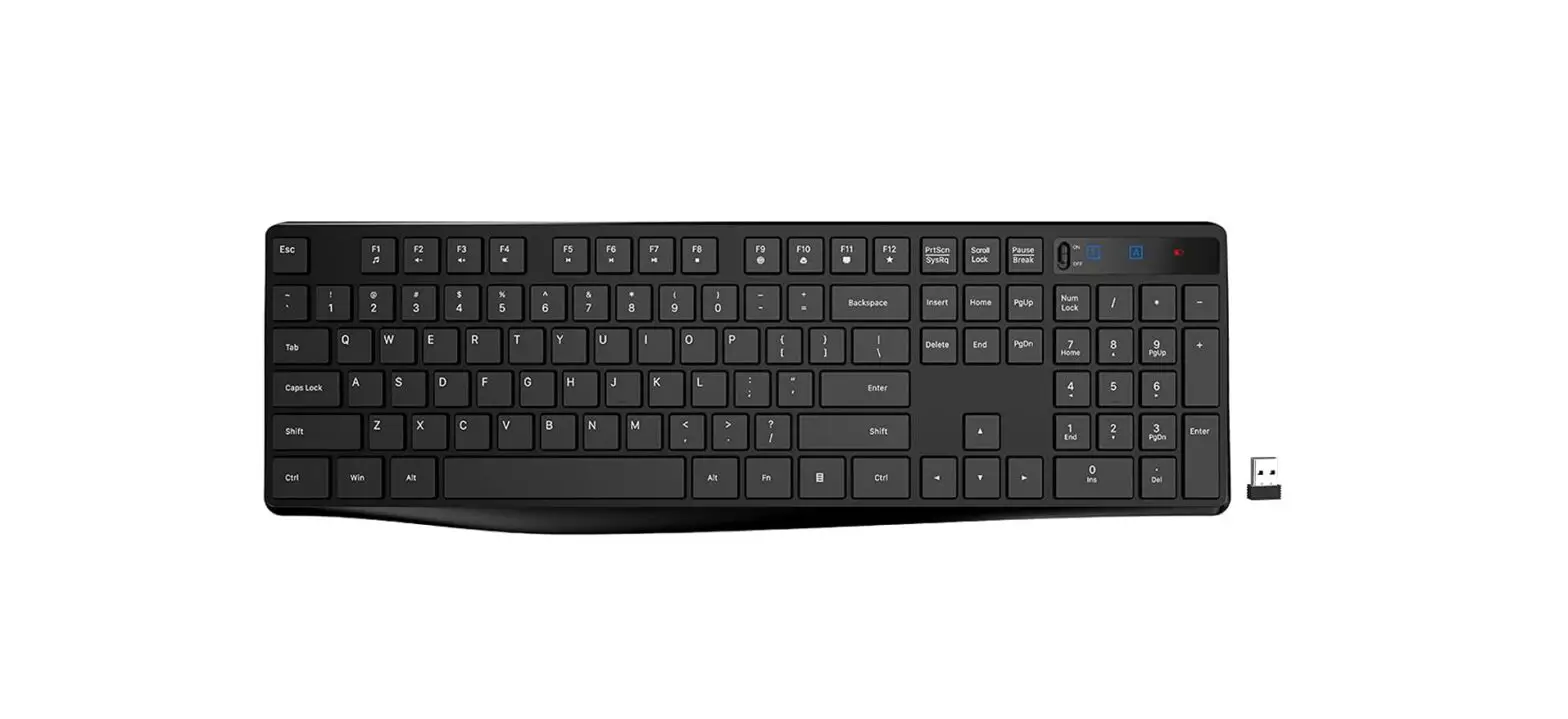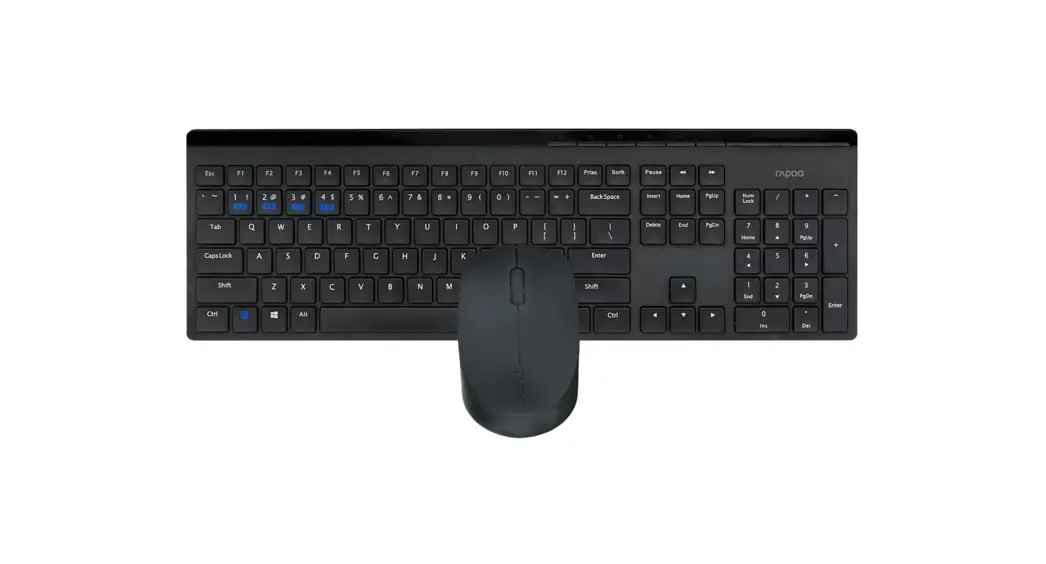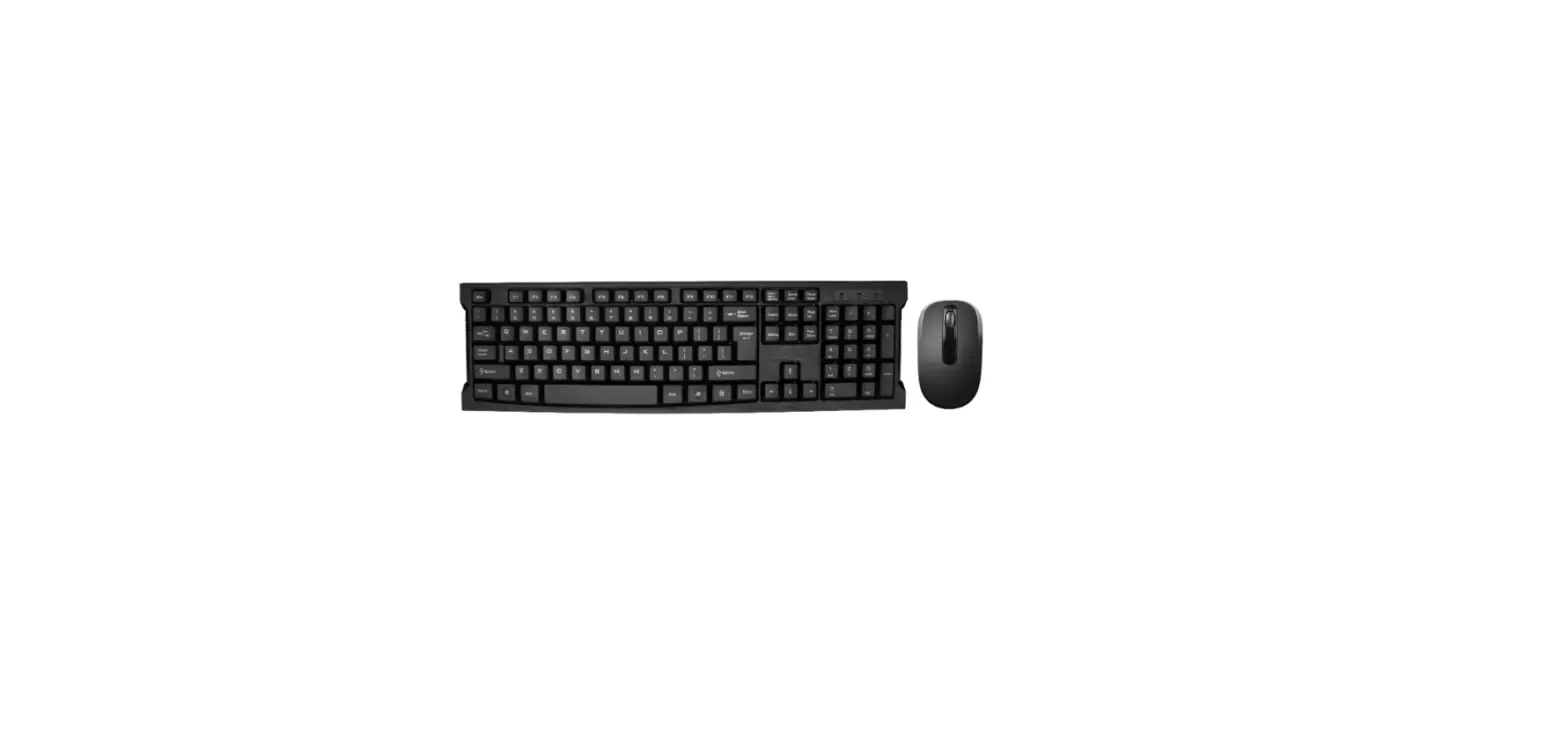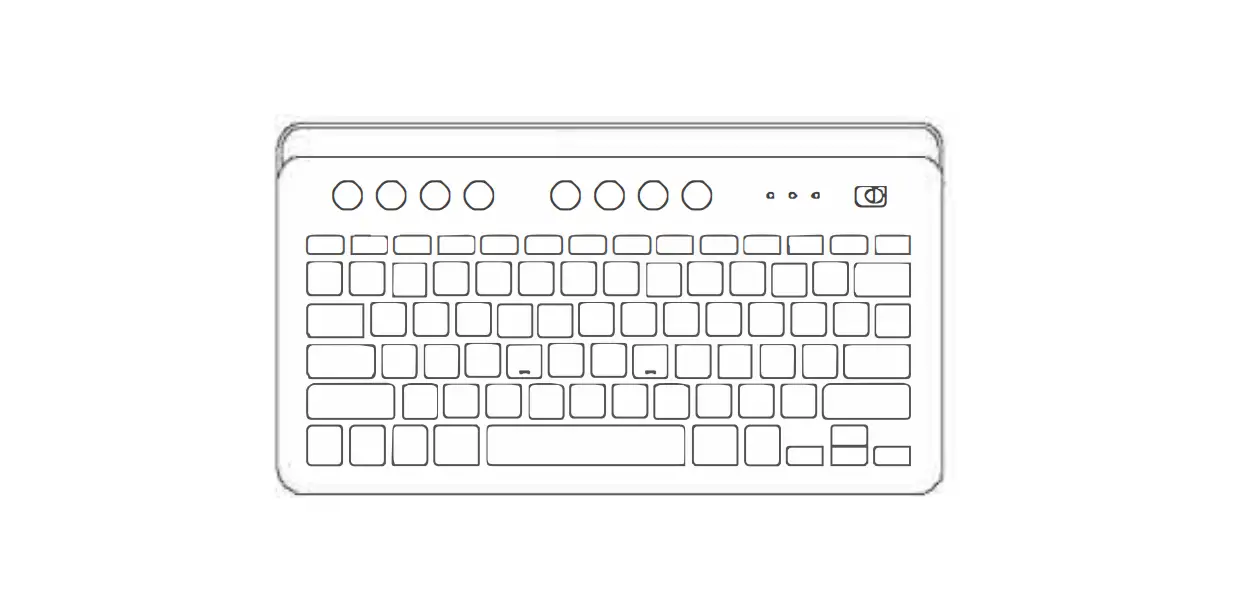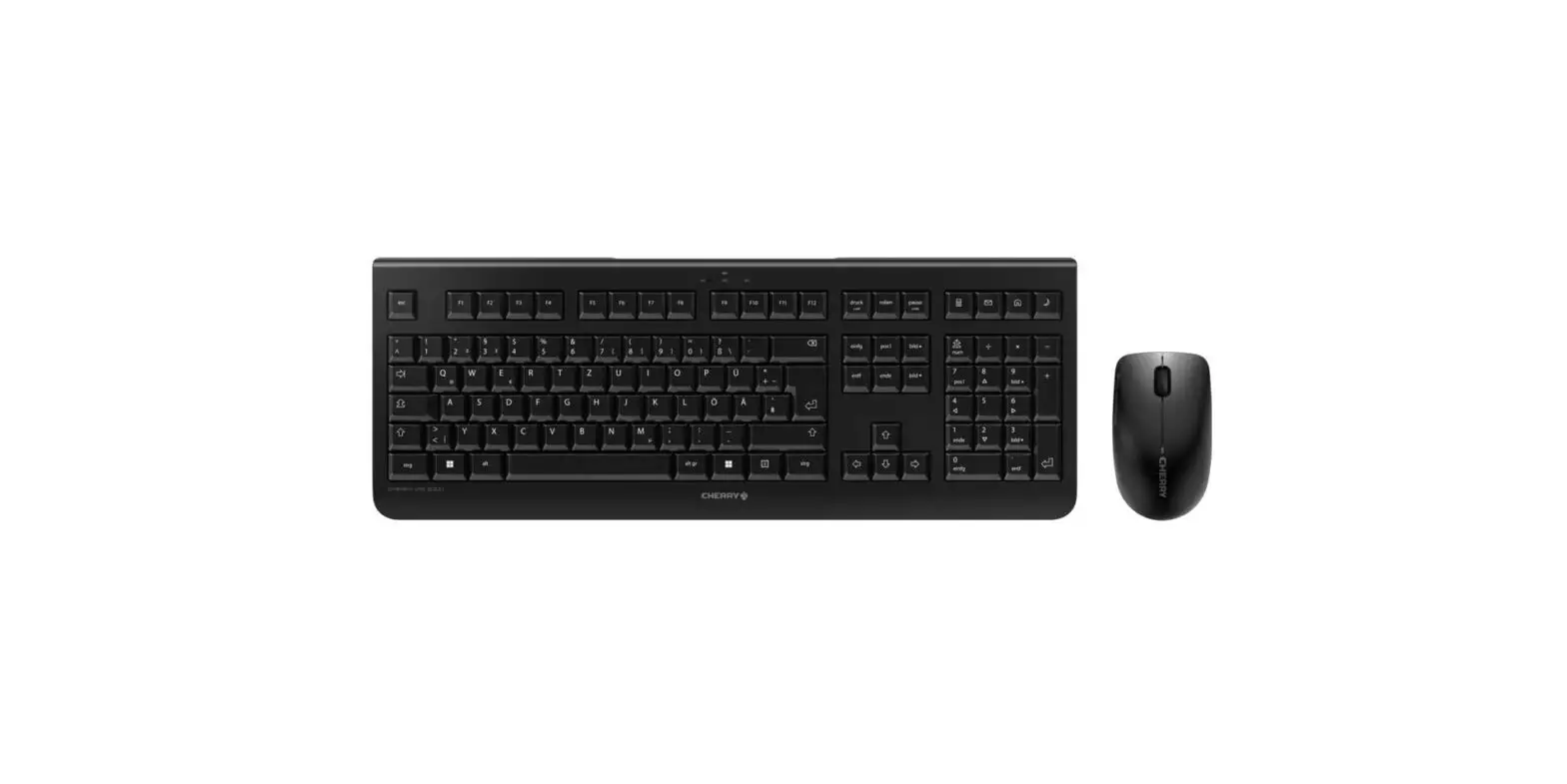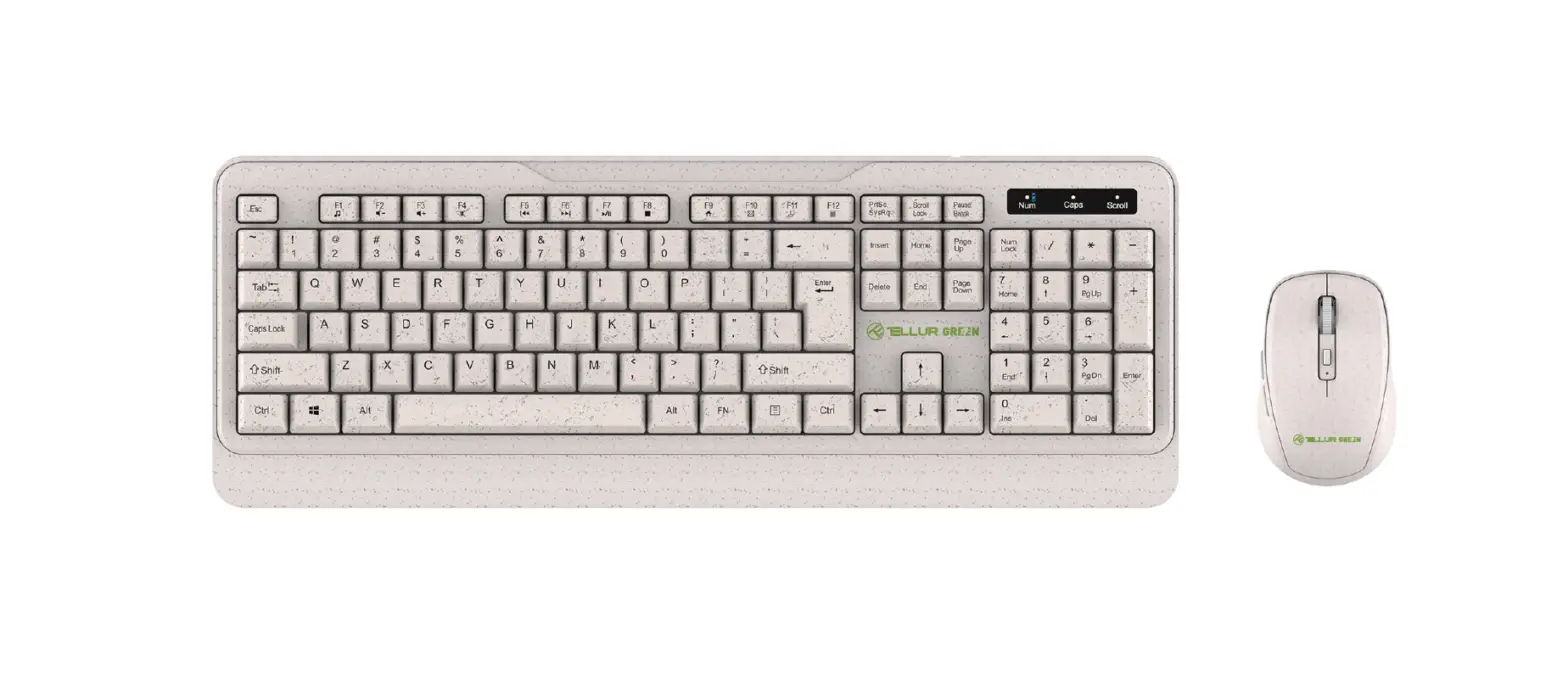
 PC348A-1 Wireless Keyboard and Mouse
User Manual
PACKING LIST

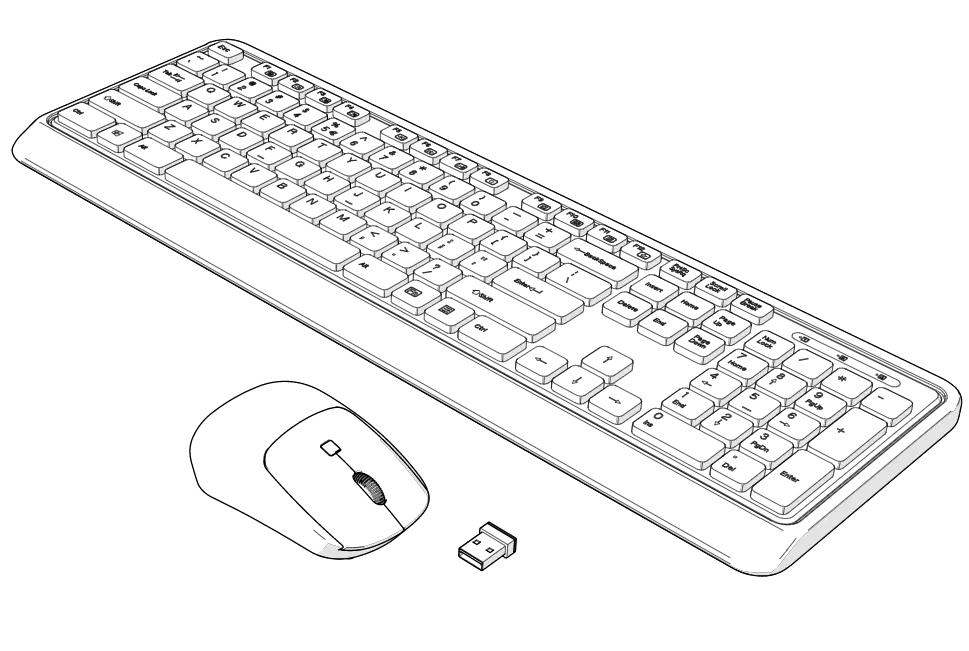
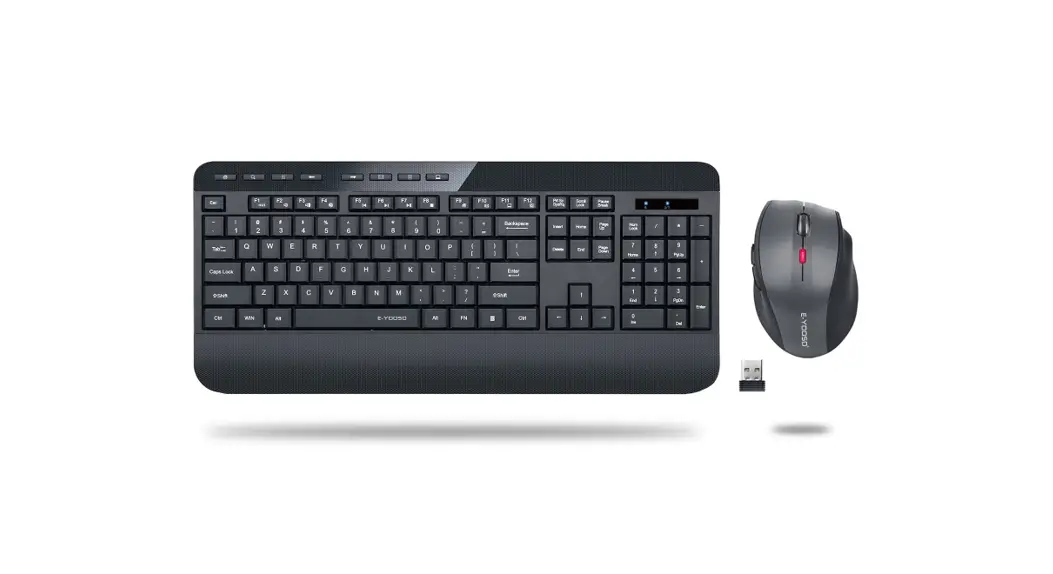
| 1. Keyboard x1 | 3. USB Receiver x1 (Stored in Battery Compartment) |
| 2. Mouse x1 | 4. User Manual x1 |
INSTRUCTIONS
- Take out the keyboard and mouse of the package, and remove USB receiver from its battery compartment.
- Place 2pcs 1.5V AAA dry batteries into the keyboard with correct polarity direction. Then switch it on.
- Place 1 pc 1.5V AA dry battery into a mouse with correct polarity direction. Then switch it on.
- Plug the USB receiver into the computer’s USB port. Wait for the computer to install the driver automatically, and you can use the products after that.
COMBINED MULTIMEDIA FUNCTIONS
| Fn+F1 | Fn+F2 | Fn+F3 | Fn+F4 | Fn+F5 | Fn+F6 |
| Player | Volume – | Volume + | Mute | Previous Track | Next Track |
| FN+F7 | FN+F8 | Fn+F9 | Fn+F1 0 | Fn+F1 1 | Fn+F1 1 |
| Play/Pause | Stop | Homepage | My Computer | Favorite |
NOTE
- The multimedia functions of the keyboard are not available in Mac OS.
- The keyboard is only workable with AAA alkaline dry batteries and the mouse is only workable with an AA alkaline dry battery. For better maintenance, please take out batteries to prevent corrosion if you’re not going to use the products for a long time.
SOLUTIONS TO CONNECTION PROBLEMS
Keyboard:
- Take out the batteries of the keyboard and unplug the USB receiver from the computer’s port.
- Put the batteries into the keyboard again and replug the USB receiver into the computer’s port.
- Switch on the keyboard while keeping its distance from the USB receiver within 20cm. Then press ESC+K keys simultaneously for code pairing.
Mouse:
- Take out the battery of the mouse and unplug the USB receiver from the computer’s port.
- Put the battery into the mouse again and replug the USB receiver into the computer’s port.
- Switch on the mouse while keeping its distance from the USB receiver within 20cm. Then press the right button and scroll wheel for code
Note: If the product is still unworkable after the above solutions, please repeat these steps for code pairing again. If your problems can’t get solved yet after that, please contact our customer service for help. (Our email: support@ifatelegend.com)
FCC STATEMENT
Any changes or modifications not expressly approved by the party responsible for compliance could void the user’s authority to operate the equipment.
This device complies with part 15 of the FCC Rules. Operation is subject to the following two conditions:
- This device may not cause harmful interference, and
- this device must accept any interference received, including interference that may cause undesired operation.
FCC RADIATION EXPOSURE STATEMENT
This equipment complies with FCC radiation exposure limits set forth for an uncontrolled environment.