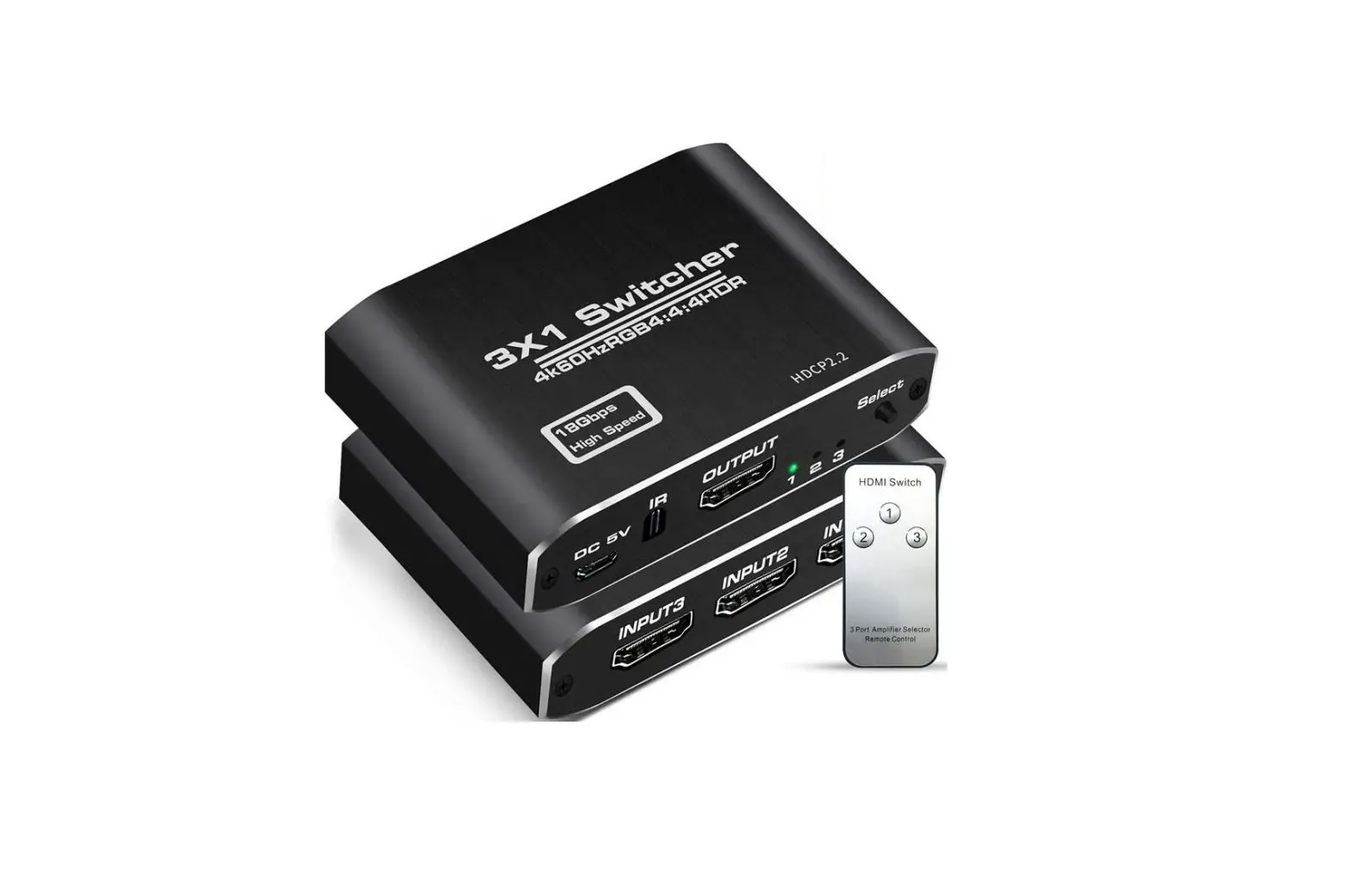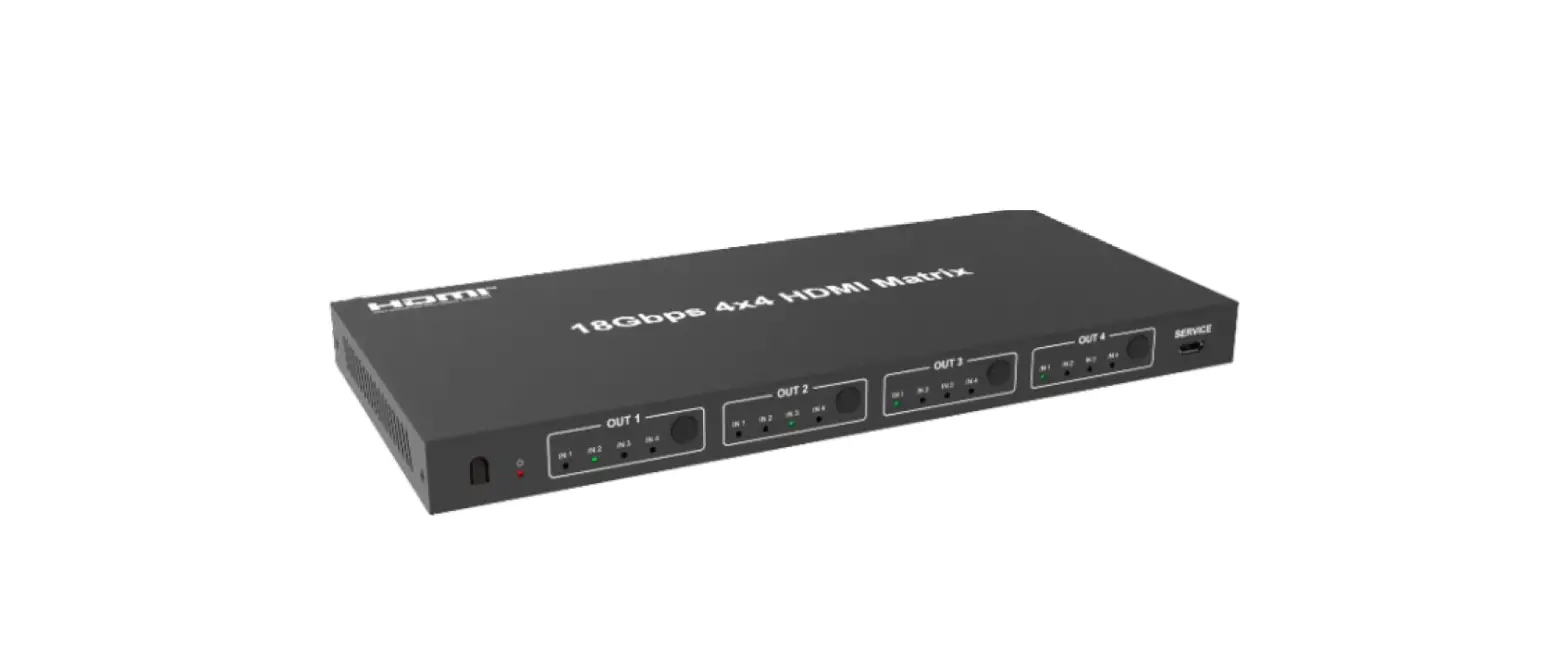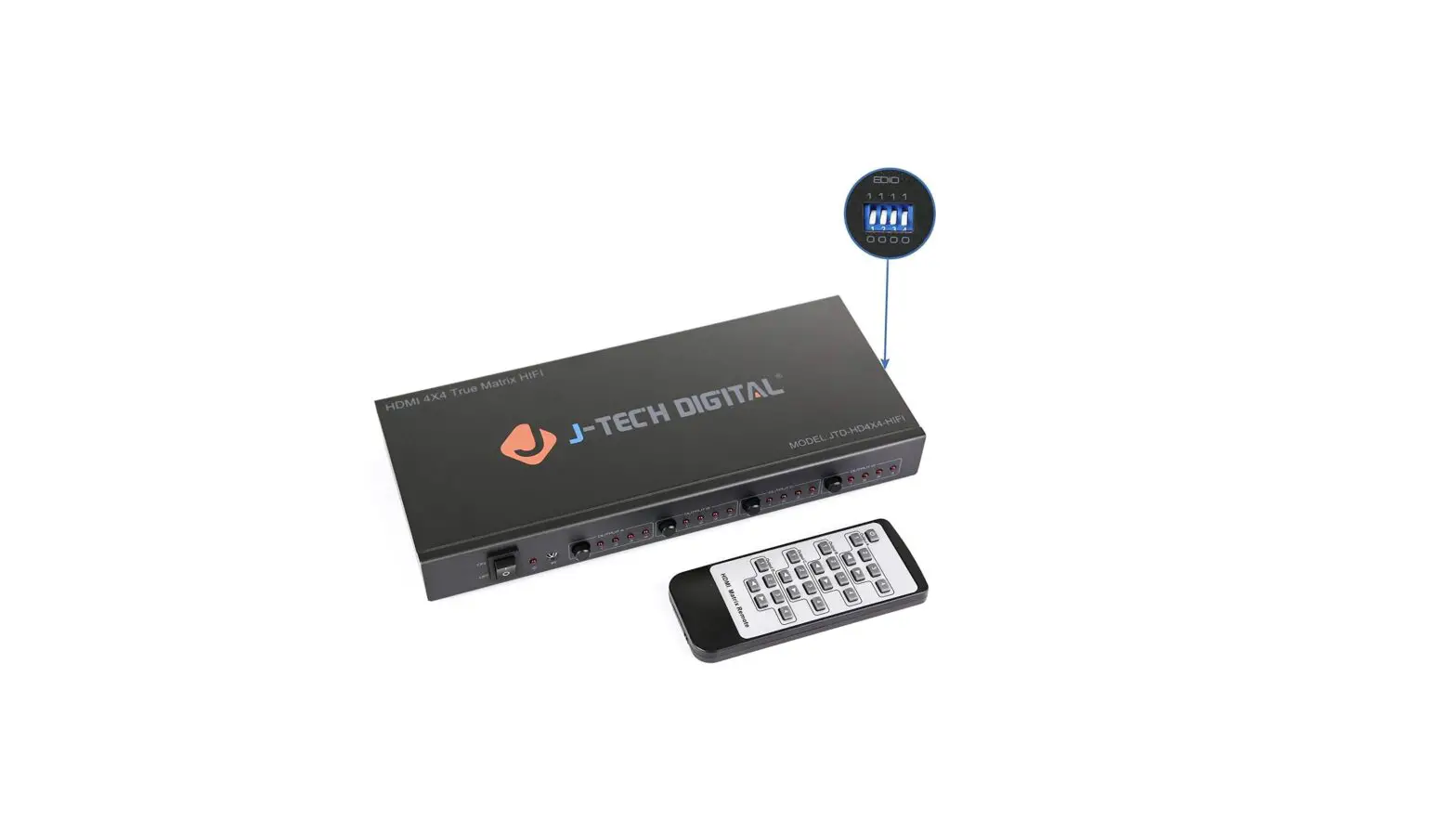
KRAMER VS-44H2 4K 4×4 Matrix Switcher User Guide

VS-44H2 Quick Start Guide
This guide helps you install and use your VS-44H2 for the first time. Go to www.kramerav.com/downloads/VS-44H2 to download the latest user manual and check if firmware
upgrades are available.

Step 1: Check what’s in the box
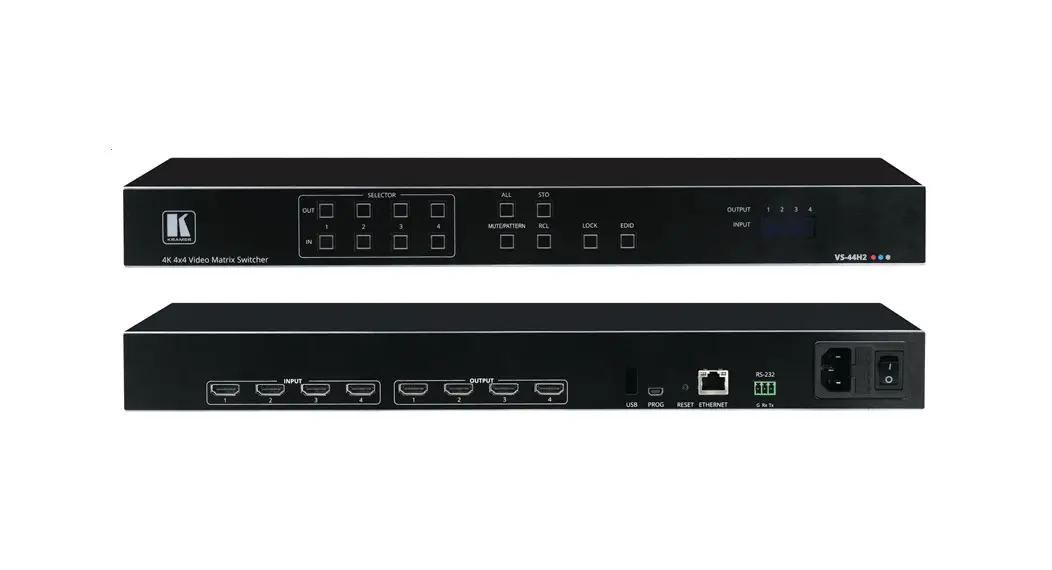
VS-44H2 4K 4×4 Matrix Switcher
1 Set of rack ears
4 Rubber feet
1 Quick start guide
1 Power cord
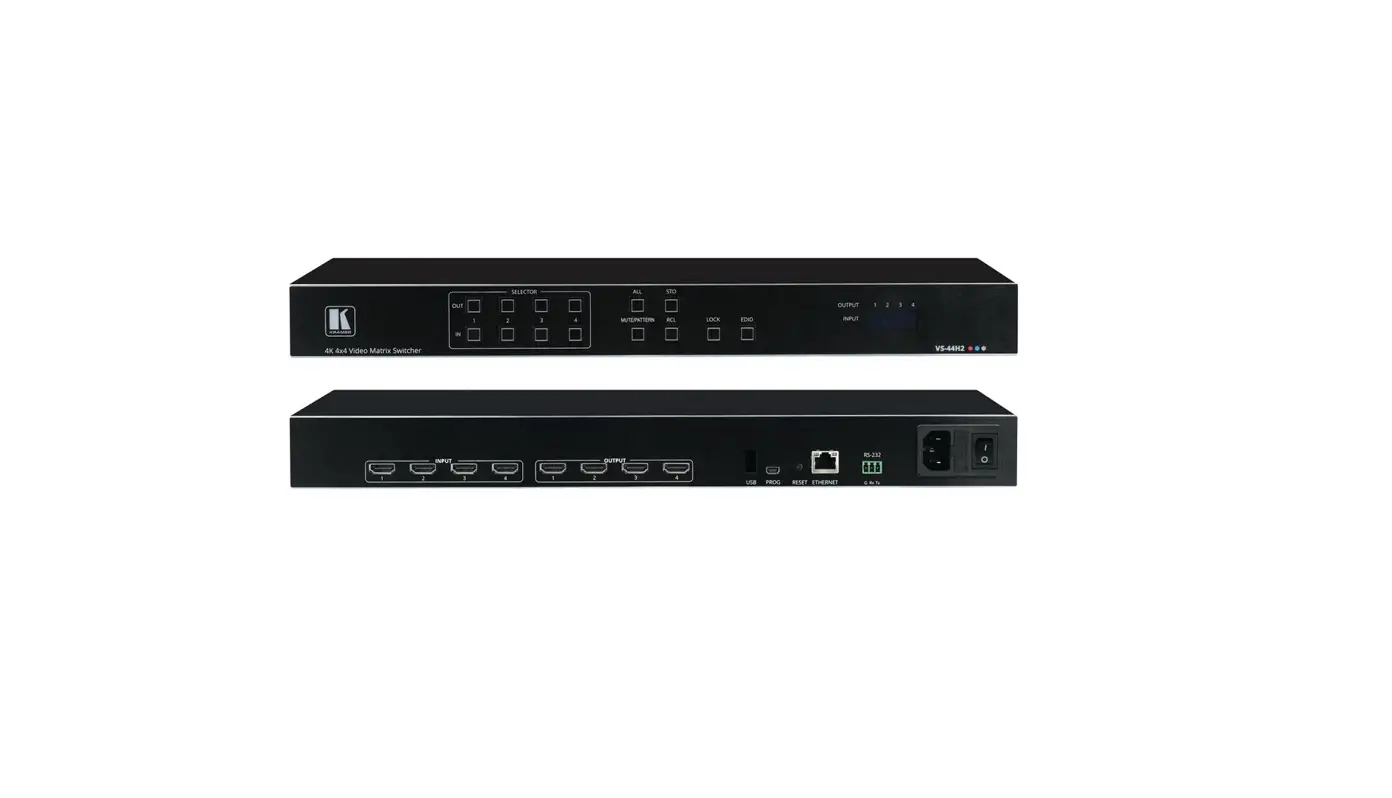
Step 2: Get to know your VS-44H2

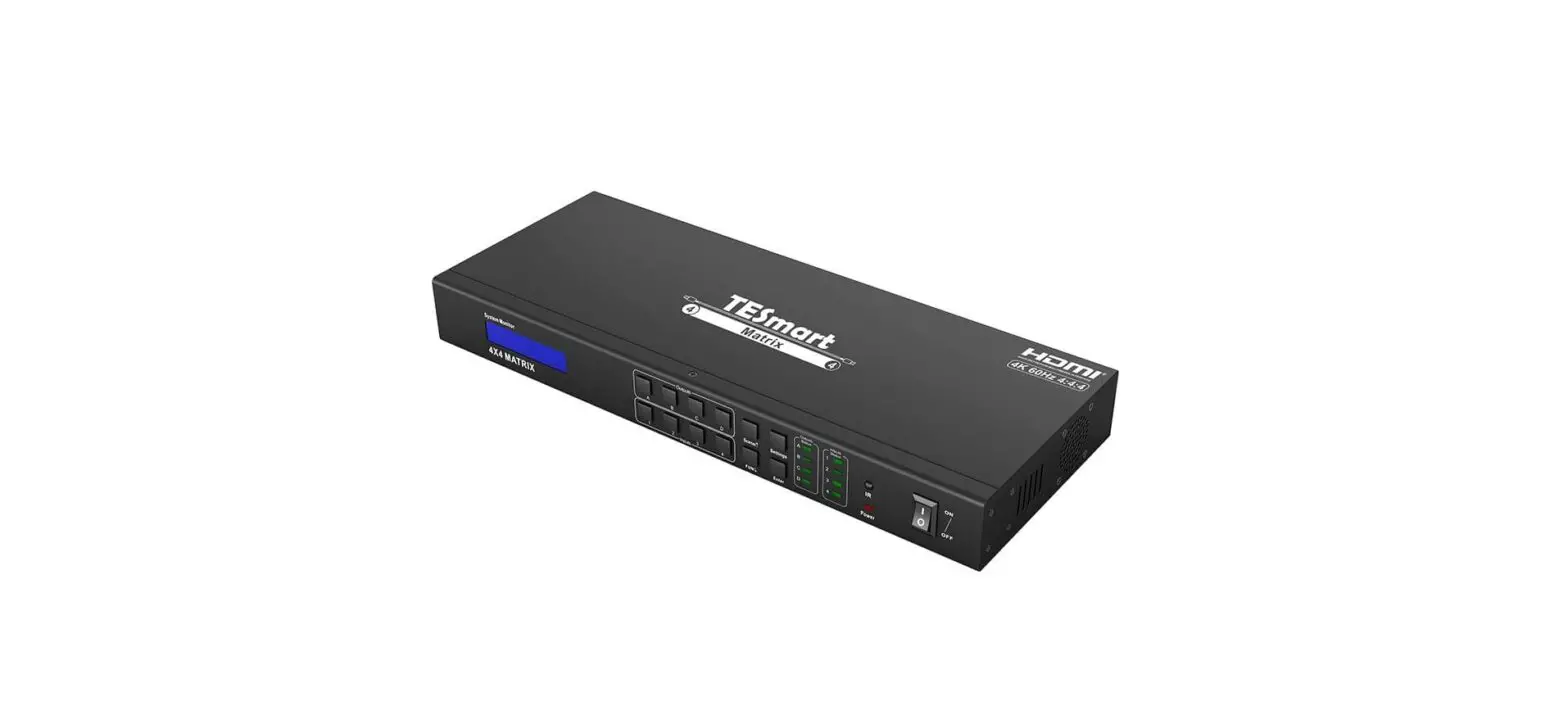
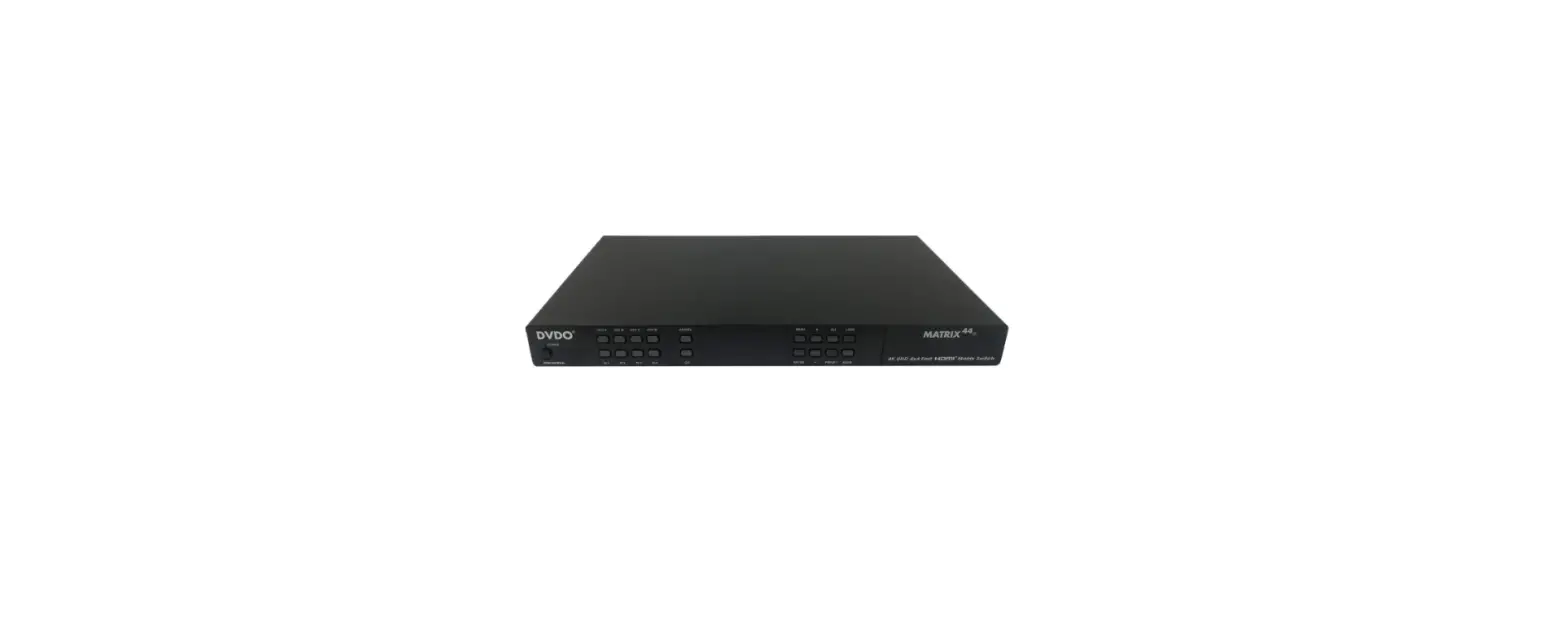
| # | Feature | Function |
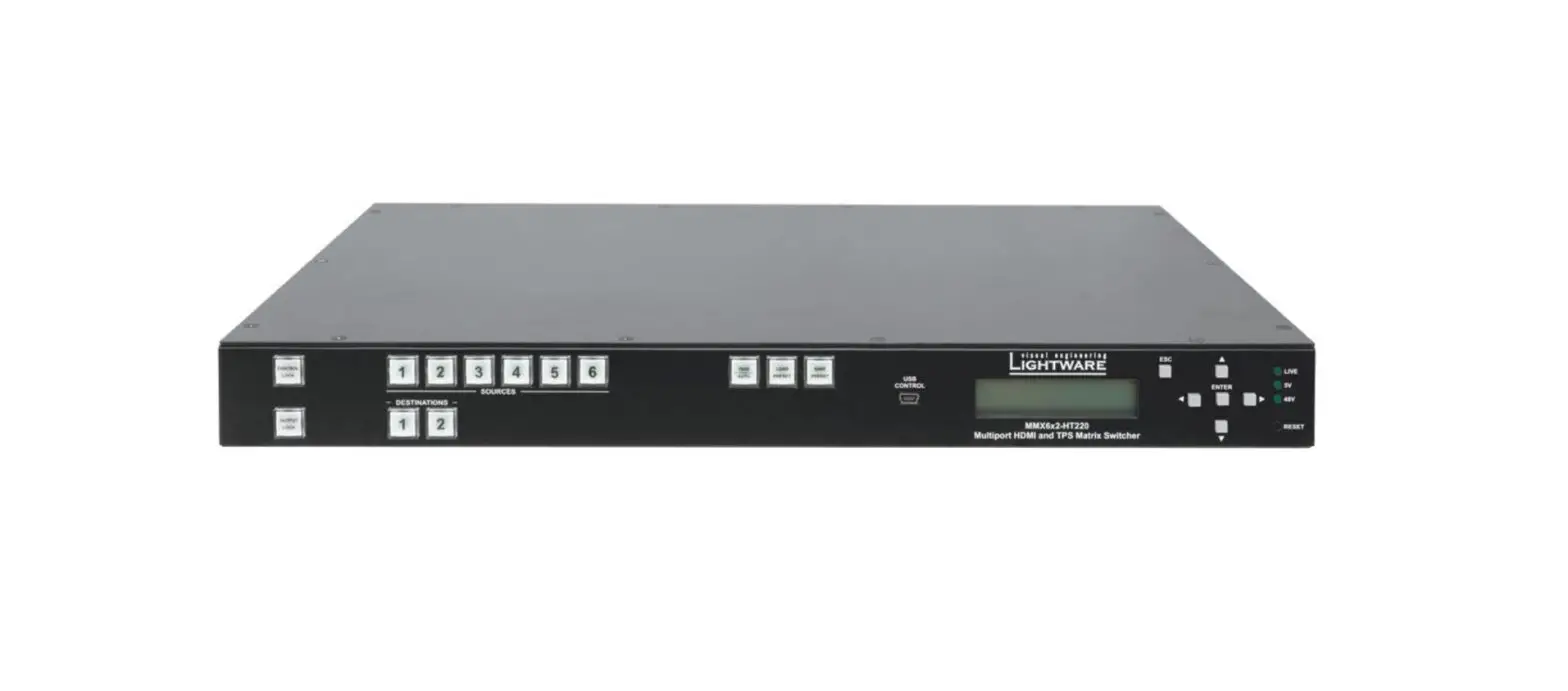
| 1 | IN Select Buttons (1 to 4) | Press to select the input to switch after selecting an output (also used for storing machine setups). |
| 2 | OUT Select Buttons (1 to 4) | Press to select an output to switch followed by an input. |
| 3 | MUTE/PATTERN Button | Press to view the current pattern status and select the output/s to which a pattern is routed. Press to mute audio and video on a selected output. |
| 4 | ALL Button | Press followed by an input button to connect the selected input to all outputs. For example, press ALL and then Input button # 2 to connect input # 2 to all the outputs. |
| 5 | STO Button | Press STO followed by an IN or OUT (1 to 4) button to store the current switching configuration to the location corresponding to that INPUT number. |
| 6 | RCL Button | Press RCL followed by the corresponding IN or OUT (1 to 4) button to recall the preset switching configuration saved in that location. |
| 7 | LOCK Button | Press and hold to toggle between locking and releasing the front panel buttons. |
| 8 | EDID Button | Press to enter the EDID mode. |
| 9 | OUTPUT/INPUT 7-segment LED Display | Displays the input currently switched to the output which is marked above each input. |

| # | Feature | Function |
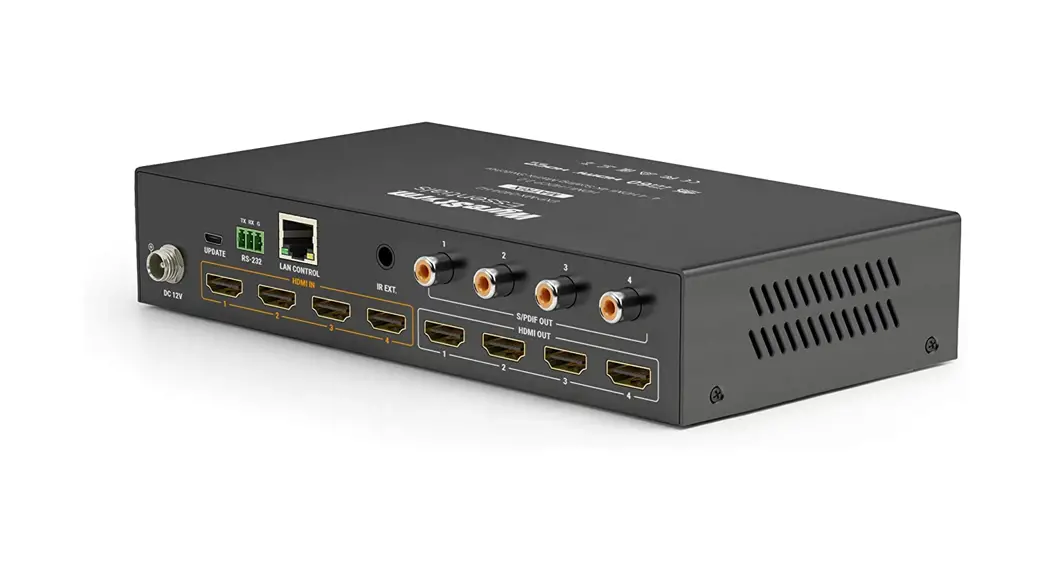
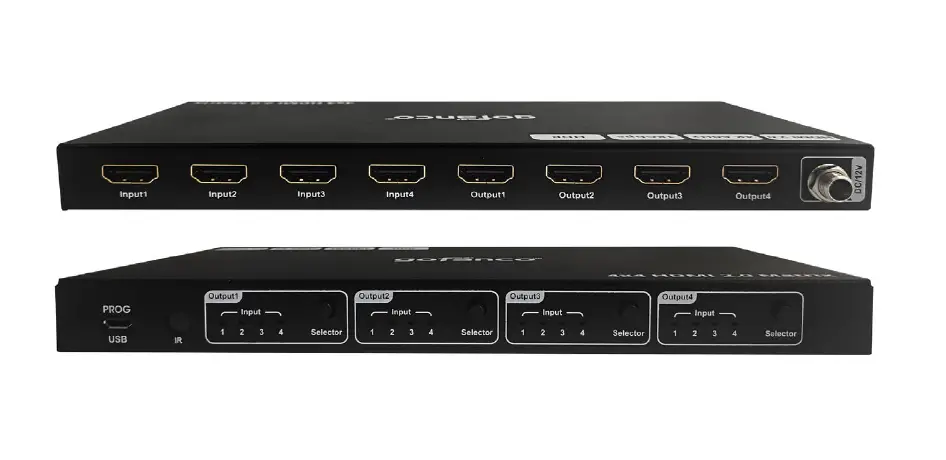
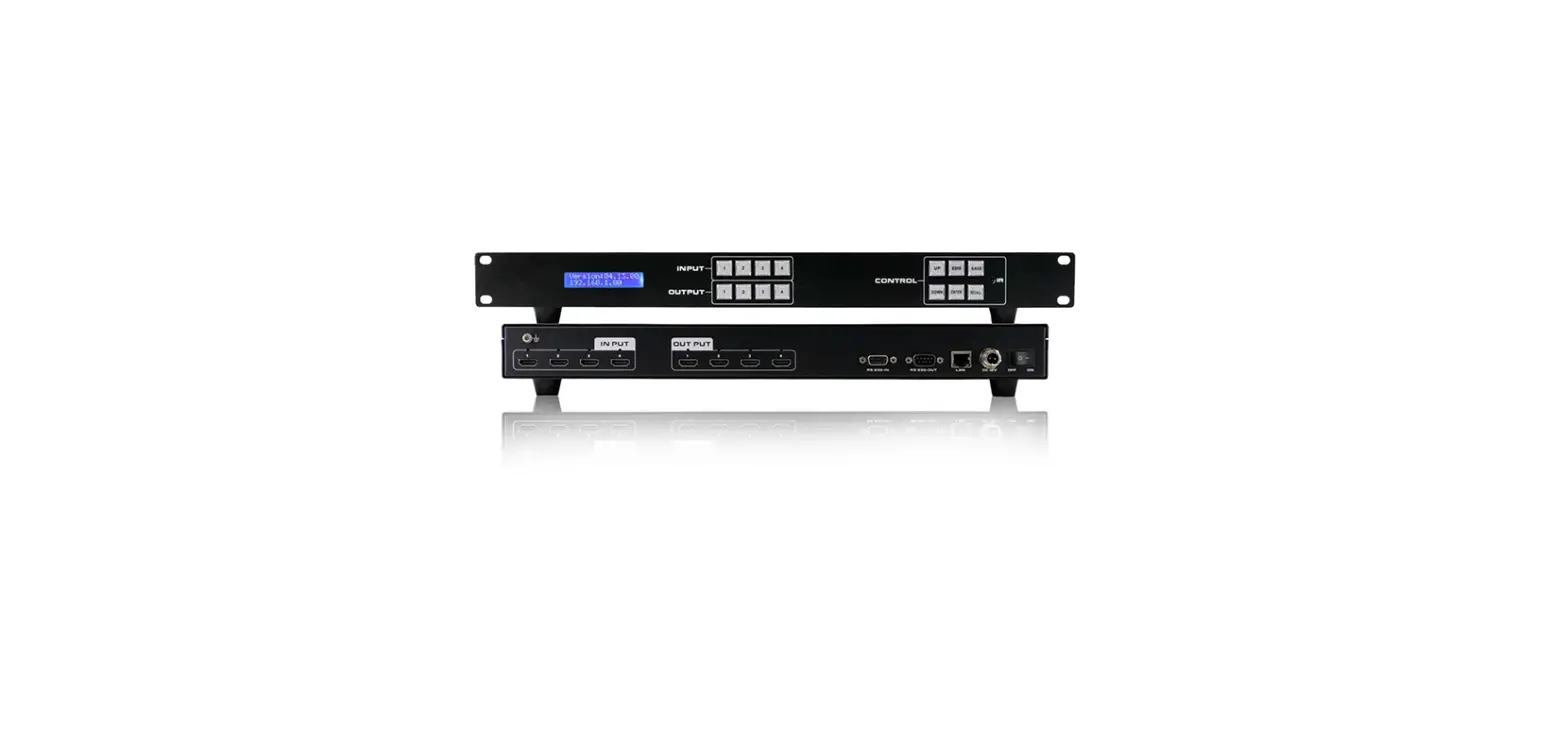
| 10 | HDMI™ IN Connectors (1 to 4) | Connect to up to 4 HDMI sources. |
| 11 | HDMI OUT Connectors (1 to 4) | Connect to up to 4 HDMI acceptors. |
| 12 | 5V/2A USB Port | Use to charge a device. |
| 13 | PROG USB Mini port | Connect to a PC/serial controller to control the device. |
| 14 | Reset Button | Press and hold for about 8 seconds to reset IP settings to factory default values. |
| 15 | ETHERNET RJ-45 Connector | Connect to a PC via a LAN. |
| 16 | RS-232 9-pin D-sub Connector | Connect to a PC/serial controller to control the device. |
| 17 | Mains Power Connector Fuse | Plug in the power cord. |
| 18 | Power Illuminated Switch | Turn the device on and off. |
Step 3: Mount VS-44H2
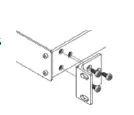
 Ensure that the environment (e.g., maximum ambient temperature &air flow) is compatible for the device.
- Avoid uneven mechanical loading.
- Appropriate consideration of equipment nameplate ratings should be
used for avoiding overloading of the circuits. - Reliable earthing of rack-mounted equipment should be maintained.
 Ensure that the environment (e.g., maximum ambient temperature &air flow) is compatible for the device.
Step 4: Connect the inputs and outputs
Always switch OFF the power on each device before connecting it to your VS-44H2. For best results, we recommend that you
always use Kramer high-performance cables to connect AV equipment to the VS-44H2.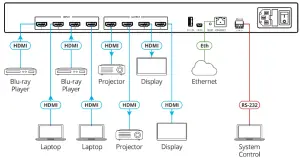
Step 5: Connect power
Connect the power cord to VS-44H2 and plug it into the mains electricity.
Safety Instructions (See www.kramerav.com for updated safety information)
Caution:
- For products with relay terminals and GPI\O ports, please refer to the permitted rating for an external connection, located next to the terminal or in the User Manual.
- There are no operator serviceable parts inside the unit.
Warning:
- Use only the power cord that is supplied with the unit.
- Disconnect the power and unplug the unit from the wall before installing.
- Do not open the unit. High voltages can cause electrical shock! Servicing by qualified personnel only.
- To ensure continuous risk protection, replace fuses only according to the rating specified on the product label which located on the bottom of the unit.
Step 6: Operate the VS-44H2
Operate via RS-232 and Ethernet communication parameters:
| RS-232/Ethernet | |||
| Baud Rate: | 115,200 | Parity: | None |
| Data Bits: | 8 | Command Format: | ASCII Protocol 3000 |
| Stop Bits: | 1 | ||
| Example (route video HDMI IN 4 to video HDMI OUT 1): | “#X-ROUTE OUT.HDMI.1.VIDEO.1,IN.HDMI.4.VIDEO.1”,0x0D | ||
| Ethernet Parameters | |||
| IP Address: | 192.168.1.39 | Default TCP Port #: | 5000 |
| Subnet Mask: | 255.255.0.0 | Default UDP Port #: | 50000 |
| Default Gateway: | 192.168.0.1 | Username/Password: | Admin/Admin |
| Full Factory Reset | |||
| Front panel: | There is no option for factory reset from front panel. | ||
| Protocol 3000: | “#factory” command. | ||
| Web Pages: | Device Settings page, Soft Factory Reset resets all parameters to factory default except for network parameters. | ||
Operate via Front Panel Buttons
Press an output button followed by an input button to switch the selected input to the selected output.
Switch an input simultaneously to all 4 outputs
- Press ALL. All 4 outputs on the 7-segment display flash
- Press an input The selected input is routed to all the outputs.
Store a switching setting
- Configure the switching as required for the preset.
- Press STO. The STO button flashes.
- Press an input or output button (1-4). The input or output button flashes and the STO button stops flashing.
Recall a switching setting
- Press RCL. The RCL button lashes.
- Press the relevant input or output button that stored the preset. Once the stored preset is recalled, the RCL button stops flashing.
Acquiring the EDID
Acquire EDID from:
- One output to one or more of the inputs.
- Different outputs to different inputs.
- The default EDID (by reading EDID from an output that is not connected to an acceptor).
To acquire an EDID from an output to one or more inputs:
- Make sure that the output is connected to an acceptor.
- Press EDID (short press). EDID button lights. The 7-segment display shows the current EDID status.
- Press one or more input buttons (to which the EDID is copied) or press ALL (to copy EDID to all the inputs). The corresponding 7-segment LEDs flash.
- Press the output button (from which the EDID is acquired). The 7-segment LEDs show the output number from which the EDID is read.
- Press and hold EDID until the device acquires the EDID and device exits EDID mode (EDID and STO button lights turn off).
 If the output is not connected to an acceptor, the 7-segment display shows “d”. When reading the EDID from an unconnected output, the default EDID is restored.
 Kramer | Audio Visual Solutions - Kramer