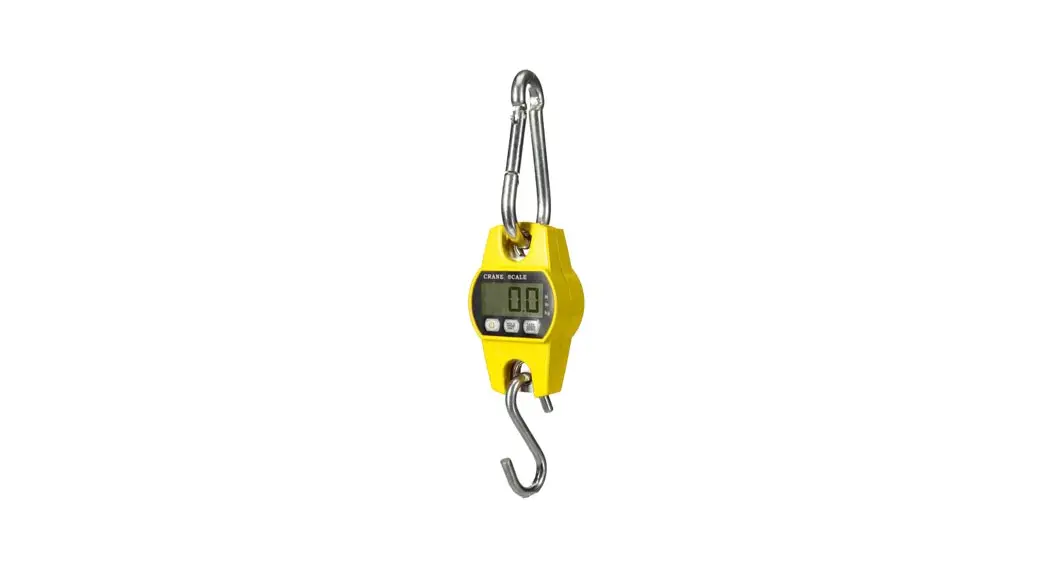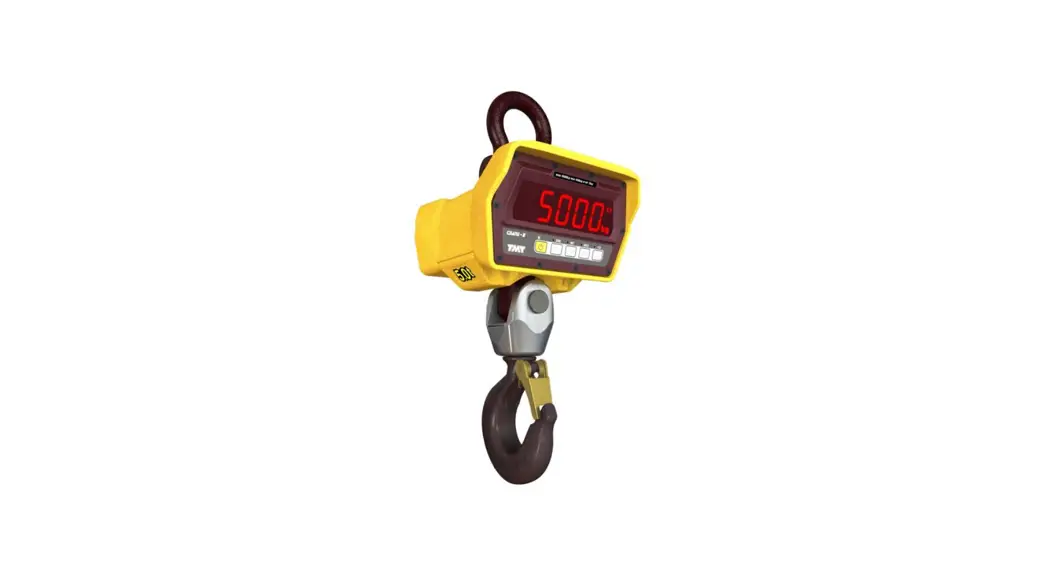
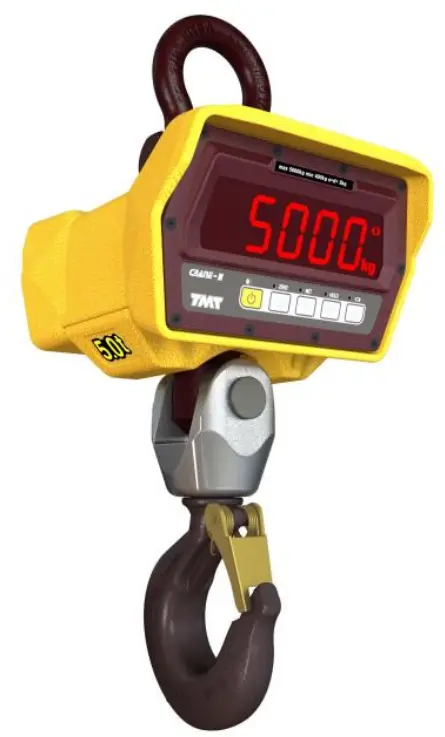
 CRANE SCALE TCB SERIES
TCB SERIES
VER 001
TCB SERVICE MANUAL
Calibration & Gravity Compensation
1.1. Calibration
When the power is off, press  while pressing
When ‘G-CAL’ is displayed, and then press 
Then this calibration mode is started. 
| No. | TITLE | DISPLAY | KEYBOARD & DESCRIPTION |
| 1 | How to enter |  |
|
| 2 | Program version |  | Move to a next step in automatic |
| 3 | Maximum capacity |  | Initialized value numeric increase scale increase /save scale increase /save |
| 4 | Minimum division |  | decrease / increase save |
| 5 | Setting weight |  | Initialized value numeric increase scale increase / save |
| NB : Setting weight shall be within the range of 10 %~100 % of max. capacity | |||
| 6 | Zero calibration |  | Unload the tray and press |
| 7 | Span calibration |  | Load the weight which was set in step 5 and press |
| 8 | Finish |  | Unload the tray and press |
1.2. Gravity compensation
When the power is off, press while pressing .
When ‘G-CAL’ is displayed, and then press again.
Then this gravity compensation mode is started.
| No. | TITLE | DISPLAY | KEYBOARD & DESCRIPTION |
| 1 | How to enter |  |  |
| 2 | Program version |
| Move to a next step in automatic |
| 3 | Calibration location |
| Initialized value numeric increase scale increase / save |
| 4 | Using location. | 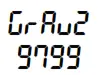 9799 (9.799m/s²) | Initialized value numeric increase scale increase / save |
| 5 | Finish | | Unload the tray and press |

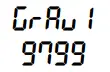 (9.799m/s²)
 If the
  value is same with
  , it doesn’t need to compensation set.
1.3. Check message
| Code | Description |
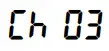 | The resolution is set to be exceeded the limit 1/50,000. Check the resolution. |
|
| The balance weight for span calibration is lower than 10%, or greater than 100% of the maximum capacity of the scale. The weight for span calibration should be within 10%~100% of the maximum capacity of the scale. |
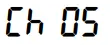 | Load cell output is too small or large at span calibration. Check the weight unit and load cell or calibrate with lower resolution. |
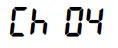
Wireless Pairing
| Step | Operation & Description |
| 1 | How to enter the pairing mode 1) TCB crane scale When the display is off, press key while pressing key.When 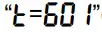 (Firmware version) is displayed, press key. Then, (Firmware version) is displayed, press key. Then,  is displayed. is displayed.2) TD3000(2300)F wireless display |
| 2 | Pairing When is displayed at both products, if you press key of TCB crane scale, pairing will finish. Please check “” message at both products. (IR -200: green light will be turn on) Please check “” message at both products. (IR -200: green light will be turn on)If ending message is not appear, please repeat the pairing. |
 key while pressing
 key. When
  key. Then,
 Exploded view
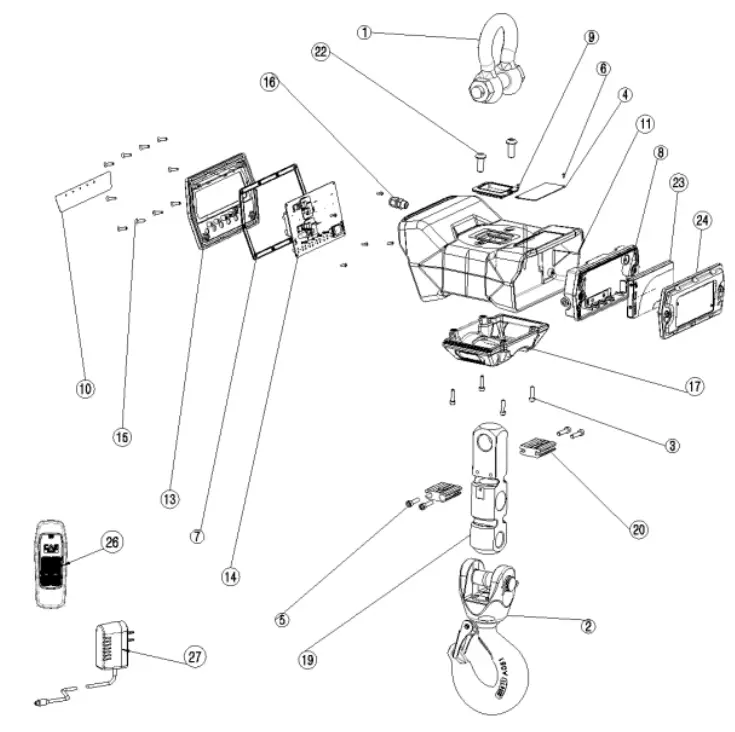
| No | NAME | SPEC | Q’TY | ||||||
| lion | 3ton | I 5ton | 10ton | ||||||
| 1 | Shackle | 5/8 | 7/8 | 1.1/4 | 1 | ||||
| 2 | Hook ass’y | 3T | 1 5T | 101 | 1 | ||||
| 3 | bolt | M5 x 20 | 4 | ||||||
| 4 | Spec plate | 95 x 40 | 1 | ||||||
| 5 | bolt | M6 x30 | 4 | ||||||
| 6 | Rivet | BLIND 2.5 x 6 | 2 | ||||||
| 7 | gasket | 200x120x3.5 | 1 | ||||||
| 8 | Battery—cover easy | TCBL | 1 | ||||||
| 9 | LC CAP | 6665×9 IT | I 055×9 3T | MN 5T | I 1211x911d 10T | 1 | |||
| 10 | Keypad | 169×29(Selection for LCD type or FND type) | 1 | ||||||
| 11 | TCB body | 215420×135(51) | I 10T | 1 | |||||
| 13 | Front panel | 201x121x20 | 1 | ||||||
| 14 | PCB asaY | LCD type or FND type | 1 | ||||||
| 15 | Screw | Flat head 144×16 | 10 | ||||||
| 16 | Code—stopper | PG7 | 2 | ||||||
| 17 | LC cover | 1T | 3T | 6T | 101 | 1 | |||
| 19 | Loedcell | CSS3-1T | CSS3-3T | CSS3-5T | CSS3-10T | 1 | |||
| 20 | LC BRK | 17 | 3T | 10T | 1 | ||||
| 22 | Wrench Boll | Round Head M10 x 25 | 2 | ||||||
| 23 | BATTERY PACK | TLP-100(LCD type) or TLP-200(FND type) | 1 | ||||||
| 24 | BATTERY COVER | LCD type or FND type | 2 | ||||||
| 25 | Power—cable | 02.5×400 | 1 | ||||||
| 26 | Remocon | IR-100 | 10 | ||||||
| 27 | Adaptor | LCD type : 51/.1A .Ø3.5 a FND type : 1241A , 03.5 | 1 | ||||||
Firmware Update
- Install the ‘MPLABX’
- Run ‘MPLAB X IDE’
- Connect the PICkit3 to PC
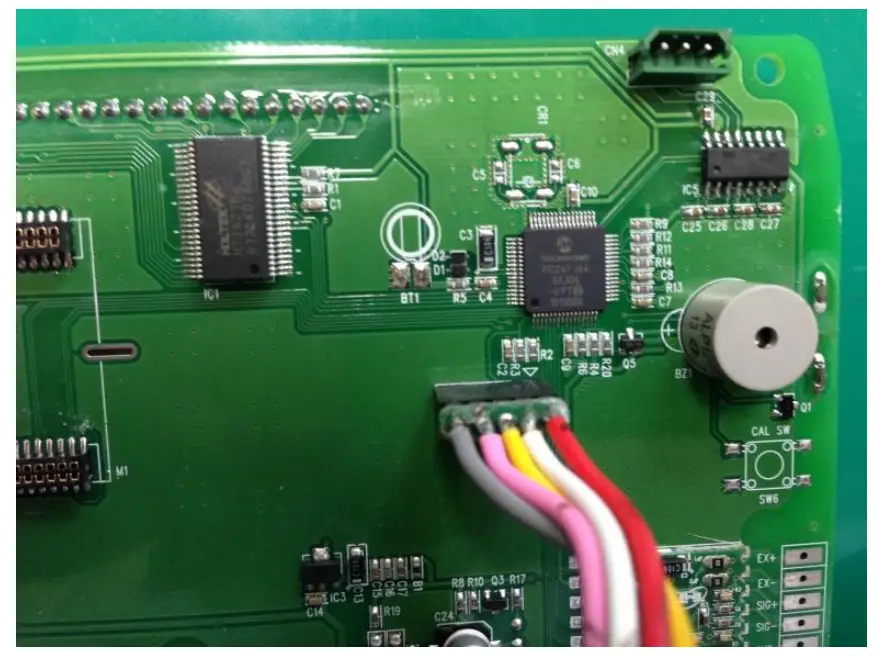
- Connect as shown in the picture below.
Aligned the RED wire and arrow mark of PCB, and then combines them.
- Select the HEX file (File – Import – Hex/ELF… (Prebuilt) File)
SEE ATTACHED VIDEO
1) Prebuilt Filename: Bring up the HEX file
2) Family: 16-bit MCUs (PIC24)
3) Device: PIC24FJ64GA306
4) Supported Debug Header: None
5) Hardware Tool: PICkit3
6) After the above setting, click NEXT ☞ NEXT ☞ Finish. - Set the Project Properties (File – Project Properties) SEE ATTACHED VIDEO
1) Click PICkit3 in Categories
2) Option categories: Memories to Program
3) Preserve Program Memory: Select
4) Preserve Program Memory Start (hex): 0x0800
5) Preserve Program Memory End (hex): 0x1FFF
6) After the above setting, click Apply.
7) Option categories: Power
8) Power target circuit from PICkit3: Select
9) After the above setting, click Apply ☞ OK. - Upgrade firmware SEE ATTACHED VIDEO
1) Click the Make and Program Device icon.
2) Confirm the complete message.