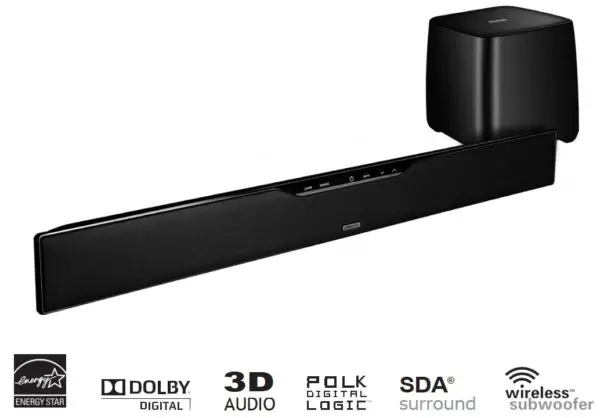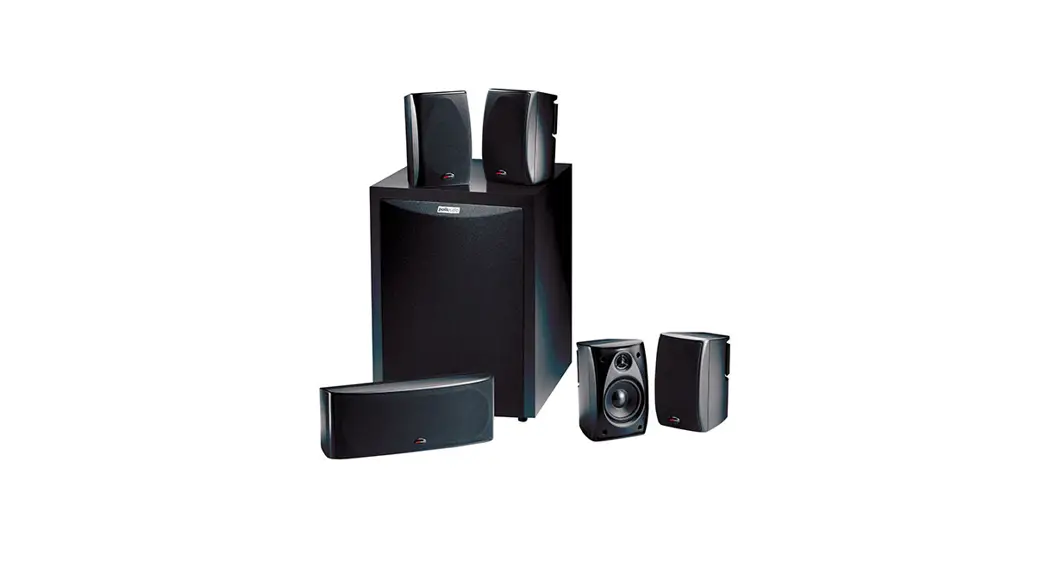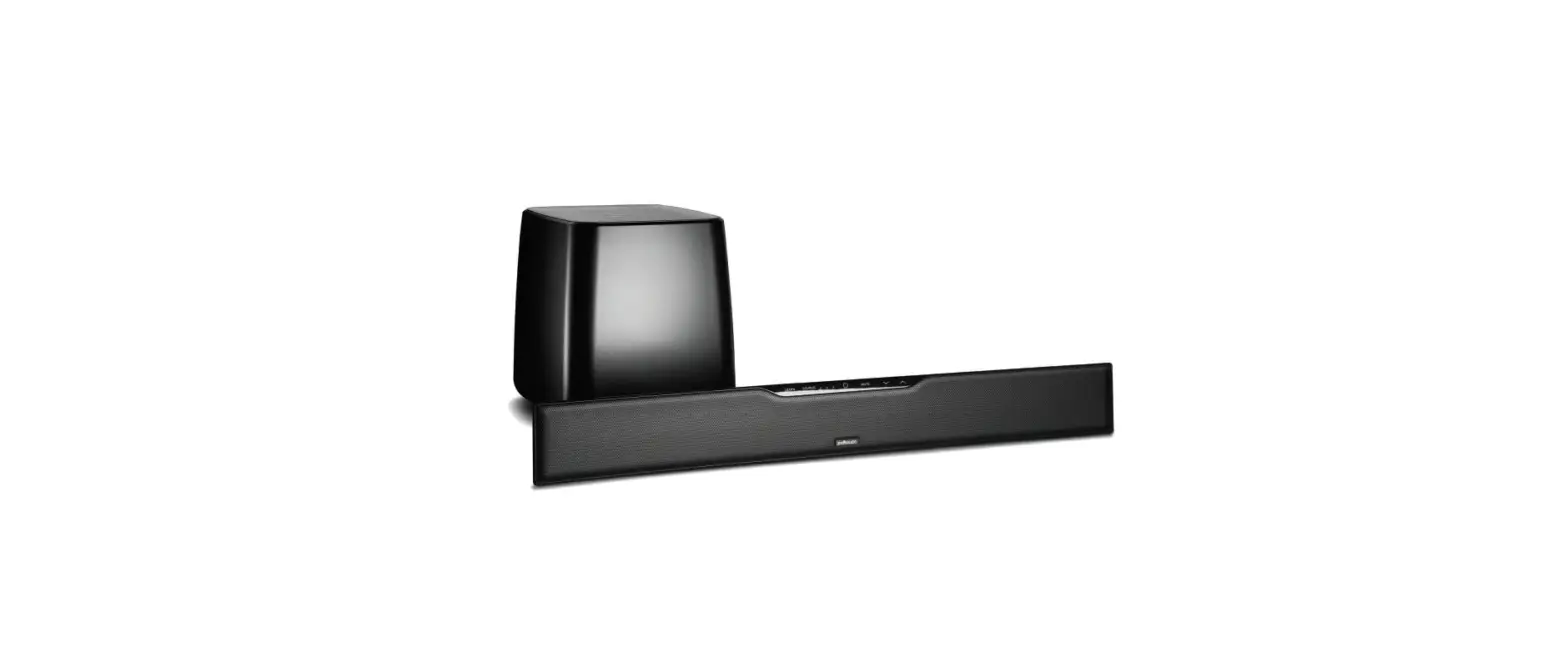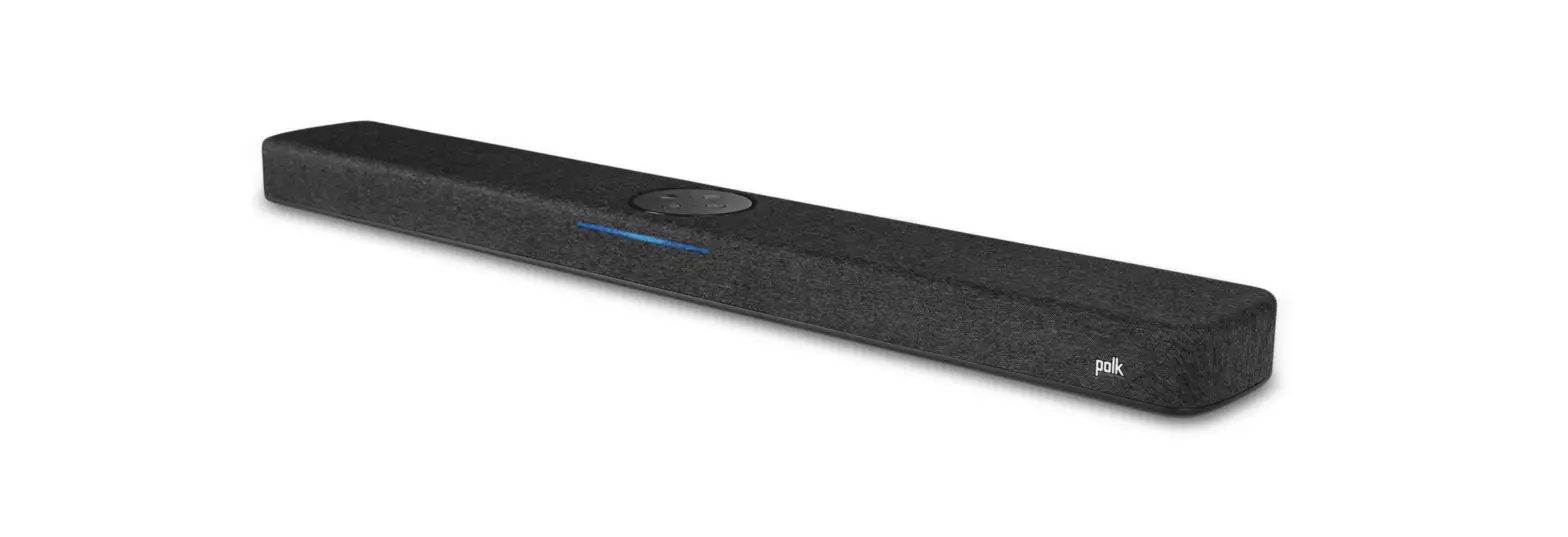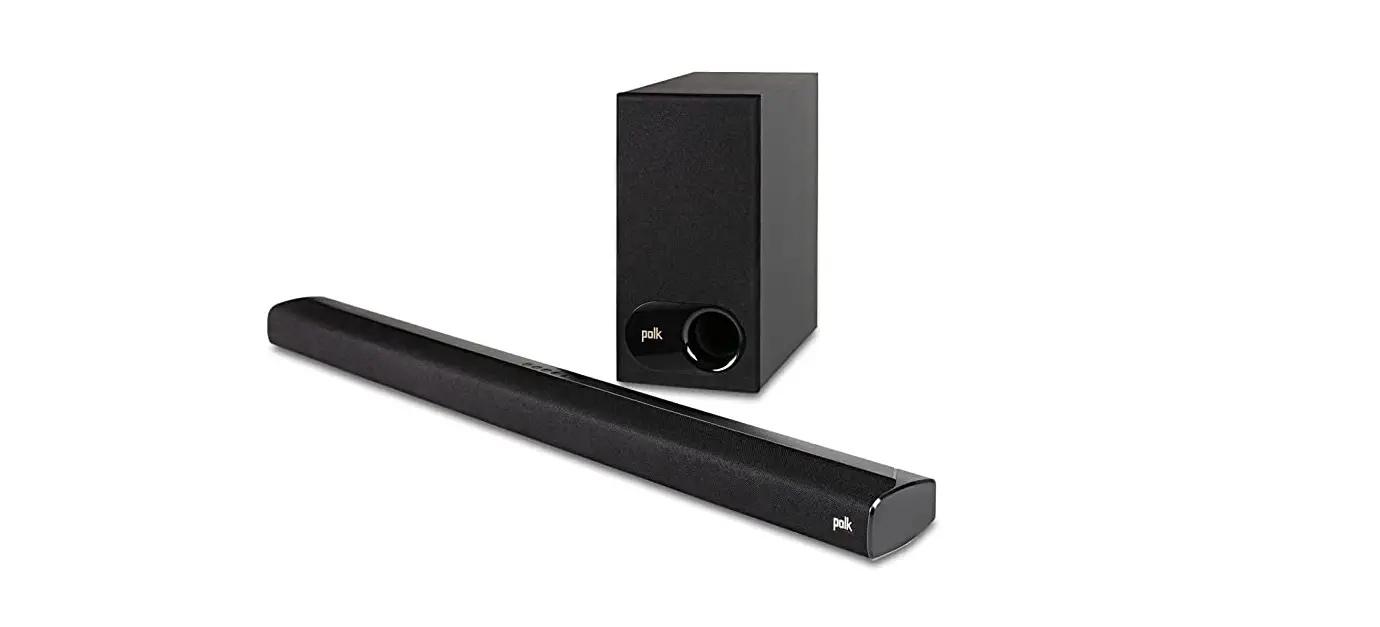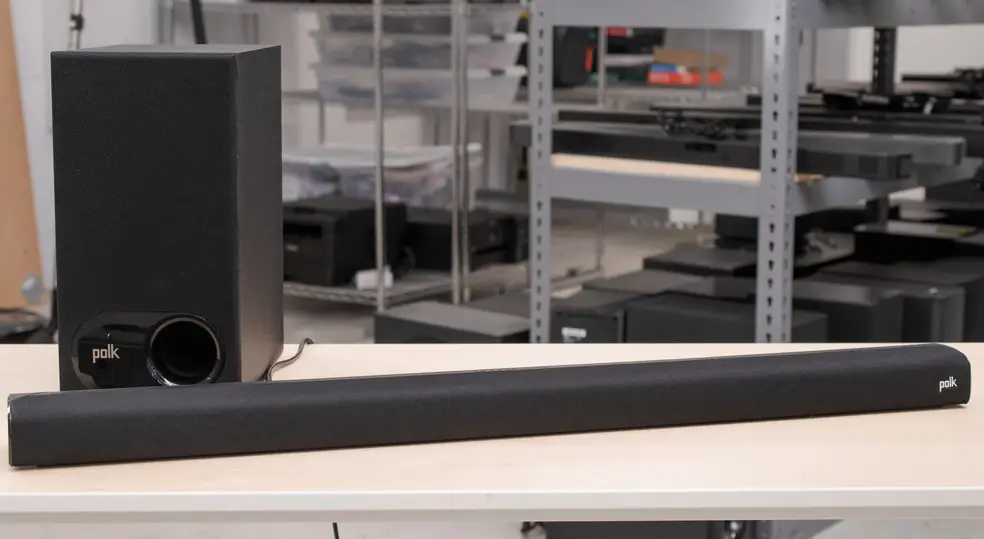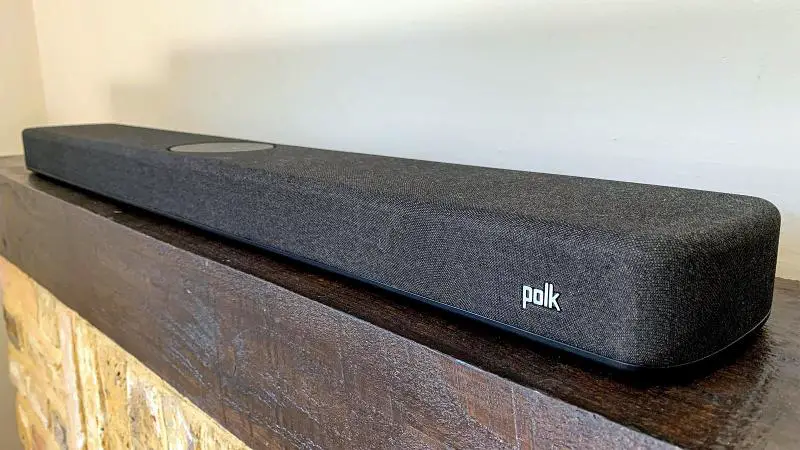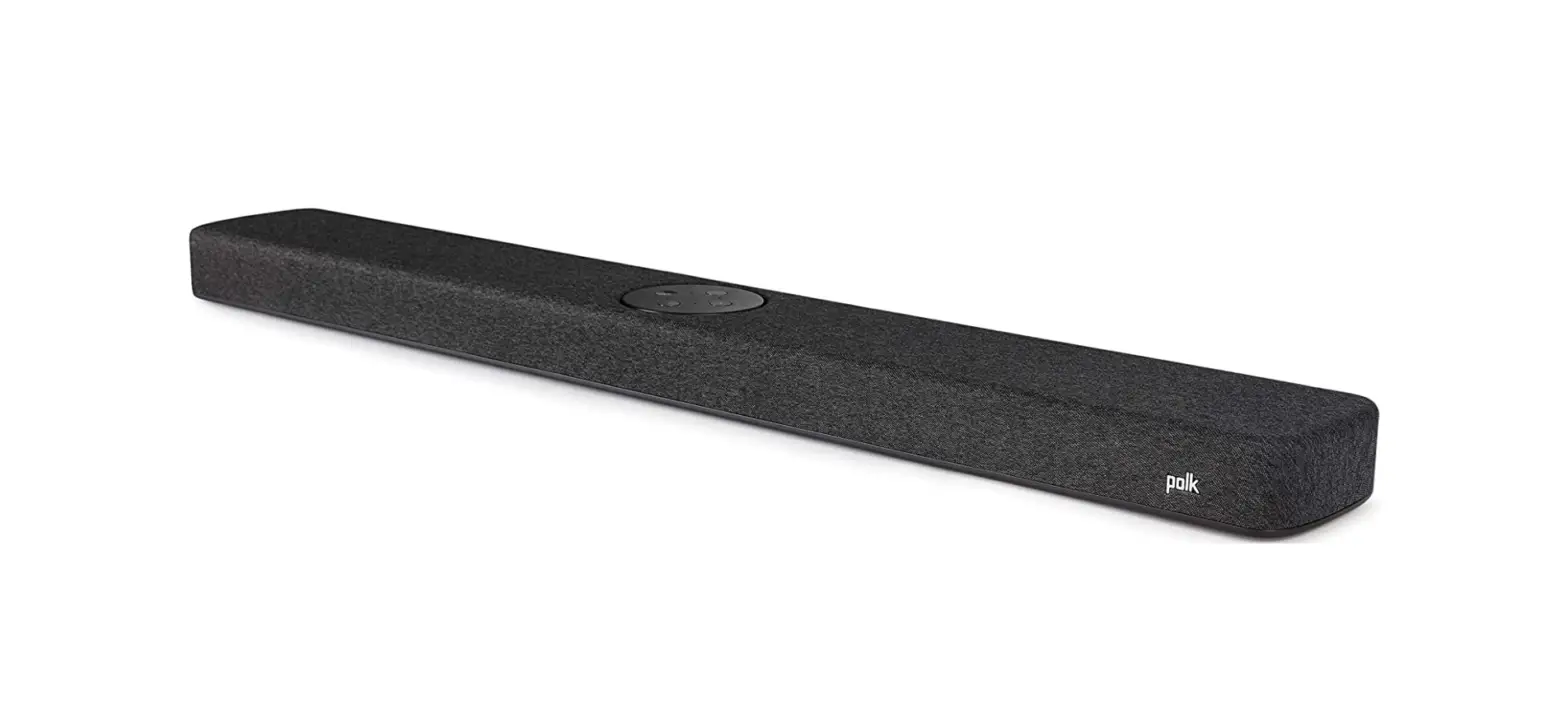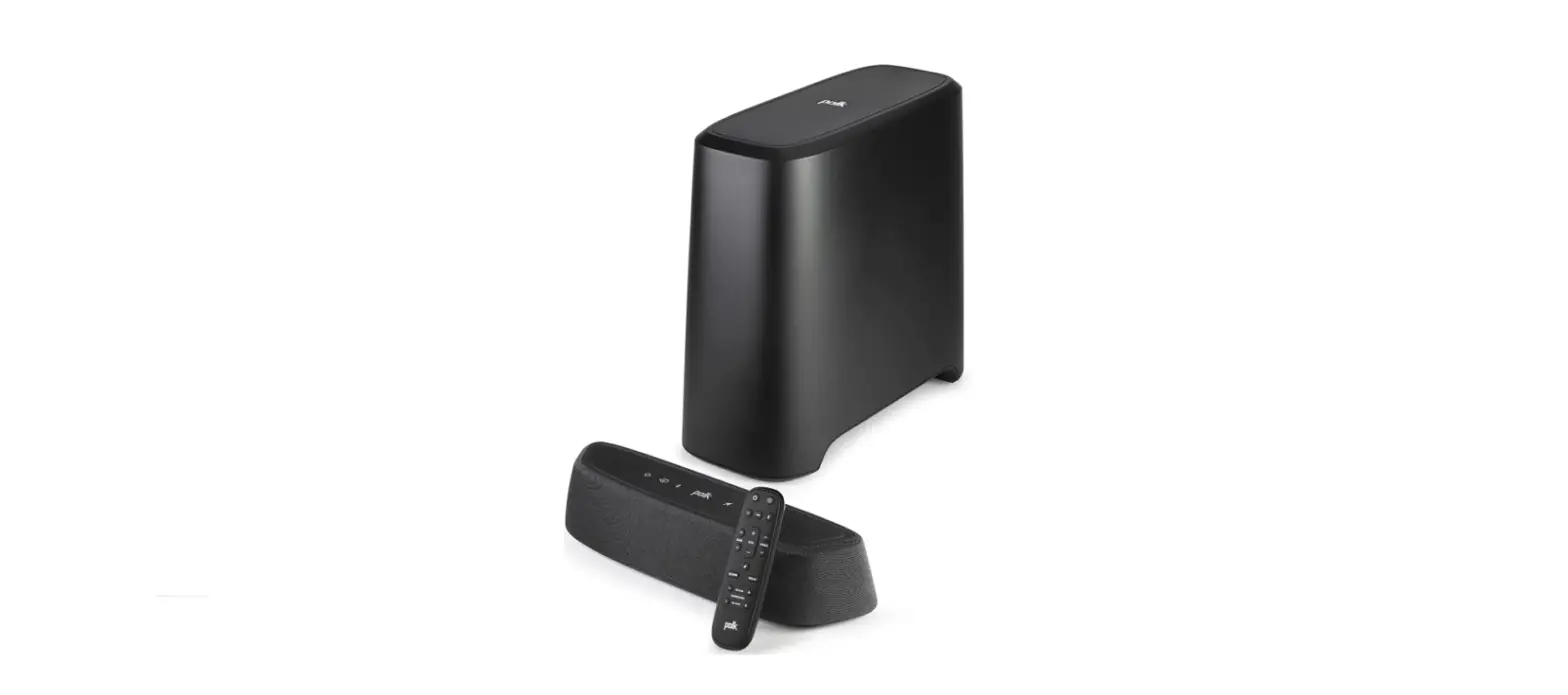
 Polk 300410-01-00-101 MagniFi Mini AX Sound Bar
 Polk 300410-01-00-101 MagniFi Mini AX Sound Bar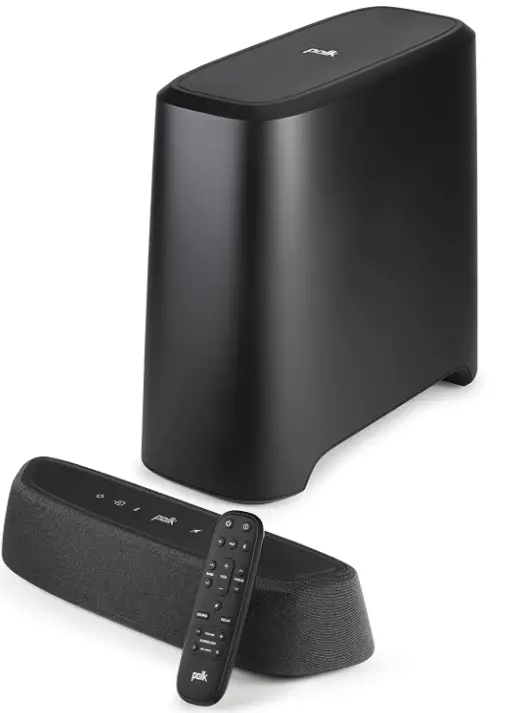
Unpack
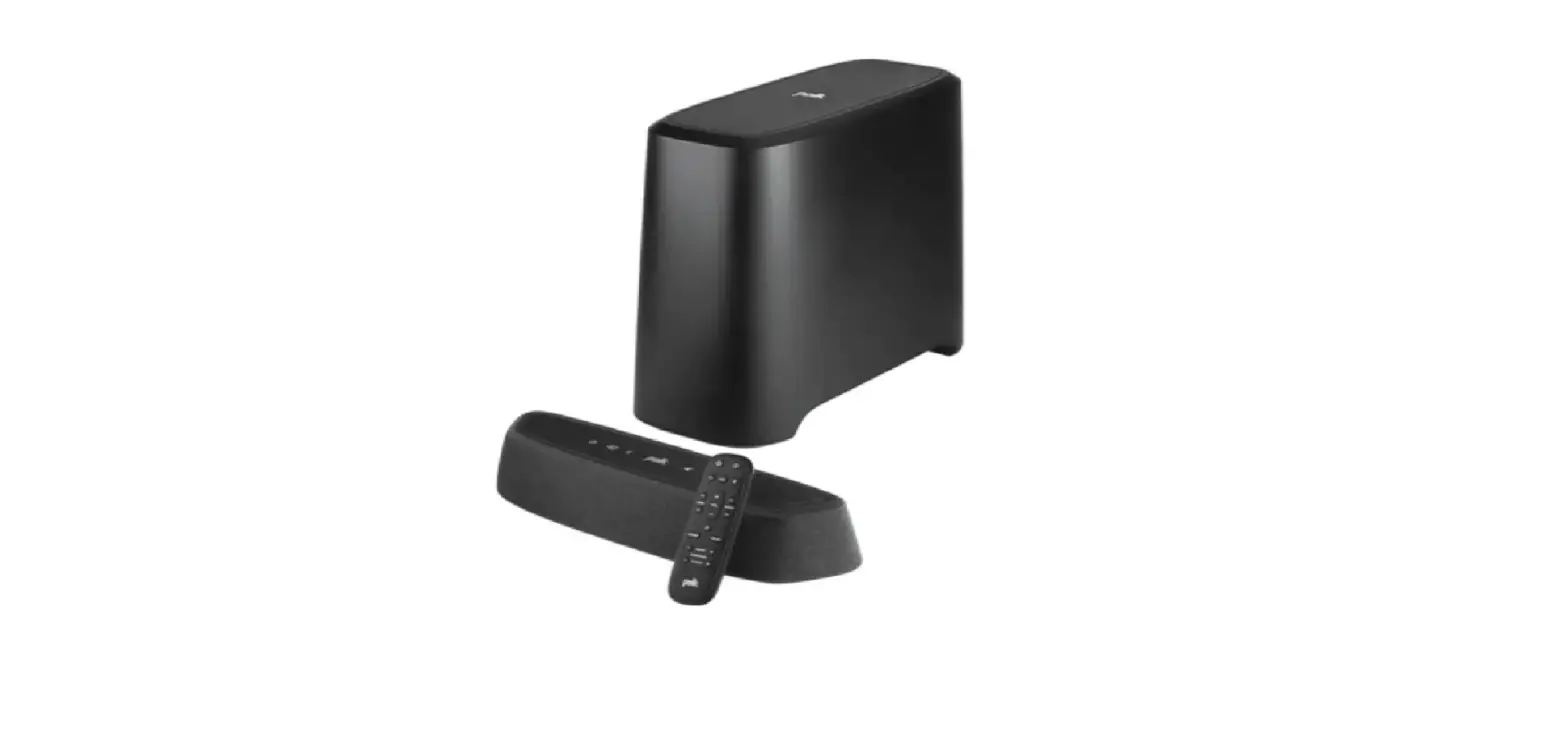
Check that the following items are included in the box.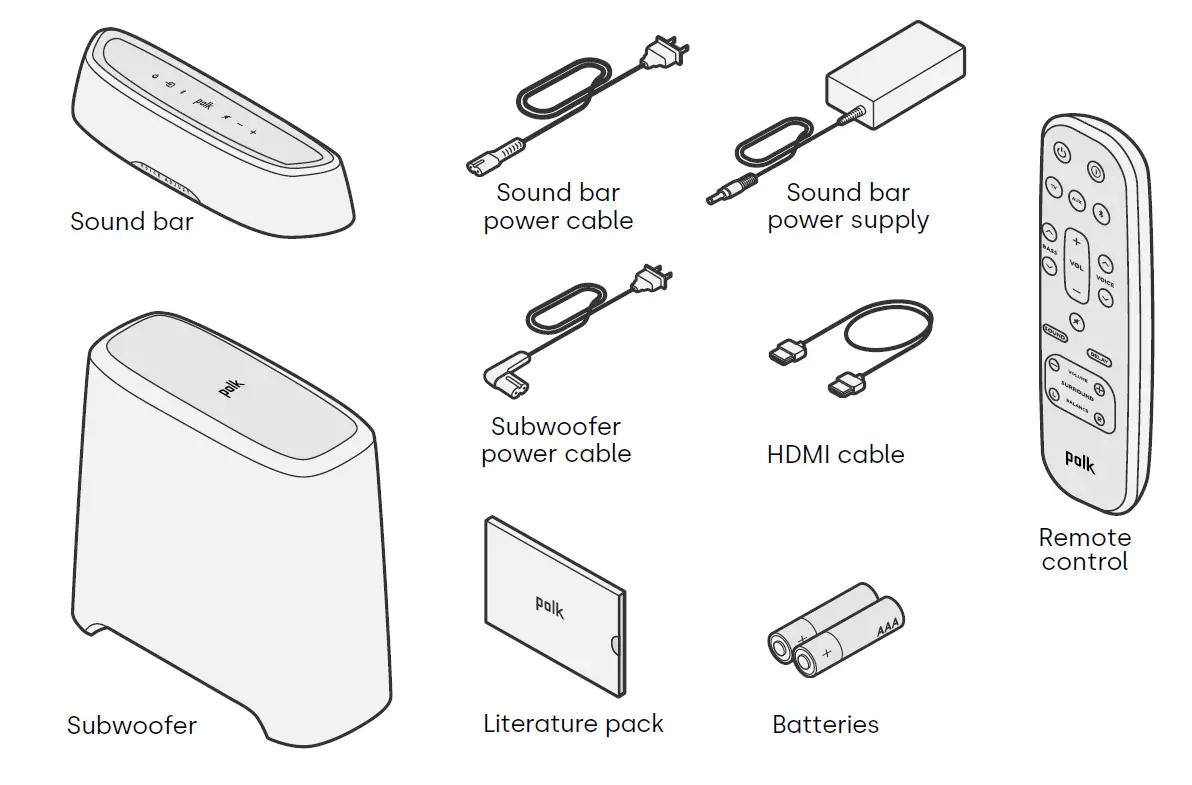
Place the sound bar
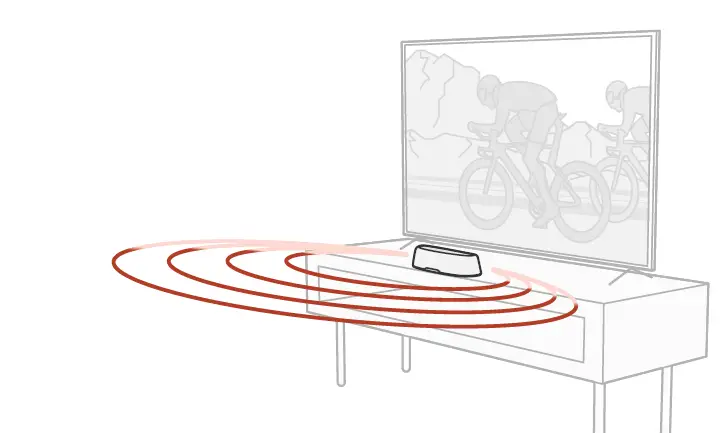
For the best listening experience, place the sound bar centered under your TV and flush with the front edge of your cabinet.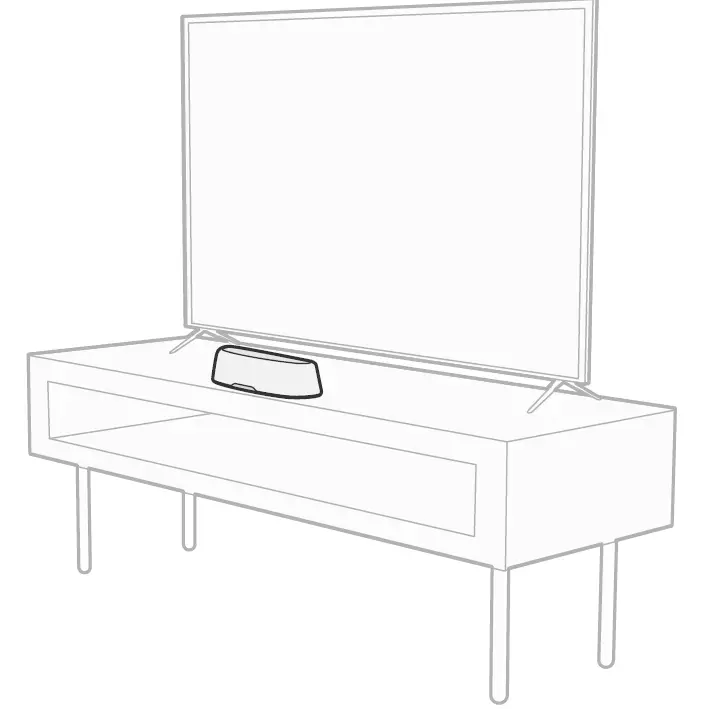
Connect your TV
If your TV has an HDMI eARC or ARC port, connect the sound bar to your TV using the included HDMI cable. HDMI provides the best sound performance.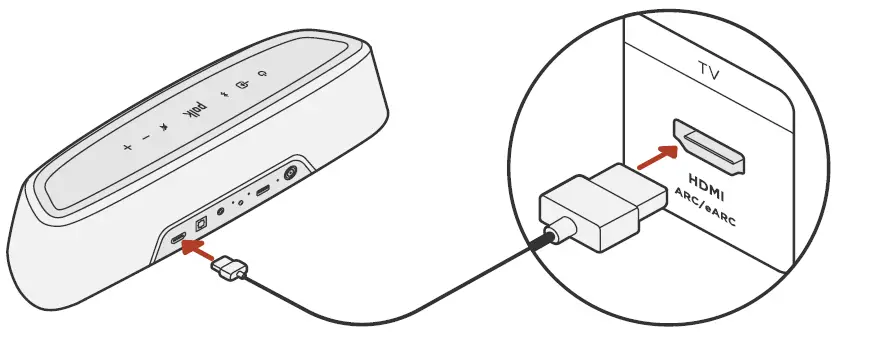
- Connect one end of the HDMI cable to the TV port labeled “eARC” or “ARC”.
- Connect the other end of the HDMI cable to the HDMI (eARC/ARC) port on the back of the sound bar.
- (Optional): If you’re using a Roku TV™, follow the on-screen instructions.
If your TV has an HDMI eARC or ARC port, connect the sound bar to your TV using the included HDMI cable. HDMI provides the best sound performance.
Note: If your TV does not have an HDMI port, you can connect the sound bar to your TV using an optical cable. However, please note that an optical connection does not support Roku TV Ready™ or Dolby Atmos® and DTS:X® audio formats.
Connect power
Plug the power supply into the sound bar and the power cable into both a wall outlet and the power supply.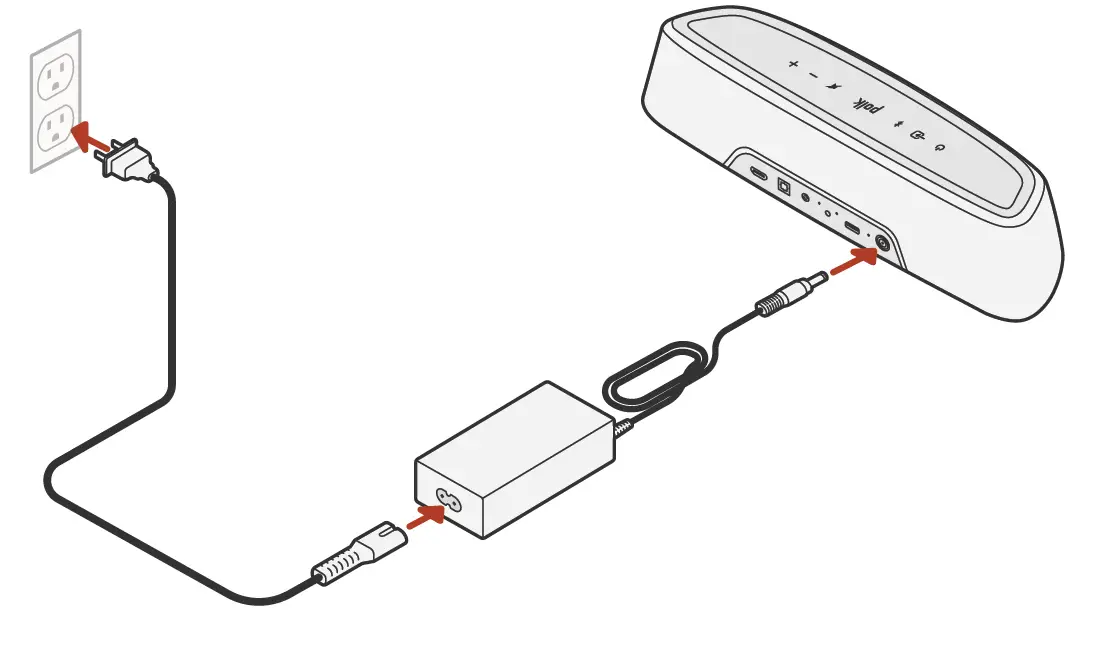
Set up the subwoofer
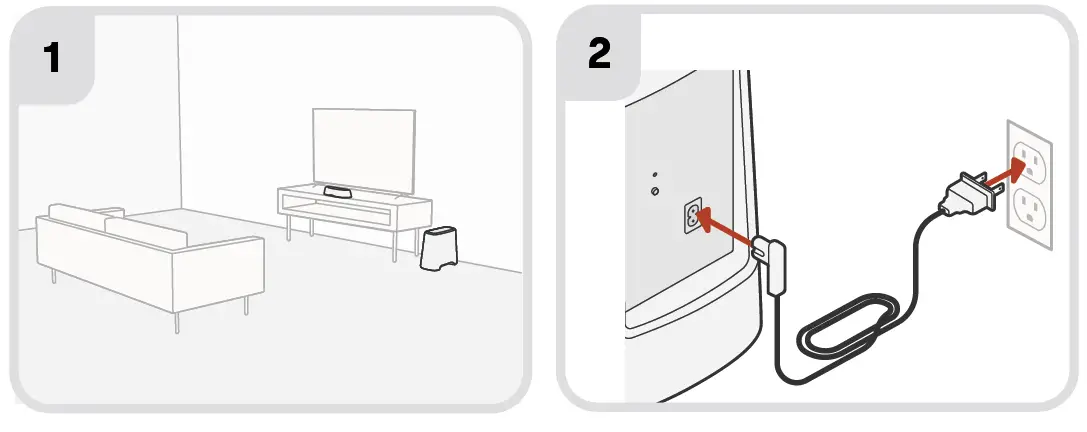
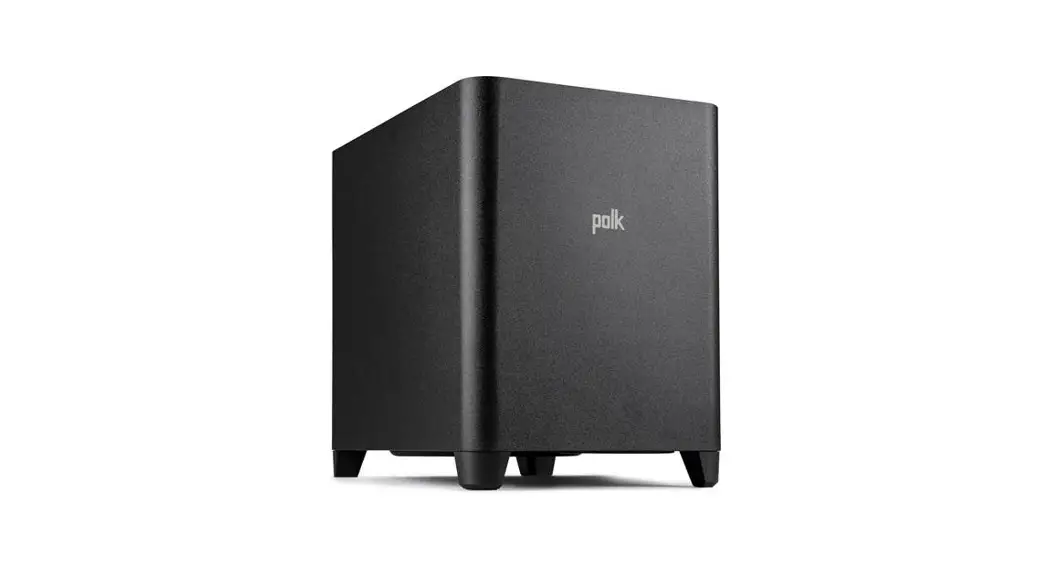
- For best performance, place the subwoofer along the same wall as the
TV and as close as possible to the TV. The distance between the sound bar and the subwoofer should not be more than 30ft (10m), with less distance preferred. - Connect the power cable to the subwoofer and to a wall outlet.
Note: The subwoofer connection to the sound bar is wireless.
Set up the remote
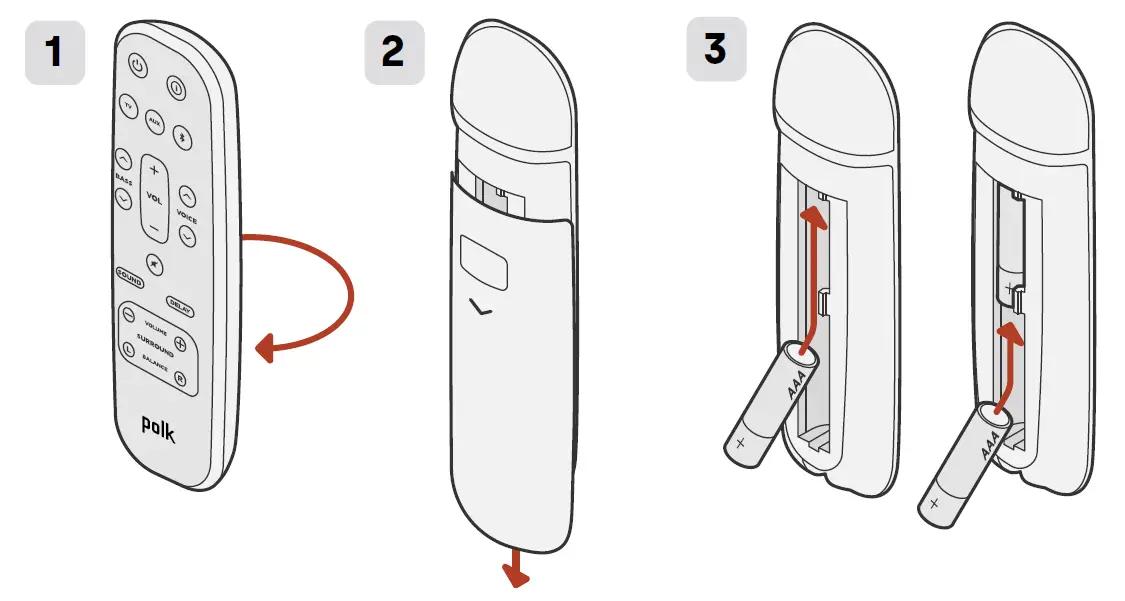
- Turn the remote to view the back.
- Open the back cover of the remote by sliding the bottom portion downward.
- Insert the two AAA batteries into the remote and replace the cover.
Connect to Wi-Fi®
Connecting your sound bar to your Wi-Fi® network enables high-quality wireless music streaming and automatic software updates.
You can set up a Wi-Fi connection in one of two ways:
- Via the Google Home app. For more information, see “Listen with Chromecast built-in™” on page 12.
- Via your iOS device. For more information, see “Listen with Apple AirPlay®” on page 13.

The setup is now complete!
Watch TV or play a movie and adjust the sound bar volume and other settings as desired.
You can use the sound bar top panel, the sound bar remote, or your TV remote to make adjustments to your listening experience. For more information, see pages 9-19.
If you do not hear any sound, or you hear an echo, see “Tips and Troubleshooting” on page 20.
Need more help?
Watch the online setup video!
www.polkaudio.com/magnifiminiax
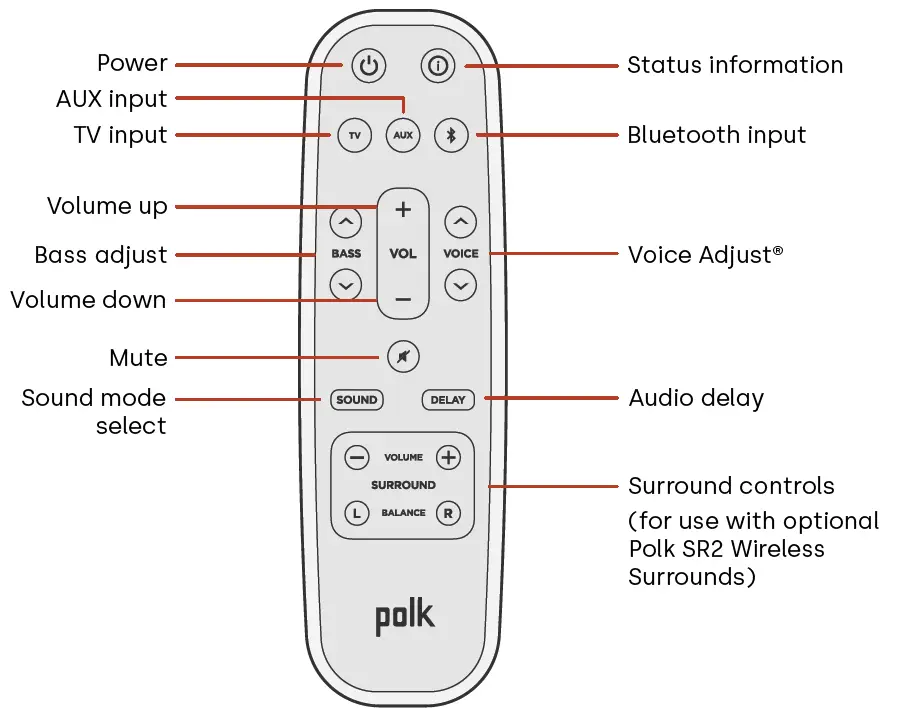
Remote control features Soundbar features
 Soundbar features
Top panel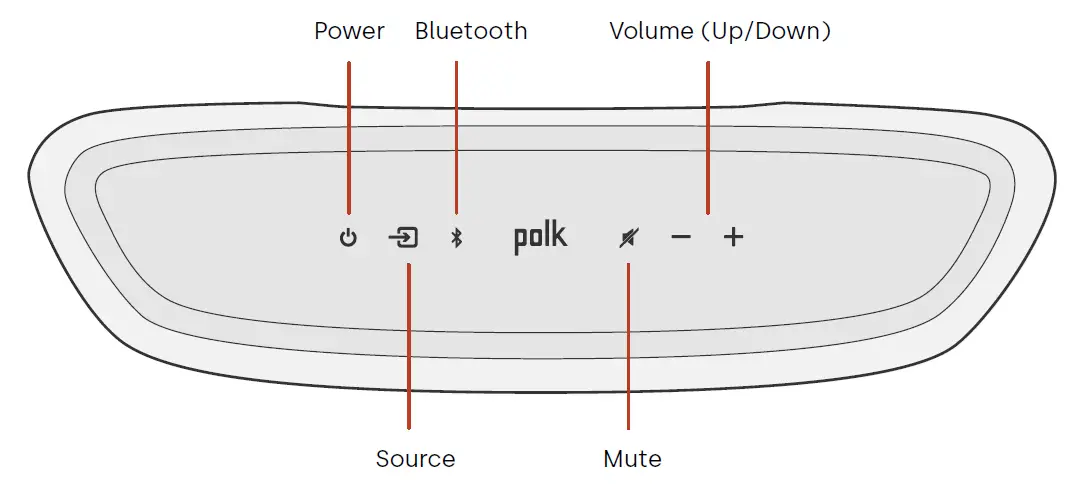
Front panel 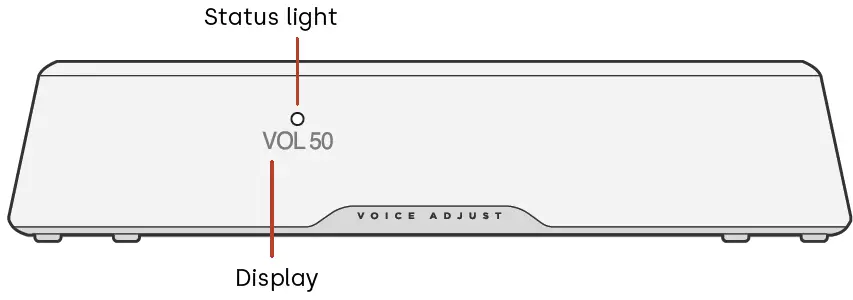 Back panel
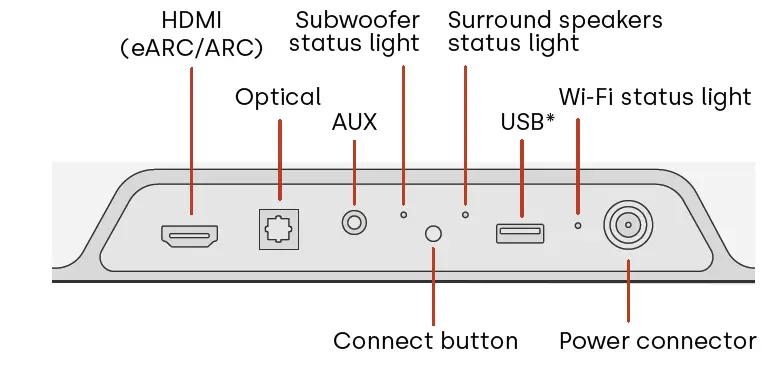 *For MP3 playback only
Listen with Chromecast built-in™
With Chromecast built-in, you can easily:
- Stream music from your favorite apps over Wi-Fi.
- Create a whole-home audio experience. Multi-room sync lets you play the same song across multiple Chromecast built-in compatible speakers in your house at the same time.
- Stream media to the sound bar from any Google Assistant-enabled speaker. Use voice commands to play your favorite content, change the volume, and get information about what you are listening to.
- Receive automatic updates.
To set up Chromecast:
- Confirm that your Android or iOS device is connected to the Wi-Fi network that you want MagniFi Mini AX to join.
- Download the free Google Home app on your Android or iOS device.
- Follow the instructions in the app to connect the sound bar to your Wi-Fi network.
For more information about Google Home and Chromecast built-in for audio, visit support.google.com/googlenest and support.google.com/chromecastbuiltin.

Listen with Apple AirPlay®
AirPlay® is an Apple technology designed to control home audio systems and speakers in any room – with a tap or by just asking Siri – right from iPhone®, iPad®, HomePod®, or Apple TV®.
Play a song in the living room and kitchen at the same time or adjust the volume in any room, all in sync.
To set up Apple AirPlay (if Chromecast isn’t already set up):
- Press and hold the power button on the top panel of the sound bar until you hear a beep and “WI-FI SETUP” displays on the sound bar.
- Confirm that your iOS device (iPhone or iPad) is connected to the Wi-Fi network you want MagniFi Mini AX to join.
- On your iOS device, go to Settings > Wi-Fi.
- Scroll down to SETUP NEW AIRPLAY SPEAKER, and tap MagniFi Mini AX-XXXX.
- Follow the on-screen instructions.
Note: If you already set up Chromecast, then AirPlay is ready to use. Tap the AirPlay icon in your favorite music app, then tap MagniFi Mini AX.

Listen to music with Bluetooth®
Connect a phone or tablet with Bluetooth
- Press the Bluetooth button on the top panel of the sound bar or on the remote. “BT READY TO PAIR” appears on the sound bar display.
- Navigate to the Bluetooth settings in your phone or tablet, and select “Polk MagniFi Mini AX”. “BT CONNECTED” appears on the sound bar display when your phone or tablet connects to the sound bar.
Note: If a Bluetooth device is already connected, you will not be able to pair a new device until you disconnect the other device.
Automatic reconnect
When you press the Bluetooth button on the top panel of the sound bar, the sound bar attempts to automatically reconnect to the Bluetooth device that was most recently connected.
Disconnect a Bluetooth device
You can disconnect from Bluetooth in your phone or tablet Bluetooth settings. Alternatively, press and hold the Bluetooth button on the top panel of the sound bar for three seconds. After disconnecting, the sound bar enters pairing mode, and “BT READY TO PAIR” appears on the sound bar display.
Status indicators
Display
The sound bar display provides status information when you change settings or modes. The display turns off when you are not actively changing settings or modes
Press on the remote at any time to view current settings on the display, including the input source, decoder, sound mode, and Wi-Fi, subwoofer, and surround speaker connection states. Each button press shows the next status item in the sequence.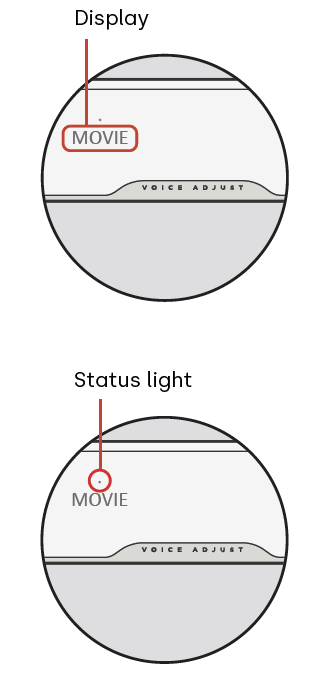
Status light
The status light above the display provides additional visual feedback regarding sound bar states. The light blinks when the bar is muted, booting up or updating software.
The status light can also indicate when the bar is powered on if you enable this feature. To turn this feature on or off, press the Mute  and Volume Up
 buttons on the sound bar at the same time for 5 seconds.
When this feature is enabled, the status light is solid white when the bar is powered on. The status light turns off when the bar is in standby.
Customize your listening experience
Sound modes
Press  on the remote to cycle through the available sound modes. The sound modes adjust the audio characteristics of the sound bar according to the type of content you’re listening to.
The sound bar display shows the current mode.
| Movie Mode | Use this mode to optimize non-musical content, such as dialogue and sound effects, in TV shows and movies. |
| 3D Mode | Use this mode for an enveloping 3D sound experience. This mode enhances the height and surround effects in Dolby Atmos® and DTS:X® audio formats and virtualizes these effects for other program formats. |
| Night Mode | Use this mode for low-volume listening. This mode reduces bass and volume dynamics while improving voice intelligibility. |
| All Channel Music Mode | Use this mode when listening to music to send the front left and right channels to your surround speakers. This mode is only available when Polk SR2 surround speakers are connected. |
| Music Mode | Use this mode for streaming music or for enhancing musical content in TV shows and movies. |
Audio delay
If the sound bar audio is out of sync with the TV dialogue, you can manually adjust the timing using the Audio Delay adjustment feature.
To adjust audio delay:
- Press
 on the remote to enter Audio Delay adjustment mode.
 - Use the Volume up and Volume down buttons to adjust the timing in small steps until the audio is in sync with the video. The sound bar display shows the current setting.
- When finished, press the Delay button again or wait 10 seconds to automatically exit Delay mode.

 on the remote to enter Audio Delay adjustment mode.
Voice Adjust
For clearer, crisper dialogue, use the Voice controls on the remote to isolate and adjust the dialogue level. Press  to increase or
 to decrease voice volume levels.
Bass control
Use the Bass controls on the remote to easily adjust bass volume for more or less impact. Press for more bass or for less bass.
Use your TV remote to control the sound bar
You can also use your TV, cable, or satellite remote to control the sound bar power, volume, mute and other functions. Depending on your TV model and connection type, you might need to teach the sound bar to respond to your TV remote.
If the sound bar does not respond to your TV, cable or satellite remote, follow the steps below.
Teach the sound bar to respond to your TV remote
Important: For best results, install fresh batteries in the Polk remote and your TV remote and point both remotes at the sound bar front panel from 1-3 ft (30-90 cm) away.
- Enter Remote Control Learning mode.
On the sound bar top panel, press and hold the Source button for about 3 seconds. Release the button when “REMOTE LEARN” appears on the front panel display.
The prompt “POLK REMOTE” appears on the display. - Select a button on the Polk remote.
Press and release a button that you want the sound bar to learn (for example, Volume Up).
The prompt “TV REMOTE” appears on the display. - Select a button on your TV remote.
Press and release the button on your TV remote that you want to control the sound bar function you selected in step 2 (for example, Volume Up).
If the message “TRY AGAIN” appears on the display, repeat steps 2 and 3.
The message “SUCCESS” appears on the display when the command is successfully programmed. - Repeat steps 2 and 3 to program other buttons.
- Exit Remote Control Learning mode.
Press and hold the Source button until “EXIT” appears on the display.
Clear learned TV remote control codes
Press and hold the Source button  on the sound bar for about 10 seconds. You will hear a two-note tone. Continue holding the button and release the button after you hear a three-note tone. The message “IR CLEARED” appears on the soundbar.
Tips and Troubleshooting
I don’t have an HDMI port labeled “eARC” or “ARC” on my TV.
- Use an optical cable to connect the sound bar to your TV.
- Turn off your TV’s internal speakers. See your TV manual for instructions.
There is no sound coming from my sound bar.
- Check that the sound bar is powered on.
- Check that all cables are connected correctly.
- Press the Volume up button on the sound bar top panel to increase the volume.
There is no sound coming from my subwoofer.
- Check that the sound bar is powered on and playing audio.
- Check that the “SUB” status light on the back panel of the sound bar is green.
- Check that the status light on the back panel of the subwoofer is green.
- Turn up the bass using the Polk remote.
- Check that the power cable is secure in the subwoofer and in the wall outlet.
- Unplug the subwoofer for 30 seconds, and then plug it back in.
I hear an echo from my TV or sound bar.
- Check that the TV’s internal speakers are disabled. Refer to your TV manual.
- If your TV is connected to the sound bar via HDMI ARC, check that HDMI CEC/ARC is enabled in your TV’s Settings menu.
My remote control isn’t working.
- Get closer to the sound bar and aim the remote at the front of the sound bar.
- Make sure nothing is blocking the IR receiver on your TV (the part of your TV where you aim the remote).
- Make sure the batteries are installed in the correct direction.
- Install fresh batteries in the remote.
- To teach your TV, cable, or satellite remote to control the sound bar, see “Use your TV remote to control the sound bar” on page 18.
How do I perform a factory reset?
Note: A reset will erase all sound bar settings, including Bluetooth and Wi-Fi settings.
With the sound bar turned on, press and hold the Power button and the Mute button on the top panel of the sound bar for 7 seconds. You will hear a chime, then numbers will countdown on the display, followed by “RESET.” The bar restarts when the process is complete.
How do I wirelessly connect (pair) my subwoofer or surround speakers?
- Plug in your subwoofer and/or surround speakers and make sure the sound bar is powered on.
- Enter pairing mode on the sound bar by pressing and holding the CONNECT button on the back panel of the sound bar for about 3 seconds. You will hear a confirmation tone.
- On the subwoofer or surround speaker, press the CONNECT button on the back panel for about 3 seconds until you hear a confirmation tone.
- Repeat step 3 for other speakers that need to be paired.
- When finished, press the CONNECT button on the sound bar to save the new pairings and exit pairing mode.
Why do I see a network called Polk MagniFi Mini AX?
Your soundbar broadcasts a wireless network so that you can connect the soundbar to Wi-Fi. The wireless network signal turns off once you complete Wi-Fi set up. We recommend connecting your sound bar to the internet to receive the latest software updates. For more information, see “Listen with Chromecast built-in™” on page 12 or “Listen with Apple AirPlay®” on page 13. You can also completely disable Wi-Fi if you don’t want to connect the soundbar to the internet.
How do I disable Wi-Fi?
To completely disable Wi-Fi, press and hold the Mute button and the Source button button on the top panel of the sound bar for 5 seconds. To enable Wi-Fi again, repeat the procedure.
Note: If you already connected your soundbar to a Wi-Fi network, disabling Wi-Fi does NOT clear connection settings. To clear all connection settings and account information, see “How do I perform a factory reset?” on page 21.
My sound bar randomly powers on by itself.
Your sound bar is preset to automatically power on when you use a device that is connected to the soundbar. To disable automatic power on for an input:
- Press the desired input on the Polk remote control.
- Press and hold the desired input button on the Polk remote control for 5 seconds.
My sound bar randomly powers off by itself.
Your sound bar is preset to automatically power off after 20 minutes of inactivity.
To disable automatic power off, press and hold the Power button and Volume Down button on the top panel of the sound bar for 5 seconds.
Trademark information
Dolby, Dolby Atmos, and the double-D symbol are registered trademarks of Dolby Laboratories Licensing Corporation. Manufactured under license from Dolby Laboratories. Copyright © 2012-2021 Dolby Laboratories. All rights reserved.
For DTS patents, see http://patents.dts.com. Manufactured under license from DTS, Inc. DTS, DTS:X, Virtual:X, and the DTS:X logo are registered trademarks or trademarks of DTS, Inc. in the United States and other countries. © 2020 DTS, Inc. ALL RIGHTS RESERVED.
The terms HDMI, HDMI High-Definition Multimedia Interface, and the HDMI Logo are trademarks or registered trademarks of HDMI Licensing Administrator, Inc.
Apple, AirPlay, iPhone, iPad, HomePod, and AppleTV are trademarks of Apple Inc., registered in the U.S. and other countries. Use of the Works with Apple badge means that an accessory has been designed to work specifically with the technology identified in the badge and has been certified by the developer to meet Apple performance standards.
The Wi-Fi CERTIFIED logo is a registered trademark of the Wi-Fi Alliance. Wi-Fi Certification provides assurance that the device has passed the interoperability test conducted by the Wi-Fi Alliance, a group that certifies interoperability among wireless LAN devices.
The Bluetooth word mark and logos are registered trademarks owned by Bluetooth SIG, Inc. and any use of such marks by Polk Audio is under license.
Chromecast built-in is a trademark of Google LLC.
Roku TV, Roku TV Ready, and the Roku TV Ready logo are trademarks of Roku, Inc. This product is Roku TV Ready certified in the United States, United Kingdom, Mexico, and Canada.
Spotify is all the music you’ll ever need. Millions of songs available instantly. Just search for the music you love, or let Spotify play you something great. Spotify works on your phone, tablet, computer, and home speakers. So you’ll always have the perfect soundtrack for whatever you’re doing. Now you can enjoy Spotify with your free account as well as Premium account. Use your phone, tablet or computer as a remote control for Spotify. Go to www.spotify.com/connect to learn how. The Spotify software is subject to third-party licenses found here: www.spotify.com/connect/ third-party licenses.
FAQS
How big is the gap at the bottom of the speaker? Can an animal paw reach in there and ruin the bottom cone?
The bottom opening is about 2″.
what color are these speakers?
Mine are black.
Where are these speakers made? Made in China?
All Polk speakers are designed & tested at Polk HQ Baltimore, MD. Once Matt Polk signs off on them, the specs are sent over to China I believe, and the speakers are built there according to the specs.
They send people over to check up on them from time to time.
Do these have a place for floor spikes in the base?
Yes, you can remove the feet and use decoupling spikes if you so desire.
Hookups at bottom of speaker?
The S60s are in a totally different league than the T50s. The T50s don’t come close to being comparable. The frequency range of the S60s is much wider and they’ll simple outperform the T50s on any given day.
Are these better than the T50?
No, they are not able to be used with tablets. They are only speakers. You need an amplifier.
If you are so lost you must let yourself advise or study this subject much more.
Are these able to be used with tablets. How are they connected
No, they are not able to be used with tablets. They are only speakers. You need an amplifier.
If you are so lost you must let yourself advise or study this subject much more.
What is the RMS for these speakers?
These speakers have a sensitivity of 90db and are rated at 150 watts nominal (rms) and 300 watts maximum.
How many ohms are these?
These are 8 ohm speakers
what color are these speakers?
They are black with silver cones
How does the signature elite differ from the signature?
the new ES speaker series have new drivers and slight cosmetic changes. They are also voiced a little differently as well.
Is this listing for two Polk audio towers?
One tower–worth every penny–A well-designed speaker.
What speaker wire should I use for the polk s60?
The thickness of the conductors (wire gauge) would depend upon the length of the connection between your receiver and the speakers. For connections less than 15′ #18 gauge would be fine, for connections greater than 15′ but less than 25′ #16 gauge would be fine, greater than 25′ use #14 gauge.
Unlike the es line these don’t say atmos /virtual: x compatible. does that really matter?
the new ES series come equipped with new drivers, different crossover settings, and slight cosmetic changes. Both the Signature line and the new ES line will blend nicely in any ATMOS speaker setup.
do these come with grills?
Yes, they come with magnetically attached grills.