
Cta Add-ltpcf Vesa Compatible Laptop And Other Device Holder With Built-in Cooling Fan Instruction Manual

Cta Add-ltpcf Vesa Compatible Laptop And Other Device Holder With Built-in Cooling Fan Instruction Manual

CTA-ADD-logo

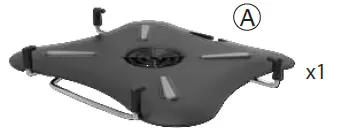
CTA ADD-LTPCF VESA Compatible Laptop and Other Device Holder with Built-in Cooling Fan
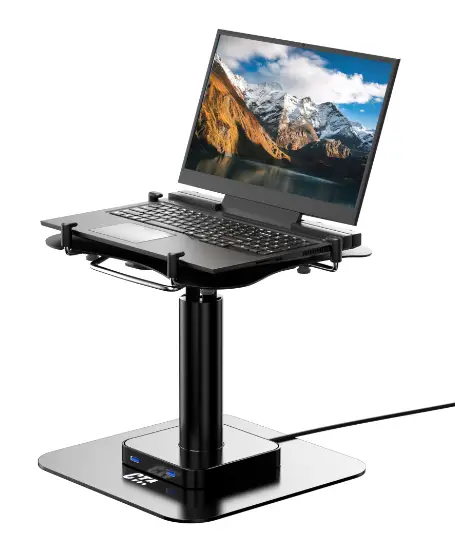
CTA-ADD-LTPCF-VESA-Compatible-Laptop-and-Other-Device-Holder-with-Built-in-Cooling-Fan-product-image

CONTENTS

CTA-ADD-LTPCF-VESA-Compatible-Laptop-and-Other-Device-Holder-with-Built-in-Cooling-Fan-1

INSTALLATION

How to Setup your Holder
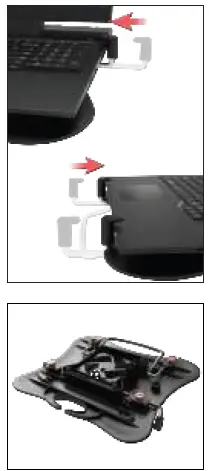
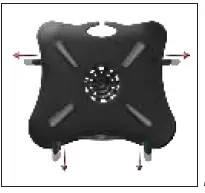
  • Extend the holder brackets.
    CTA-ADD-LTPCF-VESA-Compatible-Laptop-and-Other-Device-Holder-with-Built-in-Cooling-Fan-2
  • Adjust the holder to your laptop by sliding the brackets towards it.
    CTA-ADD-LTPCF-VESA-Compatible-Laptop-and-Other-Device-Holder-with-Built-in-Cooling-Fan-3
  • Once laptop is securely in place, tighten four knobs as shown until securely fastened.
Powering Up Cooling Fan
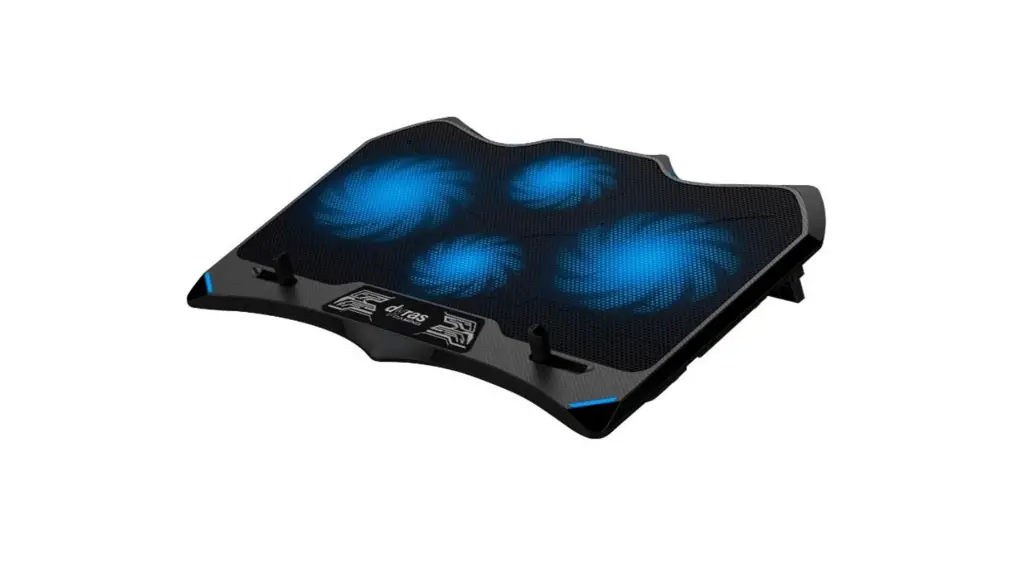
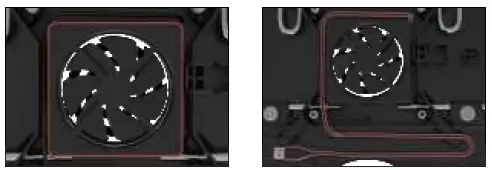
  • Locate the fan.
    CTA-ADD-LTPCF-VESA-Compatible-Laptop-and-Other-Device-Holder-with-Built-in-Cooling-Fan-4
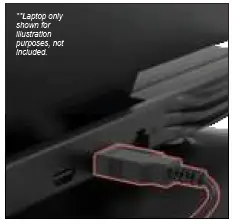
  • Find the integral USB cable below.
    CTA-ADD-LTPCF-VESA-Compatible-Laptop-and-Other-Device-Holder-with-Built-in-Cooling-Fan-5
  • Plug into your laptop to power the fan.
Cable Management
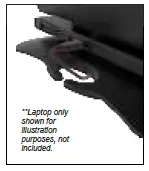
  • Route all cables through the cable organizer as illustrated.CTA-ADD-LTPCF-VESA-Compatible-Laptop-and-Other-Device-Holder-with-Built-in-Cooling-Fan-6
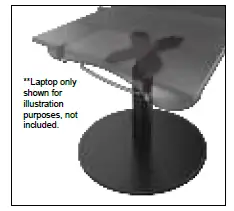
Attaching to VESA Compatible Device
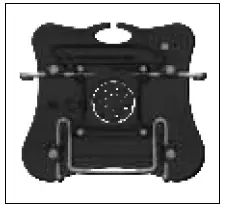
  • Locate the four VESA hole sunderneath. Using an allen key (not provided, endcaps)
    CTA-ADD-LTPCF-VESA-Compatible-Laptop-and-Other-Device-Holder-with-Built-in-Cooling-Fan-7
  • Screw in the four screws from the back to a VESA compatible device using screwdriver. (not provided)
    CTA-ADD-LTPCF-VESA-Compatible-Laptop-and-Other-Device-Holder-with-Built-in-Cooling-Fan-8

Documents / Resouces

Download manual
Here you can download full pdf version of manual, it may contain additional safety instructions, warranty information, FCC rules, etc.


Related Manuals