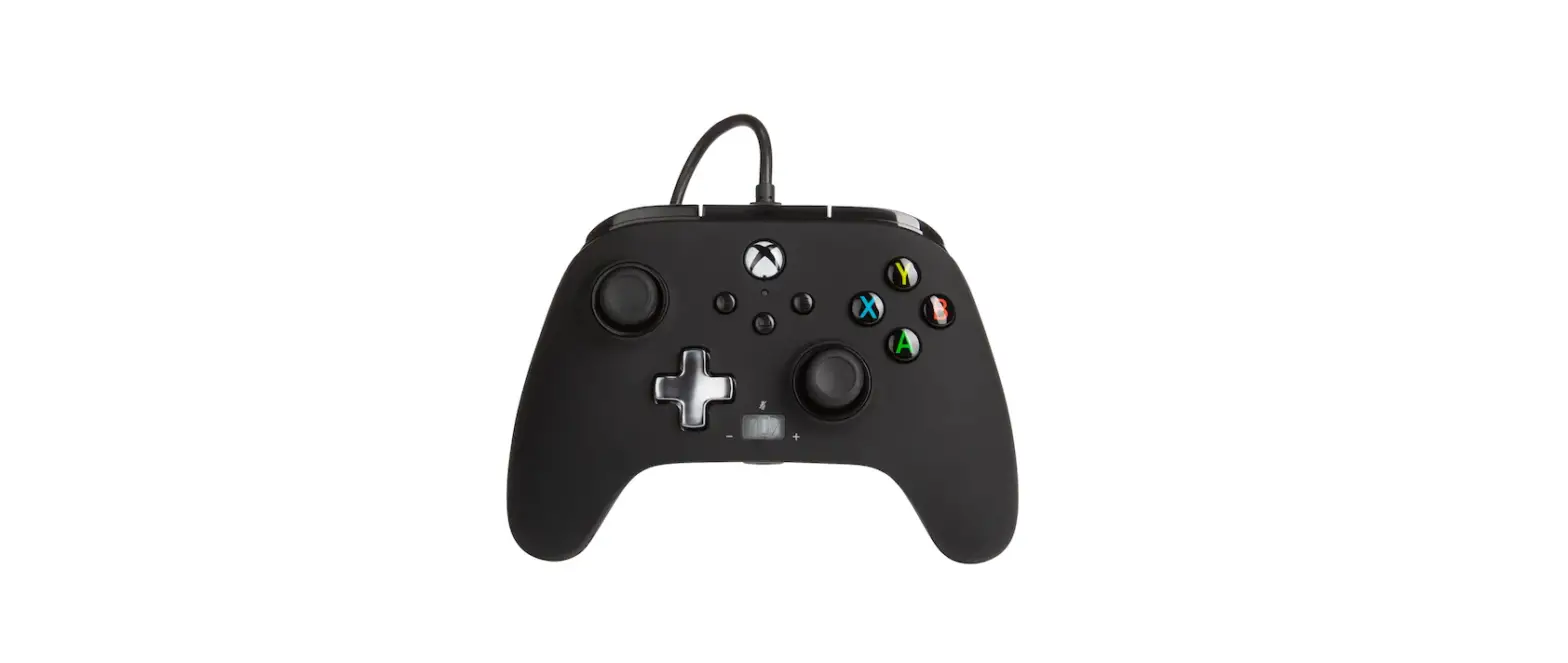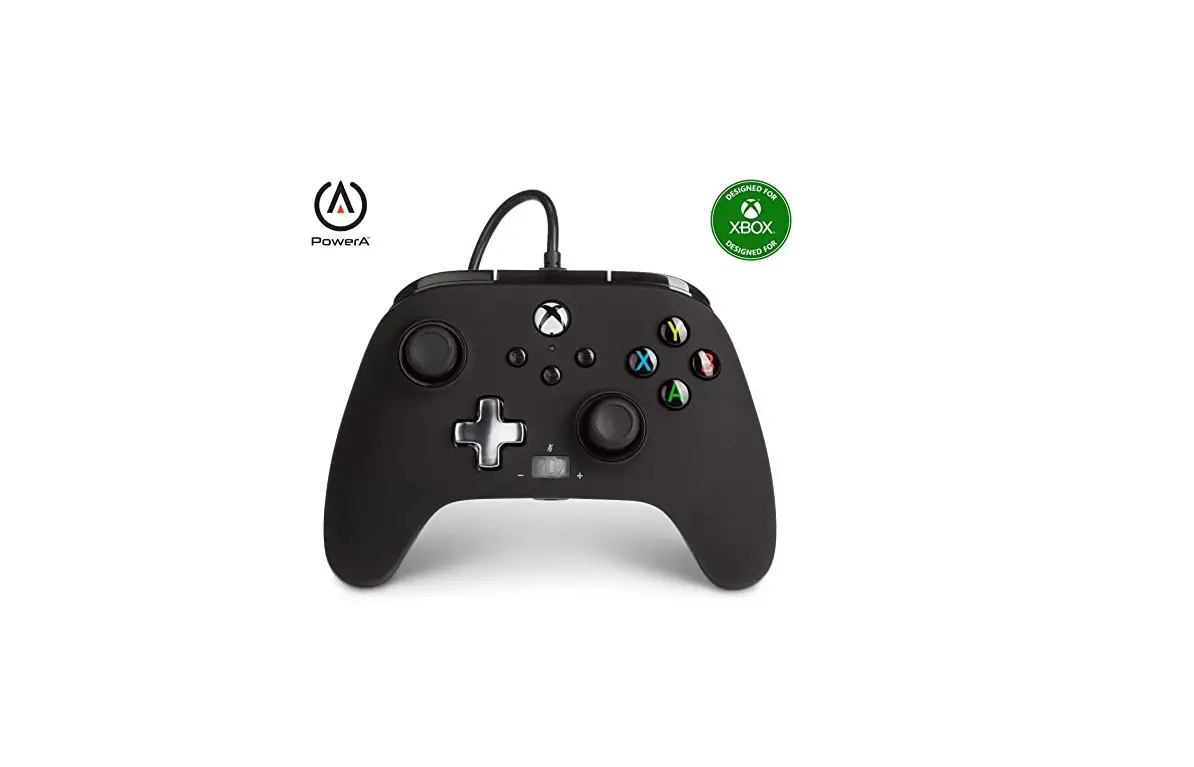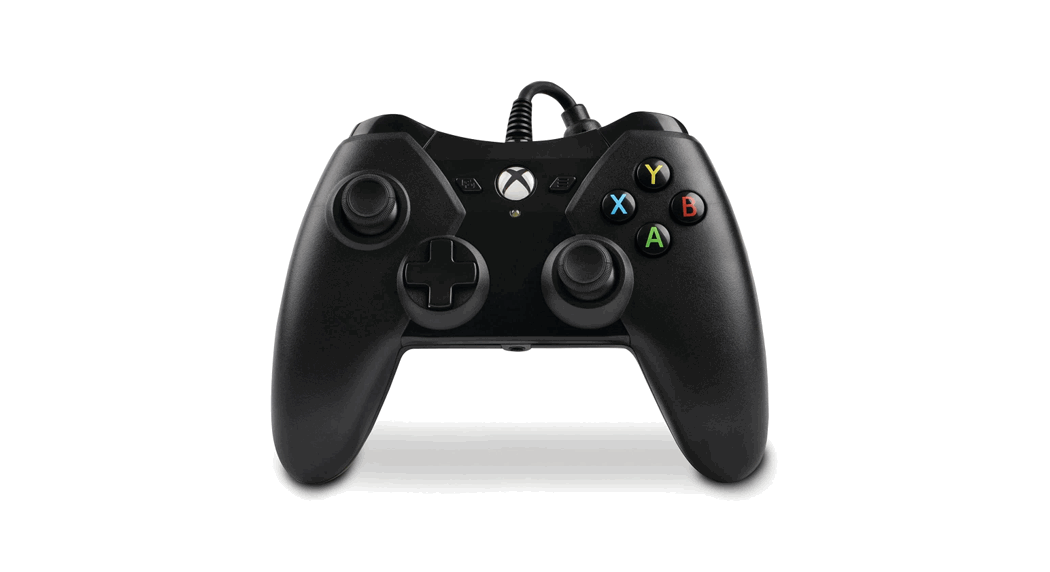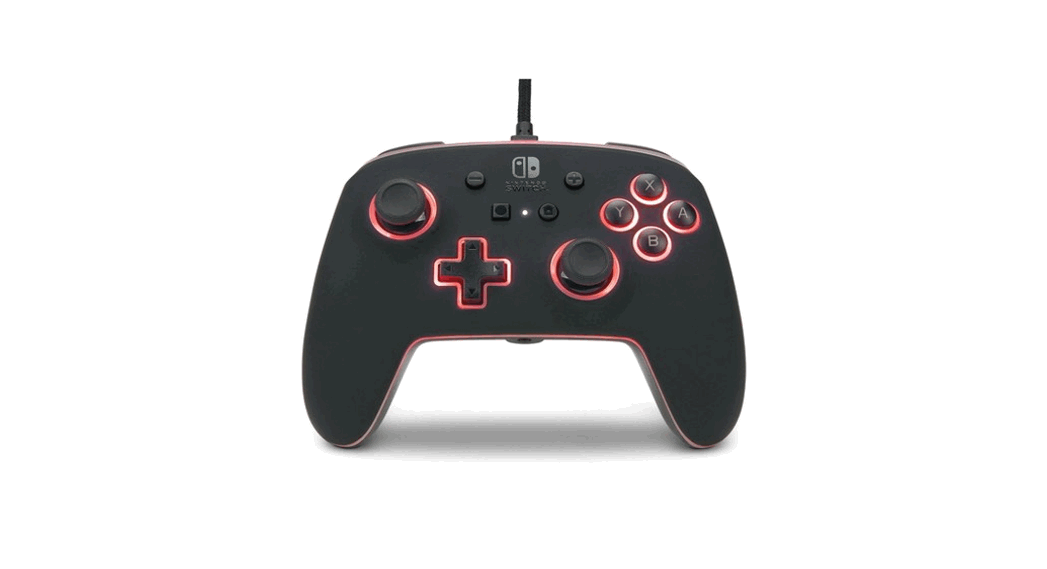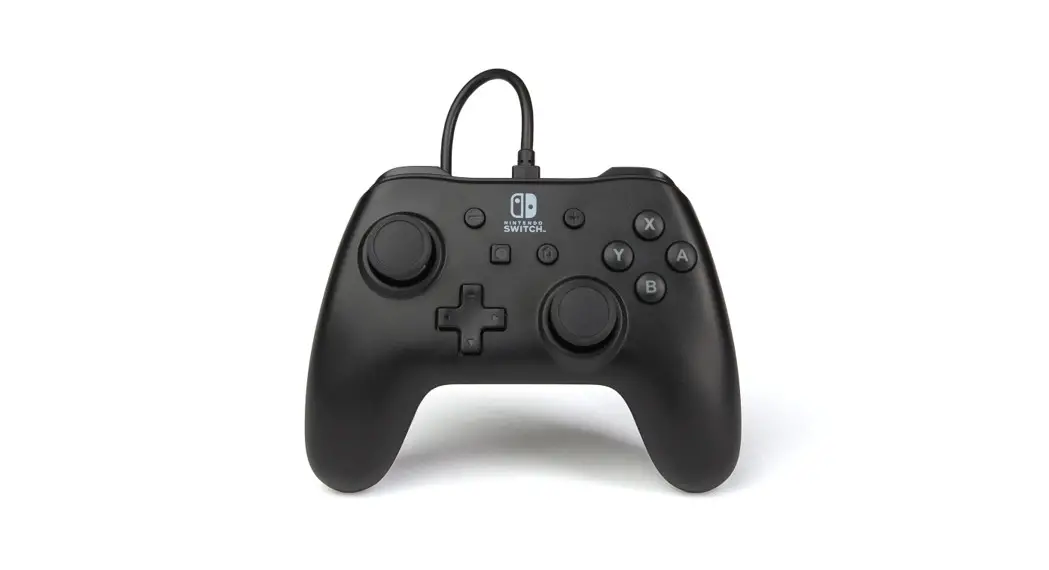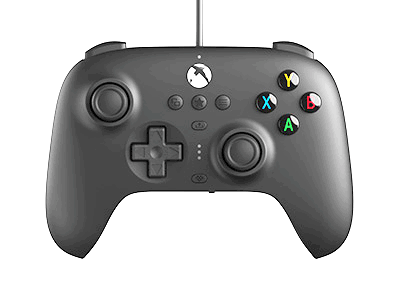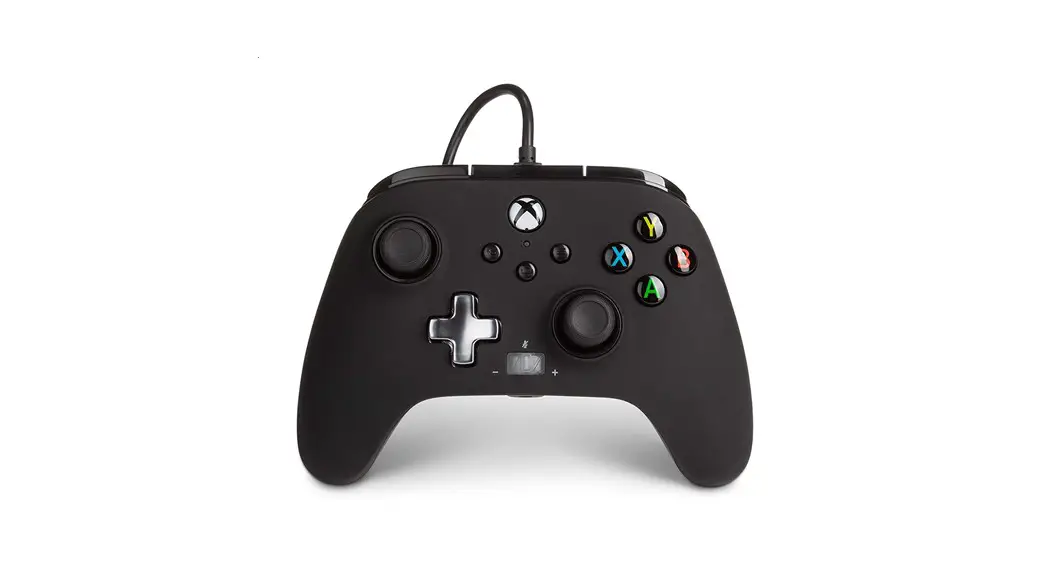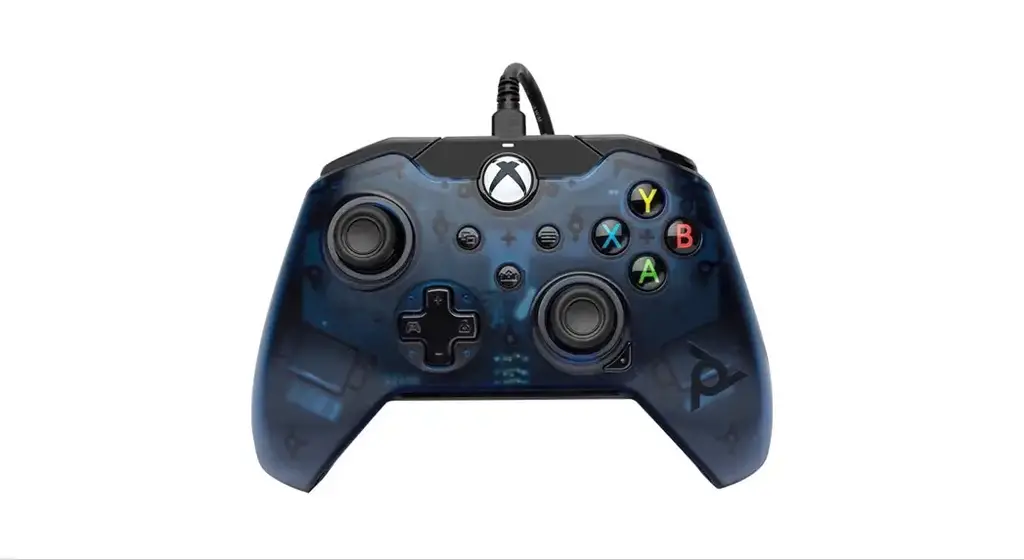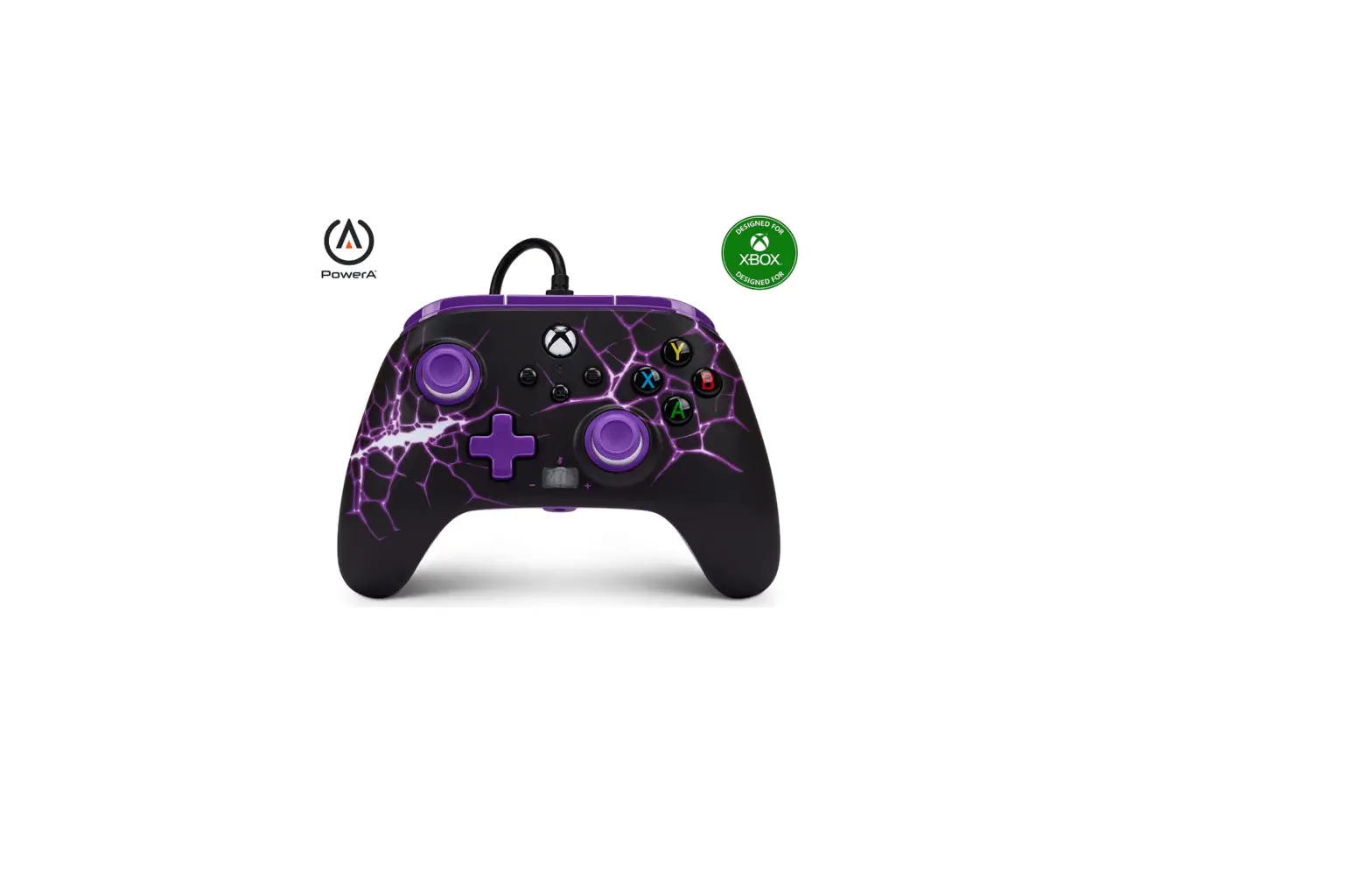

PowerA Cotton Candy Blue Enhanced Wired Controller for Xbox Series
 SPECIFICATION
 SPECIFICATION
- BRAND: PowerA
- JACK:5mm stereo headset jack
- CABLE: Detachable 10ft (3m) USB cable
- PRODUCT DIMENSIONS:14 x 4.21 x 2.56 inches; 7.23 Ounces
- BINDING: Video Game
- LANGUAGE: English
- ITEM MODEL NUMBER: Purple Magma
INTRODUCTION
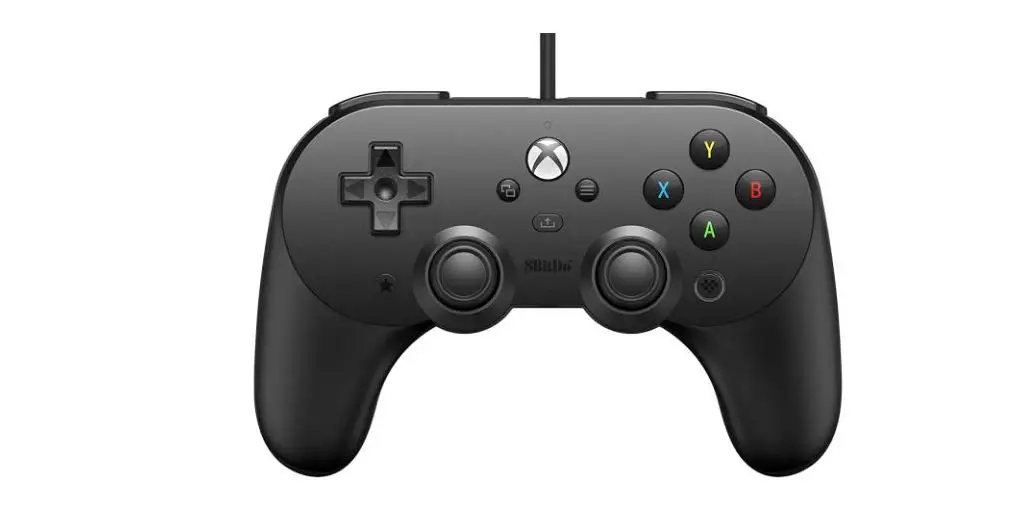
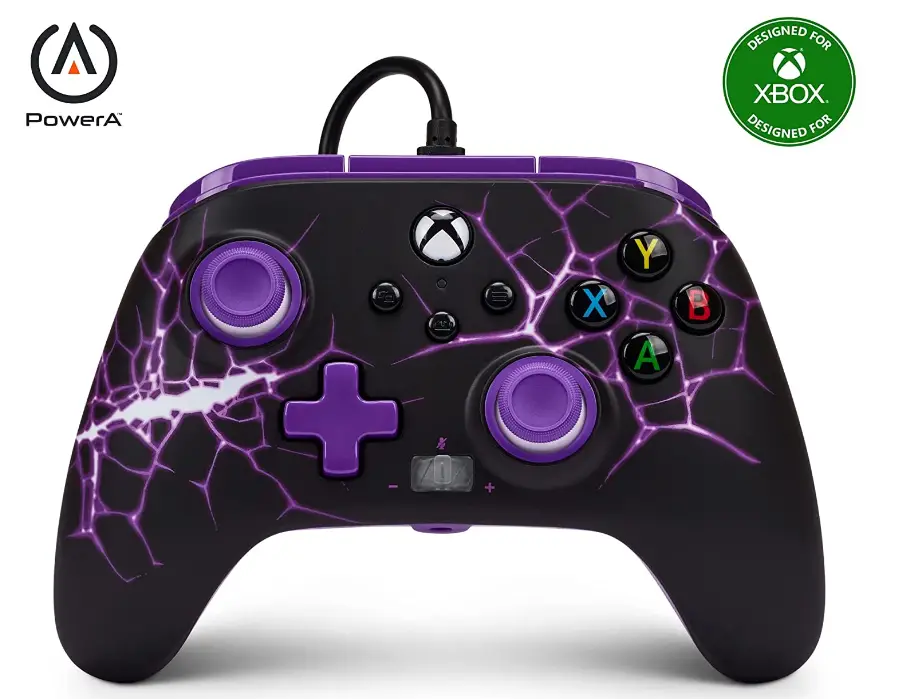
Inside of you, dark energy crackles. With a design intended for individuals brave enough to manage uncontrollable forces, unleash your terrible power. The PowerA Enhanced Wired Controller for Xbox Series X|S will help you advance your gaming experience. This exquisitely crafted controller, which carries the official Xbox license, has two mappable Advanced Gaming Buttons that you may instantly configure in the middle of an action. Enjoy all the essential functions you would anticipate from a genuine Xbox controller, too: Anti-friction rings for smooth motion, dual rumble motors, finely calibrated analogue sticks, and improved ergonomics. High-quality 10 feet (3 meters) of USB cable is included for lag-free operation and limitless play. Additionally, you can play with confidence thanks to the PowerA 2-year limited warranty, which is supported by first-rate customer service.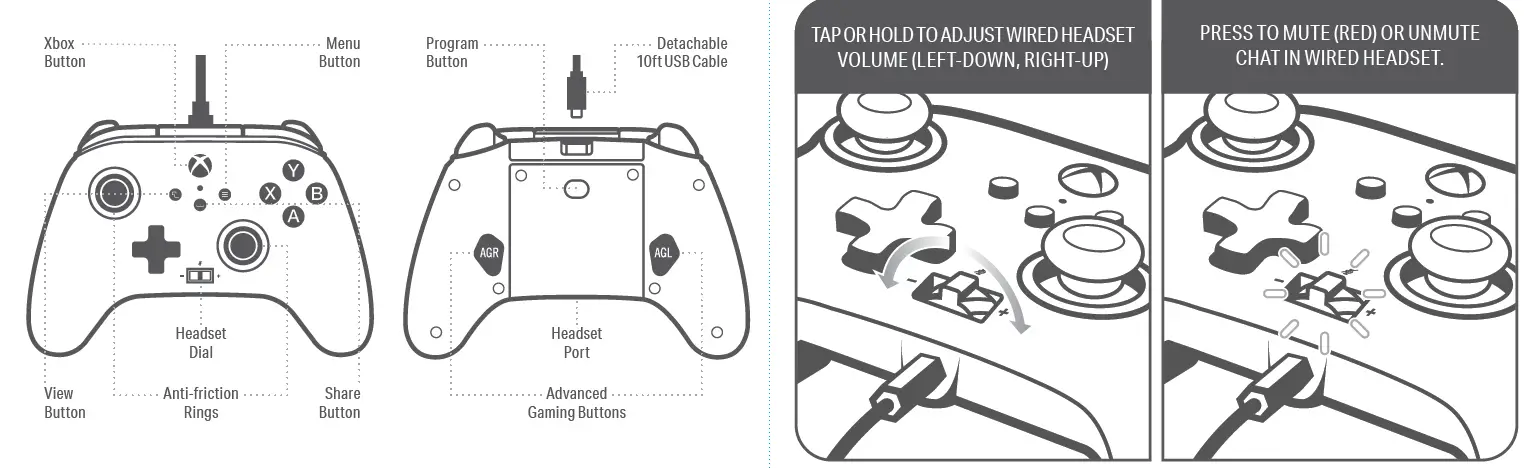
CONTENTS
- PowerA Enhanced Wired Controller for Xbox
- Detachable 10ft USB Cable
- User Manual
SET UP
- If Xbox is Off, connect the USB cable between available USB port on Xbox and Micro-USB port on controller. Press the Xbox Button on controller until console powers On. The small LED will illuminate to indicate connection successful.
- If Xbox is On, connect the USB cable between available USB port on Xbox and Micro-USB port on controller. The small LED will illuminate to indicate connection successful.
NOTE: For player and controller assignment reference your official Xbox user’s manual.
- Press the Program Button on the back of the controller. The LED Connection Indicator will flash, signaling the controller is in assign mode.
- Press 1 of the following buttons (A/B/X/Y/LB/RB/ LT/RT/Left Stick Press/Right Stick Press/D-pad) to re- assign. Then press the Advanced Gaming Button (AGR or AGL) that you wish to assign. The LED connection indicator will stop flashing, signaling the Advanced Gaming Button has been set.
- Repeat for the remaining Advanced Gaming Button. NOTE: Advanced Gaming Button assignments will remain in memory even after disconnected.
RESETTING THE ADVANCED GAMING BUTTONS:
- Hold the Program Button down for 2 seconds. The LED Connection Indicator will slowly flash, signaling the controller is in assign mode.
- Press the previously assigned button, and the function will be cleared.
USING THE SHARE BUTTON
Refer to Xbox documentation for details on functions and features related to the Share button.
USING THE HEADSET DIAL
Once you plug the 3.5mm jack from your headset into the controller, Dial will become active and LED will turn red to indicate chat is muted. Press down on dial to mute/unmute chat. To adjust volume, tap left or right to adjust step by step, or press and hold left or right to adjust volume to full up or full down.
NOTE: Audio controls within Xbox Settings will take first priority, followed by the Headset dial, and finally any audio or mute controls on your headset. Refer to your Xbox and headset documentation for additional details.
TROUBLESHOOTING
For current FAQs, visit www.PowerA.com/support
Controller will not connect to Xbox console?
- Confirm your Xbox console is powered “ON”.
- Confirm your TV is set to the proper Video Channel and that you can see the Xbox console interface on your TV screen.
- Confirm cable is properly connected to you Xbox console.
- Confirm cable is properly connected to your PowerA Enhanced Wired Controller.
Controller is connected but has no function?
Confirm you are using the Player #1 controller. For more troubleshooting refer to your Xbox console User Guide.
MOTION WARNING
Playing video games can make your muscles, joints, skin or eyes hurt. Follow these instructions to avoid problems such as tendinitis, carpal tunnel syndrome, skin irritation or eyestrain: • Avoid excessive play.
Take a 10 to 15 minute break every hour, even if you don’t think you need it. Parents should monitor their children for appropriate play. • If your hands, wrists, arms or eyes become tired or sore while playing, or if you feel symptoms such as tingling, numbness, burning or stiffness, stop and rest for several hours before playing again. • If you continue to have any of the above symptoms or other discomfort during or after play, stop playing and see a doctor.
FAQs
Does this controller work on PC?
Yes it works on PC, but it’s only good for about a month unless you don’t use it very often. This is actually my third one I’m done with this controller.
Does this work for PC ??
Yes, and it works seamlessly with Windows 10 for me!
this one works with pc?
Yes it does.
Where can I get a replacement cord? The standard usb we have for other wired controllers doesn’t fit.
I use generic Micro USB cords. The one it came with was extremely long.
does with controller connect with iOS?
No.
Is the updated controller the same size as the series s/x controller? I personally didn’t like how the new controllers are smaller
It’s the same size as an Xbox One controller.
Can I used windows 10?
Yes.
Does the pc recognizes it as Xbox controller automatically?
Windows 10 will load drivers for it automatically, as an Xbox one controller. It won’t last long though, the quality of this controller is trash level.
I was under the impression that these light up. Is it wrong advertising, or do I have a bum controller?
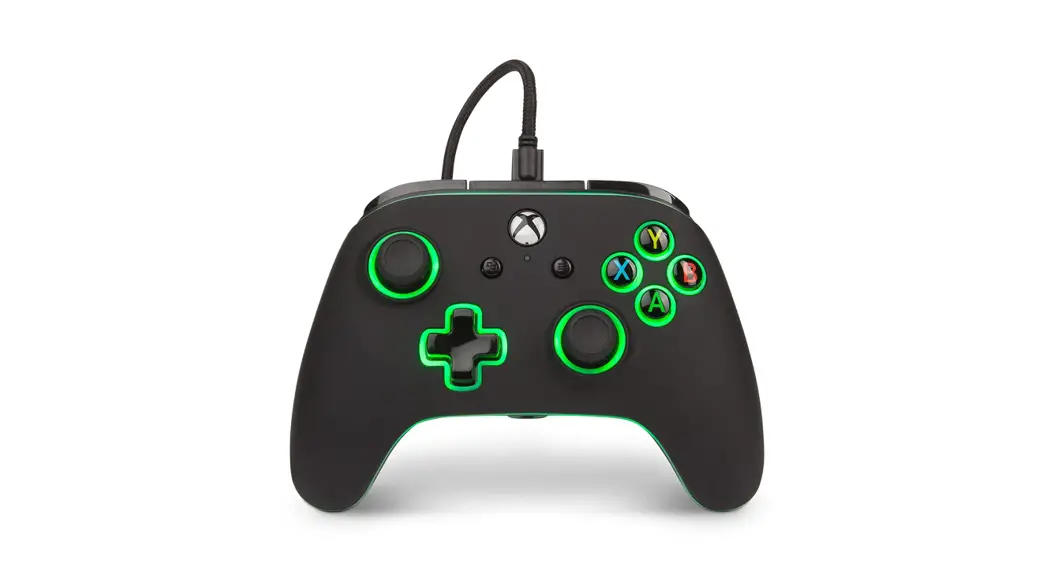
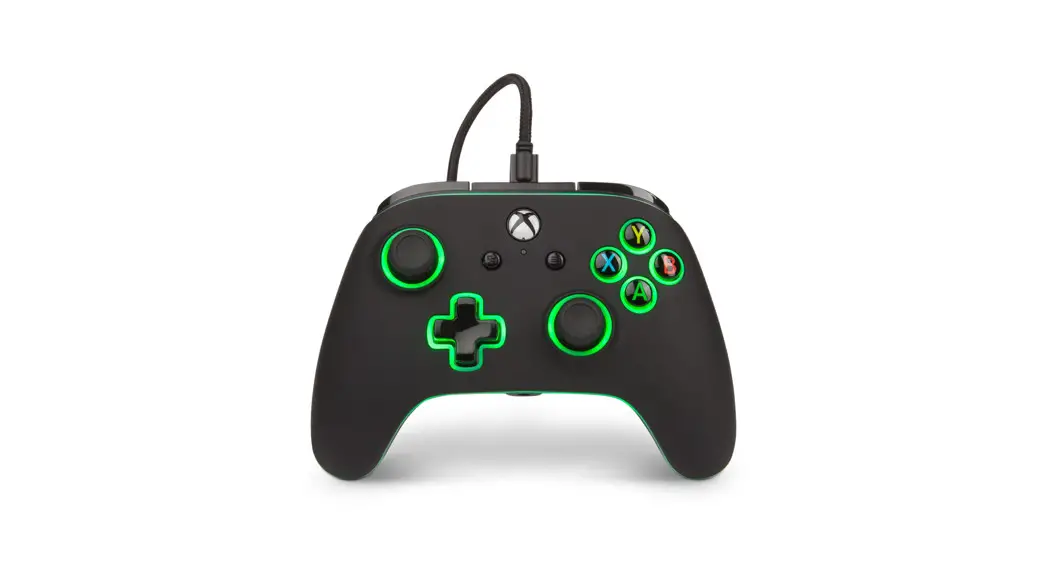
That controller doesn’t light up. We have never communicated that it does. Perhaps you mixed it up with the Spectra Infinity Enhanced Controller for Xbox Series X|S, which does have light up features.
Does it work with android?
No, it is a usb-wired controller.
What is it missing, Compared to the oem Controller?
Mostly, I believe the OEM is wireless, but you don’t have to worry about batteries with this one either. I have four OEM’s and I use this one for my PC, since I basically sit in front of it. My Xbox is normally across the room.
Where is it made?
It’s made by a company called power A they are the best company there is they also make PlayStation accessories to
Would this controller work with wired Sennheiser headset with mic?
If it has a standard 3.5mm jack, then absolutely!
Are these compatible with Xbox360?
No, it is not compatible with Xbox 360.
Does this actually work on a normal Xbox One?
Yes I use it every day and it works just as good as the Razer controller I used to have before I broke it LOL but the power a has worked amazing and it also feels really good in your hands if you play long hours.