

HOSPITALITY & SPECIALTY
COMMUNICATIONS
Sending and Managing Smack Talk in HME CLOUD® on a Desktop Browser
User Guide
Smack Talk in HME Cloud on a Desktop Browser

How to Send Smack Talk in HME CLOUD
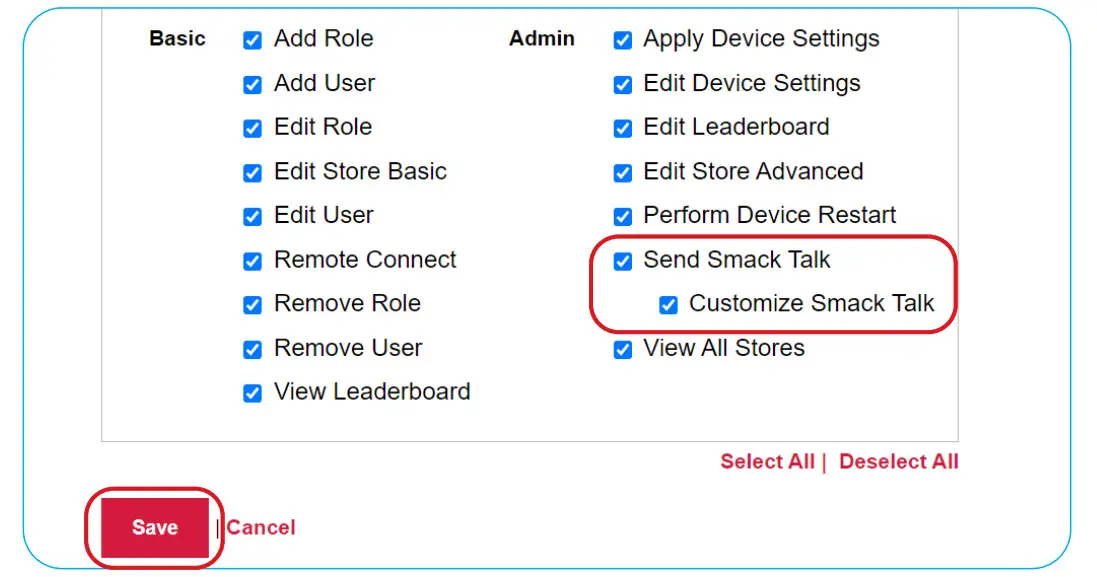
- To allow employees to manage Smack Talk messages, the account owner must first enable the Customize Smack Talk permission.
NOTE: To enable the Customize Smack Talk permission, please refer to the Appendix on page 11.
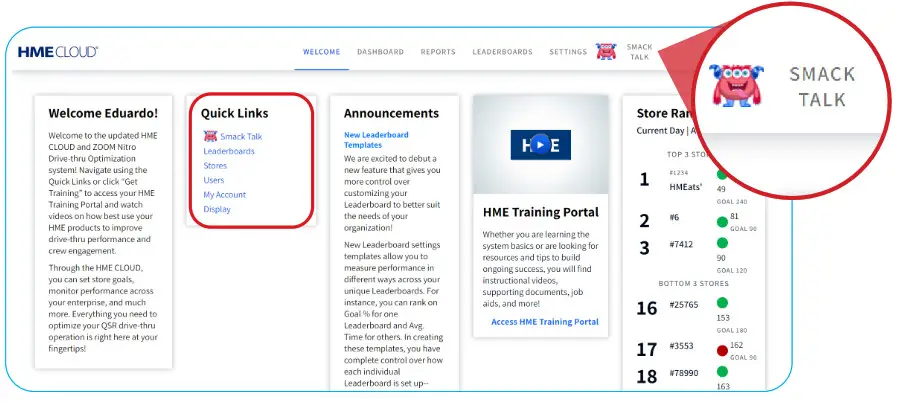
- To access Smack Talk, click on the Smack Talk icon in the top right corner or under Quick Links. The SmackTalk icon in the top right corner is accessible from any page on HME CLOUD.

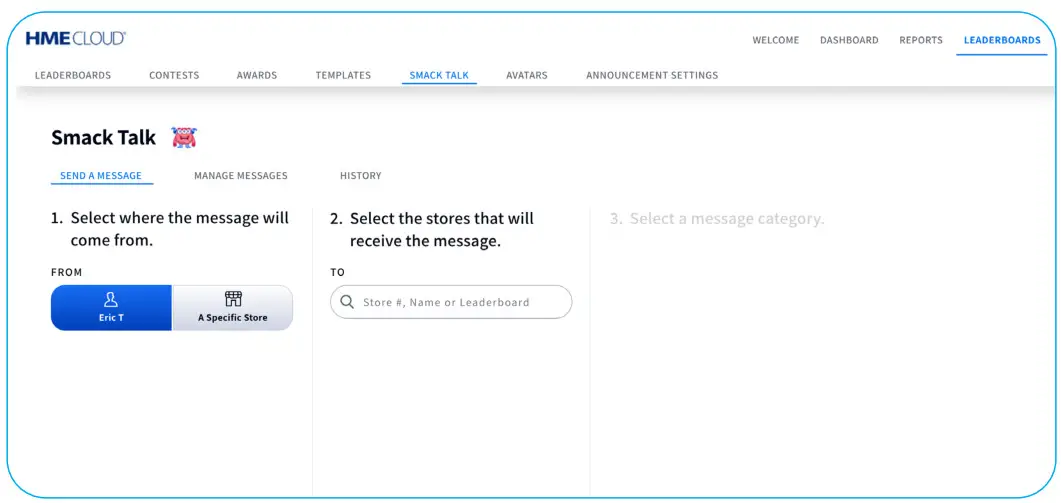
- The SEND A MESSAGE page is the default home page when opening Smack Talk.

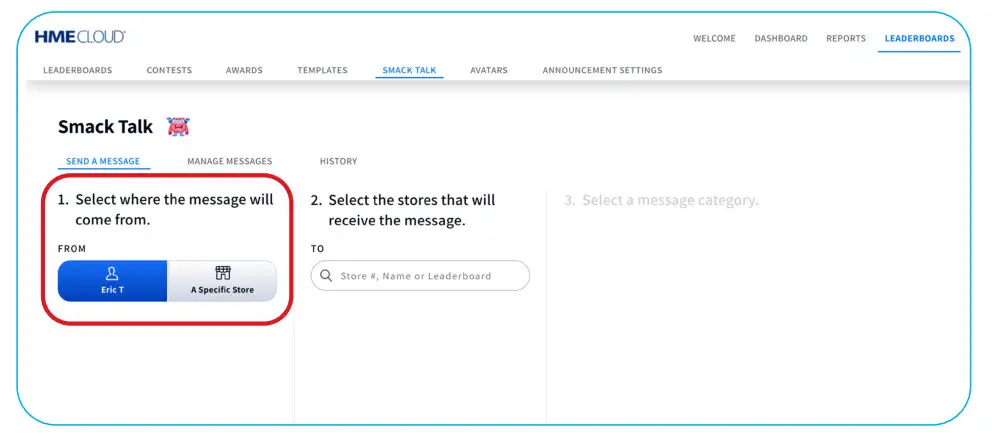
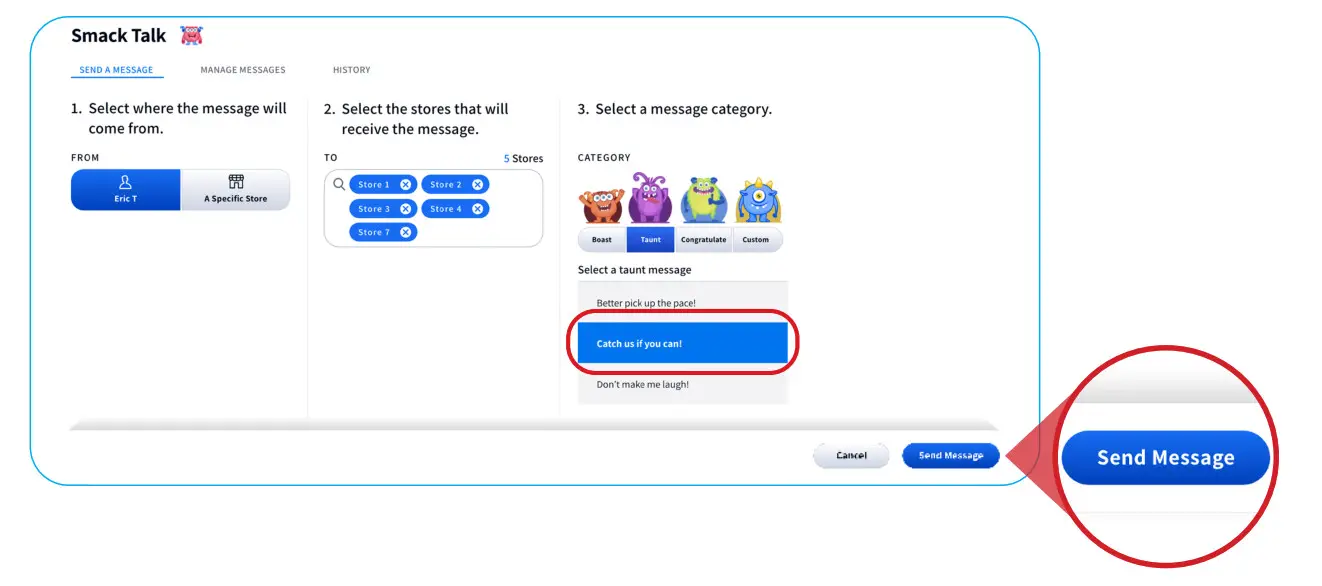
- Smack Talk can be sent from you personally or from a specific store on your account by selecting the desired preference under the FROM field. The default selection is to send a message from the user.

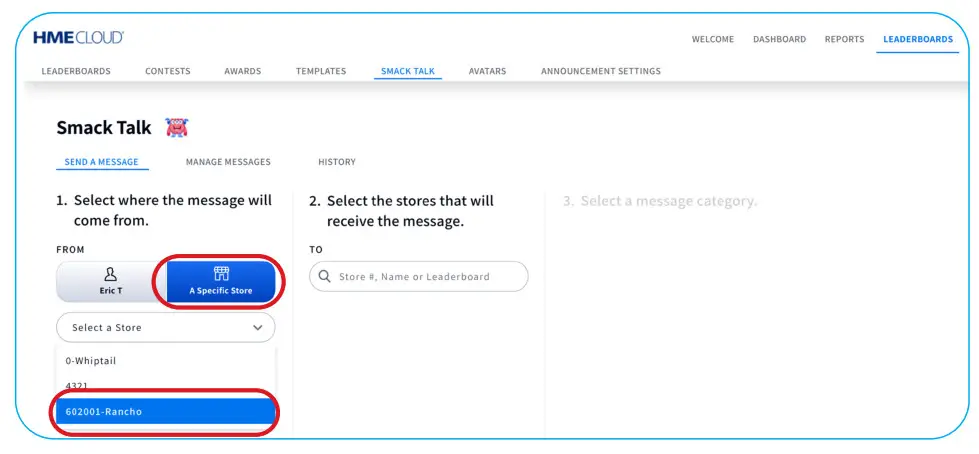
- To send a message from a specific store, click on the A Specific Store tab. Then, select store from dropdown.
NOTE: This only includes stores the user has permission to see on the CLOUD. Enable the Edit User permission to update stores available to the users.
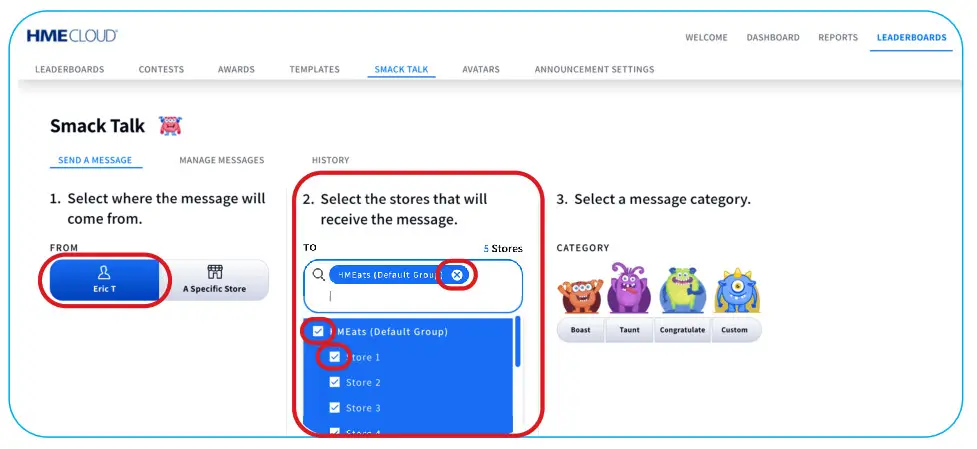
- Under the “TO” field, type in the name of a specific store or Leaderboard in the search bar.
NOTE: To remove a store from the TO field, click “X” next to store name. To select the entire Leaderboard or specific stores with the Leaderboard, click the checkbox to the left of the name.
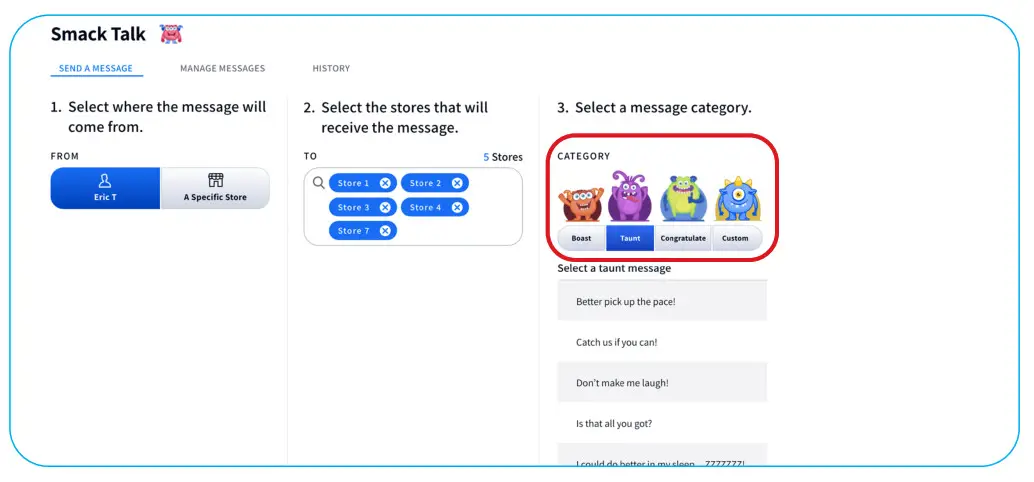
- Under CATEGORY, determine what kind of Smack Talk you would like to send.

- Choose the specific Smack Talk phrase you would like to send them. Then, click Send Message.

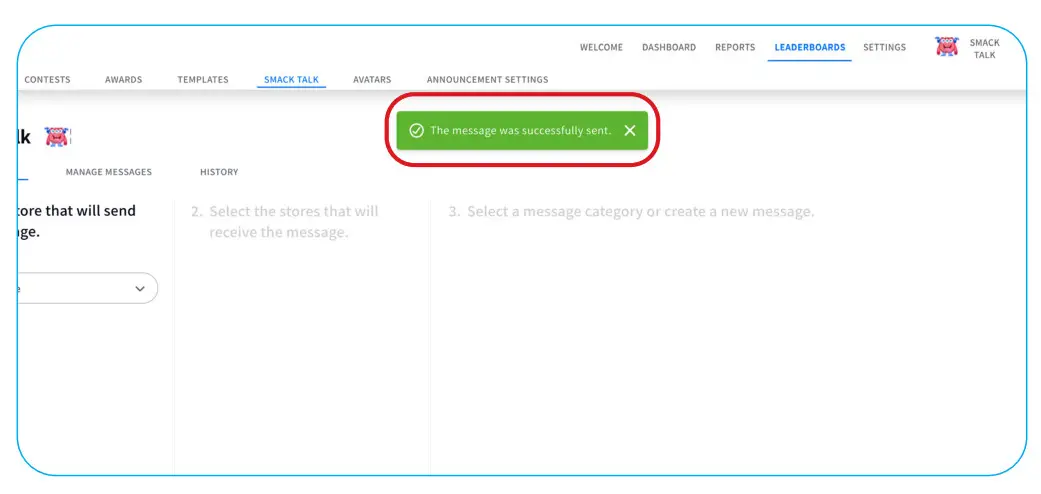
- A confirmation message will appear once the message is sent.

How to Manage Smack Talk in HME CLOUD
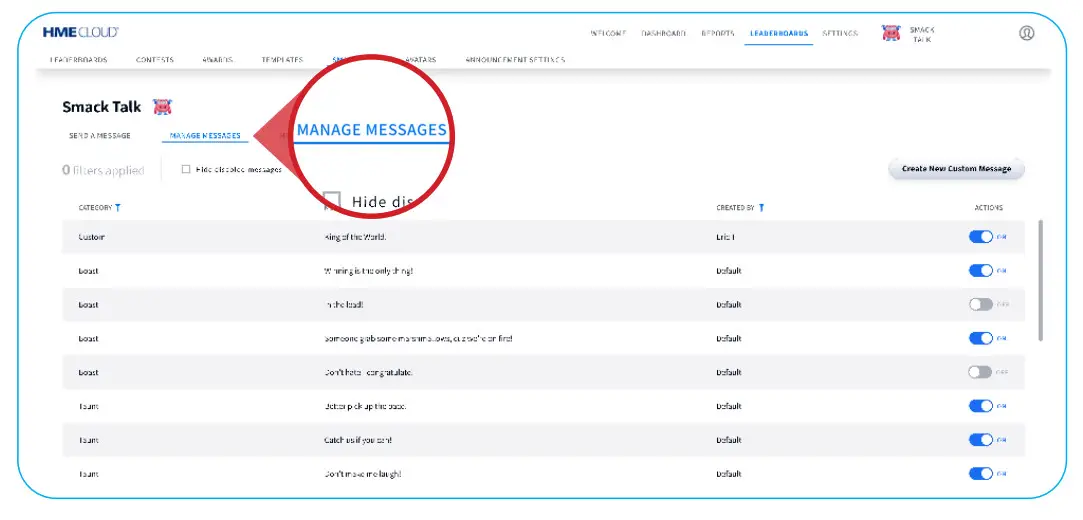
- To manage Smack Talk messages, click MANAGE MESSAGES in the navigation bar.
NOTE: You must have the Customize Smack Talk permission enabled to view this tab. Please refer to the Appendix on page 11.
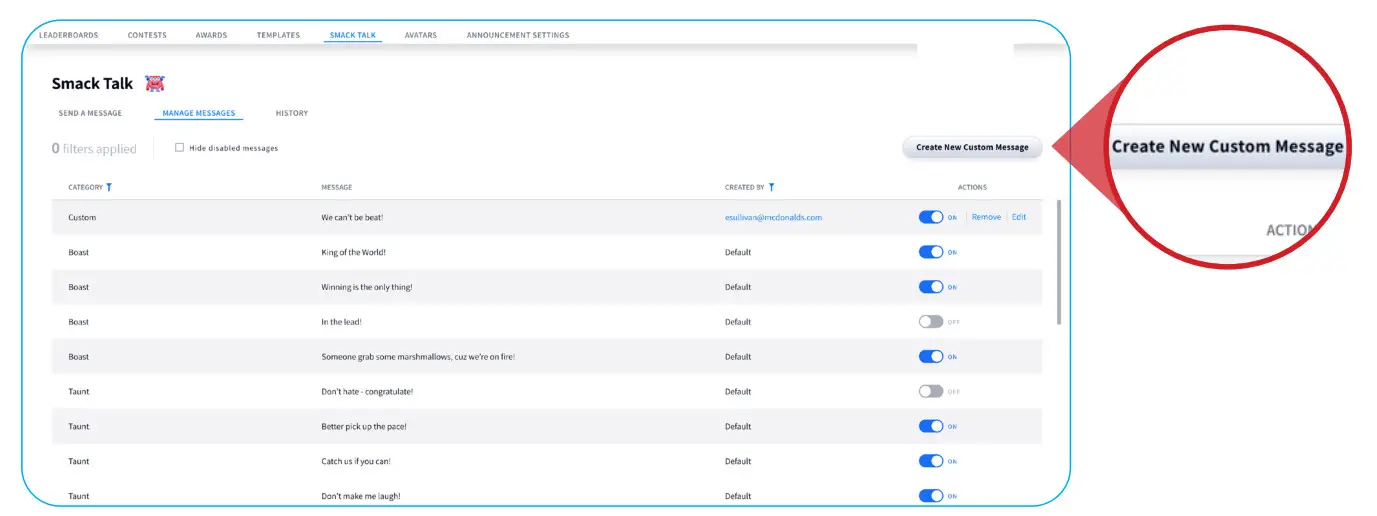
- Click on Create New Custom Message to create your own message.

- Type your custom message and click Save.
NOTE: When MESSAGE AVAILABILITY is turned OFF, the message will be hidden from the list of Smack Talk messages.
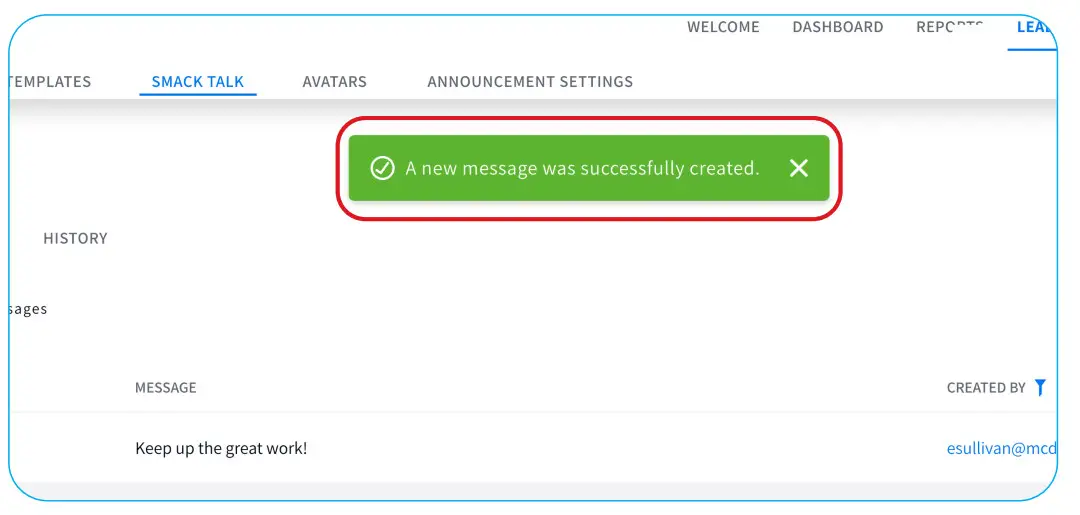
- A confirmation message will appear at the top once saved.

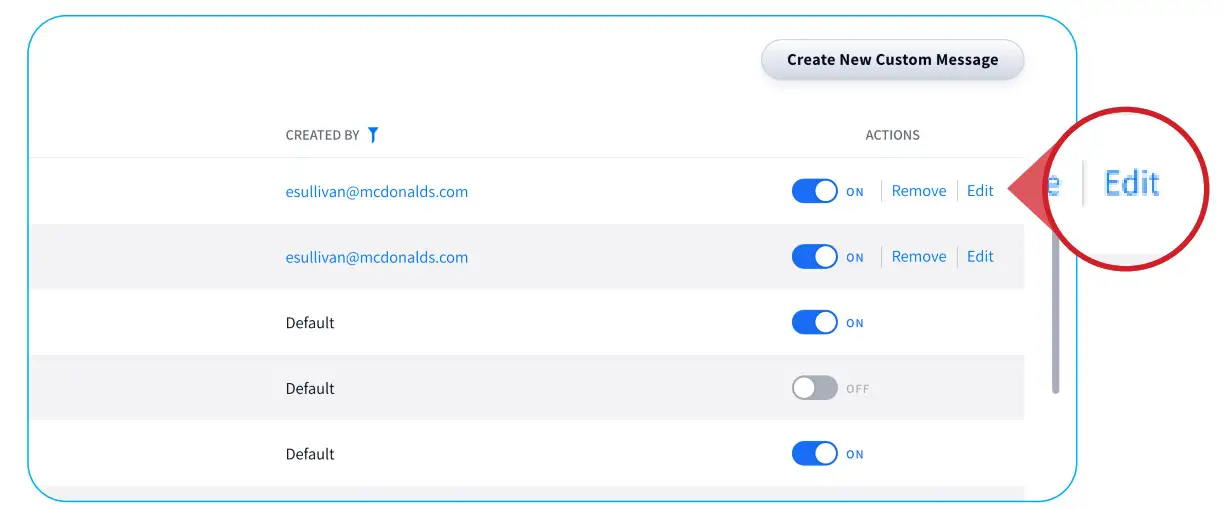
- To edit an existing custom message, click on the message and select Edit.
NOTE: Messages provided by HME cannot be edited or removed.
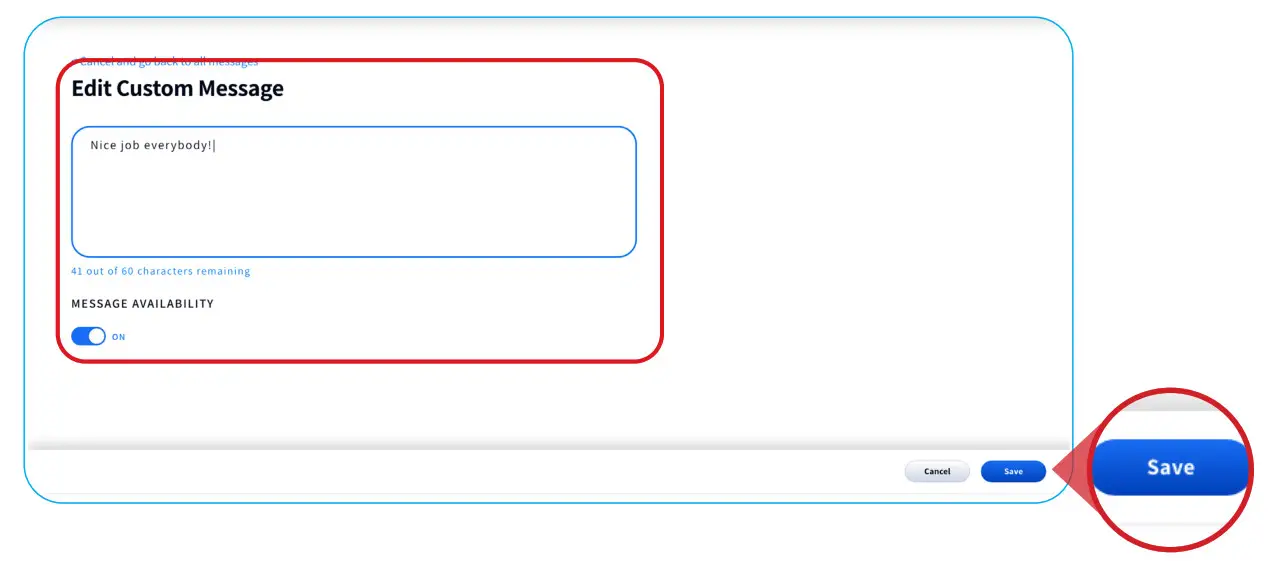
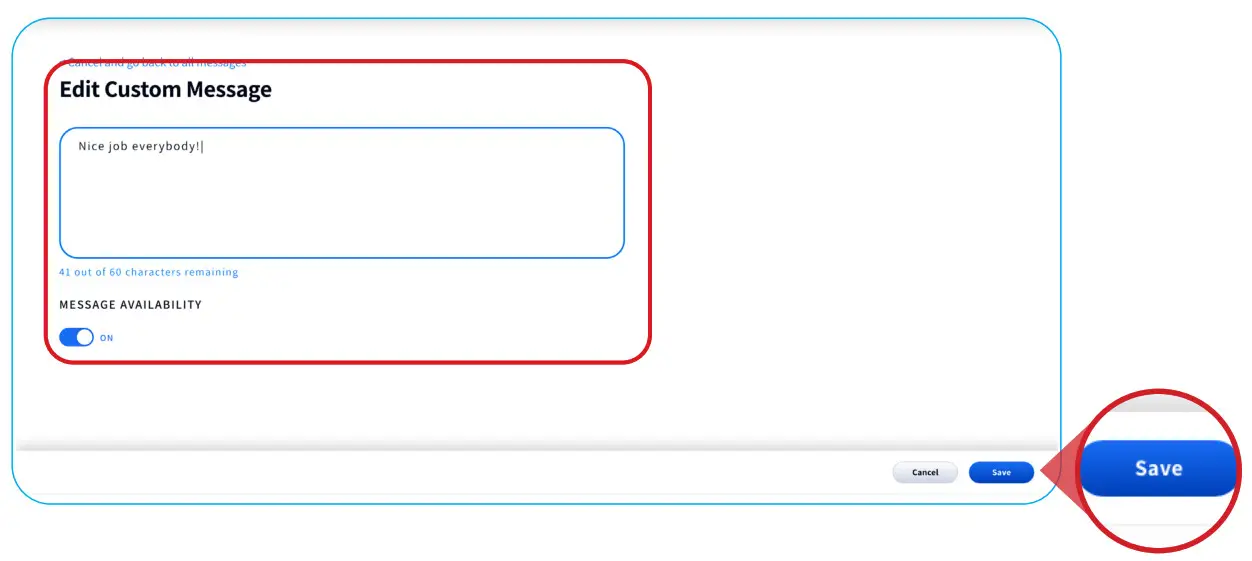
- Type new custom Smack Talk message and click Save.

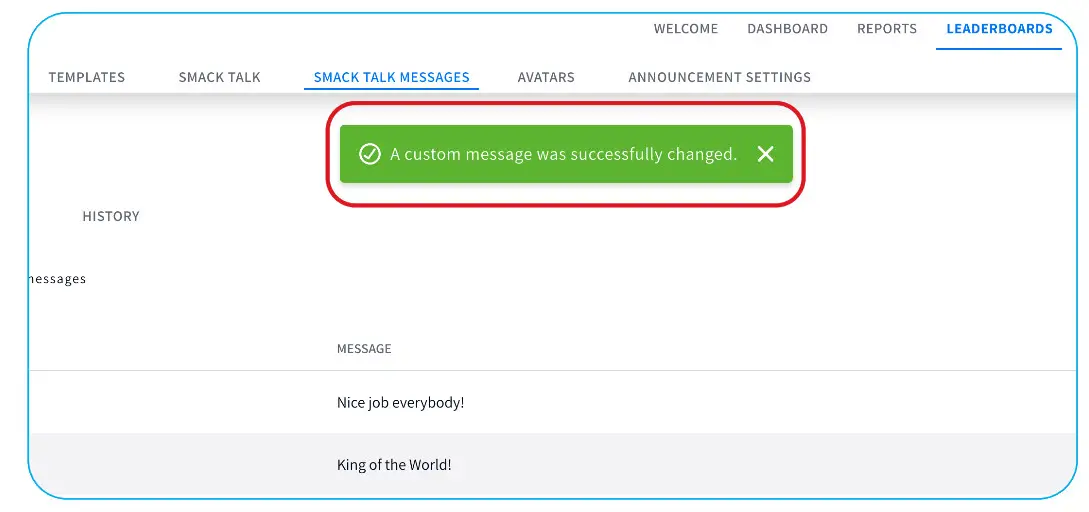
- A confirmation message will appear at the top once the message is changed.

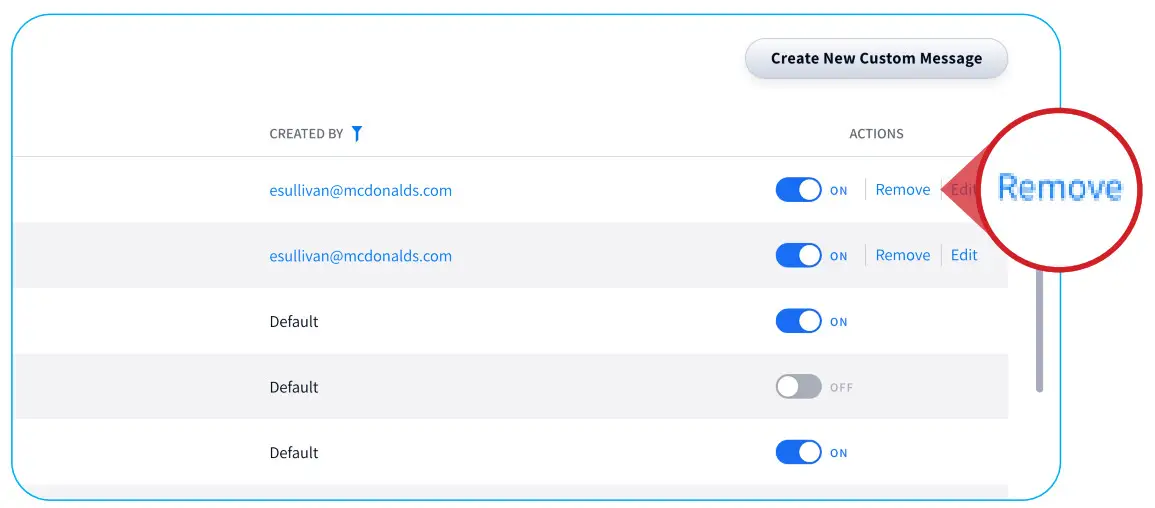
- To remove a custom message, click on a message and select Remove.

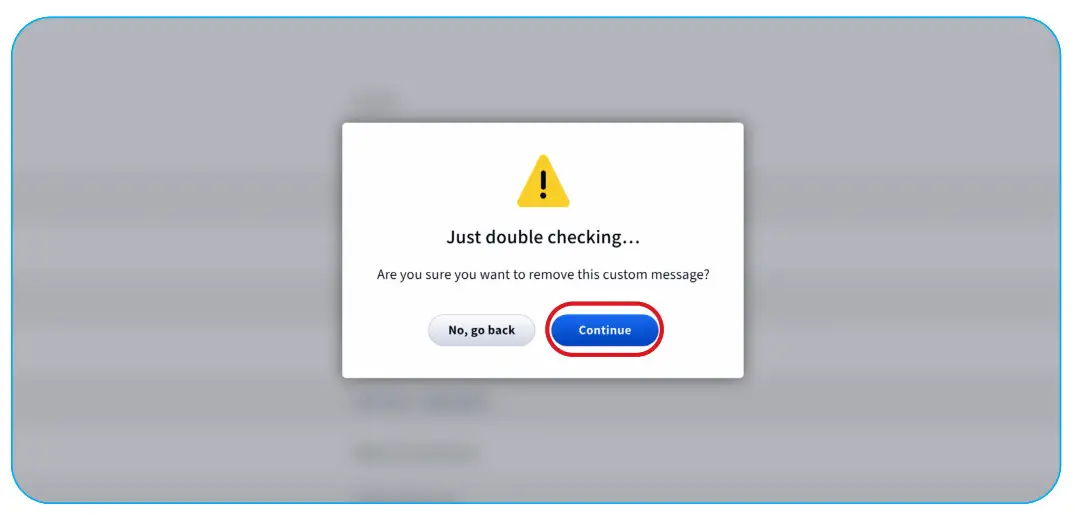
- Click Continue on the confirmation message to remove custom message.

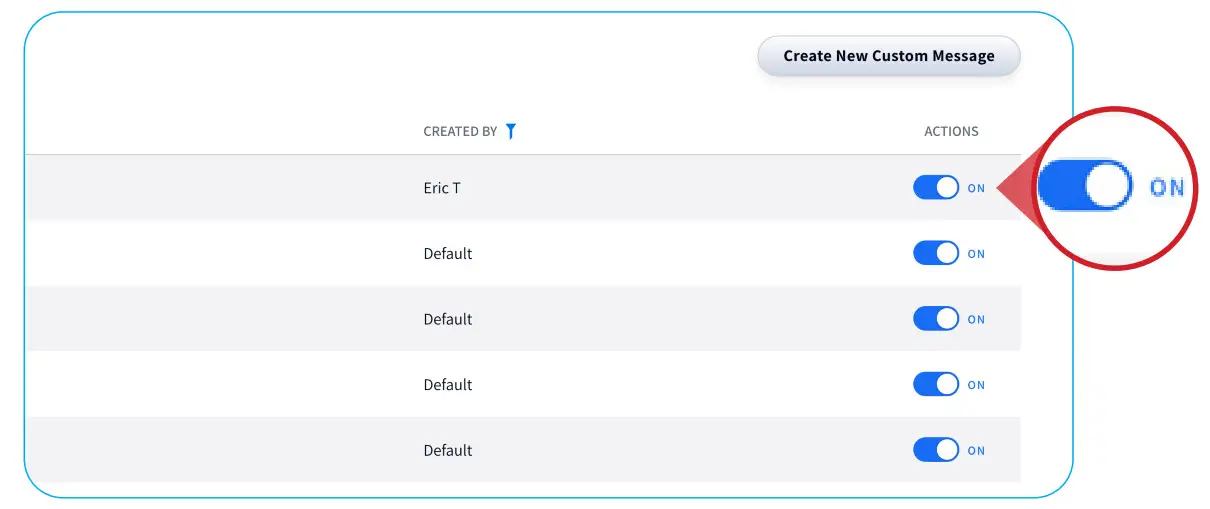
- Click on the On/Off toggle switch next to a specific SmackTalk message to add or remove from your message list when sending a Smack Talk message.

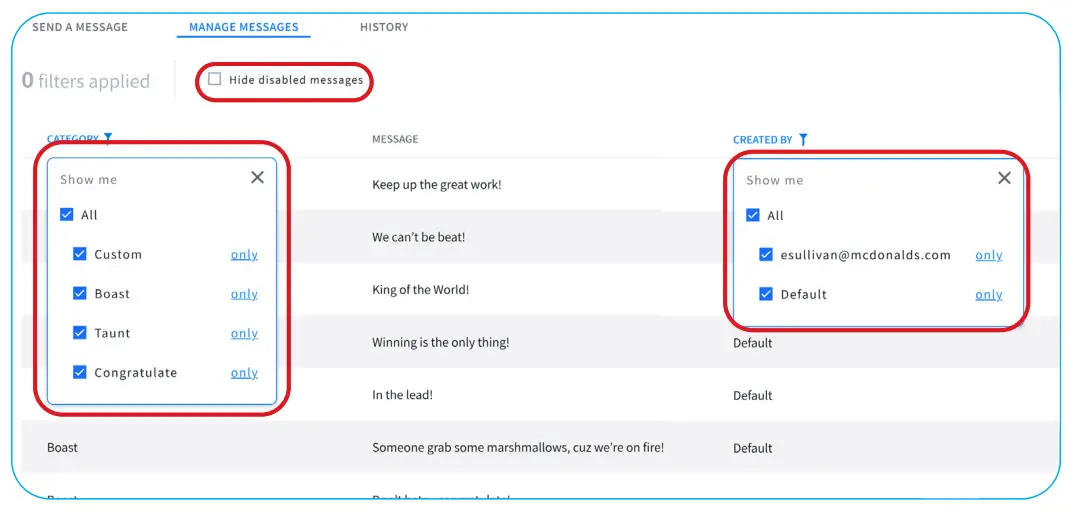
- Click CATEGORY or CREATED BY to show message filters. Select the desired filters by clicking the blue checkboxes.
NOTE: Hide disabled messages by clicking the checkbox to the left. Disabled messages will remain hidden until the box is unchecked.
How to View Smack Talk History in HME CLOUD
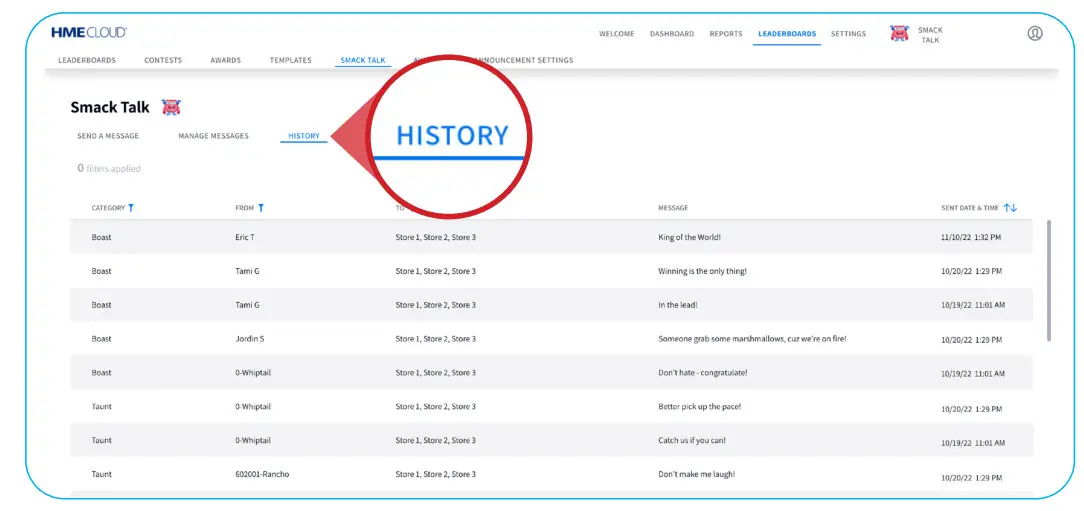
- To view Smack Talk history, click HISTORY in the navigation bar.

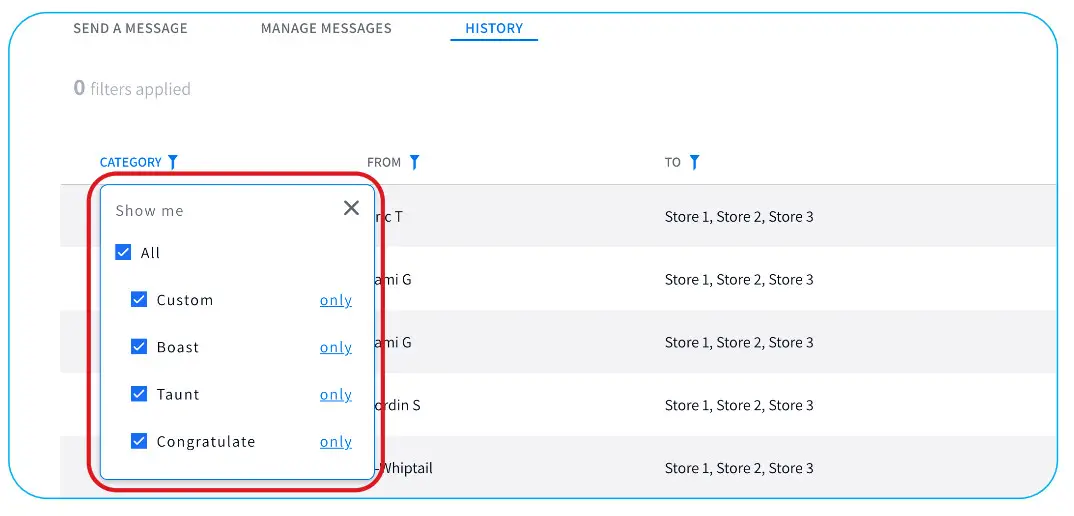
- Click CATEGORY to show history filters. Select the desired filters by clicking the blue checkboxes.

Appendix: Enabling the Custom Smack Talk Permission
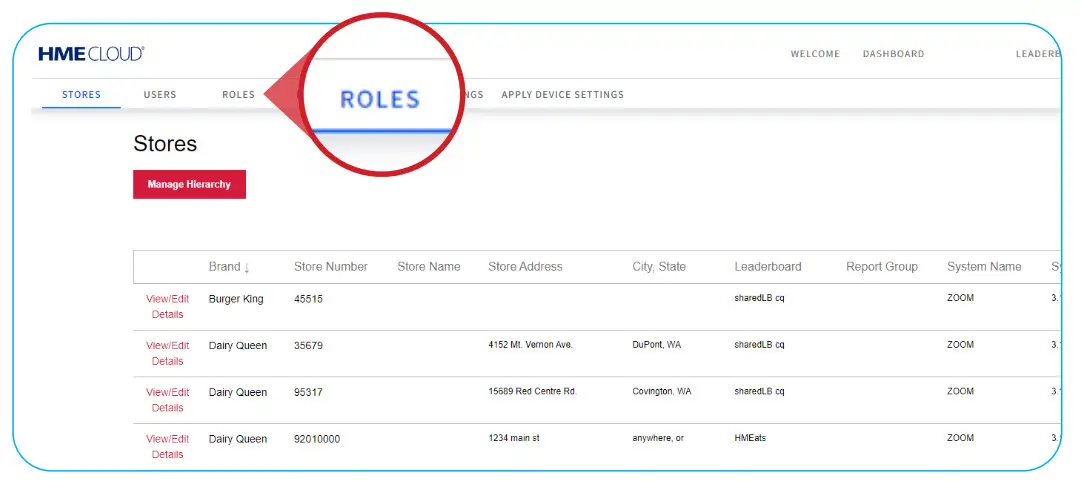
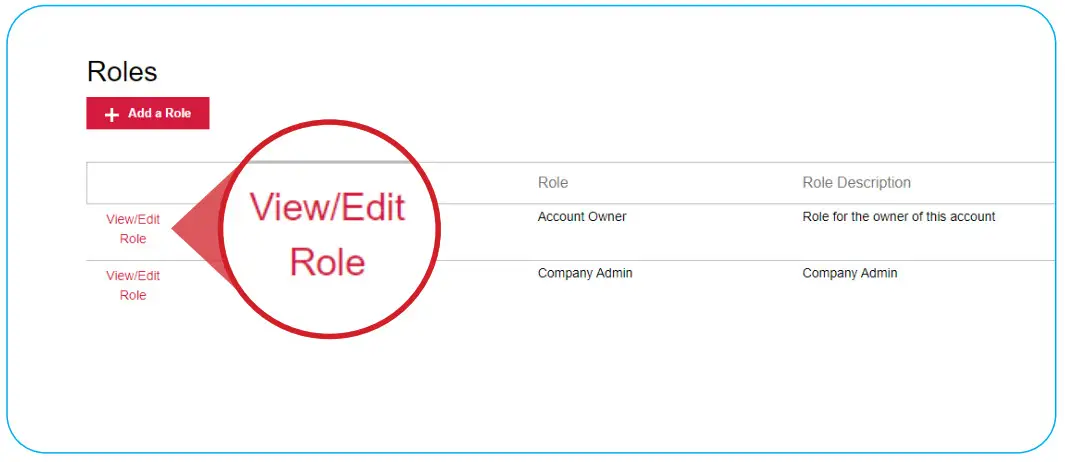
- Under the SETTINGS tab, click ROLES in the left navigation bar.

- Select View/Edit Role next to the user you would like to enable permissions for.

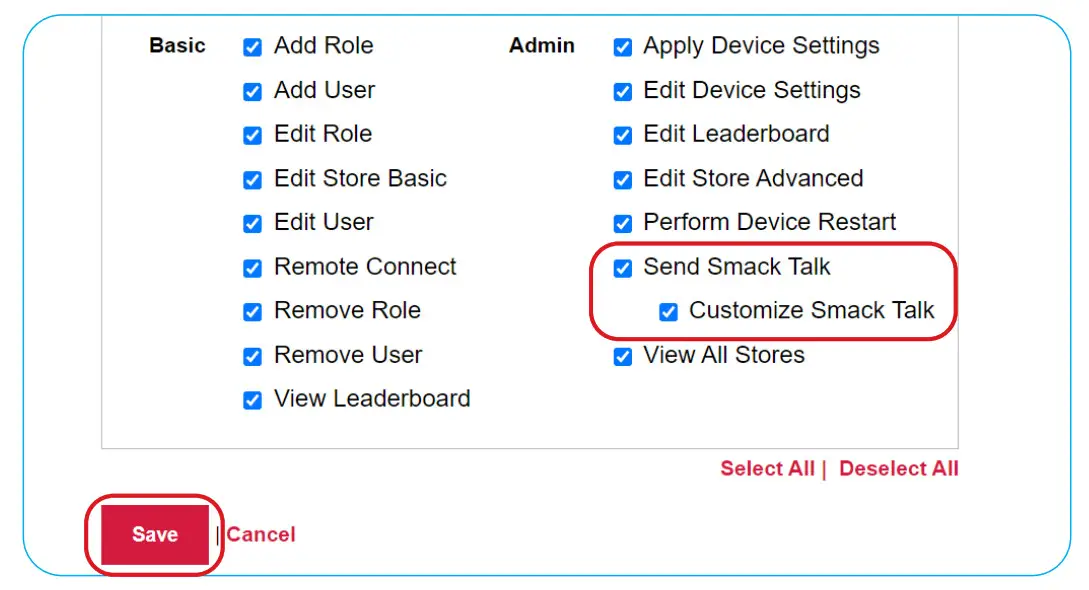
- Check the blue box next to Send Smack Talk and Customize Smack Talk. Then, click Save.
NOTE: You can still send a message and view history with just the Send Smack Talk permission enabled.
For help, call 800.848.4468 (options 1,2, and 3) or email: [email protected]
HME Training Portal
www.hme.com/training
Find instructional videos, supporting documents, and other guides.
Scan to Visit © 2022 HM Electronics, Inc.
The HME logo and product names are trademarks or registered trademarks of HM Electronics, Inc.
All rights reserved. 1.31.22
 - HME Training Portal