Setting Up Push-to-talk

Setting Up Push-to-talk

Allow users to call specific users and have the phone automatically answer, similar to an intercom. Users with push-to-talk enabled can call and immediately speak to other users who also have it enabled.   

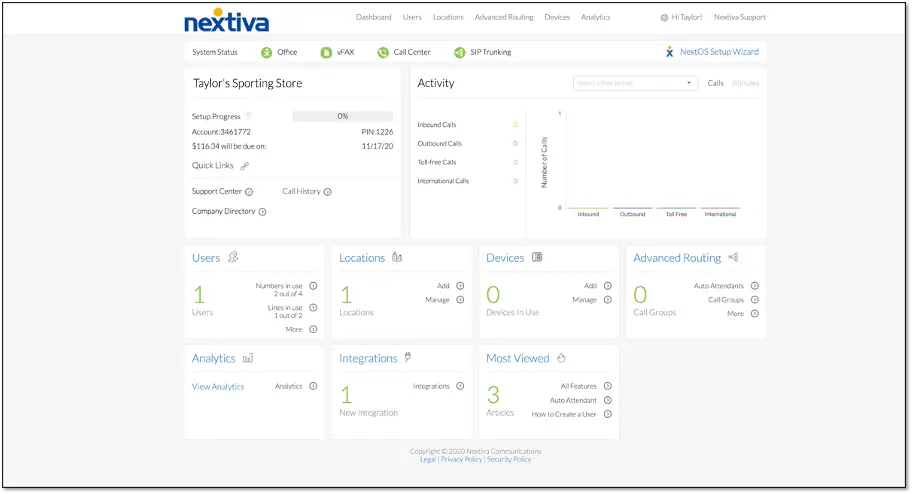
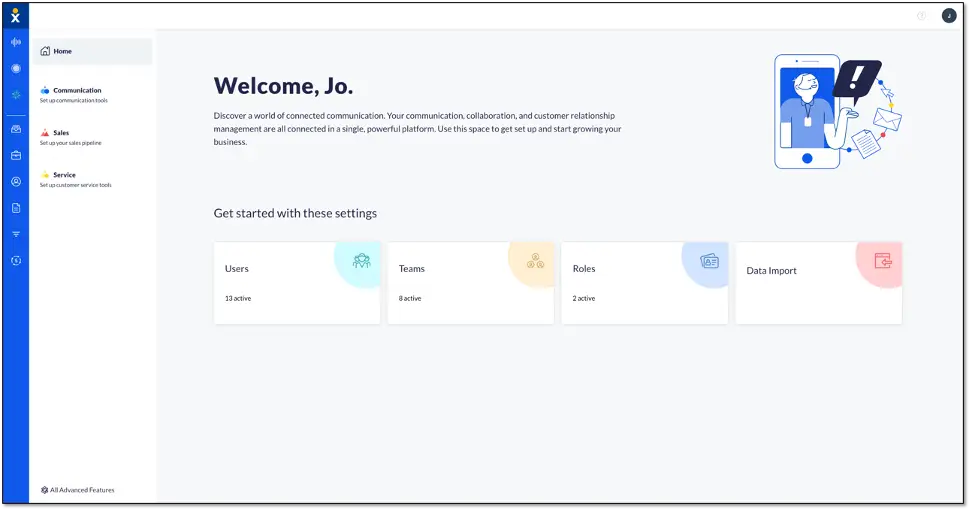
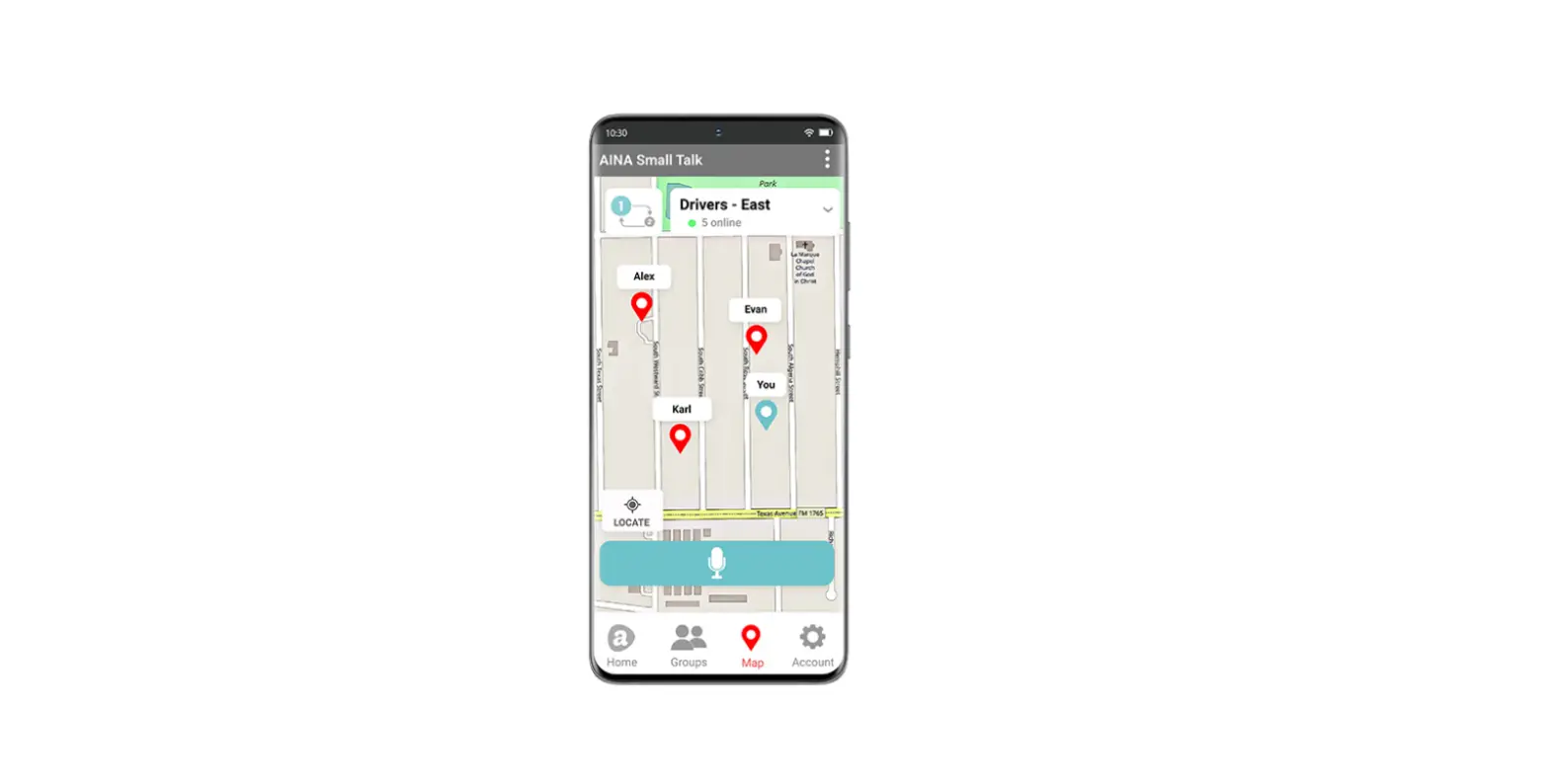
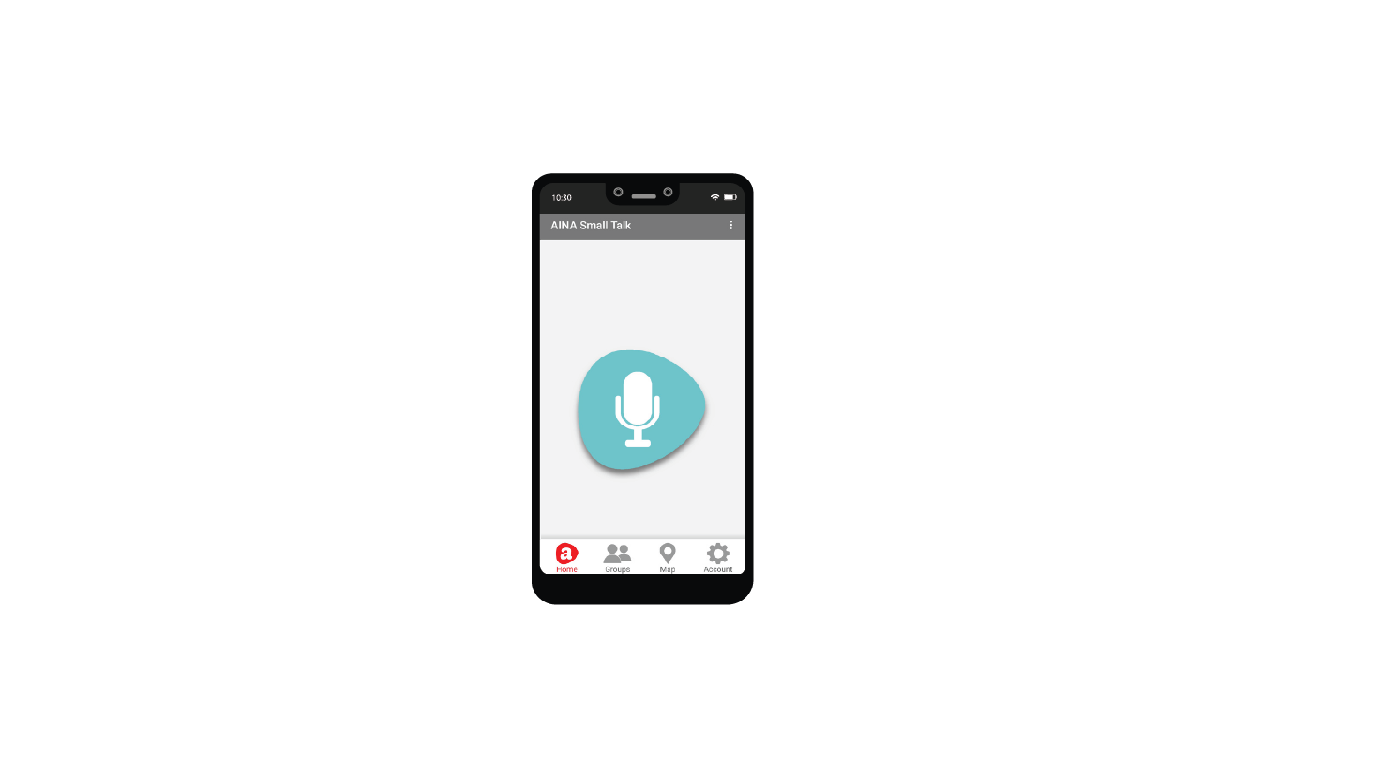
Choose the image that looks most like your screen once logged in.

Setting up push-to-talk

From the NextOS admin home page, select Users > Actions > Voice Settings Call Routing > Push-to-talk.

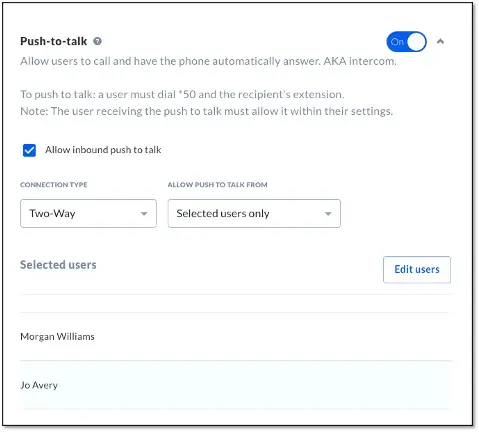
Click the Allow inbound push-to-talk checkbox to allow the user to receive push-to-talk messages.

Choose the connection type, and the users to allow push-to-talk from by clicking Edit users.

Using push-to-talk

Dial *50 from a Nextiva phone and enter the extension of the call recipient followed by the # key.
Setting up push-to-talk

From the Nextiva voice admin dashboard, hover over Users > Manage Users > select the user > Routing > Do Not Disturb Push to Talk.

Click the Allow inbound push to talk checkbox to allow the user to receive push-to-talk messages.

Choose the connection type, and the users to allow push-to-talk from by clicking the Plus (+) icon corresponding to the desired user(s) in the Available Users. Click Save.

Using push-to-talk

Dial *50 from a Nextiva phone and enter the extension of the call recipient followed by the # key.
Documents / Resouces

Download manual
Here you can download full pdf version of manual, it may contain additional safety instructions, warranty information, FCC rules, etc.


Related Manuals