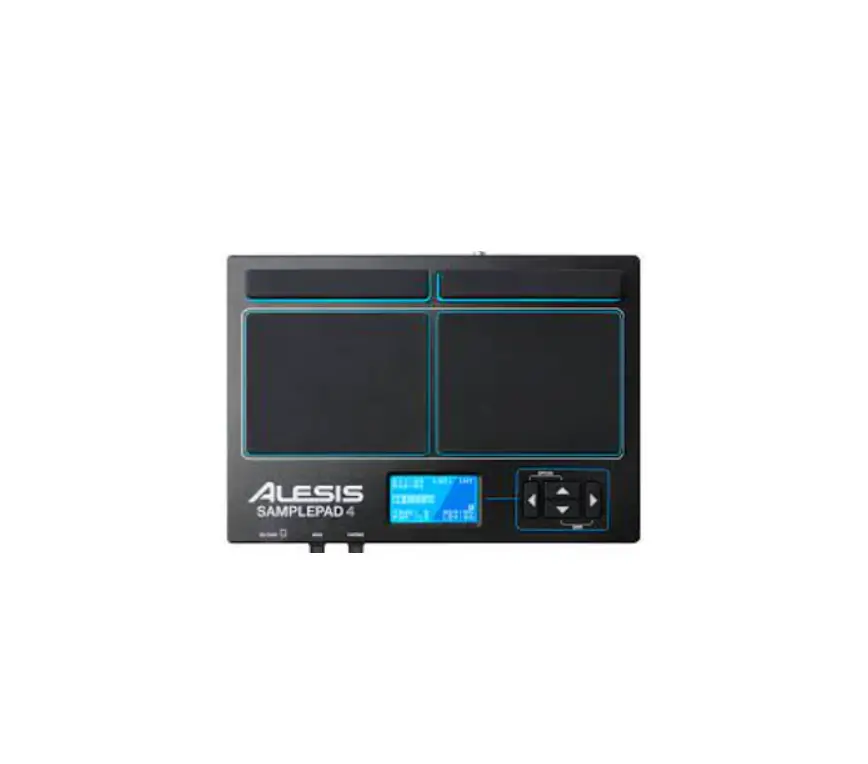
SPD-SX-PRO Digital Percussion Sampling Pad
Product Information:
The product is a unit that is used for sound production. It has
various controllers and jacks that allow users to adjust volume,
tempo, and effects. The unit also has pads that can be edited to
modify parameters. The top panel of the unit displays various
settings, such as master effect, click settings, and volume levels.
The rear panel of the unit has MIDI connectors, footswitch jack,
hi-hat control/expression jack, and trigger in jacks for connecting
external devices.
Product Usage Instructions:
- Before using the unit, read the “USING THE UNIT SAFELY” and
“IMPORTANT NOTES” leaflets. - Keep the user manual and leaflets for immediate reference.
- To understand the functions of each controller and jack, refer
to the Reference Manual available on our website. - The top panel of the unit consists of various controllers and
indicators:
- [MASTER] knob: Adjusts the volume of signal from the MASTER OUT
jacks. - [PHONES] knob: Adjusts the volume of signal from the PHONES
jack. - [CLICK] knob: Adjusts the volume of the click sound.
- TEMPO indicator: Lights up in time with the set tempo.
- [START/STOP] button: Starts or stops the click sound.
- [MASTER EFFECT] knob: Changes the master effect.
- MASTER EFFECT [ON/OFF] button: Turns the master effect on or
off. - PAD EDIT [1] [2] knobs: Edits various parameters.
- [SELECT] button: Selects the target operations for the PAD EDIT
[1] [2] knobs. - Display: Shows kit name, wave name, settings, and other
information. - [KIT] button: Executes functions shown in the display and shows
the top screen (kit screen). - [VALUE] knob: Switches between kits and changes values.
- [ALL SOUND OFF] button: Stops all playing sounds.
- [PAD CHECK] button: Allows you to hear the sound of struck pads
in headphones. - [EXIT] button: Returns to the previous screen and undoes an
operation. - [SHIFT] button: By holding it down and pressing another button,
the function of that button changes. - [MENU] button: Recalls various functions and settings.
- [-] [+] buttons: Used to switch between kits and change
values.
external devices:
- MIDI connectors: Connect devices with MIDI input/output for
message exchange or tempo synchronization. - FOOT SW jack: Connect a footswitch to trigger sounds and
control parameters. - HH CTRL/EXPRESSION jack: Connect a hi-hat pedal to control the
hi-hat or an expression pedal to control effect intensity. - TRIGGER IN jacks: Connect external pads or a kick trigger pedal
to trigger sounds.
user manual and Reference Manual available on our website.
Quick Start
Before using this unit, carefully read “USING THE UNIT SAFELY” and “IMPORTANT NOTES” (the leaflet “USING THE UNIT SAFELY” and the Quick Start). After reading, keep the document(s) where it will be available for immediate reference.
© 2022 Roland Corporation
Panel Descriptions
* For details on each controller and jack, refer to the “Reference Manual” (on our website).
Top Panel
Top Screen (Kit Screen)
2 3 4 5
11
18
1
13
6
14
20
21
7
9
10
8
15
19
16
12
17
22
Various settings are shown at the top of the screen.
Shown from left to right: MASTER EFFECT, click settings, MASTER OUT volume; pads being edited, TRIGGER IN jack and FOOT SW jack are indicated in blue.
1 Pads [1][9] Play the pads by striking them with your sticks. The indicators (PAD LED) below each pad react when each pad is struck.
2 [MASTER] knob Adjusts the volume of signal from the MASTER OUT jacks.
3 [PHONES] knob Adjusts the volume of signal from the PHONES jack.
4 [CLICK] knob Adjusts the volume of the click sound.
5 TEMPO indicator Lights up in time with the tempo that’s set.
6 [START/STOP] button Starts/stops the click sound.
7 [MASTER EFFECT] knob Changes the master effect.
8 MASTER EFFECT [ON/OFF] button Turns the master effect on/off.
9 PAD EDIT [1] [2] knobs Edits various parameters.
10 [SELECT] button
Selects the target operations (the parameters to edit) for the PAD EDIT [1] [2] knobs.
Unlit Top row lights Bottom row lights Both rows light
[1] knobOff Layer Volume Transient Attack Assign [2] knob
Off Coarse Tune Transient Release Assign
11 Display
Shows the kit name, wave name, contents of the settings and other information.
12 FUNCTION buttons 16
17 [KIT] button
These buttons execute the functions shown in
Shows the top screen (kit screen).
the display.
This guide refers to the buttons as the [F1][F6] buttons, in order from left to right.
18 [VALUE] knob
Use this to switch between kits and change values.
13 [ALL SOUND OFF] button Stops all sounds that are playing.
19 Cursor [Í] [Ë] [Ç] [É] buttons Moves the cursor.
14 [PAD CHECK] button
While this button is pressed, you can hear the sound of the pads you strike in headphones.
20 [EXIT] button Returns to the previous screen.
Hold down the [SHIFT] button and press the [PAD This also undoes an operation.
CHECK] button to call up the PREVIEW function. 21 [ENTER] button
15 [MENU] button
Used for confirming a value or executing an
Recalls various functions like the settings for each operation.
kit, the overall settings for the unit and so on.
22 [-] [+] buttons
16 [SHIFT] button
Use these to switch between kits and change
By holding down this button and then pressing
values.
another button, the function of that button changes.
* You can use this instead of the [VALUE] knob.
Rear Panel (Connection Example)
MIDI connectors
Connect devices that support MIDI input/output to exchange MIDI messages or synchronize the tempo.
FOOT SW jack
Connect a footswitch (FS-5U, FS-6 or FS-7; sold separately) to trigger the sounds and
control other parameters.
HH CTRL/EXPRESSION jack
Connect this to a hi-hat pedal (FD-8, FD-9, VH-10 or VH-11; sold separately) to control the hi-hat, or connect an expression pedal
(EV-30, sold separately) to control the effect intensity and so on. (*1, 2)
TRIGGER IN jacks
Connect devices such as external pads (PD series, sold separately) or a kick trigger pedal (KT-10, sold separately) to trigger the sounds.
*Use the cables included with the devices to connect.
Menu Screen
DC IN jack
Connect the included adaptor to this jack.
*Use the cord hook to secure the cord of the AC adaptor as shown in the illustration.
[POWER] switch
This turns the power on/off.
USB MEMORY port
Connect a USB flash drive (commercially available) to load audio data or save the settings. (*3)
COMPUTER port
Connect this to your computer with a USB cable.
AUDIO IN jack
Connect your audio equipment here to sample the input audio or mix the sound with the audio from this unit.
Adjust the volume with the [VOLUME] knob.
PHONES jack
Connect your headphones here. Use the [PHONES] knob to adjust the volume.
MASTER OUT and DIRECT OUT jack pin arrangement
MASTER OUT jacks
Connect this to your amp, speakers, recording equipment and other devices for sound output.
3 21
1: TIP: HOT 2: RING: COLD 3: SLEEVE: GND
DIRECT OUT jacks
Connect this to your mixer or other audio device. This lets you output only the sound of specified pads. (Change the “Pad” settings in [MENU] button Ó KIT EDIT1 Ó OUTPUT/EFFECTS Ó “DIRECT OUTPUT”.)
Press the [MENU] button to show the menu screen, where you can manage the various settings and data on the SPD-SX PRO.
Use the Cursor [Í] [Ë] buttons or the [VALUE] knob to switch between the tabs on the top row.
KIT EDIT1
Use this to assign imported samples to pads and to edit sounds. Youcan configure the effects for each kit, how the LEDs light up and so on.
KITEDIT2Setsthe click and MIDI settings for each kit.
WAVE
Lets you import/export WAVE files, add tags and edit the files.
SYSTEM
Configures the overall settings for the unit as well as the trigger settings.
COPY
Use this to copy/exchange data for each kit and pad.
BACKUP
Saves or loads all of this unit’s settings to/ from a USB flash drive. You can also save or load data for each kit.
*1 When you operate the expression pedal / hi-hat pedal, please be careful not to get your fingers pinched between the movable part and the unit. In places where small children are present, make sure that an adult provides supervision and guidance. *2 When connecting an external expression pedal / hi-hat pedal, use only the specified expression pedal / hi-hat pedal. Connecting expression pedals / hi-hat pedals made by third-party manufacturers may cause this unit to malfunction. *3 Use a commercially available USB flash drive. However, we cannot guarantee that all commercially available USB flash drives will work.
Basic Operations
Mounting the on the Stand
Connecting External Equipment
* To prevent malfunction and equipment failure, always turn down the volume, and turn off all the units before making any
connections.
1. Connect the included adaptor to the DC IN jack of this unit, and plug the adaptor into an
AC outlet.
2. Connect a mixer or amp to the MASTER OUT jacks.
Turning the Power On
* Before turning the unit on/off, always be sure to turn the volume down. Even with the volume turned down, you might hear
some sound when switching the unit on/off. However, this is normal and does not indicate a malfunction.
3. Turn on the [POWER] switch of this unit first, and then turn on any equipment that is
connected to this unit. Turn on your mixer and amp last.
4. Adjusts the volume of the connected instrument. 5. Adjust the volume of this unit with the [MASTER] knob.
* The power to this unit will be turned off automatically after a predetermined amount of time has passed since it was last used
for playing music, or its buttons or controls were operated (Auto Off function). If you do not want the power to be turned off automatically, disengage the Auto Off function (“Reference Manual” (Web)). ¹ Any parameters you edit are stored in internal memory once you turn off the power. ¹ To restore power, turn the SPD-SX PRO on again.
Use an all-purpose clamp (APC-33, sold separately) or a pad stand (PDS-20 or PDS-10; sold separately) when mounting the SPD-SX PRO onto a stand.
NOTE ¹ Be sure to use the screw found on the bottom of the SPD-SX PRO. If you use a different screw, the unit
may malfunction. ¹ Before turning the unit over, lay out several pieces of newspaper, magazines at the four corners and on
both sides of this unit to protect the buttons, knobs and other controls from damage. When doing so, make sure to place the unit so that the buttons, knobs and other controls do not get damaged. ¹ When turning the unit over, handle it carefully so as not to drop or overturn it. ¹ Do not store this unit upside down. The floor or other surface may press against the pads, squashing the pads and causing them to malfunction.
Reference Manual (Web)
Refer to the website listed below for a detailed operating manual for this product, and to learn about the functions in the latest version.
https://roland.cm/spd-sx_pro_om
SPD-SX PRO App
You can use the “SPD-SX PRO App” software on your computer to manage the audio data directly, without using a USB flash drive.
For details, refer to the “SPD-SX PRO App User’s Guide.”