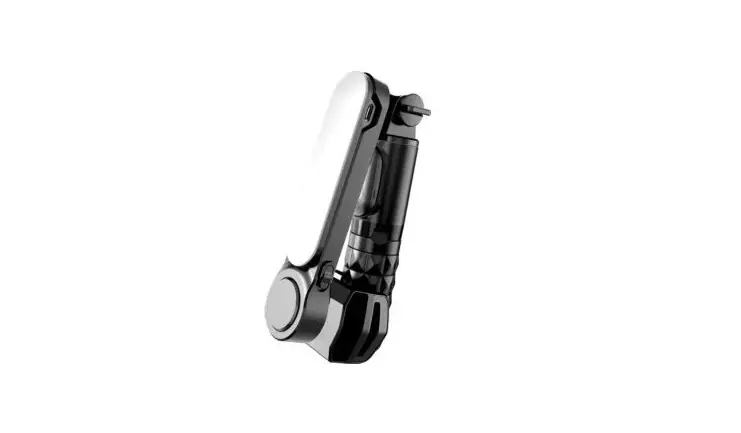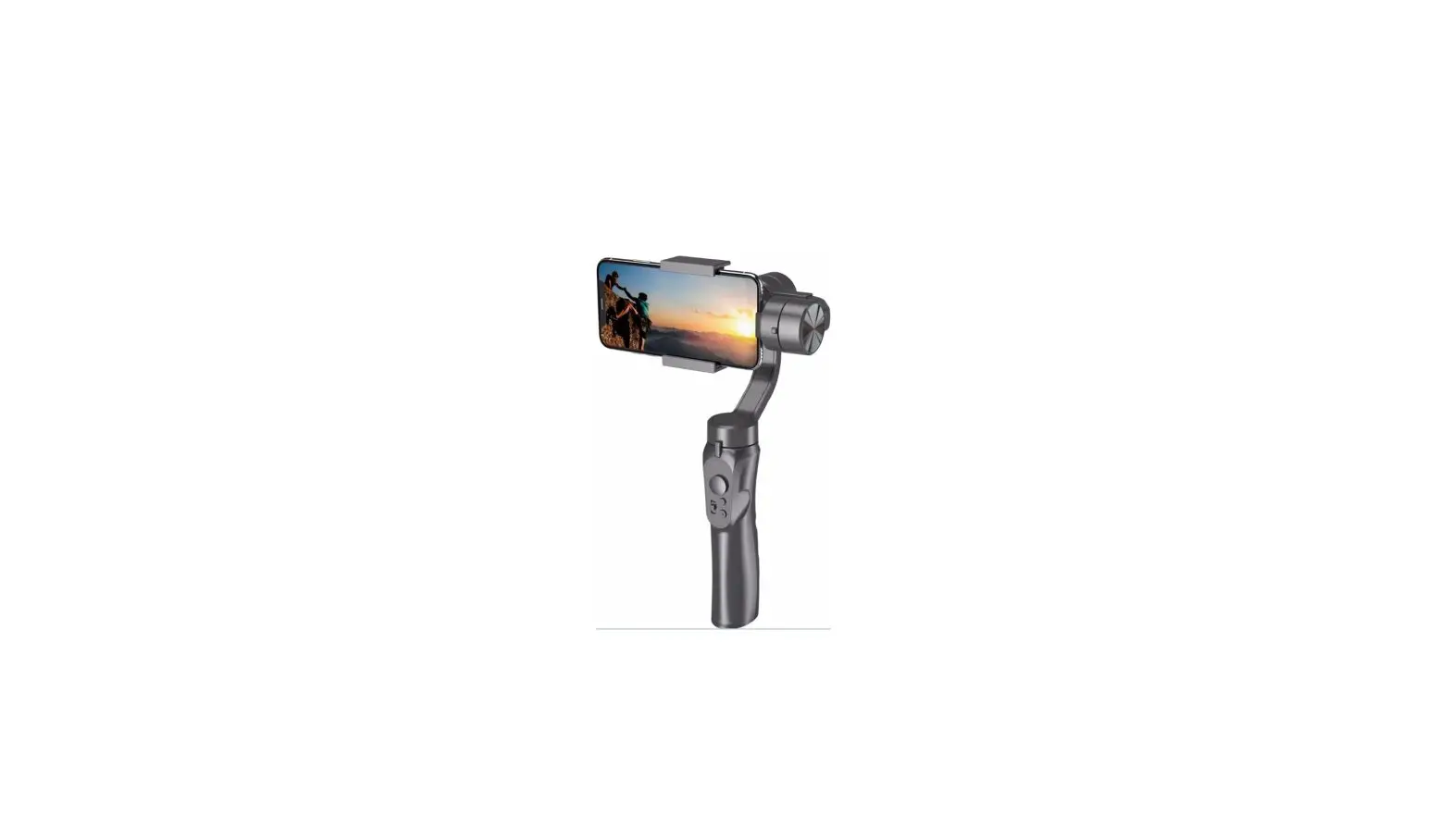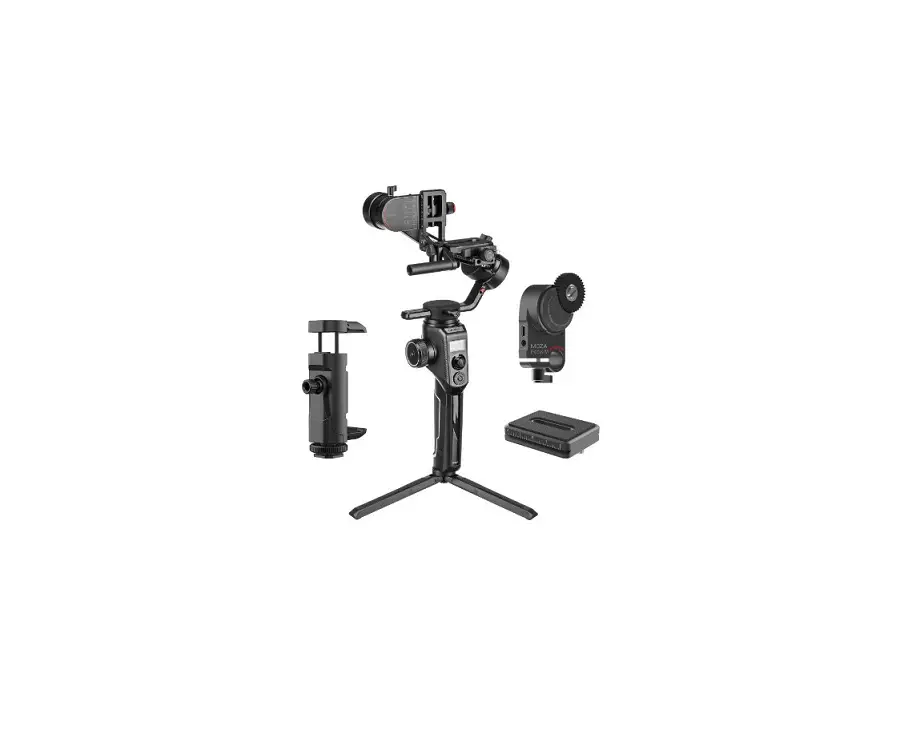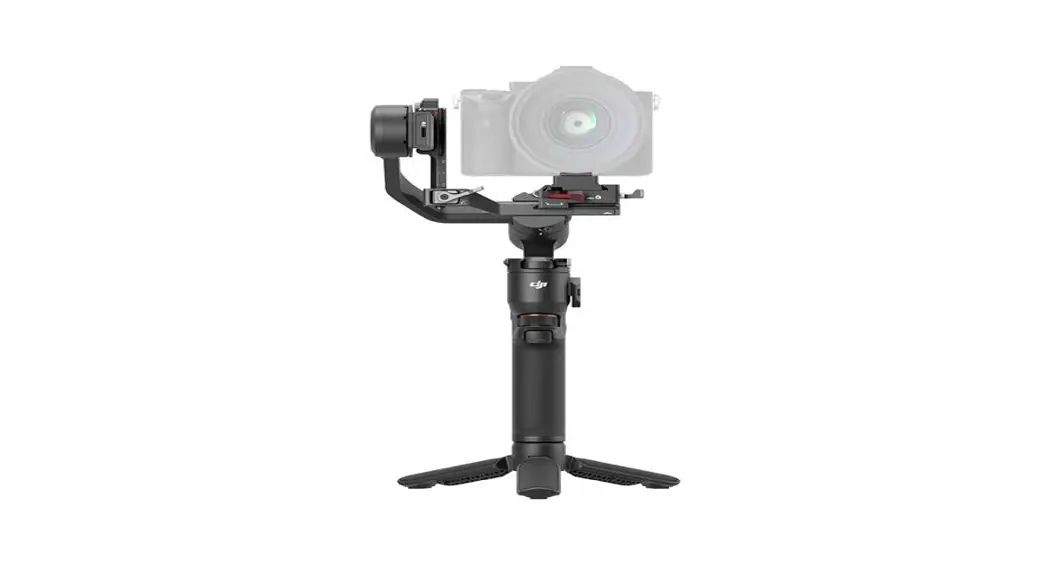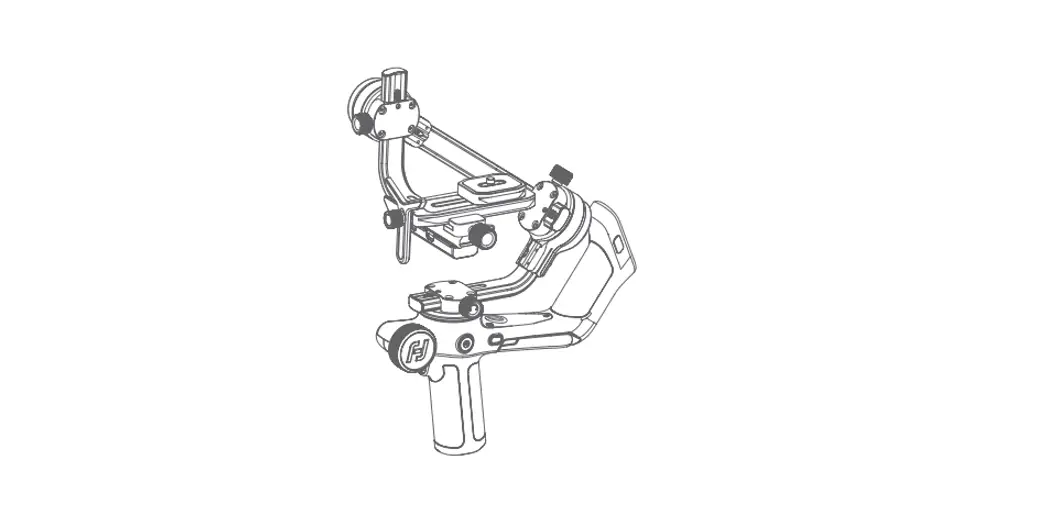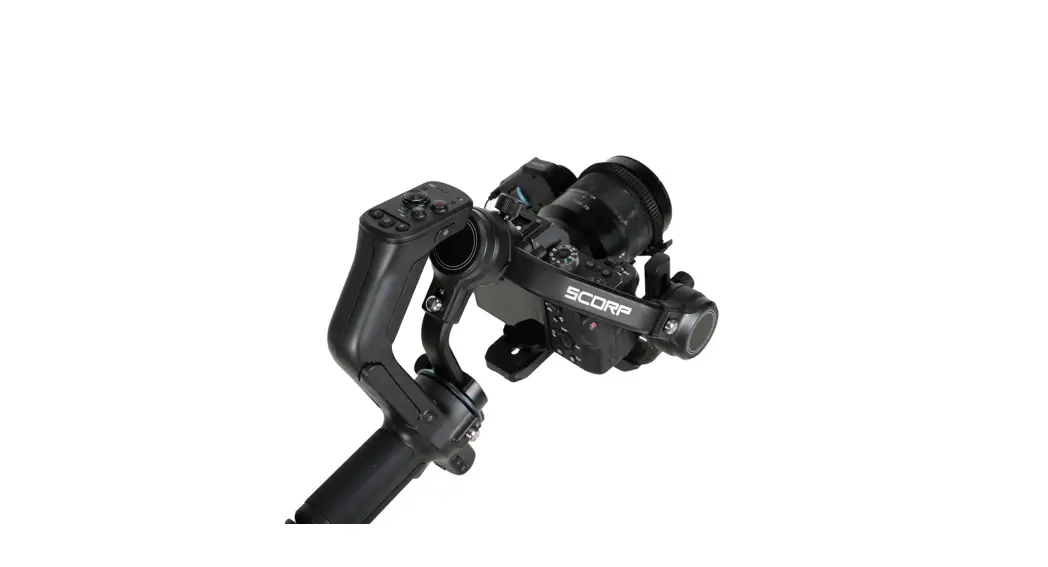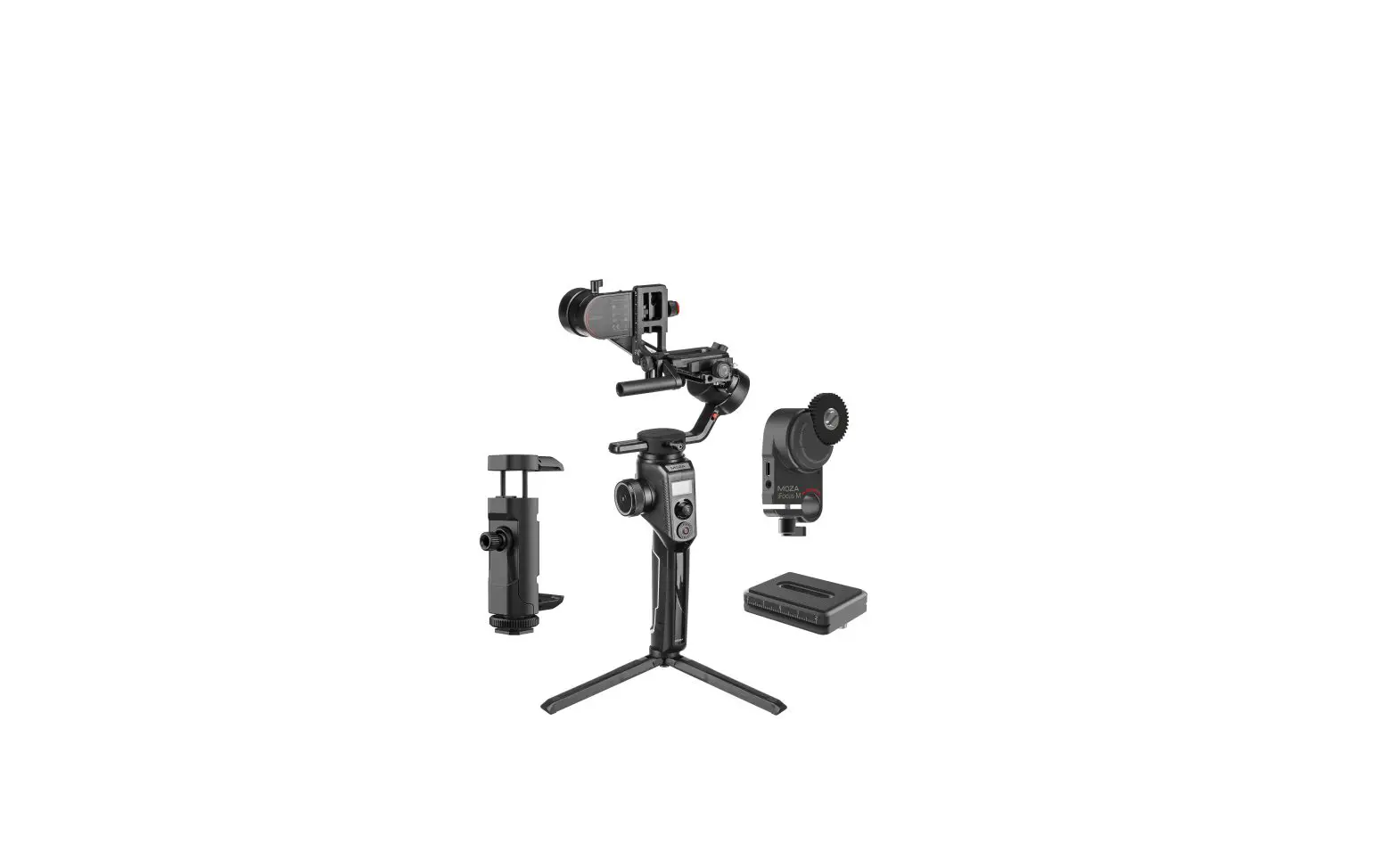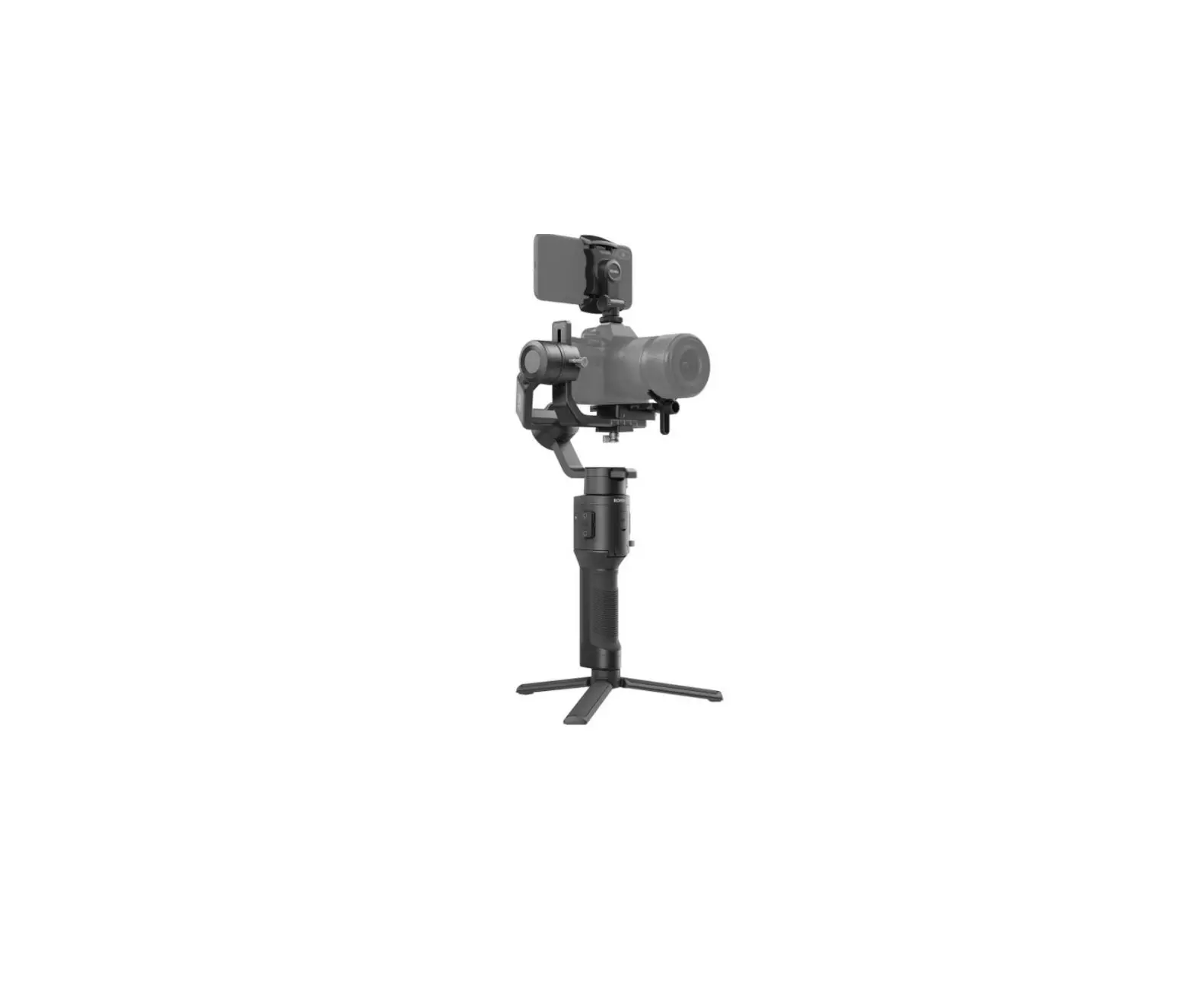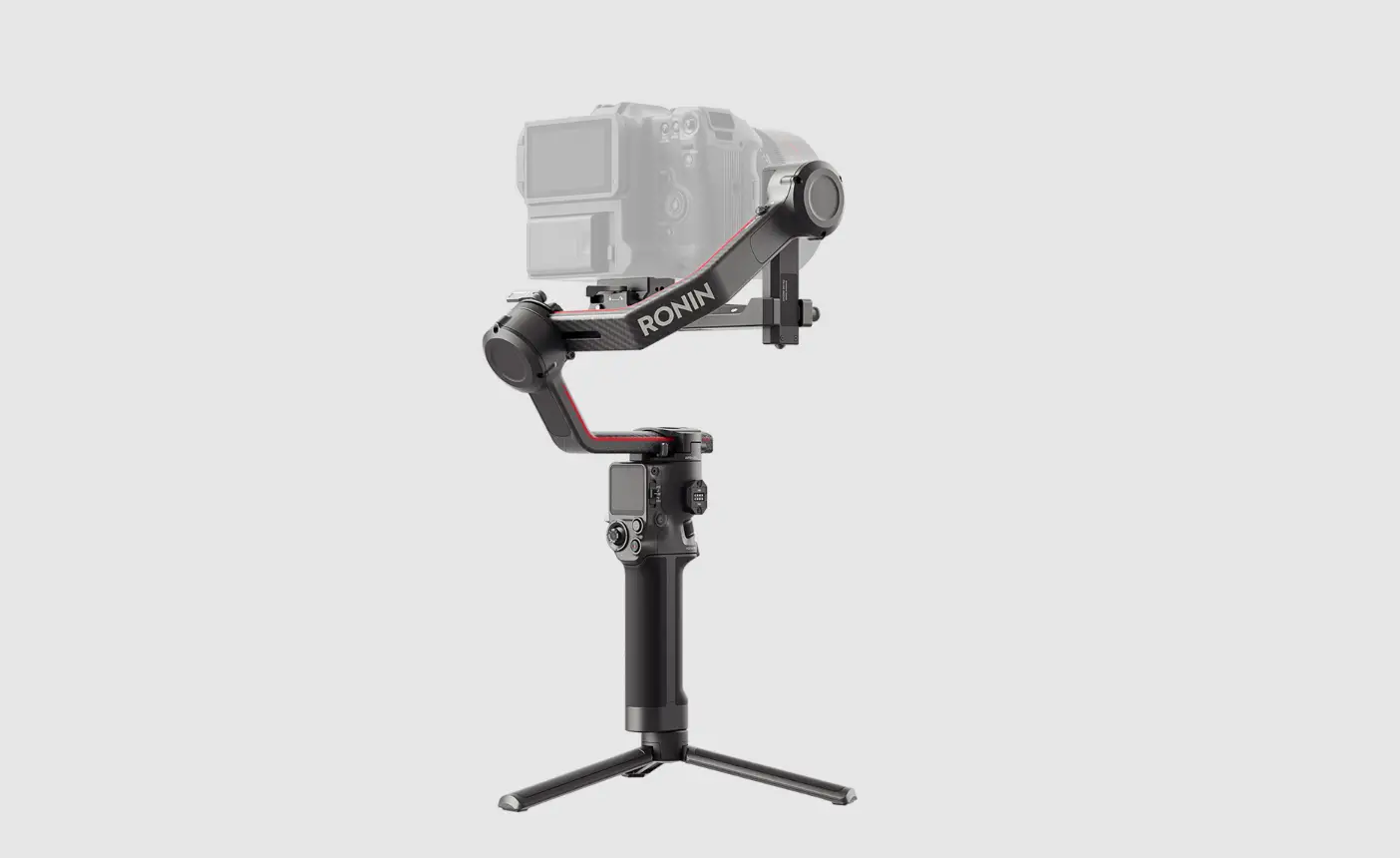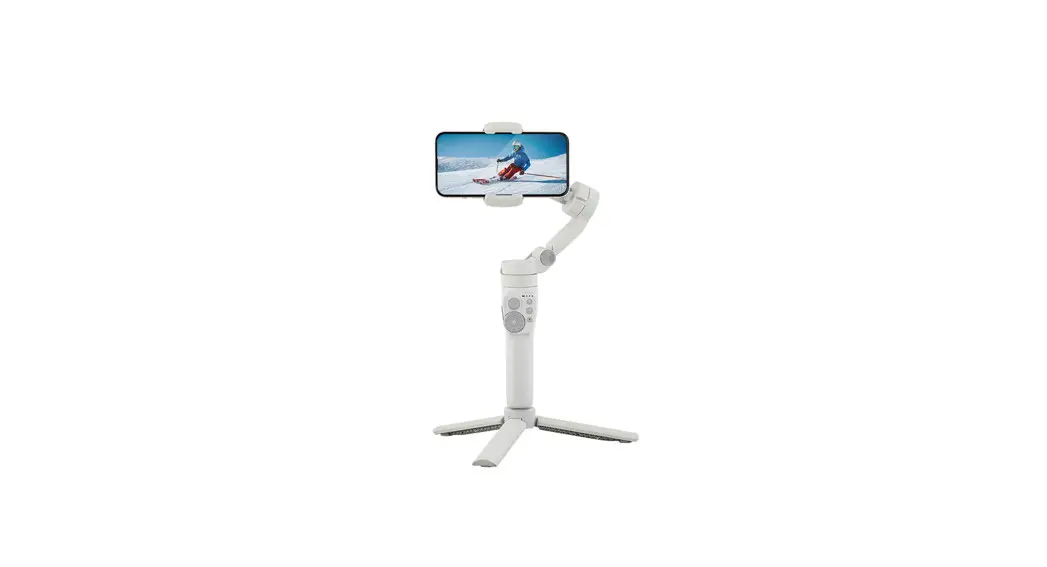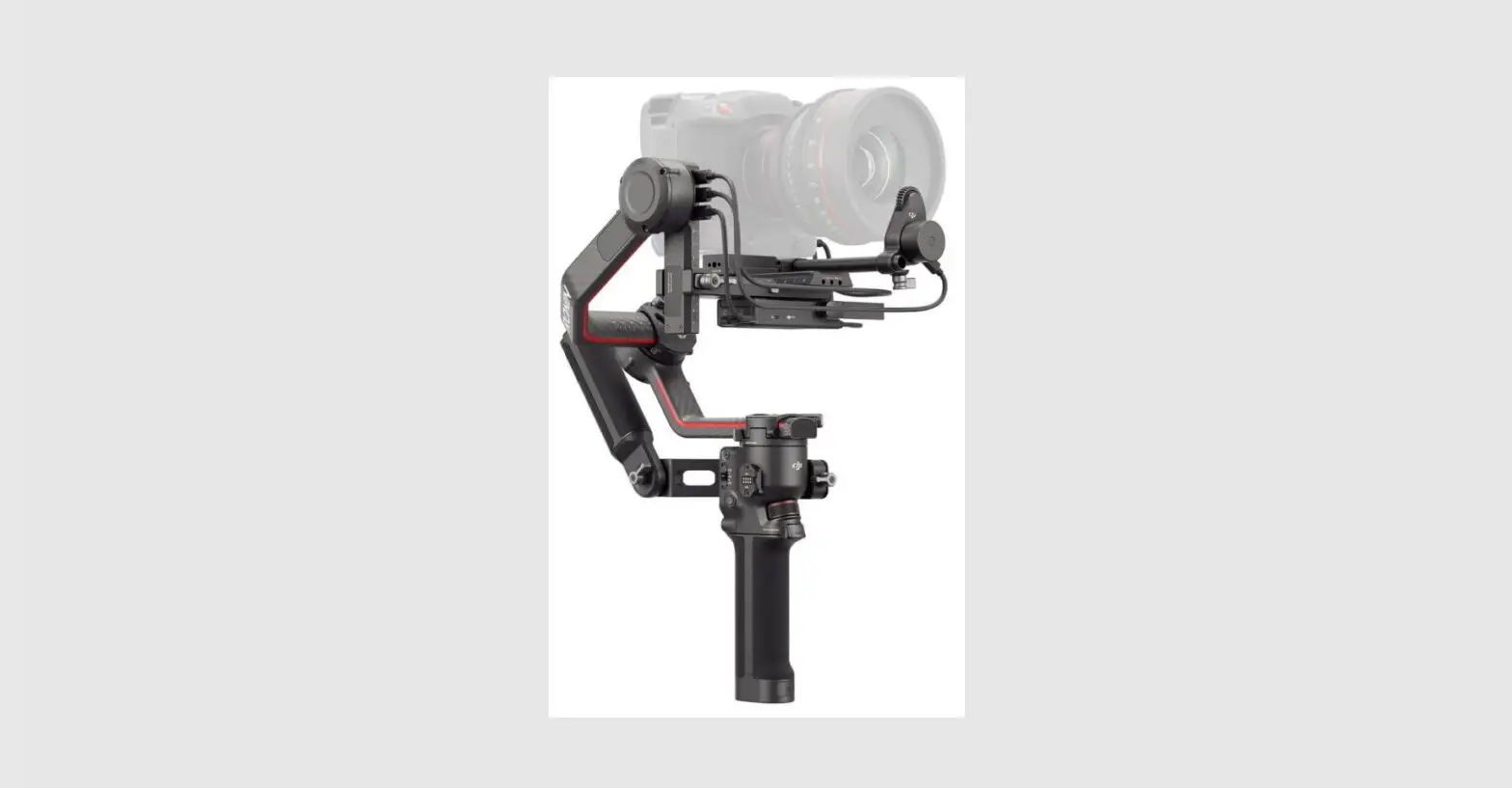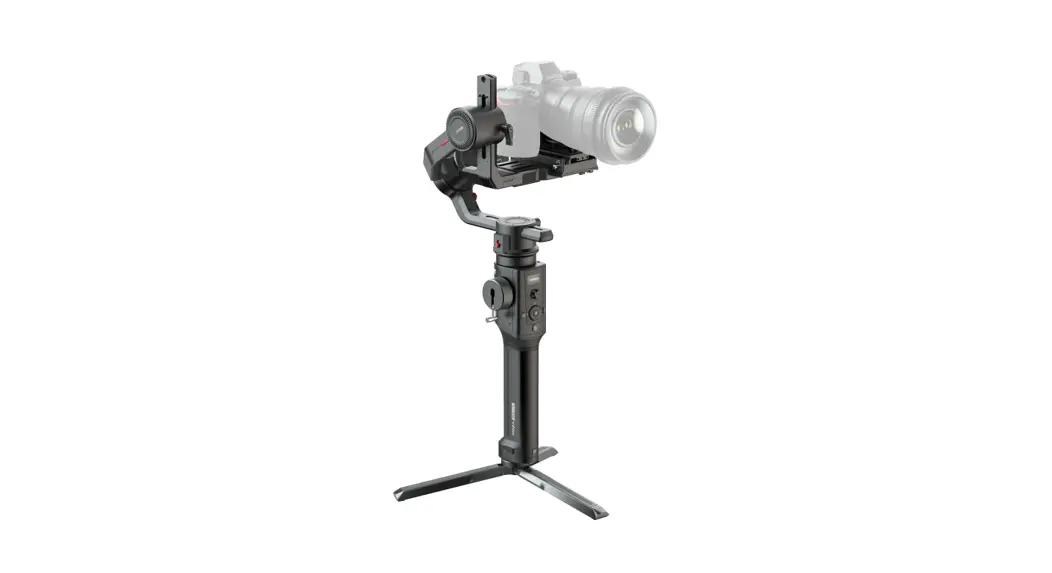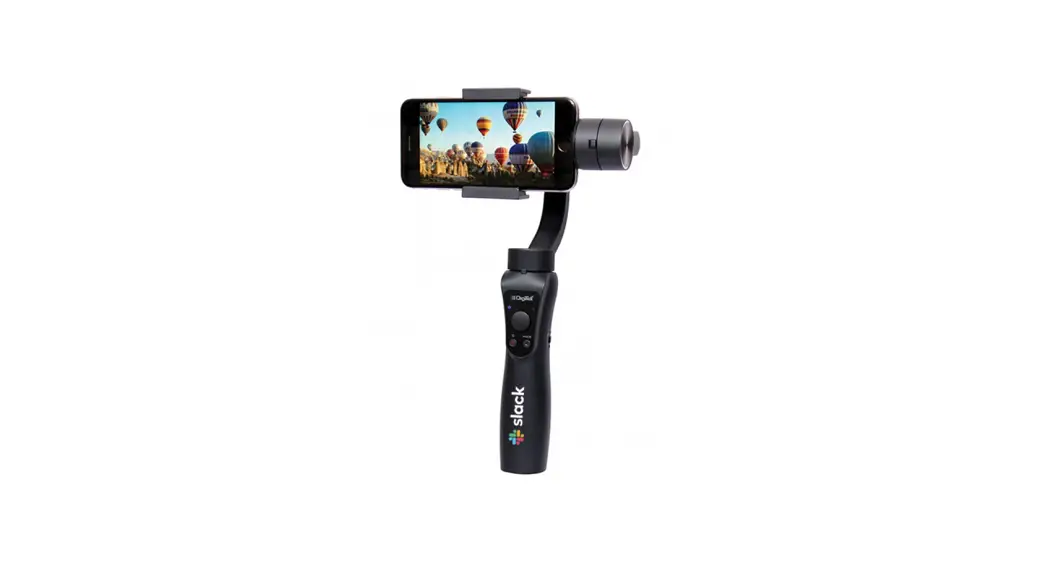
 DSG-005 3-Axis Gimbal Stabilizer
User Manual
Quick start, install the Smartphone and adjust the balance (Don’t Power ON)
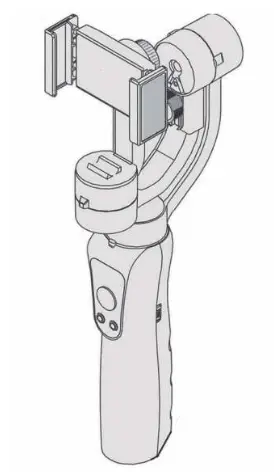
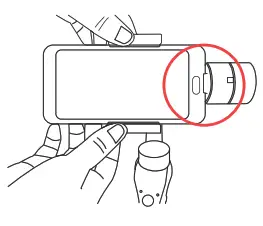
- Remove the smartphone case before installing, put the smartphone on the phone holder and make the smartphone at the middle of the holder.
- Please put the smartphone in the phone holder, and keep the phone resists the motor as the below picture shows, to avoid vibration while using.

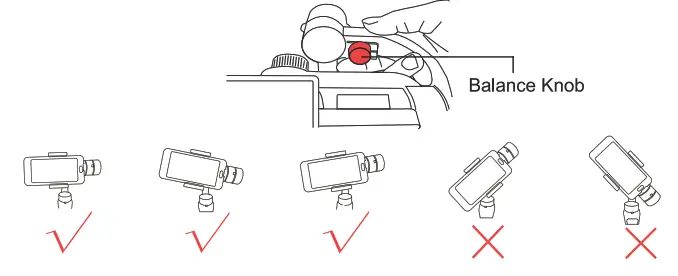
- Loosen the Balance Knob, and adjust the balance arm until the Smartphone in nearly balance condition.

Power ON/OFF
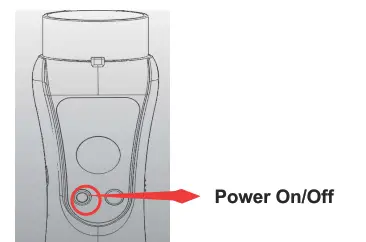
Power ON
Press the Power Button until the Indicator Lights are ON
Power OFF
Press the Power Button until the Indicator Lights are OFF
Connect to the Bluetooth by Native Camera
Power ON the Gimbal, open the Bluetooth on the phone, go into the Smartphone Bluetooth setting page, and choose the Device Name “GP5XXX” to connect.
Instruction for four Modes
All Follow(AF): The Roll axis is locked, and the Pan Axis (Left/Right) and Tilt Axis(Up/Down) will follow the movement of the handle.
Default mode upon powering on
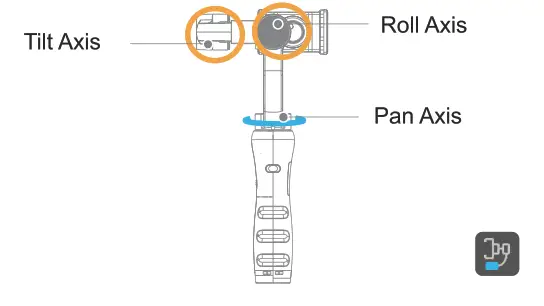
Half Follow(HF): Tilt & Roll Axis are locked. Pan Axis Rotates (Left / Right) smoothly with the handle
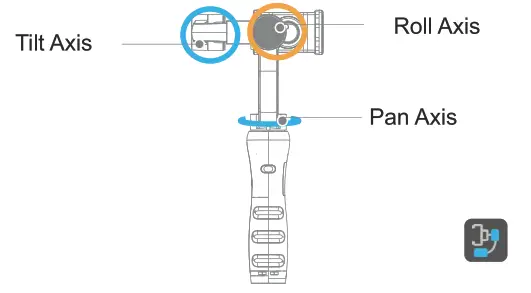
Lock Full(LF): Pan, Tilt, and Roll Axis are all locked. The camera remains still and stable, which means the camera cannot follow the movement of the handle
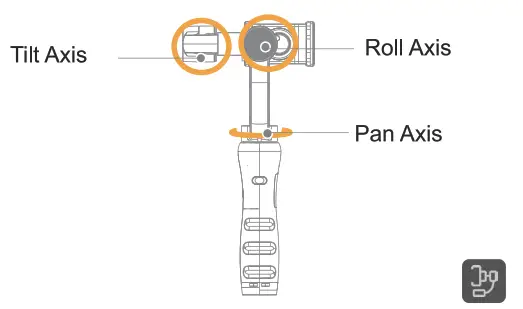
First Person View (FPV): PAN, Tilt, Roll Axis follow the movement of the handle
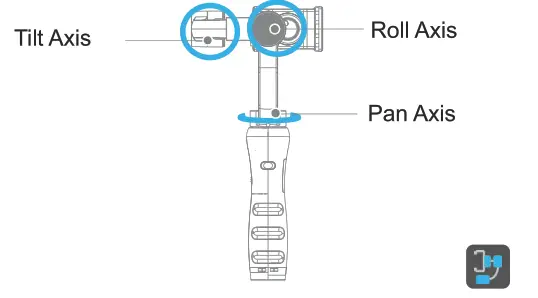
Phone Go
Long press the Shutter Button until the AF Light is flashing, Gimbal go to Phone Go Mode, release the shutter button, and Gimbal will go out of Phone Go mode
Get to know the Gimbal
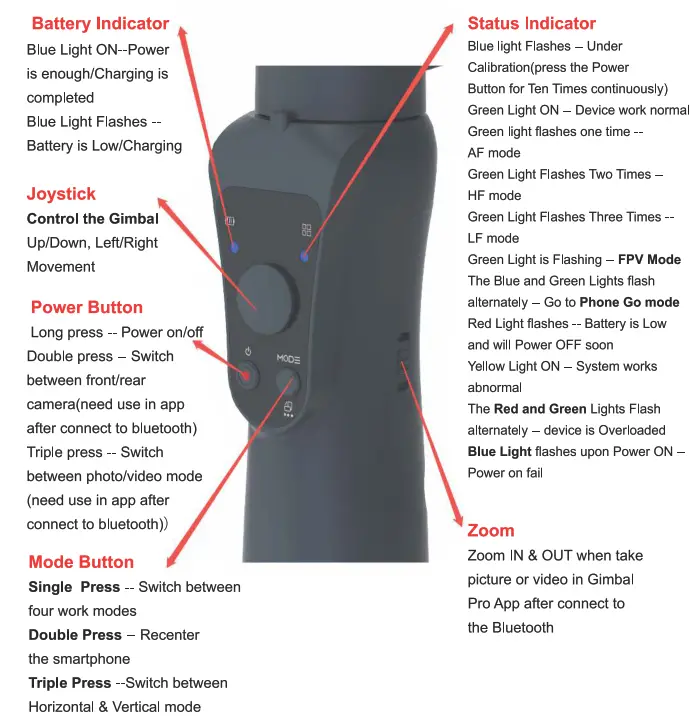 | 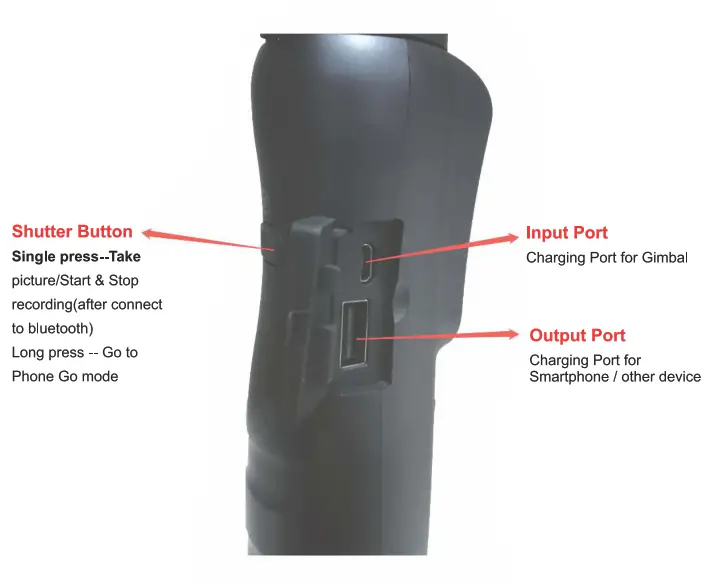 |
Switch between Horizontal/Vertical Mode (Three switching ways)
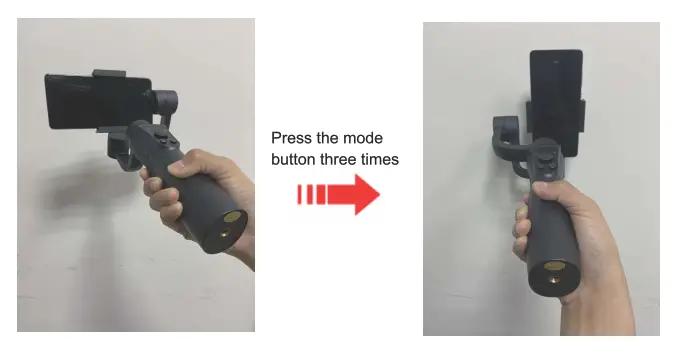
Way 1: Press the mode button three times
- Put the Gimbal as the below picture shows
- Press the Mode Button three times, switch from Horizontal mode to Vertical Mode;
- Press the Mode Button three times again, switch from Vertical to horizontal Mode, or will back to Horizontal mode automatically when holding the gimbal Upright;
Reminder: FPV Mode doesn’t support this operation
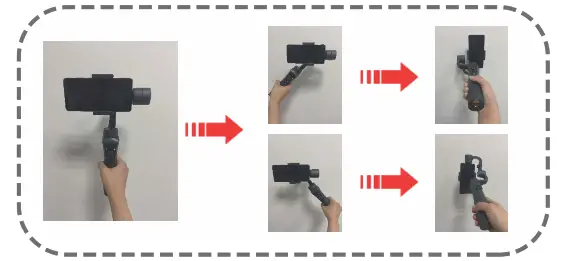
Way 2: Gesture switch
- Hold the Gimbal Perpendicular to the ground;
- Tilt the Gimbal Left or Right at 70°;
- Gimbal will go to Vertical Mode automatically;
- Gimbal will back to Horizontal Mode automatically when holding the gimbal upright;
Reminder: FPV mode doesn’t support this operation
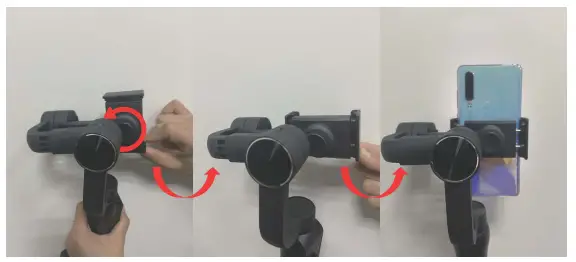
Way 3: Rotate the Smartphone Clamp
- Loosen the damp knob
- Rotate the Smartphone clamp at 90°
- Tighten the damp knob
Charging
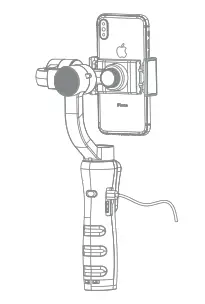 | 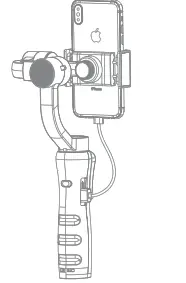 |
| Charge for Gimbal | Charge for Smartphone |
when the smartphone is put on the damp horizontally, need to use the L-type charging connector.
About APP
This product supports a native camera and can do basic stable shooting without an APP with the native camera. If you want to use more functions (such as Panoramic, Zoom, Tracking, and Time Lapse), need to download and use the APP
Download the Gimbal Pro APP
Scan the QR code or search “Gimbal Pro” on Google Play or the App store.
Support iOS and Android
 http://www.fhosafodsy432.com/2aebfja
Gimbal Pro requires iOS 10.0 system and later or an Android 6.0 system and later
Connect to Gimbal Pro APP
- Go to the setting page on Smartphone
- Go to Bluetooth setting, find and click the device name “GP5_XXXX”
Specification
| Pitch(Tilt) Angle | 330° |
| Roll Angle | 180° |
| Panning Angle | 330° |
| Weight | 450g |
| Payload | 250 MAX 280g |
| Operating Temperature | OC° – 40C° |
| Controllable Pitch Angle | +155/-155° |
| Controllable Roll Angle | +30°/-30° |
| Controllable Pan Angle | +155/-155° |
| Operating Voltage | 3.4-4.2V(Standard 3.7V) |
| Compatible Models | 1.Smartphone width: 6-8.5cm 2. Smartphone length: no more than 16.5cm 3. Smartphone weight no more than 250g |
| Operating Current | 150-3000mA(Standard 1500mA) |
| Gimbal Dimensions | 10.8*7*28.9cm |
| Charging Time | 4-5 hours |
| Usage Time | 10-12 hours |
| Face tracking | Yes |
| APP | Yes |
| Zoom | Yes |
| Output/Input Voltage | 1A |
| Arm material | PPA+Nylon |
| Handle material | ABS+PC |
Caution
- Ensure the motor rotation is not blocked by an external force during and after the Gimbal stabilizer is Powered ON;
- Please do not contact with sea water or corrosive liquid;
- Please do not disassemble the stabilizer (except for the detachable accessories in the manual);
- If the motor works continuously for a long time, the surface temperature of the motor may be too high.
- It is strictly forbidden to drop or collide with the stabilizer, which may damage it and cause abnormal operation;
Storage and Maintenance
- Please keep this product away from children and pets;
- It is forbidden to put the product near the Heat Source (Furnace or Heater, etc.) and in the car in Hot Weather;
- Please store the product in a dry environment;
- Do not Overcharge or Discharge the battery, otherwise, the battery cell will be damaged;
- Do not use the product in an environment with too High or too Low temperature
For any queries please contact
IMS Mercantiles Pvt. Ltd.
#704, Ring Road Mall, Outer Ring Road, Near Kali Mandir,
Sector-3, Rohini, Delhi – 110085 Telephone: 1800-123-544-444
E-Mail: [email protected]
Website: www.digitek.net.in