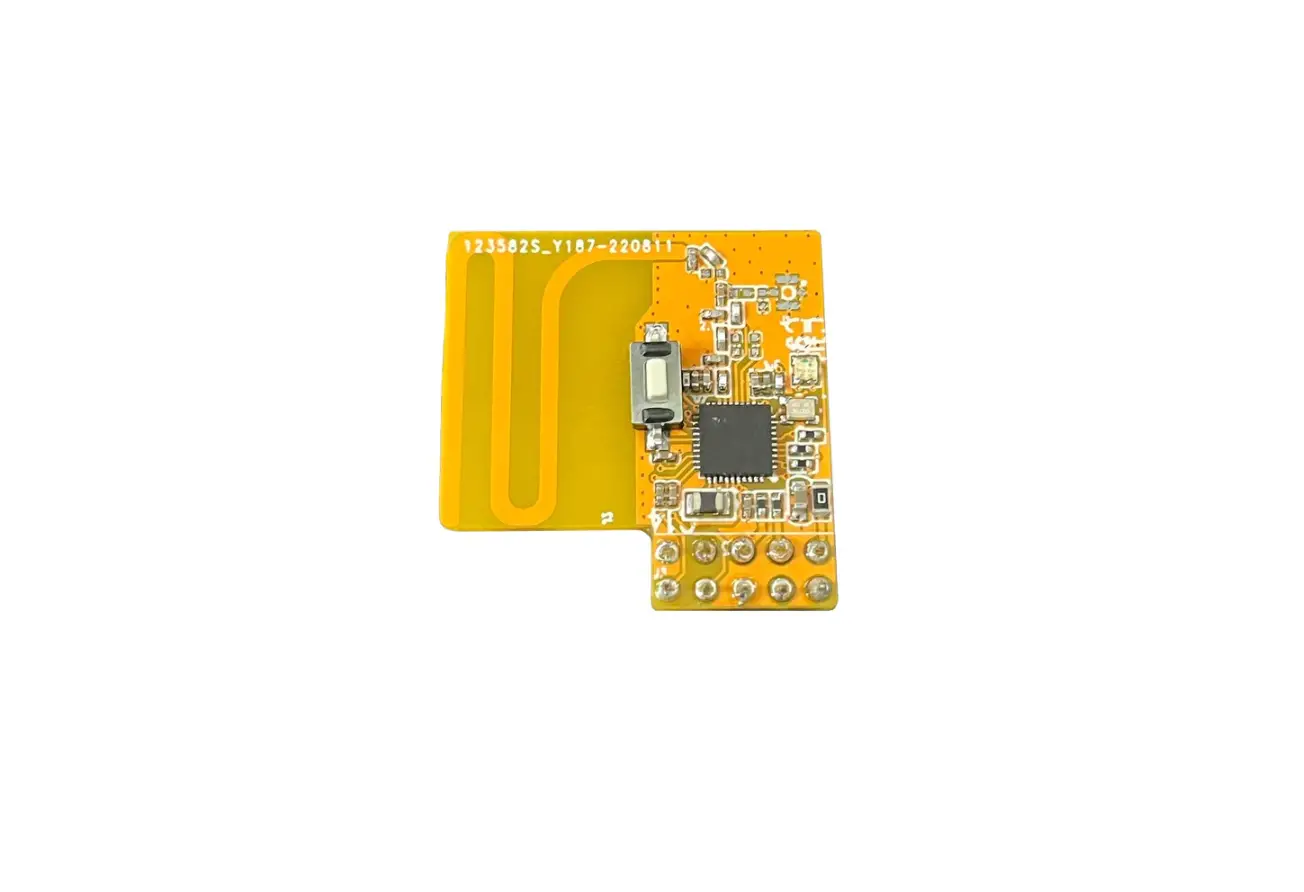
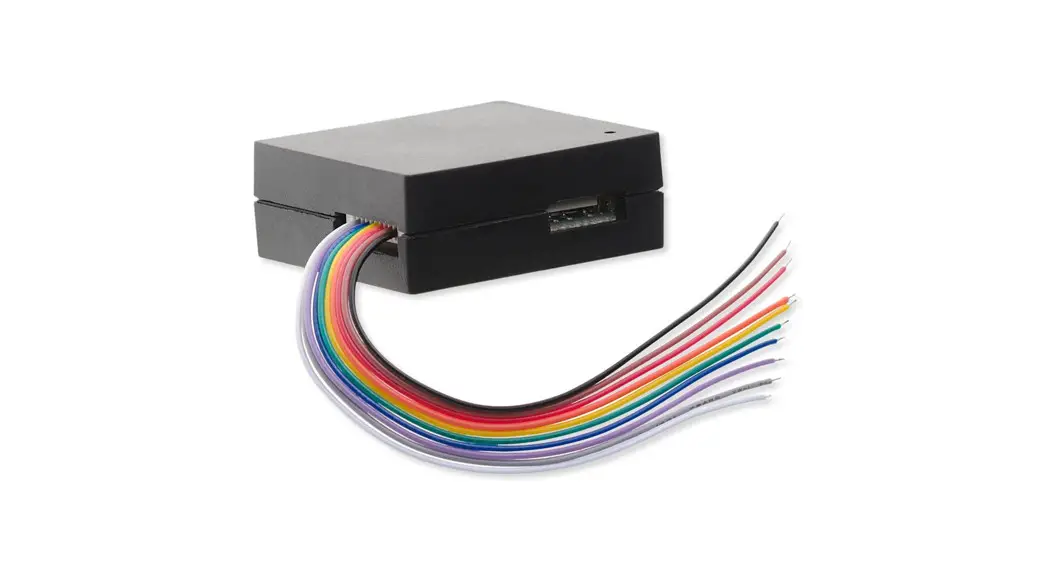
ZW800 Z Wave Module Development Kit
FANTEM Engineering Specification – ZW800 Module User
Manual
1. FEATURES & SPECIFICATIONS
1.1 Hardware Characteristics
| Parameter | Value |
|---|---|
| Z-Wave Module Indicator Light Color | ZW800: 1 red, 1 green at the keypad |
| Battery Info | AA alkaline battery x2 |
| Working Current | Z-Wave Module: 10mA (Wake Up), 40mA Send message |
| Standby Current | Z-Wave Module: 24uA |
1.2 Software Characteristics
| Parameter | Value |
|---|---|
| Wireless Technology Certification Type | Z-Wave Z-Wave PlusTM v2 |
| Z-Wave Library Type | Enhanced 232 Slave |
| Z-Wave Role Type | ZWAVEPLUS_INFO_REPORT_ROLE_TYPE_SLAVE_SLEEPING_LISTENING (0x07) |
| Generic Device Type | GENERIC_TYPE_ENTRY_CONTROL (0x40) |
| Specific Device Type | SPECIFIC_TYPE_DOOR_LOCK (0x01) |
| Security Class | Non-Security, S0, S2-ACCESS |
| SmartStart | Support. After powering on, SmartStart is auto active if it’s out of the Z-Wave network. |
| Over The Air (OTA) Support | Firmware can be updated via RF. |
| Multichannel Device | No |
| Association | Support. Refer to Section 4.7 Association Group Info. |
| Factory Reset | Support. Refer to Section 3.6 How to factory reset. |
| Power-down Memory | Support. All command settings will stay unchanged even power down. |
| Timed battery report | Support. Refer to Configuration Parameter 3. |
| Low battery warning | Support. |
| Door State Report | Support. When door lock mode changed, send out notification via Group 1. |
| User code Report | Support. When user code changed, send out notification via Group 1. |
PRODUCT QUICK START
1.3 About Z-Wave
Z-Wave is a wireless technology certification type used by the
ZW800 Module. It is Z-Wave PlusTM v2 certified and operates as an
Enhanced 232 Slave. The ZW800 Module has a generic device type of
ENTRY_CONTROL (0x40) and a specific device type of DOOR_LOCK
(0x01). It supports non-security, S0, and S2-ACCESS security
classes. It also supports SmartStart, Over The Air (OTA) updates,
and various other features.
1.4 About SmartStart
SmartStart is a feature that allows SmartStart enabled products,
like the ZW800 Module, to be easily added into a Z-Wave network.
Simply scan the Z-Wave QR Code present on the product with a
controller providing SmartStart inclusion. No further action is
required, and the SmartStart product will be added automatically
within 10 minutes of being switched on in the network vicinity.
1.5 How to add the product into Z-Wave network
- Follow the user guide of your hub to enter inclusion mode.
- Operate on the lock following the guide below:
- Enter master mode (** + Master PIN Code + #).
- Input 0 to enter Network settings.
- Input 1 + # to enter Include mode.
1.6 How to remove the product from Z-Wave network
- Follow the user guide of your hub to enter exclusion mode.
- Operate on the lock following the guide below:
- Enter master mode (** + Master PIN Code + #).
- Input 0 to enter Network settings.
- Input 2 + # to enter Exclusion mode.
1.7 How to factory reset
- Perform the following operations on the lock:
- Keep your lock in the unlock status.
- Use the provided reset pin to press and hold the reset button
for more than 5 seconds until hearing a beep sound. - If reset is successful, the bolt will extend on its own to
learn the orientation of the door.
- Please use this procedure only when the network primary
controller is missing or otherwise inoperable. - The default master pin code is 12345678. Please modify it after
reset (Refer to programming instruction).
FANTEM Engineering Specification
ZW800 Module User Manual
PMN: Z Wave Module 1.FEATURES & SPECIFICATIONS
1.1 Hardware Characteristics
Parameter
Value
Z-Wave Module Indicator Light Color
ZW800 1 red, 1 green at the key pad
Battery Info
AA alkaline battery x2
Working Current
Z-Wave Module: 10mA(Wake Up), 40mASend message
Standby Current
Z-Wave Module: 24uA
1.2 Software Characteristics
Parameter Wireless Technology Certification Type
Value Z-Wave Z-Wave PlusTM v2
Z-Wave Library Type
Enhanced 232 Slave
Z-Wave Role Type
ZWAVEPLUS_INFO_REPORT_ROLE_TYPE_SLAVE_SLEEPING_LISTENING (0x07)
Generic Device Type
GENERIC_TYPE_ENTRY_CONTROL (0x40)
Specific Device Type SPECIFIC_TYPE_DOOR_LOCK (0x01)
Security Class
Non-Security, S0, S2-ACCESS
SmartStart
Support. After powering on, SmartStart is auto active if it’s out of the Z-Wave network.
Over The Air OTA Support. Firmware can be updated via RF.
Page 1
FANTEM Engineering Specification
Multichannel Device
No
Association
Support. Refer to Section 4.7 Association Group Info.
Factory Reset
Support. Refer to Section 3.6 How to factory reset.
Power-down Memory
Support. All command settings will stay unchanged even power down.
Timed battery report Support. Refer to Configuration Parameter 3.
Low battery warning
Support.
Door State Report
Support. When door lock mode changed, send out notification via Group 1.
User code Report
Support. When user code changed, send out notification via Group 1.
Page 2
FANTEM Engineering Specification
PRODUCT QUICK START
1.3 About is Z-Wave
Z-Wave is the international wireless protocol for communication in the Smart Home. Z-Wave ensures a reliable communication by reconfirming every message (two-way communication) and every mains powered node can act as a repeater for other nodes (meshed network) in case the receiver is not in direct wireless range of the transmitter. This device and every other certified Z-Wave device can be used together with any other certified Z-Wave device regardless of brand and origin as long as both are suited for the same frequency range.
1.4 About SmartStart
SmartStart enabled products can be added into a Z-Wave network by scanning the Z-Wave QR Code present on the product with a controller providing SmartStart inclusion. No further action is required and the SmartStart product will be added automatically within 10 minutes of being switched on in the network vicinity.
1.5 How to add the product into Z-Wave network
1. Follow the user guide of hub to enter inclusion mode. 2. Operate on lock following guide below:
1) Enter master mode(** + Master PIN Code + #) 2) Input “0” to enter “Network settings” 3) Input “1” + “#” to enter “Include mode”
1.6 How to remove the product from Z-Wave network
1. Follow the user guide of hub to enter exclusion mode. 2. Operate on lock following guide below:
1) Enter master mode(** + Master PIN Code + #) 2) Input “0” to enter “Network settings” 3) Input “2” + “#” to enter “Exclusion mode”
1.7 How to factory reset
1. Operations on lock 1) Keep your lock in “unlock” status. 2) Use the provided reset pin to press and hold the reset button for more than 5 seconds until hearing beep sound. 3) If reset is successful, the bolt will extend on its own to learn the orientation of the door.
2. Please use this procedure only when the network primary controller is missing or otherwise inoperable. 3. Default master pin code is “12345678”, please modify it after reset (Refer to programming instruction).
Page 3
FANTEM Engineering Specification
FCC Statement
This equipment has been tested and found to comply with the limits for a Class B digital device, pursuant to part 15 of the FCC Rules. These limits are designed to provide reasonable protection against harmful interference in a residential installation. This equipment generates, uses and can radiate radio frequency energy and, if not installed and used in accordance with the instructions, may cause harmful interference to radio communications. However, there is no guarantee tha t interference will not occur in a particular installation. If this equipment does cause harmful interference to radio or television reception, which can be determined by turning the equipment off and on, the user is encouraged to try to correct the interf erence by one or more of the following measures:
· Reorient or relocate the receiving antenna. · Increase the separation between the equipment and receiver. · Connect the equipment into an outlet on a circuit different from that to which the receiver is connected. · Consult the dealer or an experienced radio/TV technician for help.
Caution: Any changes or modi fications to this device not explicitly approved by manufacturer could void your authority to operate this equipment. This device complies with part 15 of the FCC Rules. Operation is subject to the following two conditions: (1) This device may not cause harmful interference, and (2) this device must accept any interference received, including interference that may cause undesired operation. RF Exposure Information This equipment complies with FCC radiation exposure limits set forth for an uncontrolled environment. This equipment should be installed and operated with minimum distance 0cm between the radiator and your body.
Page 4
FANTEM Engineering Specification
ISED Statement
– English: This device complies with Industry Canada license-exempt RSS standard(s). Operation is subject to the following two conditions: (1) This device may not cause interference, and (2) This device must accept any interference, including interference that may cause undesired operation of the device. The digital apparatus complies with Canadian CAN ICES-3 (B)/NMB-3(B). – French: Le présentappareilestconforme aux CNR d’Industrie Canada applicables aux appareils radio e xempts de licence. L’exploitationestautorisée aux deux conditions suivantes: (1) l’appareil ne doit p as produire de brouillage, et (2) l’utilisateur de l’appareildoit accepter tout brouillageradioélectri quesubi, mêmesi le brouillageest susceptible d’encompromettre le fonctionnement. L’appareil numérique est conforme à CAN CAN ICES-3 (B) / NMB-3 (B). This device meets the exemption from the routine evaluation limits in section 2.5 of RSS 102 and compliance with RSS 102 RF exposure, users can obtain Canadian information on RF exposure and compliance. cet appareil est conforme à l’exemption des limites d’évaluation courante dans la section 2.5 du cnr – 102 et conformité avec rss 102 de l’exposition aux rf, les utilisateurs peuvent obtenir des données canadiennes sur l’exposition aux champs rf et la conformité. This equipment complies with Canada radiation exposure limits set forth for an uncontrolled environment. Cet équipement est conforme aux limites d’exposition aux rayonnements du Canada établies pour un environnement non contrôlé. RF Exposure Statement The device has been evaluated to meet general RF exposure requirement. The device can be used installed and operated with minimum distance 0mm between the radiator and your body. L’appareil a été évalué pour répondre aux exigences générales d’exposition aux RF.Cet équipement doit être installé et utilisé avec une distance minimale de 0 mm entre le radiateur et votre corps.
Page 5