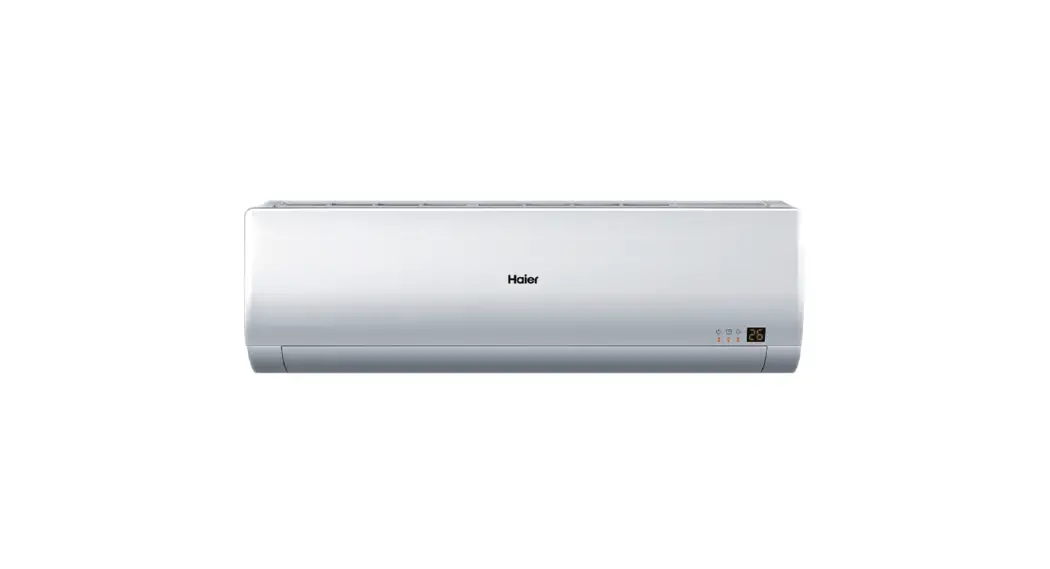
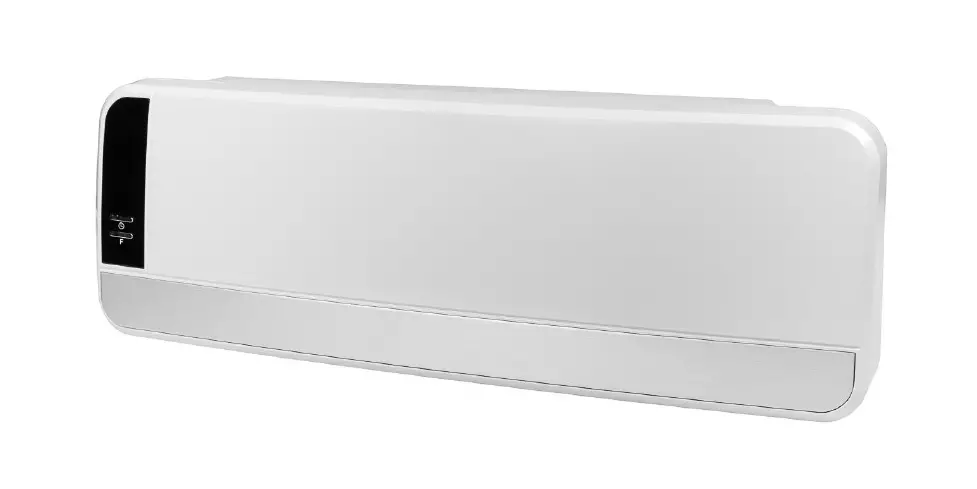
Kuhl, Kuhl Q Wallmaster
Product Information:
The product is the Friedrich Connect Wi-Fi Setup Guide for the
Kuhl, Kuhl Q, and Wallmaster air conditioning units. This guide
provides instructions on how to connect the device to a Wi-Fi
network using the Friedrich Connect App.
Product Usage Instructions:
- Check if you have a 2.4 GHz Wi-Fi connection available and
ensure that the device is connected to that network. - Download the Friedrich Connect App on your smartphone.
- Sign into the app or create an account if you don’t have
one. - Verify your profile and ensure that the TIME ZONE is set
correctly. - In the Friedrich Connect App, press the “+” button to add a
device. The next screen will appear, but do not press “Start”
yet. - On the air conditioning unit, press the MENU button and use the
arrow keys to navigate to “CNCT.” Press MENU again. Note that the
Wi-Fi symbol on the unit will start flashing, indicating that it is
broadcasting its Wi-Fi SSID. - On your mobile device, go to the Wi-Fi settings without closing
the Connect App and connect to the “Friedrichconnect -xxxx” SSID.
The last 4 characters of the unit’s MAC address will be in the
network name. - Go back to the app and press “Start.” You will see a “Looking
for your device” screen until the unit is found. Do not leave this
screen. - Once successful communication is established between your
mobile device and the unit, you will see the Wi-Fi network
selection screen. Make sure your Wi-Fi network is listed in the
dropdown menu. If it is not, press the “Retry” button to refresh
the listings. Press “Next,” enter the SSID password, and press
“Next” again. - The next window will show a “Connected Success” message. Press
“OK,” and you will see the new unit listed under “My Devices” with
the serial number as its name. Note that you can change the name in
the unit’s Info Tab. - To verify if the unit is working, select the unit from the “My
Devices” list and press “MODE” to change the temperature. Note that
it may take a few seconds for the command to register on the
unit.
Note: If any step is deviated from, the connection will not be
established, but a “Success” message may still display.
Note: The Wi-Fi symbol on your home screen will stop flashing
and show a steady connection.
Note: A green symbol will appear under the Status details along
with the name and serial number of your Friedrich unit.
Wi-Fi Setup Guide
FRIEDRICH CONNECT
Kuhl Kuhl Q Wallmaster
Let’s Get Started! 1. Check for a 2.4 Ghz connection and make sure the device is connected to that network. 2. Download the Friedrich Connect App on your smartphone. 3. Sign into the app or create a account. 4. Verify the profile, check and confirm that the TIME ZONE is populated correctly.
5. Enter the Friedrich connect app and press “+ add”. The app will automatically show the next screen. Prepare your device will pop up, but DO NOT PRESS START at this time.
6.Go to the unit press the MENU button and with the arrows go to CNCT and press MENU again. NOTE: When the setup process starts, the WI-FI symbol will begin to flash. This indicates the A/C unit is broadcasting its WiFi SSID.
NOTE: Once the setup process has been started, you will have five minutes to complete the setup. If the setup cannot be completed in five minutes then you will need to restart the process.
7. Now on the mobile device go to your WiFi settings without ending the Connect App and connect to Friedrichconnect -xxxx SSID (the last 4 characters of the units MAC address are in the network name of the Friedrich unit)
8.Go back to the app and press START, you will receive a Looking for your device screen until the Unit is found, DO NOT LEAVE THIS SCREEN.
9. When the Mobile device and the Unit make a successful communication you will see the WiFi network selection screen. Your WiFi Network must be in the select dropdown, if it is not then press the Retry Button (this will refresh the listings and add in your network). Press Next, and enter the SSID password and press Next again.
Note: The option to Enter credentials manually does not work. If all steps are performed properly and no SSIDs populate in the app but they are populated in the mobile devices WiFi listings, then the unit is not on the latest Firmware and will need a new User Interface.
10. The next window will show connected success. Just press OK, and you will see the new unit in devices with the serial number of the device as its name that can be changed in the units Info Tab.
NOTE: If any step is deviated, the connection will not happen but Success will still display.
NOTE: Your Home Screen Wi-Fi symbol will stop flashing and will show steady
NOTE: A GREEN symbol will appear under the “Status” details and the name of your Friedrich unit which will appear with a number. for example: (62601032R01184660025)
11. Last step when you see the serial number under “MY DEVICES” you can select the unit and verify if is working, press MODE to change the temperature. NOTE: Sometimes it takes a few seconds for the command to register on the unit.