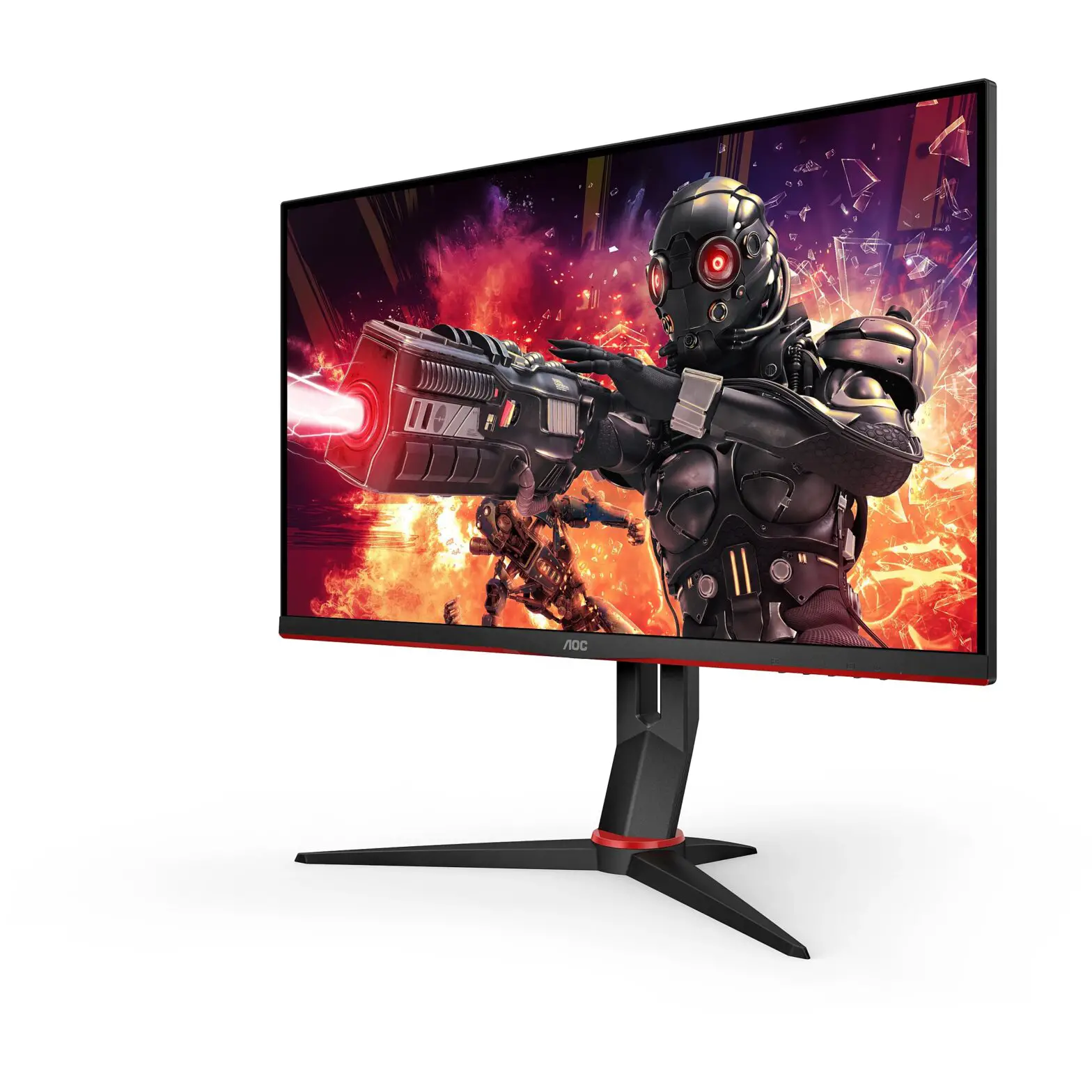
U28G2AE LCD Monitor
LCD Monitor User Manual U28G2AE
Safety
Please read and follow these safety instructions carefully. Keep
this manual in a safe place for future reference. Do not allow
anything to rest on the power cable, and keep it away from where
people could trip over it. Never insert anything metallic into the
monitor openings as this may result in electric shock. To avoid
electric shock, never touch the inside of the monitor.
National Conventions
The following subsections describe notational conventions used
in this document.
1 Obsah je uzamcen
This section is currently unavailable.
Troubleshoot
If you experience problems with your monitor, please refer to
this section for troubleshooting tips.
Specification
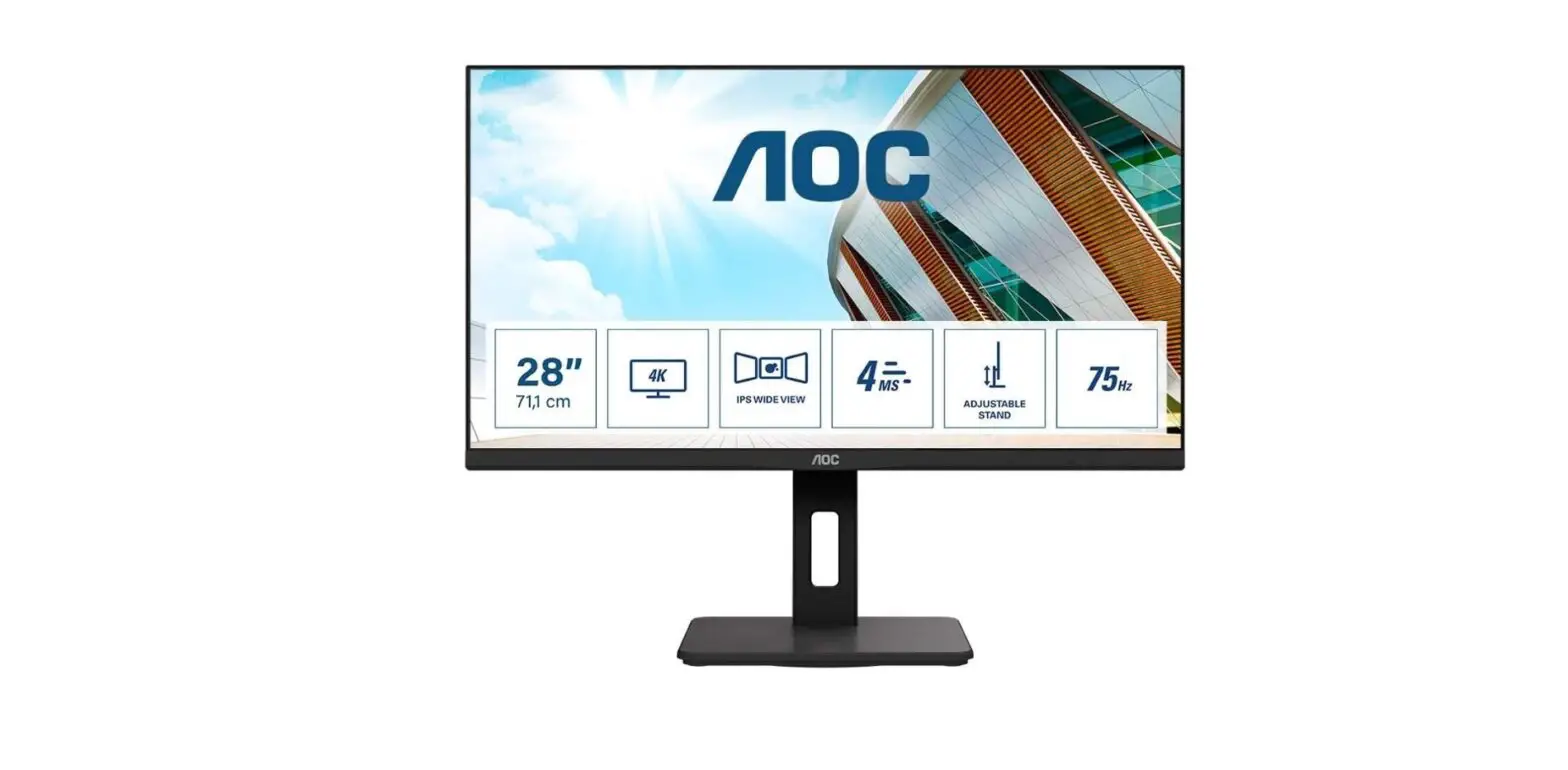
The following table provides specifications for the U28G2AE LCD
monitor.
| Model | U28G2AE |
|---|---|
| Screen Size | 28 inches |
| Resolution | 3840 x 2160 @ 60Hz |
| Brightness | 300 cd/m² (typical) |
| Contrast Ratio | 1000:1 (typical) |
| Response Time | 1ms MPRT |
| Viewing Angle | 170° (H) / 160° (V) |
| Color Support | 1.07B |
| Refresh Rate | 60Hz |
| Input Ports | HDMI 2.0 x 2, DisplayPort 1.2 x 1 |
| Power Consumption | 35W (typical), 0.5W (standby) |
Product Usage Instructions
To use the U28G2AE LCD monitor, follow these steps:
- Place the monitor on a stable surface and connect the power
cord to the back of the monitor. - Connect the HDMI or DisplayPort cable to the back of the
monitor and your computer or other device. - Press the power button on the monitor to turn it on.
- Use the buttons on the bottom of the monitor to adjust settings
such as brightness, contrast, and color. - To turn off the monitor, press the power button again.
If you experience any issues with the monitor, please refer to
the Troubleshoot section of the user manual for assistance.
LCD Monitor User Manual U28G2AE
www.aoc.com
TM
©2020 AOC.All Rights Reserved
1
Safety …………………………………………………………………………………………………………………………………………………………….. 1 National Conventions ……………………………………………………………………………………………………………………………… 1 Power …………………………………………………………………………………………………………………………………………………… 2 Installation …………………………………………………………………………………………………………………………………………….. 3 Cleaning ……………………………………………………………………………………………………………………………………………….. 4 Other ……………………………………………………………………………………………………………………………………………………. 5
Setup ……………………………………………………………………………………………………………………………………………………………… 6 Contents in Box……………………………………………………………………………………………………………………………………… 6 Setup Stand & Base……………………………………………………………………………………………………………………………….. 7 Adjusting Viewing Angle………………………………………………………………………………………………………………………….. 8 Connecting the Monitor …………………………………………………………………………………………………………………………… 9
Adjusting……………………………………………………………………………………………………………………………………………………….. 10 Hotkeys ………………………………………………………………………………………………………………………………………………. 10 OSD Setting ………………………………………………………………………………………………………………………………………….11 Luminance ………………………………………………………………………………………………………………………………… 12 Color Setup……………………………………………………………………………………………………………………………….. 13 Picture Boost …………………………………………………………………………………………………………………………….. 14 OSD Setup………………………………………………………………………………………………………………………………… 15 PIP Setting ………………………………………………………………………………………………………………………………… 16 Game Setting…………………………………………………………………………………………………………………………….. 17 Extra ………………………………………………………………………………………………………………………………………… 19 Exit…………………………………………………………………………………………………………………………………………… 20 LED Indicator ………………………………………………………………………………………………………………………………………. 21
Troubleshoot………………………………………………………………………………………………………………………………………………….. 22 Specification ………………………………………………………………………………………………………………………………………………….. 23
General Specification ……………………………………………………………………………………………………………………………. 23 Preset Display Modes …………………………………………………………………………………………………………………………… 24 Pin Assignments…………………………………………………………………………………………………………………………………… 25 Plug and Play ………………………………………………………………………………………………………………………………………. 26
i
Safety
National Conventions
The following subsections describe notational conventions used in this document. Notes, Cautions, and Warnings Throughout this guide, blocks of text may be accompanied by an icon and printed in bold type or in italic type. These blocks are notes, cautions, and warnings, and they are used as follows: NOTE: A NOTE indicates important information that helps you make better use of your computer system. CAUTION: A CAUTION indicates either potential damage to hardware or loss of data and tells you how to avoid the problem. WARNING: A WARNING indicates the potential for bodily harm and tells you how to avoid the problem. Some warnings may appear in alternate formats and may be unaccompanied by an icon. In such cases, the specific presentation of the warning is mandated by regulatory authority.
1
Obsah je uzamcen
Dokoncete, prosím, proces objednávky. Následn budete mít pístup k celému dokumentu.
Proc je dokument uzamcen? Nahnvat Vás rozhodn nechceme. Jsou k tomu dva hlavní dvody: 1) Vytvoit a udrzovat obsáhlou databázi návod stojí nejen spoustu úsilí a casu, ale i financní prostedky.
Dlali byste to Vy zadarmo? Ne*. Zakoupením této sluzby obdrzíte úplný návod a podpoíte provoz a rozvoj nasich stránek. Teba se Vám to bude jest nkdy hodit. *) Mozná zpocátku ano. Ale vzte, ze dotovat to dlouhodob nelze. A rozhodn na tom nezbohatneme. 2) Pak jsou tady ,,roboti”, kteí se pizivují na nasí práci a ,,vysávají” výsledky naseho úsilí pro svj prospch. Tímto krokem se jim to snazíme pekazit. A pokud nemáte zájem, respektujeme to. Urgujte svého prodejce. A kdyz neuspjete, rádi Vás uvidíme!
 Homepage | AOC Monitors