SEAGATE 200380600D Lyve Mobile Mount and PCIe Adapter User Manual
An internet connection is required when authorizing a host computer.
- Open Lyve Client on a computer intended to host Lyve Mobile
- When prompted, enter your Lyve Management Portal username and
Lyve Client authorizes the host computer to unlock and access Lyve devices and manage projects on the Lyve Management Portal.
The host computer remains authorized for up to 30 days, during which you can unlock and access connected devices even without an internet connection. After 30 days, you’ll need to open Lyve Client on the computer and re-enter your credentials.
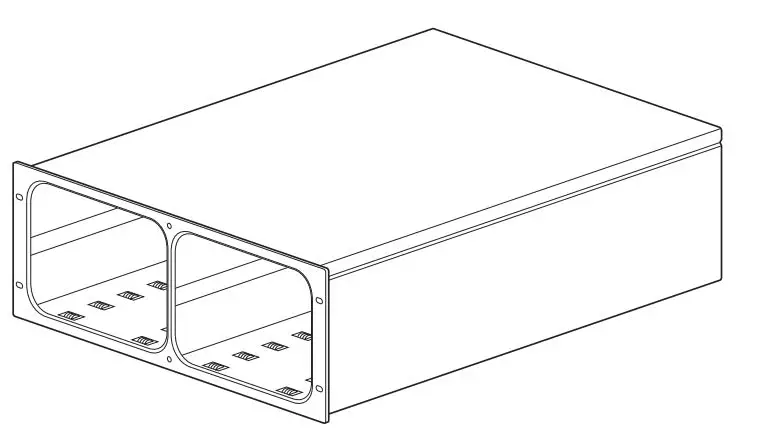
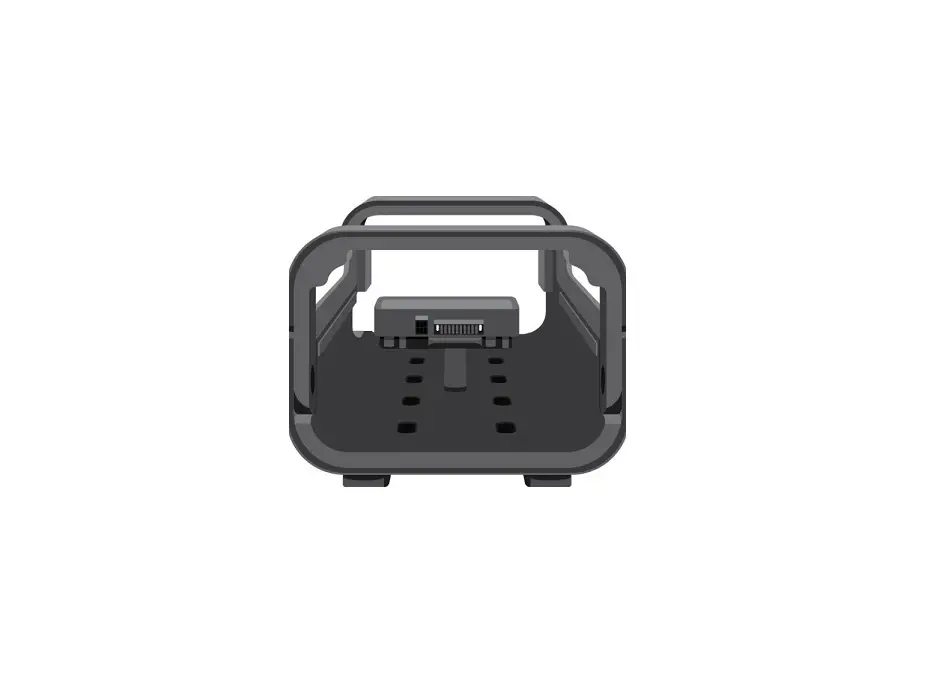
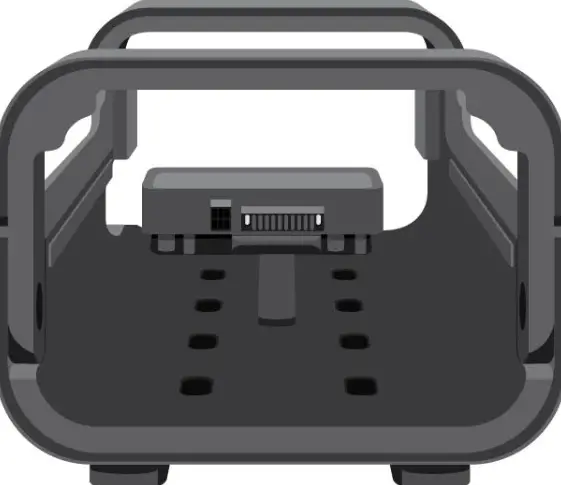
Mounting slots
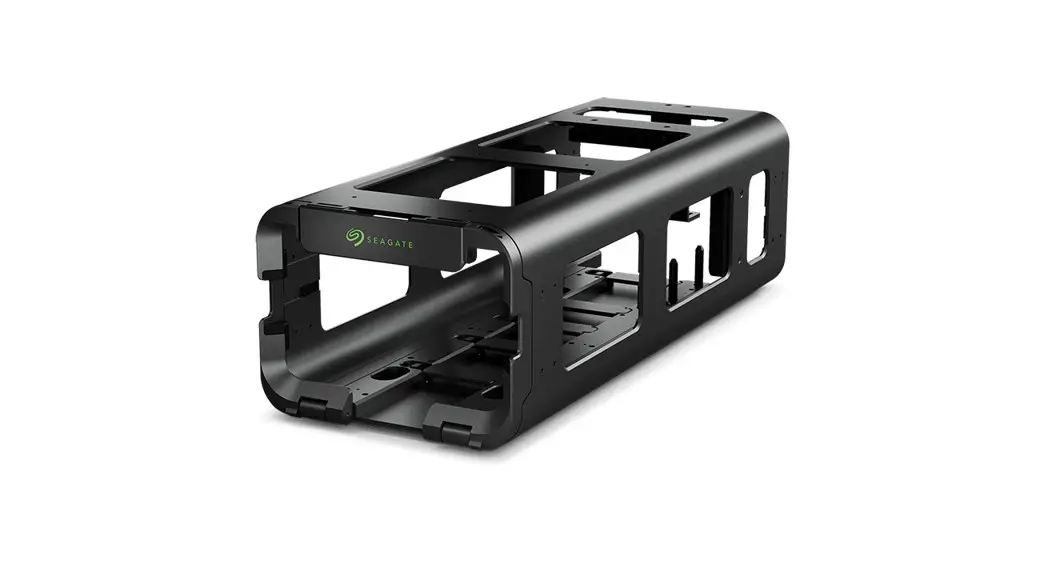
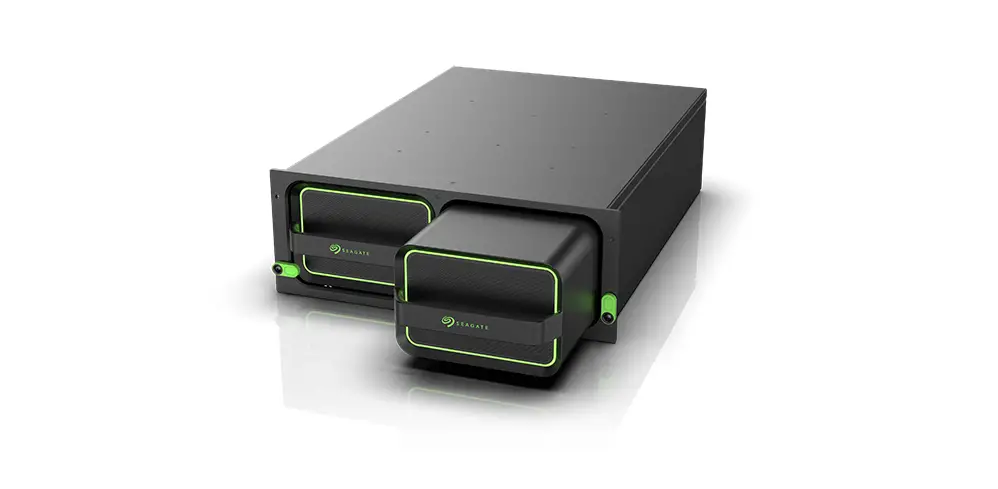
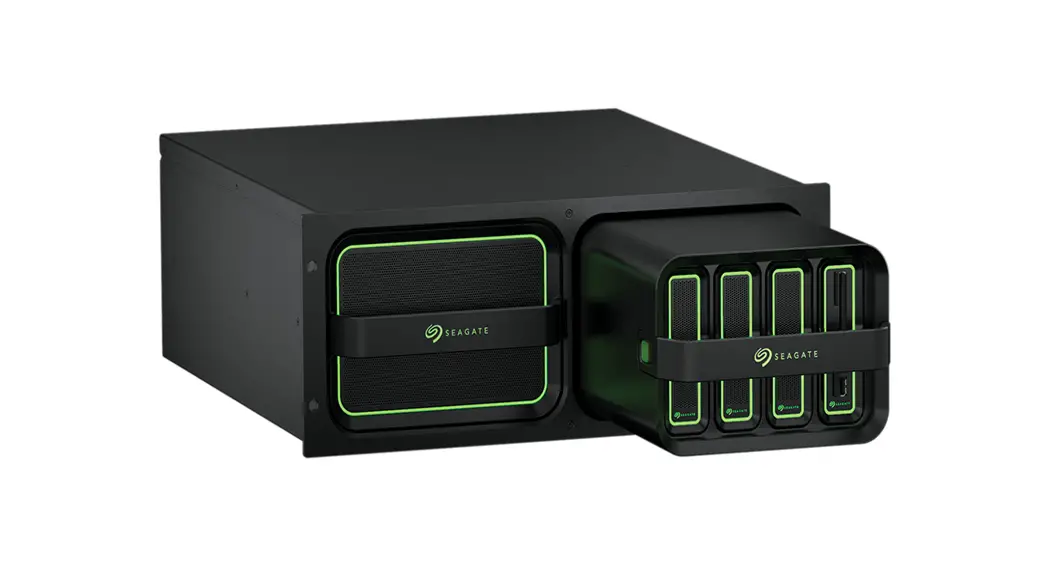
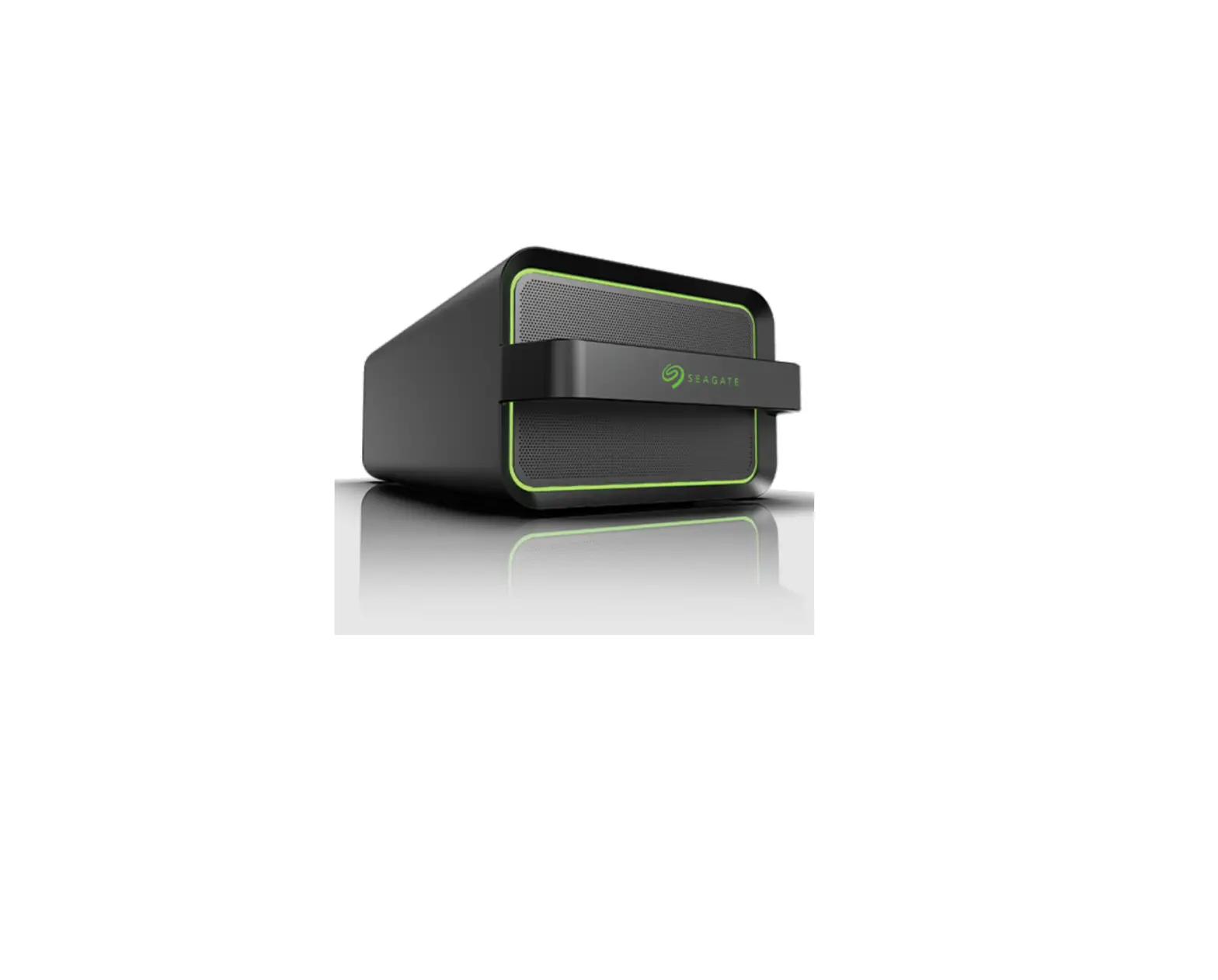
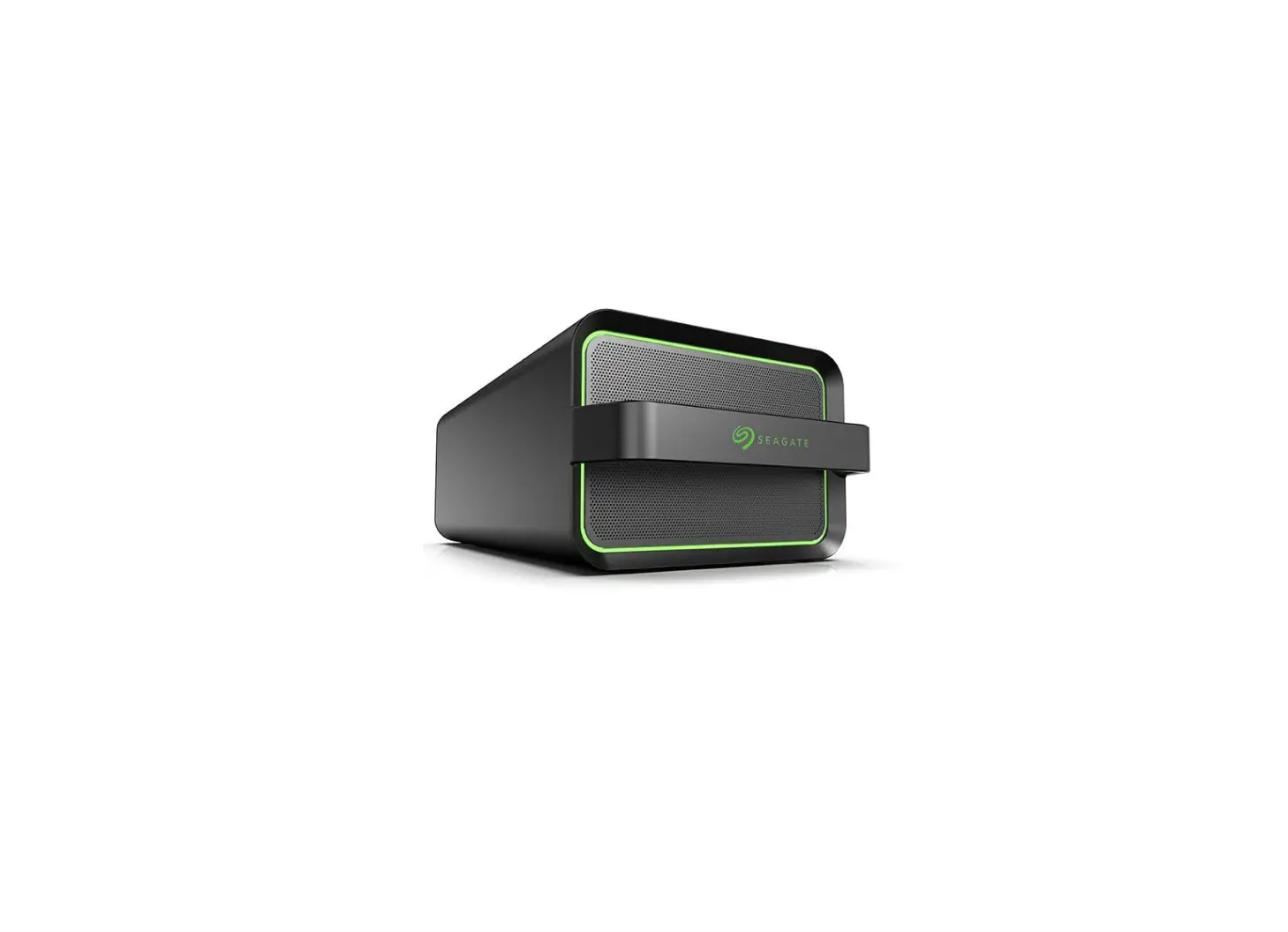
Before installing Lyve Mobile PCIe Adapter, ensure that Lyve Mobile Mount is securely fixed to a vehicle, apparatus, or structure to avoid excessive motion.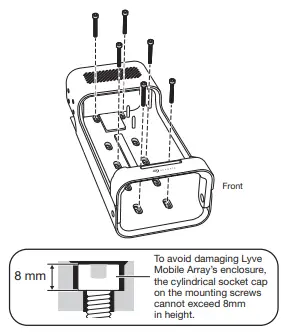
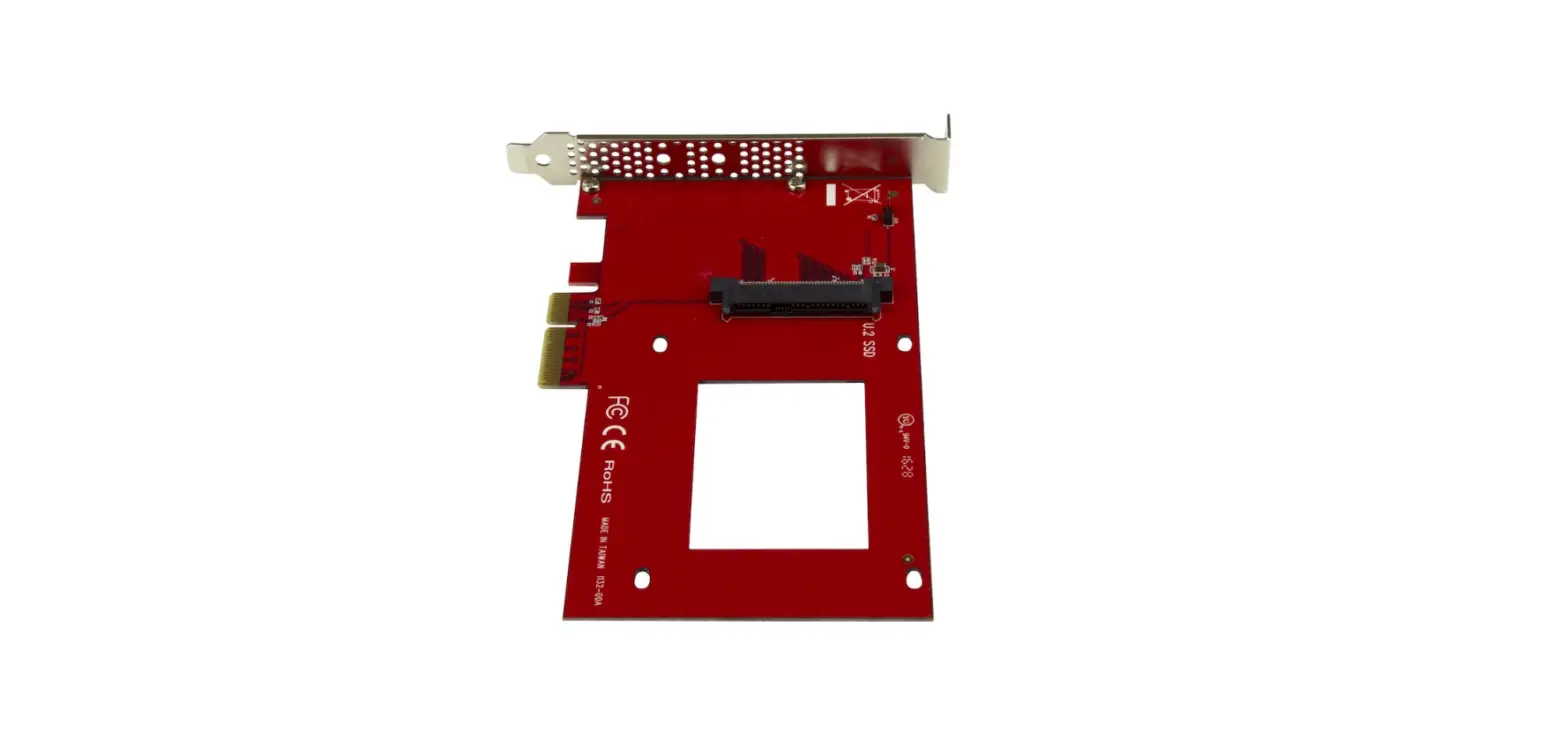
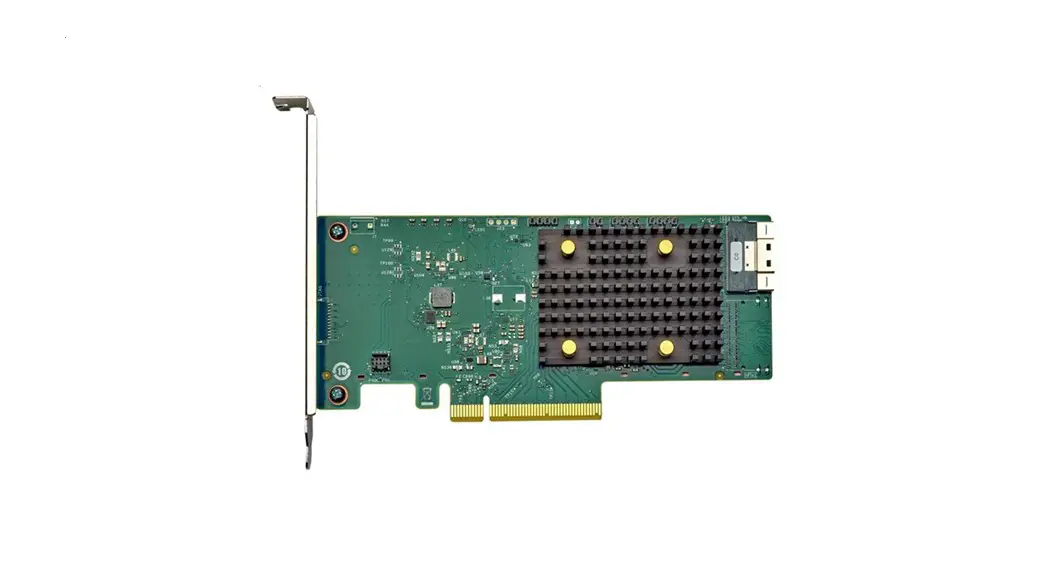
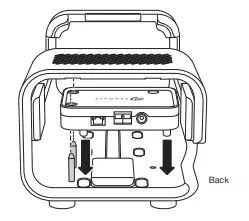
Insert adapter
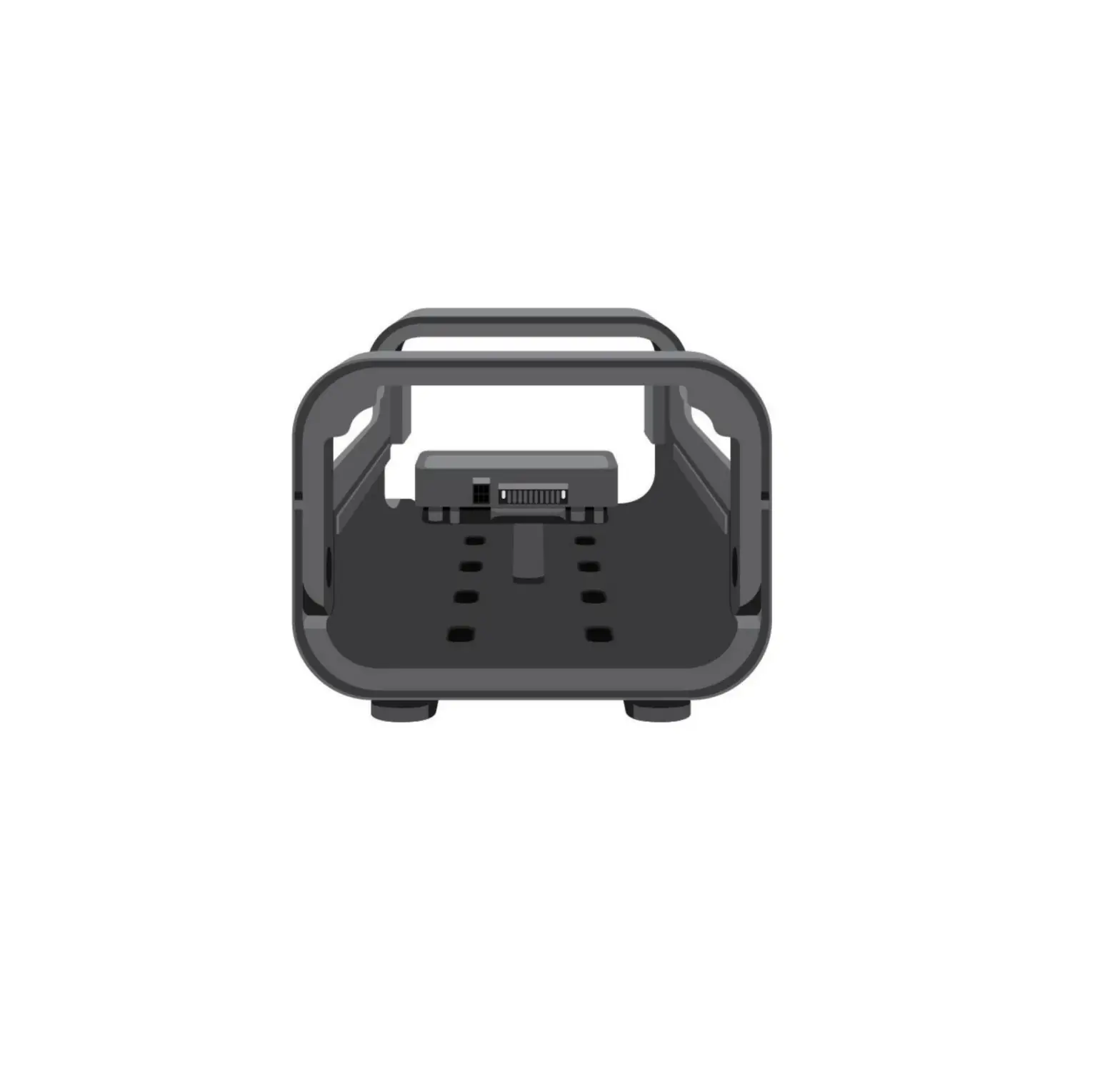
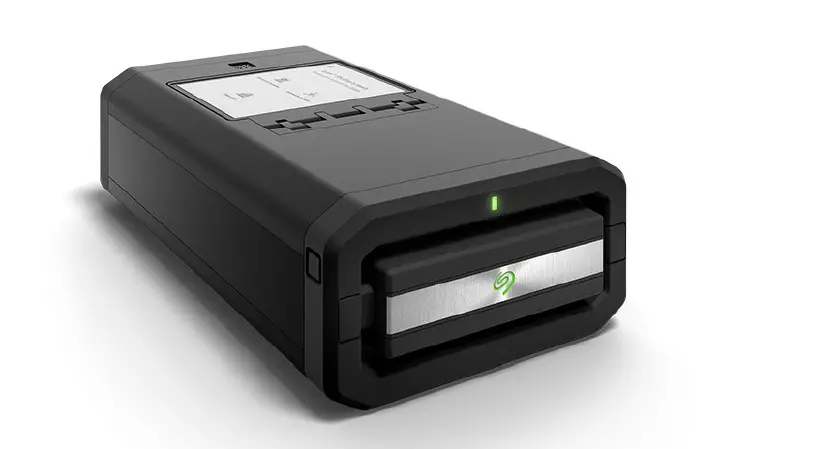
Slide Lyve Mobile PCIe Adapter onto the guide pins at the back of Lyve Mobile Mount.
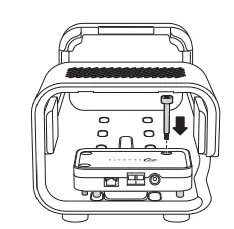
Attach shoulder screw
Insert the shoulder screw into the hole and tighten it.
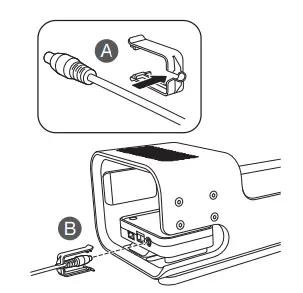
Connect power
A Snap the locking bracket onto the power cable.
B Insert the power cable into the PCIe Adapter’s power po
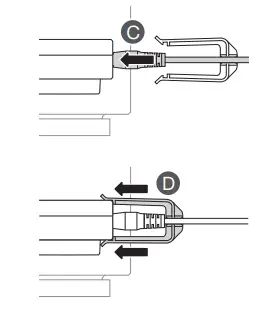
Confirm that the power cable is well connected.
D Slide the locking bracket forwa
Connect cables Mounting slots
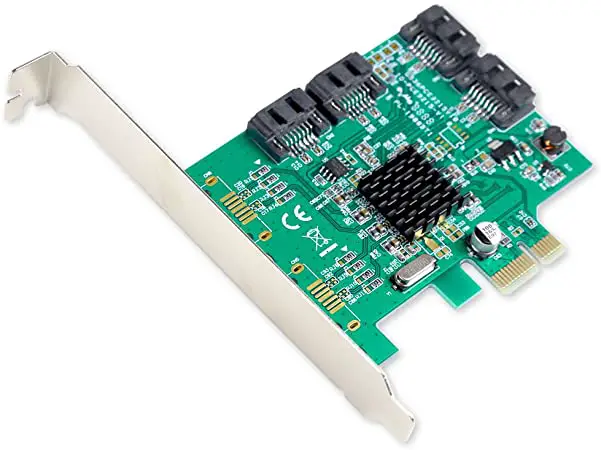
Connect the cables to PCIe Adapter:
- Ethernet*: Device configuration
- SFF-8644: Data

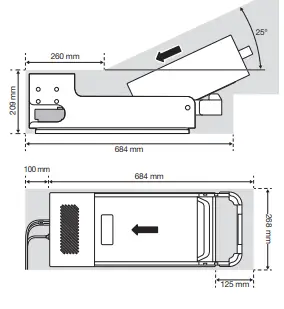
Insert device
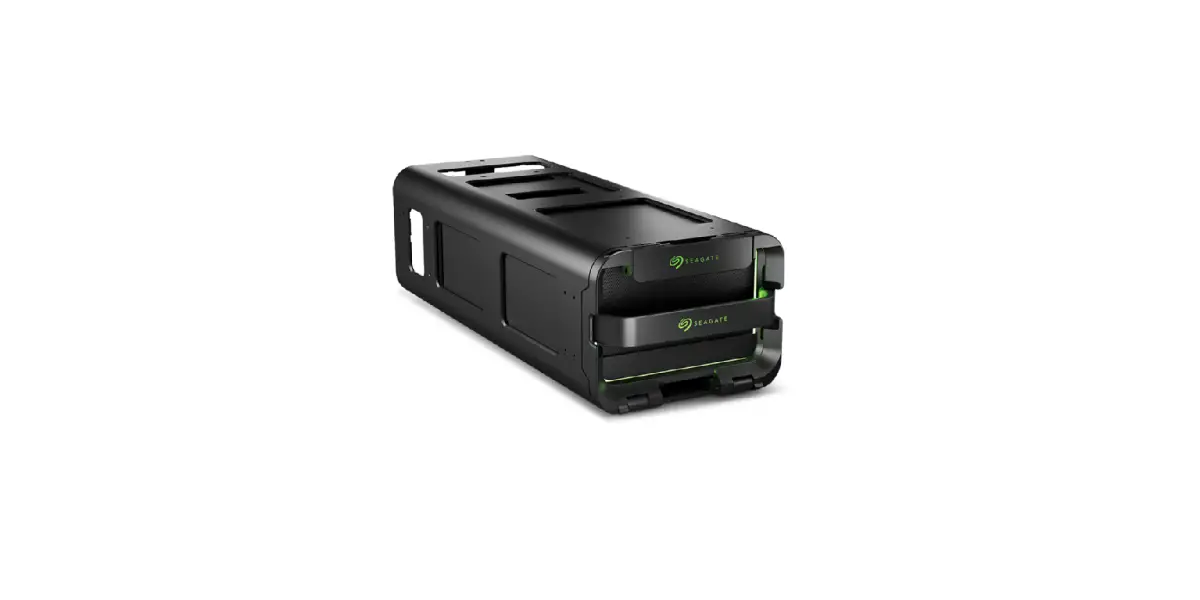
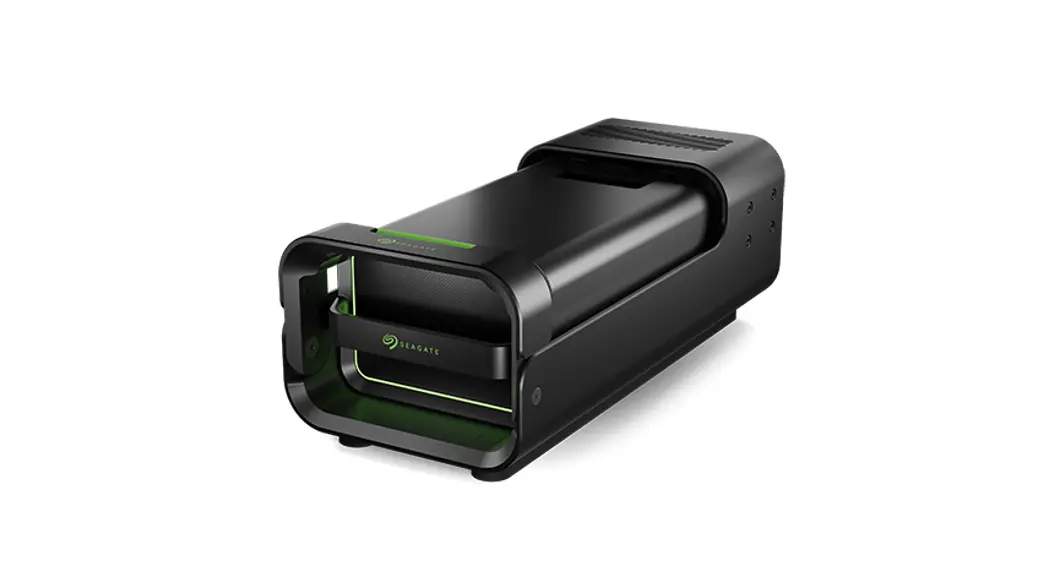
Insert the device with ports facing PCIe Adapter. Slide the device toward the back of the mount. Apply firm pressure until the device is seated on Mobile Mount and firmly
connected to the PCIe connector.
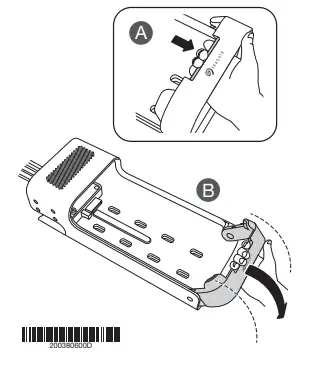
Lock device in place
Raise the handle and lock it in place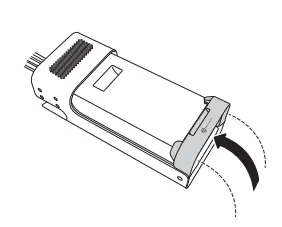
Unlock the drive
The LED on the device inserted in Lyve Mobile Mount blinks white during the boot process and turns solid orange. The solid
orange LED color indicates the device is ready to be unlocked.
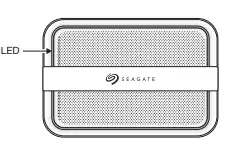
Make sure the Lyve Client app is running on the host computer. The host computer will automatically unlock the device if it connected to it in the past and is still authorized for security. If the host computer has never unlocked the device, you will need to enter your Lyve Management
Portal username and password in the Lyve Client app. Once Lyve Client has validated permissions for the device connected to the computer, the LED on the device turns solid green. The device is unlocked and ready for use.
Safely removing a device
Your computer must perform filing and housekeeping operations on your Lyve device before it is physically removed from Lyve Mobile Mount. To avoid corrupting or damaging files, always eject the device’s volumes from your computer before physically removing the device.
To avoid muscle strain or back injury, use proper lifting techniques when removing devices from Lyve Mobile Mount.
China RoHS 2 table
China RoHS 2 refers to the Ministry of Industry and Information Technology Order No. 32, effective July 1, 2016, titled Management Methods for the Restriction of the Use of Hazardous Substances in Electrical and Electronic Products. To comply with China RoHS 2, we determined this product’s Environmental Protection Use Period (EPUP) to be 20 years in accordance with the Marking for the Restricted Use of Hazardous Substances in Electronic and Electrical Products, SJT 11364-2014.
 Welcome - Lyve Management Portal
 The Leader in Mass Data Storage Solutions | Seagate US