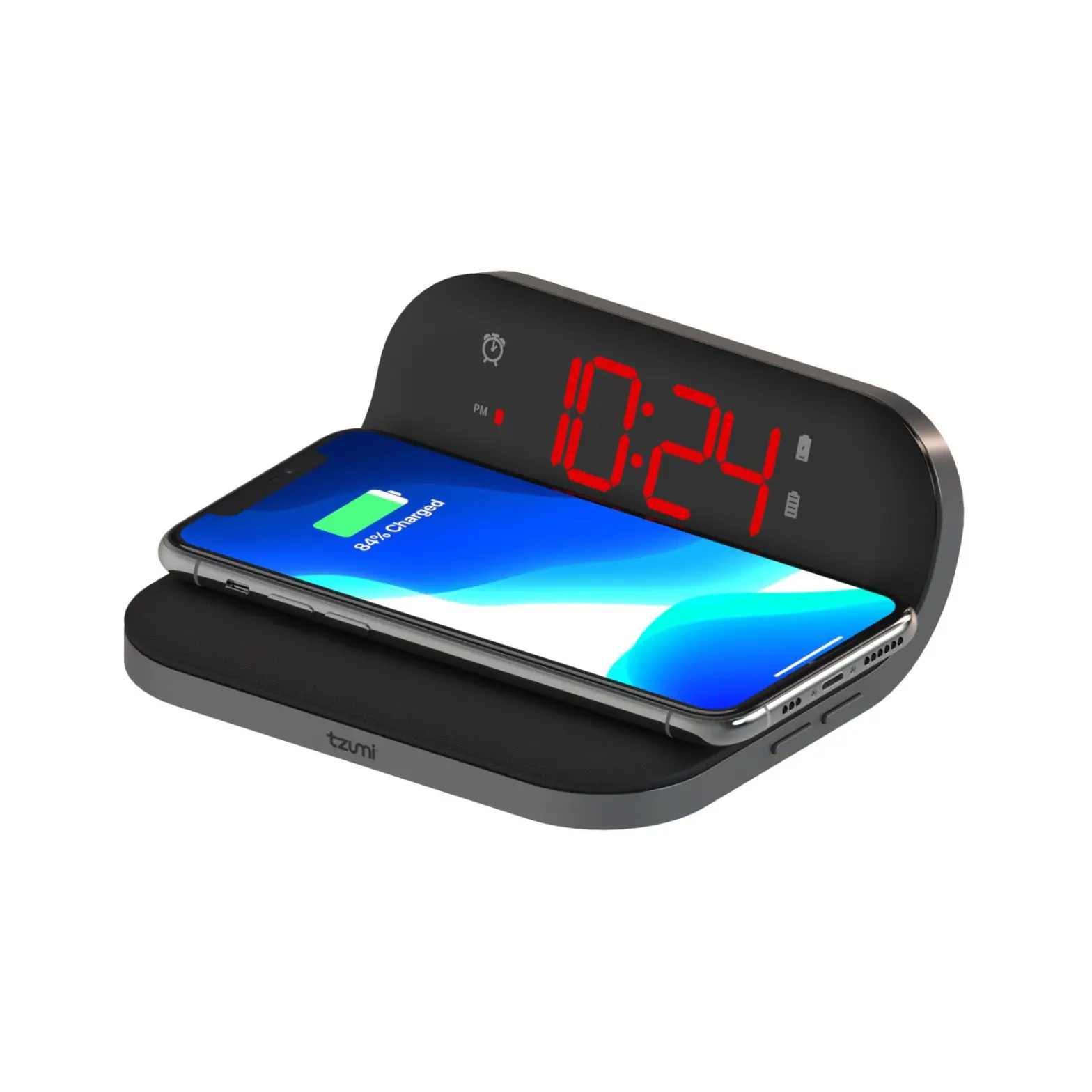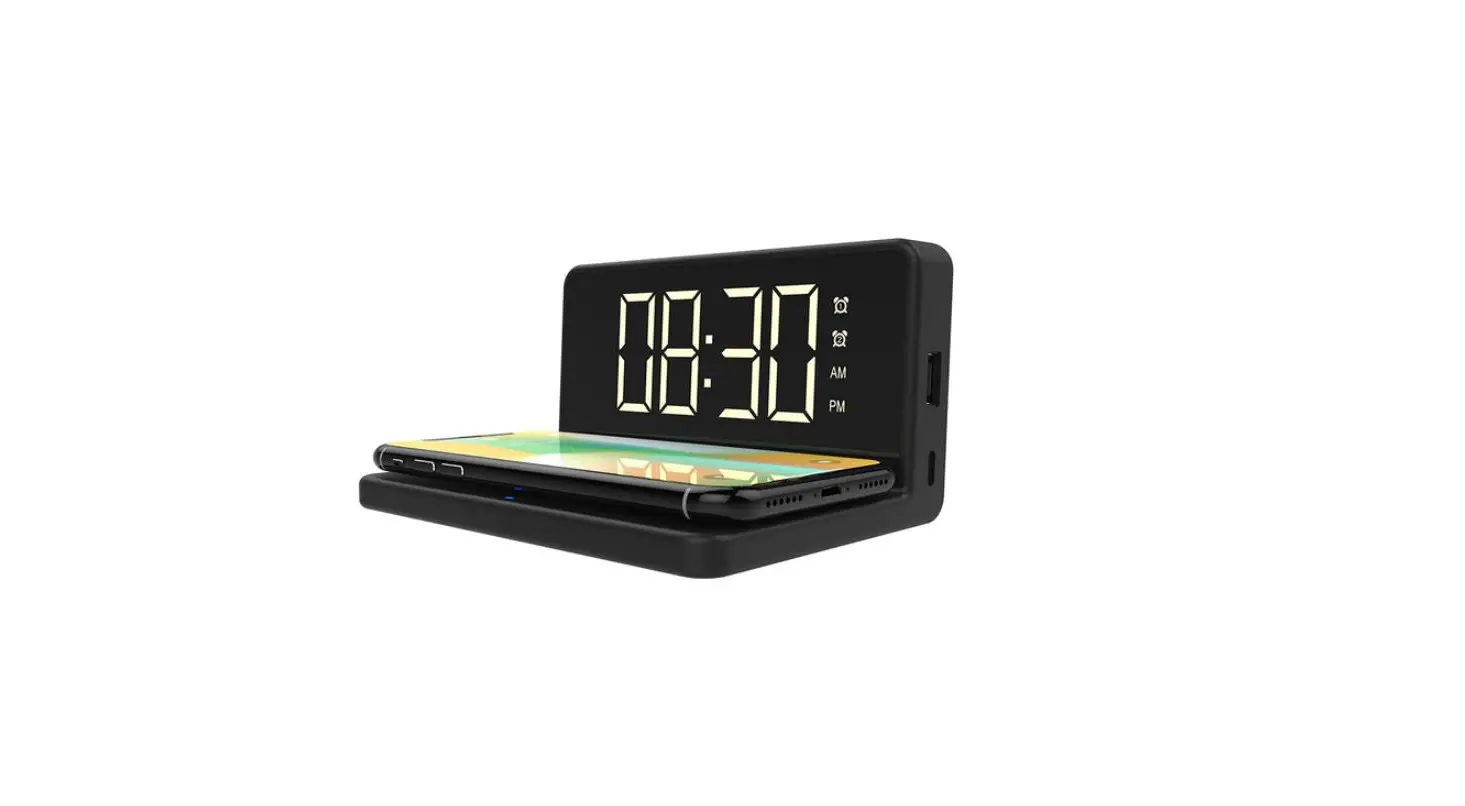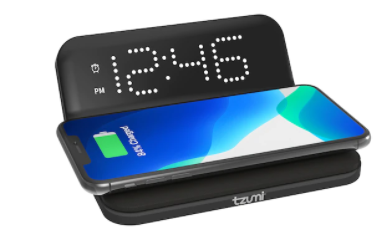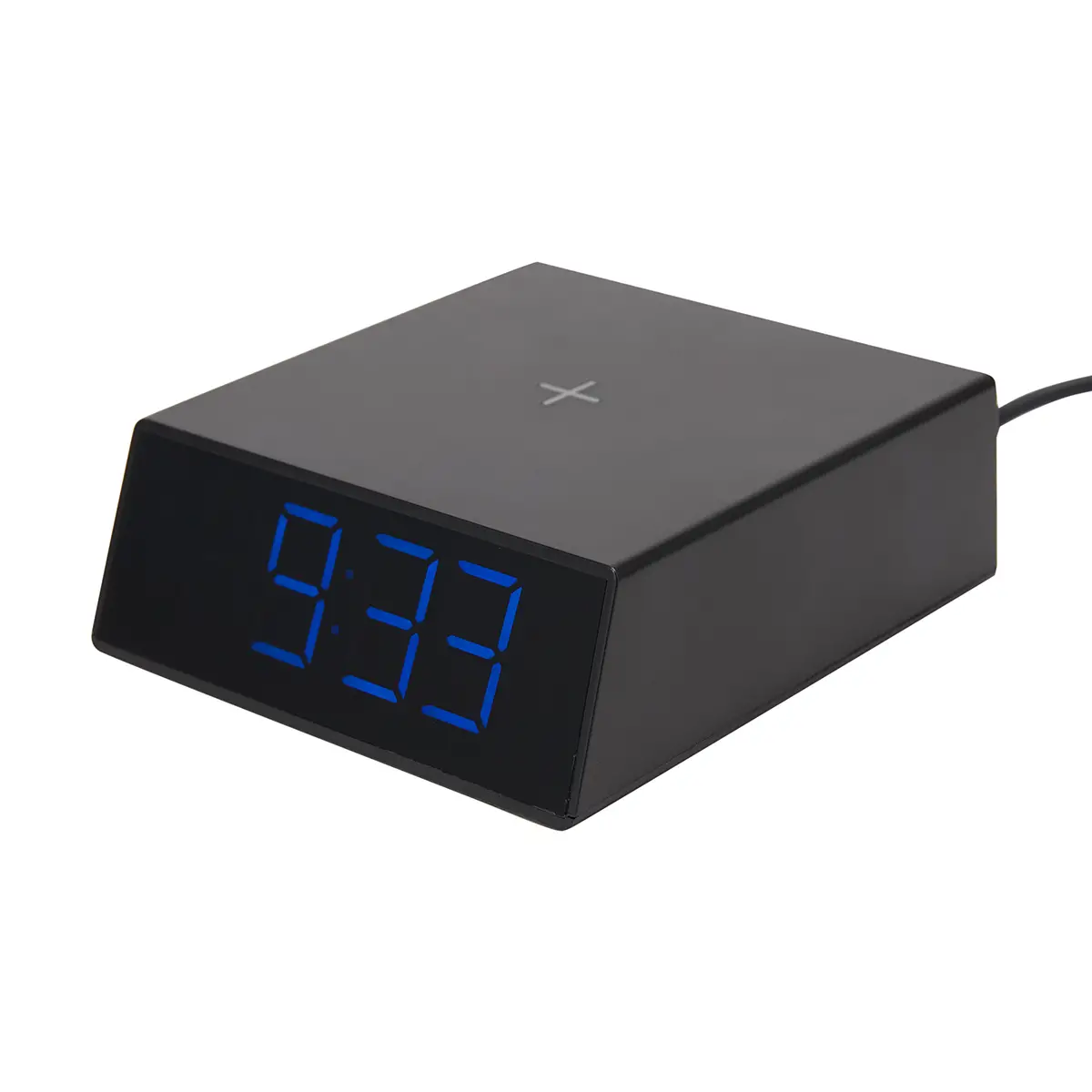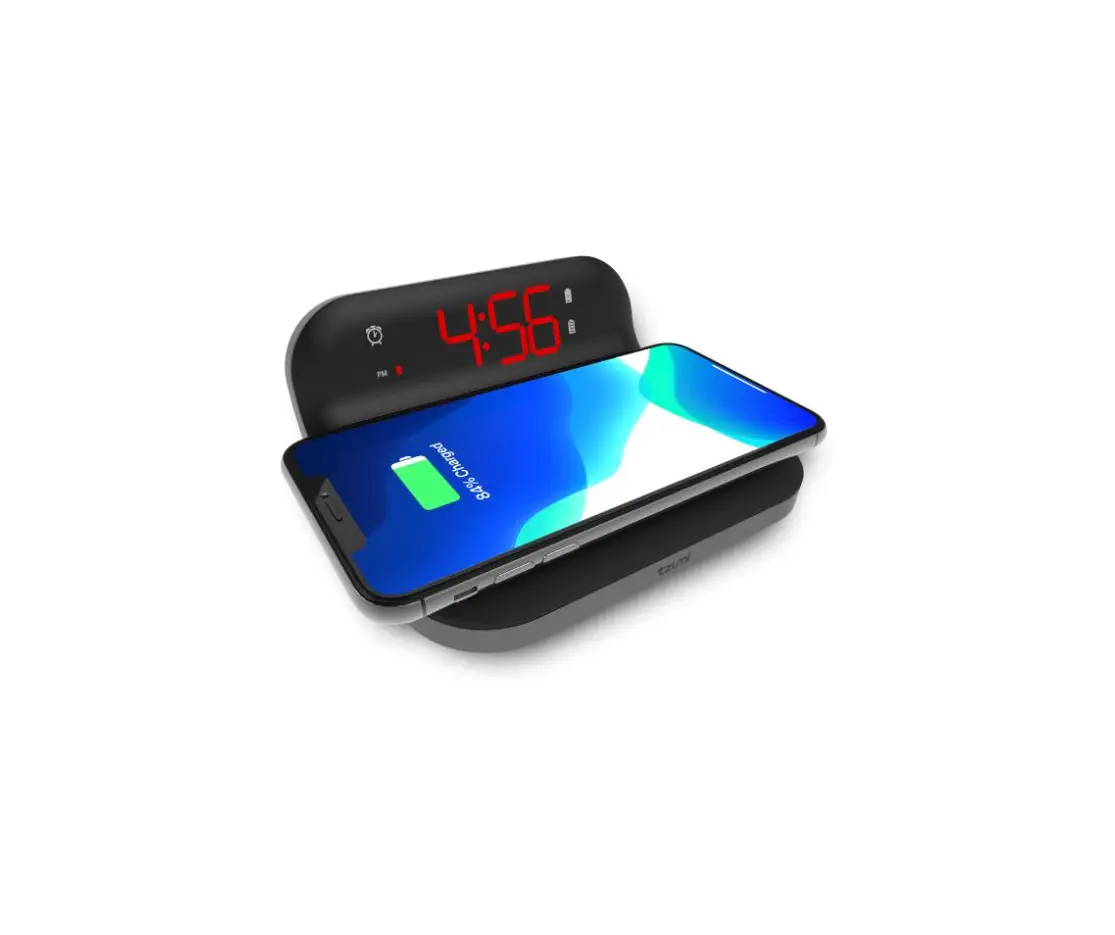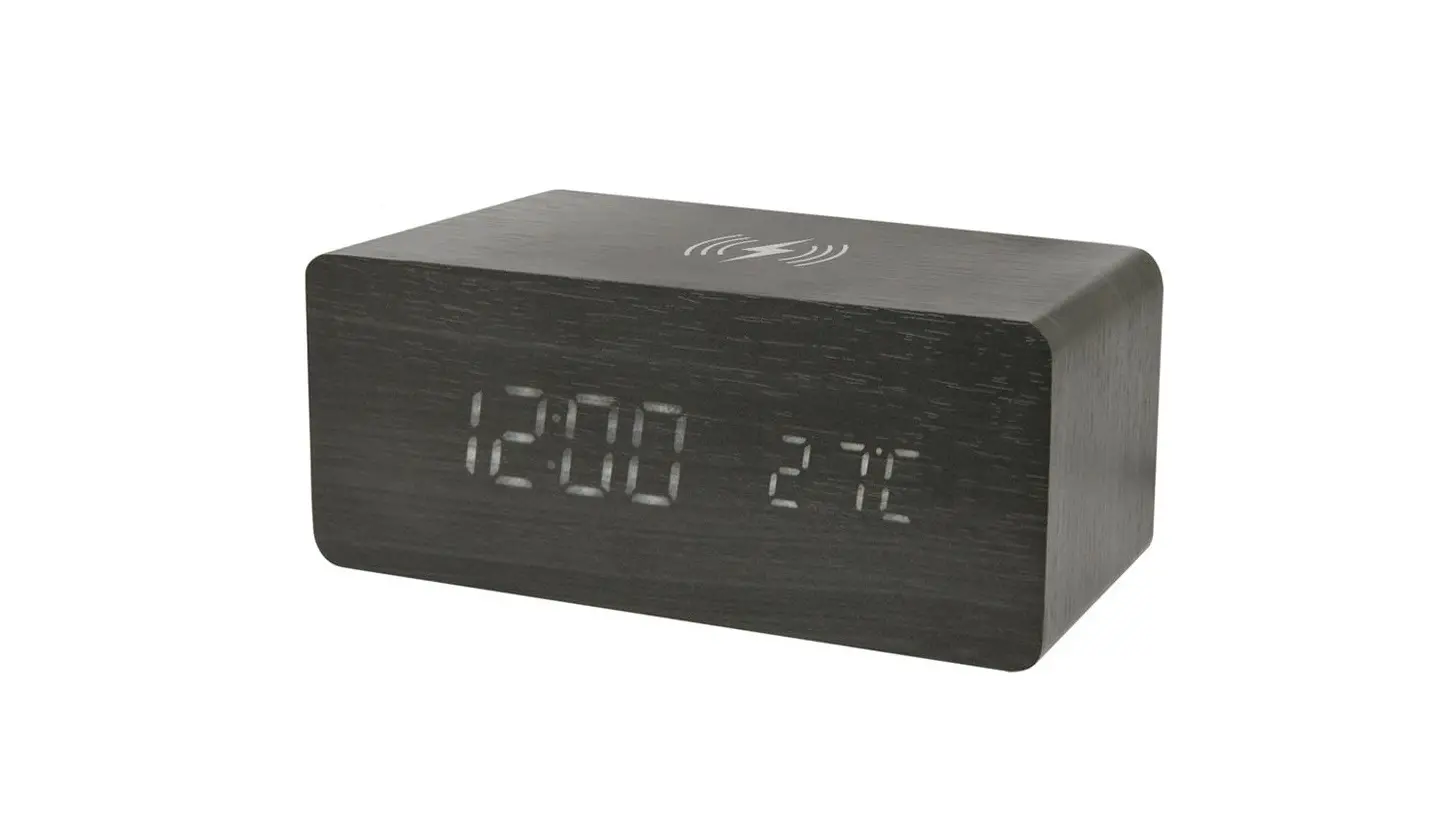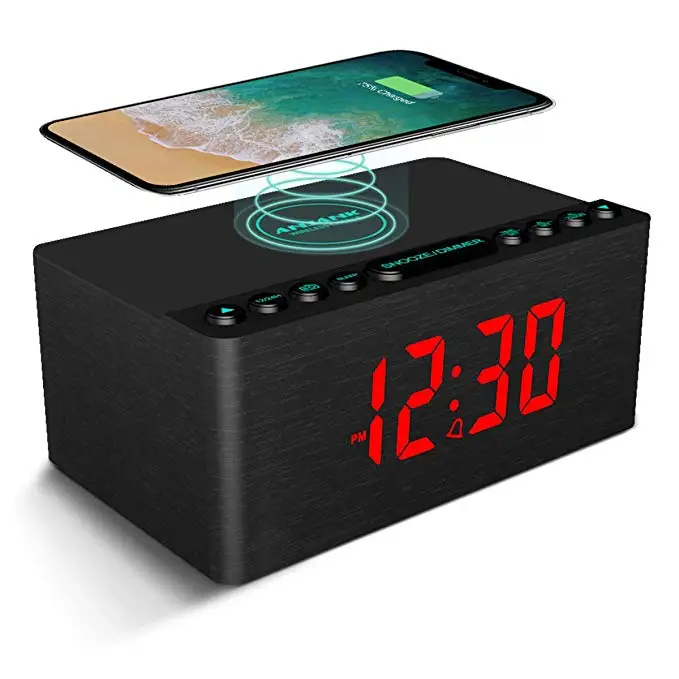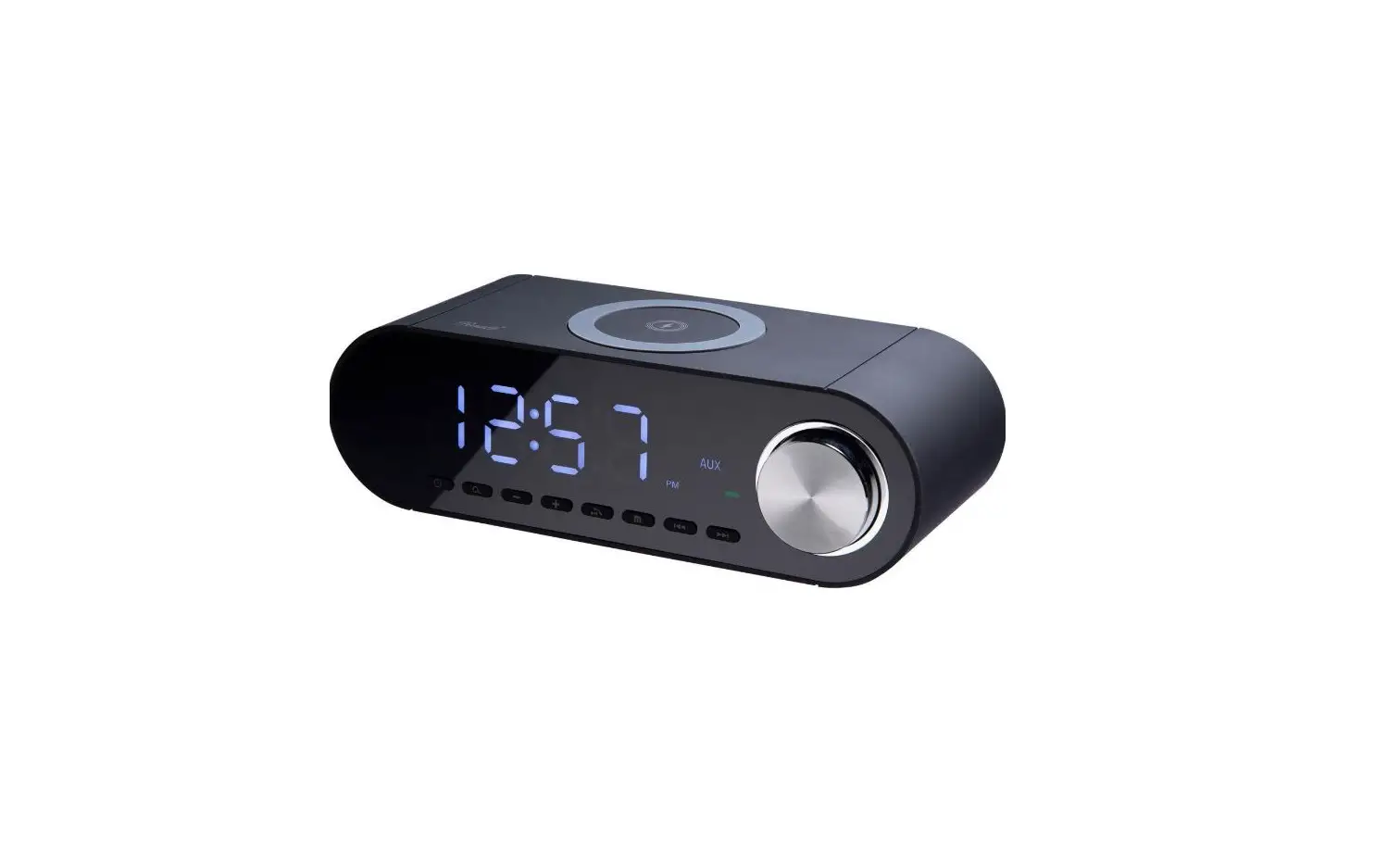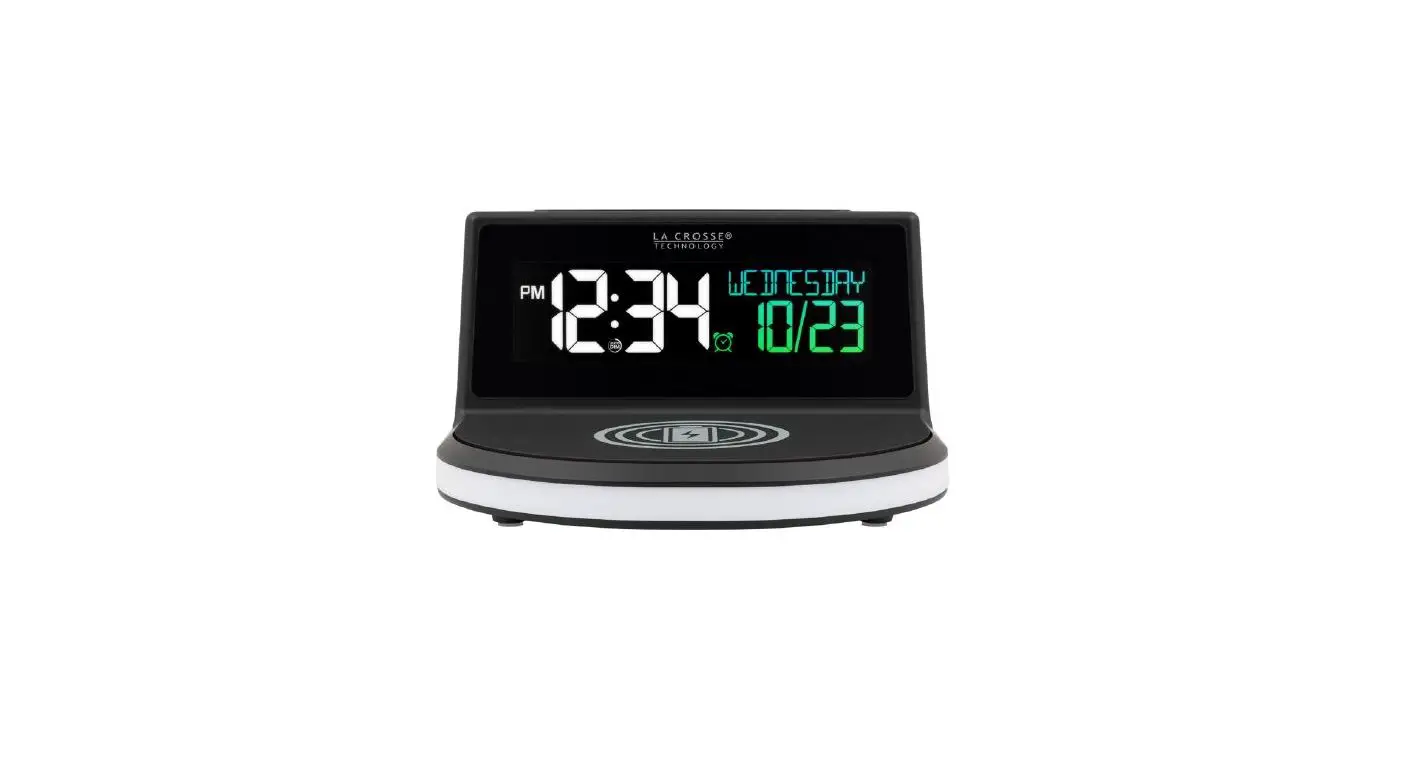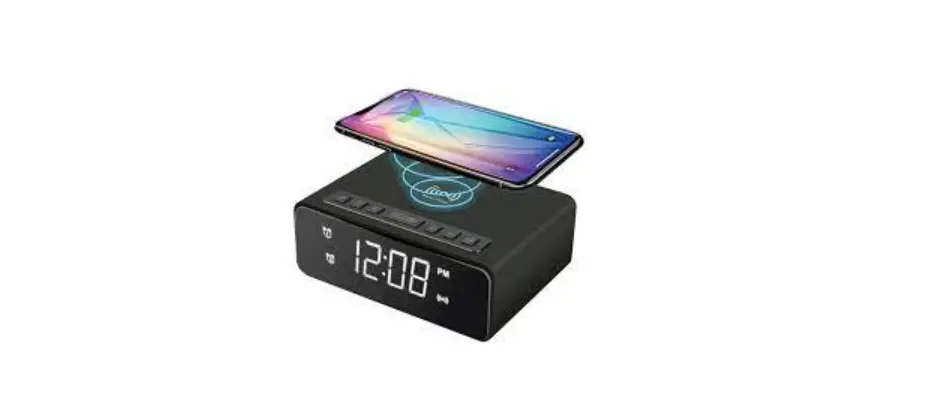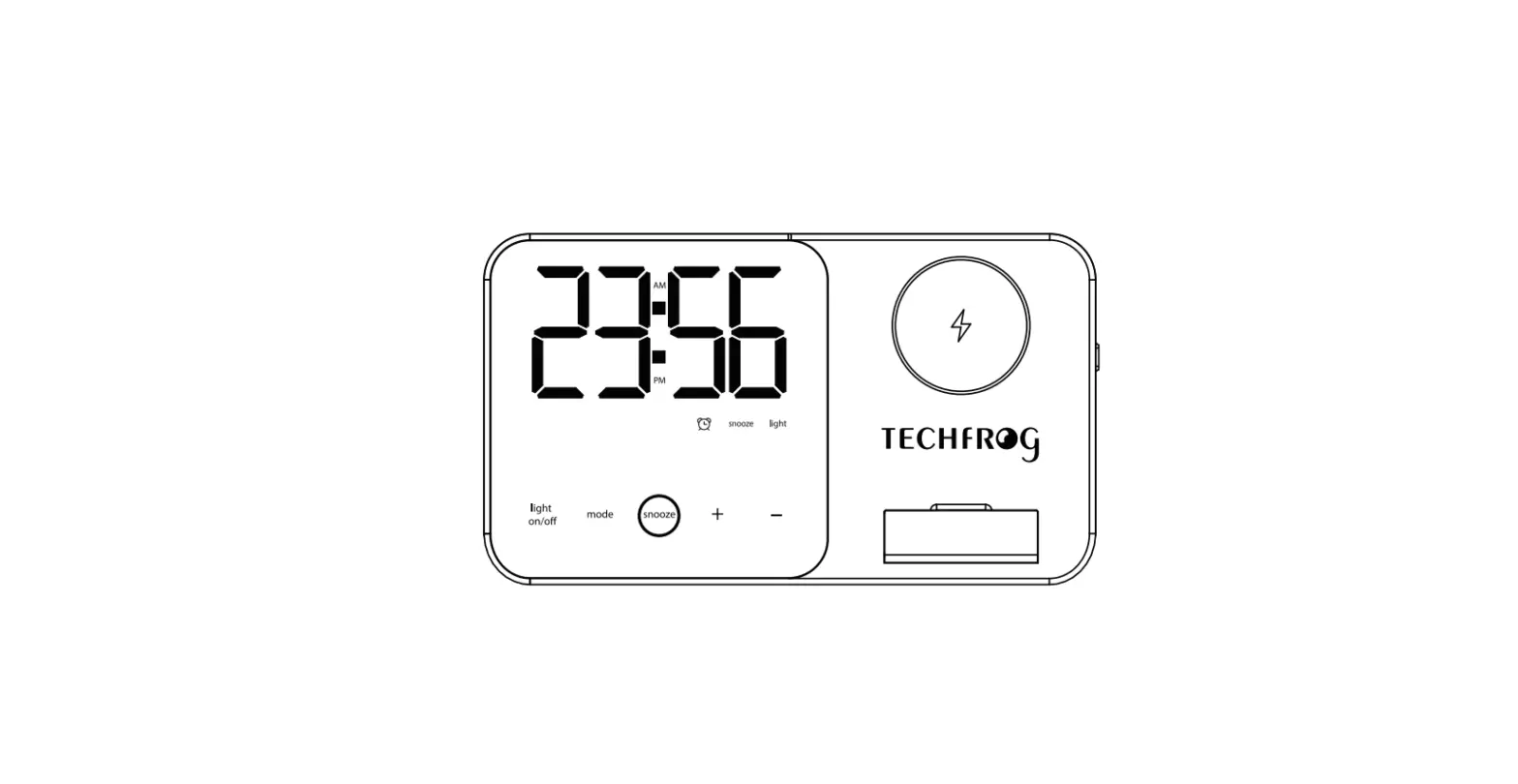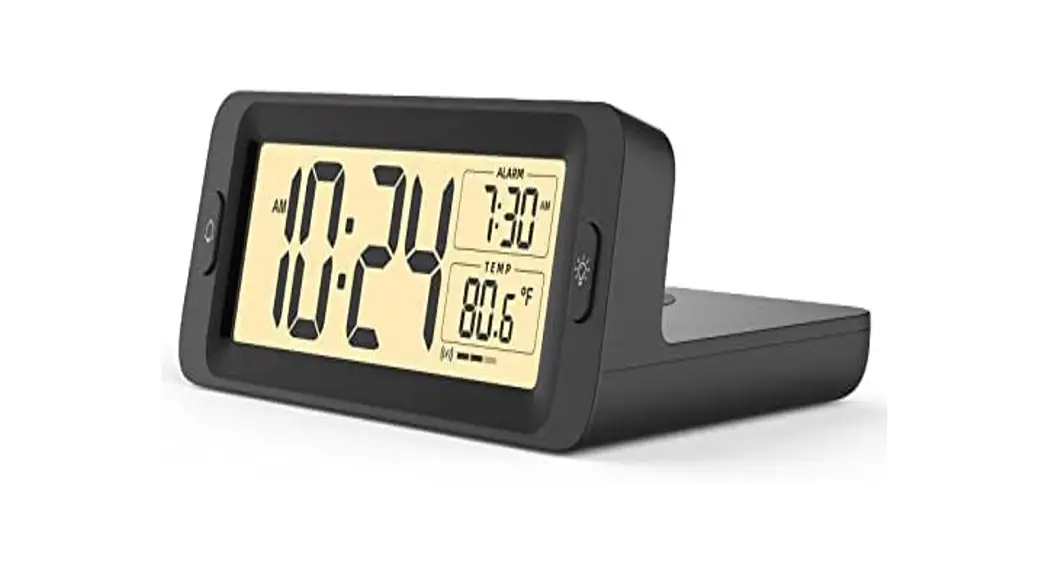
 AW001 Wireless Charging Alarm Clock
User Manual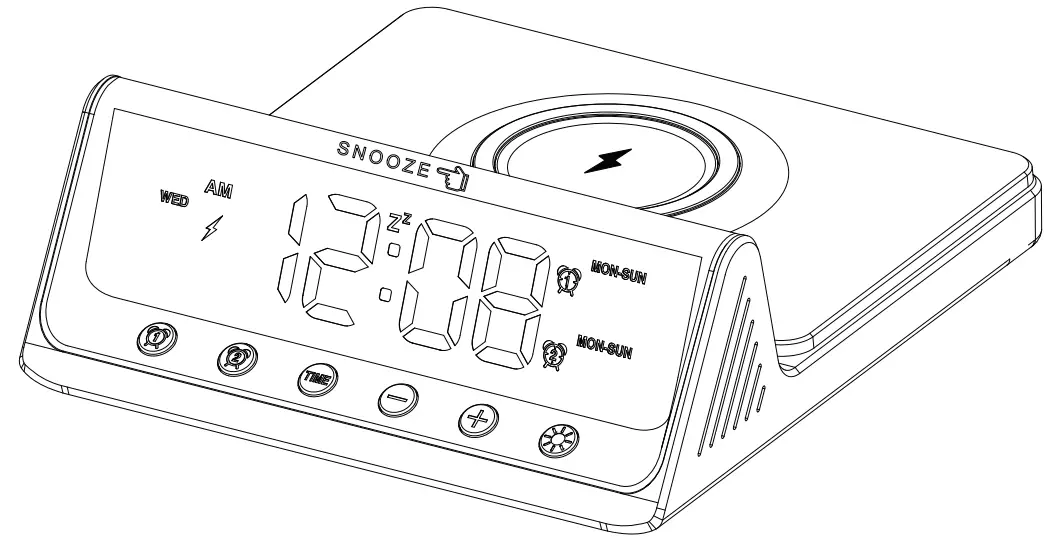
Wireless Charging Alarm Clock
USER MANUAL
(Model: AW001)
AW001 Wireless Charging Alarm Clock
Dear users, thank you for using our products. In order to make you operate the machine smoothly and get the most perfect products, please read the user manual carefully.
Product Appearance Introduction
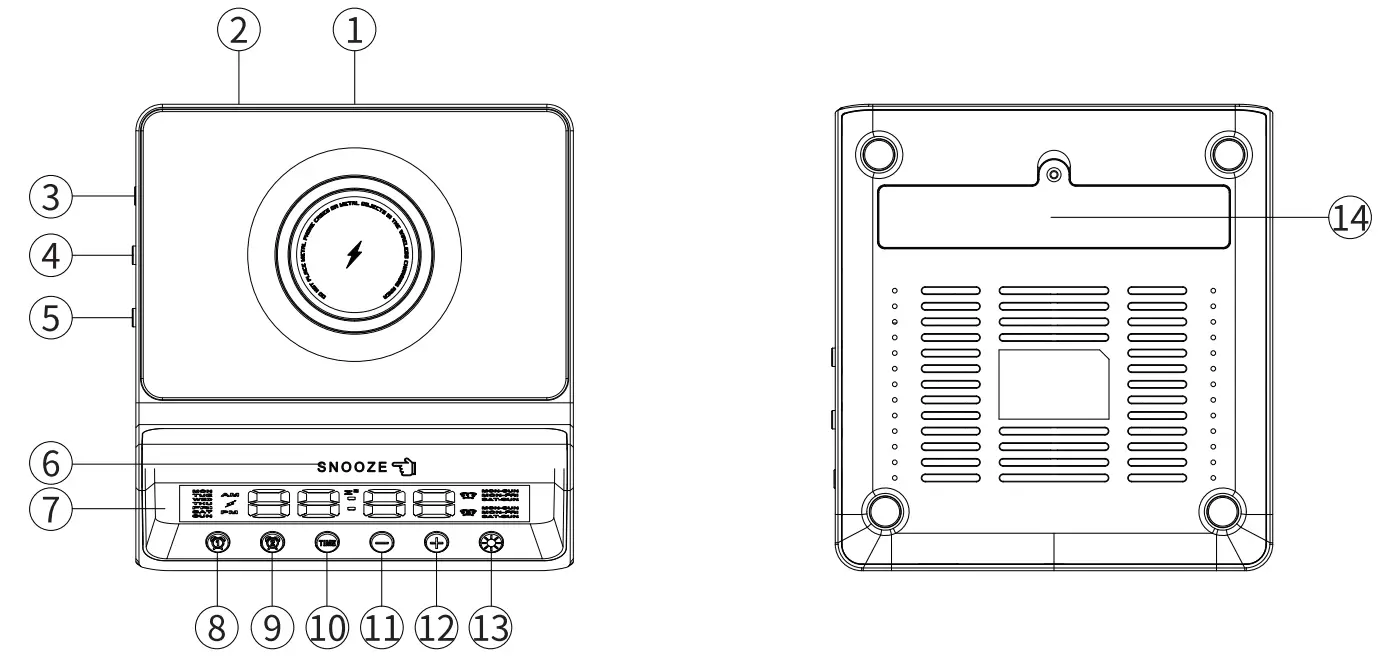
- DC power input interface
- USB-A output interface
- 12/24 hours switch key
- Alarm 1 mode switch key
- Alarm 2 mode switch key
- SNOOZE snooze key
- Screen display area
- Alarm 1 ON key/Alarm 1 Set
- Alarm 2 ON Key/Alarm 2 Set
- Time set key
- – key
- +key
- Brightness adjustment key
- Battery bin
Setting and Maintenance
Power on for the first time
Connect the AC adapter jack to the power supply port of the wireless charging alarm clock and plug it into thel 00V 220V household socket.
Install the battery
This clock is not battery-powered. There is a battery bin at the bottom of the clock, which can hold 2 AA batteries,so as to save the data set by the clock when the power supply is cut off.
Product preservation
Wireless charging alarm clocks should be placed in display cabinets, or stored in their cabinets or in a cool and dry place.
Product cleaning
Wipe dust with a soft damp cloth, and do not use liquid or abrasive cleaner.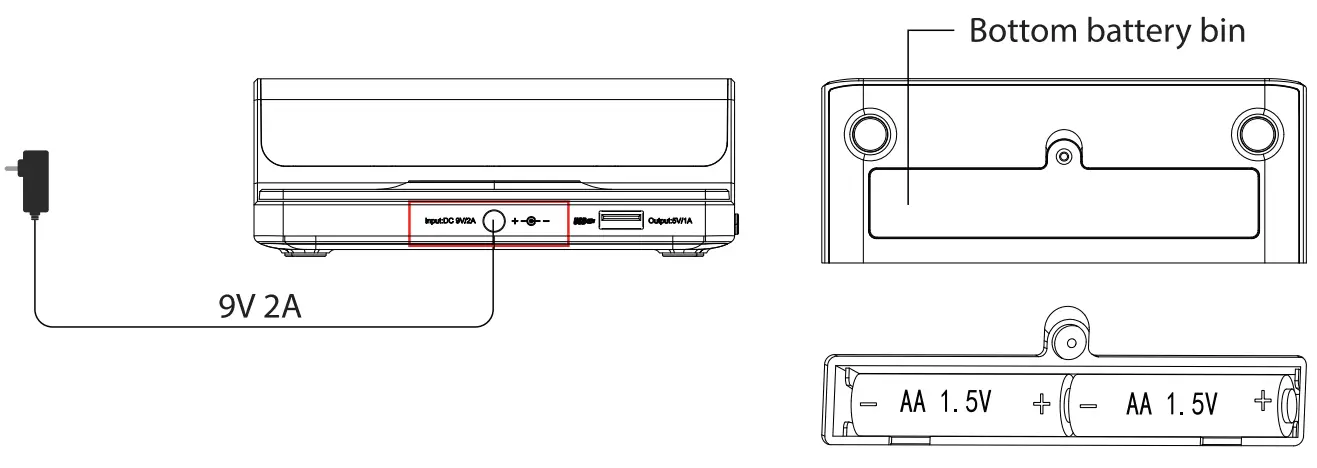
Wireless Charger Function
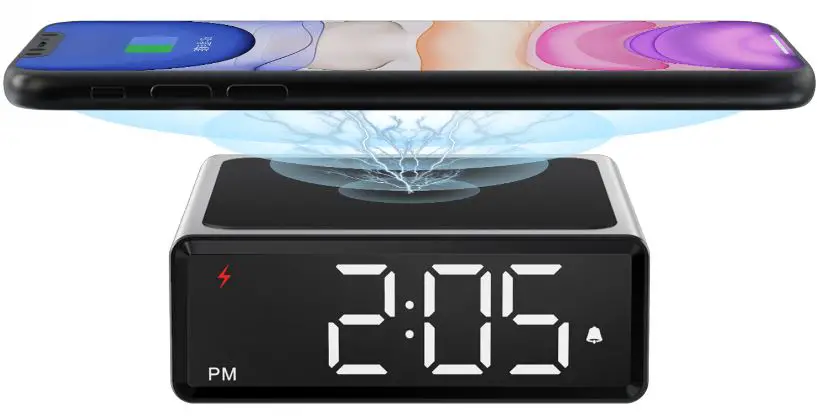
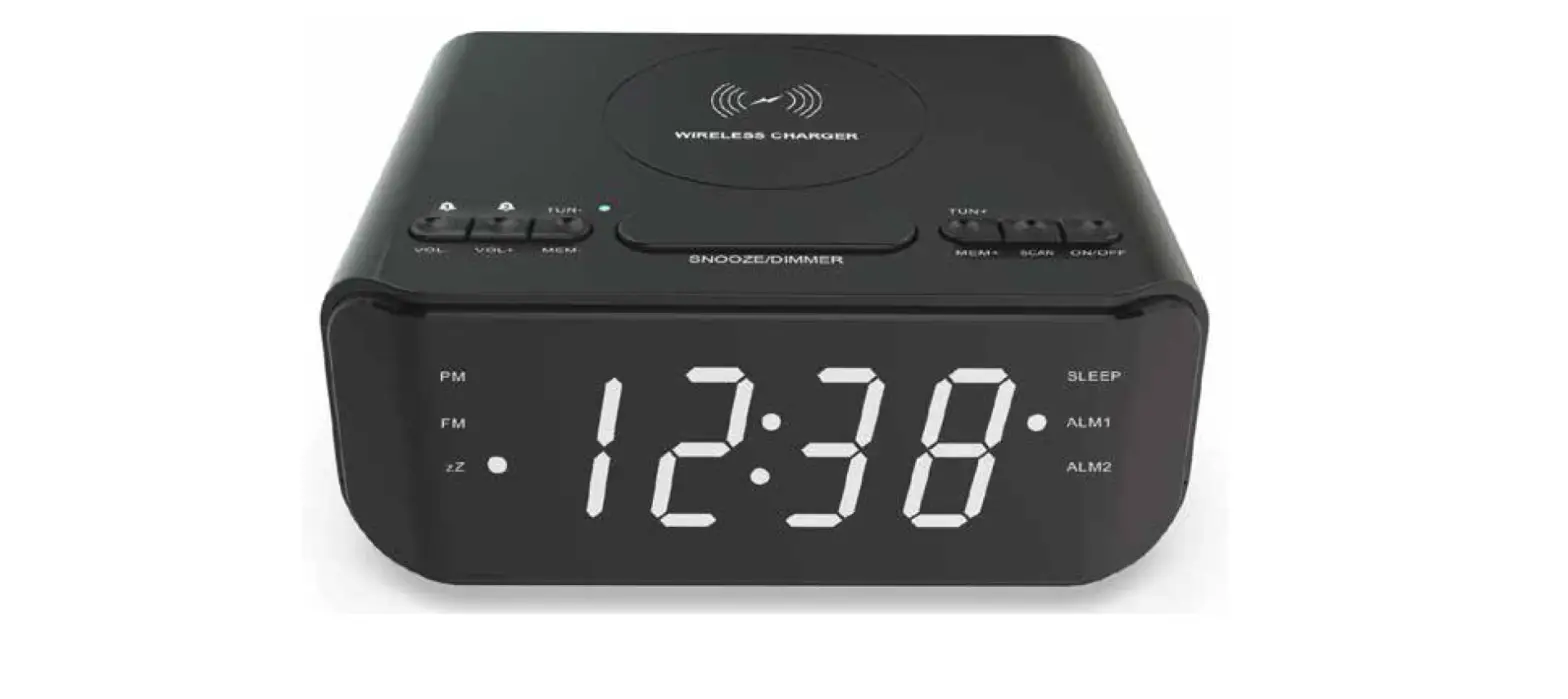
Place the mobile phone in the wireless charger section, aim the mobile phone at the circle, and then the indicator light lights up to indicate that it is being charged or fully charged.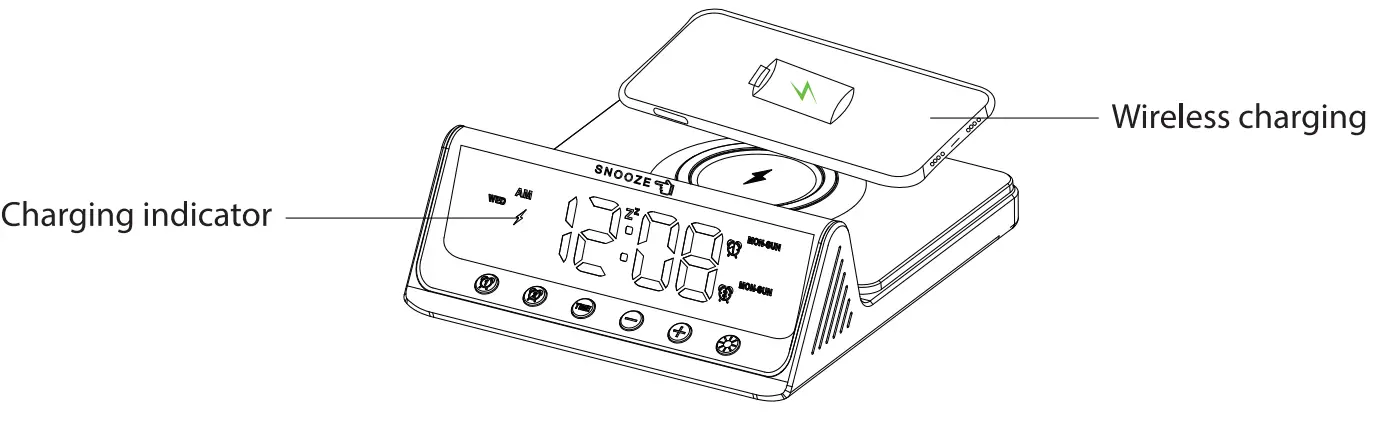 Charging indicator lights up:The wireless charger is functioning normally.
Charging indicator flashes: It indicates abnormal charging. Please adjust the charging position of the mobile phone to the center until the indicator is on for a long time.
Note: Do not put metal mobile phone case or metal objects in wireless charging seat.
Time setting
When the power is on for the first time, the time shows AM 12:00 1. Press and hold TIME
In the time display state, press and hold TIME to enter the hour setting, and the screen will flash. Press the – + sign on the front to set the current hour. 2. Click the TIME key to confirm entering the minute setting
Press the TIME key to confirm, enter the minute adjustment, and the screen will fiash.Press the- + key on the front to complete the setting. 3. Click the TIME key to enter the year setting
Press the TIME key to confirm, enter the year adjustment, and the screen will flash the year. Press the – + key on the front to complete the setting. 4. Click the Enter TIME key to enter the month setting
Press the TIME key to confirm, enter the month adjustment, the screen shows that the month will flash, and press the-+ key on the front to complete the setting. 5. Click the Enter TIME key to enter the date setting
Press the TIME key to confirm, enter the date adjustment, and the date will flash on the screen. Press the-+ key on the front to complete the setting.
Press the TIME key to confirm and exit the time setting. 6. Under Time Display Status, click TIME to view year/month/day
Alarm Switch
Alarm switch
i the tre lsplay state,  alarm is tared on. the current alam setting status will be prompted.
User tips
Alarm 1 and Alarm 2 operate in exactly the same way.
Alarm mode selection
Alarm mode selection
When the alarm is on, pull the switch to adjust the daily alarm, the working day alarm and the weekend alarm in turn. The operation is as follows: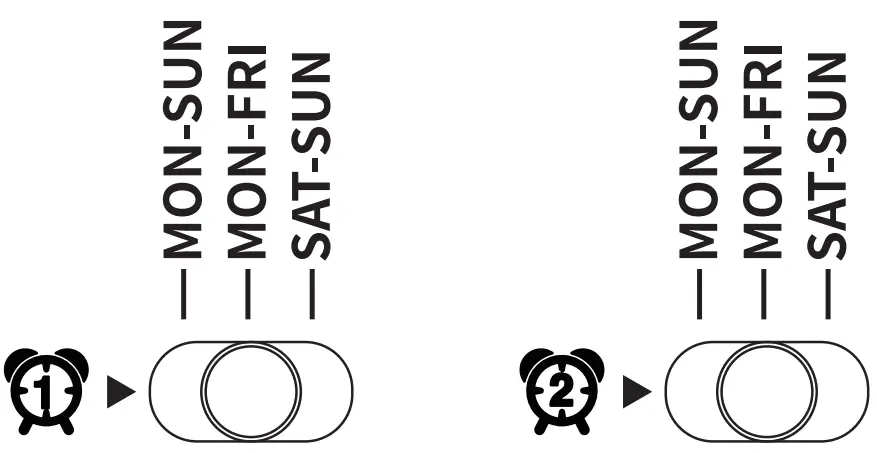
Alarm setting (take alarm clock 1 as an example)
When the power is on for the first time, the time shows AM 12:00
 1. Press and hold
 to enter setting Press and hold the time display icon flashes, and press the-+ sign on the front to set the hour. 2. Click to confirm Click to enter the minute setting, and press the-+ sign on the front to set the minute. 3. Click to confirm Click to enter the volume setting, and press the-+ sign on the front to set the volume. Adjustable range L0l-L0S, default L04. 4. Click to exit and save the setting.
Operation when the alarm goes off
When the alarm goes off, you can do the following:
1. Snooze
Pree¢  Lihtly once to enter snooze, the snooze icon lights up, and the corresponding alarm clock icon fiashes, and the snooze lasts for 9 minutes. After 9 minutes,
the alarm sounds again, and you can repeat it many times.
User Tip: The number of snooze is unlimited; 2.
2. Stop the noise
When the alarm goes off/snooze, click any one of the six keys at the bottom of the screen to stop the alarm without affecting the next alarm;
3. When no one is operating
When the alarm goes off continuously for 30 minutes without any operation, it will automatically stop this alarm without affecting the next alarm.
Convert 12/24-hour time display mode
In the normal time display mode, press 12H / 24H  the button to convert the time format to 12 hours or 24 hours.
Display brightness setting
Press the down light key  to adjust the brightness of the display screen.
There are 6 brightness gears (100%-80%-60%-40%-20% 0ff-100%.). Press once to change the brightness of one gear. Cycle optional (default is 100%)
USB-A Charge (5V 1A)
The front end of the clock has a USB-A output port for charging your mobile phone and other devices. 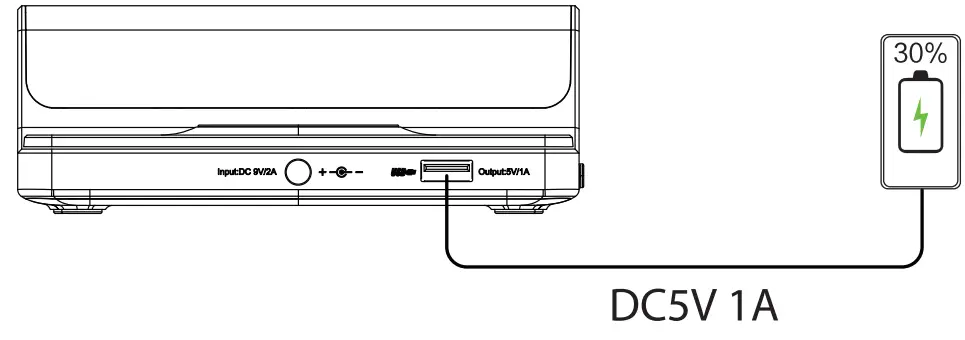 Replace the battery
Unscrew the battery box with a screwdriver, install 2 AA batteries, and tighten the battery box. 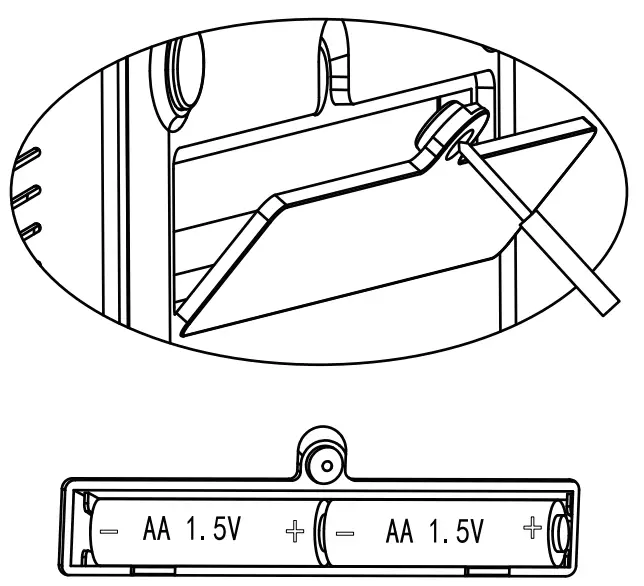
FCC Caution
This device complies with part 15 of the FCC Rules. Operation is subject to the following two conditions: (1) This device may not cause harmful interference, and (2) this device must accept any interference received, including interference that may cause undesired operation. Any Changes or modifications not expressly approved by the party responsible for compliance could void the user’s authority to operate the equipment.
Note:This equipment has been tested and found to comply with the limits for a Class B digital device, pursuant to part 15 of the FCC Rules. These limits are designed to provide reasonable protection against harmful interference in a residential installation. This equipment generates uses and can radiate radio frequency energy and, if not installed and used in accordance with the instructions, may cause harmful interference to radio communications. However, there is no guarantee that interference will not occur in a particular installation. If this equipment does cause harmful interference to radio or television reception, which can be determined by turning the equipment off and on, the user is encouraged to try to correct the interference by one or more of the following measures:
-Reorient or relocate the receiving antenna.
-Increase the separation between the equipment and receiver.
-Connect the equipment into an outlet on a circuit different from that to which the receiver is connected.
-Consult the dealer or an experienced radio/TV technician for help.
*RF warning for Mobile device:
This equipment complies with FCC radiation exposure limits set forth for an uncontrolled environment. This equipment should be installed and operated with minimum distance 20cm between the radiator & your body.